How to Print Canva Presentation
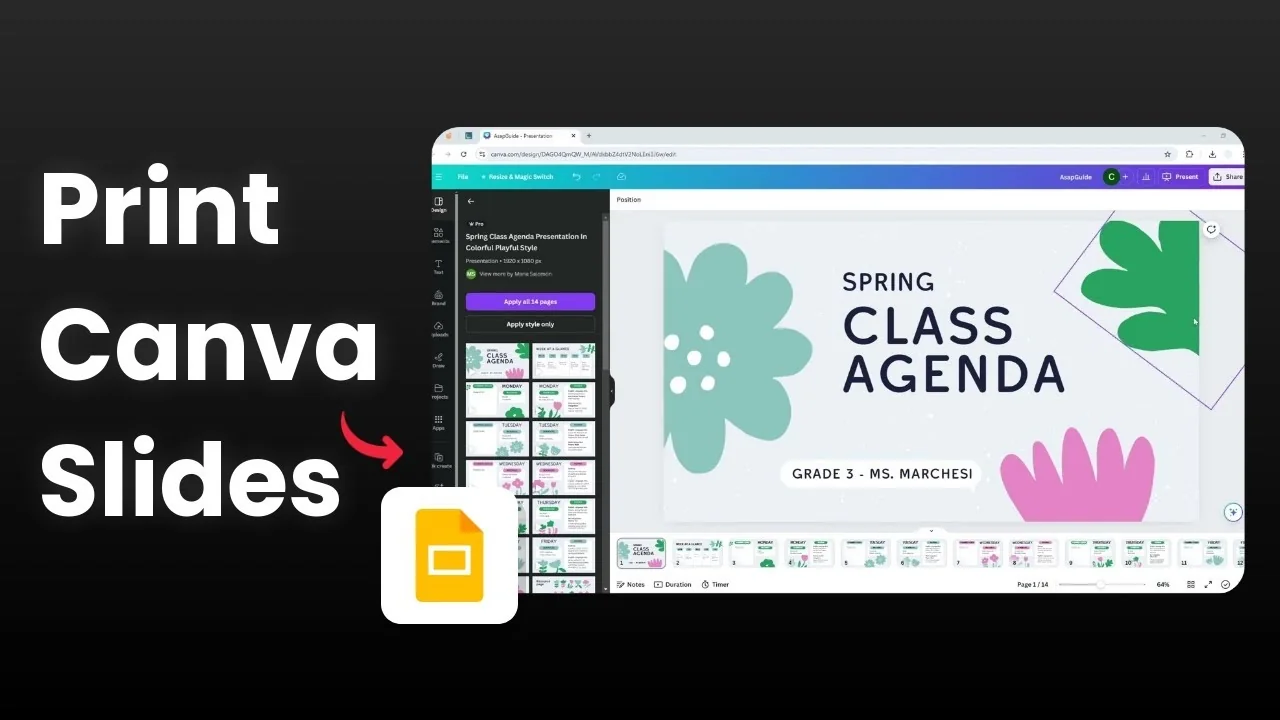
I’m going to show you how to print your Canva presentation. You can export a high quality PDF and print a hard copy for your audience. Canva makes it simple to get a tangible document from your slides.
Print Canva Presentation
Export setup
Open your presentation in Canva. Click Share, then Download. Under File type, choose PDF Print for better color accuracy.
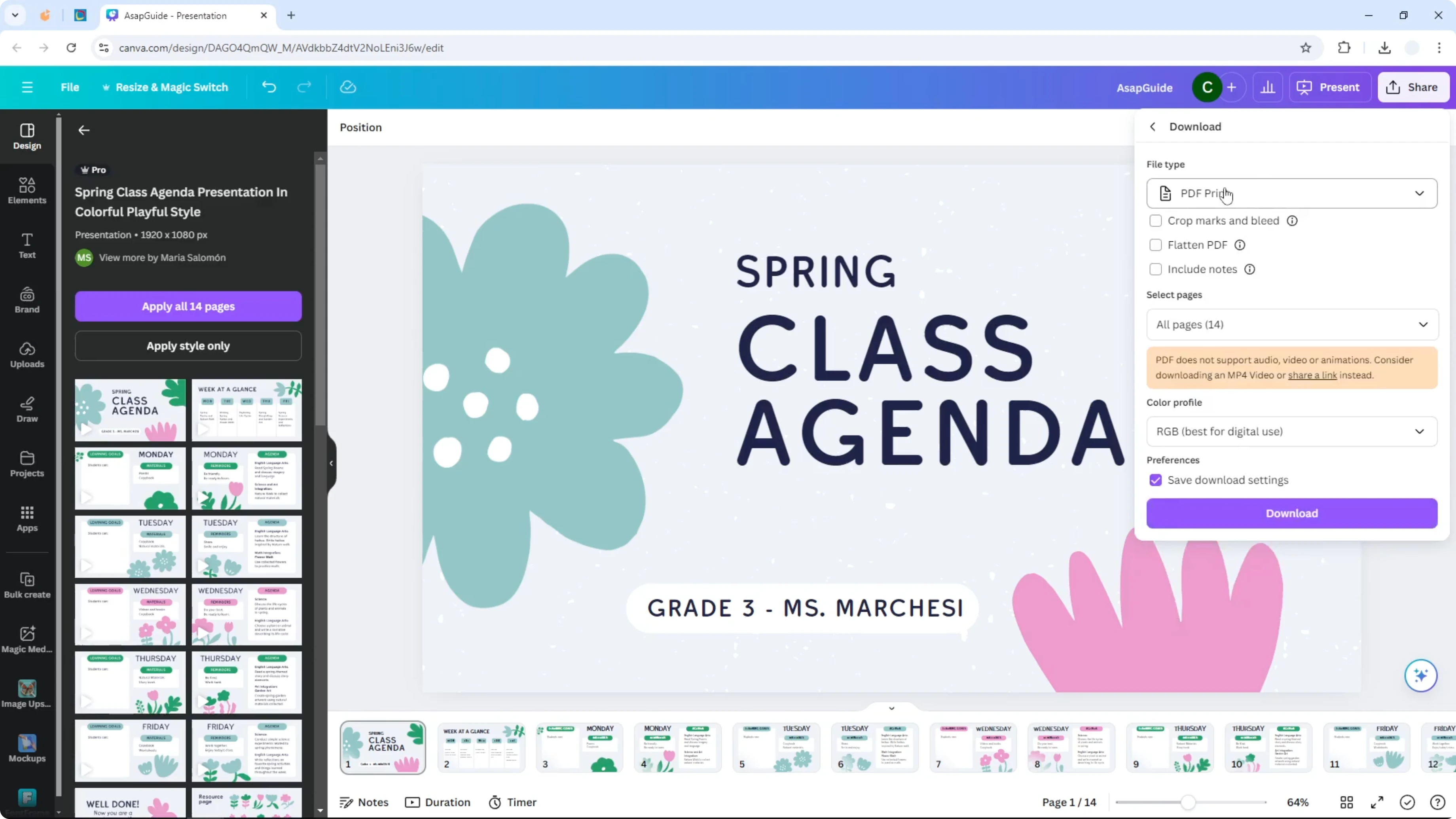
Select the pages you want to include. You can download all pages or a specific range. Adjust pages before moving to color and mark settings.
Read More: Add background in Canva
Color and marks
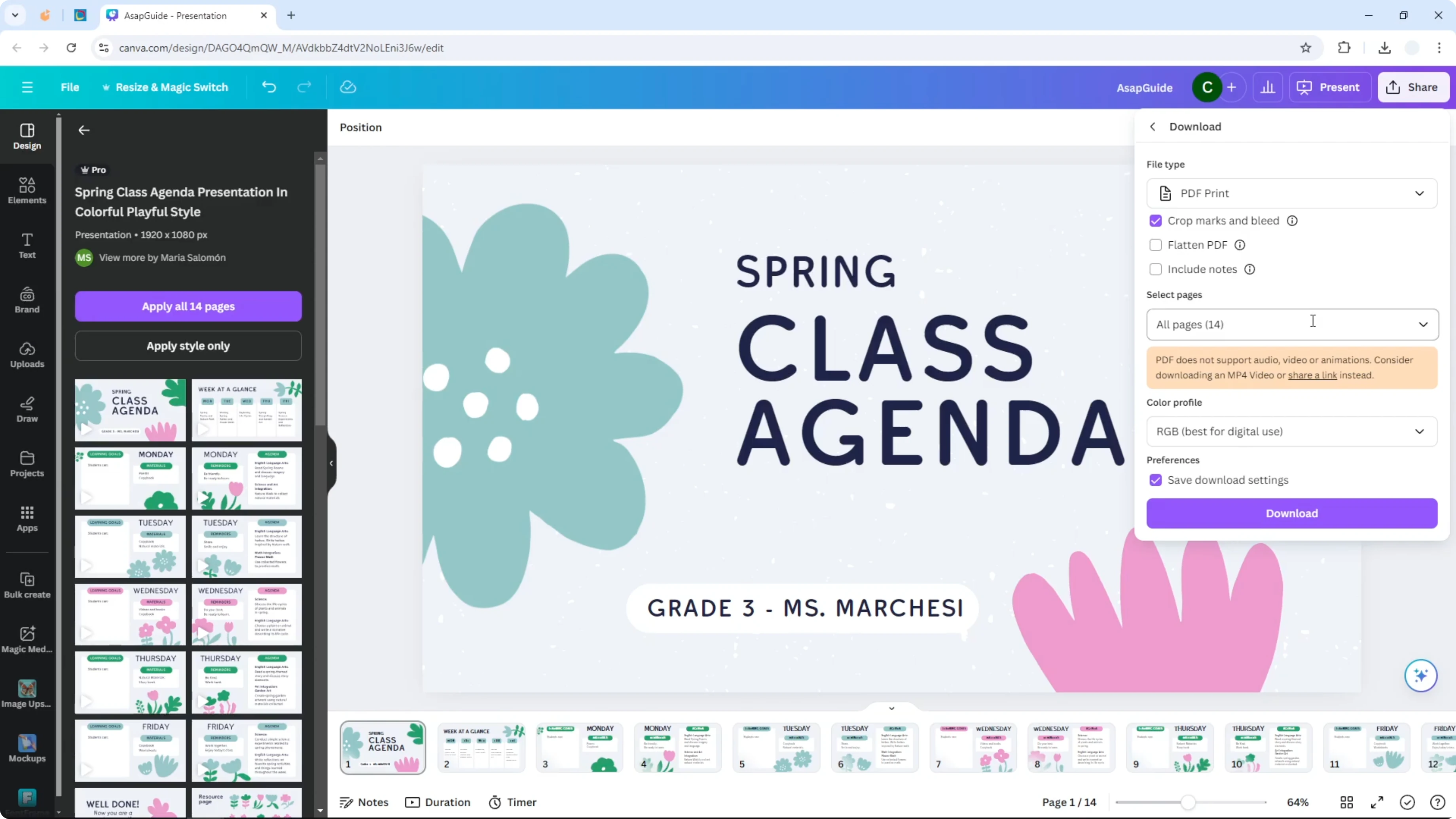
Turn on Crop marks and bleed to make sure the slide appears fully and is not cropped by the paper size. This helps the printer trim accurately. It is usually the most important setting to avoid accidental cuts.
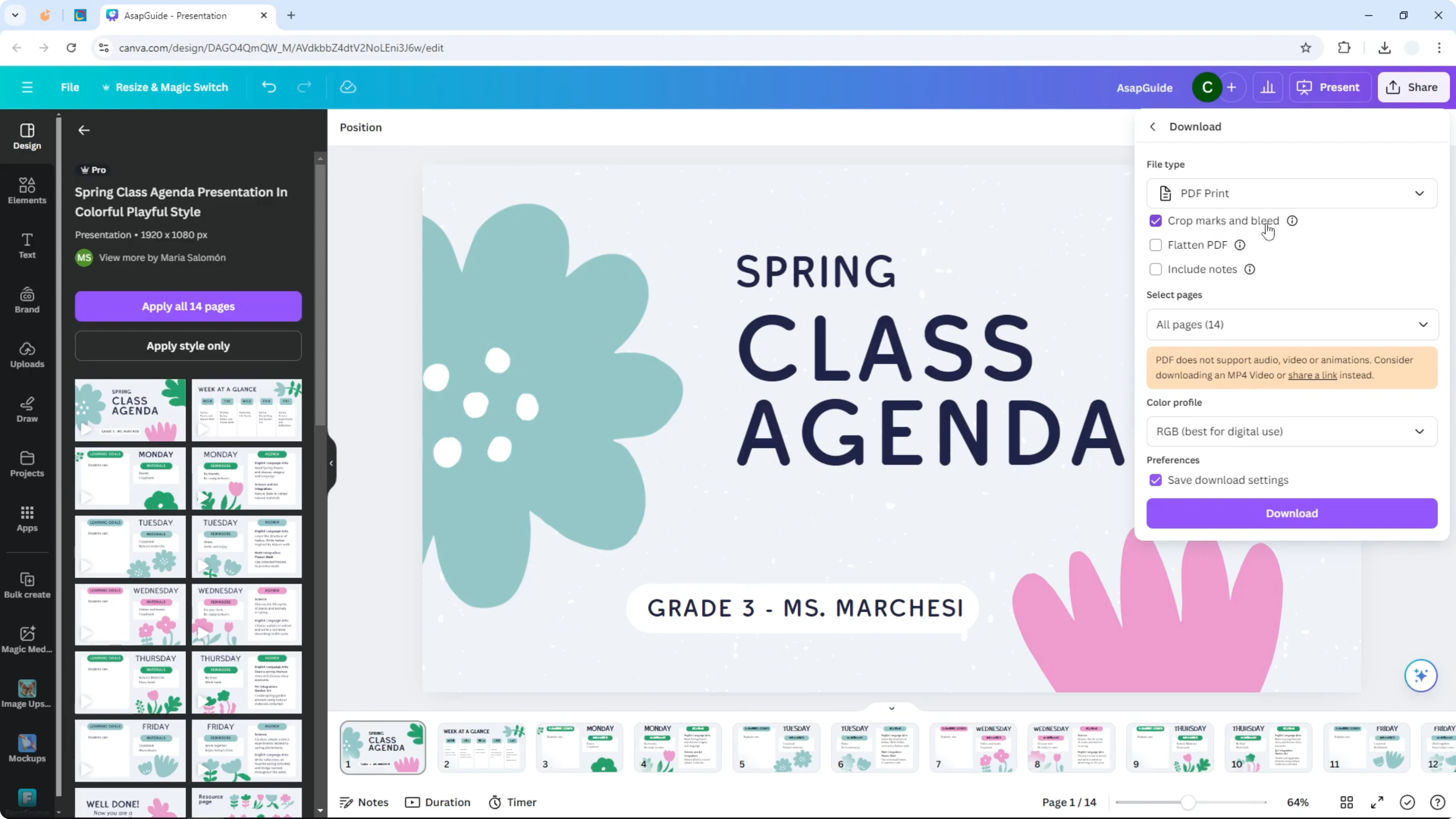
Pick a color profile. RGB is common, and for professional printing you might choose CMYK if available in your account or workflow.
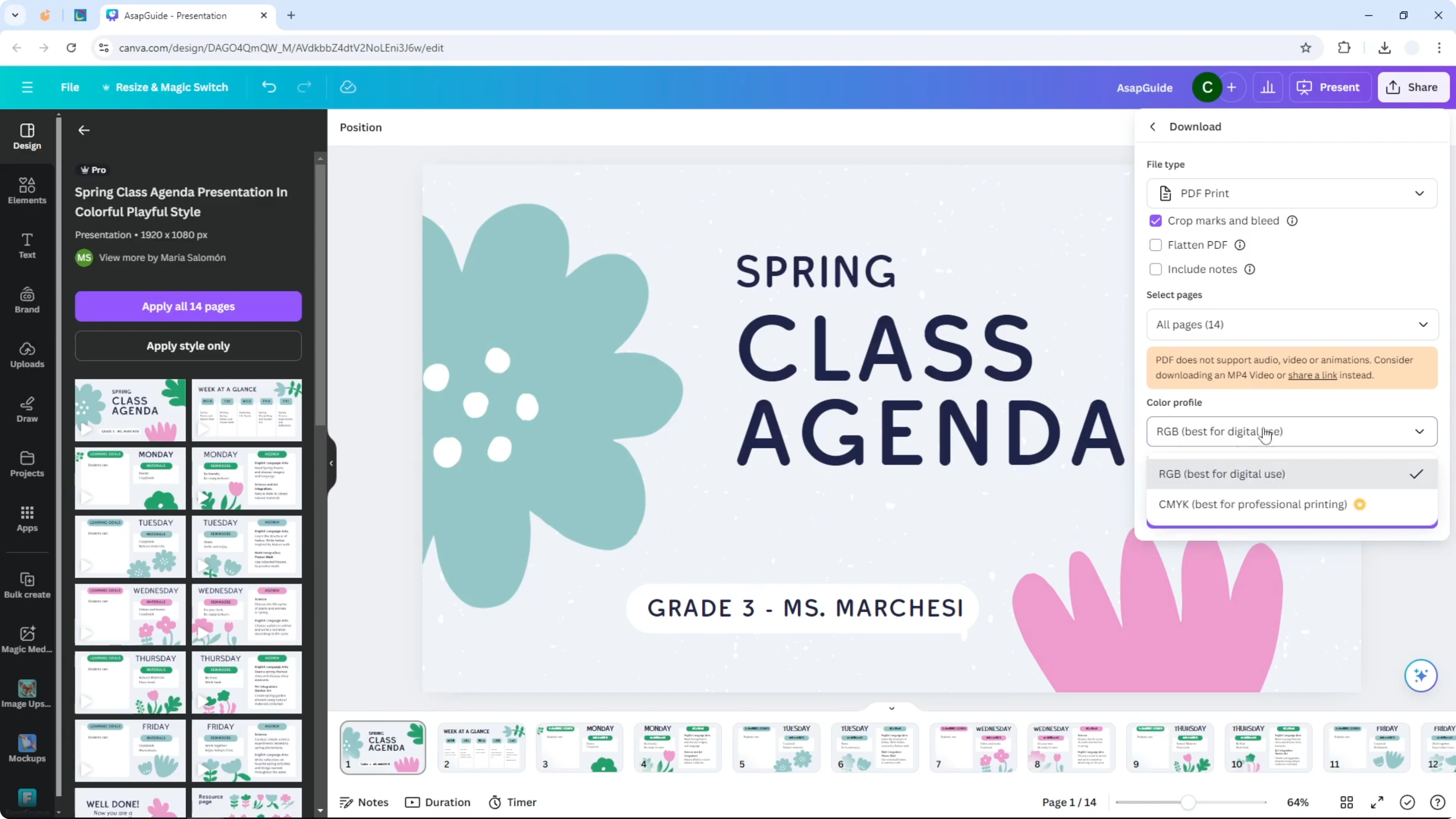
You can also enable Flatten PDF and Include notes if needed. To go deeper on printing with speaker notes, see printing presentation notes. These options are optional and depend on your needs.
Download
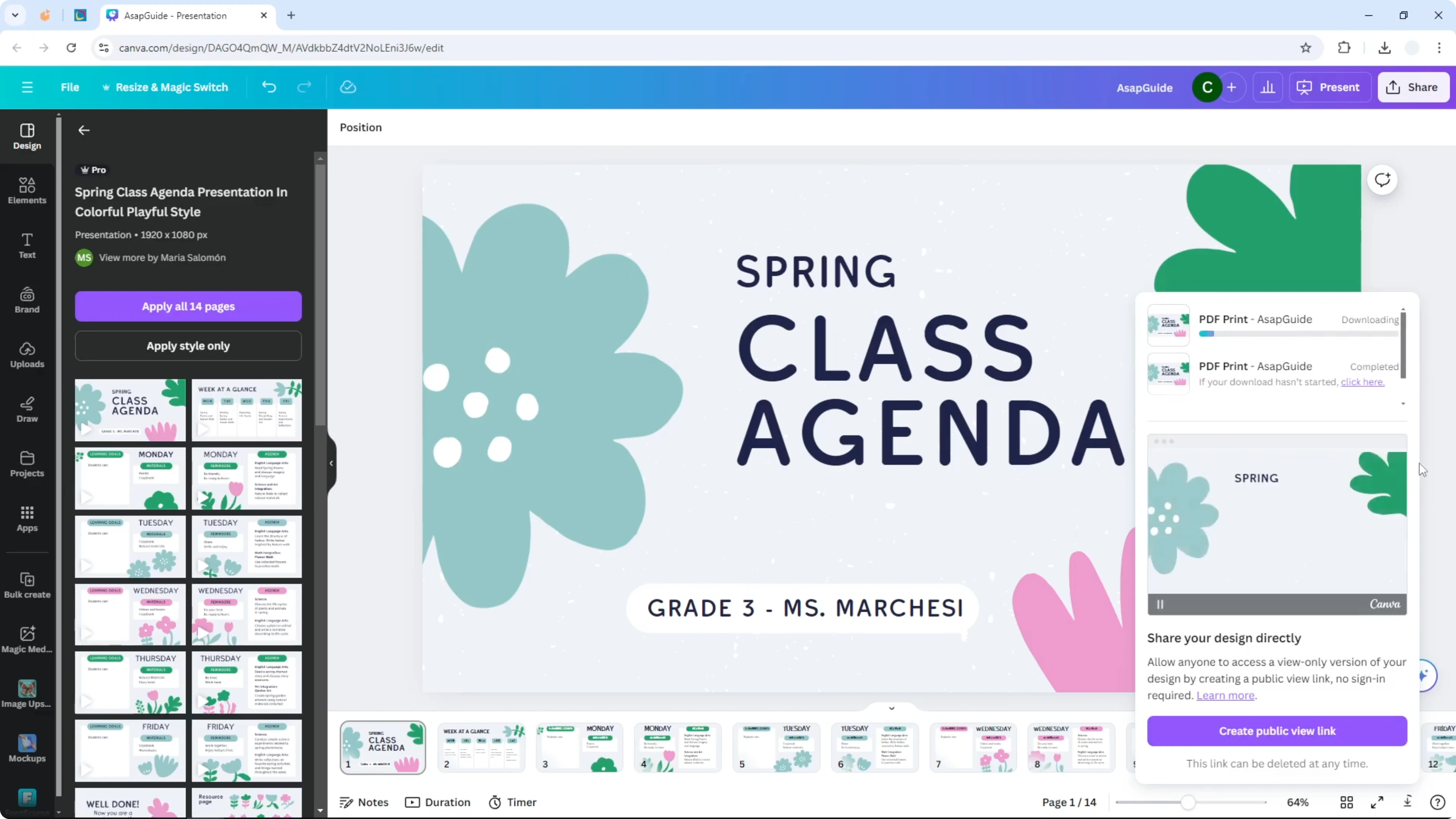
Set your page range and preferences. Click Download. Canva will generate a high quality PDF and save it to your computer, and Acrobat may open it automatically if installed.
Print the PDF
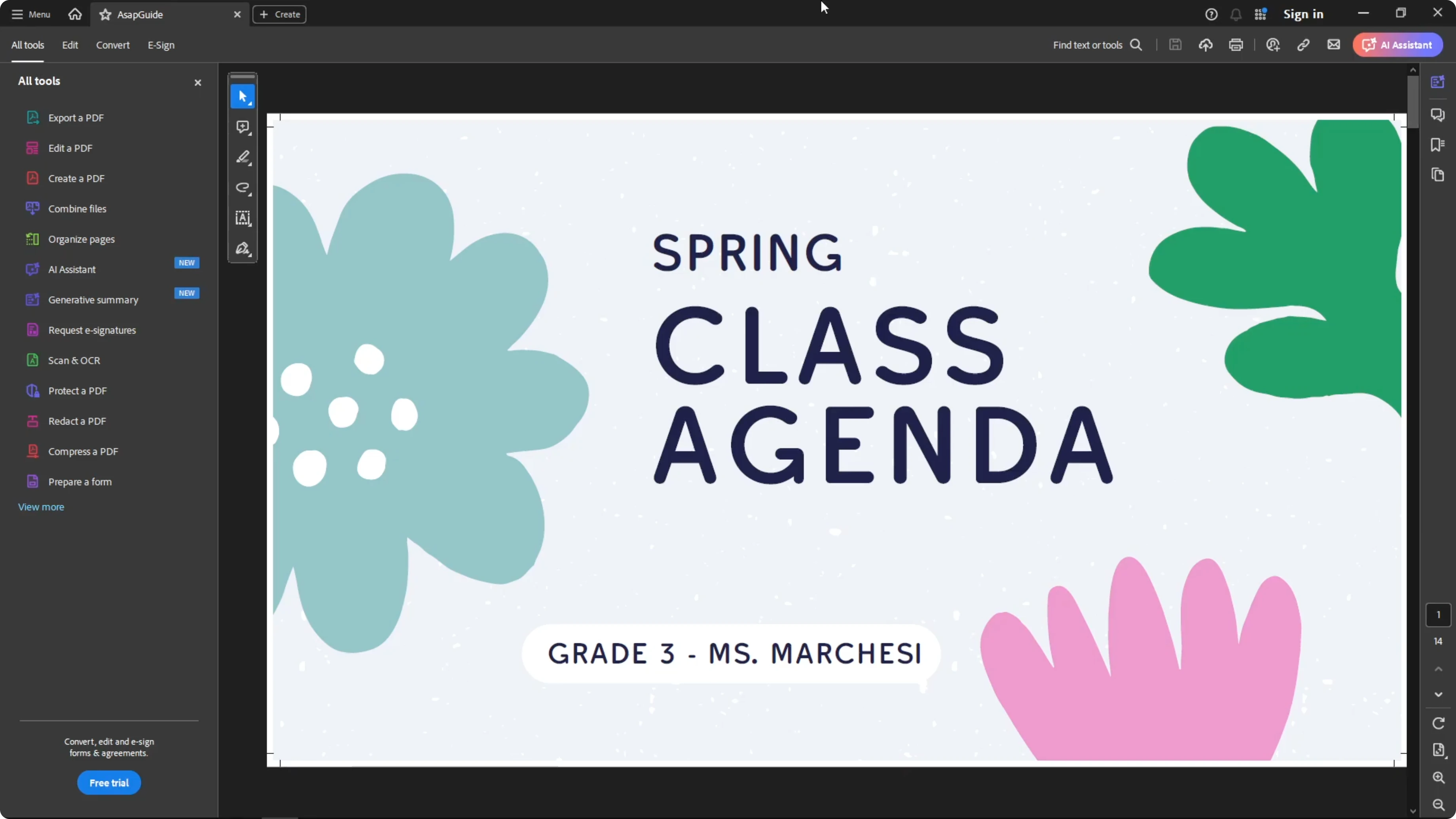
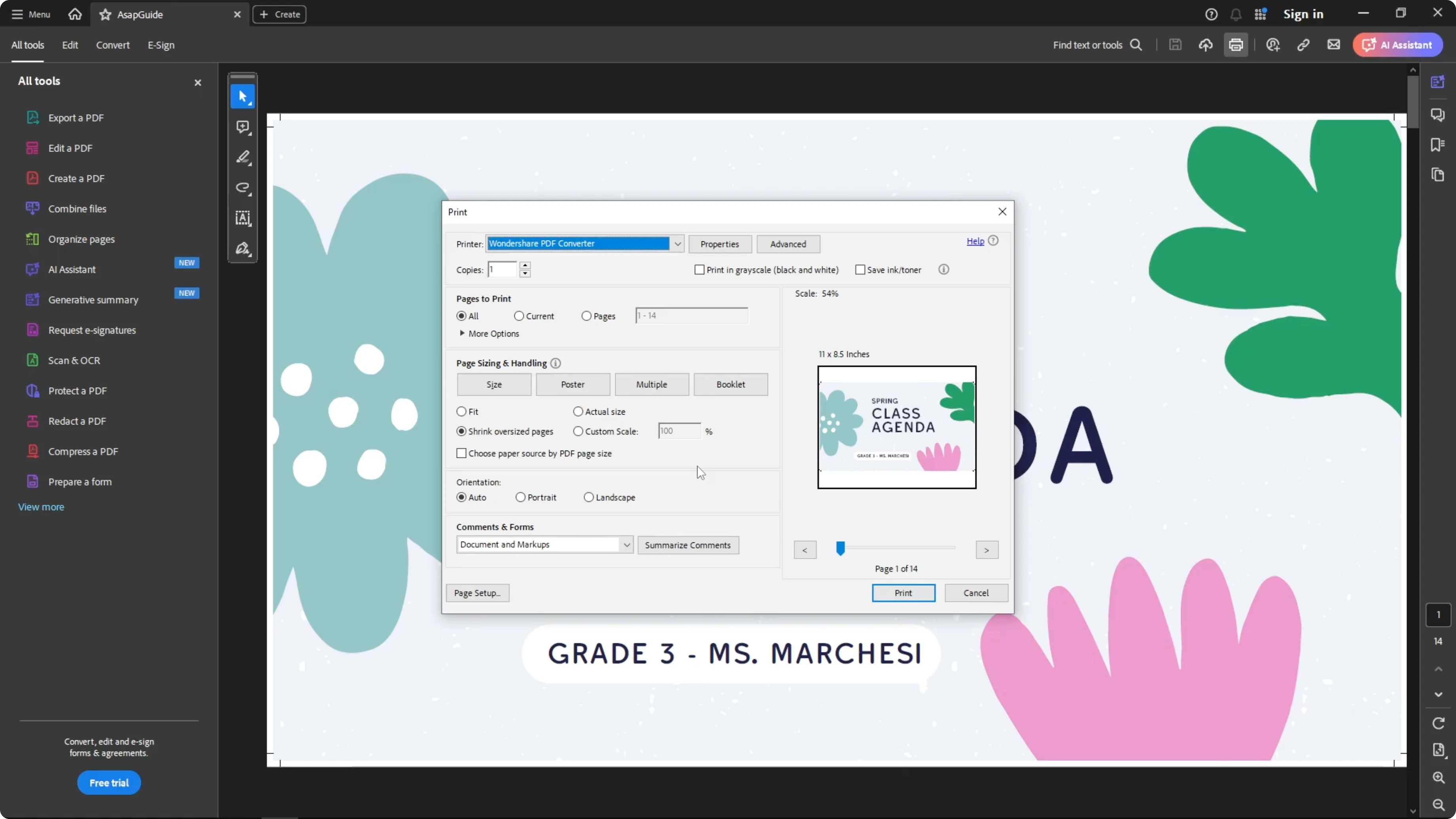
Open the PDF in your viewer. Press the keyboard shortcut to open print settings:
Ctrl + P
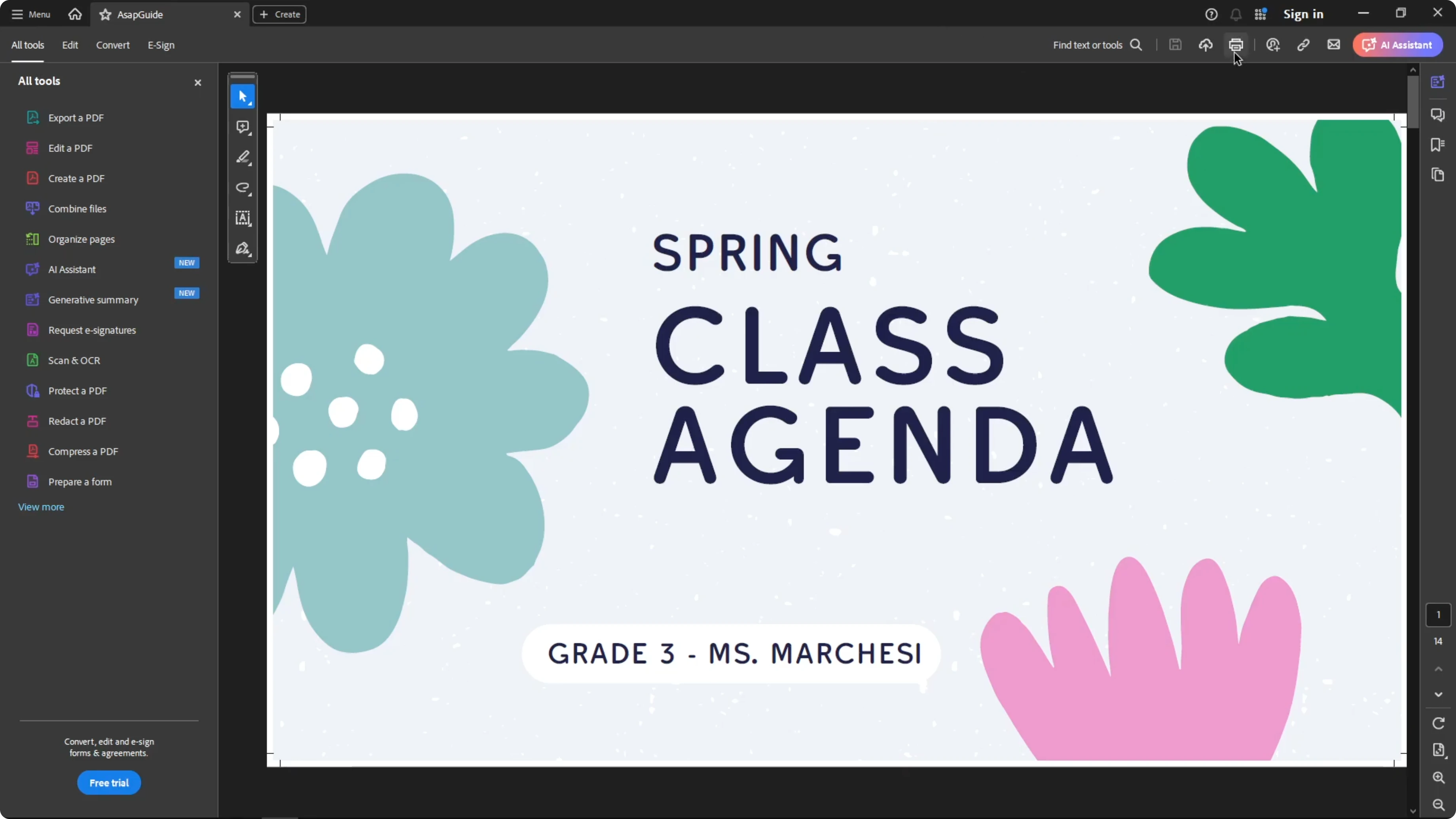
You can also click the printer icon. Choose your printer, paper size, and color settings based on what you need. After that, start the printing process from your PDF viewer.
Read More: Add background music to a presentation
Final Thoughts
Export your slides as PDF Print, enable Crop marks and bleed, and choose the color profile that fits your print workflow. Download the file, open it in your PDF viewer, and print it using your preferred settings. This gives you a clean, accurate print of your Canva presentation.
Recent Posts

How to Visualize Yourself as a Pixelized Character with AI?
How to Visualize Yourself as a Pixelized Character with AI?

How to Revive Faded Memories and Enhance Image Clarity with AI?
How to Revive Faded Memories and Enhance Image Clarity with AI?

How to Visualize Yourself as an Animal Crossing Character with AI?
How to Visualize Yourself as an Animal Crossing Character with AI?