How to Present Canva Presentation with Notes
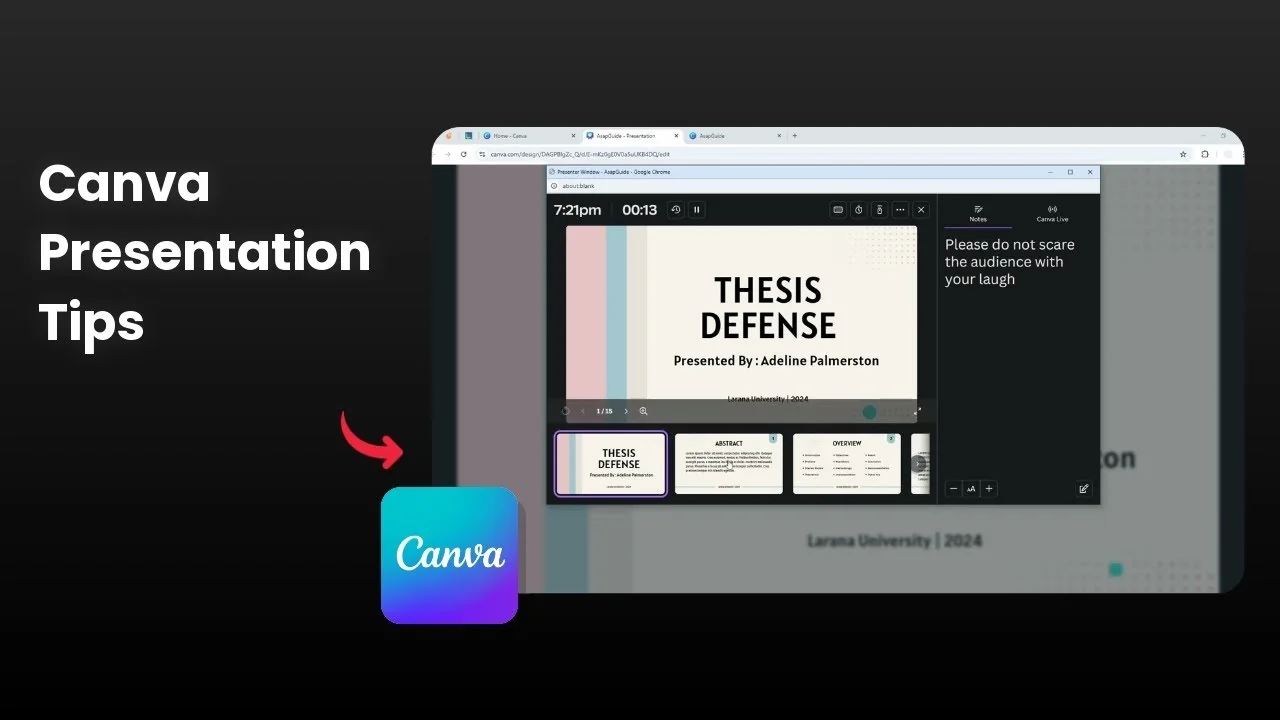
I’m going to show you how to present your Canva presentation with speaker notes. If you have a note on each slide and it is important for you to see it, you want those notes viewable to you and hidden from the audience. Presenting full screen will not show any note, and that is not ideal.
If you need more context and tips around this workflow, see our full guide on presenting with notes.
Present Canva Presentation with Notes
Presenter view
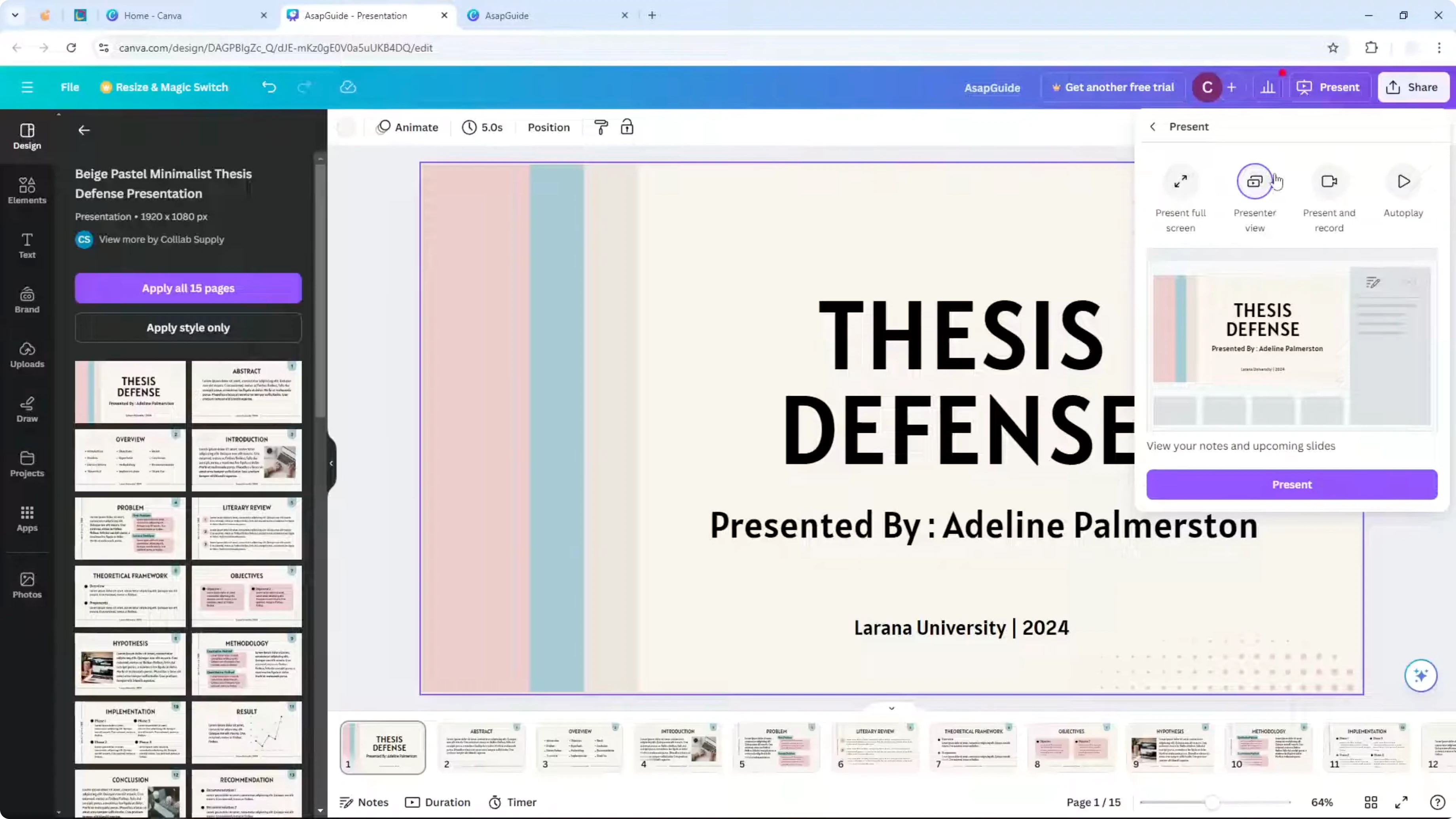
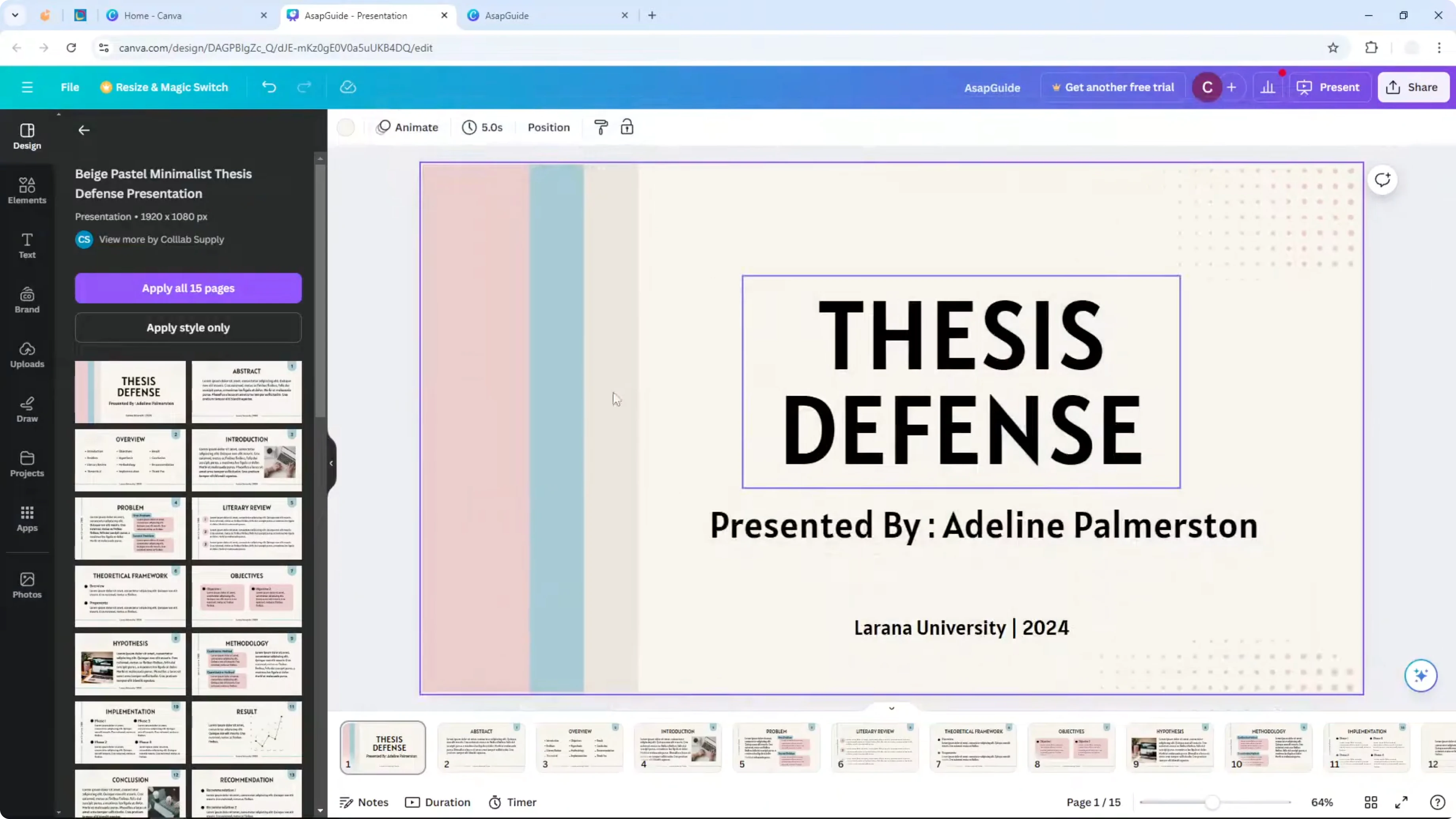
You have to present your document and click Presenter view.
Click Present, and a second window opens as the Presenter view.
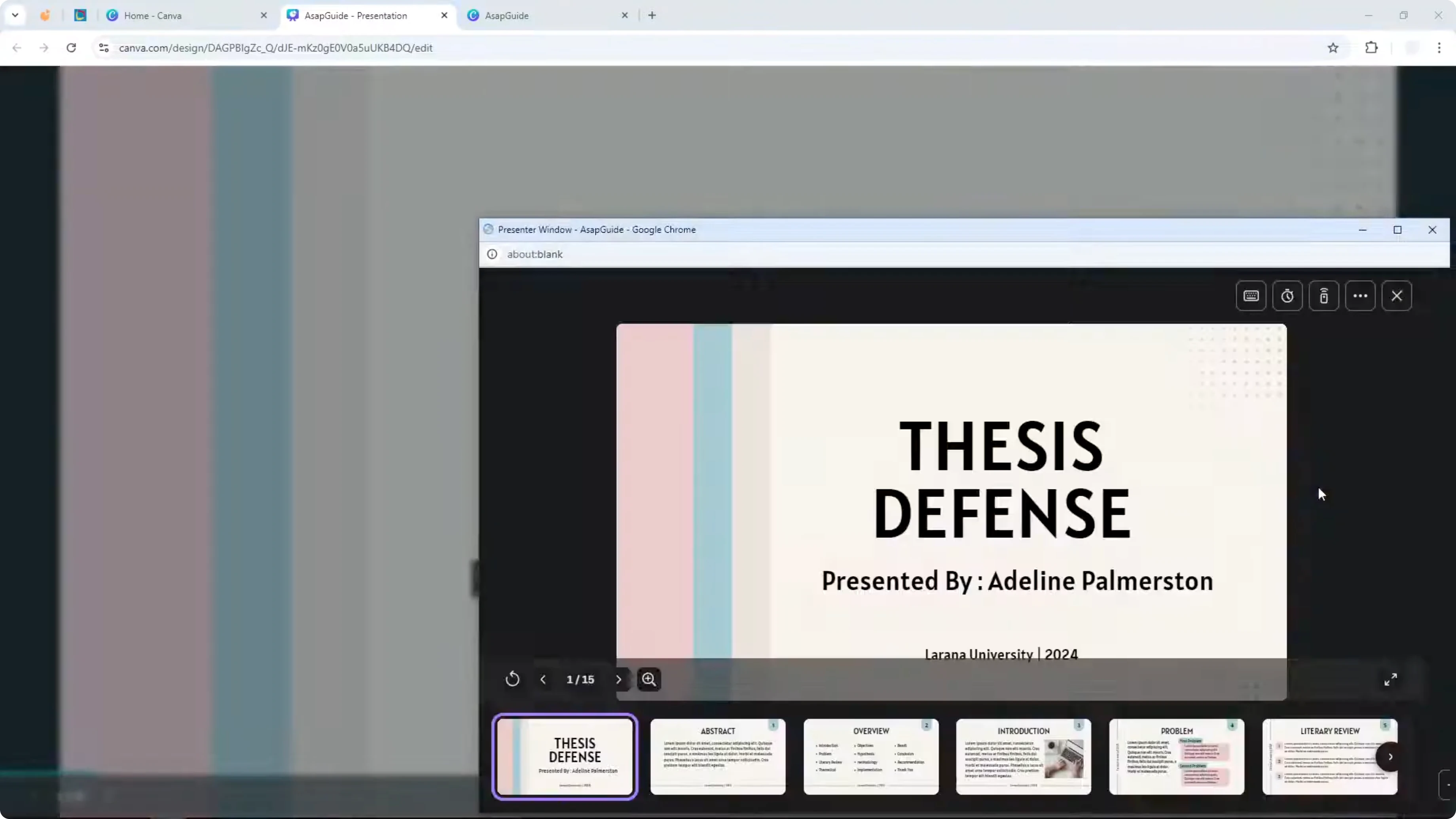
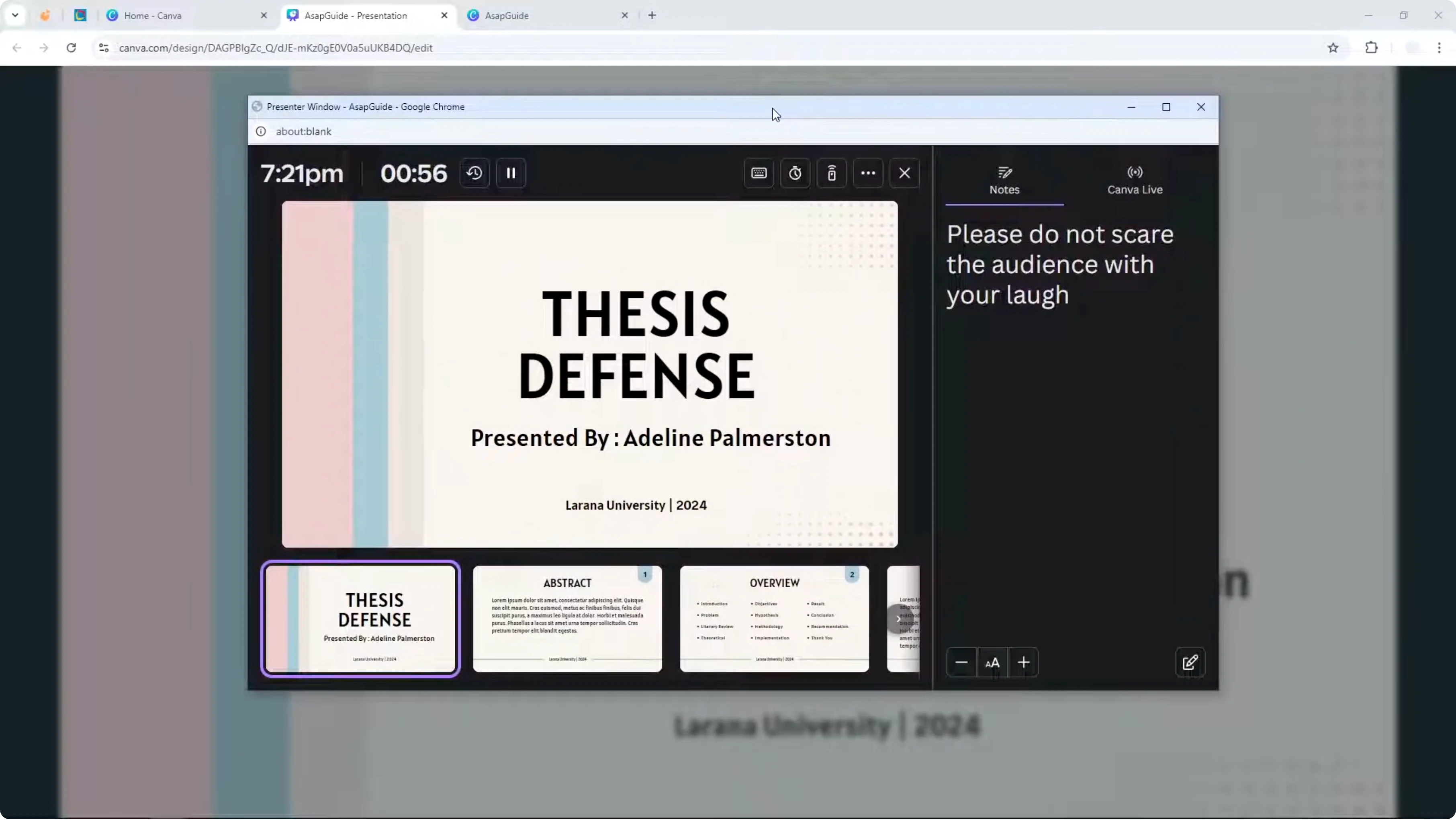
This window works like a control panel that shows information your audience will not see. You can control which slide opens, use timer and navigation, and open animations. Most importantly, you can read the speaker notes for the current slide.
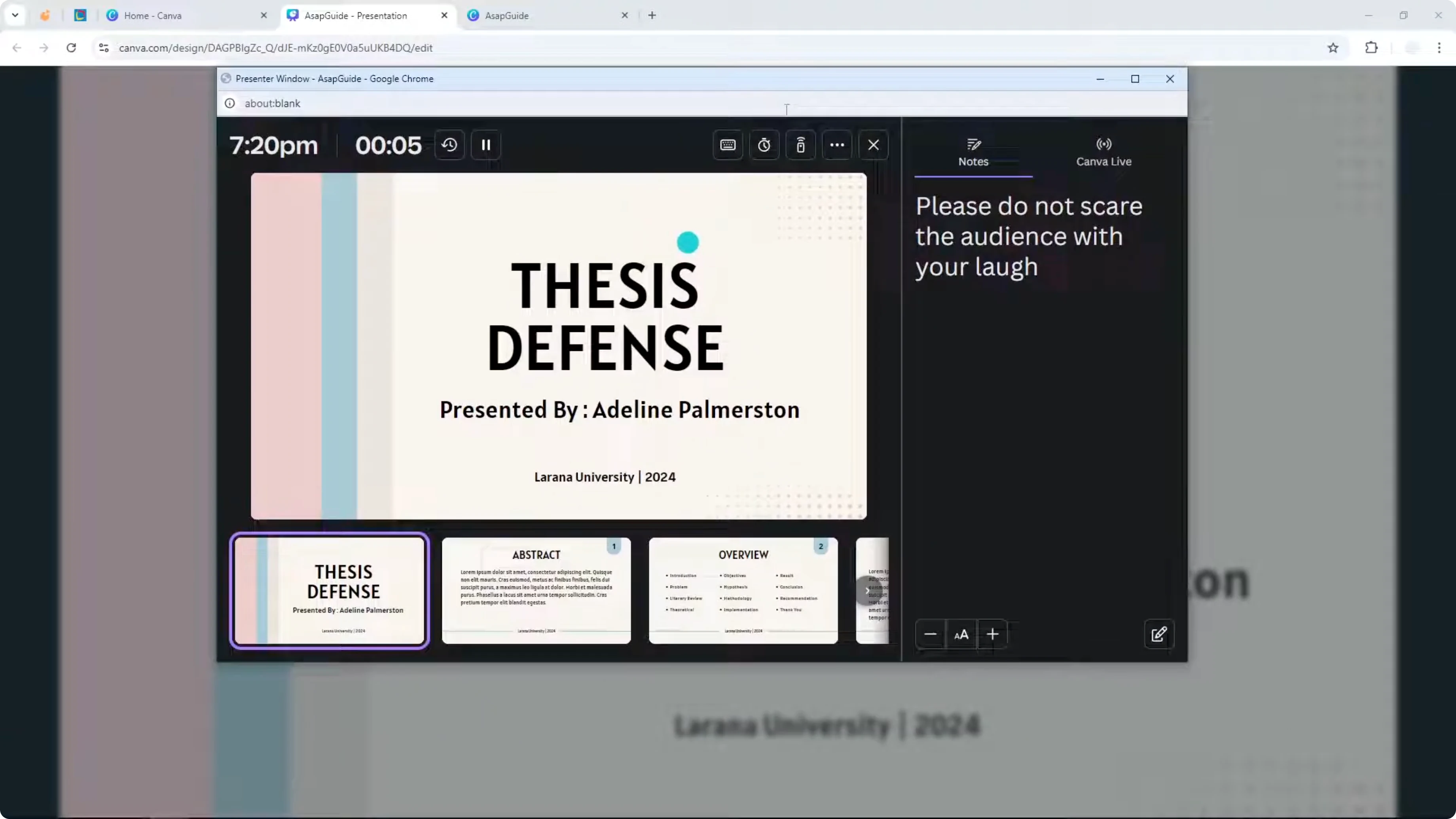
Every time you switch to another slide, the note updates immediately. If slide 1 has a note and slide 2 has a note, you will see the correct note each time. If a slide does not have a note, you can add a note on the fly.
Read More: Print Canva Presentation Notes
Step by step
Open your Canva presentation.
Click Present.
Choose Presenter view.
Use the control panel window to view and edit your speaker notes as you navigate slides.
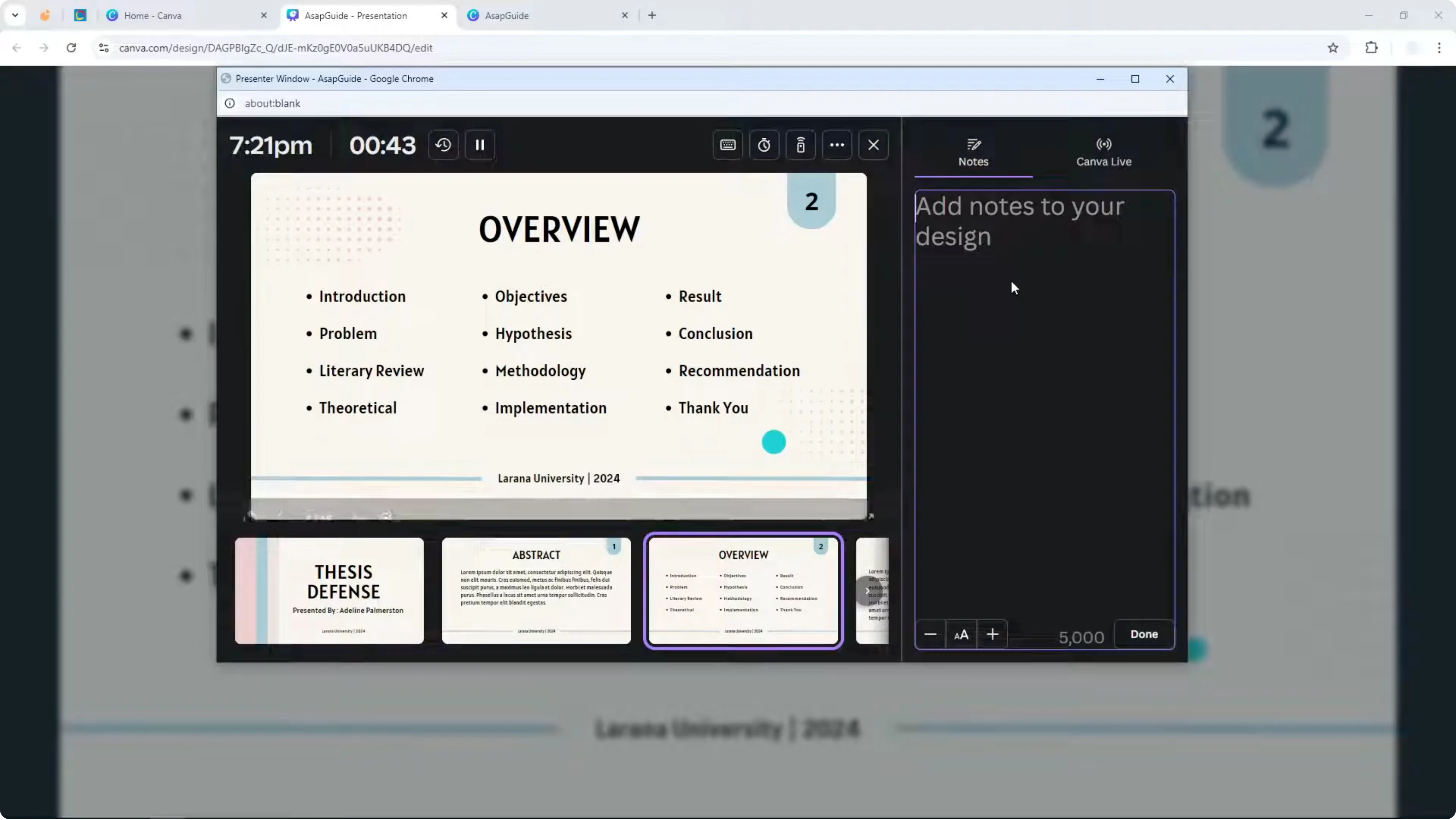
Add notes on the fly
If a slide does not have any note, you can type a new note directly in Presenter view. The note attaches to that slide and stays there for future sessions. This is helpful if you remember a key point during a live talk.
Read More: Add Background Canva Presentation
Manage windows during a presentation
If you connect your computer to a projector, the projector will show the presentation window. Move the Presenter view window to your laptop screen, and keep it in front of you. Your audience will only see the slides, and you will see your notes and controls.
When you are done, close the Presenter view window and the presentation stops. This keeps your workflow simple and avoids extra clicks. It also ensures your notes remain private.
Final Thoughts
Presenter view is the key to presenting a Canva deck with speaker notes visible only to you. It gives you control over slides, animations, and live note editing, while the audience sees a clean presentation. Use it every time you need your notes at a glance without showing them on the big screen.
Recent Posts

How to Visualize Yourself as a Pixelized Character with AI?
How to Visualize Yourself as a Pixelized Character with AI?

How to Revive Faded Memories and Enhance Image Clarity with AI?
How to Revive Faded Memories and Enhance Image Clarity with AI?

How to Visualize Yourself as an Animal Crossing Character with AI?
How to Visualize Yourself as an Animal Crossing Character with AI?