How to Present Canva in PowerPoint
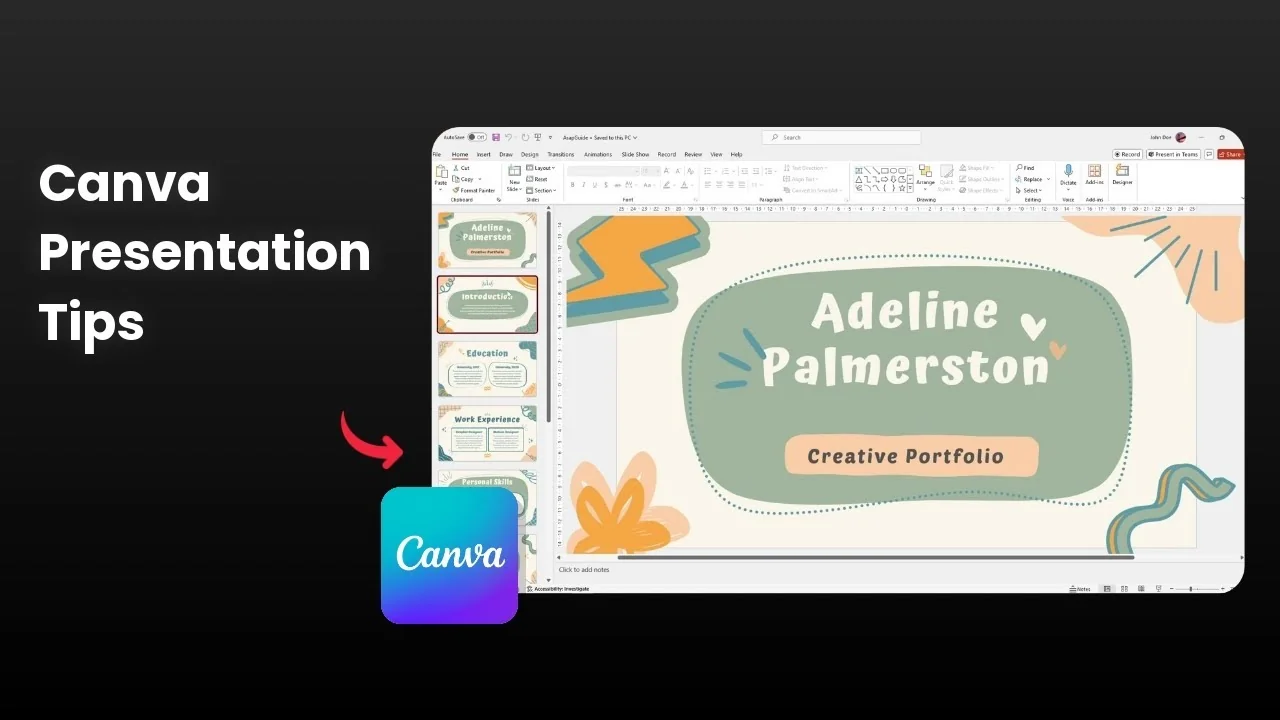
I want to show you how to present your Canva presentation in PowerPoint. This is a great way to present offline because Canva is an online service that needs an internet connection. In PowerPoint you are free from any connection and you can present anywhere.
You can get your Canva document to PowerPoint very quickly. Canva supports export to a format that is supported by Microsoft PowerPoint. You only need to download the file in the right format.
Present Canva in PowerPoint offline
Presenting from PowerPoint gives you the same content you built in Canva without needing the web. Your slides, styles, icons, and pictures appear as you designed them. You can still make edits directly in PowerPoint.
Export for Present Canva in PowerPoint
Open your design in Canva.
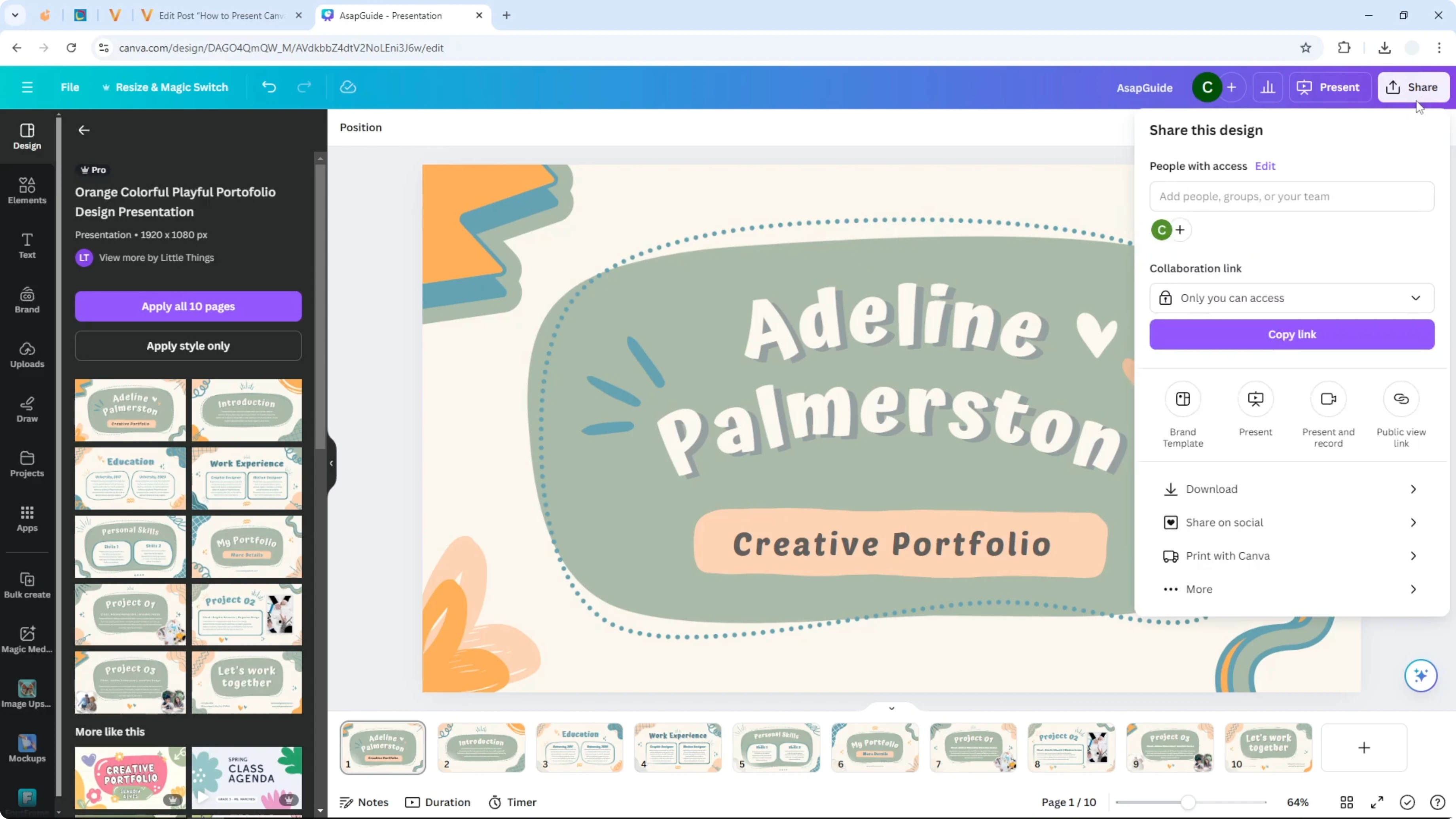
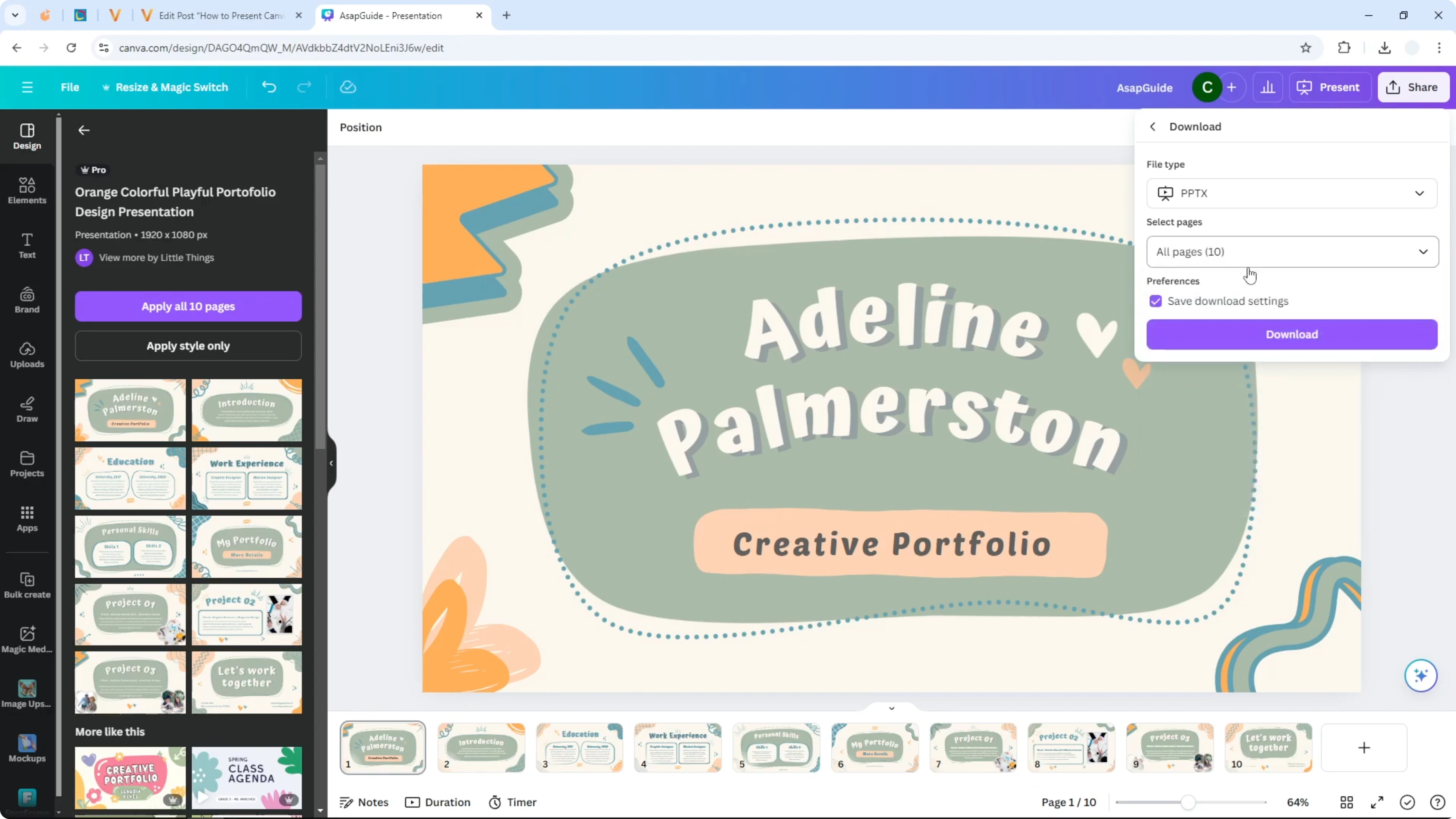
Click Share, then Download.
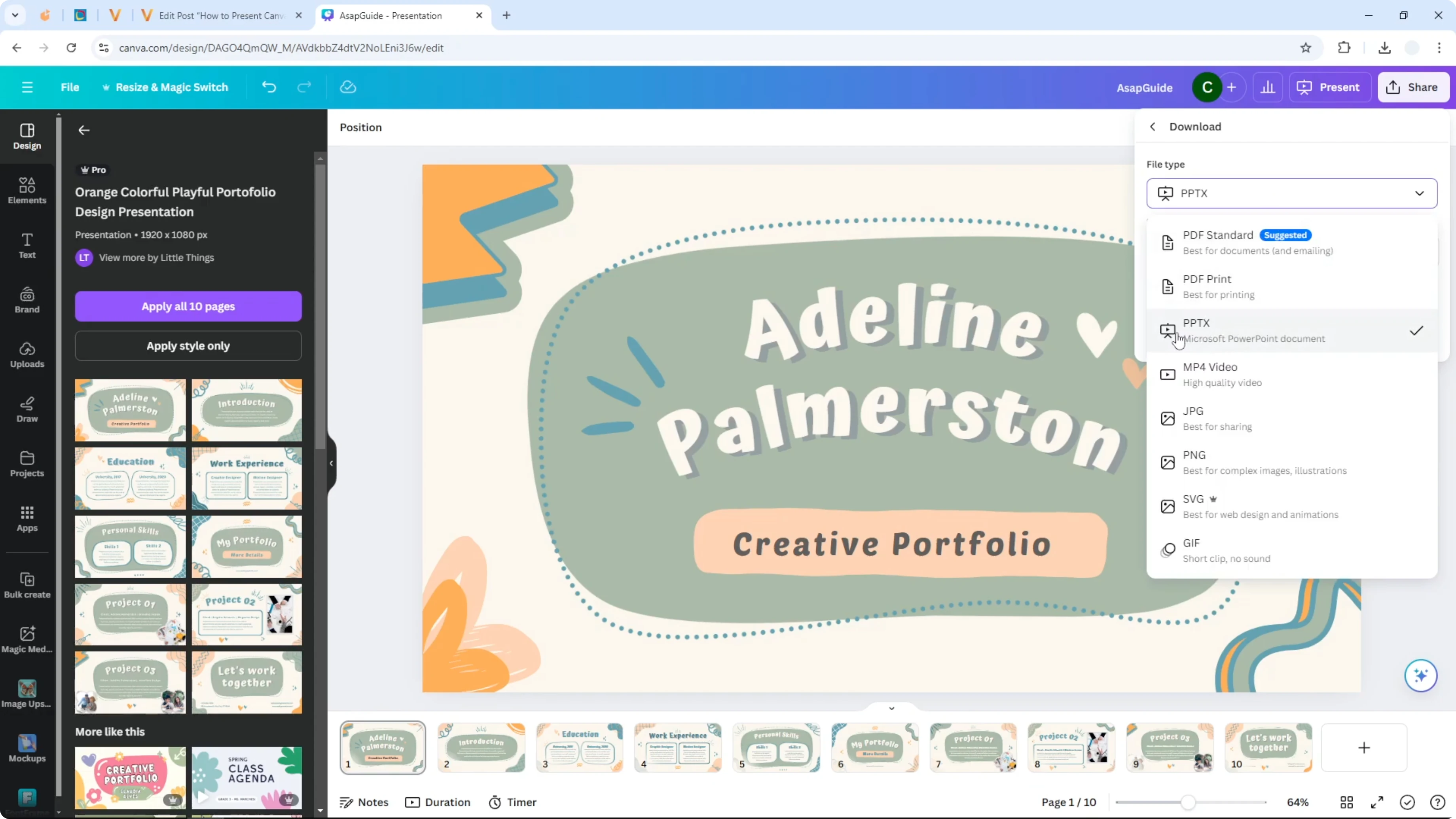
Set the file type to PPTX which is the format supported by Microsoft PowerPoint.
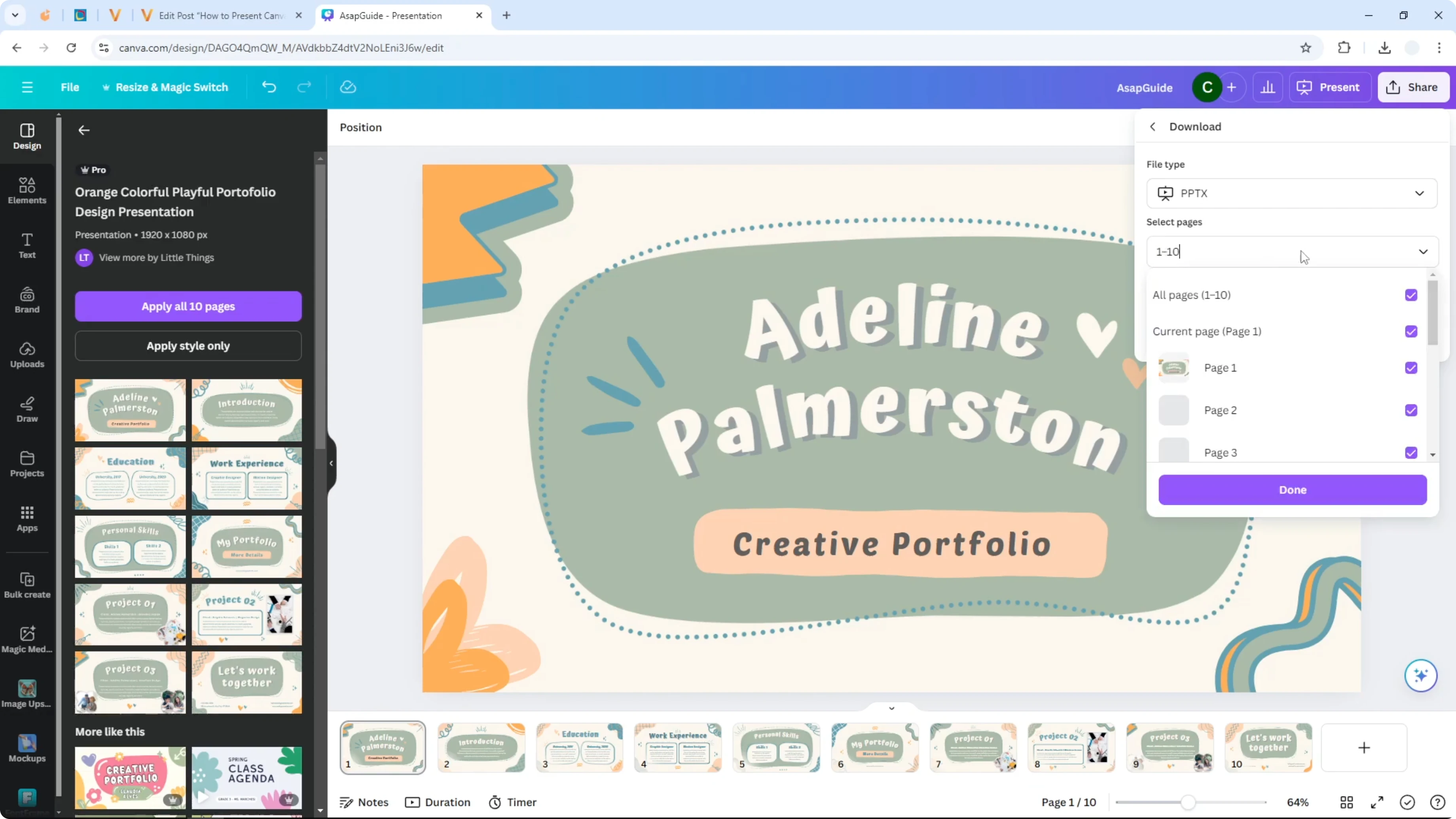
Choose the pages you want to include.
Click Download and wait for the file to finish.
Read More: Presentation Notes in Canva
Open and present in PowerPoint
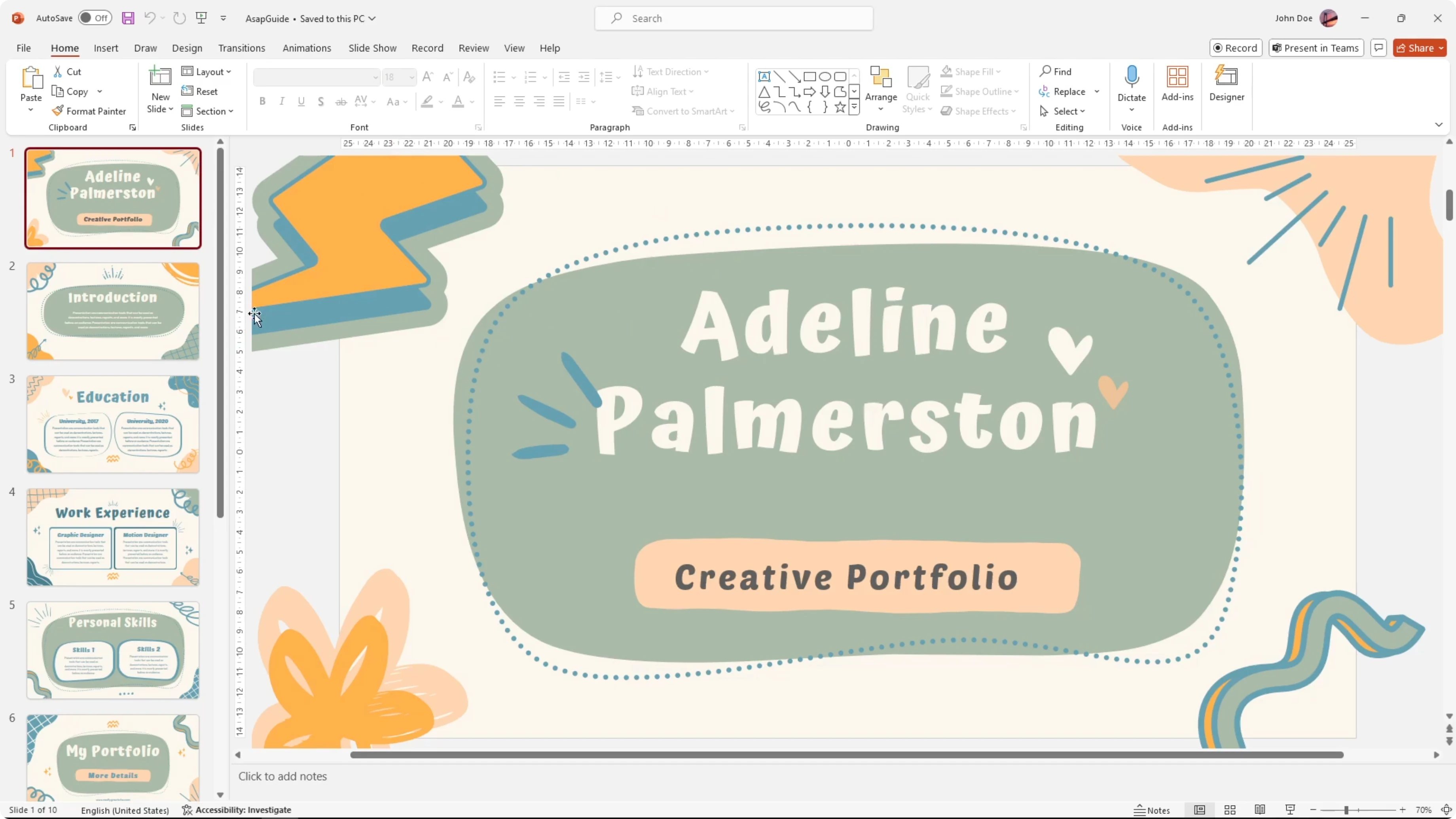
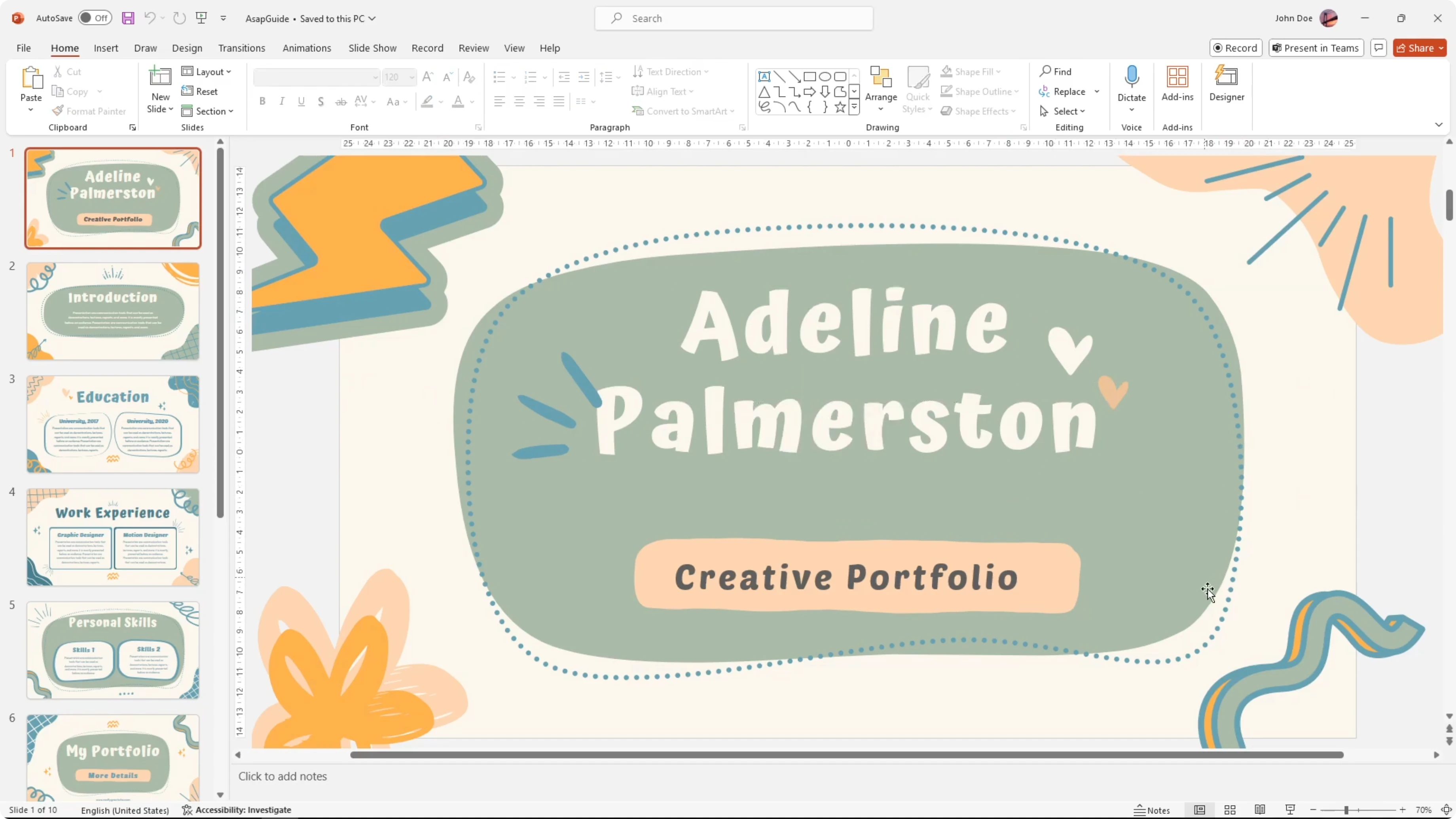
Open the downloaded file in PowerPoint and you will see it looks the same. The style, icons, and pictures match your Canva design. You can still modify the document in PowerPoint.
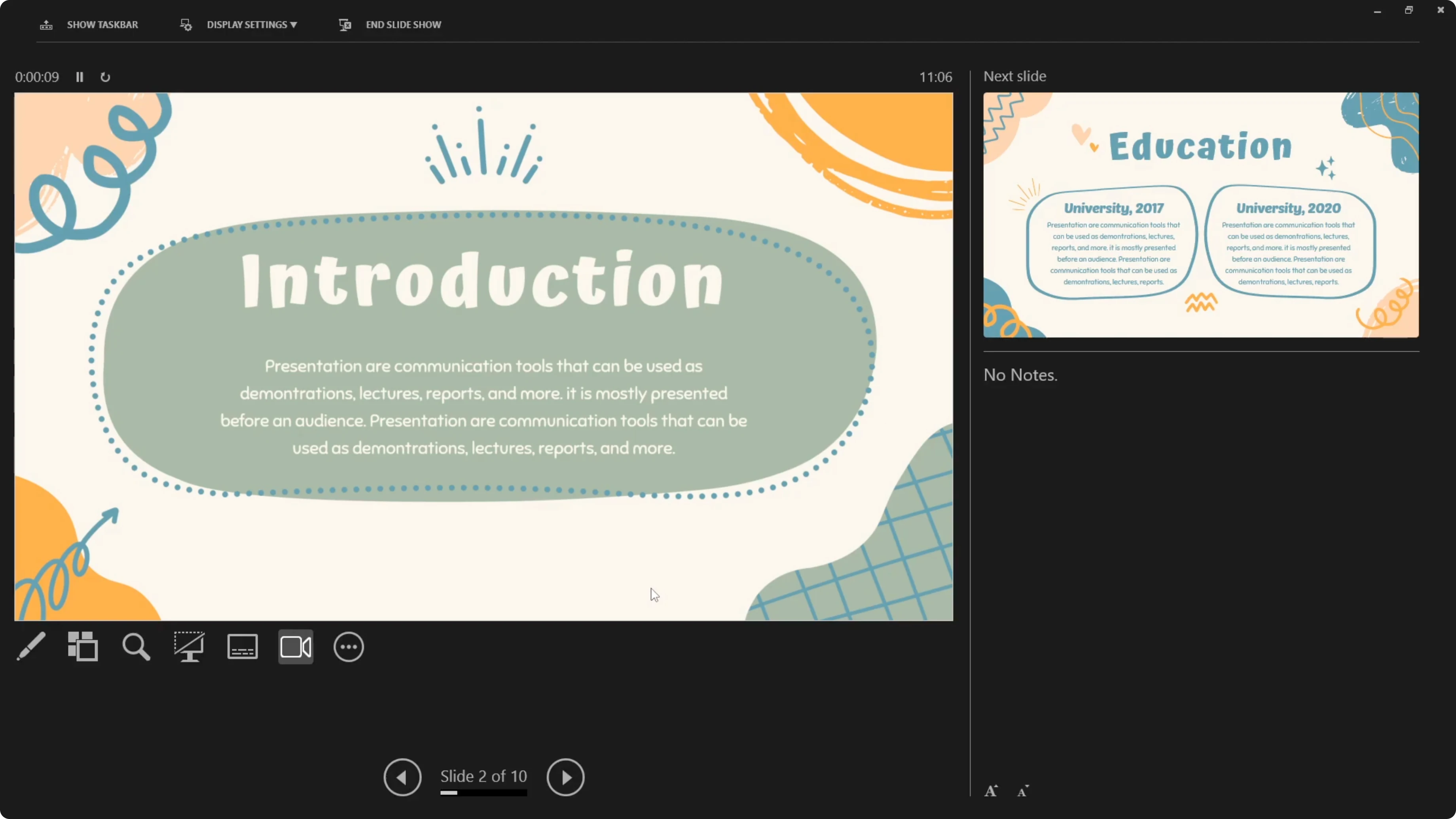
To present, click the Present or Slide Show button in PowerPoint or press F5 on your keyboard. Your presentation will run normally. You can move through slides as usual.
Read More: Create a 3D Book Cover in Canva
Features that do not carry over in Present Canva in PowerPoint
There is no animation transfer from Canva to PowerPoint. If you added animations or transition effects in Canva, they will not be translated into PowerPoint. Those features will be missing.
Other than that, everything else looks the same. Your content and layout remain intact. You can present confidently from PowerPoint.
Read More: Add Accent Marks in Canva
Final thoughts on Present Canva in PowerPoint
Export your Canva design as PPTX, open it in PowerPoint, and present with F5 for a reliable offline workflow. The slides look the same and you can edit them as needed. Just remember that Canva animations and transitions do not carry over.
Recent Posts

How to Visualize Yourself as a Pixelized Character with AI?
How to Visualize Yourself as a Pixelized Character with AI?

How to Revive Faded Memories and Enhance Image Clarity with AI?
How to Revive Faded Memories and Enhance Image Clarity with AI?

How to Visualize Yourself as an Animal Crossing Character with AI?
How to Visualize Yourself as an Animal Crossing Character with AI?