How to Create a Pencil Sketch Effect in Canva
If you want to add a pencil sketch effect to a photo in Canva, I have two methods that let you create this effect on any photo you have. Canva doesn't have a native filter for a true pencil sketch, but we can use apps available in Canva to achieve it. I made two versions and you can decide which one looks best for your photo.
Create a Pencil Sketch Effect in Canva with Photo to Sketch
Upload your photo, or pick one from the Canva library.
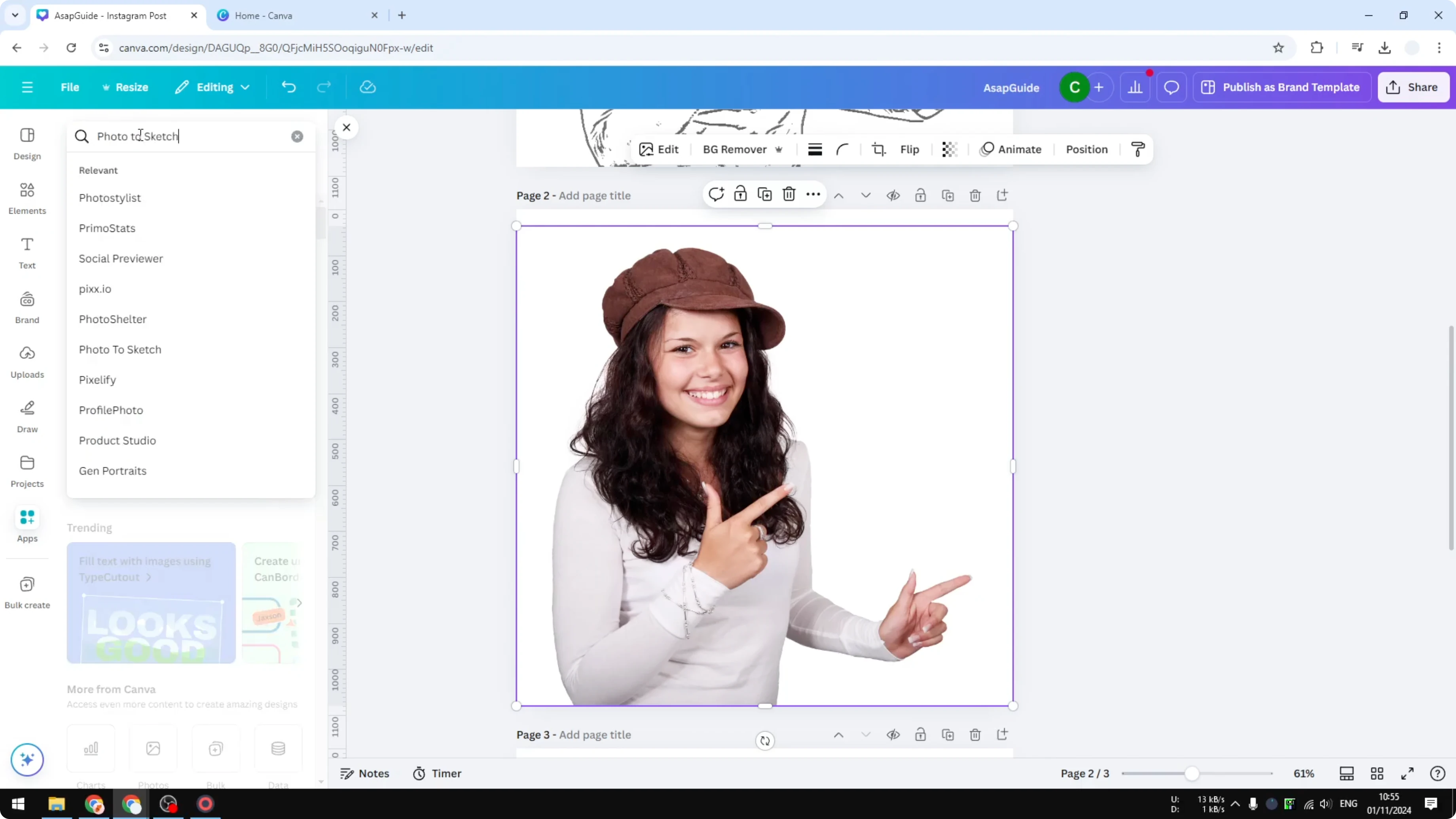
Go to Apps and search for Photo to Sketch, then open it.
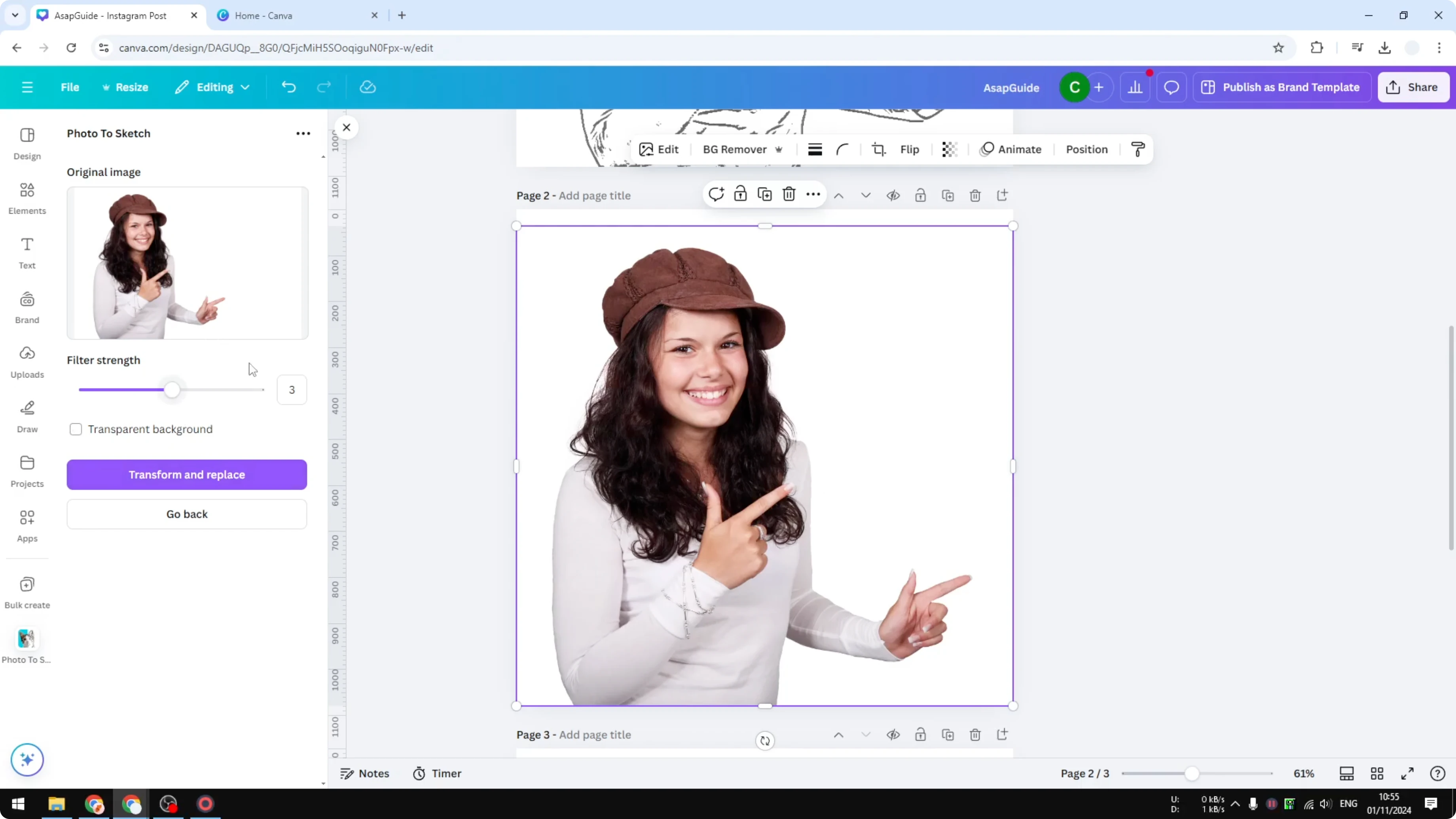
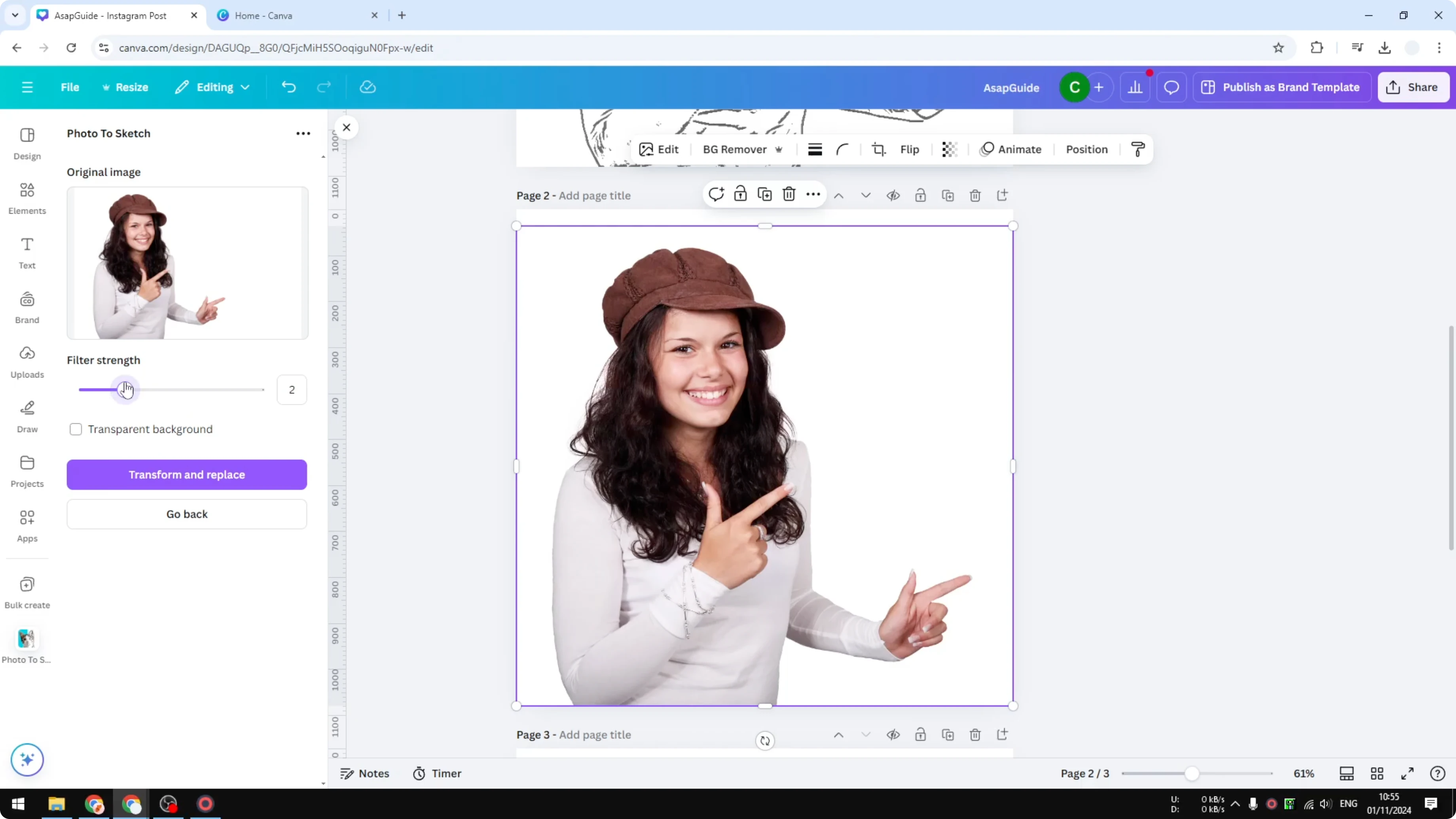
Use the settings panel to control the sketch effect. Filter Strength ranges from 1 to 5, with 3 as the default. I usually reduce it to 2.
Enable Transparent background if your photo has an empty background. If you skip this, the app may add a bit of color to that background, which is not what I want.
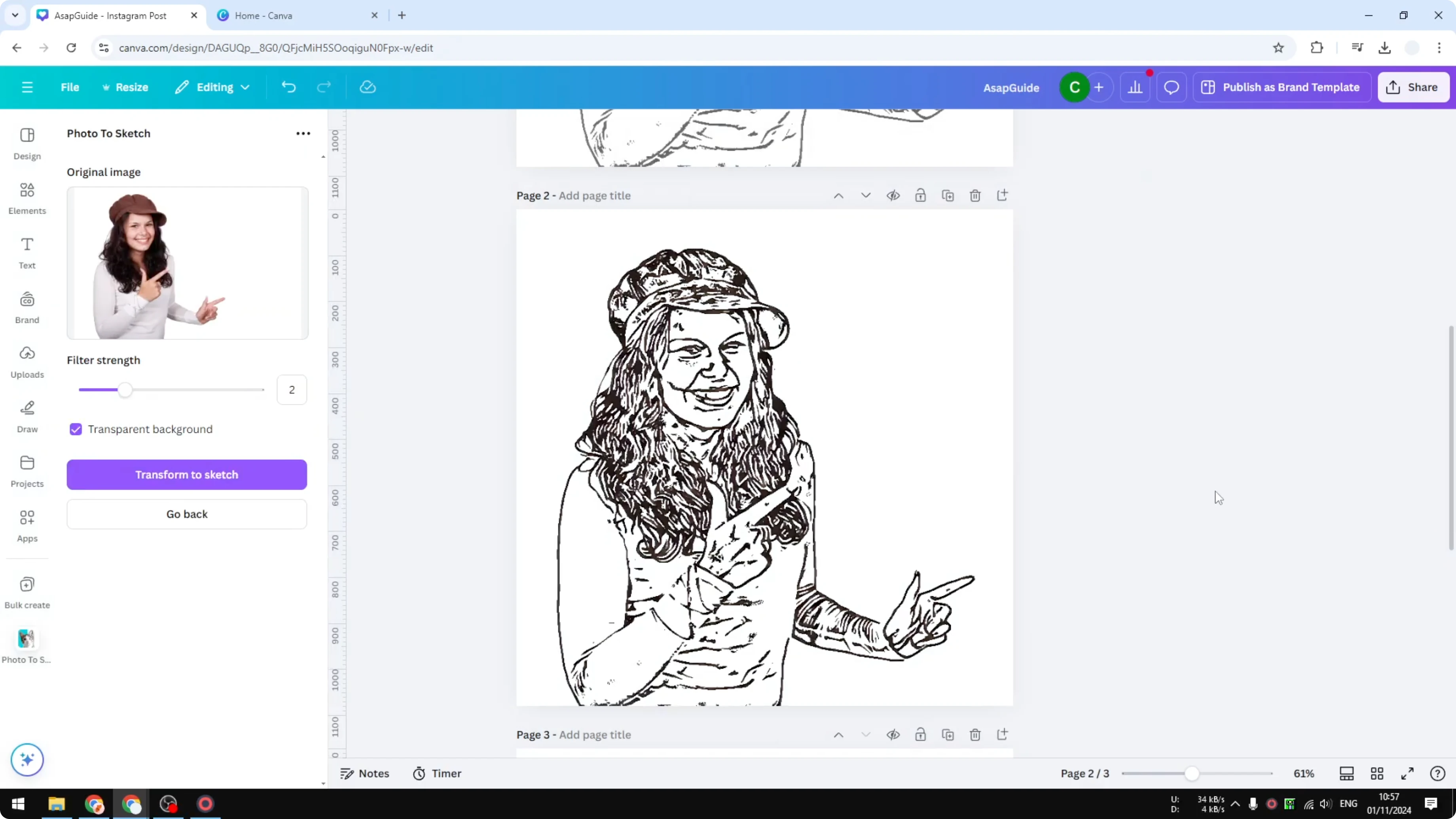
Click Transform and Replace to convert the photo into a pencil sketch. The tool will generate a result that looks hand-drawn.
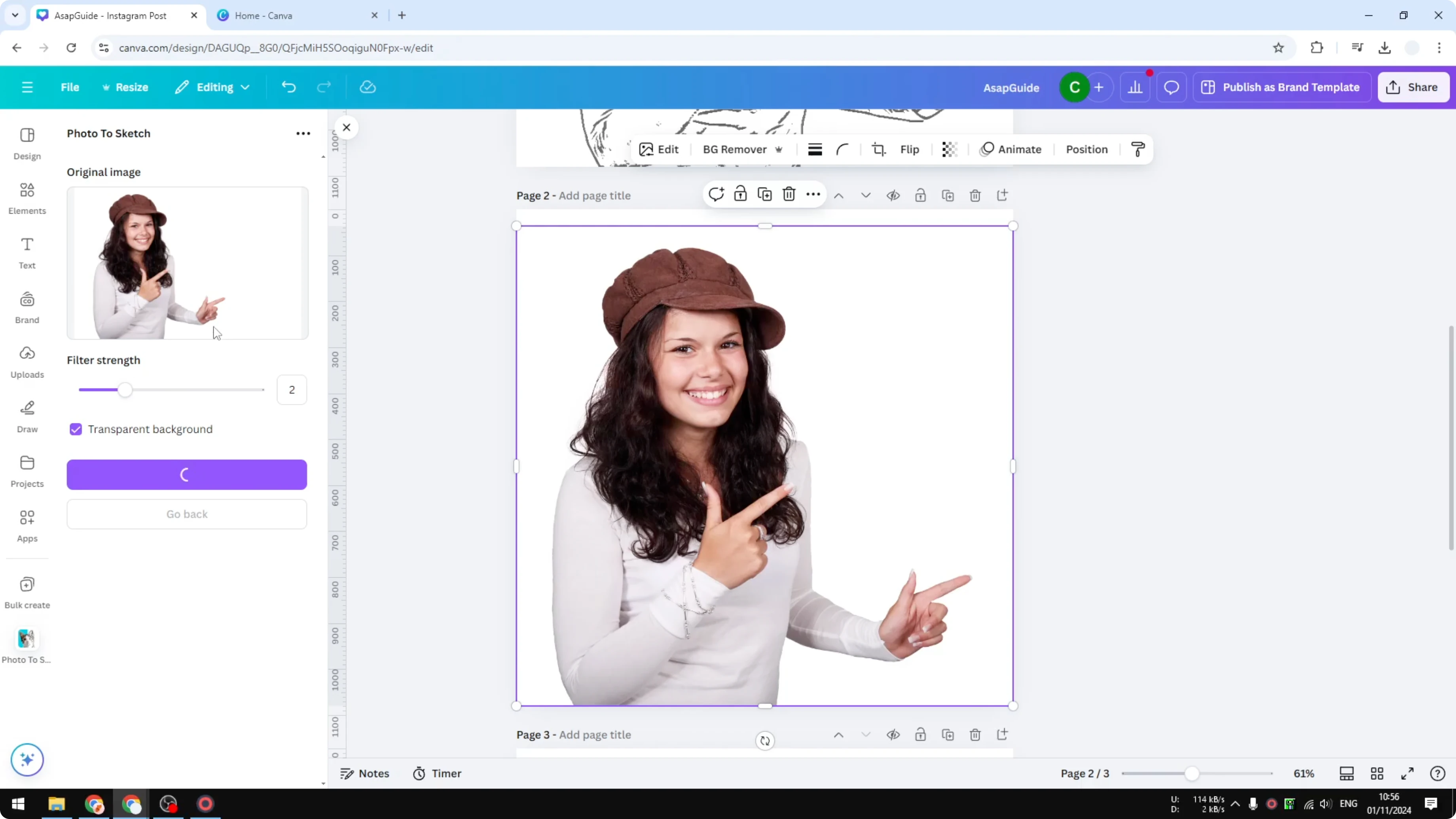
If you want to adjust the settings further, click Undo first before changing the settings and running the transform again. Undo returns the photo to the original, then you can fine-tune and re-run the effect.
Adjust blacks and whites
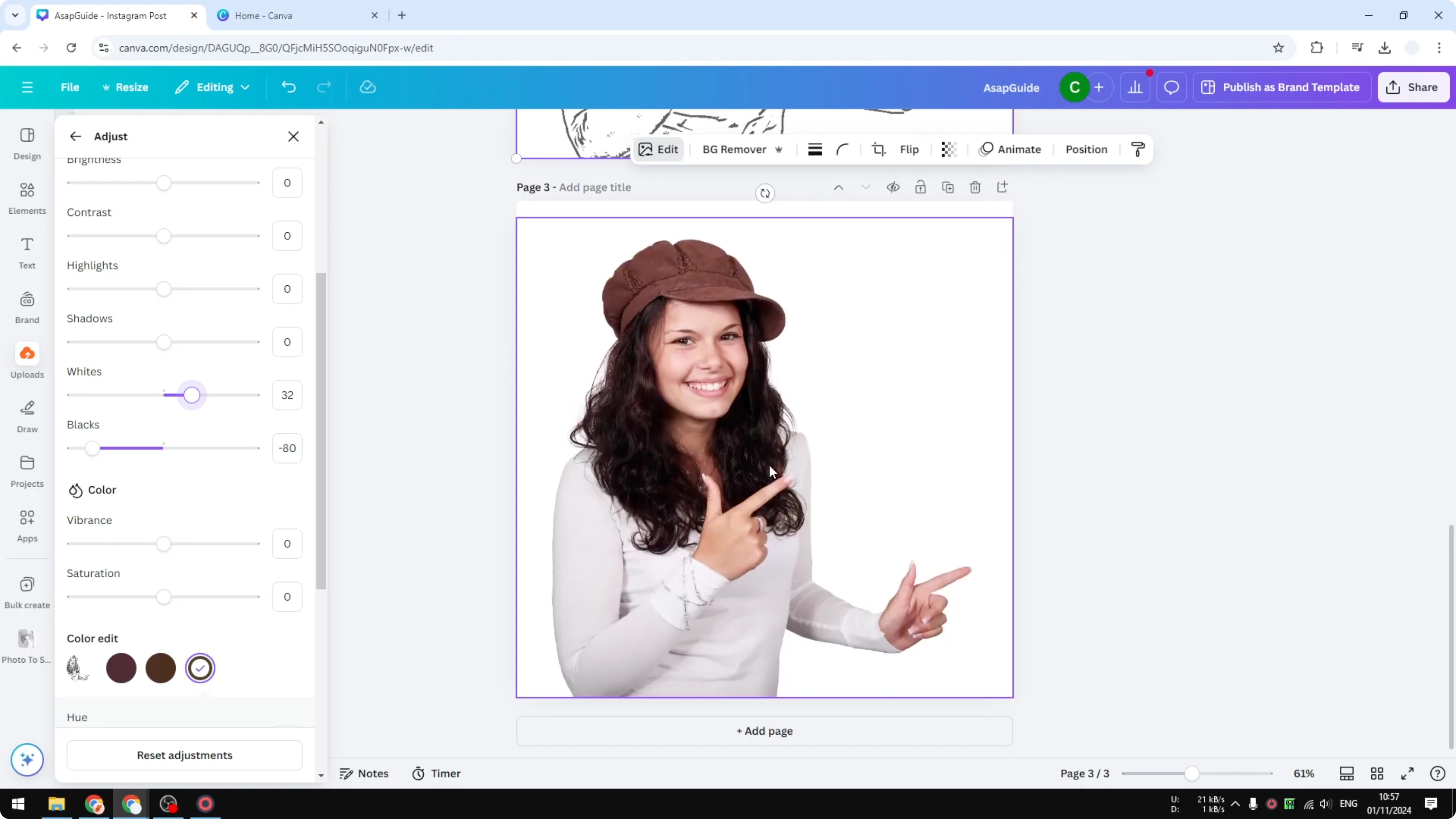
The initial result can look too bold because pencil sketches usually avoid heavy blacks. Click the image, go to Edit, then Adjust.
Reduce Blacks so the lines are not too strong. Increase Whites a little to brighten the paper feel.
You can play with other sliders, but adjusting whites and blacks is usually enough to push it toward a pencil look. If you’re exploring more creative photo looks, see the bokeh effect in Canva for soft, glowing backgrounds.
Create a Pencil Sketch Effect in Canva with Photo Stylist
This second method works a bit differently and can give you a better result.
Open Apps and select Photo Stylist, then open it. You cannot just click a photo and generate a sketch here, because the tool needs both your photo and a reference style.
Collect a style reference
Add another page to your design to collect a style you want to copy. Go to Elements and search for pencil sketch to get inspiration.
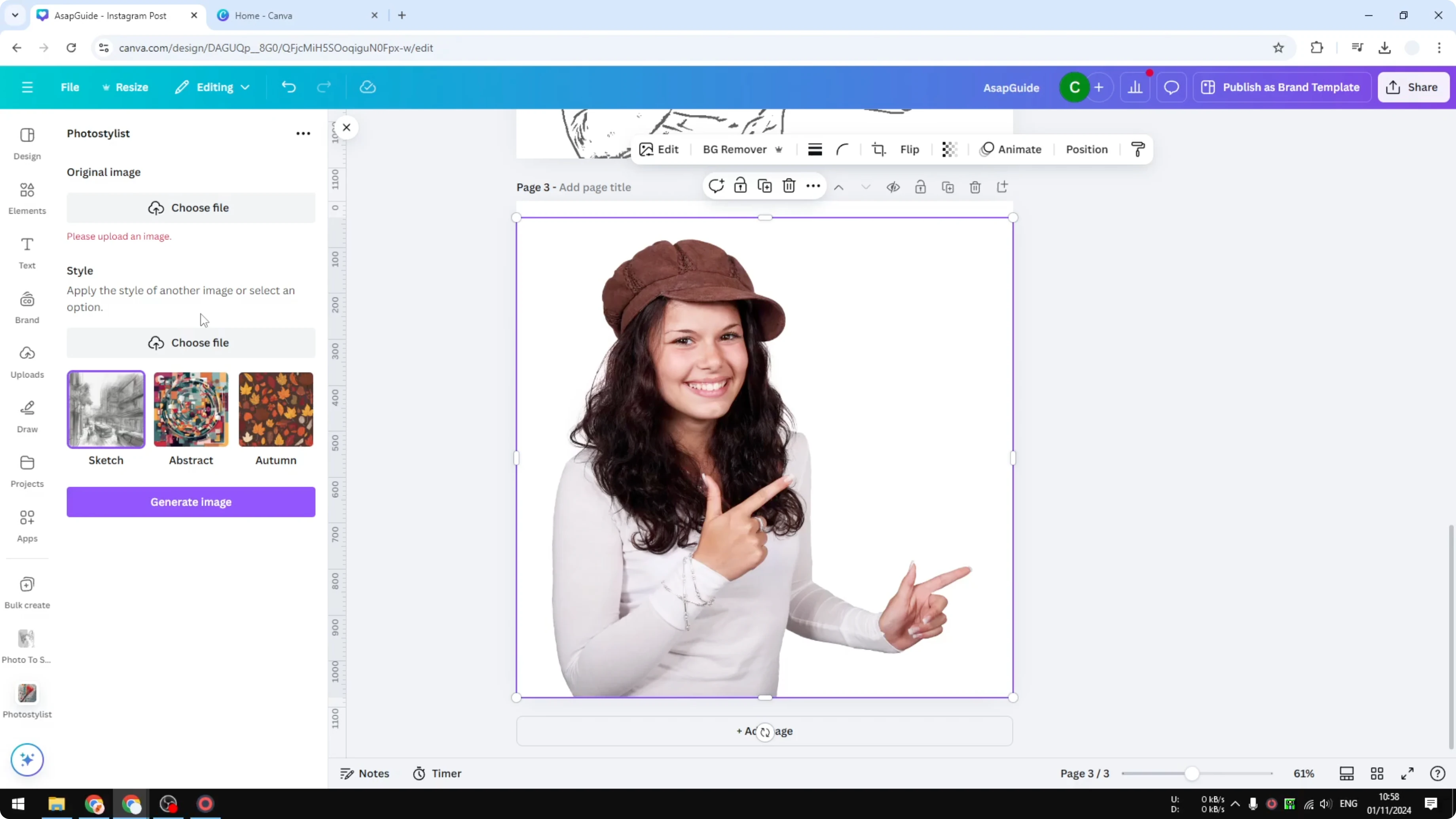
Pick a style image you like and set it as the page background. Download that style page as an image.
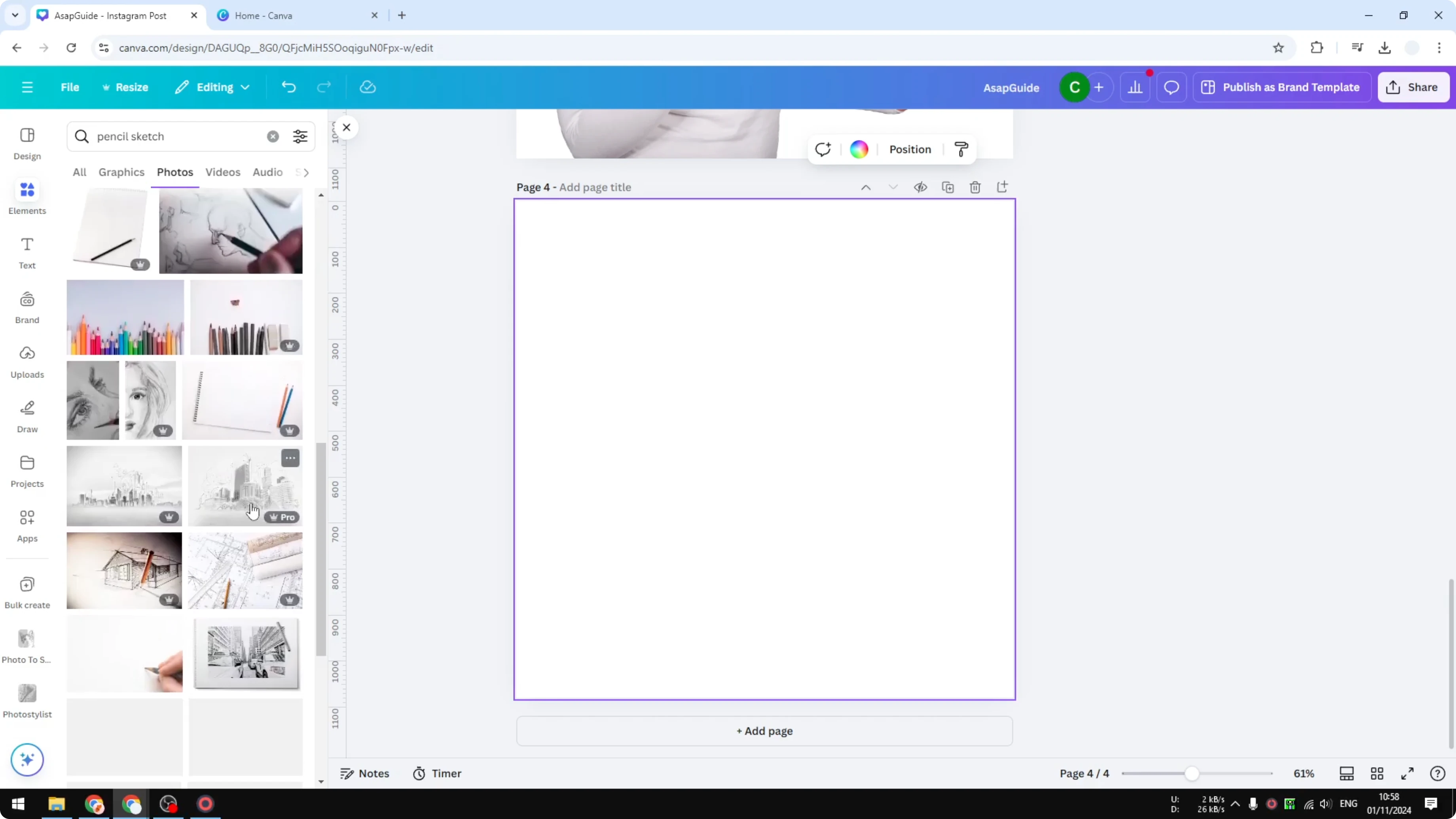
Download the page with your original photo as well. You should now have two files: your source photo and the style reference.
For other creative transformations, you might also try a distortion effect in Canva to produce abstract looks.
Generate and fine-tune
Go back to Photo Stylist and upload both images: the photo you want to turn into a pencil sketch and the style reference you want to copy.
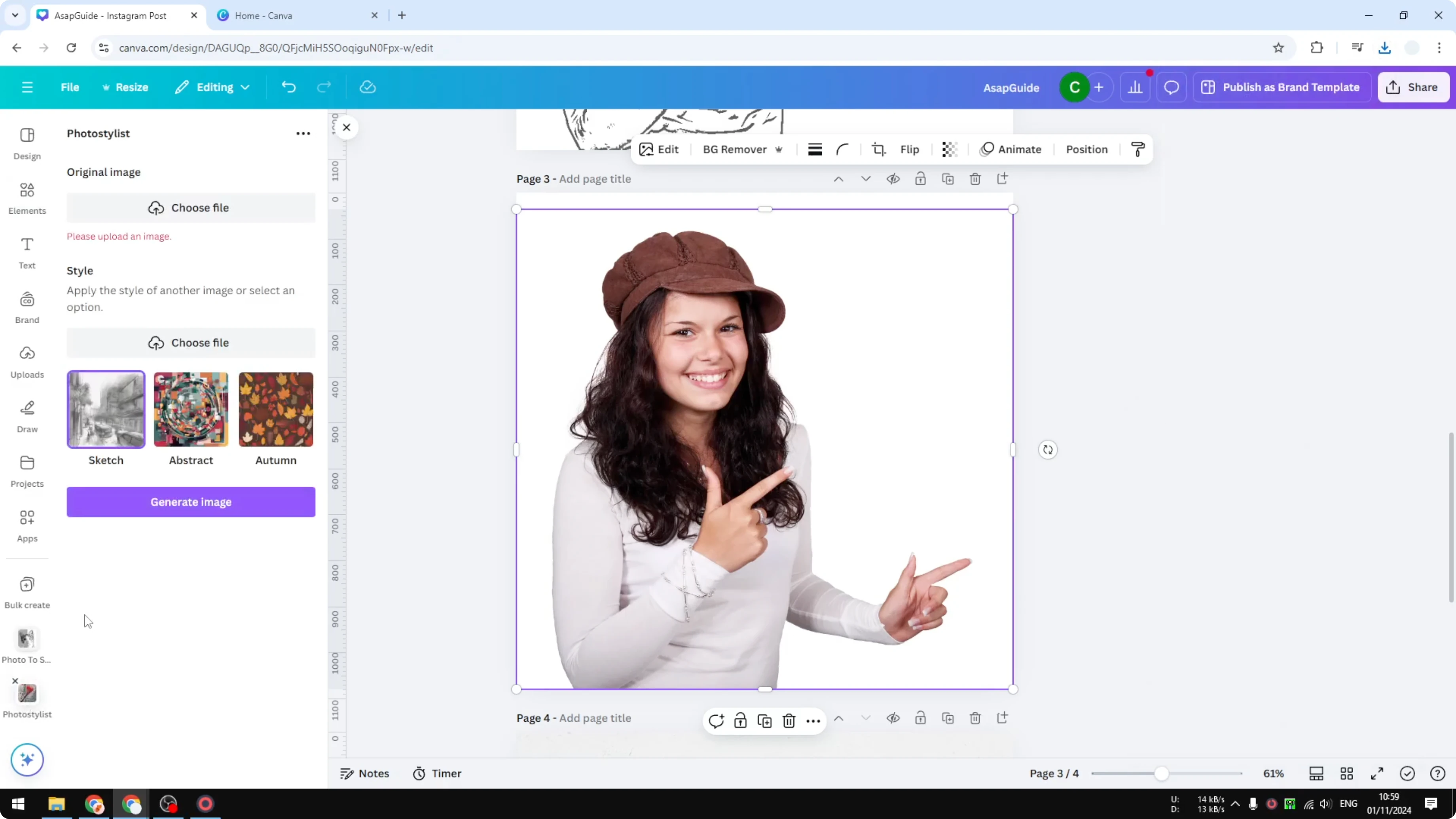
Click Generate Image. The tool copies the style from the reference and applies it to your photo.
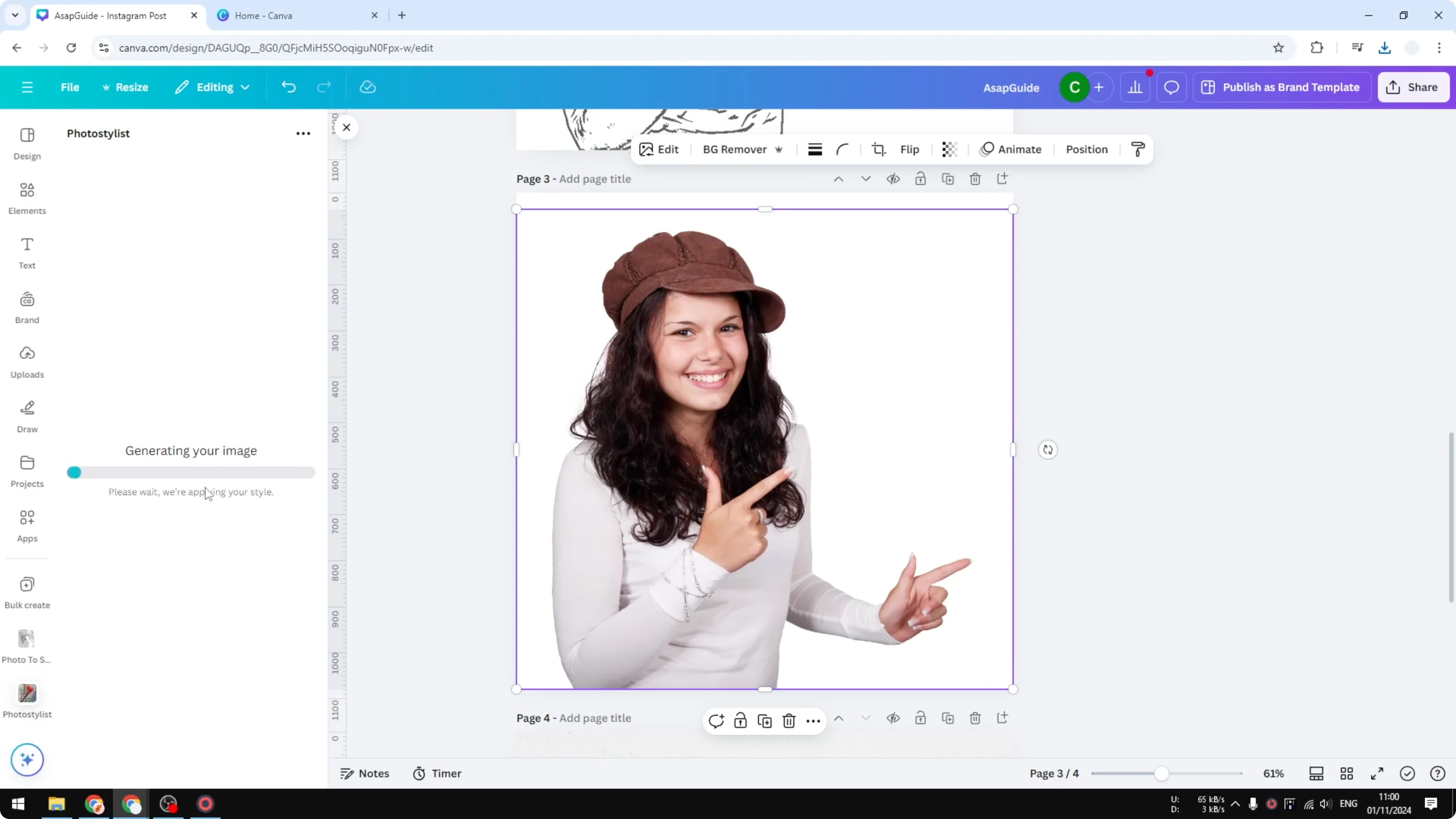
When the result appears, you can still go to Edit and adjust color settings. Tweak the tones to make the sketch look more natural on your subject.
Final Thoughts on Create a Pencil Sketch Effect in Canva
Both methods work well to Create a Pencil Sketch Effect in Canva. Photo to Sketch is straightforward and fast, while Photo Stylist lets you copy a specific pencil style for more control.
After generating, small adjustments to blacks and whites go a long way in selling the look. If you want a text effect to pair with your artwork, try an echo text effect in Canva for stylized headlines.
Recent Posts

How to Visualize Yourself as a Pixelized Character with AI?
How to Visualize Yourself as a Pixelized Character with AI?

How to Revive Faded Memories and Enhance Image Clarity with AI?
How to Revive Faded Memories and Enhance Image Clarity with AI?

How to Visualize Yourself as an Animal Crossing Character with AI?
How to Visualize Yourself as an Animal Crossing Character with AI?