How to Outline an Image in Canva
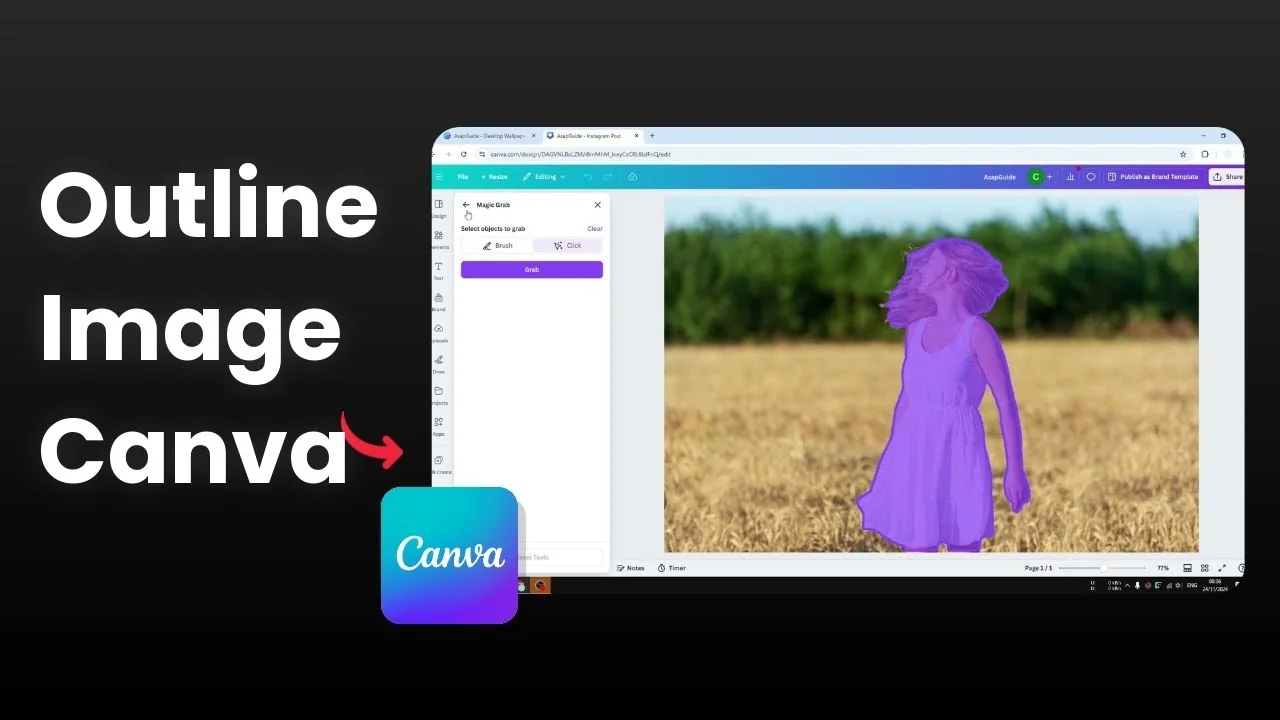
I’m going to show you how to create an outline around a photo of a person in Canva. It adds a border surrounding the subject, makes the subject stand out, and draws attention.
You can start with a photo from the stock library or from your uploads. In my example I use a picture of a woman standing in a field, isolate her from the background, and then add the outline.
Prepare to Outline an Image in Canva
Insert a photo into your Canva document from the stock library or from your uploads.
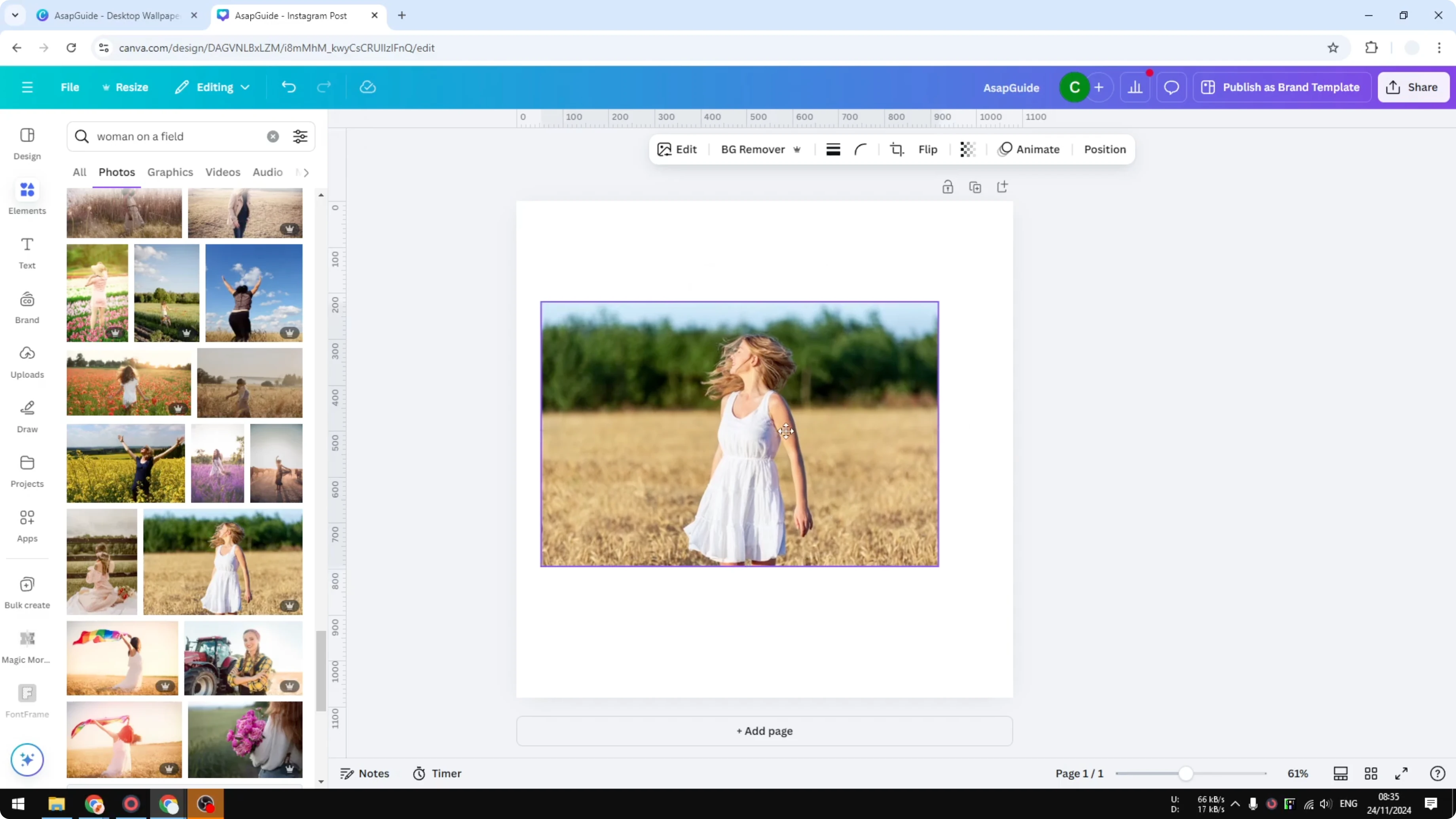
Make the photo fully encompass the page.
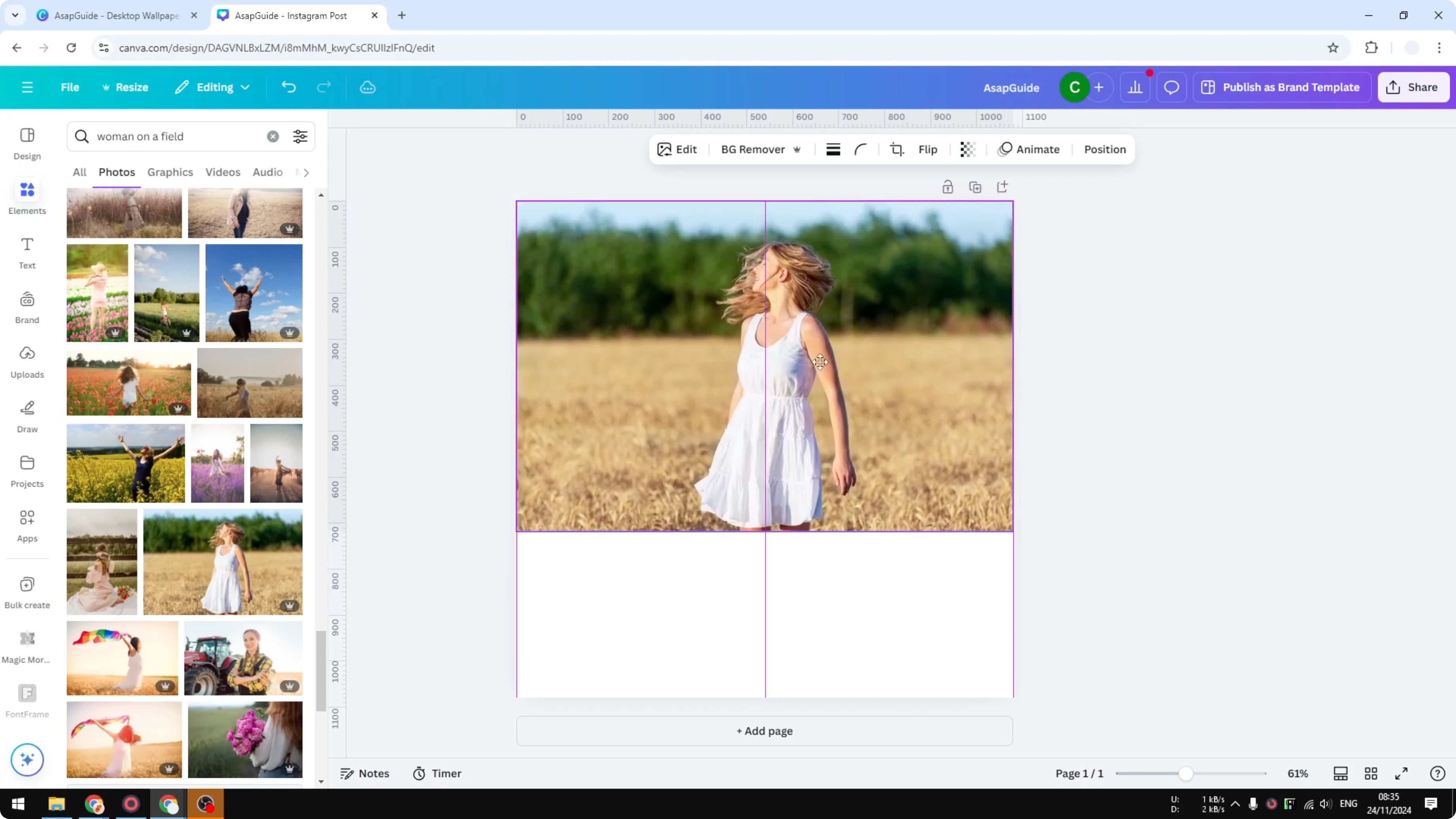
Duplicate the photo by right-clicking and choosing Duplicate.
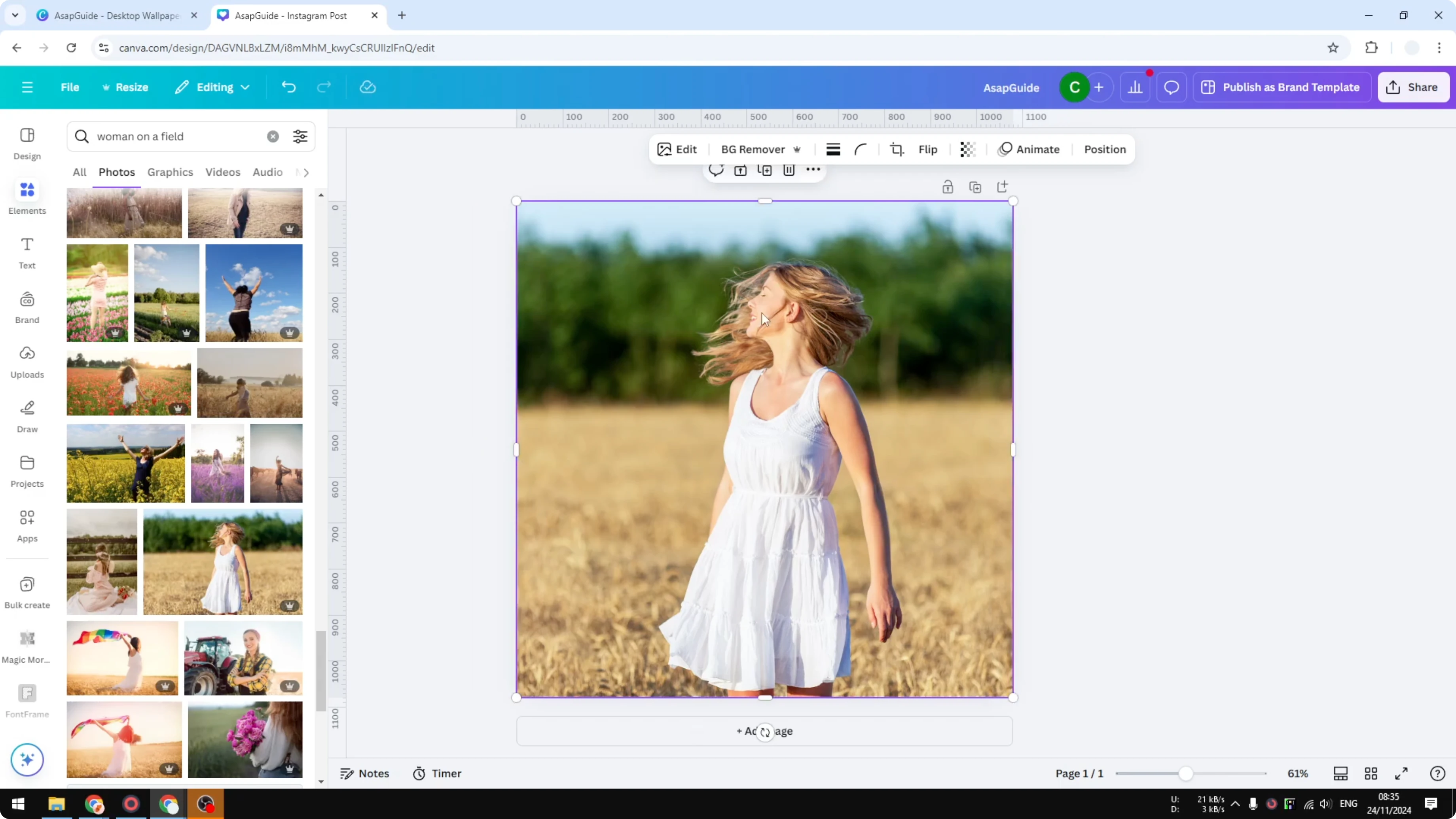
Isolate the subject for Outline an Image in Canva
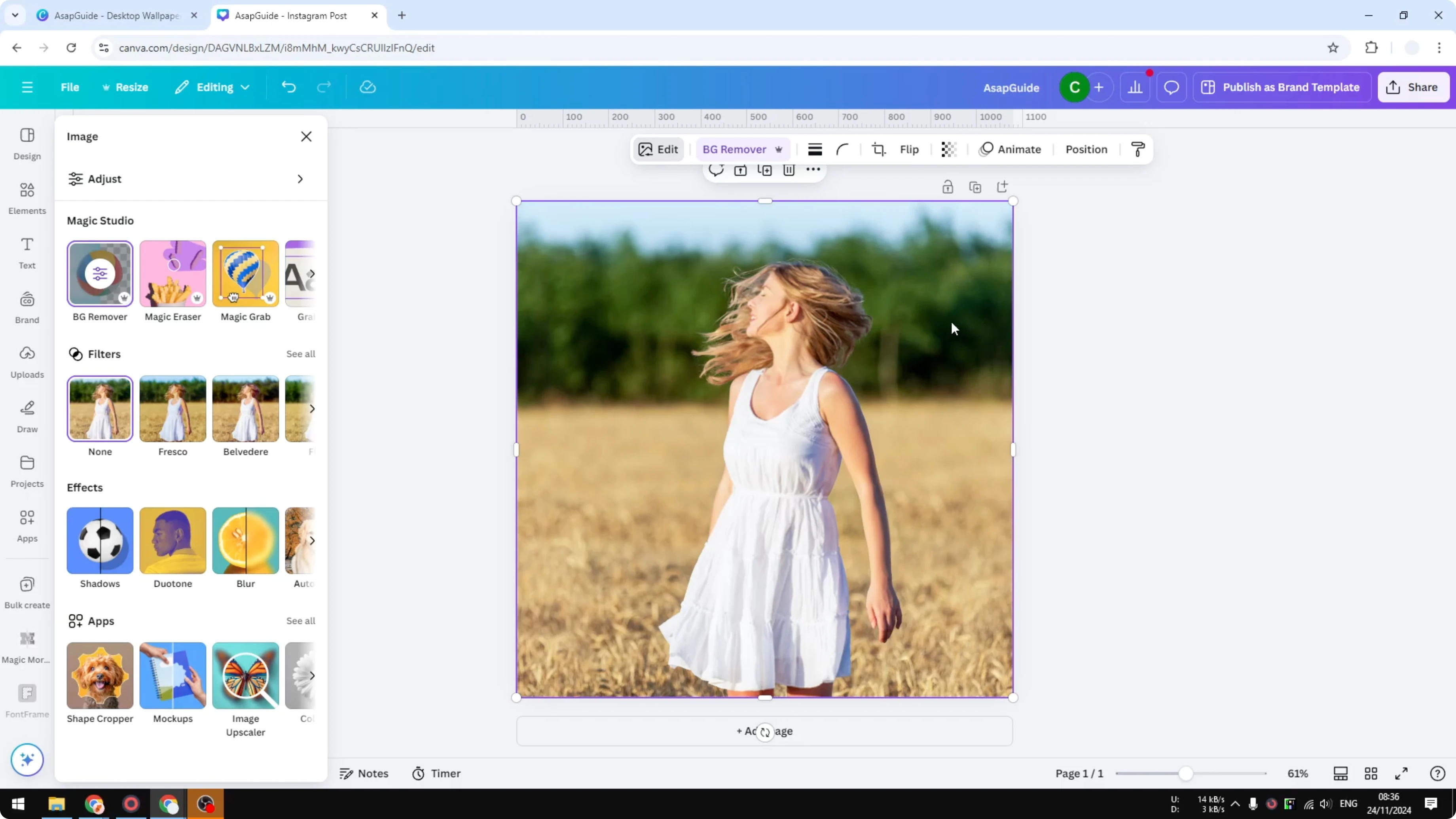
Select the top photo and remove the background, then wait for the AI to process.
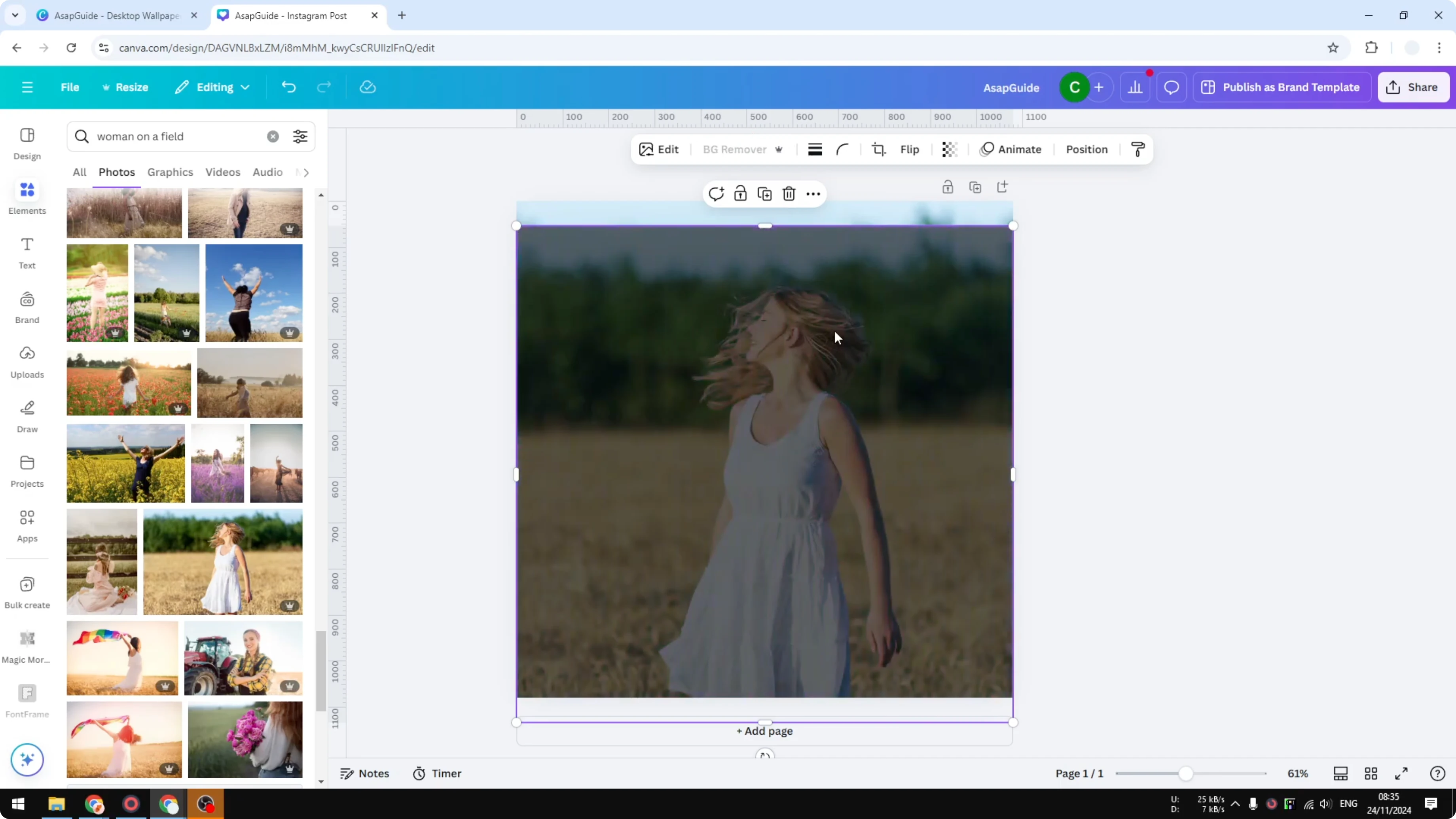
Alternatively, use a grabbing method: open Edit, use Magic, select the subject, and separate it from the background.
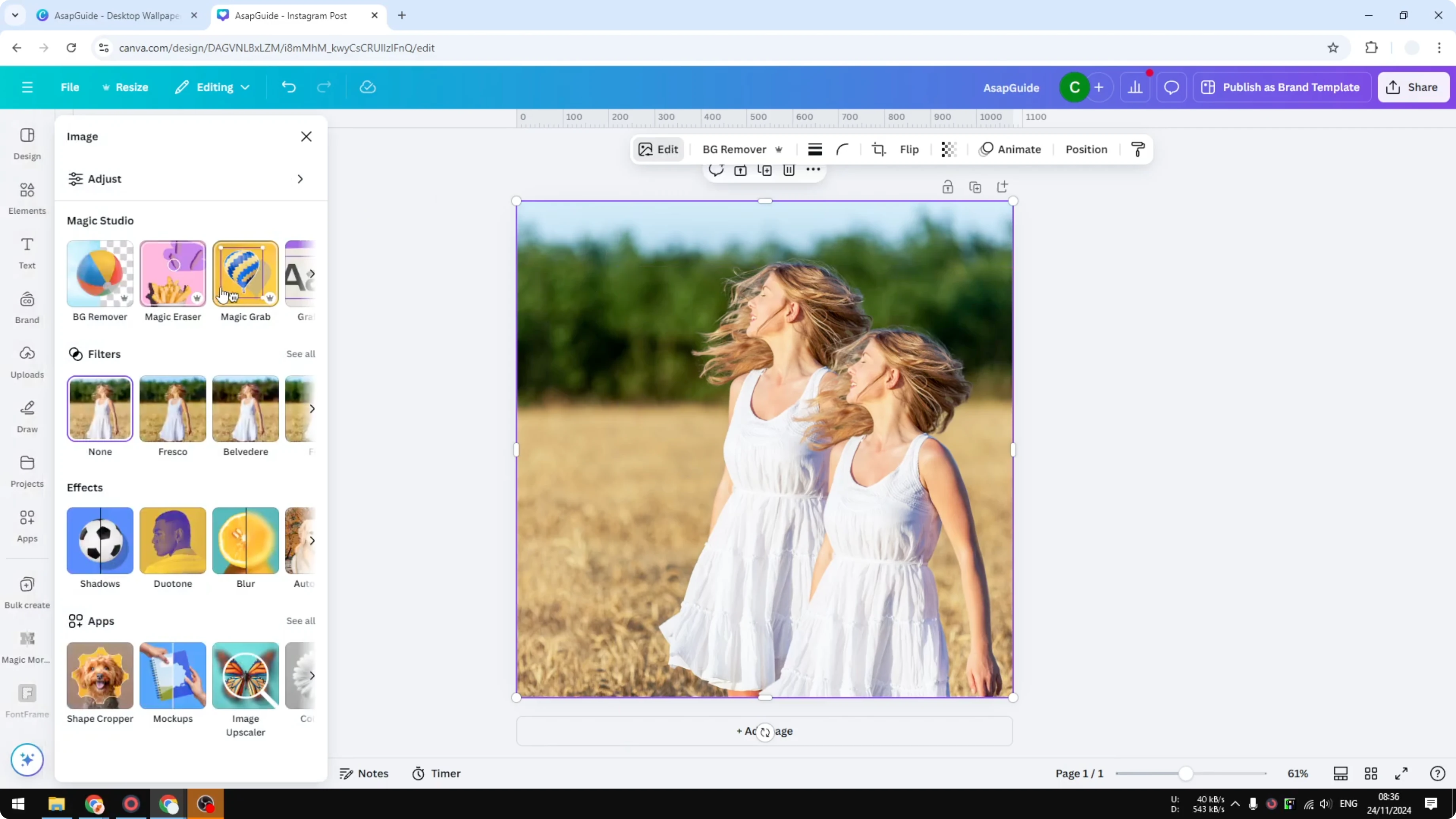
Place the isolated subject exactly where it was originally positioned over the background layer.
Read More: How To Download Transparent Image Canva
Add the outline in Canva
With the isolated subject selected, open Edit and choose Shadows.
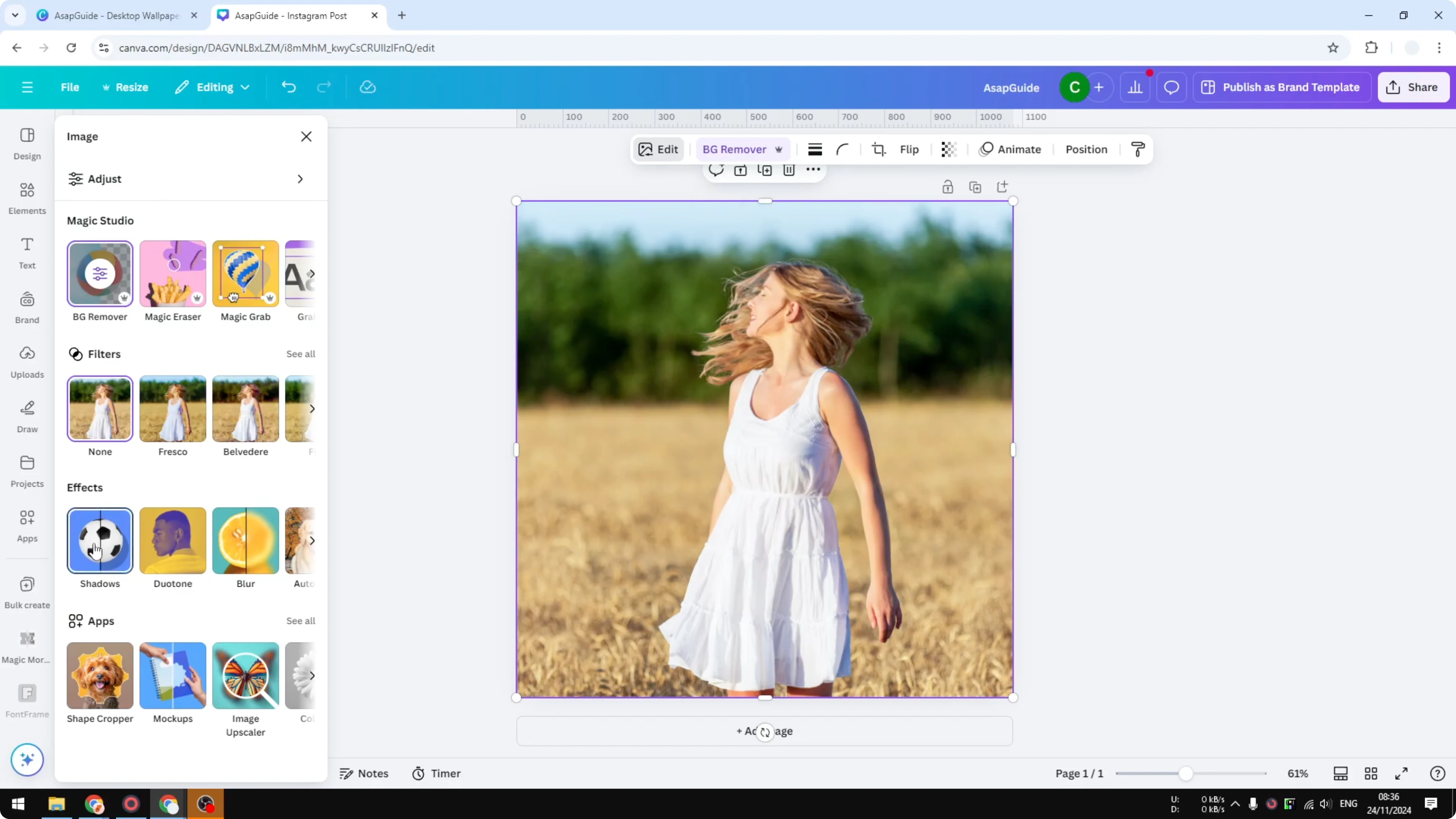
Click Outline and adjust the Size, for example set it to 5.
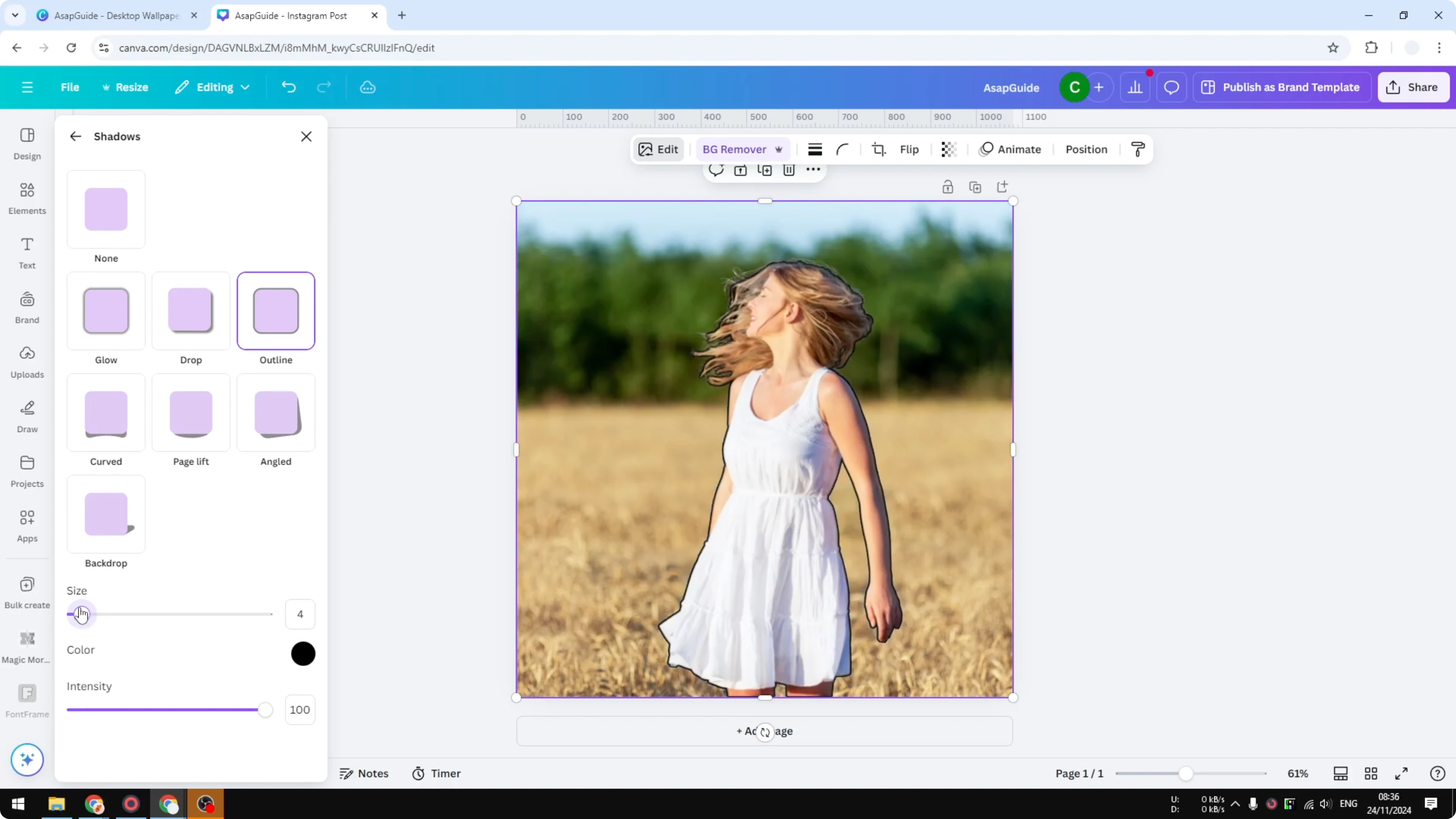
Pick a bright outline color and adjust the intensity or transparency to your preference. If you also need help tweaking colors elsewhere, see change colors.
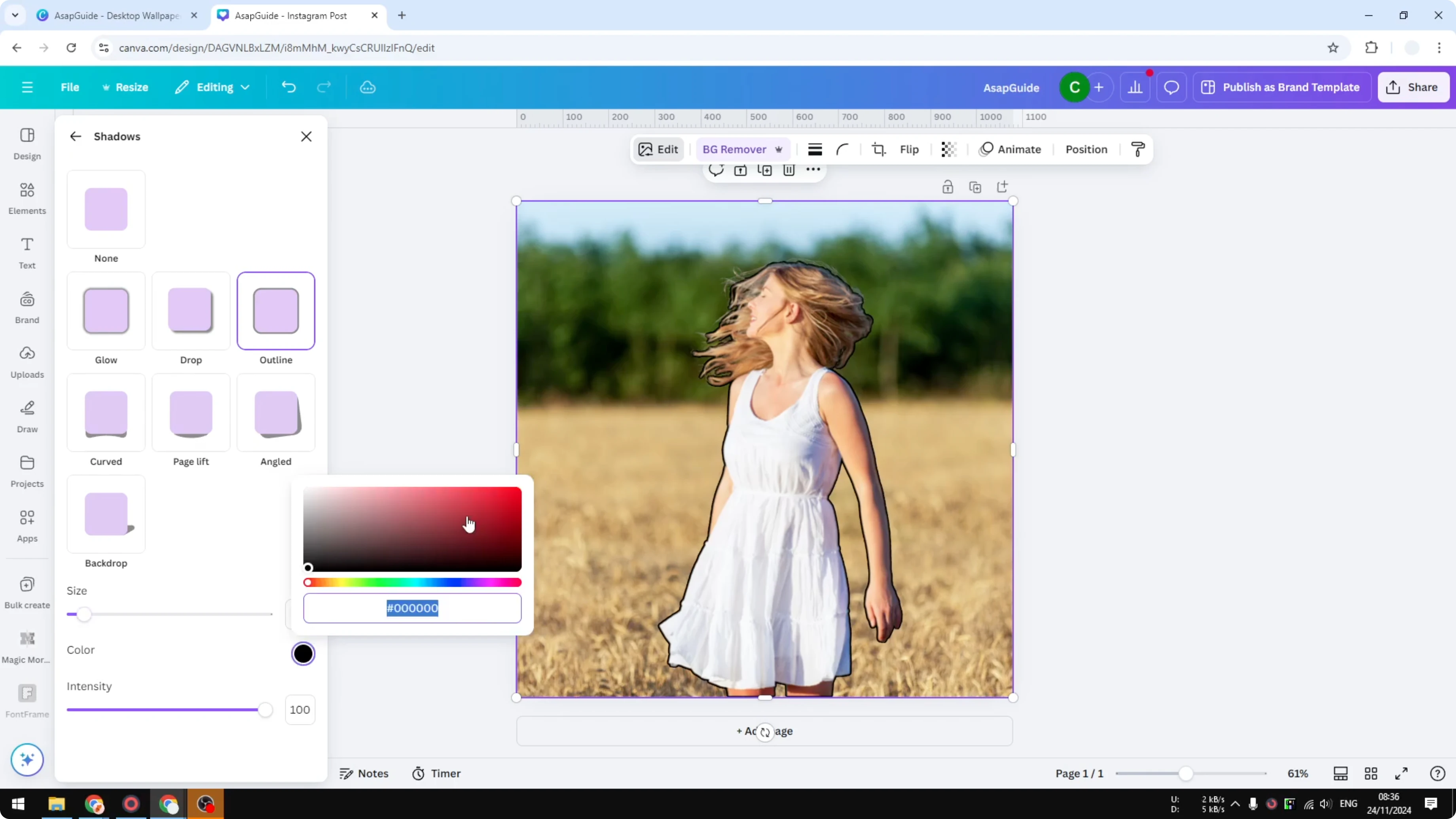
That’s a simple photo outline you can add in Canva. To build on this effect, you can place text behind the subject for a layered look.
Final thoughts
This method isolates your subject, then applies an adjustable outline for a bold, attention-grabbing result. Duplicate the image, remove the background on the top layer, and add the Outline shadow with your preferred size, color, and transparency. It’s quick to set up and easy to customize.
Recent Posts

How to Visualize Yourself as a Pixelized Character with AI?
How to Visualize Yourself as a Pixelized Character with AI?

How to Revive Faded Memories and Enhance Image Clarity with AI?
How to Revive Faded Memories and Enhance Image Clarity with AI?

How to Visualize Yourself as an Animal Crossing Character with AI?
How to Visualize Yourself as an Animal Crossing Character with AI?