How to Download a Transparent Image From Canva

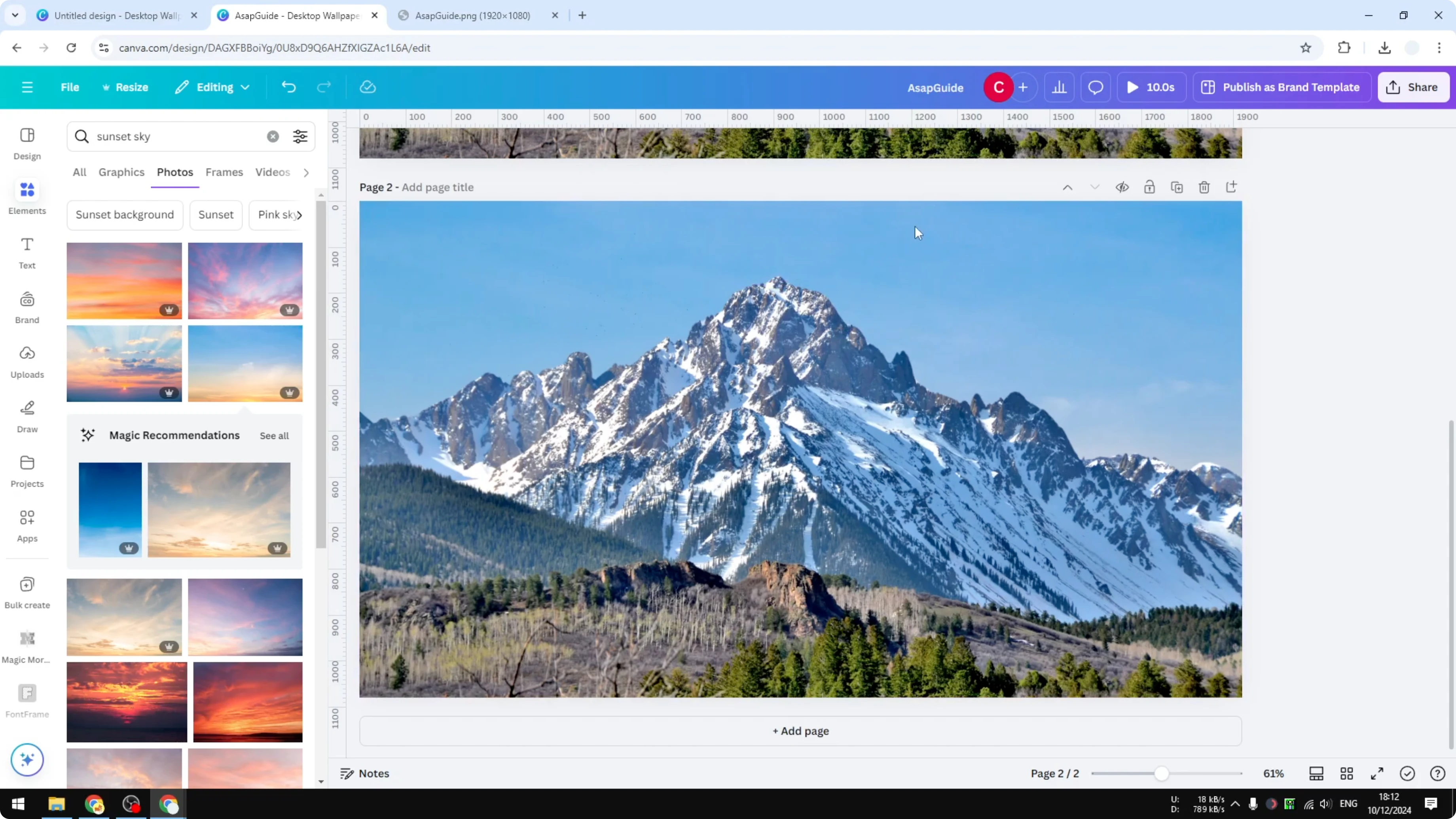
I’m going to show you how you can download a transparent image from Canva. I have this photo of a snowy mountain, and my goal is to remove the background, which is the sky, leaving only the snowy mountain. Because it is transparent, I can put this picture into something else and the background will be new, not the sky anymore.
Download a Transparent Image From Canva
Remove the Background
In Canva you can remove the background by using the AI tool called Background Remover. Select the picture, then click Background Remover. Now the background is empty.
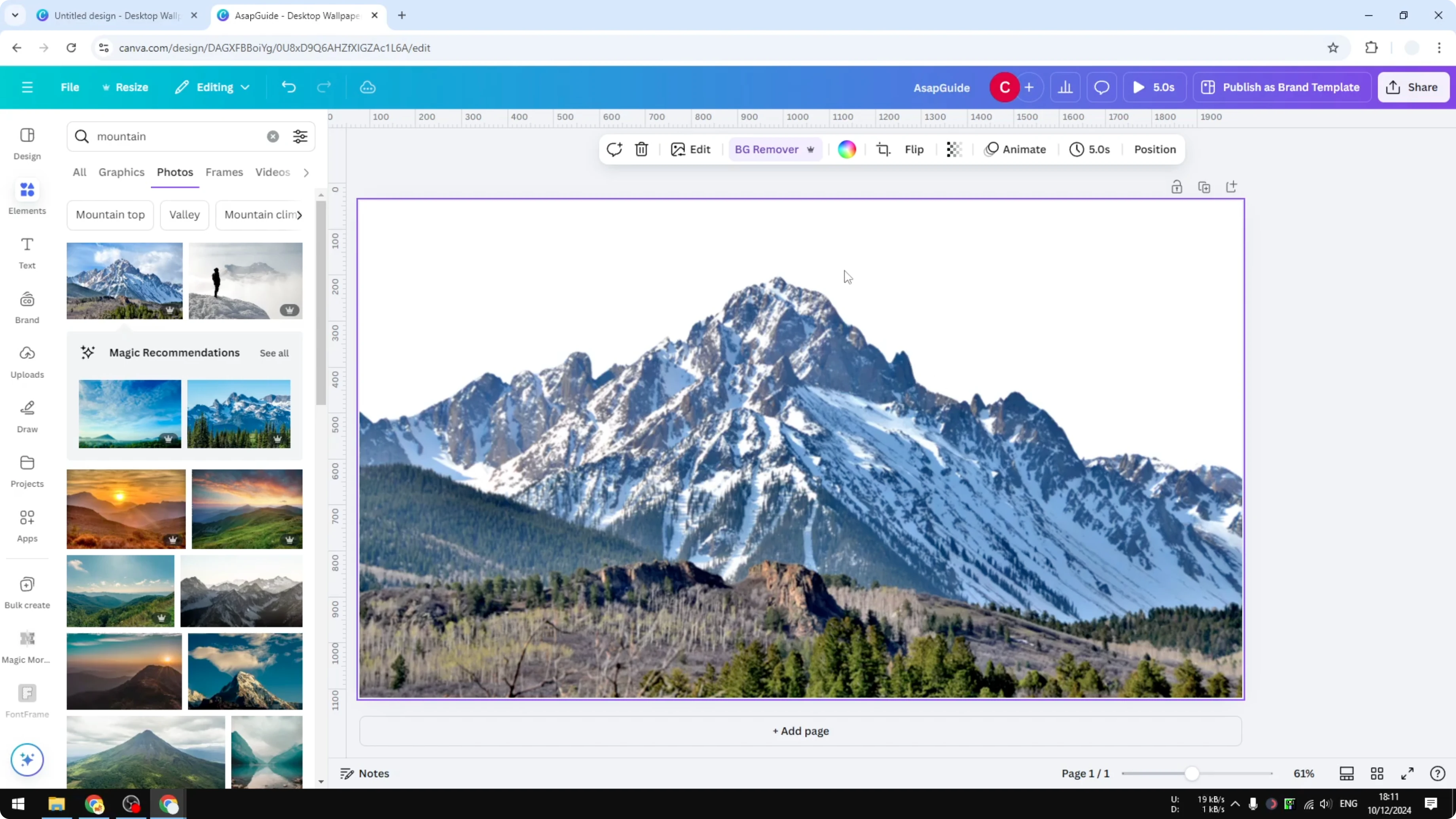
By default the empty background will be just a plain white. If you change the background to be orange, that will be the color that will be seen by this image. If you click Replace background you will see that the background is different.
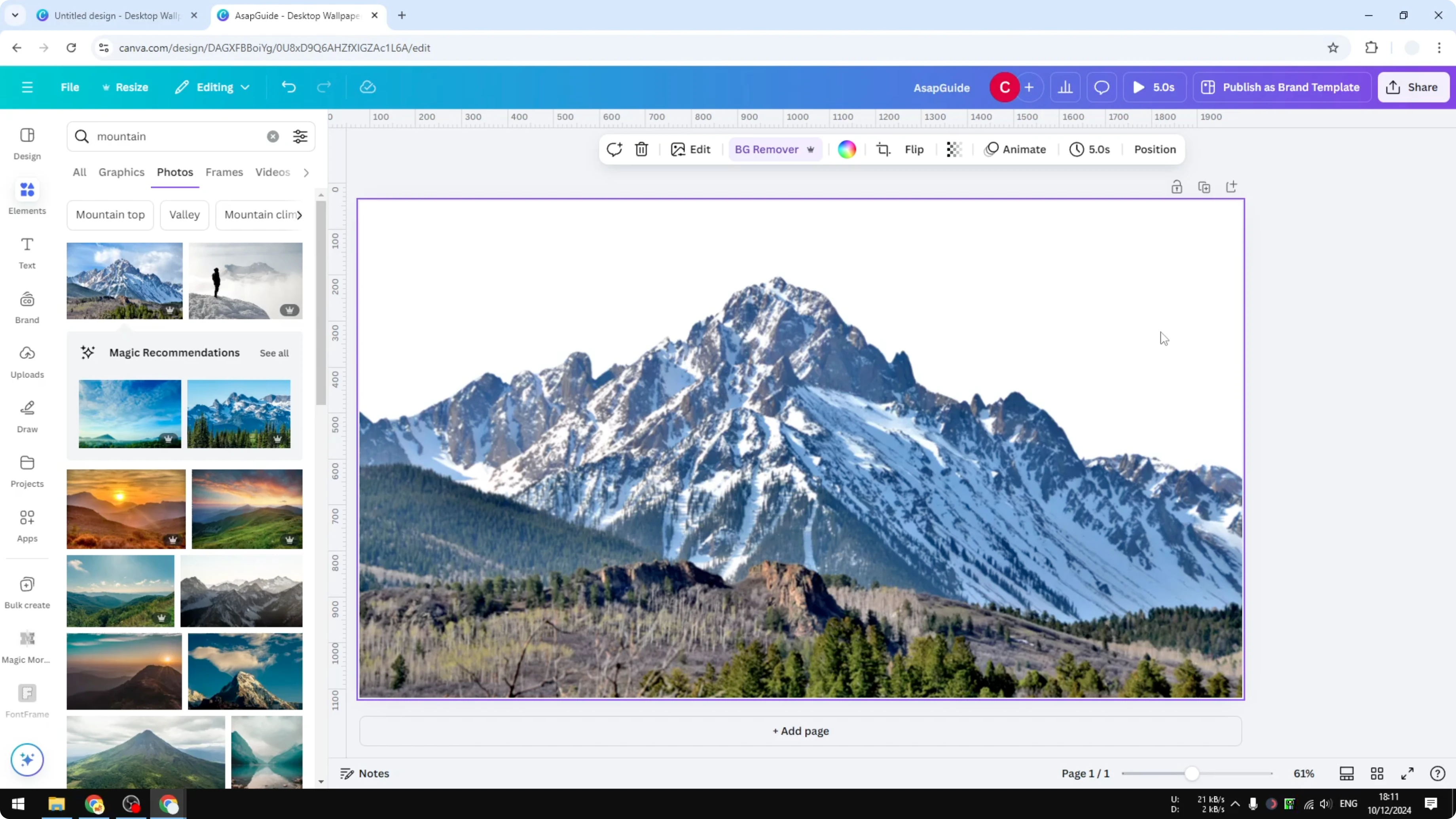
Undo that process because we just want to have an empty background.
Export the PNG With Transparent Background
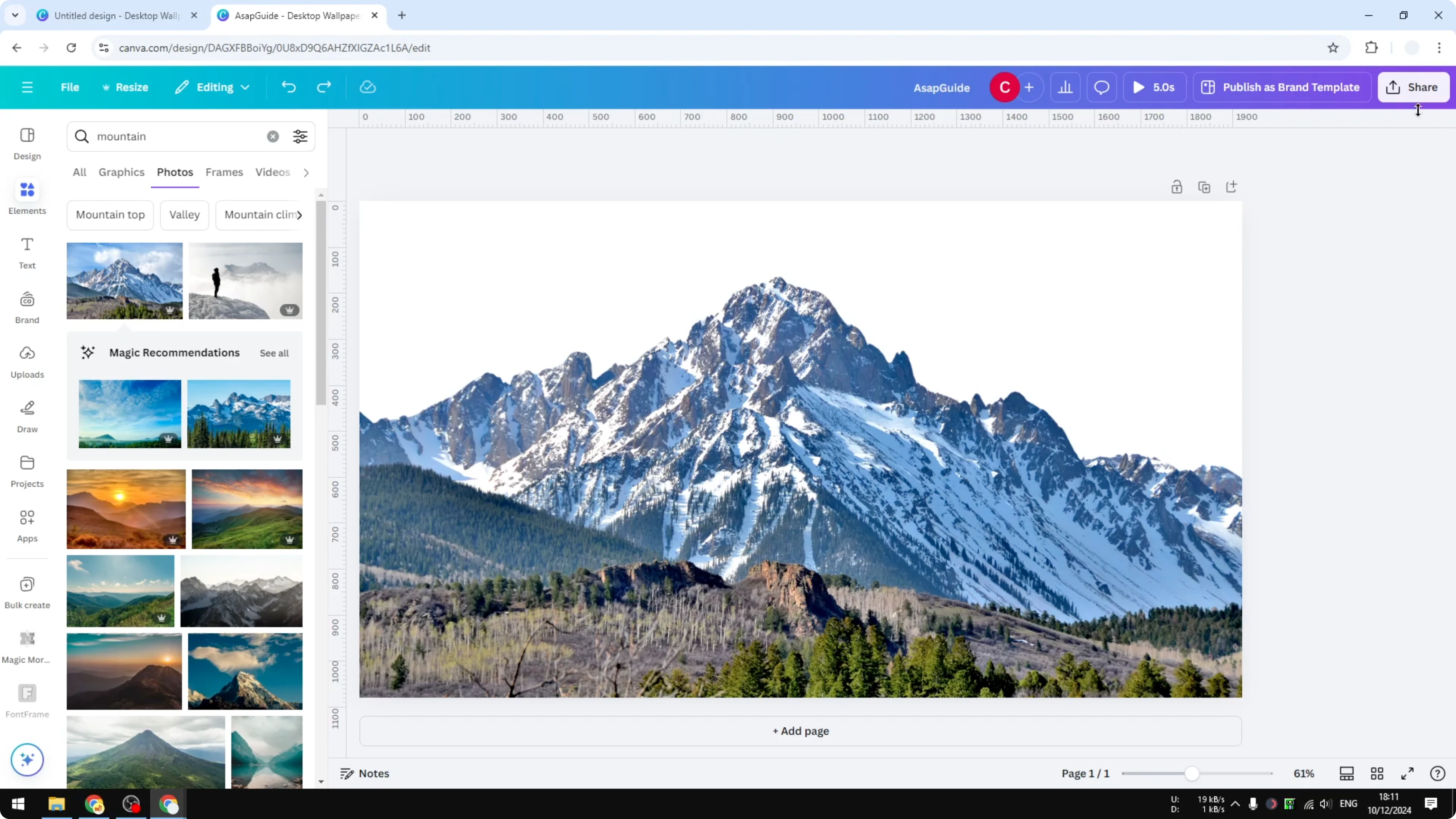
Go to Share.
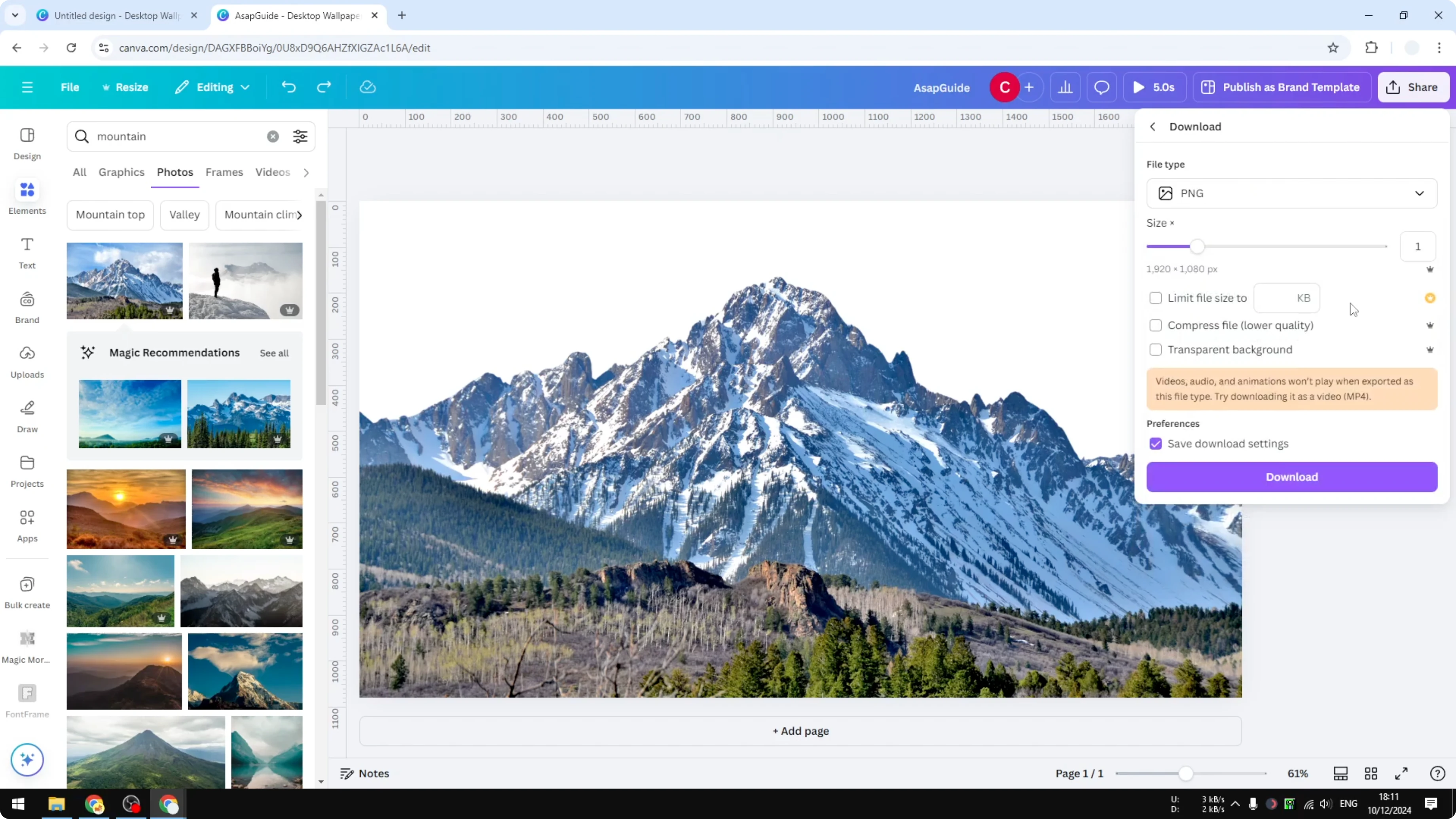
Click Download.
Select the format to be PNG.
Enable Transparent background.
Click Download and wait until Canva is rendering this picture.
The background is now actually transparent.
Place the Transparent Image on a New Background
Add a new page.
Upload this picture once again.
Change the background into something else.
Go to Elements and search for sunset sky.
Use this as a background.
Put the picture on top of the new background.
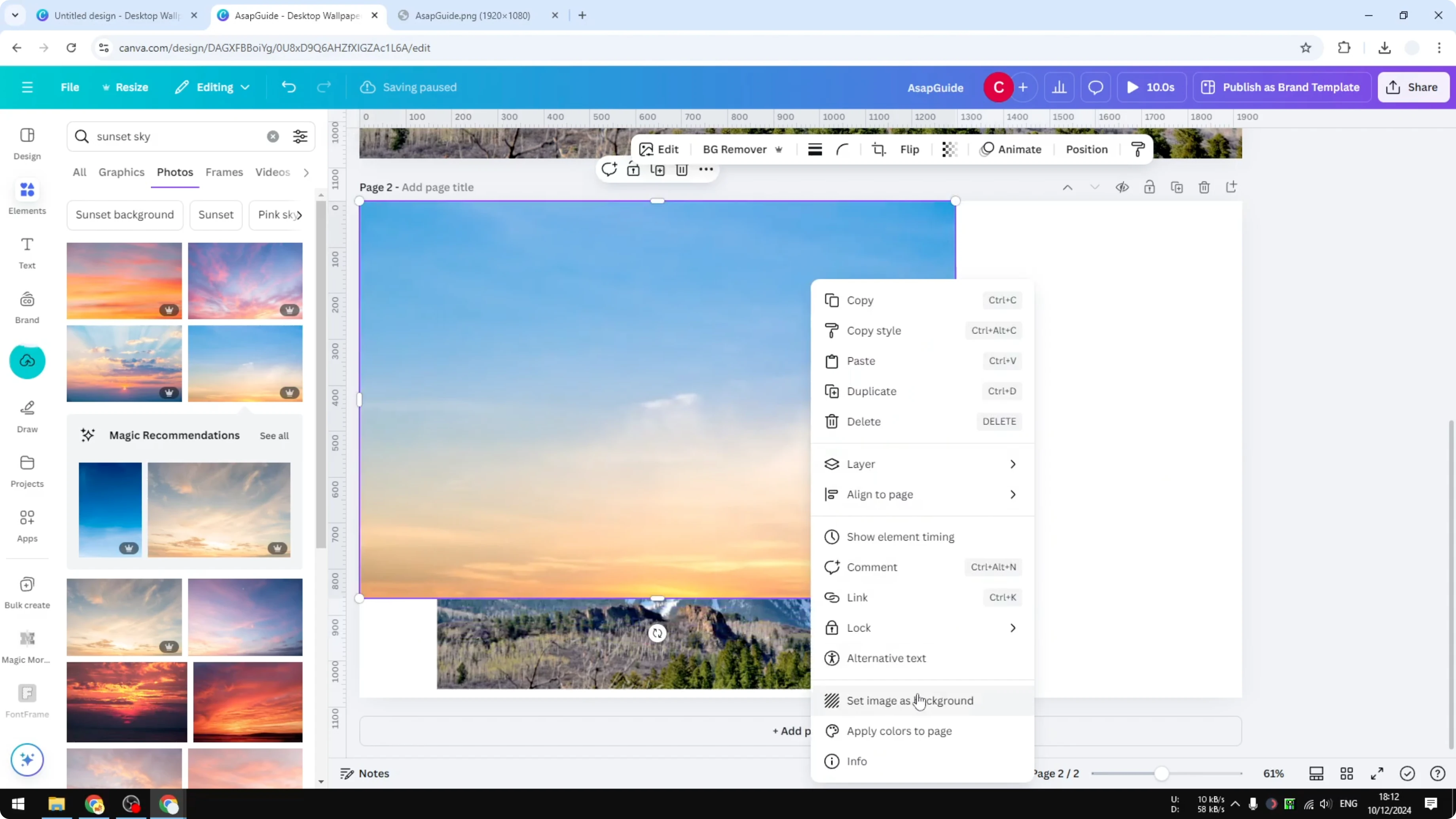
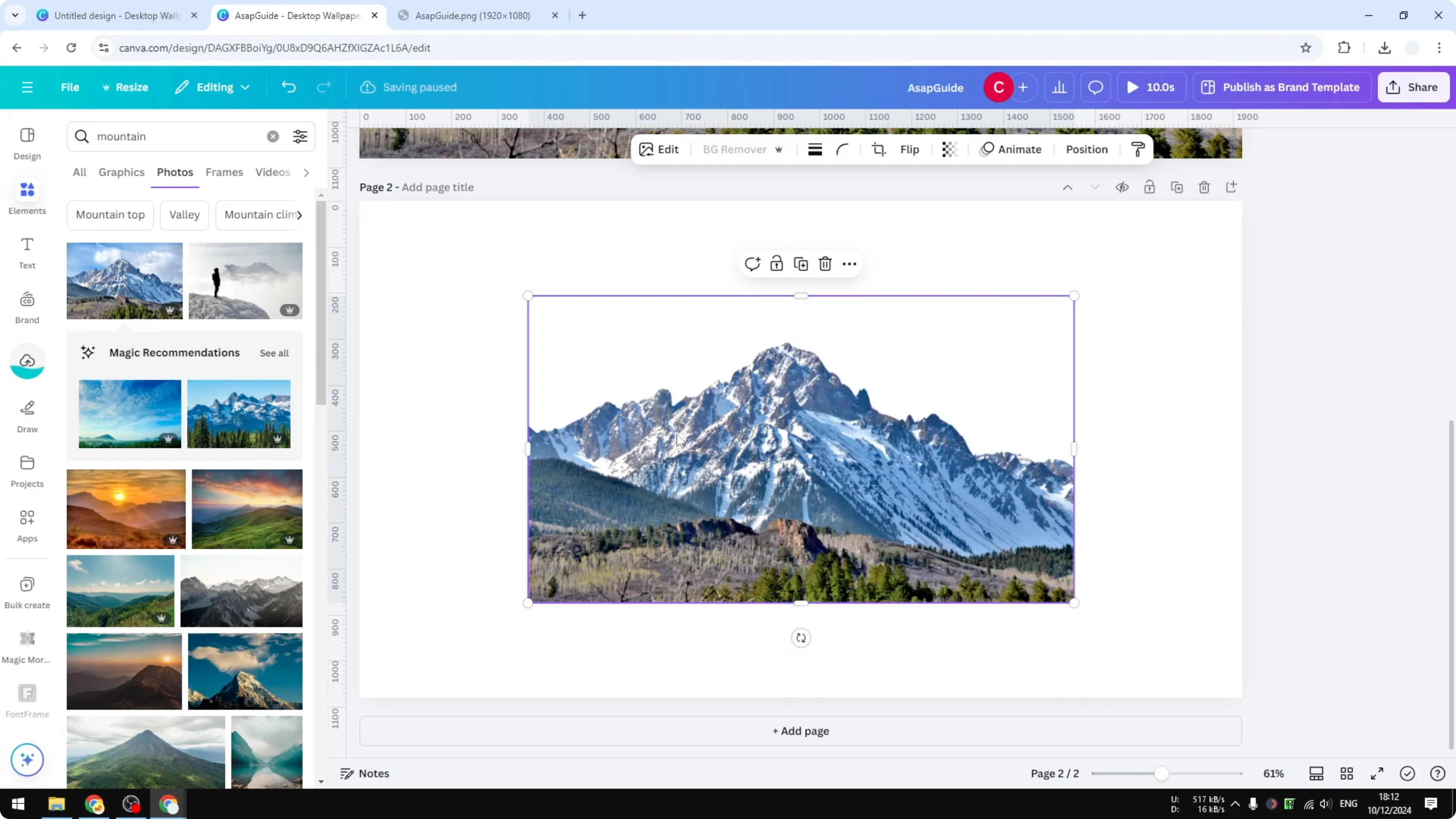
Adjust the background if needed so it looks the way you want.
This is the new picture, and it is transparent.
Final Thoughts
Remove the background with Background Remover, then export as a PNG with Transparent background enabled. You can place the exported image on any background to create a new look. That’s how you can download a transparent picture in Canva.
Recent Posts

How to Visualize Yourself as a Pixelized Character with AI?
How to Visualize Yourself as a Pixelized Character with AI?

How to Revive Faded Memories and Enhance Image Clarity with AI?
How to Revive Faded Memories and Enhance Image Clarity with AI?

How to Visualize Yourself as an Animal Crossing Character with AI?
How to Visualize Yourself as an Animal Crossing Character with AI?