How to Make Multiple Elements the Same Size in Canva
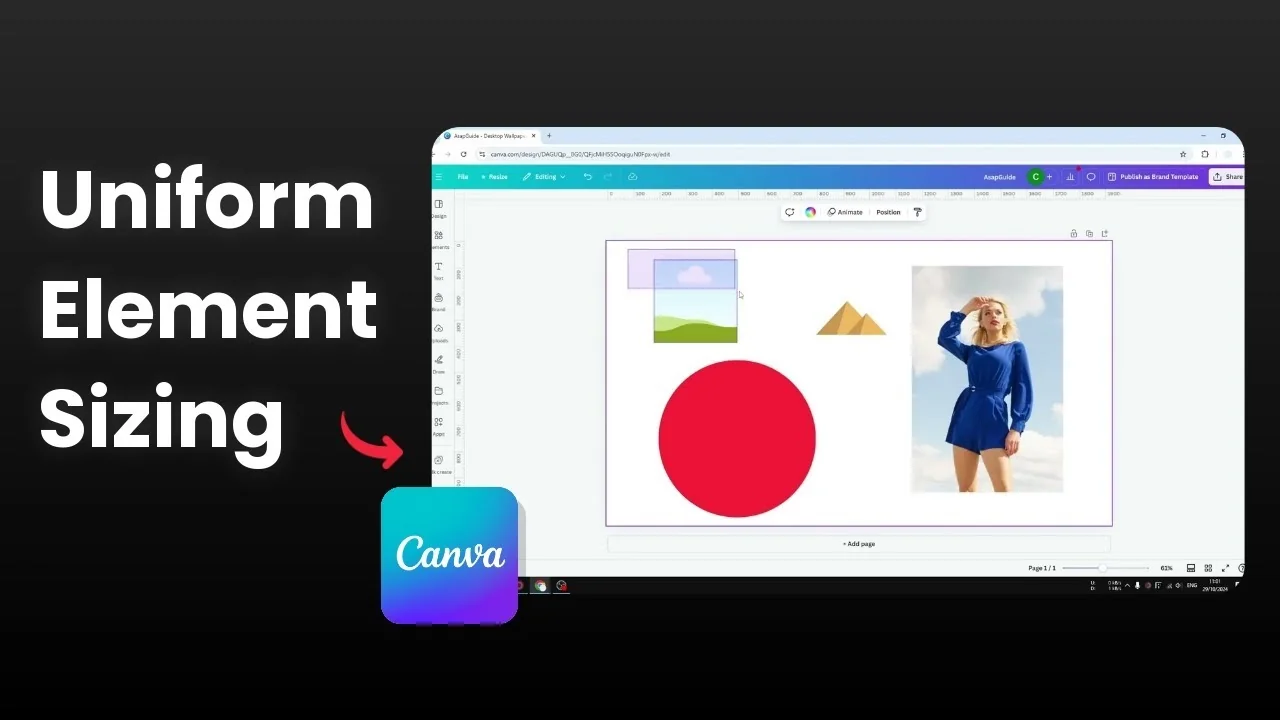
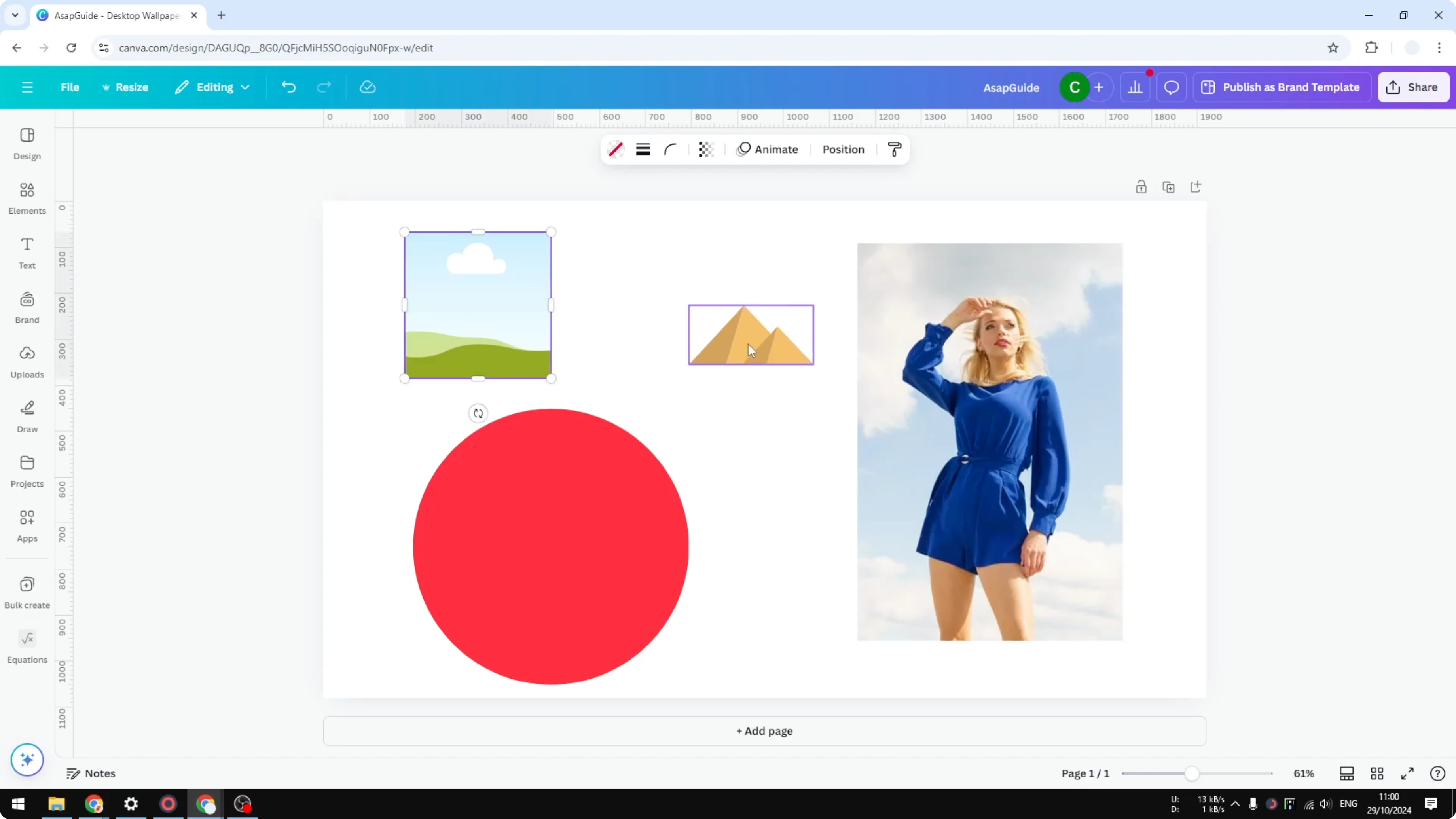
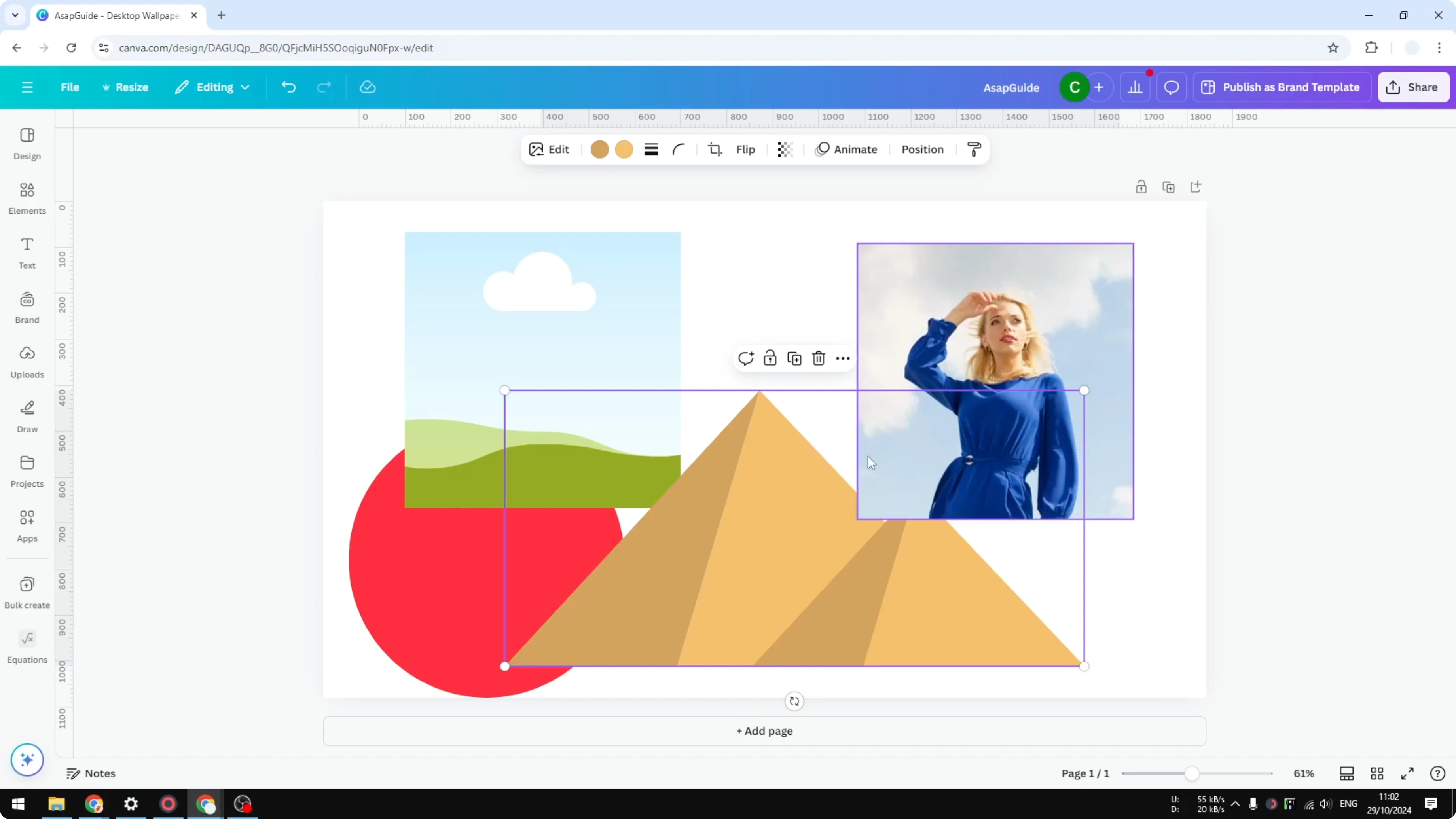
If you are working with a Canva document and you want a lot of different elements to share the same size, here is how I do it. I have four objects: a frame, a vector graphic of a pyramid, an image of a lady, and a circle shape with a red color. They all have different sizes, and I want them to match.
Make Multiple Elements the Same Size in Canva
Select elements for Make Multiple Elements the Same Size in Canva
Select the elements you want to resize. Hold Shift and click each element to add it to your selection. Canva will select them together.
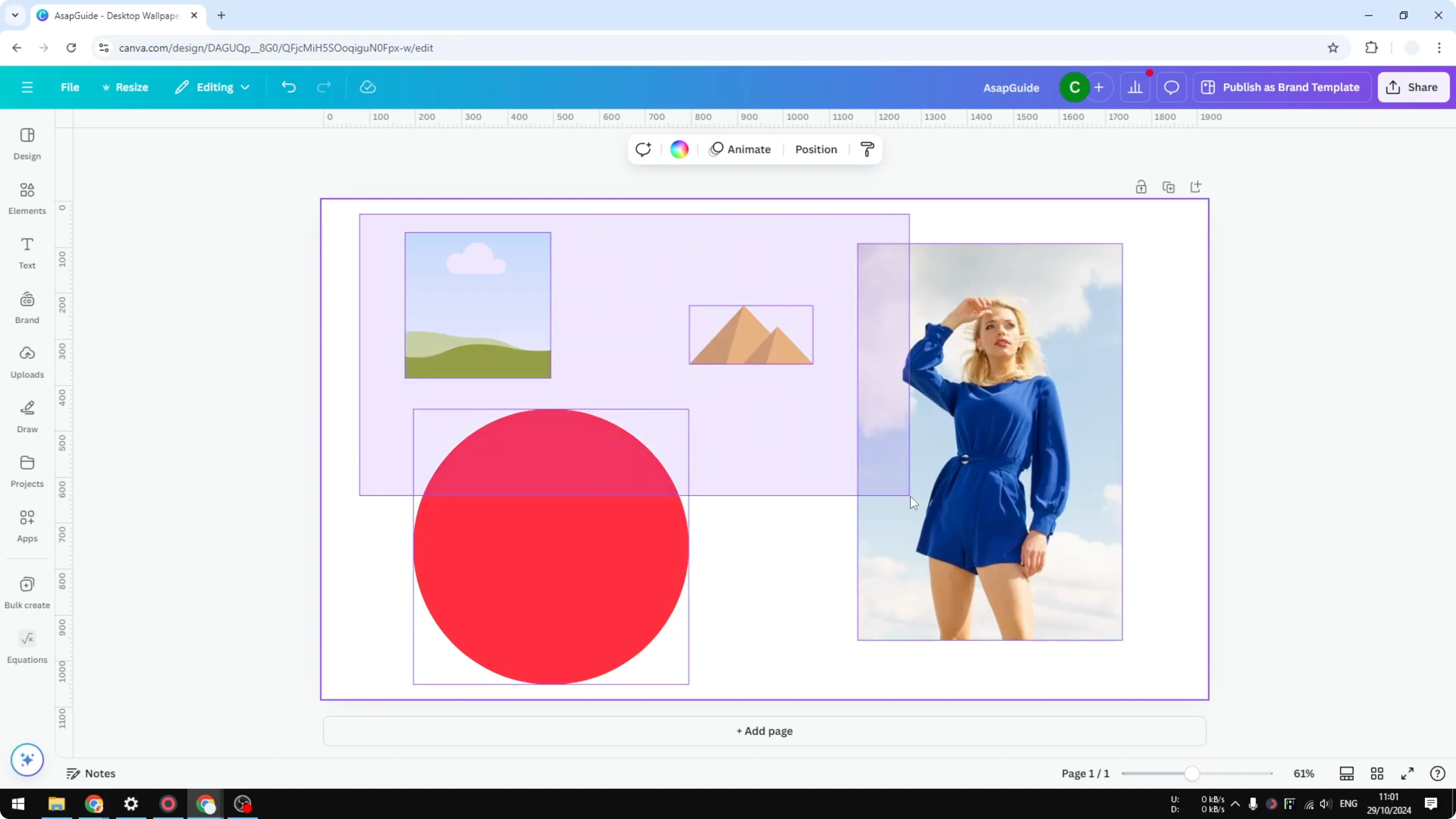
You can also click and drag on an empty area to draw a rectangle around the elements you want. Everything inside the rectangle becomes selected. For a deeper walkthrough on selecting groups, see this guide on selecting multiple elements in Canva.
Enter width and height for Make Multiple Elements the Same Size in Canva
Go to Position. Open the Advanced section. You will see Width and Height fields.
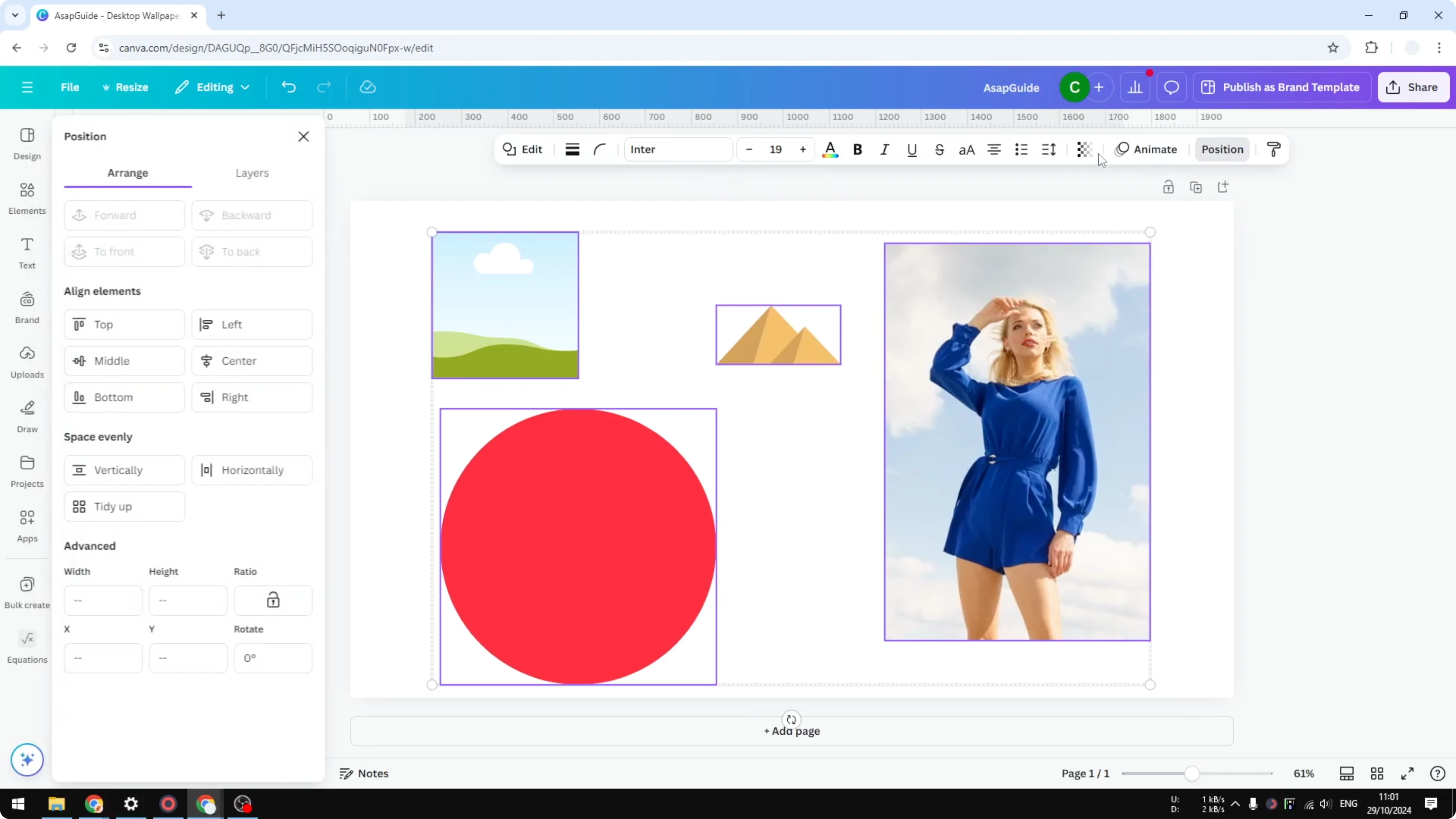
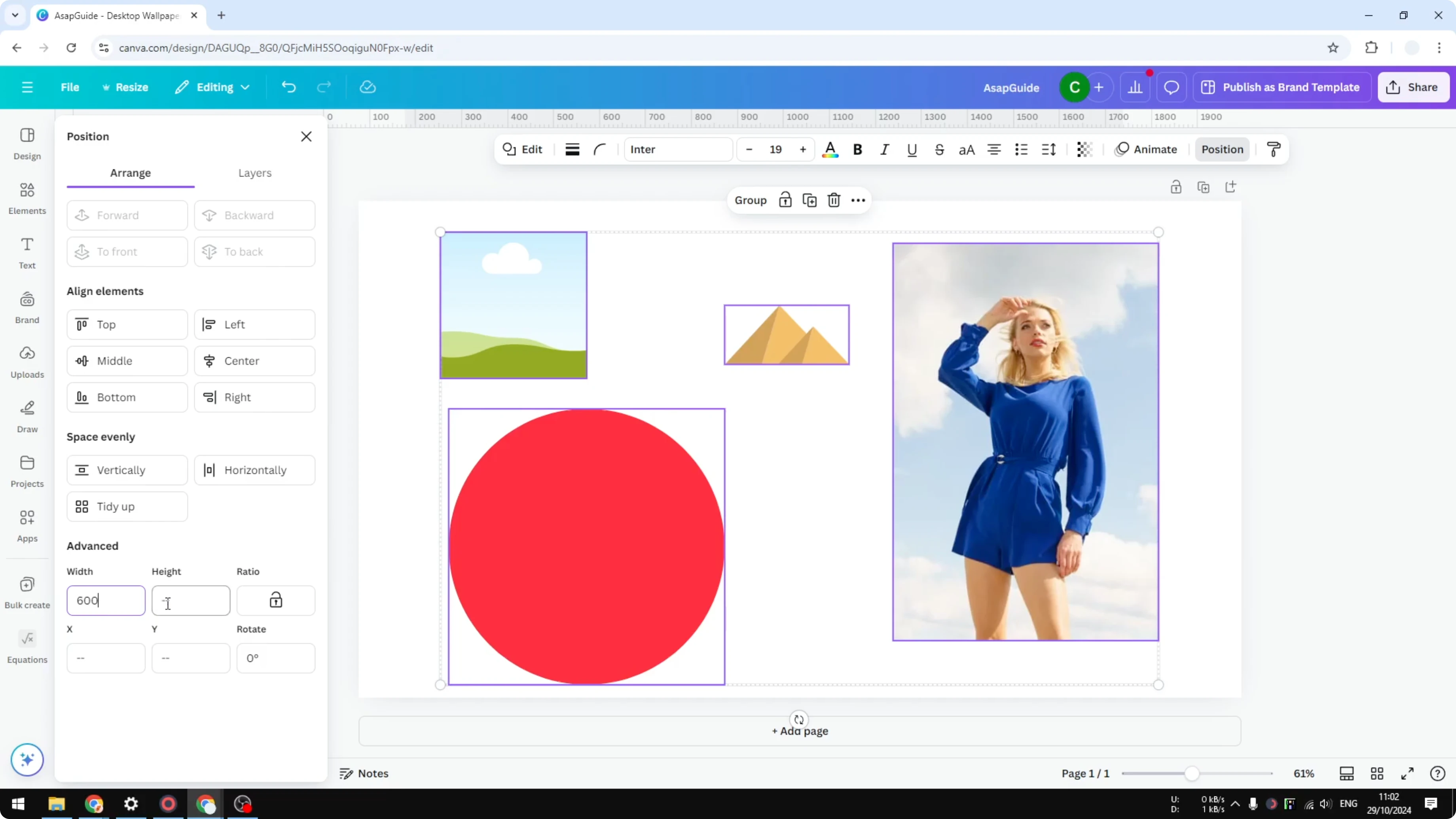
When you select items of different sizes, these fields look empty. Enter the size you want for both fields. I set Width to 600 px and Height to 600 px.
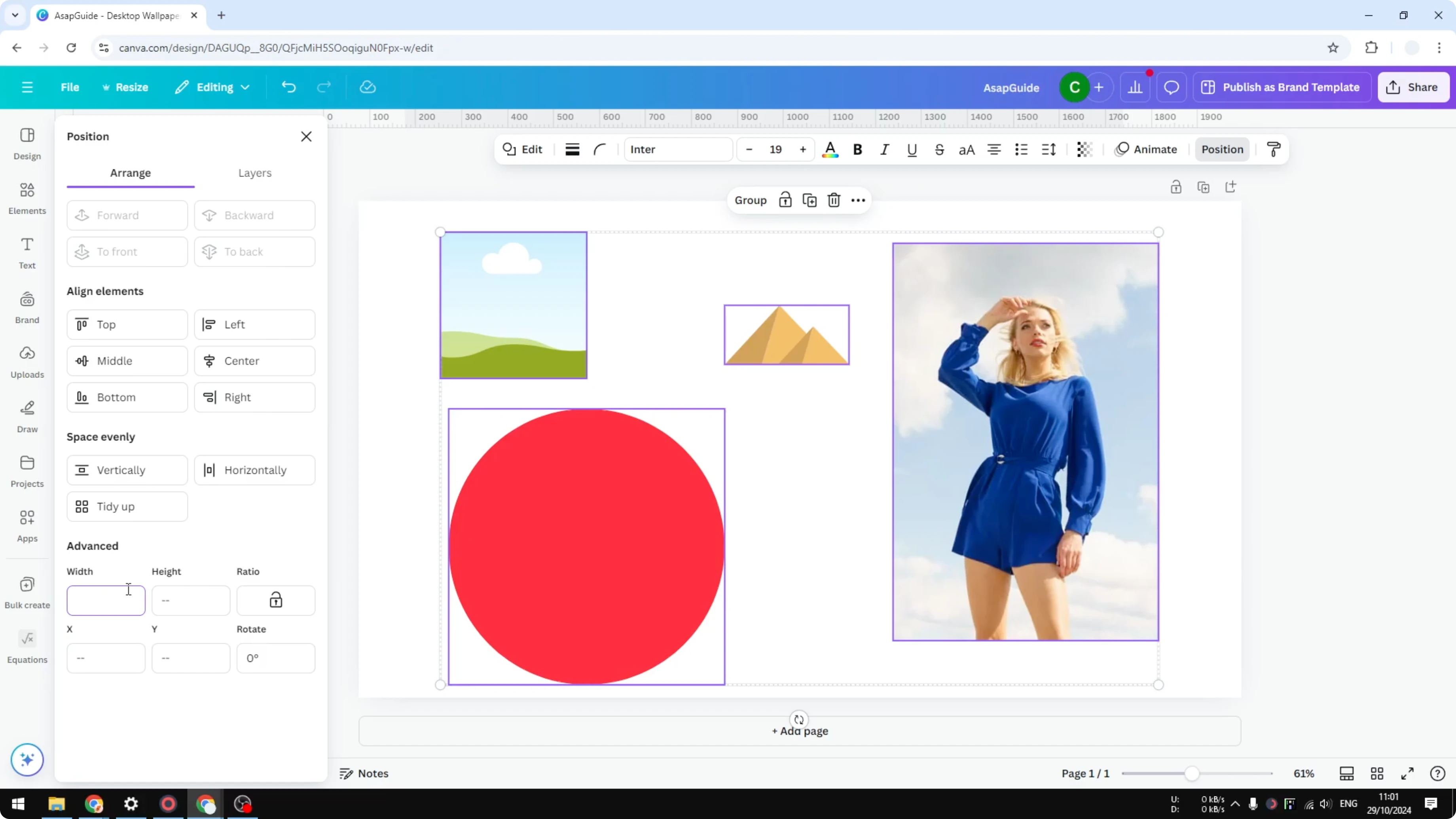
The units depend on your document. Your design might use pixels, centimeters, millimeters, or inches. You can confirm the units on the rulers.
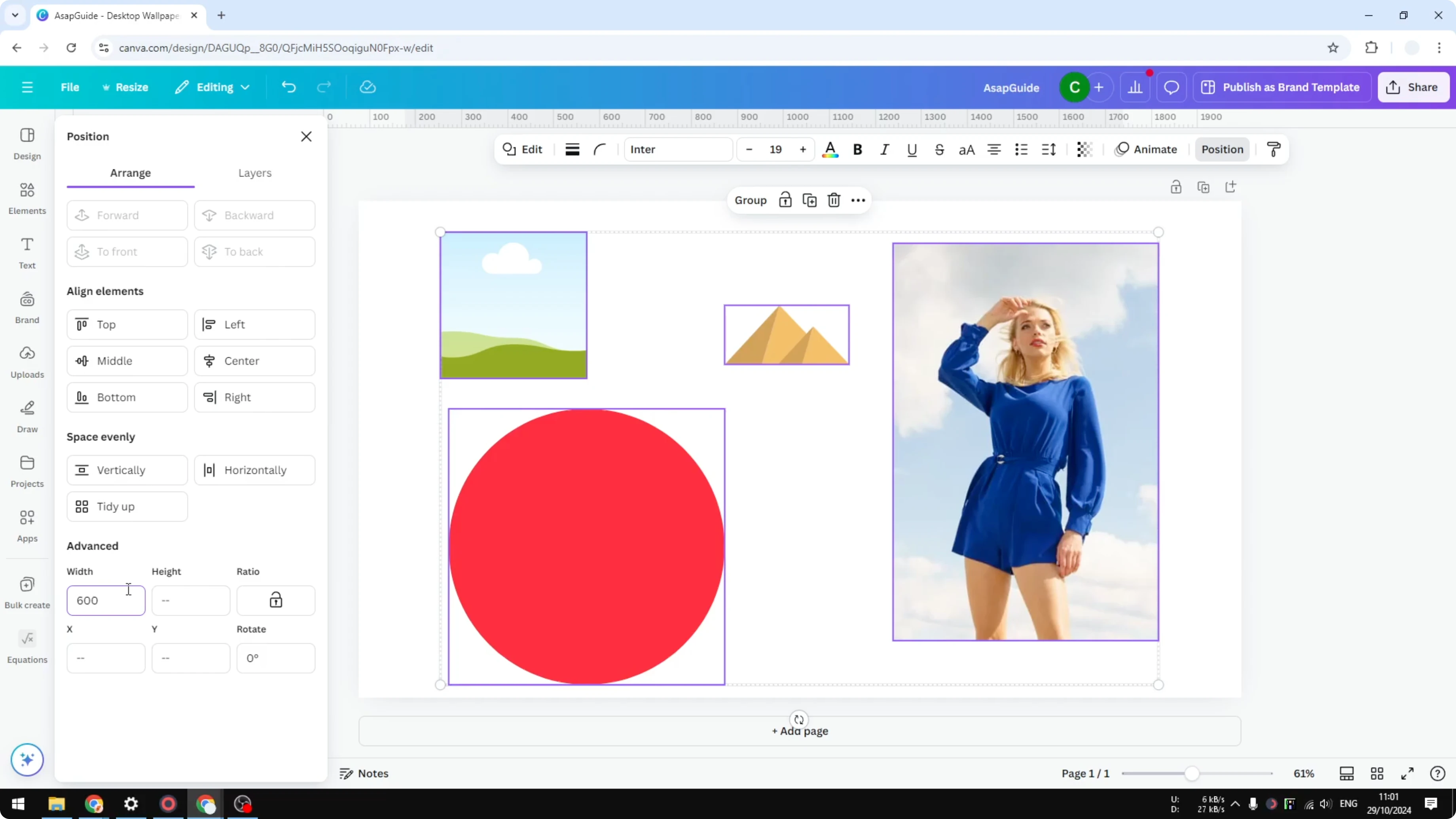
My example document is 1920 x 1080 px, but your file may differ. Press Enter or click anywhere on the canvas to apply the change. You will see multiple elements update at once.
If you are prepping consistent tiles or overlay blocks, learn how to create a transparent overlay in Canva.
What resizes exactly when you Make Multiple Elements the Same Size in Canva
Most elements follow the numbers exactly. Frames, shapes, and regular photos will match the Width and Height you type. You can place them side by side to confirm they line up.
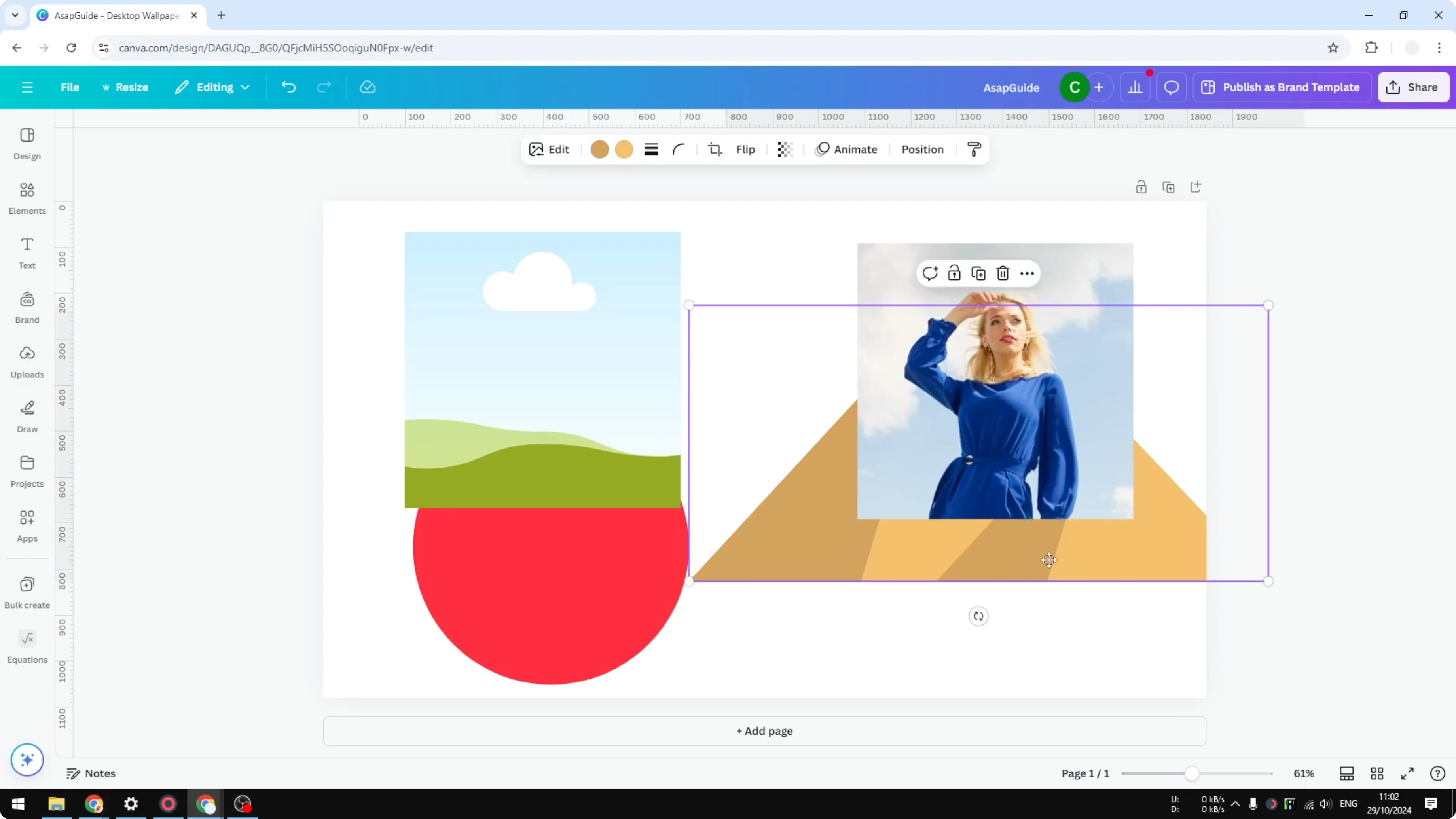
Some vector graphics keep their original proportions. A vector like my pyramid may respect the Height you set but make the Width wider to stay proportional. Keep that in mind if one object does not match the square size exactly.
Final thoughts on Make Multiple Elements the Same Size in Canva
Select your elements, open Position, set the Width and Height, and apply. Most items will match exactly, while some vectors keep proportions and may not follow both numbers.
If you plan to present your equal-sized elements as a slideshow, you can make a video using photos in Canva.
Recent Posts

How to Visualize Yourself as a Pixelized Character with AI?
How to Visualize Yourself as a Pixelized Character with AI?

How to Revive Faded Memories and Enhance Image Clarity with AI?
How to Revive Faded Memories and Enhance Image Clarity with AI?

How to Visualize Yourself as an Animal Crossing Character with AI?
How to Visualize Yourself as an Animal Crossing Character with AI?