How to Select Multiple Elements in Canva
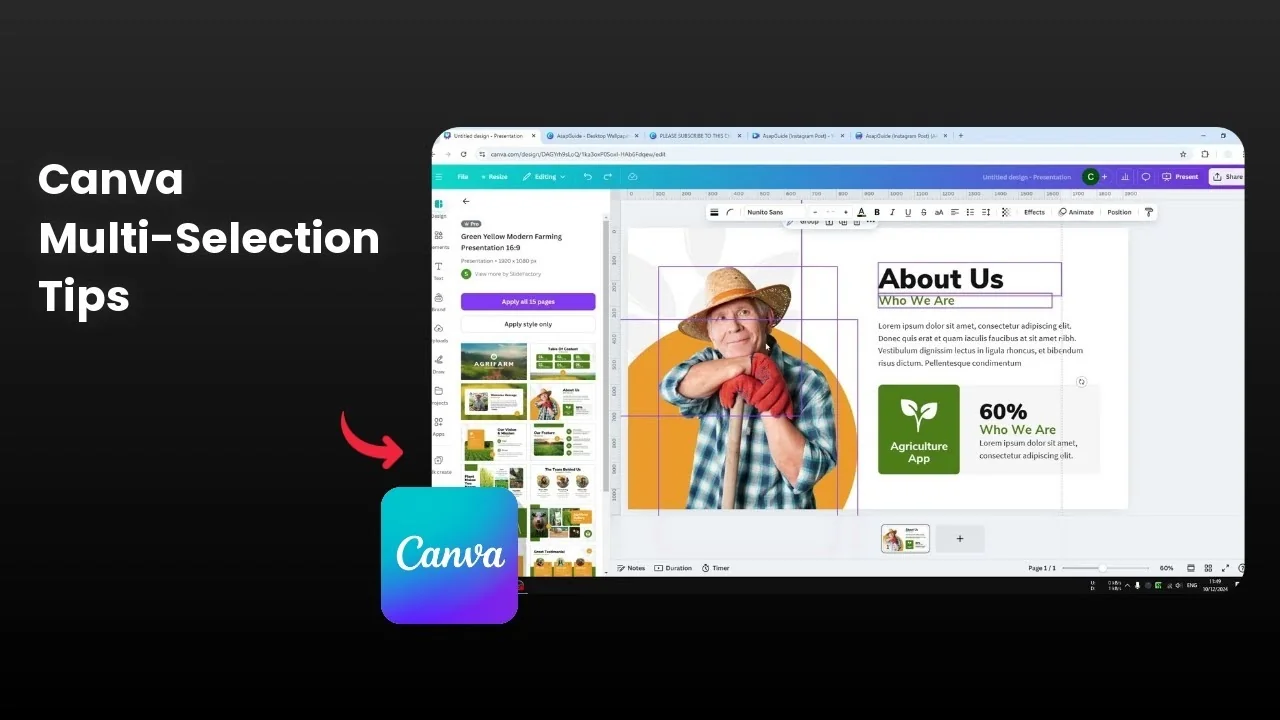
I’m going to demonstrate how to select multiple elements in Canva. This process is very important if you are working on multiple elements and you don't want to repeat the same editing process or the same settings all over again. It's a good idea to select multiple objects so you can apply the same settings or the same effect to those objects.
I have this design and there are multiple elements that I'm going to select so they can be grouped together.
Select Multiple Elements in Canva
Method 1 - Drag Selection with the Cursor
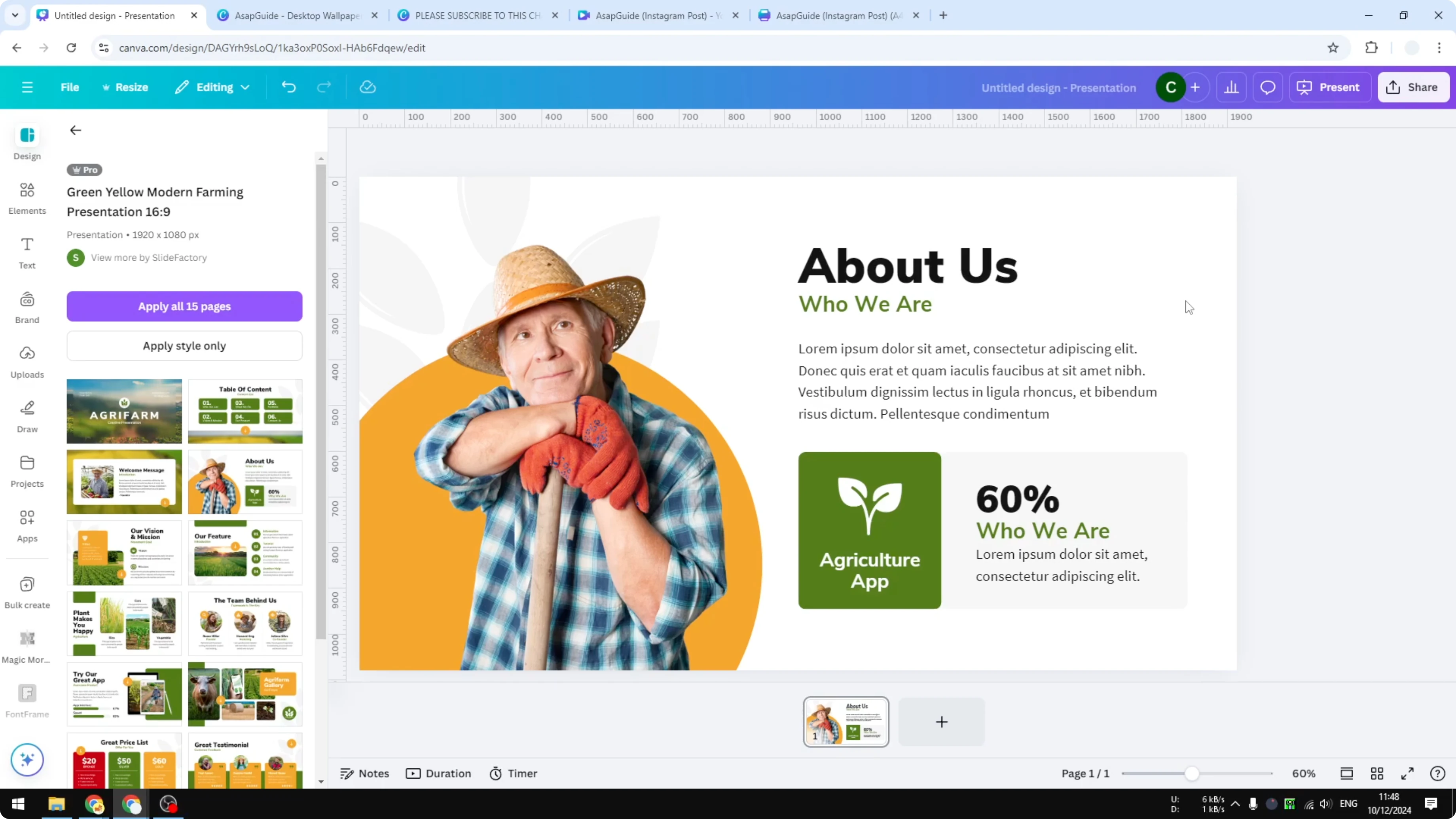
The first method is by using the cursor.
Click on an empty area on the canvas and drag to cover the area occupied by the elements you want.
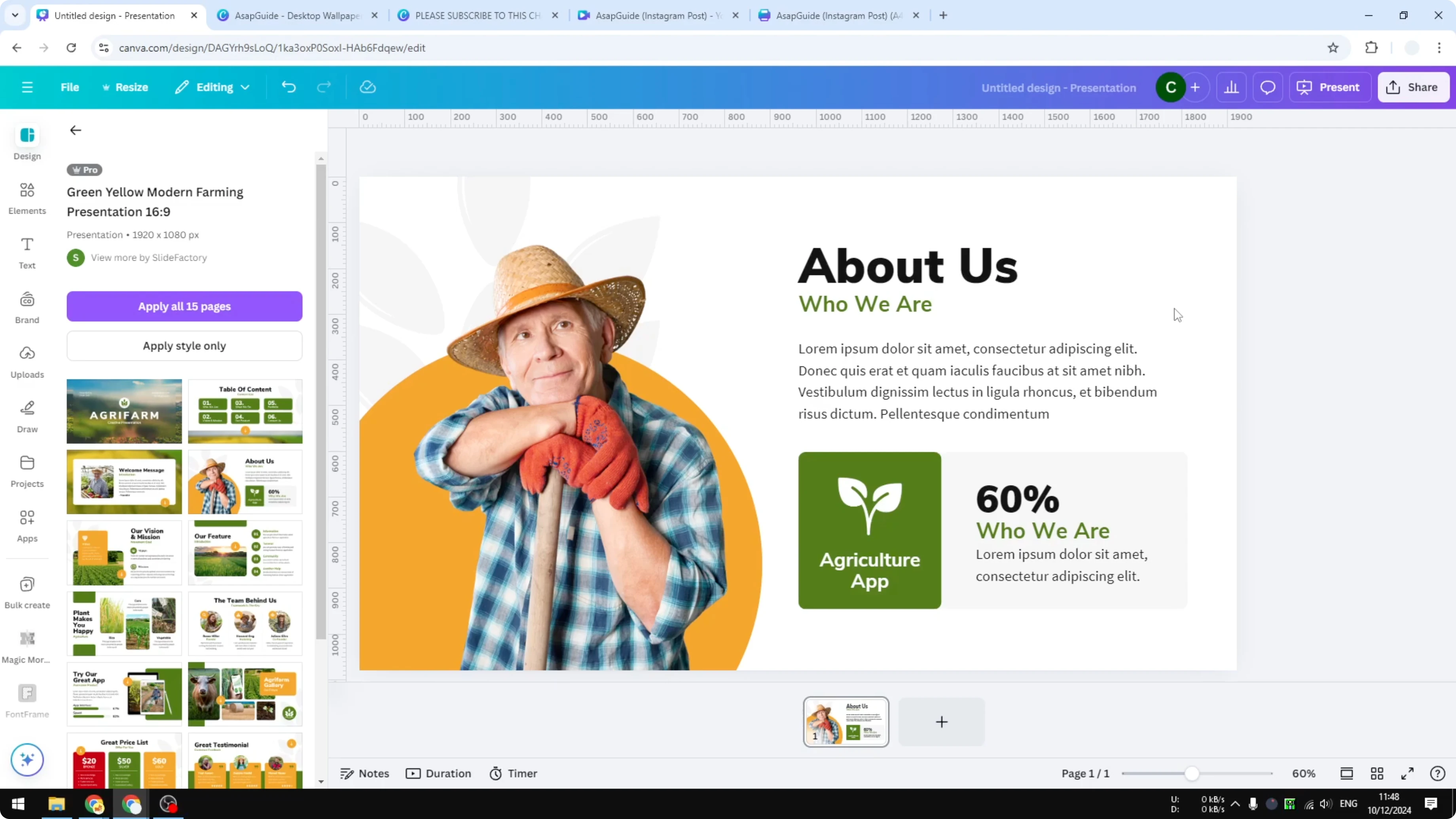
Release the click and those elements are selected.
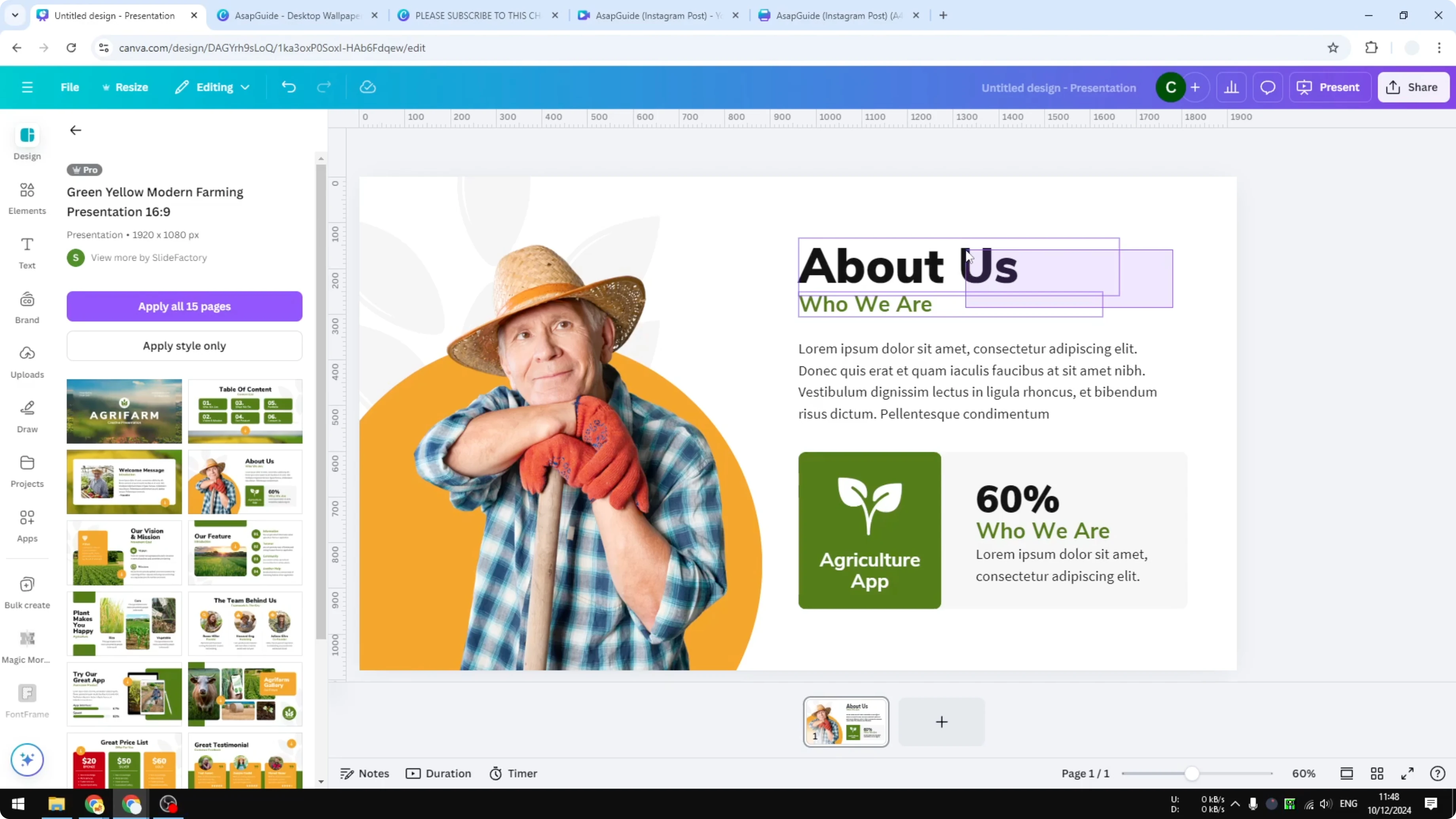
You can edit or group these elements.
When you move any of them, the other element will follow.
Method 2 - Shift-click Individual Elements
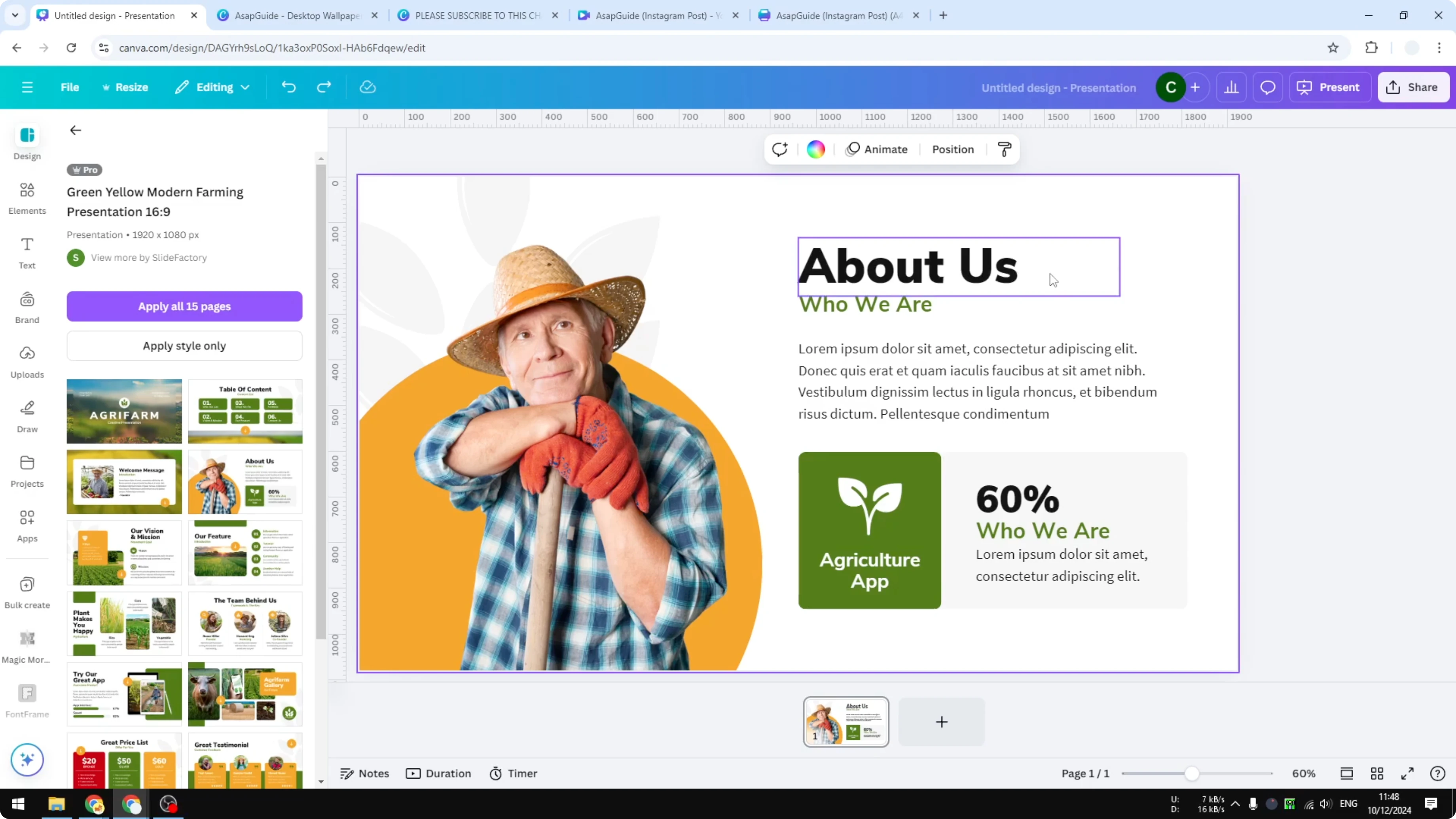
The second method is also easy.
Click on any object.
Press and hold the Shift key, then click every single object you want to select.
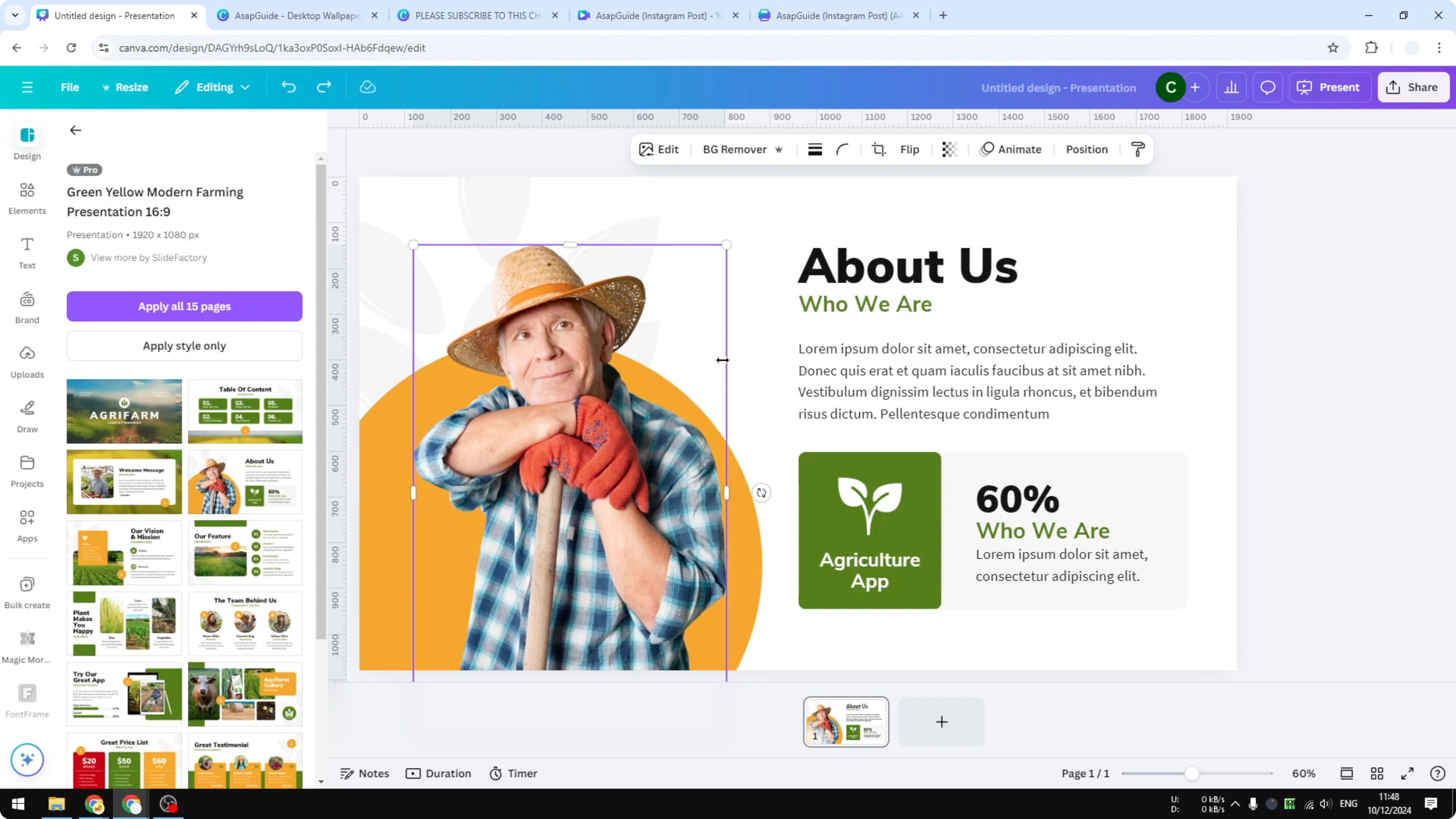
It could be a picture, text, an orange background, or a decoration.
These elements are different, but now they are selected together.
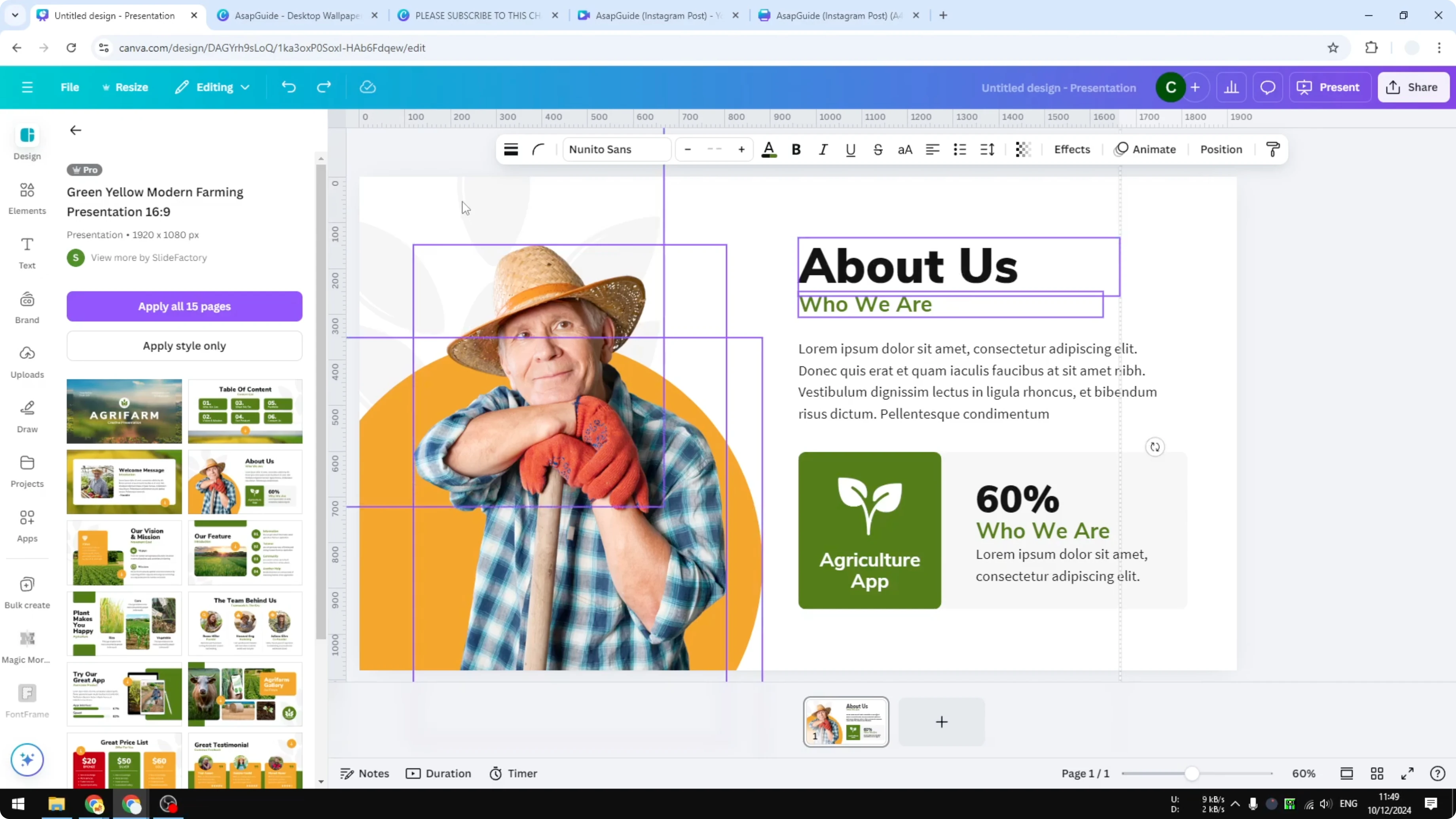
You can group them, delete them, or move them into a different position.
Select All Elements at Once
If you want to select all of the elements, press the keyboard shortcut shown below.
Ctrl + A
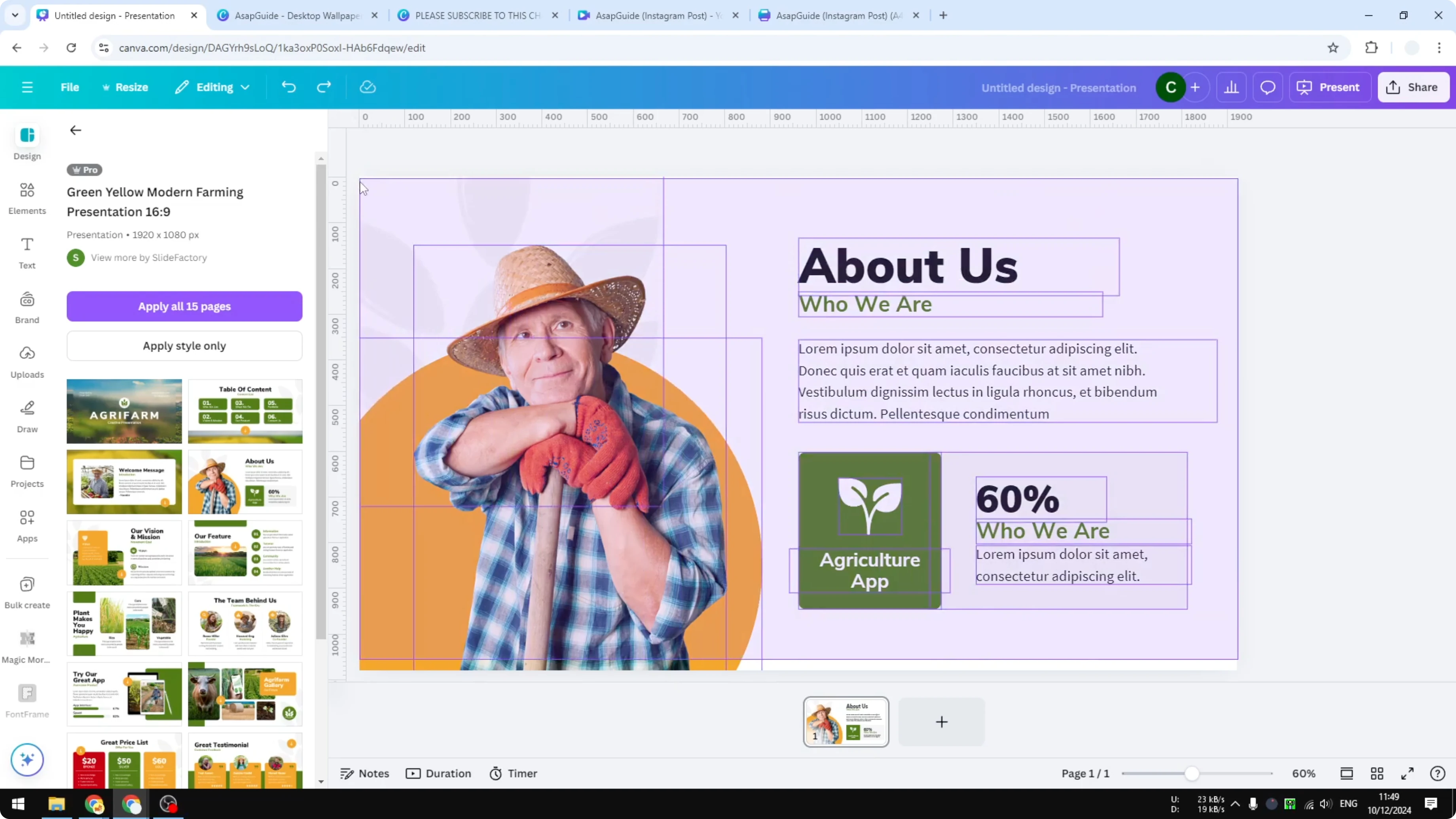
That will select all elements except for the background.
You can also click and then drag to cover the whole design to select everything on the page.
Group and Edit After You Select
After selecting, you can group the elements to keep them together.
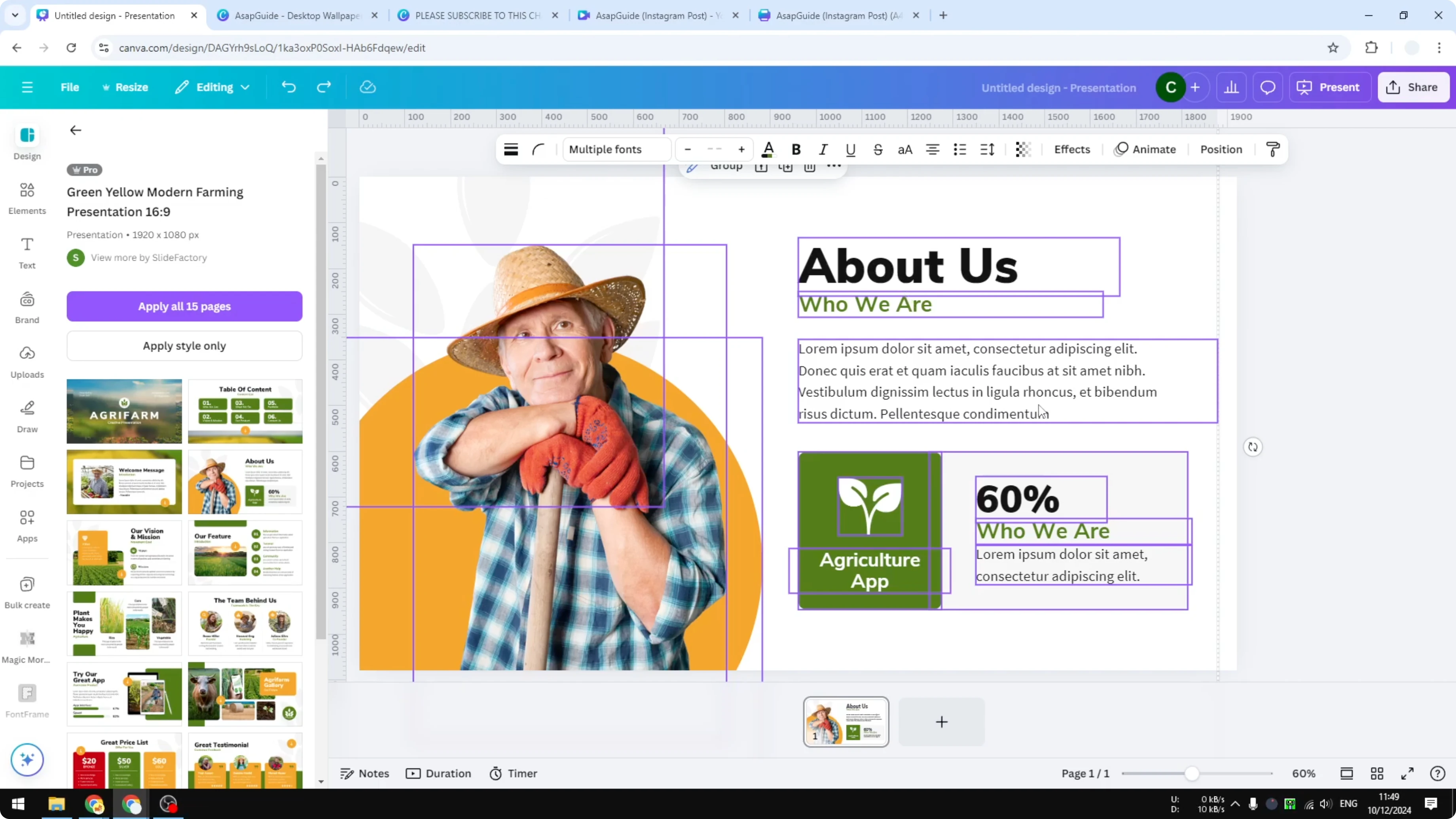
Apply the same settings or the same effect once, and all selected objects will update.
Move the group to a new position and everything will follow.
Final Thoughts on Select Multiple Elements in Canva
Selecting multiple elements in Canva lets you edit, group, move, or delete items efficiently. Use drag selection for quick areas, Shift-click for precise picks, and Ctrl + A to grab everything except the background. These methods make it fast to keep elements aligned and consistent.
Recent Posts

How to Visualize Yourself as a Pixelized Character with AI?
How to Visualize Yourself as a Pixelized Character with AI?

How to Revive Faded Memories and Enhance Image Clarity with AI?
How to Revive Faded Memories and Enhance Image Clarity with AI?

How to Visualize Yourself as an Animal Crossing Character with AI?
How to Visualize Yourself as an Animal Crossing Character with AI?