How to Move an Object from an Image in Canva
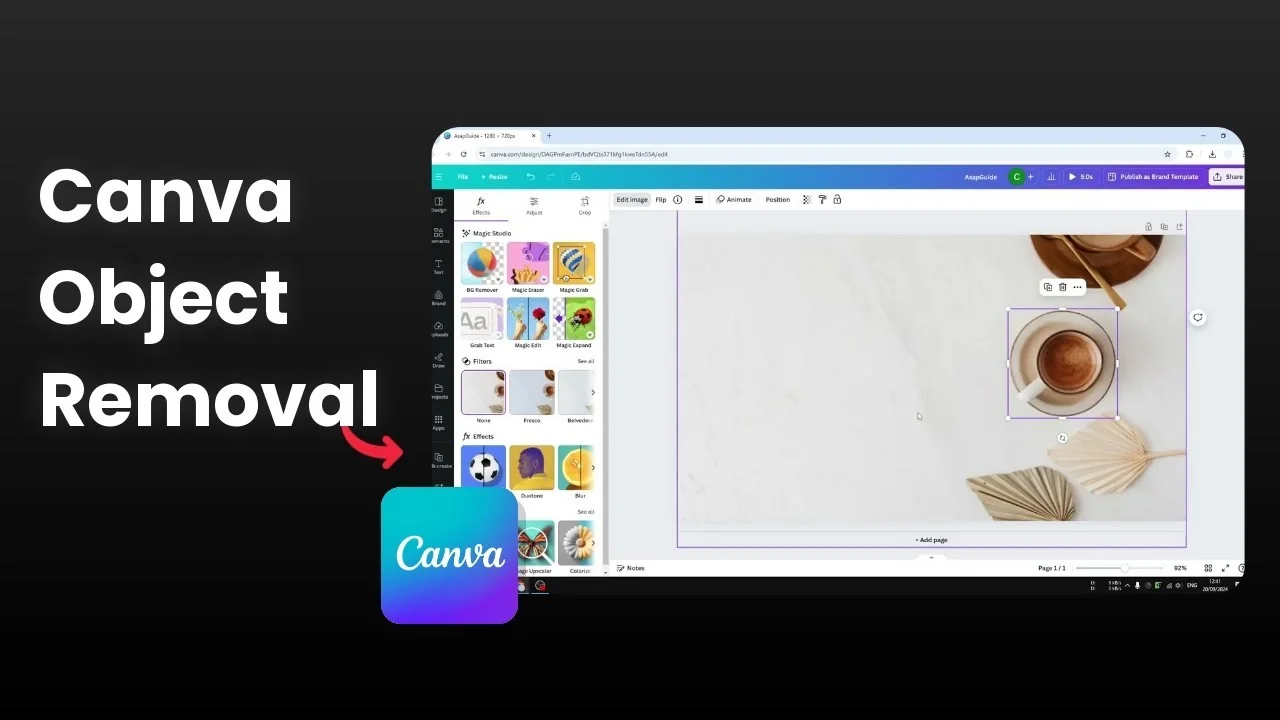
I will show you how to move an object from an image in Canva. I am not talking about moving a piece of text, a shape, or a separate picture from one spot to another. I mean an object that appears inside a photo, where you are not happy with its position and you want it somewhere else.
In that case the object is part of the image and not a separate layer. To move it, I first isolate it, then I can place it as an independent piece. The method below is quick and accurate.
Move an Object from an Image in Canva
The easiest way to do this is with Magic Grab in Canva. It is an AI feature that lets you select an object, extract it, and fill the hole it leaves behind. This isolates the object and patches the background with similar texture.
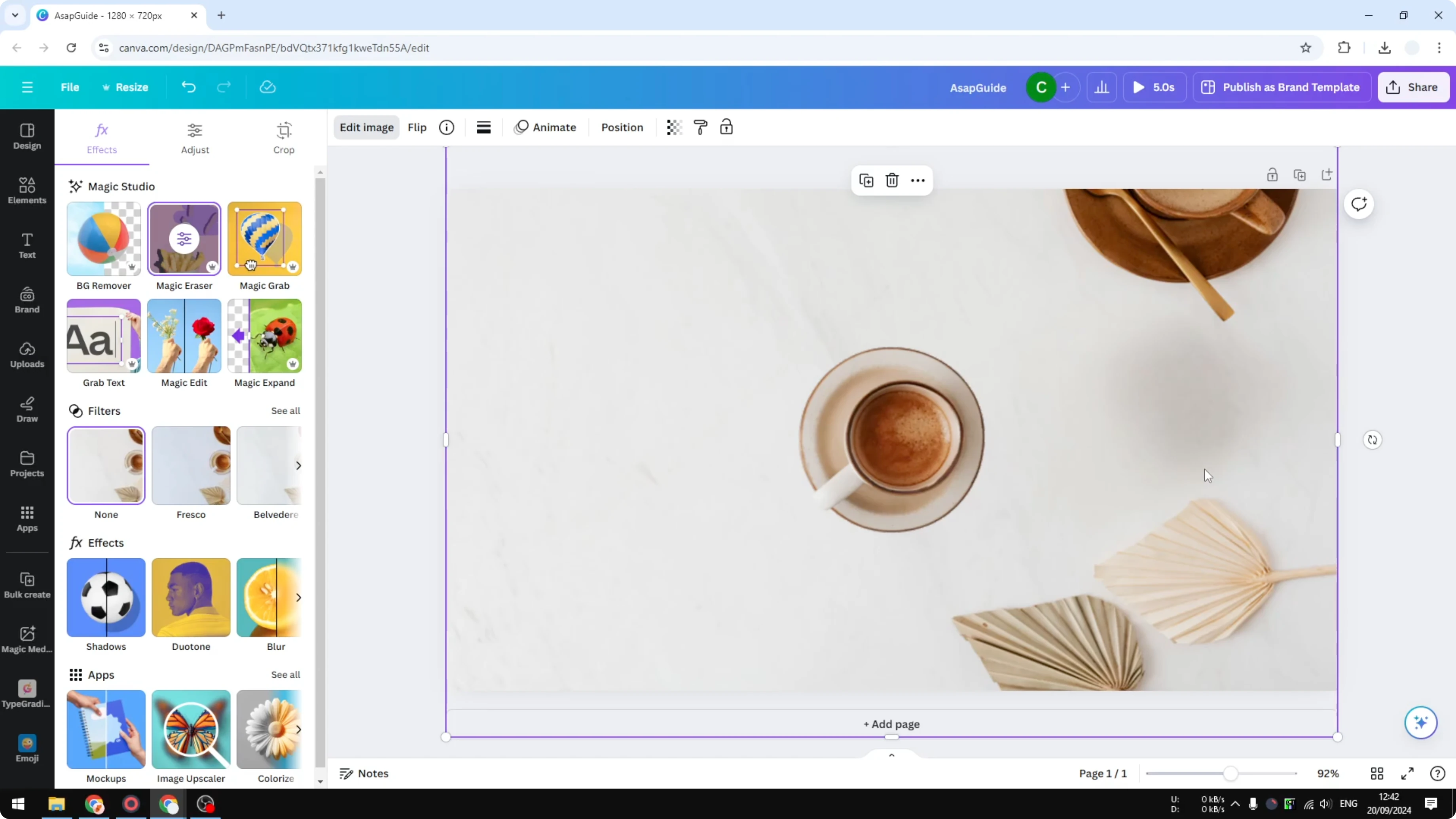
Example: coffee table object
I have a picture of a coffee table with a cup on the right side. I want that cup in the middle of the table. The cup is baked into the image, it is not separate.
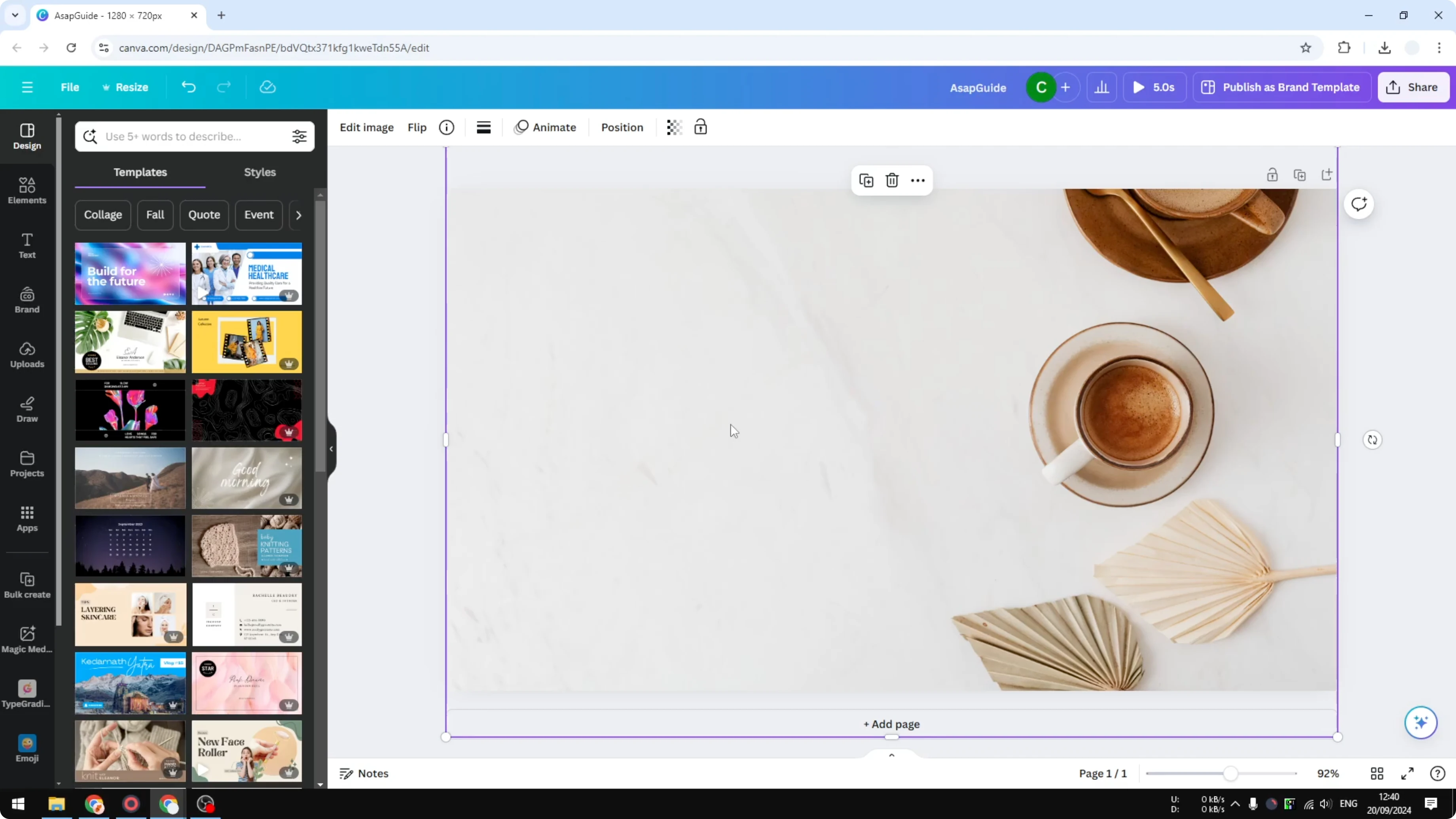
To make this work I isolate the cup, then I can move it freely. If you also want more layout control for other photos, add placeholder image frames to build quick mockups.
Step by step
Open your image in Canva.
Click the image on the canvas.
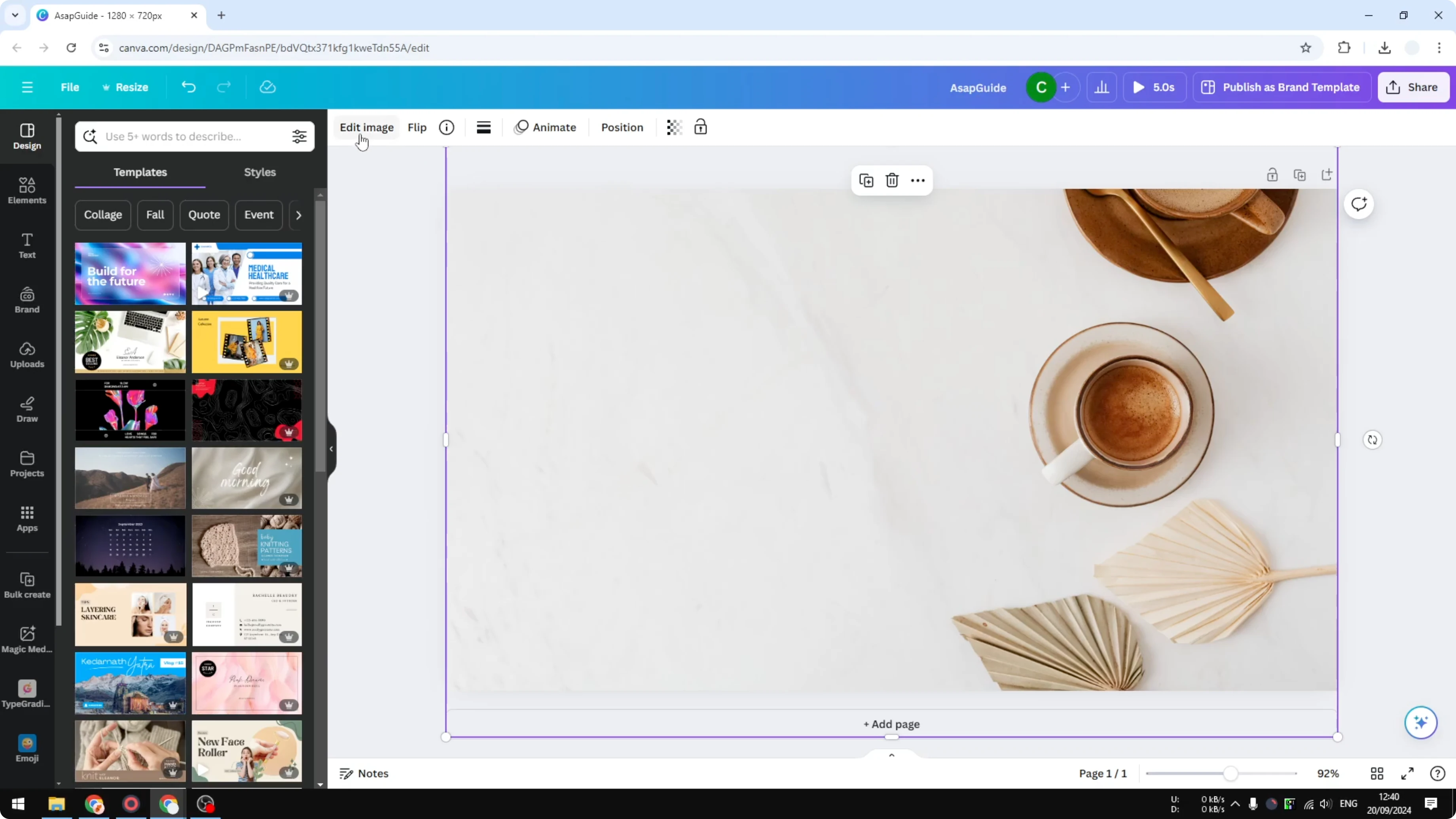
Click Edit image.
Select Magic Grab.
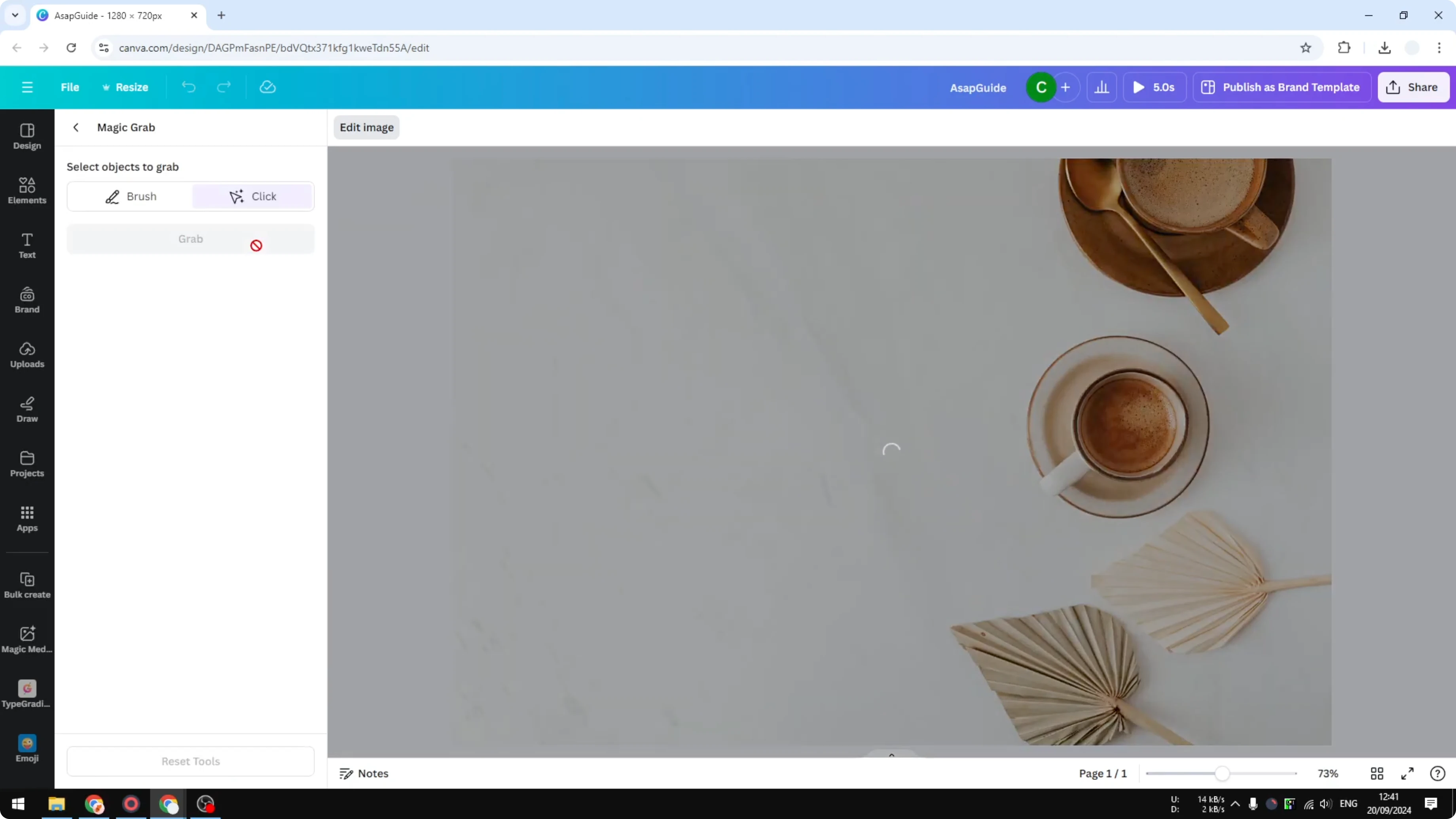
Wait while Canva analyzes the photo and detects objects.
Click the object you want to move, then click Grab.
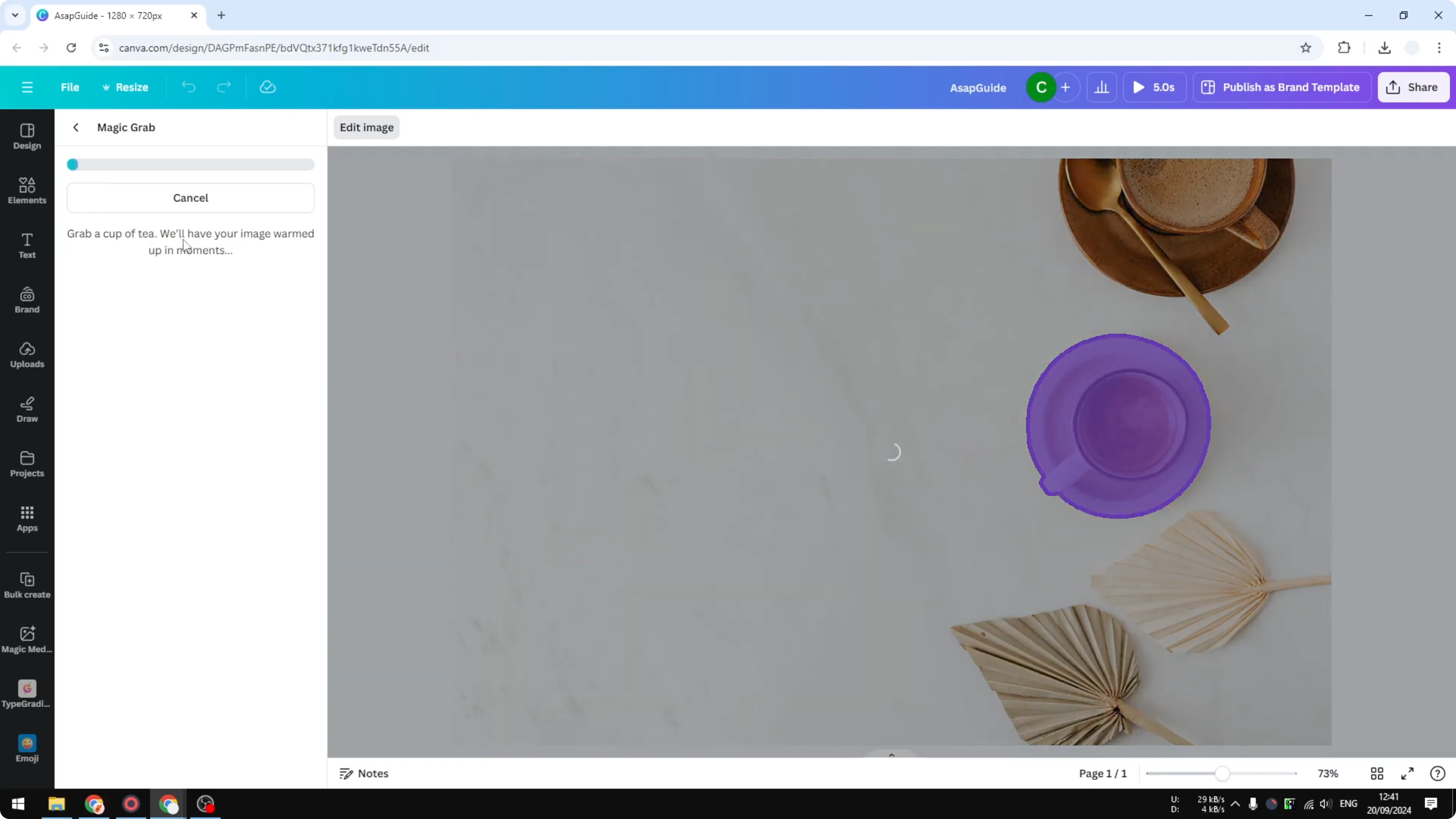
Wait until it finishes isolating the object and filling the background.
Drag the isolated object to the new position, for example the center of the table.
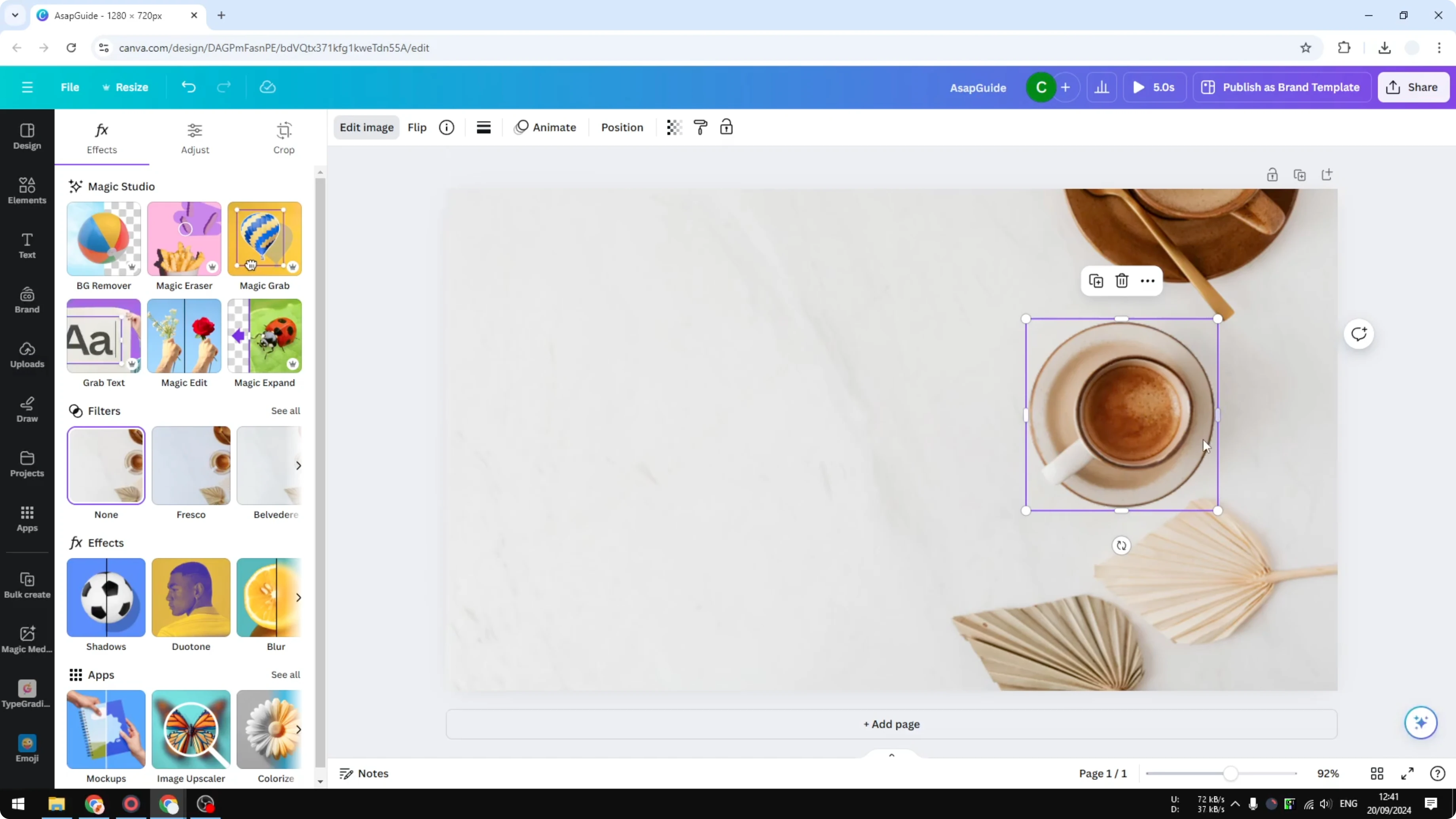
Resize or rotate the object if needed.
Export or continue editing your design.
What Magic Grab is doing
Canva tries to recognize the objects within the image and lets you choose which one to isolate. When you click Grab, Canva modifies the image to detach the object and fill the empty area it leaves. The background is recreated with similar texture so the move looks natural.
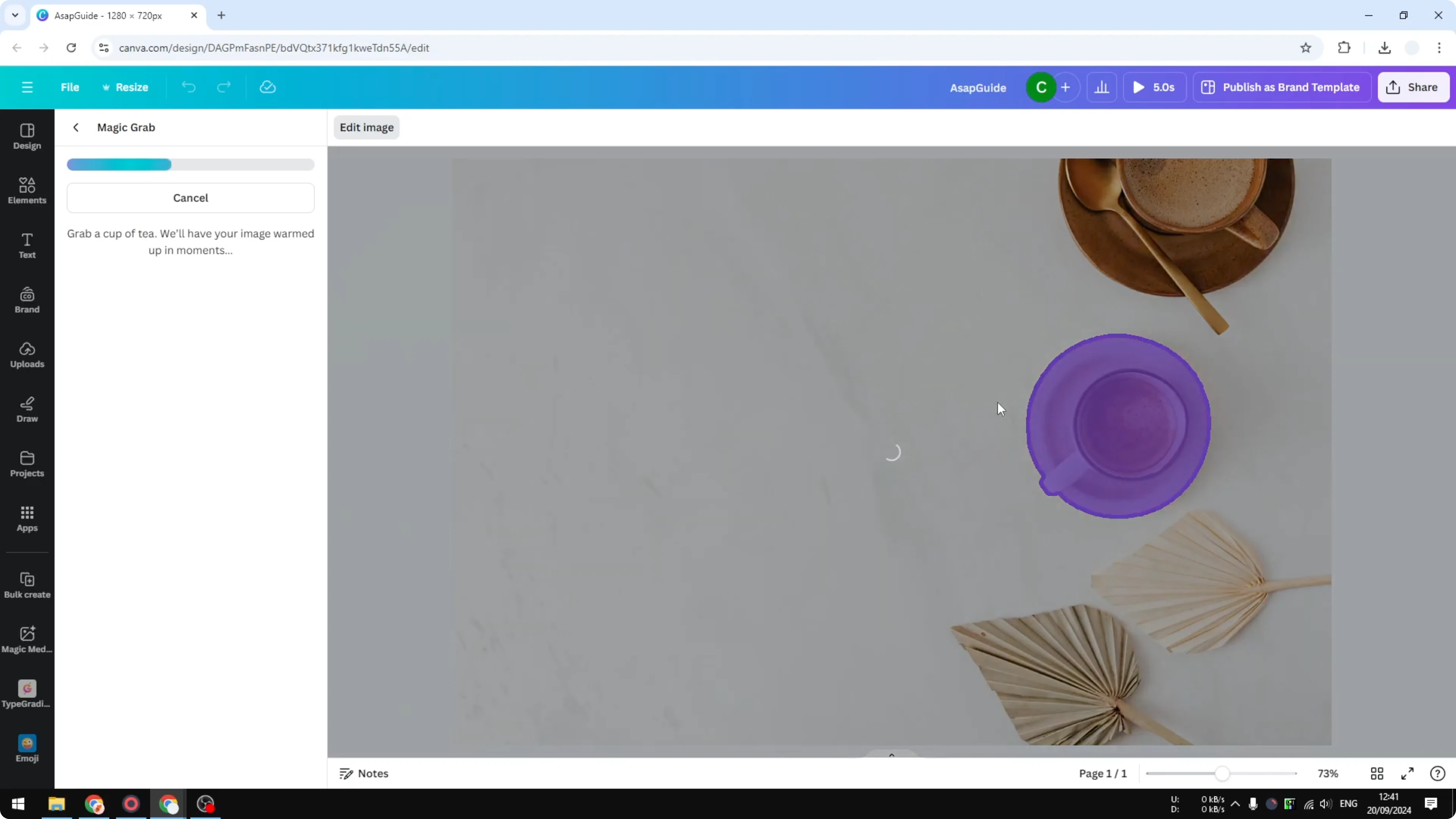
Refine the result
After the move you will see the area underneath has been recreated by AI. It does a good job, though it might not be perfect, for example the patch can look a bit darker. If that happens, you can brighten an image in Canva to match tones.
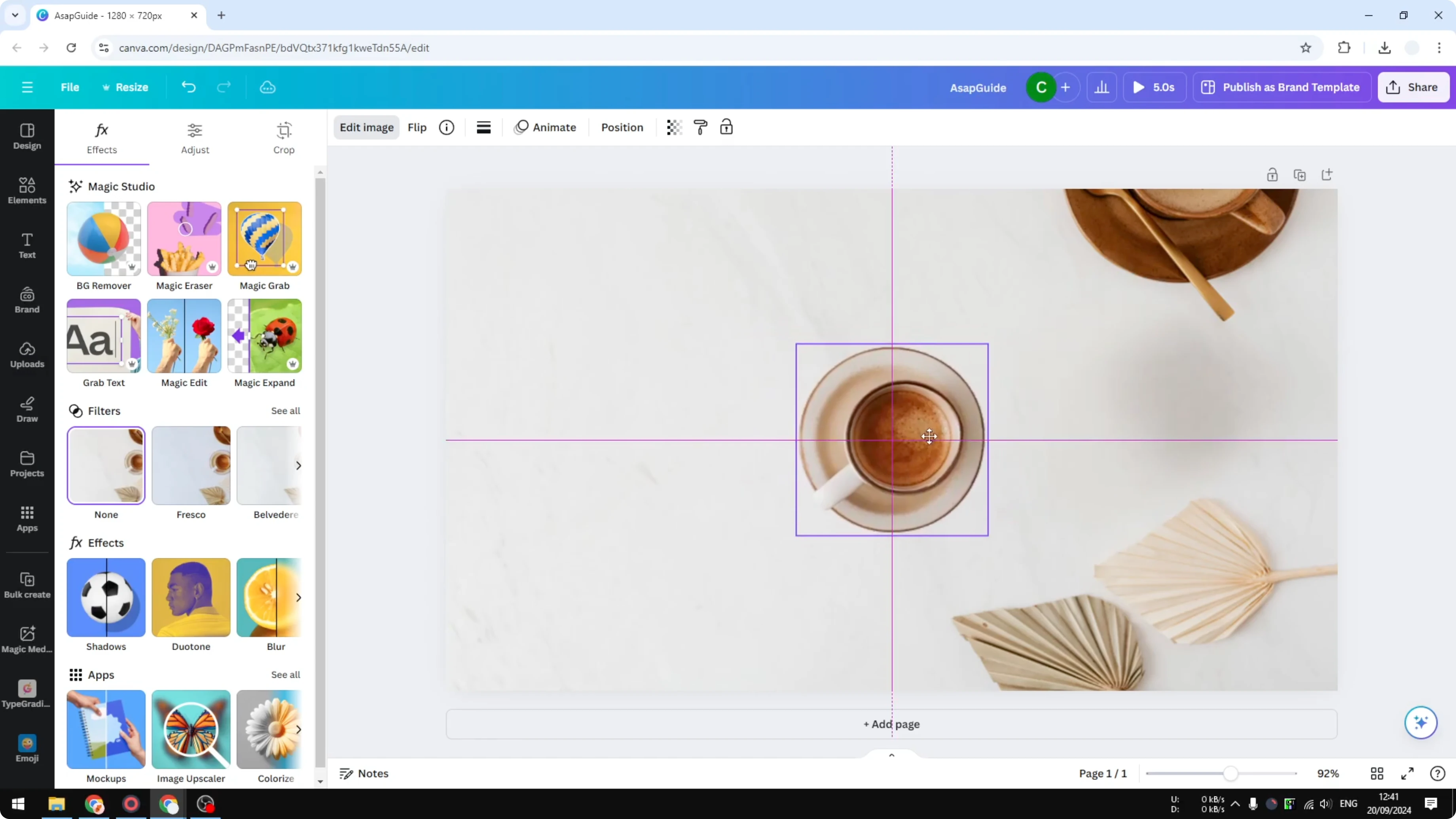
If the first attempt is not convincing, try grabbing again and nudge the object slightly. Small adjustments often help the background blend better. I find the results are still pretty good for most photos.
Final thoughts
That is how you can move an object within an image in Canva using Magic Grab. You isolate the object, Canva fills the hole, and you place it exactly where you want it. If you work with video and need a related cleanup, here is how to remove text from a video in Canva.
Recent Posts
How to Visualize Yourself as a Pixelized Character with AI?
How to Visualize Yourself as a Pixelized Character with AI?
How to Revive Faded Memories and Enhance Image Clarity with AI?
How to Revive Faded Memories and Enhance Image Clarity with AI?
How to Visualize Yourself as an Animal Crossing Character with AI?
How to Visualize Yourself as an Animal Crossing Character with AI?