How to Mirror Video in Canva
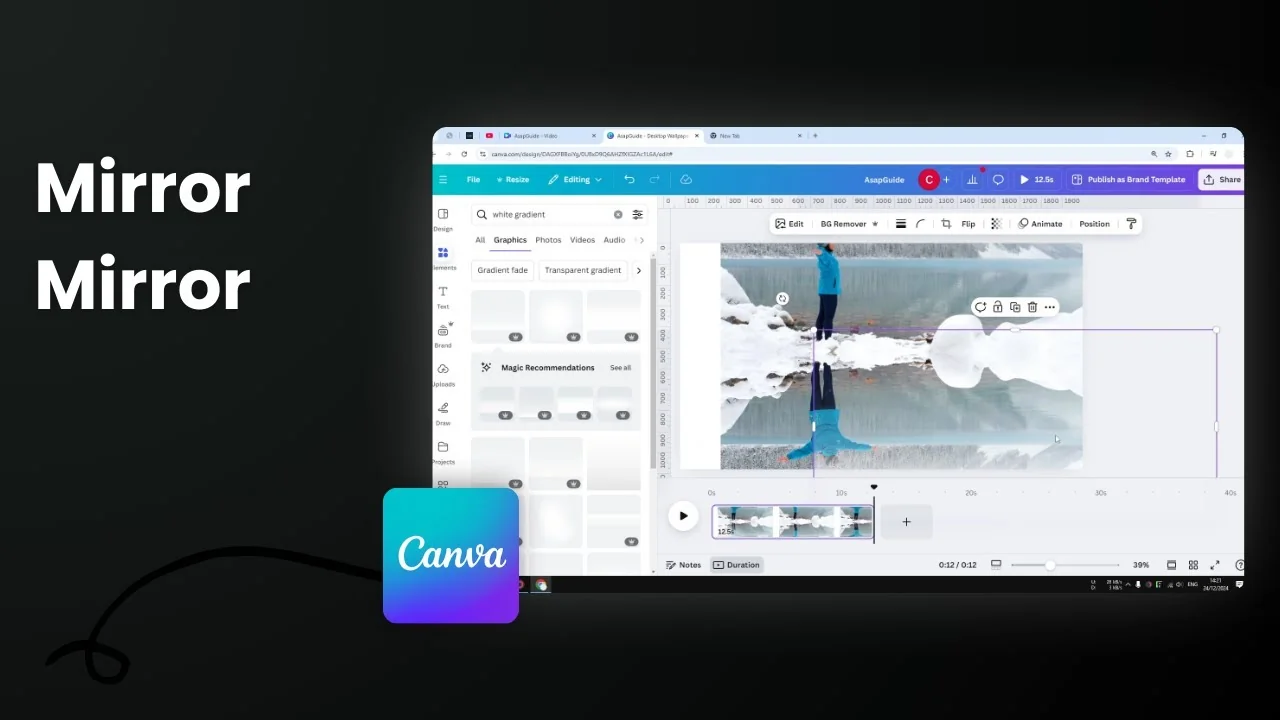
Here is how you can mirror or flip a video in Canva.
It changes left to right or top to bottom, and the process is very easy.
It is just like flipping a picture, the steps are the same and the result is immediate.
For a deeper walkthrough, see this mirror video guide.
Mirror Video in Canva
Steps
Select the video you want to flip.
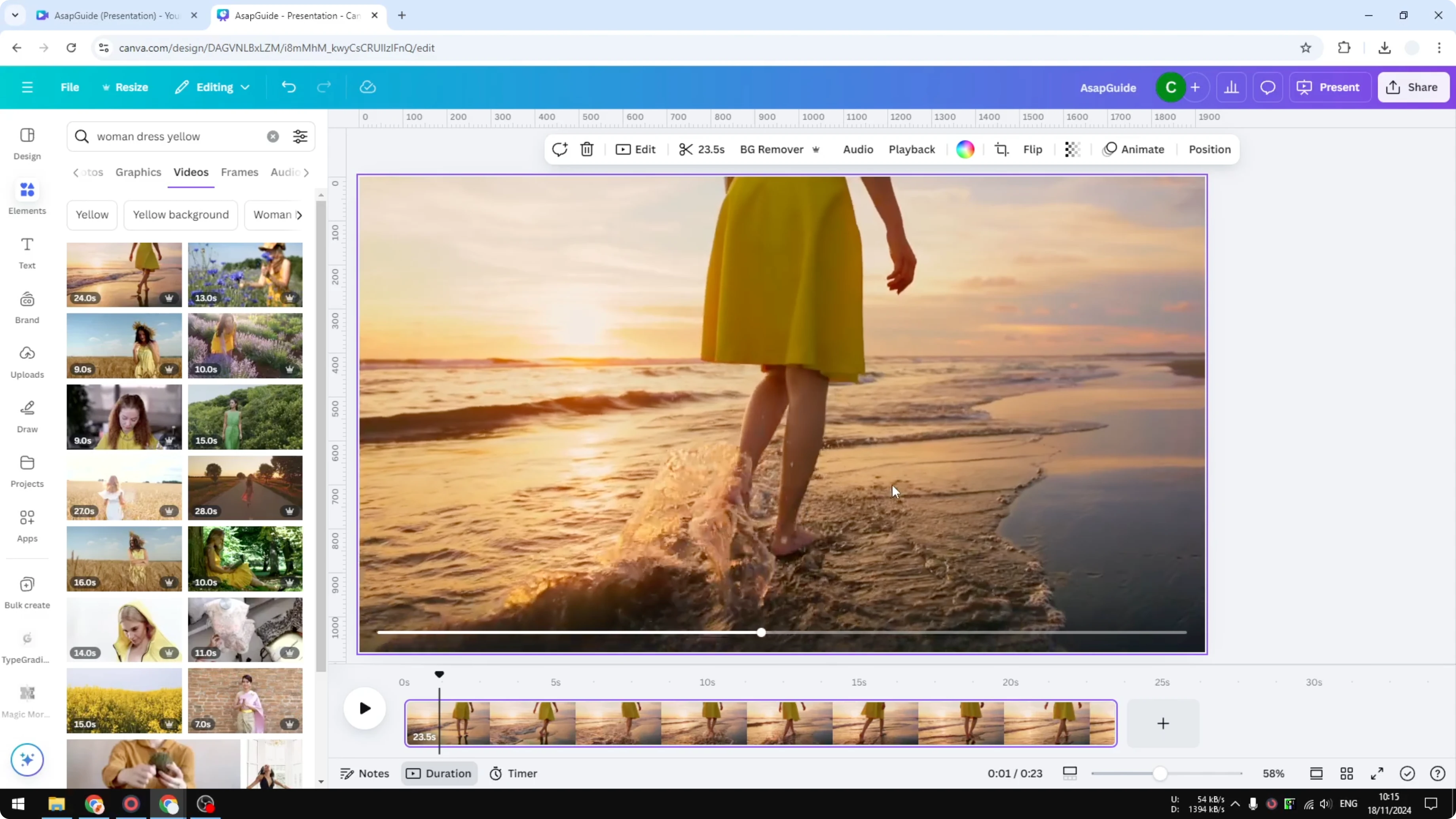
Look at the top menu.
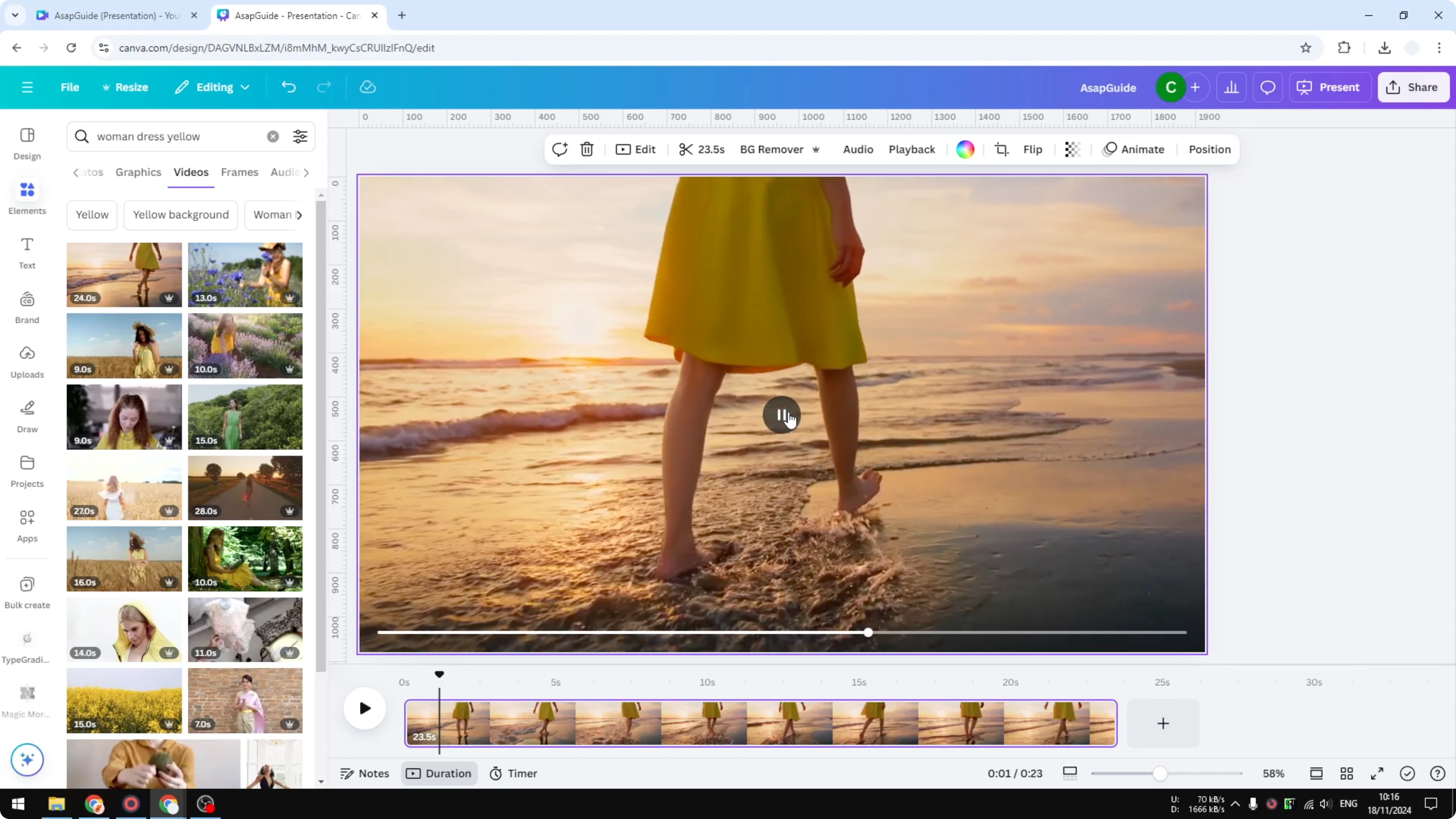
Click Flip.
Choose Flip horizontal or Flip vertical.
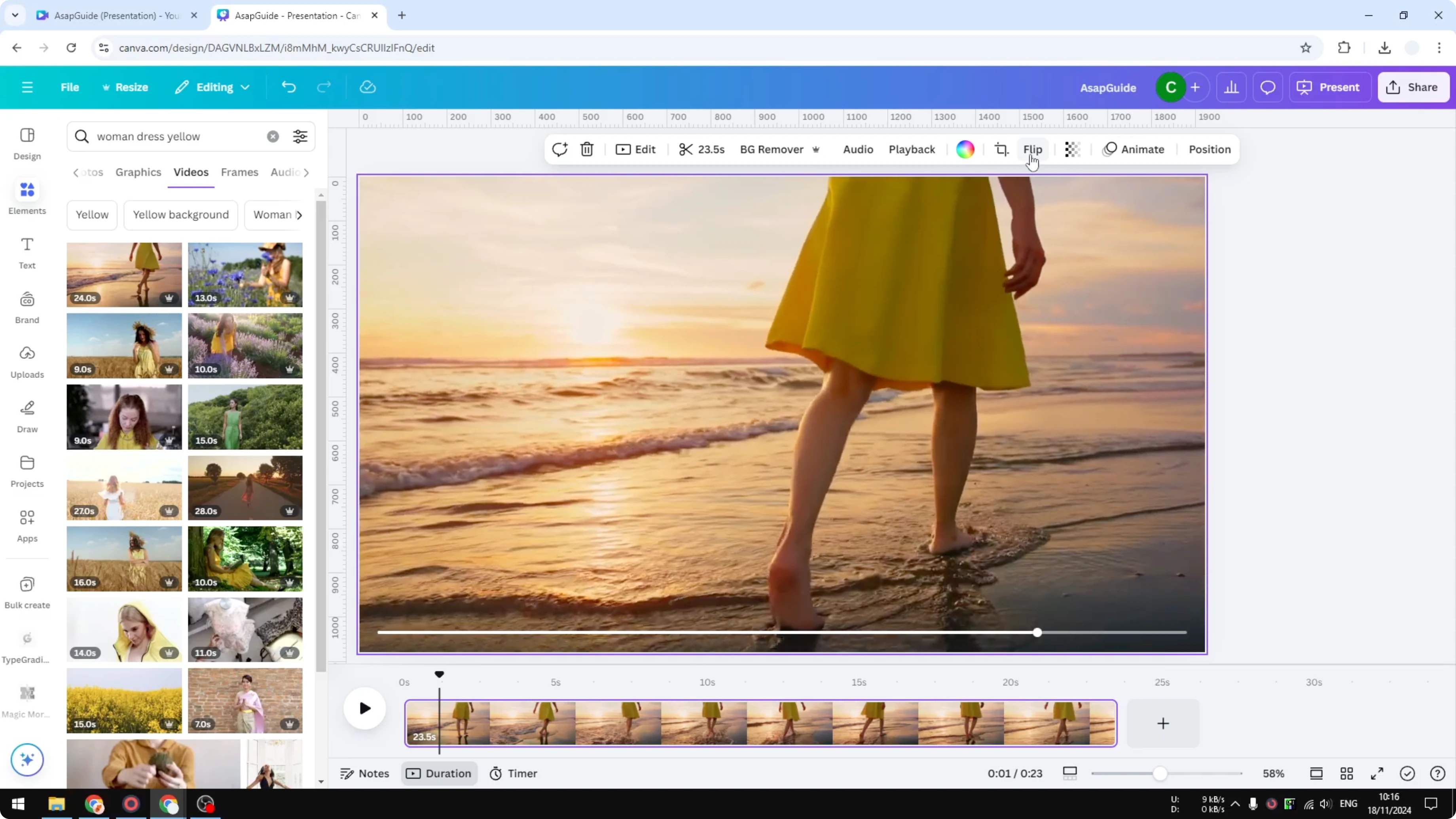
The result is immediate.
Horizontal flip
If I flip horizontally, this woman used to be running to the right, but now she is moving to the left.
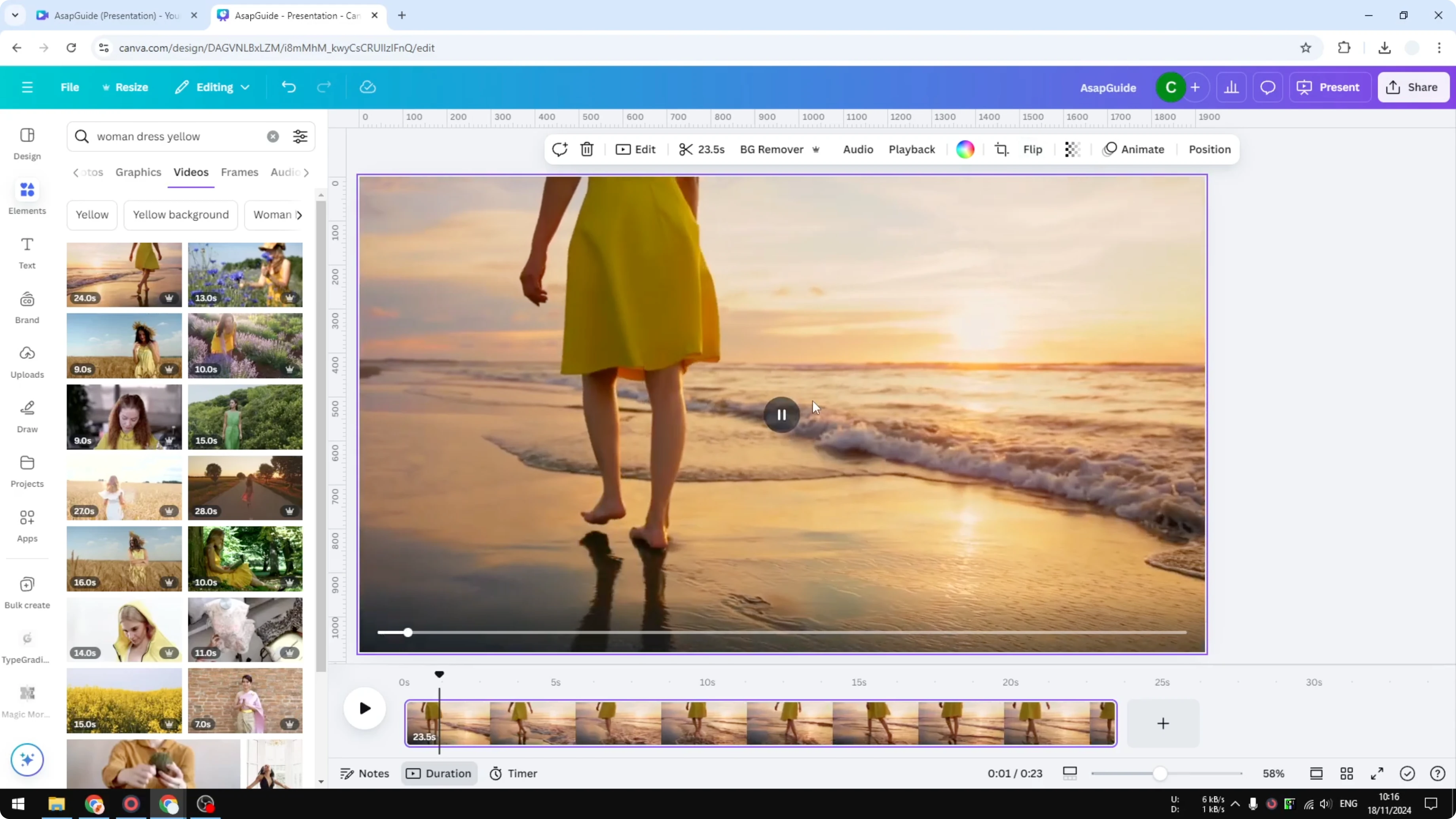
That is how the horizontal flip works.
After flipping, you can add video transitions in Canva to polish your edit.
Vertical flip
The vertical flip changes everything top to bottom.
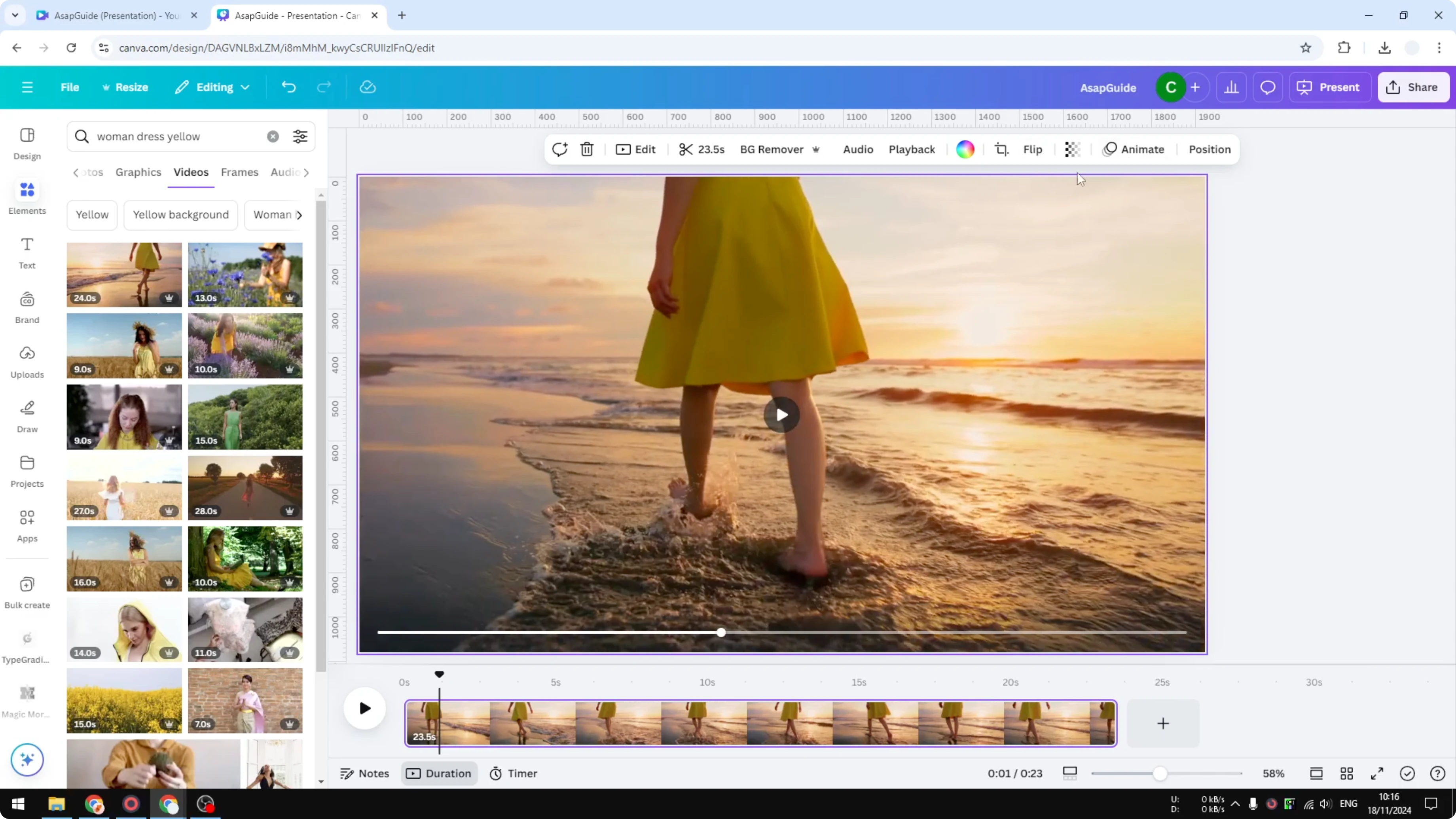
This is useful if you have GoPro footage mounted in a different orientation and you want to flip it back.
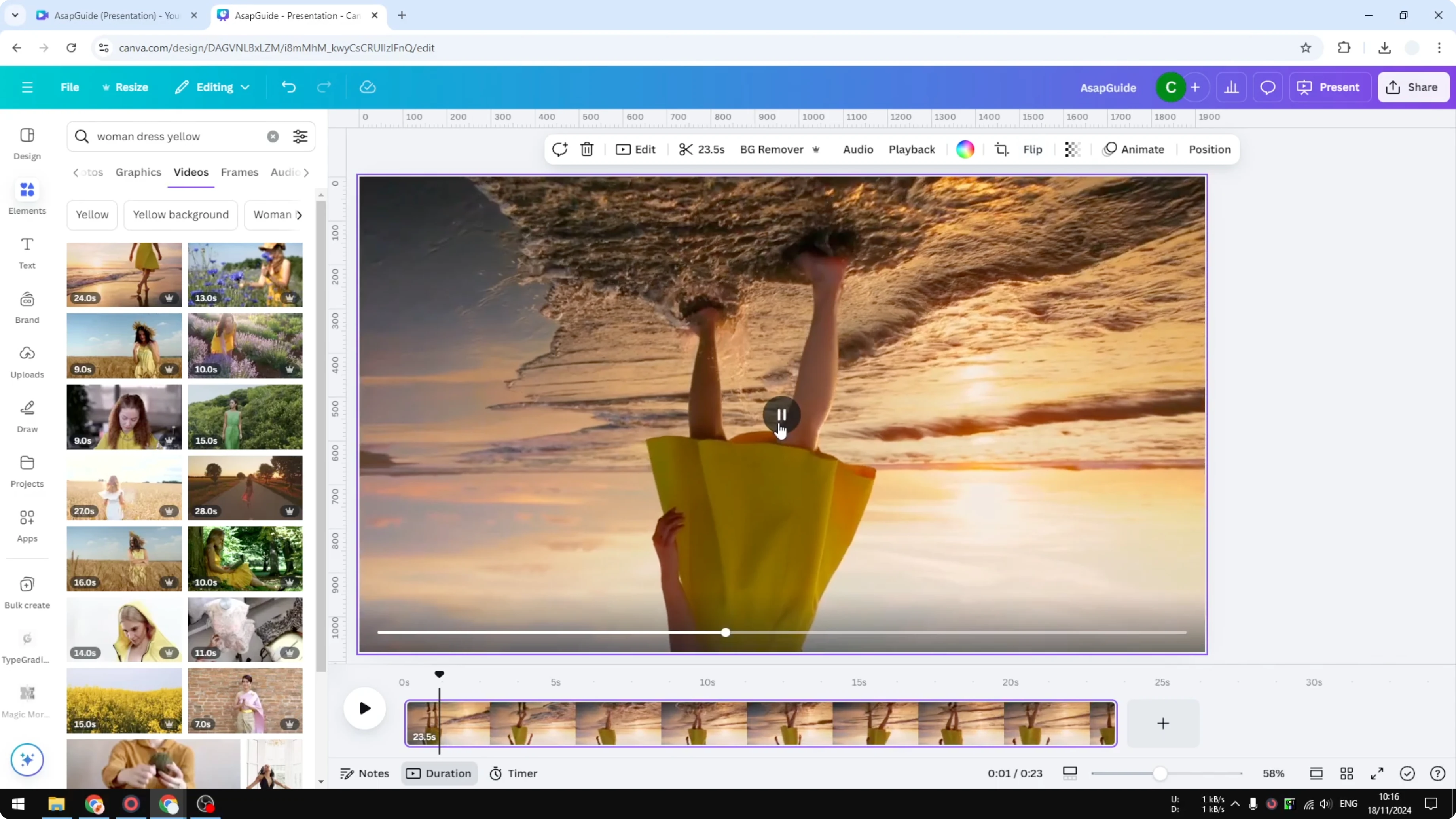
You can use this technique.
If you need to soften or hide parts of the frame, you can blur a video in Canva.
Final thoughts
That is exactly how you can flip or mirror a video in Canva.
Select the clip, open Flip, then choose horizontal or vertical.
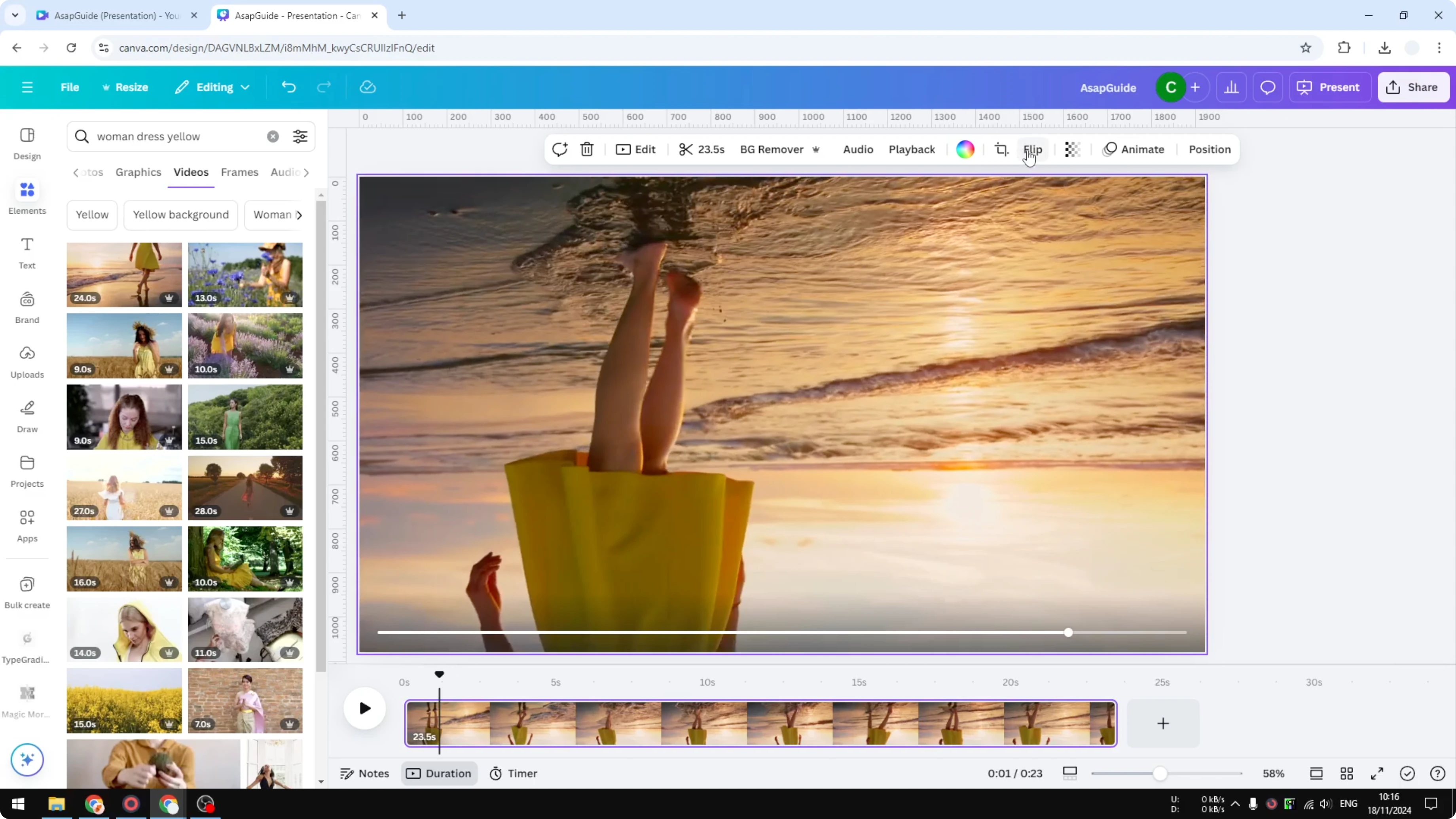
The change is instant.
Recent Posts

How to Visualize Yourself as a Pixelized Character with AI?
How to Visualize Yourself as a Pixelized Character with AI?

How to Revive Faded Memories and Enhance Image Clarity with AI?
How to Revive Faded Memories and Enhance Image Clarity with AI?

How to Visualize Yourself as an Animal Crossing Character with AI?
How to Visualize Yourself as an Animal Crossing Character with AI?