How to Mirror Video in Canva
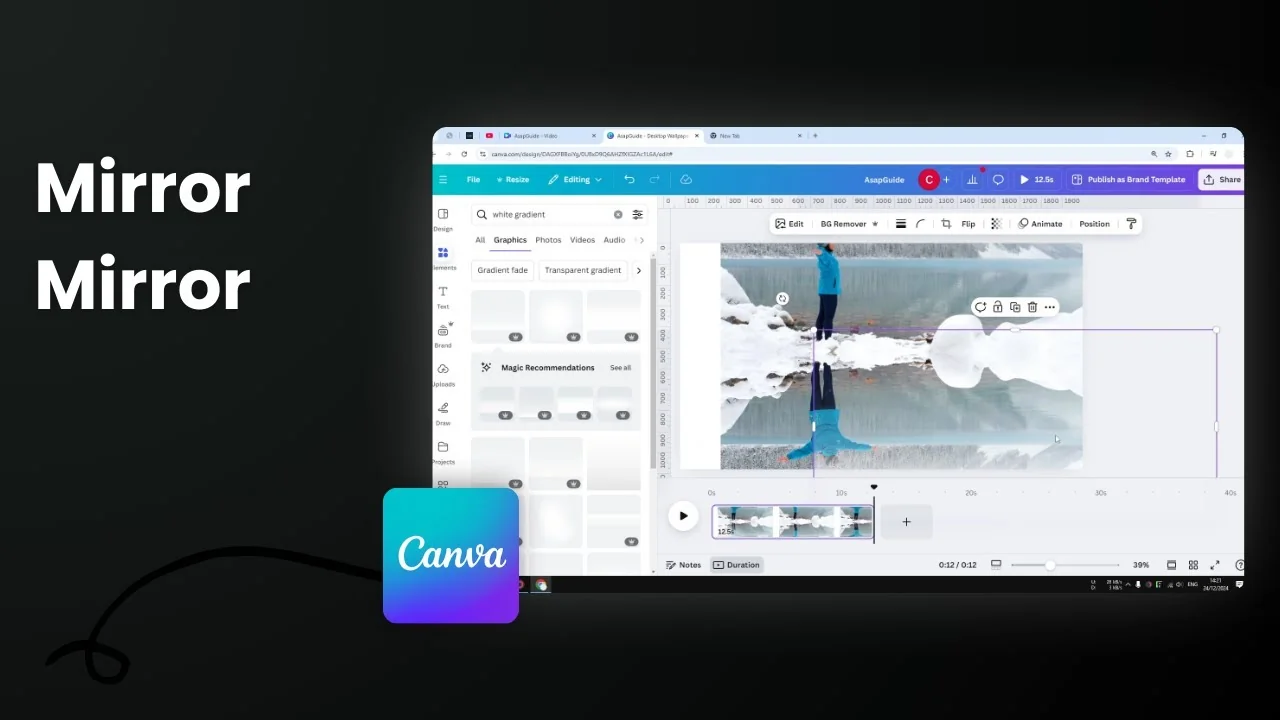
Here is how I mirror a video in Canva. I also like to create a simple reflection effect for a more interesting look.
Mirror Video in Canva: Quick Flip
- Insert a video into your Canva design. I searched the Canva stock library for "woman standing in a park," browsed the Videos tab, and picked a clip.
- Click the video on the canvas.
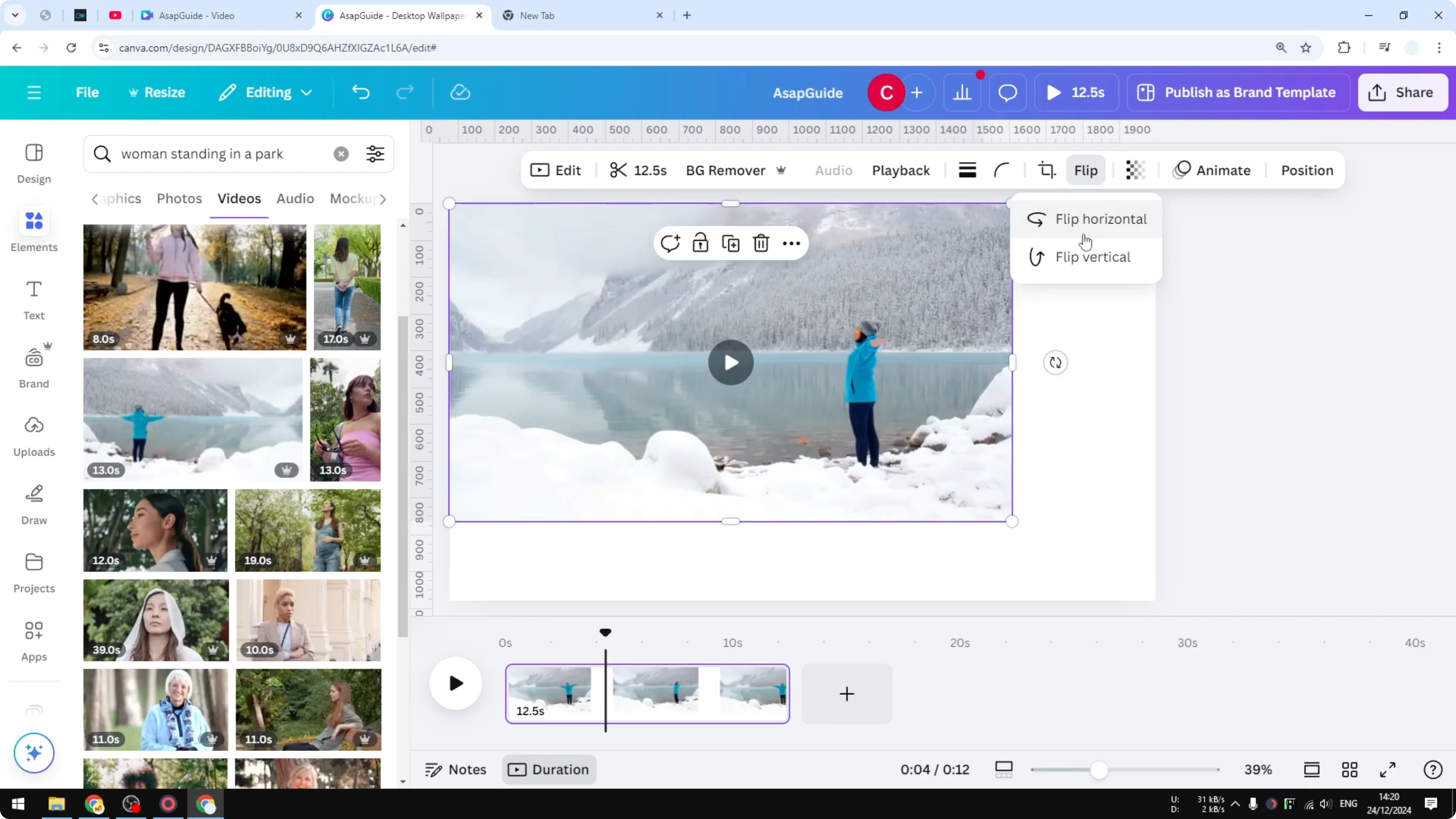
- Click Flip. This mirrors the video.
Mirror Video in Canva: Reflection Effect
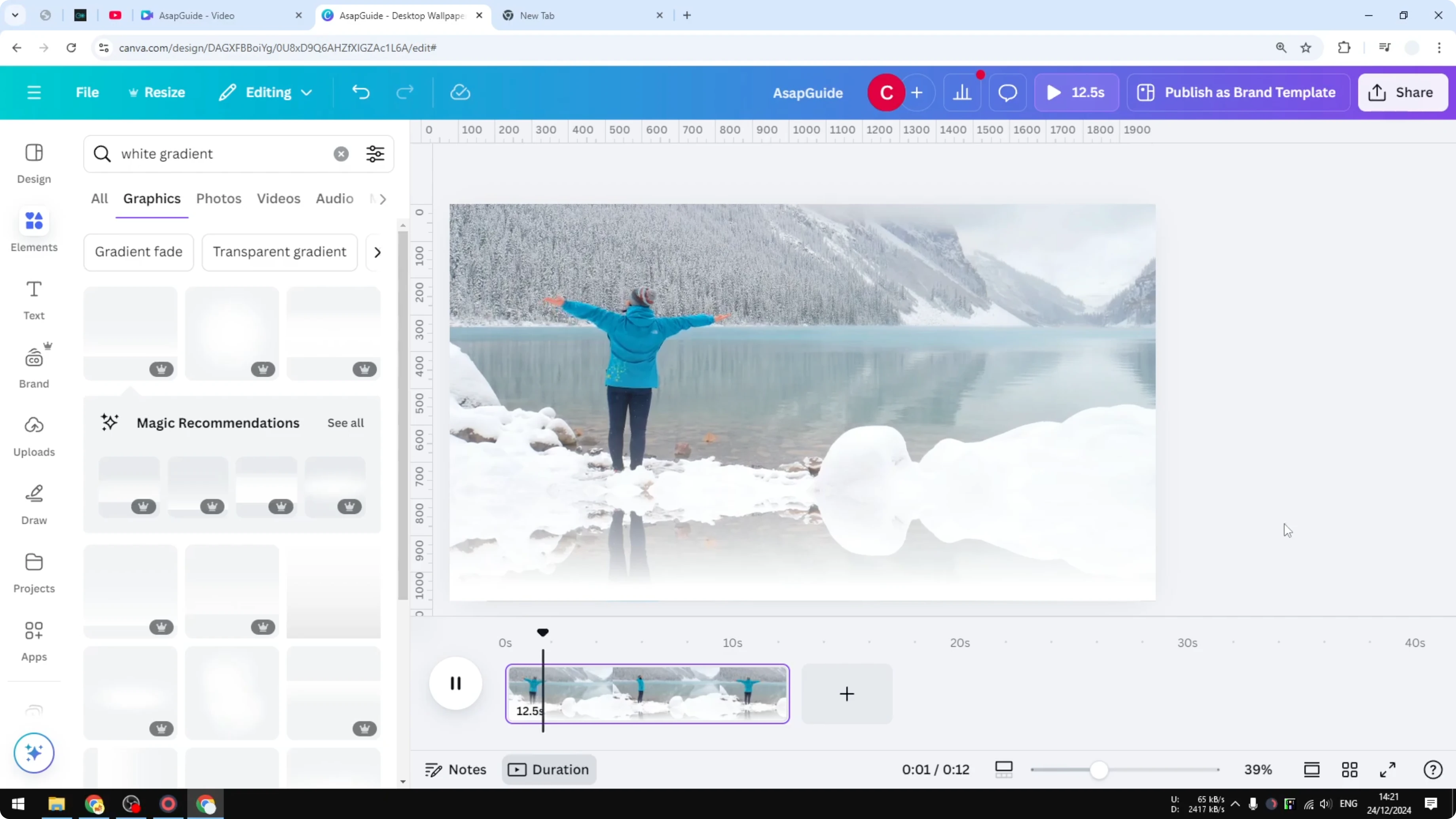
I wanted something more interesting, so I created a reflection at the bottom.
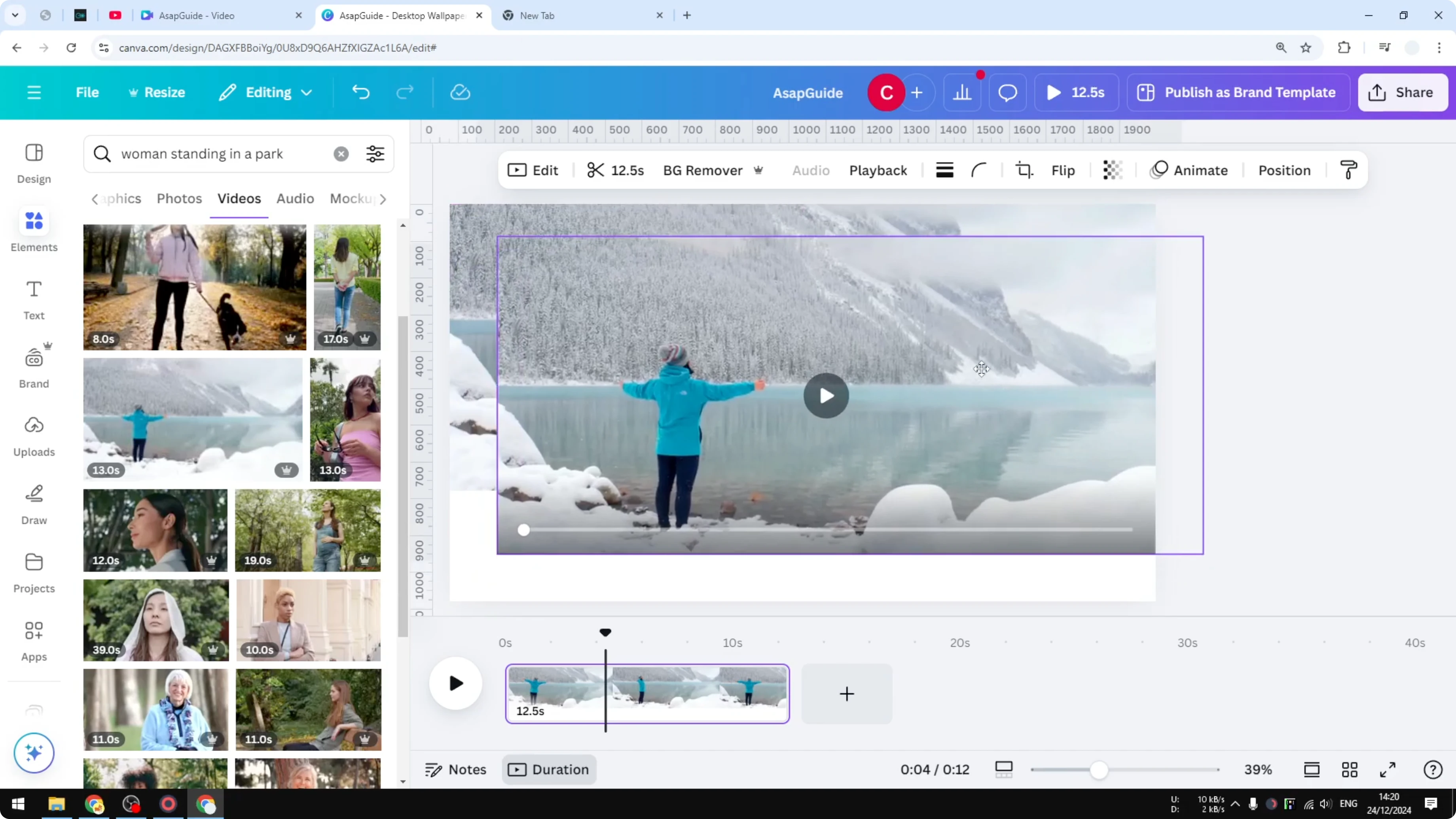
- Make the original video slightly bigger.
- Duplicate the video.
- On the second video, flip it vertically.
- Position the flipped clip under the original to act as the reflection.
- Add a gradient to soften the edge:
- Open Graphics and search for a gradient element.
- Test a dark gradient or a white gradient.
- Place and size the gradient over the reflected clip until it looks right.
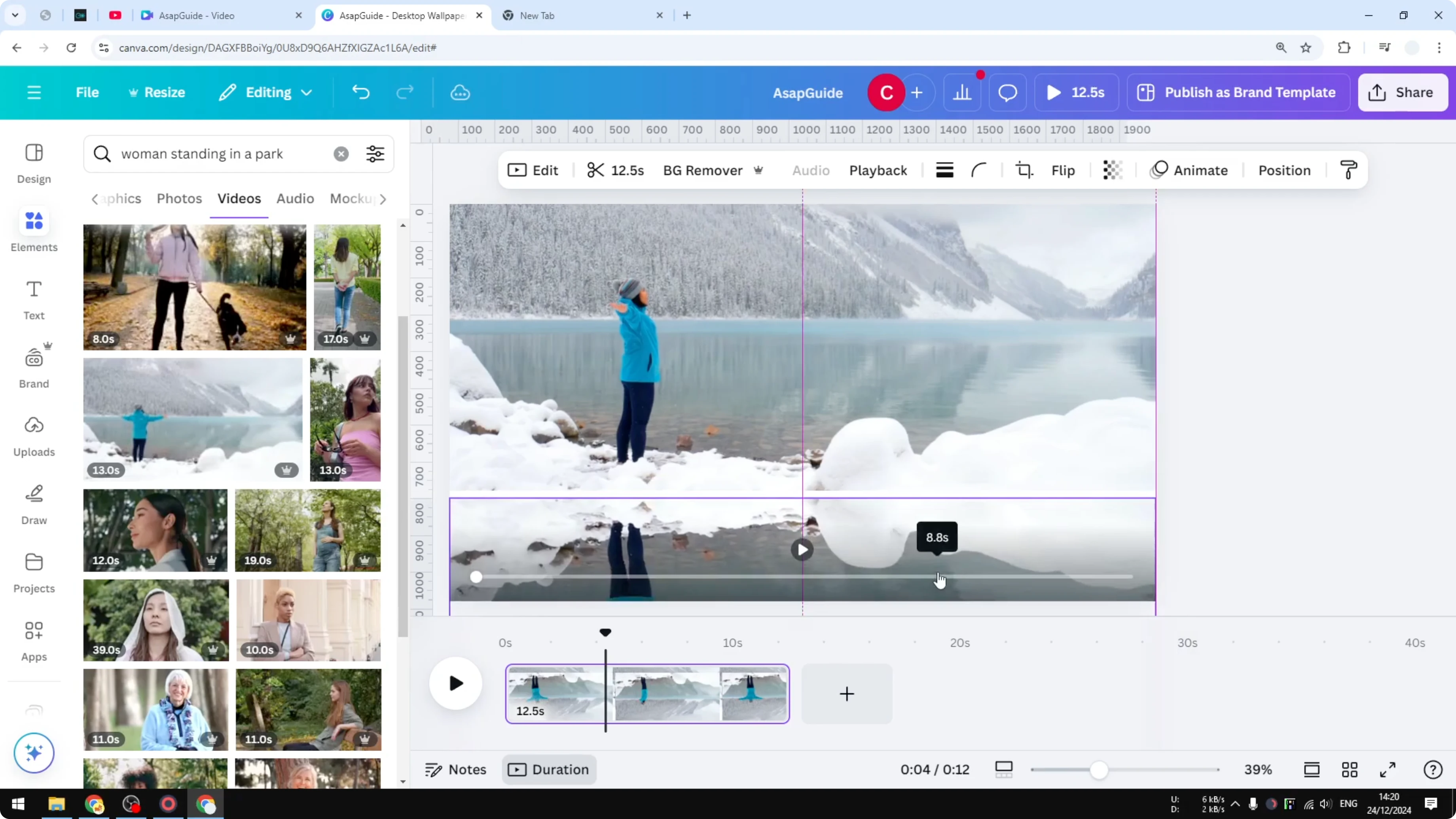
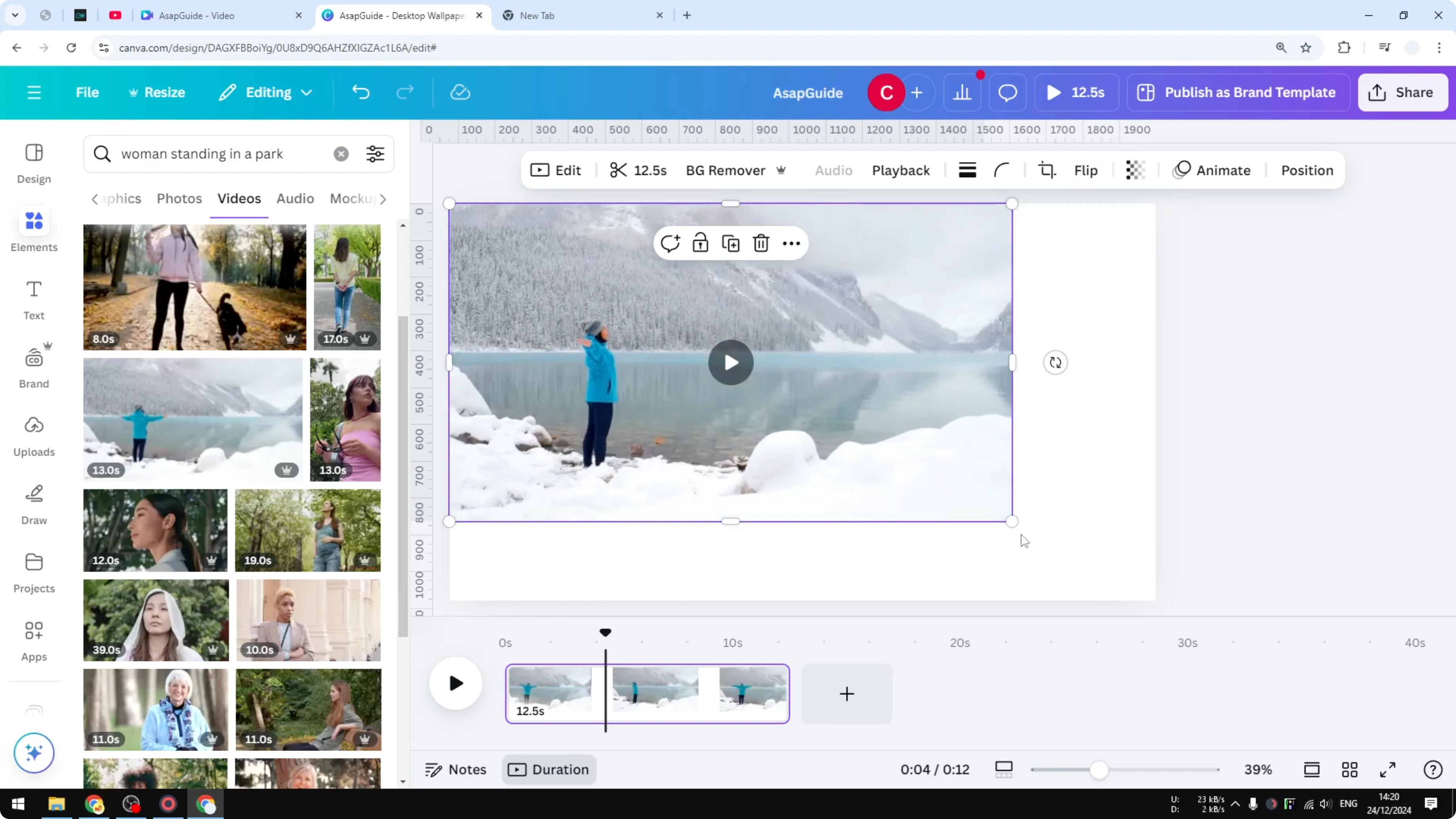
The result is two videos playing at the same time, mirroring each other. It looks pretty cool, depending on the video you choose. This is a simple way to use the mirror effect to create a unique perspective.
Final Thoughts
Mirroring a video in Canva is as quick as a single Flip click, and adding a vertical flip with a gradient overlay gives you a clean reflection effect. Experiment with clip choice and gradient strength to dial in the look you want. I hope you find this helpful.
Recent Posts

How to Visualize Yourself as a Pixelized Character with AI?
How to Visualize Yourself as a Pixelized Character with AI?

How to Revive Faded Memories and Enhance Image Clarity with AI?
How to Revive Faded Memories and Enhance Image Clarity with AI?

How to Visualize Yourself as an Animal Crossing Character with AI?
How to Visualize Yourself as an Animal Crossing Character with AI?