How to Merge Two Images in Canva
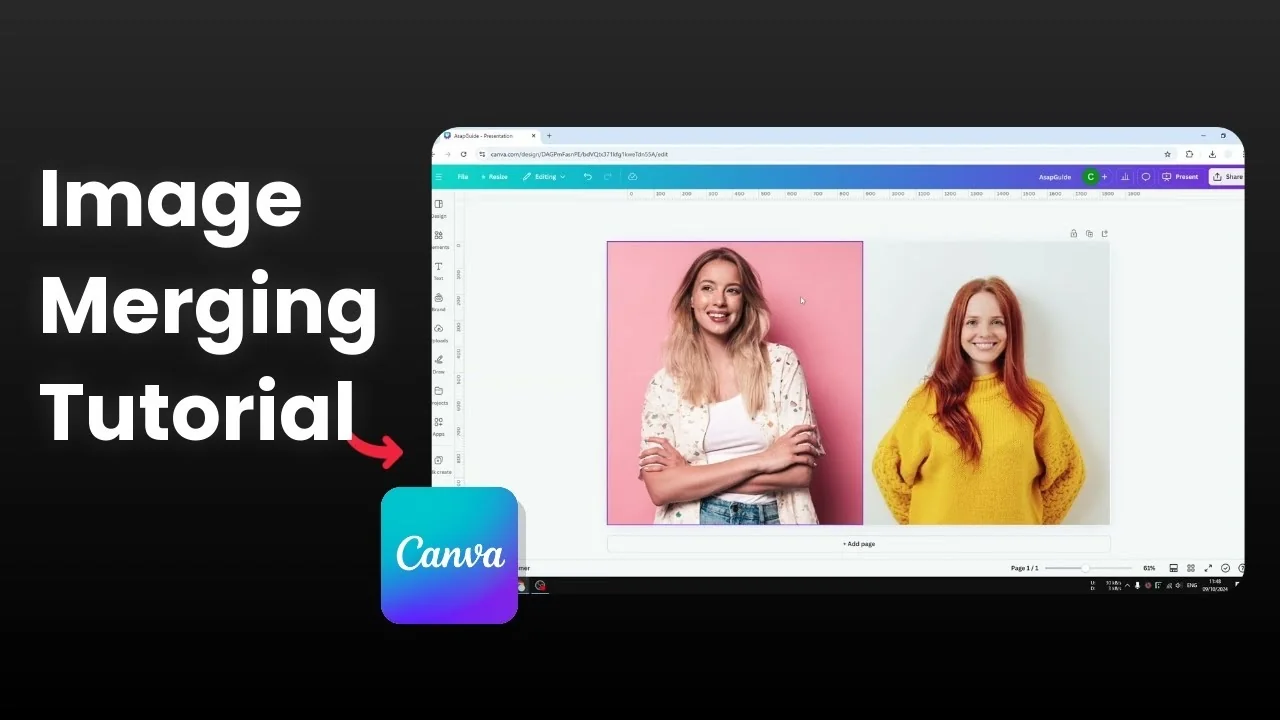
I will show you how you can merge two images to become one in Canva. Canva does not have a true merge feature like Photoshop, so you cannot fuse separate objects into a single layer. There are clear workarounds that make the result look like one image.
If you need to combine clips instead of photos, see our merge videos guide.
Export method - Merge Two Images in Canva
You can download the page as a single picture to make the images become one file.
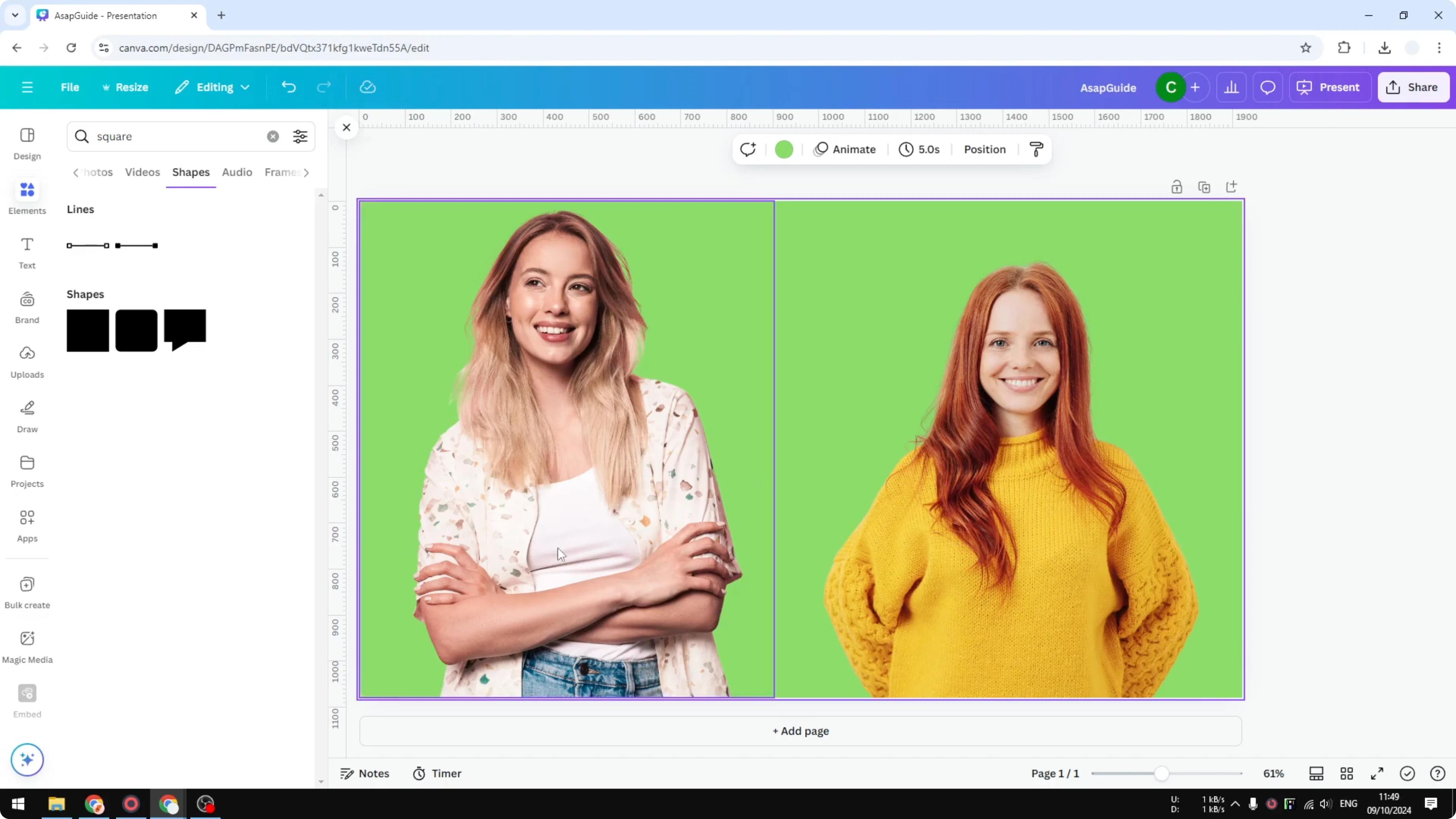
Place both images on your canvas and position them as you want the final composition to look.
Click Share, click Download, and choose your format.
Download the page to get one picture that contains both images.
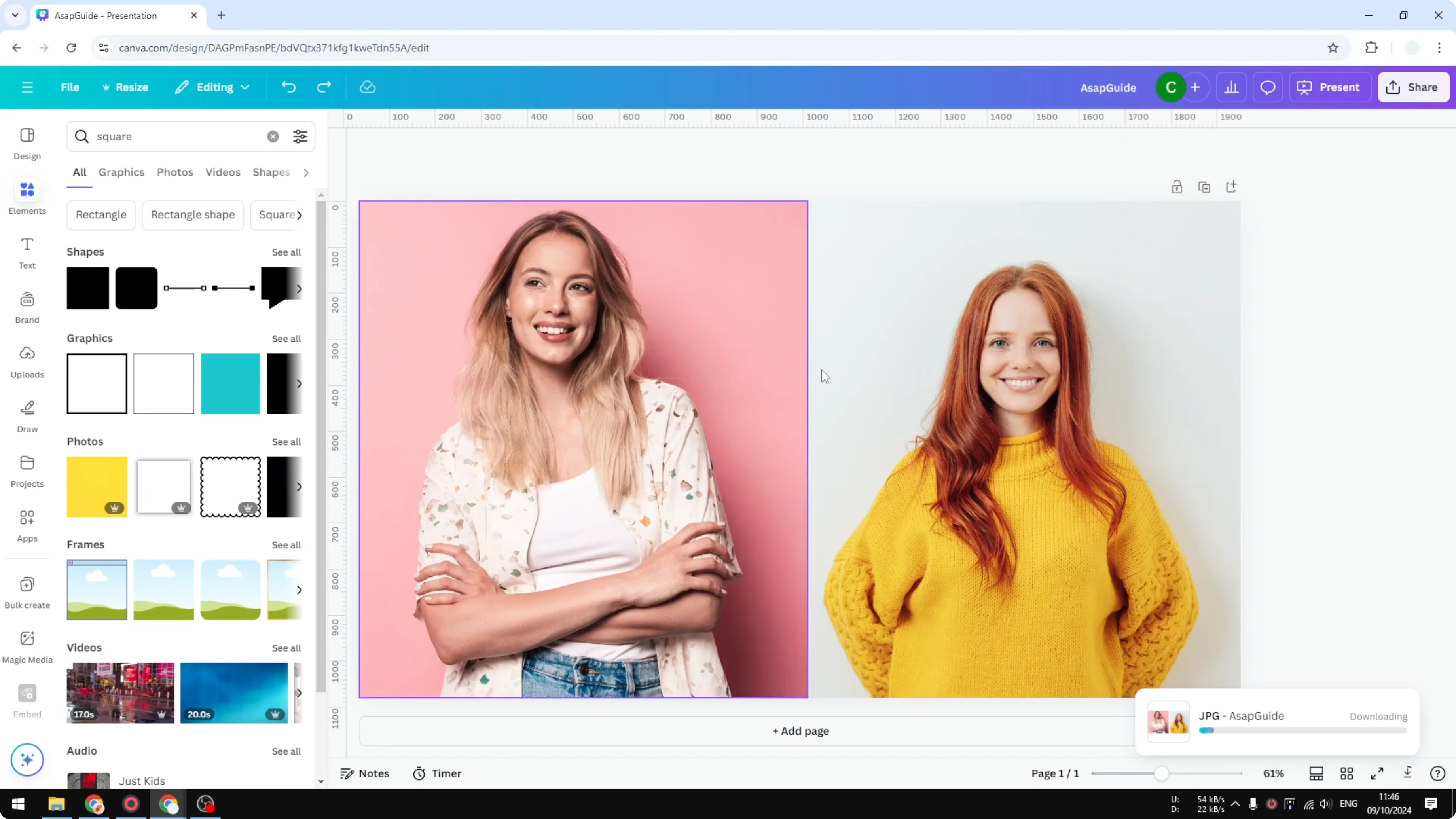
This turns the layout into a single image. It is the simplest way to get one file quickly.
Gradient trick - Merge Two Images in Canva
If you want to keep the photos separate but make them look like they live in the same scene, you can blend the seam with a gradient.
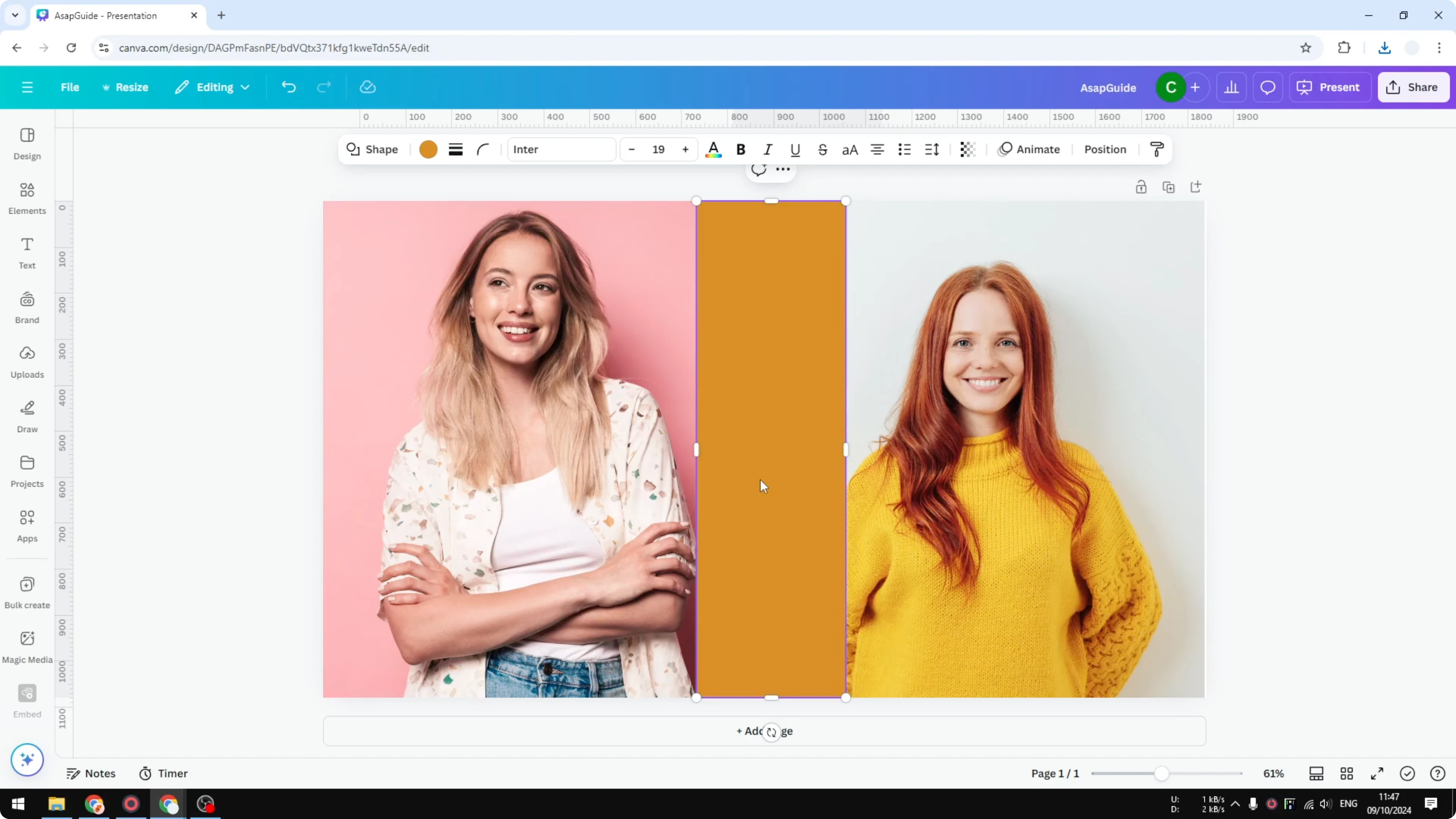
Go to Elements and add a Square shape, then place it between the two images and center it.
Open the color options and select a gradient.
Set the first color to white and make it fully transparent, then sample the background color of the first image with the eyedropper.
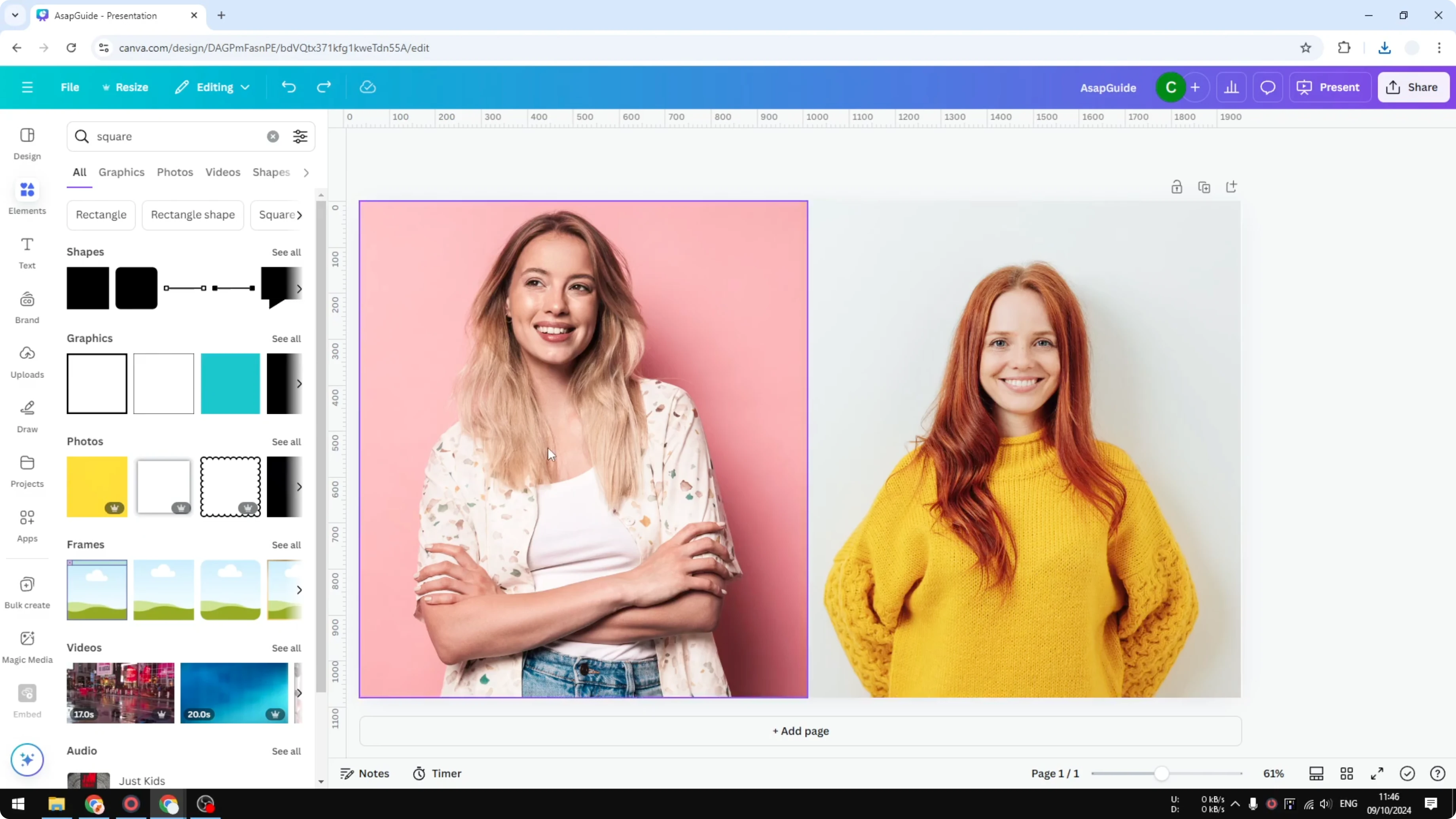
Set the third stop to the background color of the second image.
Set the fourth to white and make it fully transparent.
Adjust the gradient until the separation line is minimized.
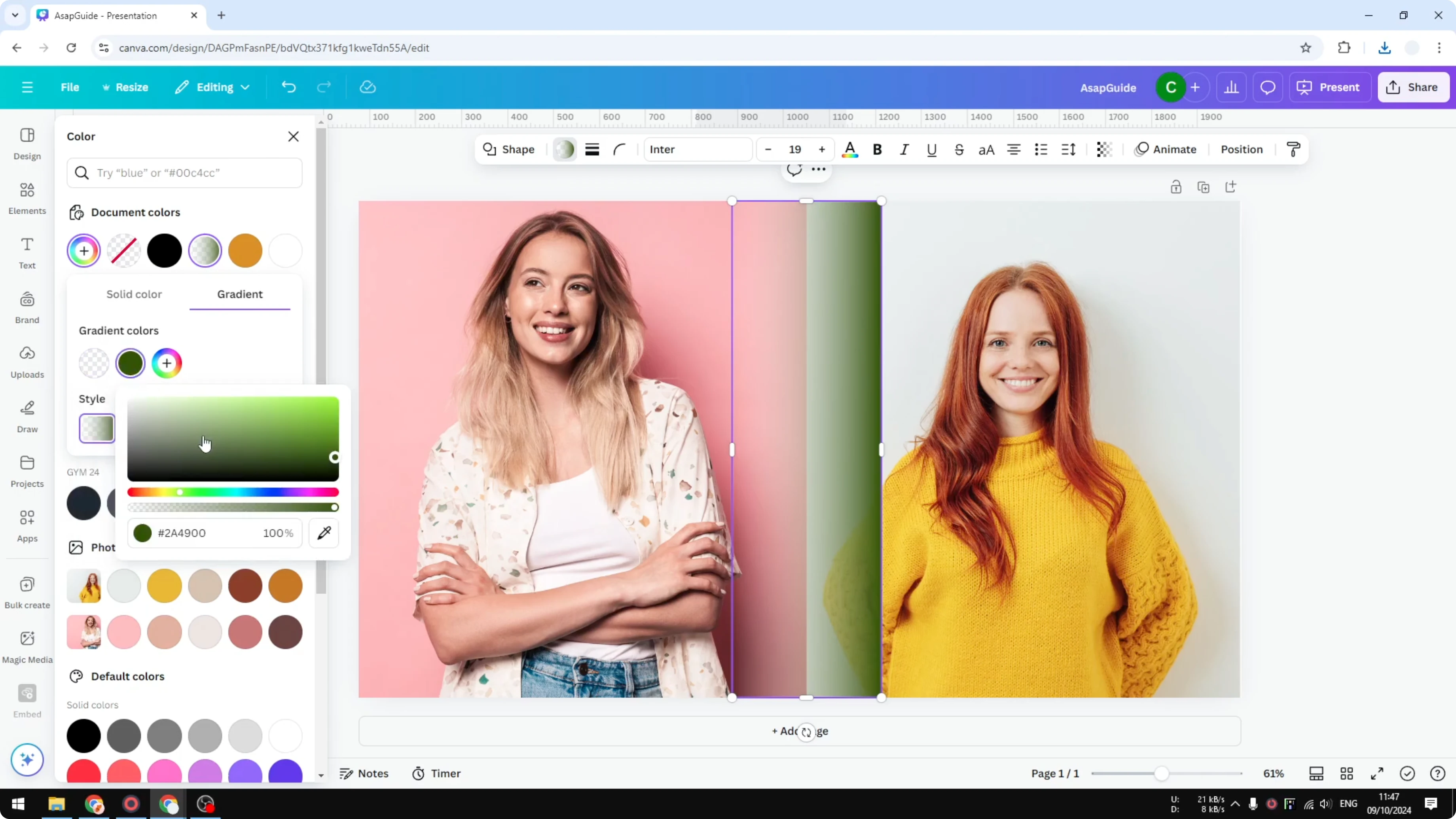
It does not have to be perfect, it just needs to be good enough to hide the join. This method depends on the backgrounds, so results vary. If the colors are far apart, expect a visible seam.
AI approach - Merge Two Images in Canva
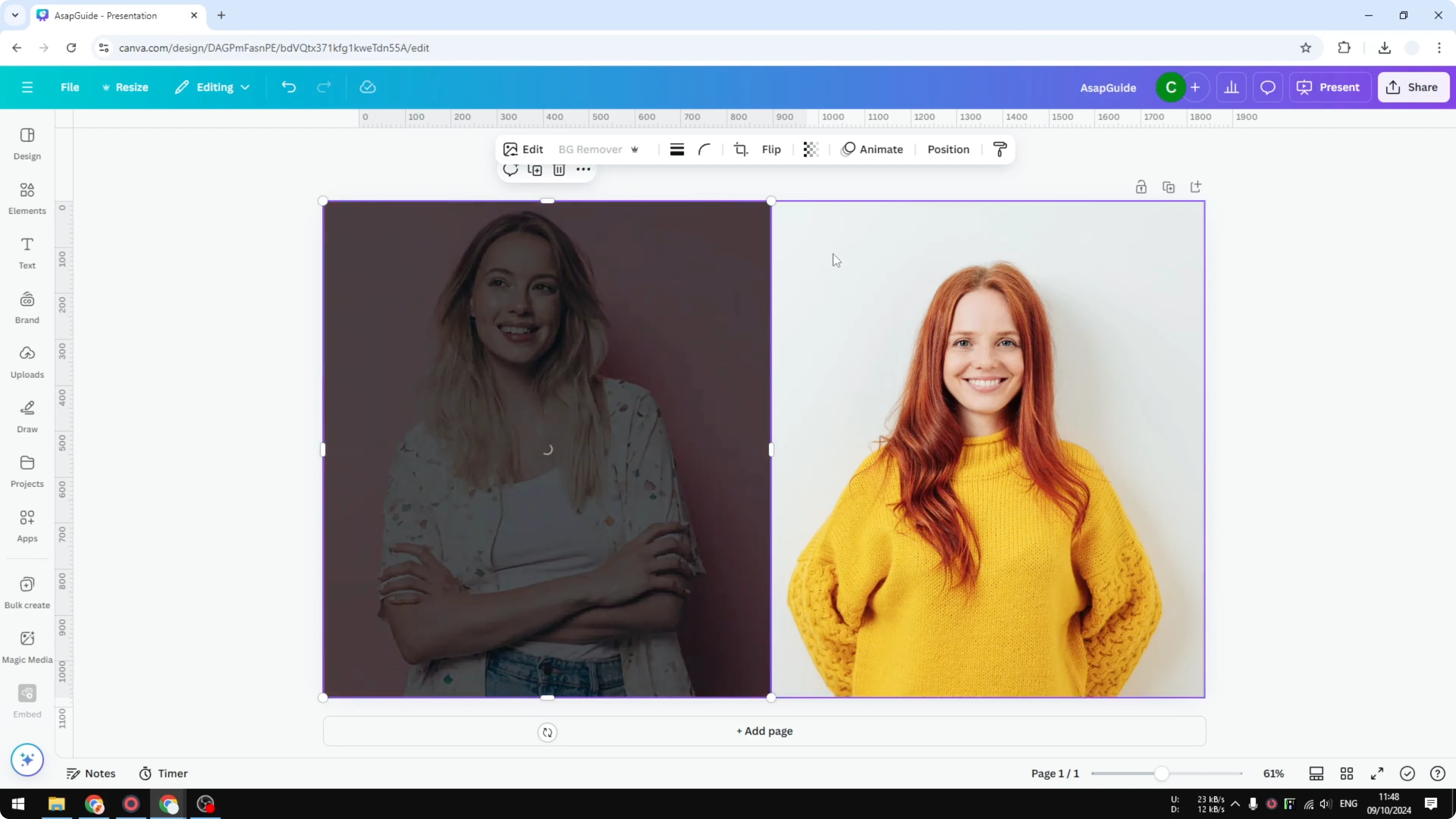
You can remove backgrounds and place both subjects on a shared background to make them feel like a single photo. For more AI blending ideas, check out our AI guide.
Remove backgrounds - Merge Two Images in Canva
Select the first photo and use Background Remover.
Do the same for the second photo.
You will have two cutout subjects on an empty canvas.
Add a shared background - Merge Two Images in Canva
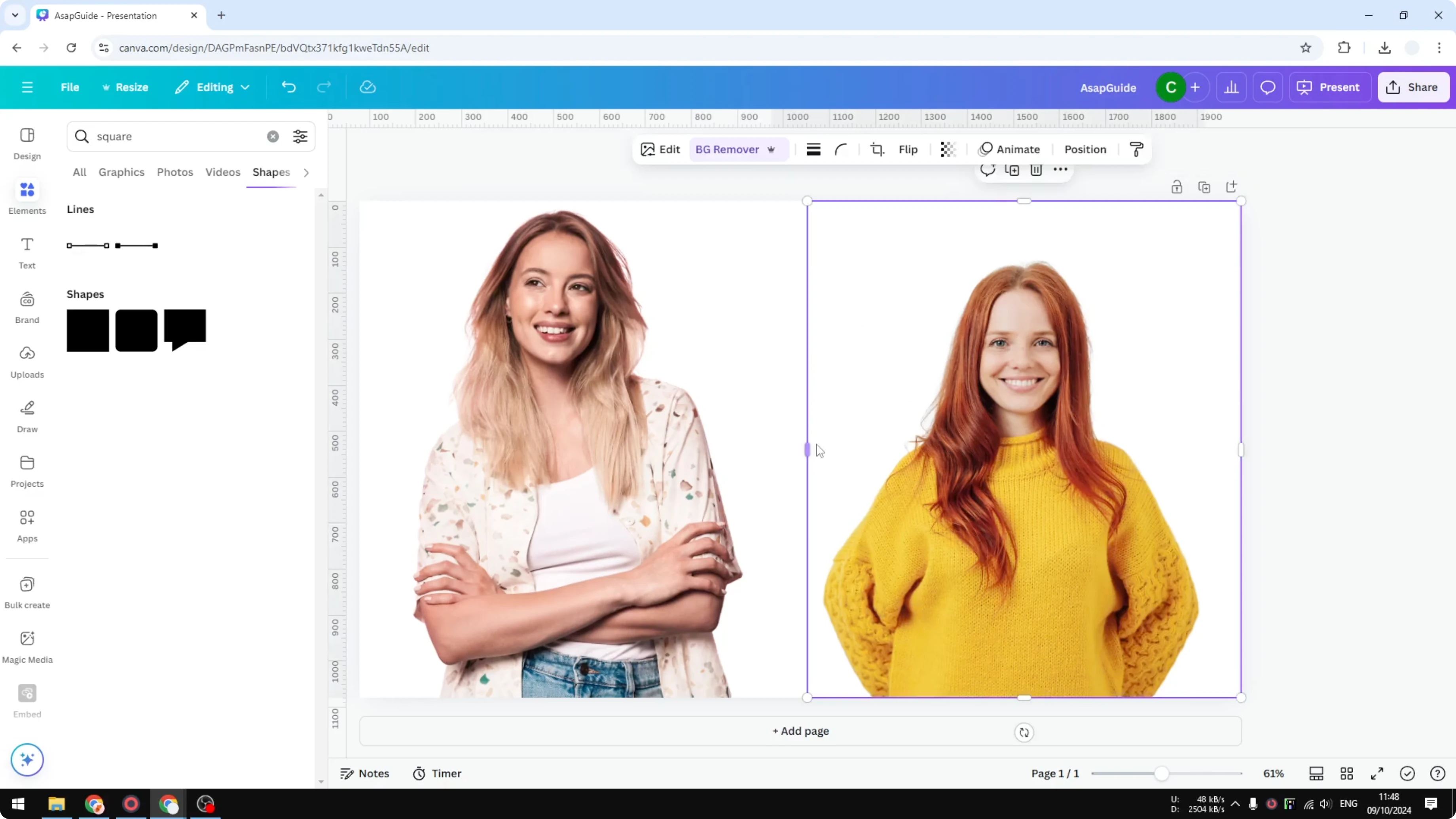
Click the canvas background.
Set a background color or add a rectangle that fills the canvas and choose the color you want.
Position both subjects so they look like they belong in the same scene.
Add realistic shadows - Merge Two Images in Canva
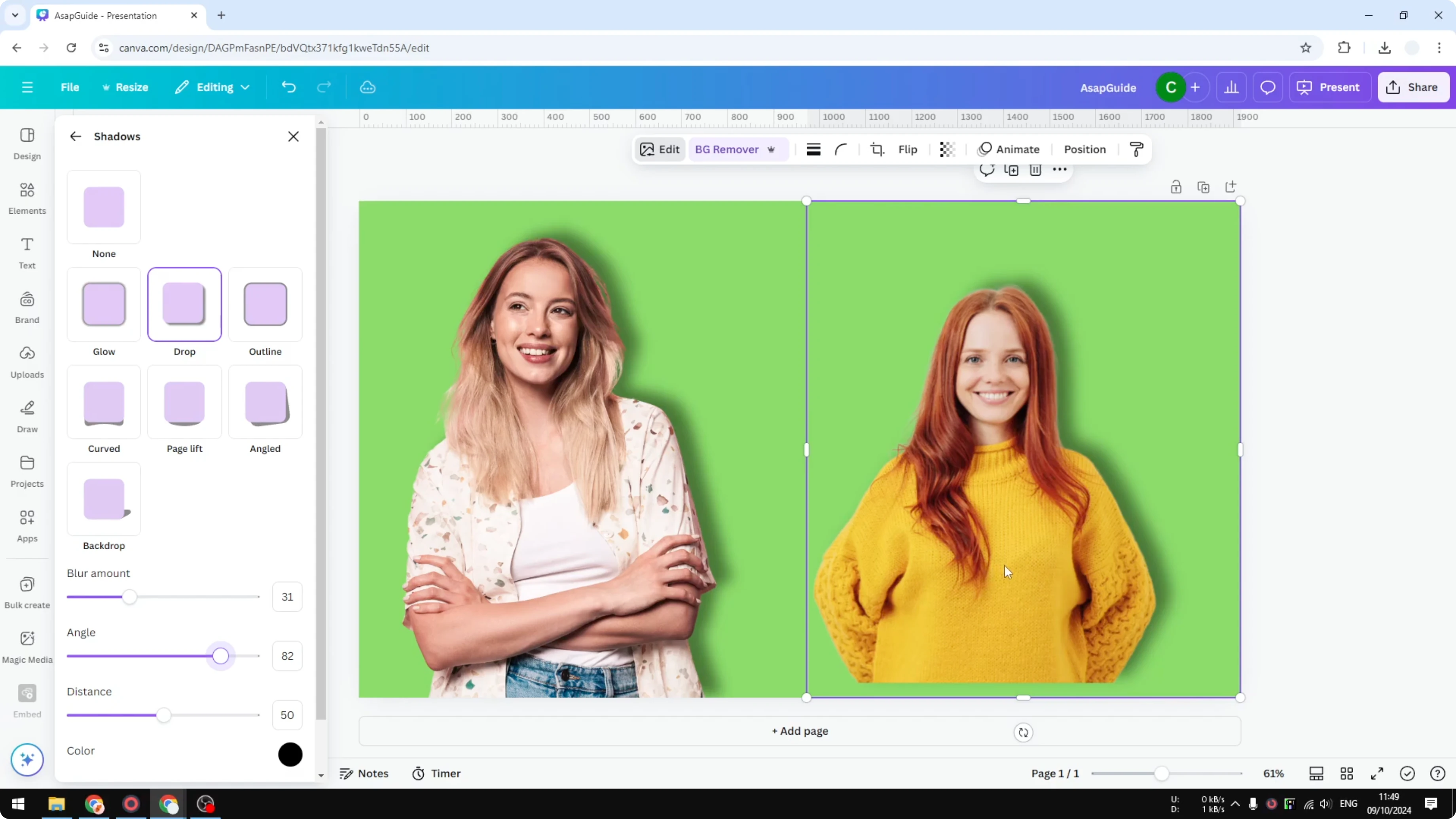
Select a subject, click Edit, then open Shadows and choose Drop.
Increase the size and softness, and set the shadow position so it matches the imagined light source.
Repeat for the second subject and keep the shadow orientation the same to maintain the illusion.
If you need extra detail on shadows for products and people, see our tutorial on adding depth and realism: shadow techniques in Canva.
Final thoughts - Merge Two Images in Canva
You cannot truly merge layers in Canva, but you can achieve the look of a single image by exporting the page, blending edges with a gradient, or using background removal with consistent shadows. The export method is fast and reliable when you just need one file. The AI approach with shadows creates the most natural composite when you want both subjects to feel like they were photographed together.
Recent Posts

How to Visualize Yourself as a Pixelized Character with AI?
How to Visualize Yourself as a Pixelized Character with AI?

How to Revive Faded Memories and Enhance Image Clarity with AI?
How to Revive Faded Memories and Enhance Image Clarity with AI?

How to Visualize Yourself as an Animal Crossing Character with AI?
How to Visualize Yourself as an Animal Crossing Character with AI?