How to Merge Multiple Videos into One Using Canva
I am going to show you how to merge multiple videos into one using Canva. The key is to start with the right canvas size and then place each clip on the timeline. Export everything as a single MP4 when you are done.
Merge Multiple Videos into One Using Canva
Template size
Open a template that has the same dimension as your videos. For example, a 16x9 template. This is actually a desktop wallpaper template, and that is why I have this dimension.
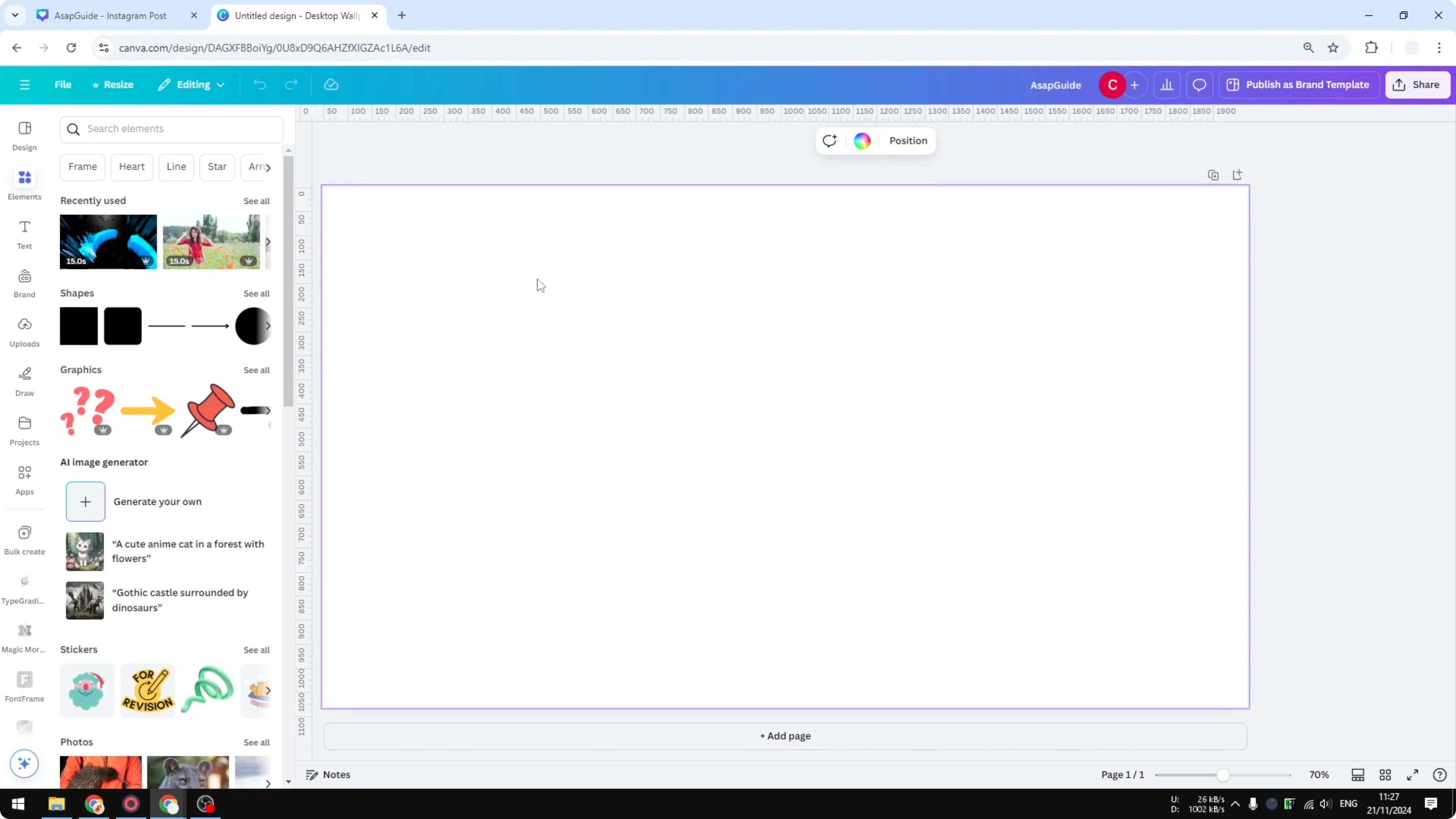
You could have a vertical video or a square video. Select the size that is appropriate for your video. Matching the dimensions at the start keeps your framing consistent.

If you only need to combine two clips, see how to merge two videos in Canva.
Add clips to the timeline
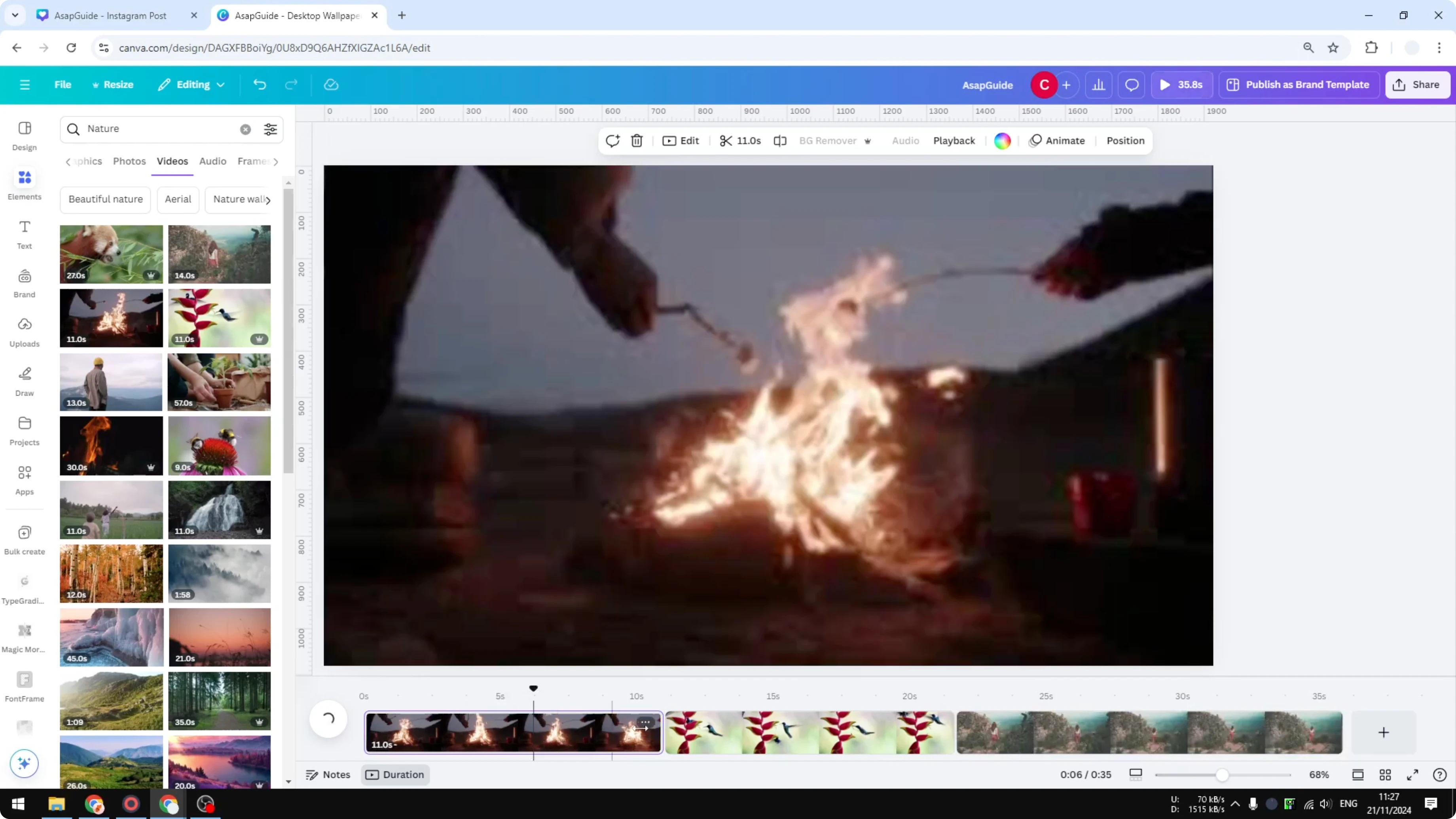
After you have the videos, start putting those videos into the timeline. The process is the same regardless of where the video is coming from, stock library or your own files. Open the thumbnail view and enable the timeline so you can see the sequence.

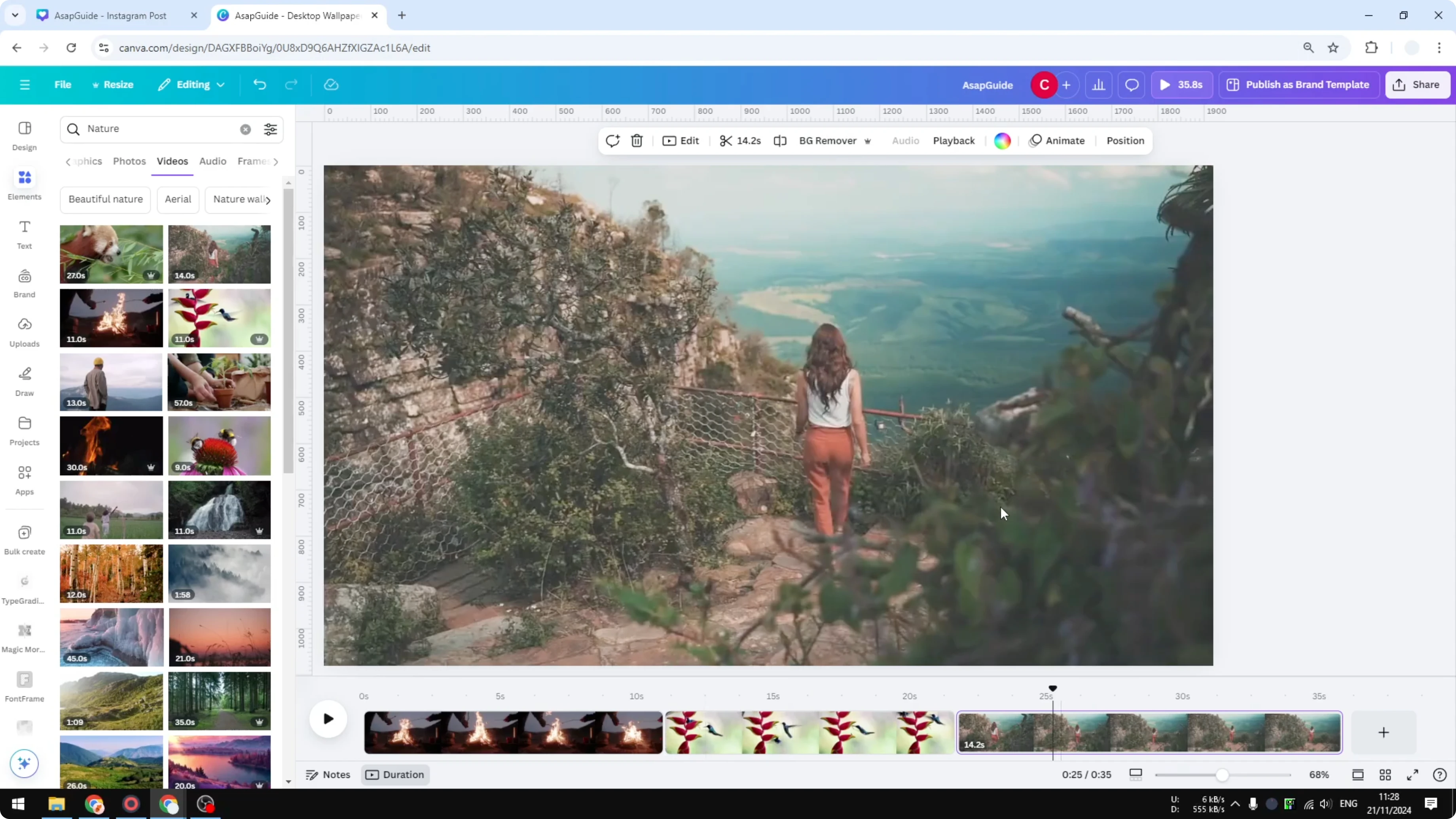
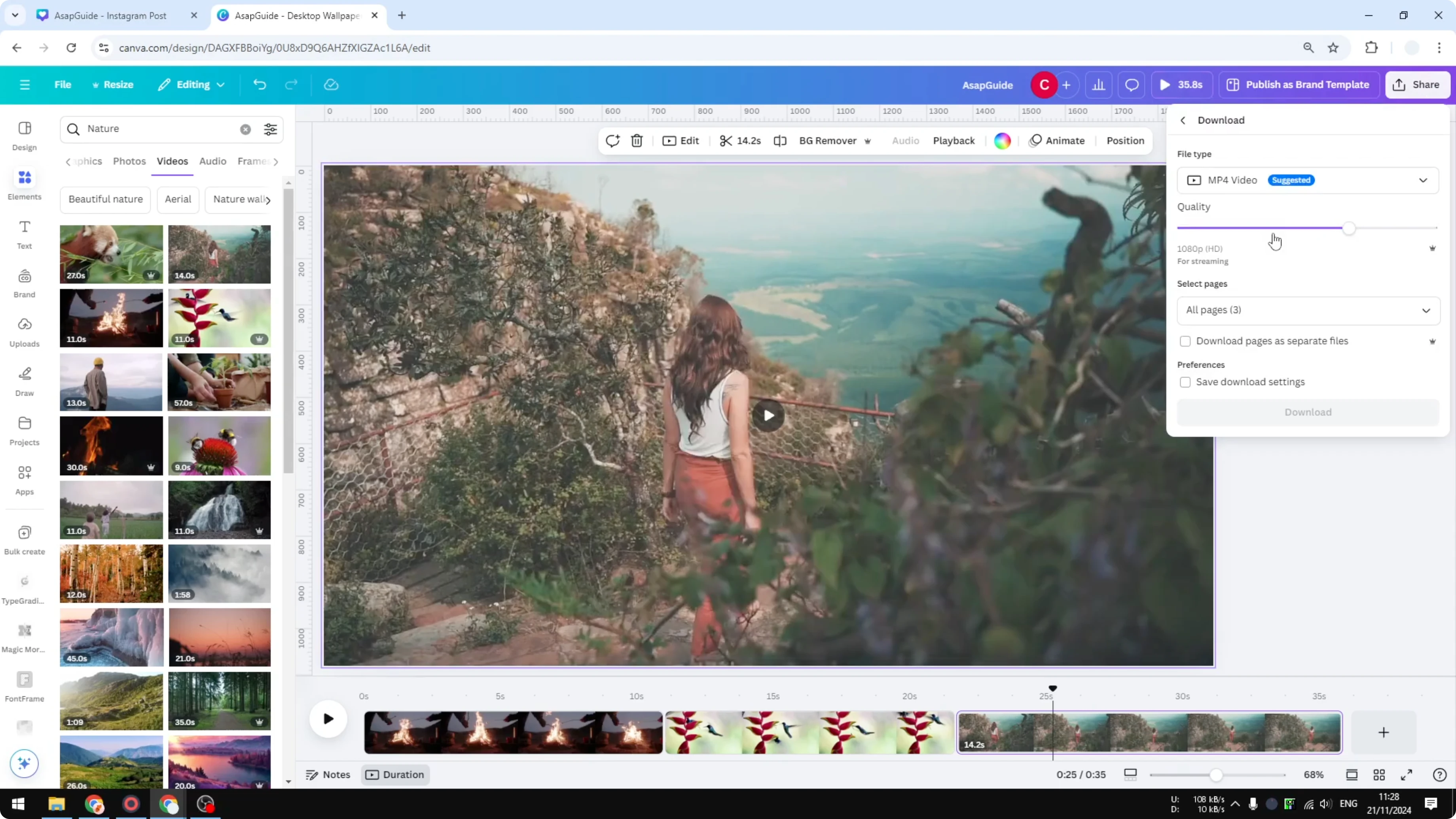
Click and then drag a video into the timeline. Do the same for the other videos and put them in order. Three different videos are now becoming one.

If you want to refine scenes before exporting, you can change a video background in Canva with AI to match your style.
Export settings
When you are done and happy with the composition, click Share, then Download. Select the file type as MP4. Choose the quality you want.
Make sure to include all pages so everything is added to the final render. Click Download to get one video file that contains all your clips. That is it.
Exploring more Canva projects after editing your video is easy, and you can also build a simple website with Canva.
Final thoughts
Pick the correct template size, add each clip to the timeline in order, and export as MP4. The source of your clips does not matter, the steps stay the same. Once you hit Download, your separate videos become one clean file.

Recent Posts

How to Visualize Yourself as a Pixelized Character with AI?
How to Visualize Yourself as a Pixelized Character with AI?

How to Revive Faded Memories and Enhance Image Clarity with AI?
How to Revive Faded Memories and Enhance Image Clarity with AI?

How to Visualize Yourself as an Animal Crossing Character with AI?
How to Visualize Yourself as an Animal Crossing Character with AI?