How to Manually Save Edits on Canva
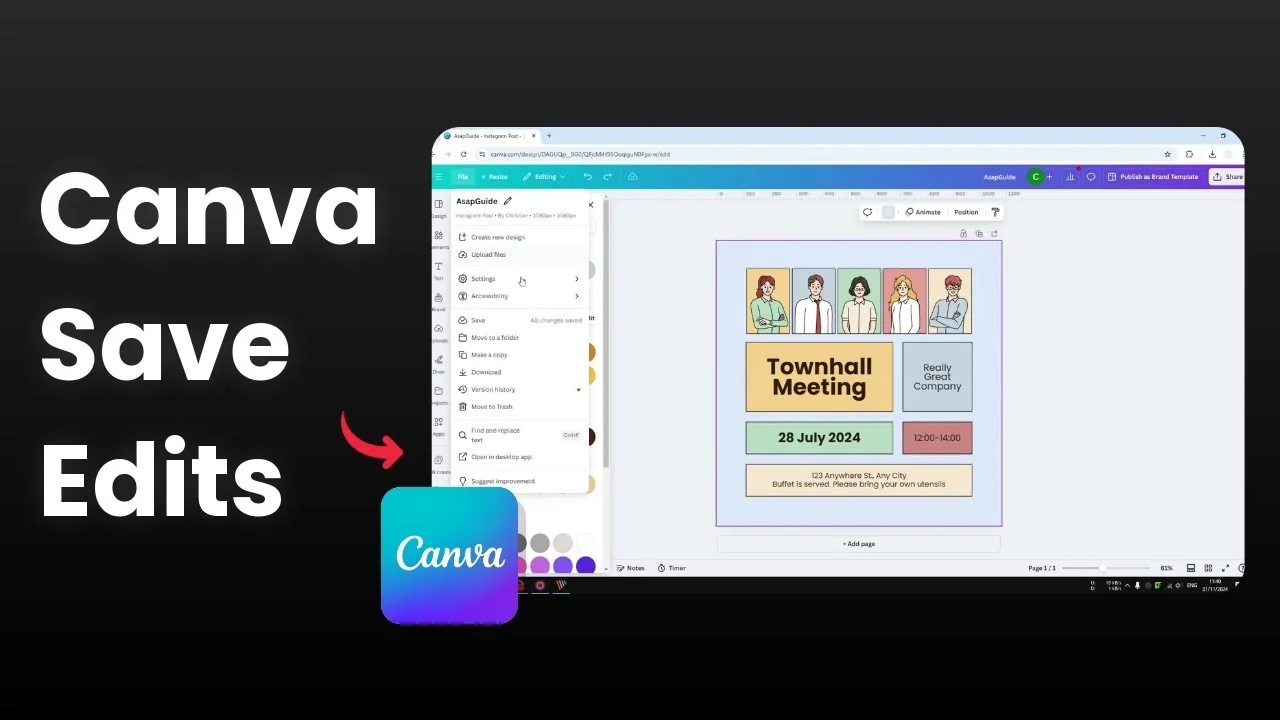
I will show you how you can save your design or save the changes you have made in Canva manually. Canva is an online based tool, and every change you make in the document is saved almost instantly.
You do not have to worry that your changes will be lost. If you need a local copy, see how to save a Canva design to your computer.
Manually Save Edits on Canva
Just in case you want to be extra sure, you can save the document manually. This will trigger the saving mechanism and store the current state of the document.
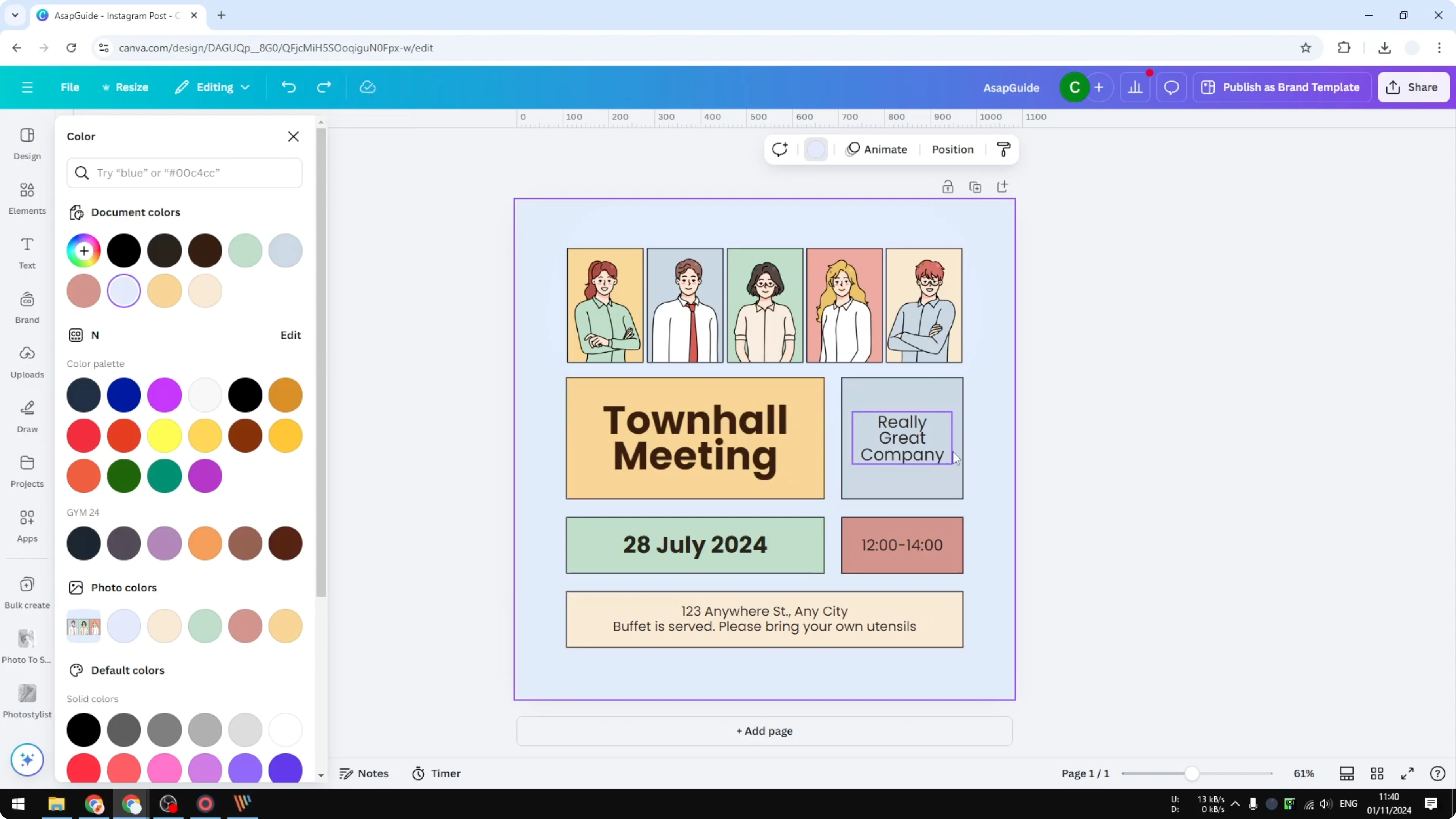
Manual save steps
Open the File menu in the Canva editor.
Click Save.
Wait for the save indicator to confirm the new state is stored.
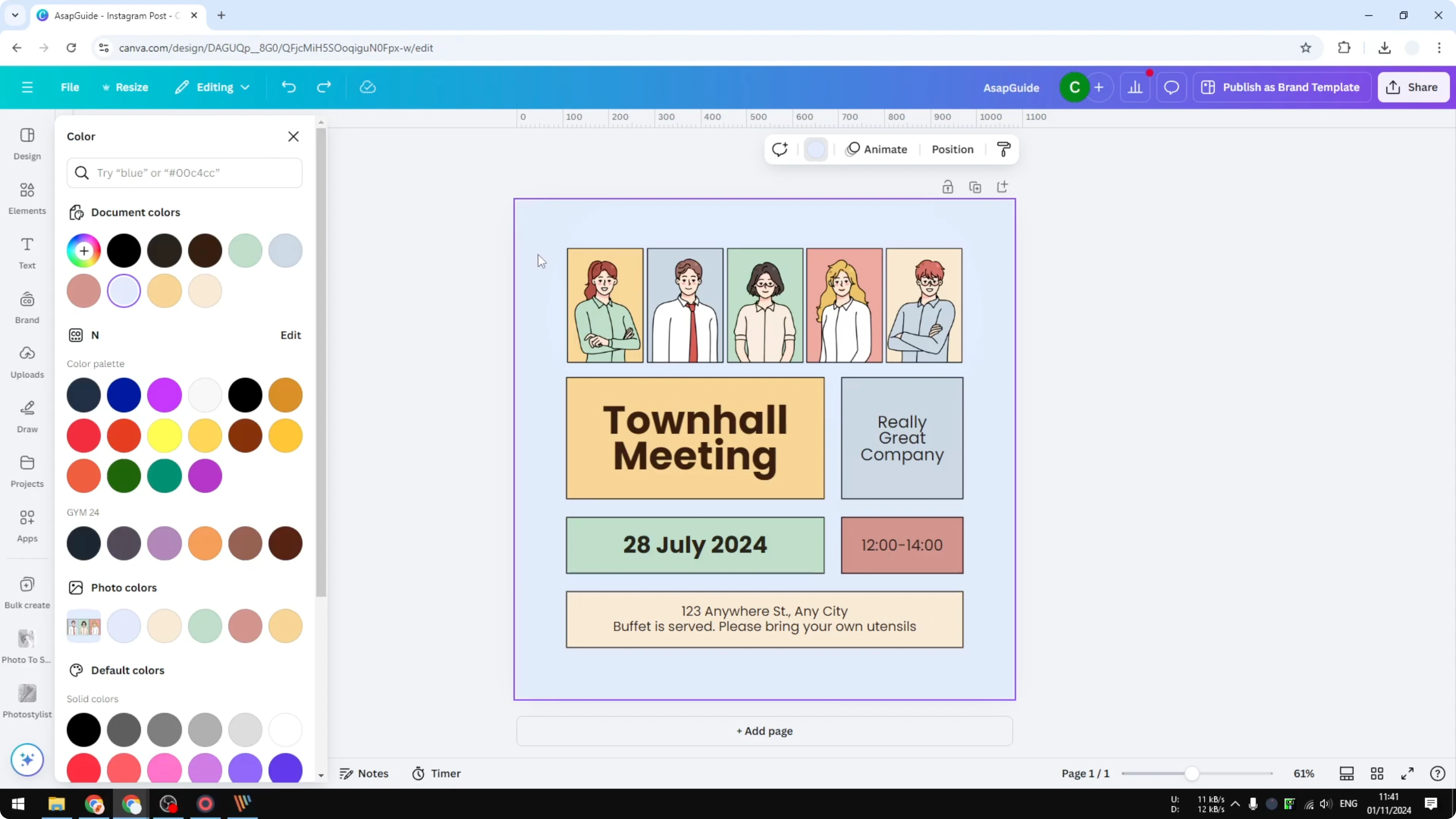
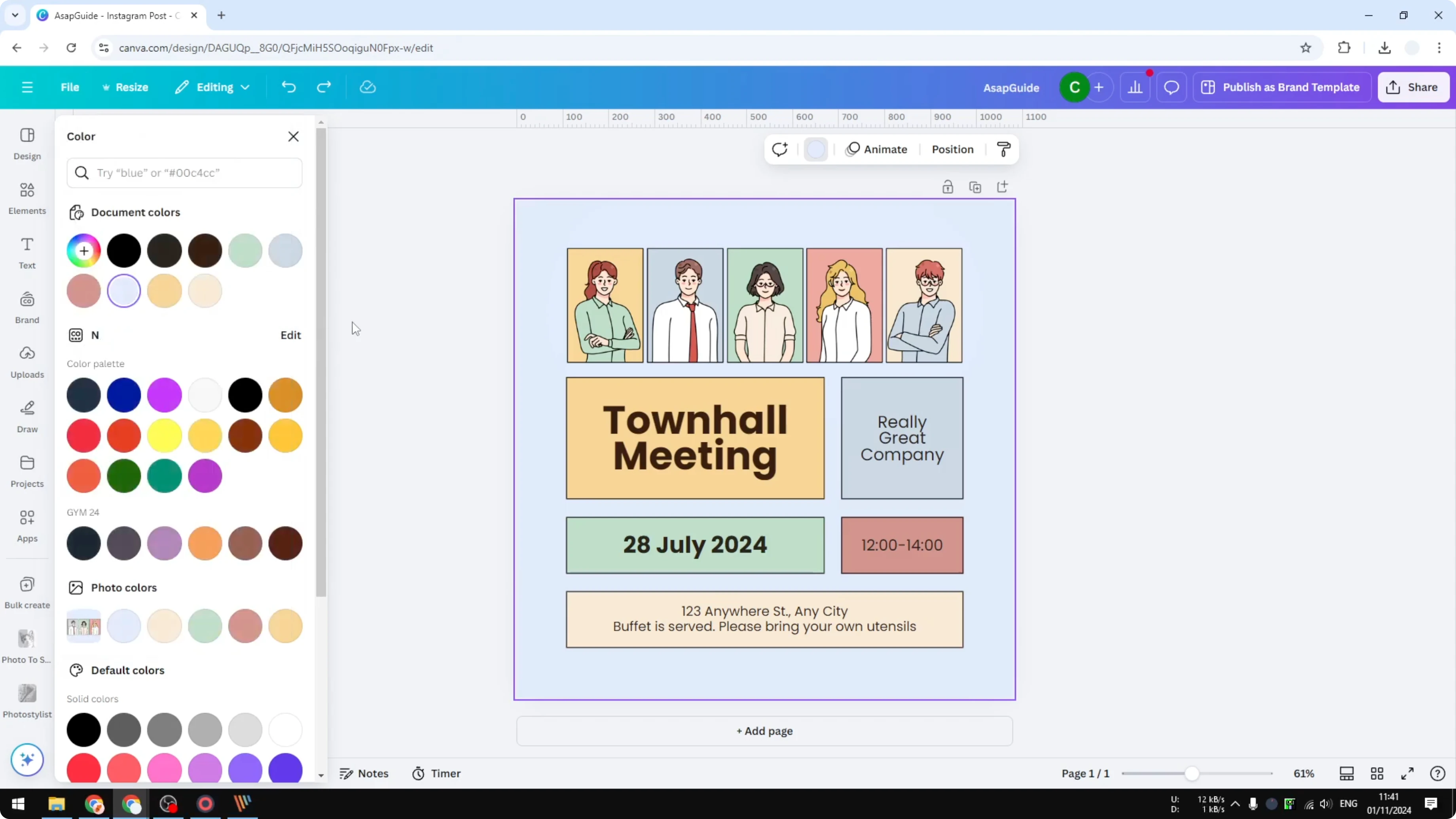
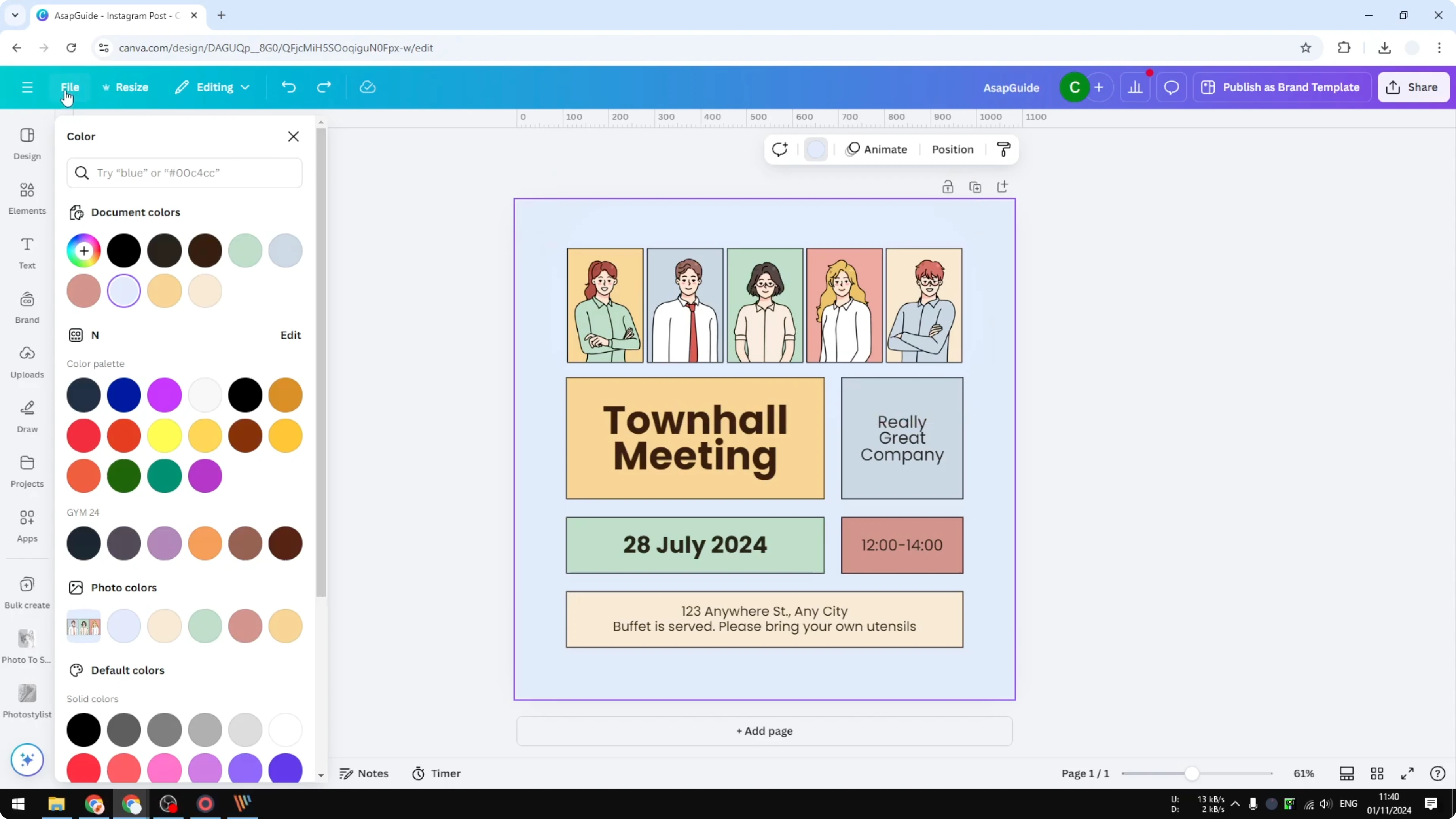
You do not have to worry that your changes will not make it into the document. Manual save confirms your latest edits are stored.
Read More: Manually Save Edits Canva
Save status icon
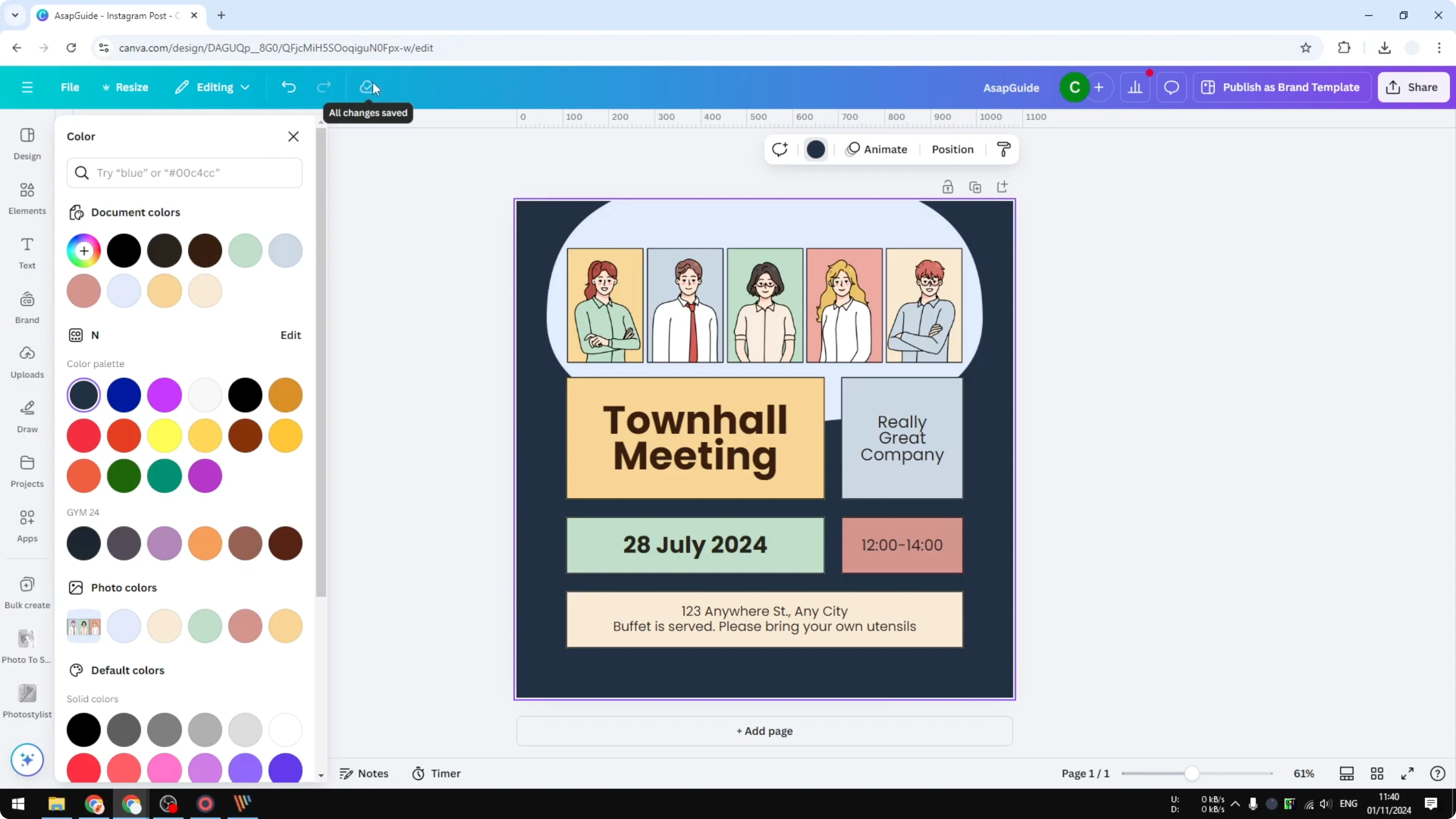
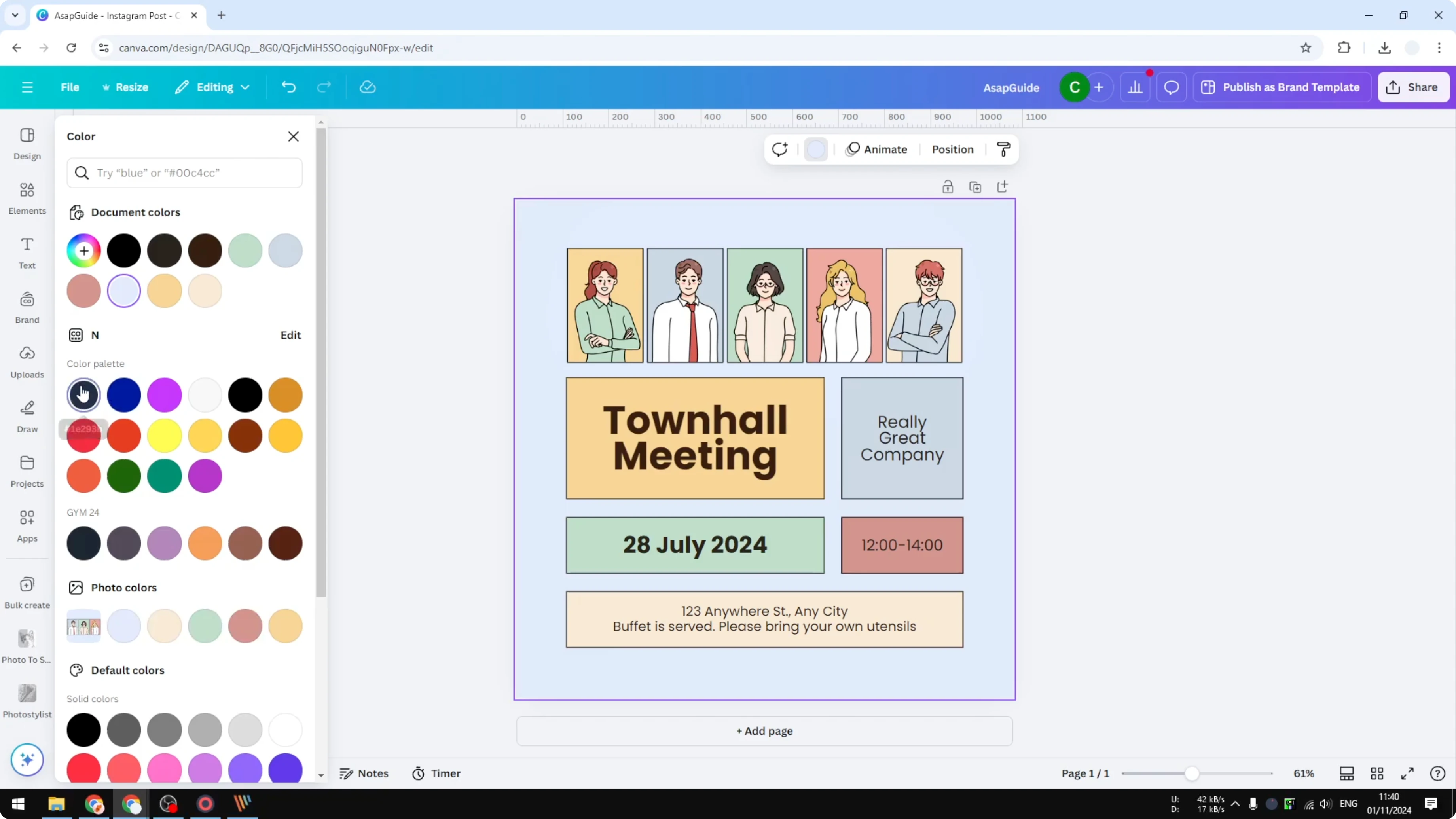
If you change the background to a different color, you will see an icon change that usually indicates the document has been saved. This visual cue lets you know the document is up to date. You do not have to worry about losing the changes.
If you often reuse graphics or text, you can save favorite elements in Canva to keep important items handy.
Final thoughts on Manually Save Edits on Canva
Canva saves changes almost instantly, and you can also save the document manually through the File menu to be extra sure. Watch the save icon for confirmation after each edit. With autosave and manual save, your edits are kept safe.
Recent Posts

How to Visualize Yourself as a Pixelized Character with AI?
How to Visualize Yourself as a Pixelized Character with AI?

How to Revive Faded Memories and Enhance Image Clarity with AI?
How to Revive Faded Memories and Enhance Image Clarity with AI?

How to Visualize Yourself as an Animal Crossing Character with AI?
How to Visualize Yourself as an Animal Crossing Character with AI?