How to Make a Shape Transparent in Canva
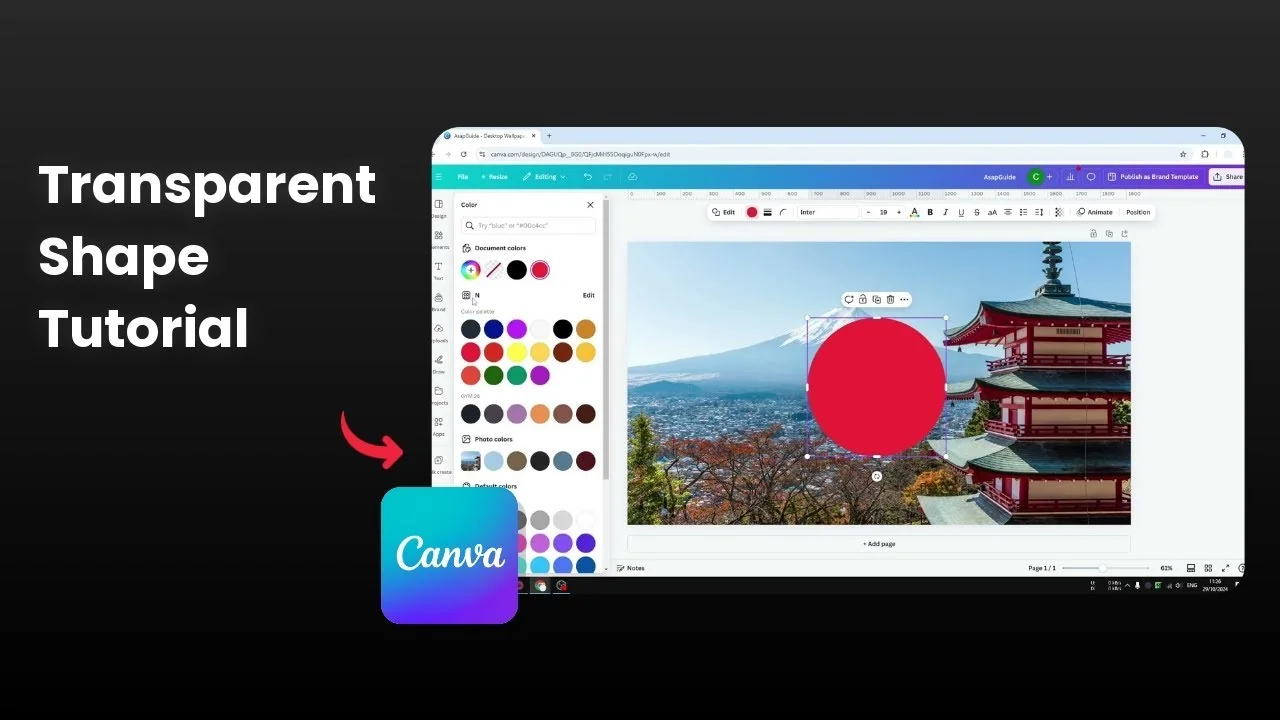
I have a design with a photo of Mount Fuji and a red circle in the middle. I want to make this circle shape transparent in Canva.
Make a Shape Transparent in Canva
Click the circle or any shape you want to edit.
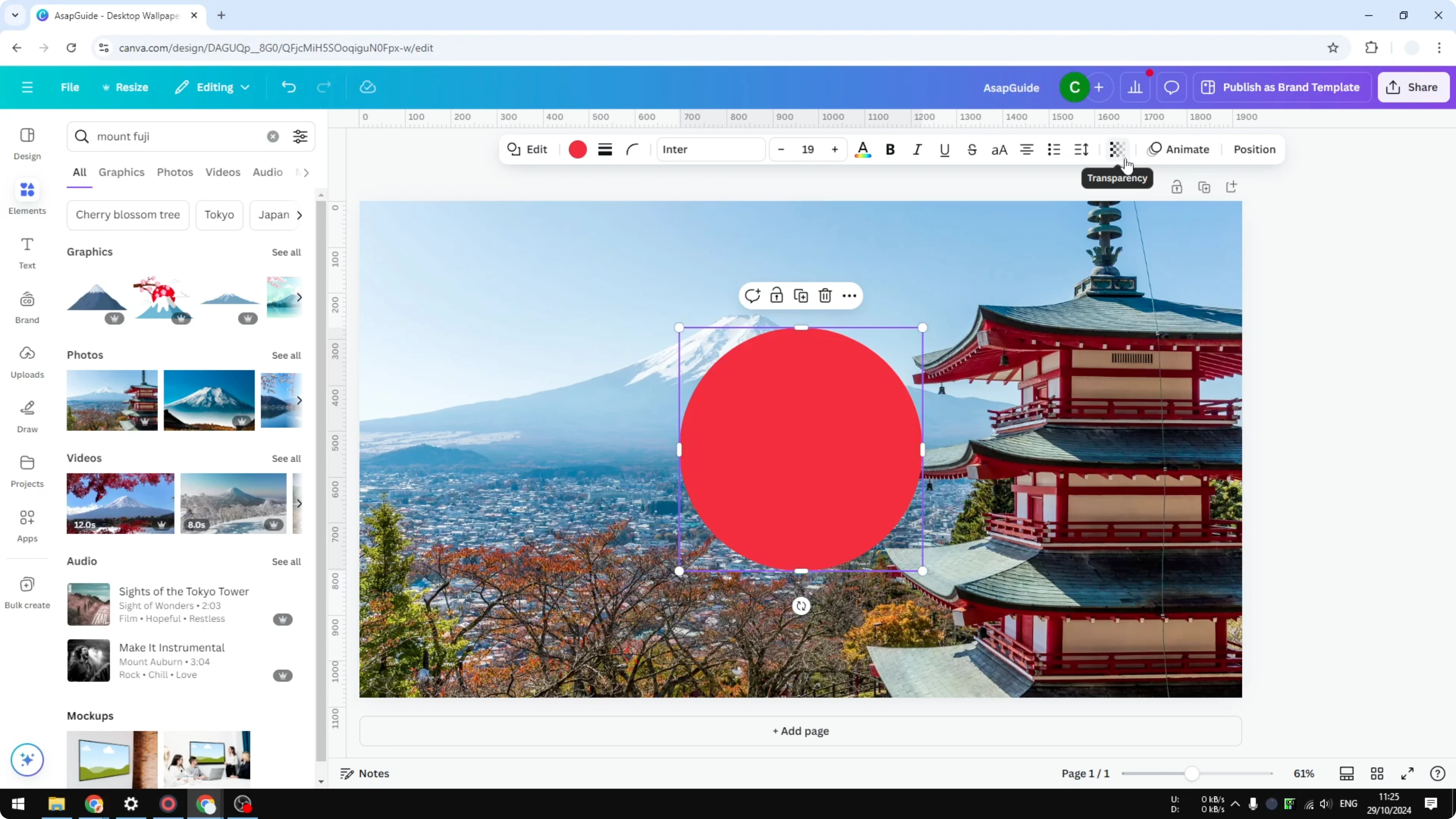
Open the toolbar and select Transparency.
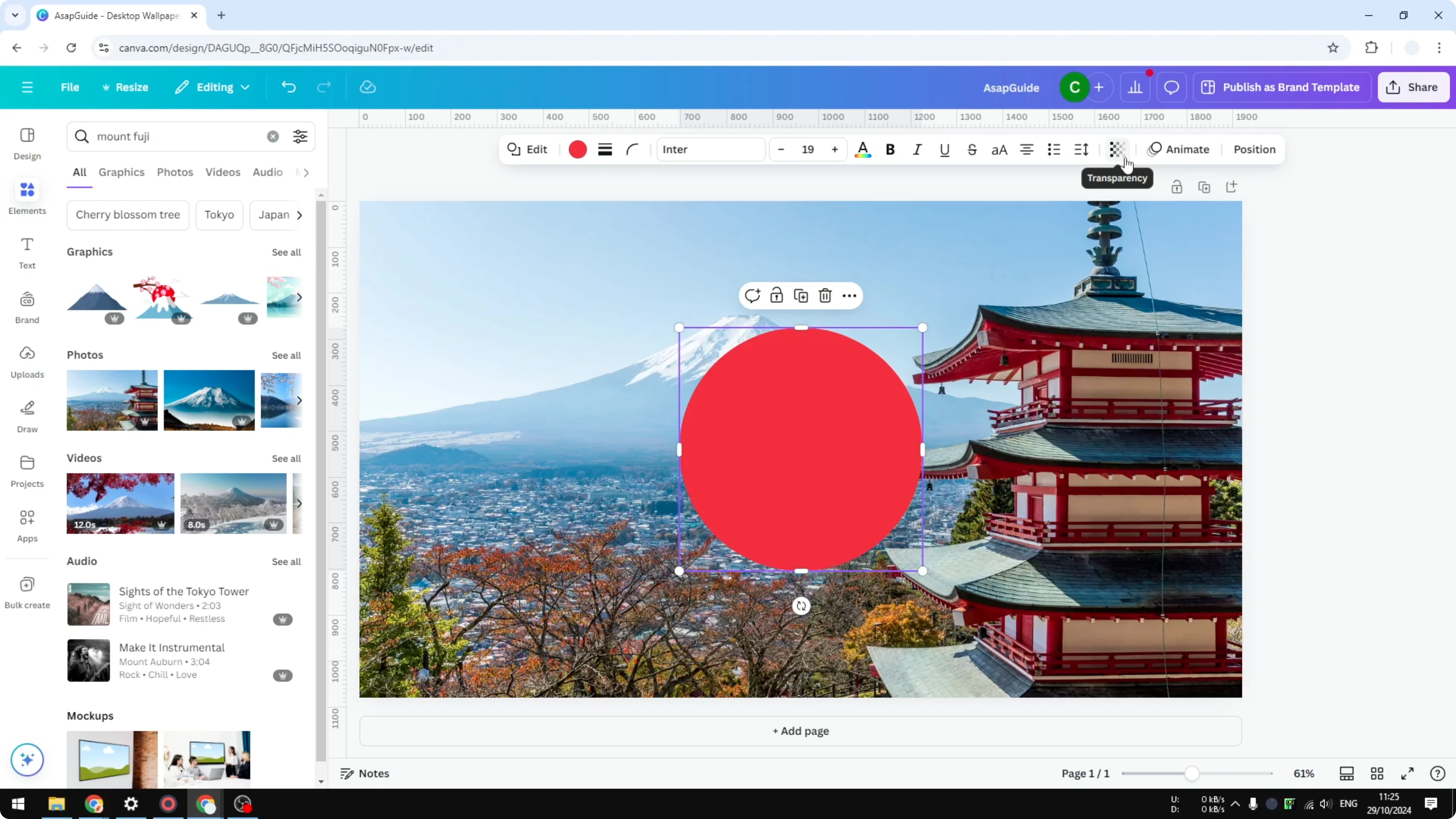
Drag the slider to the left to set the exact transparency you want for that shape. This is the easiest way to do it.
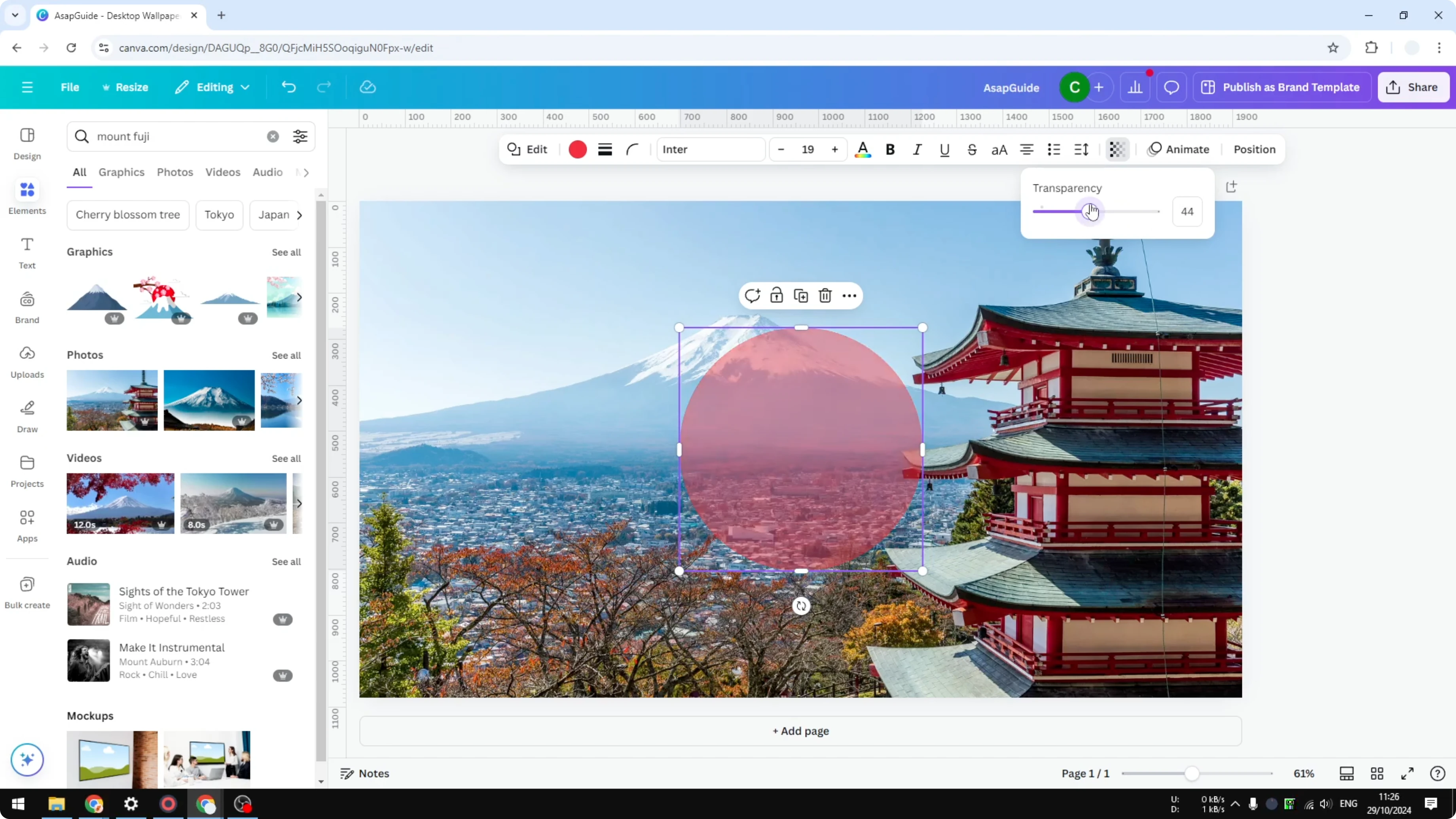
If you are building layered effects, you might also want a transparent overlay in Canva for consistent styling across your design.
Transparent gradient
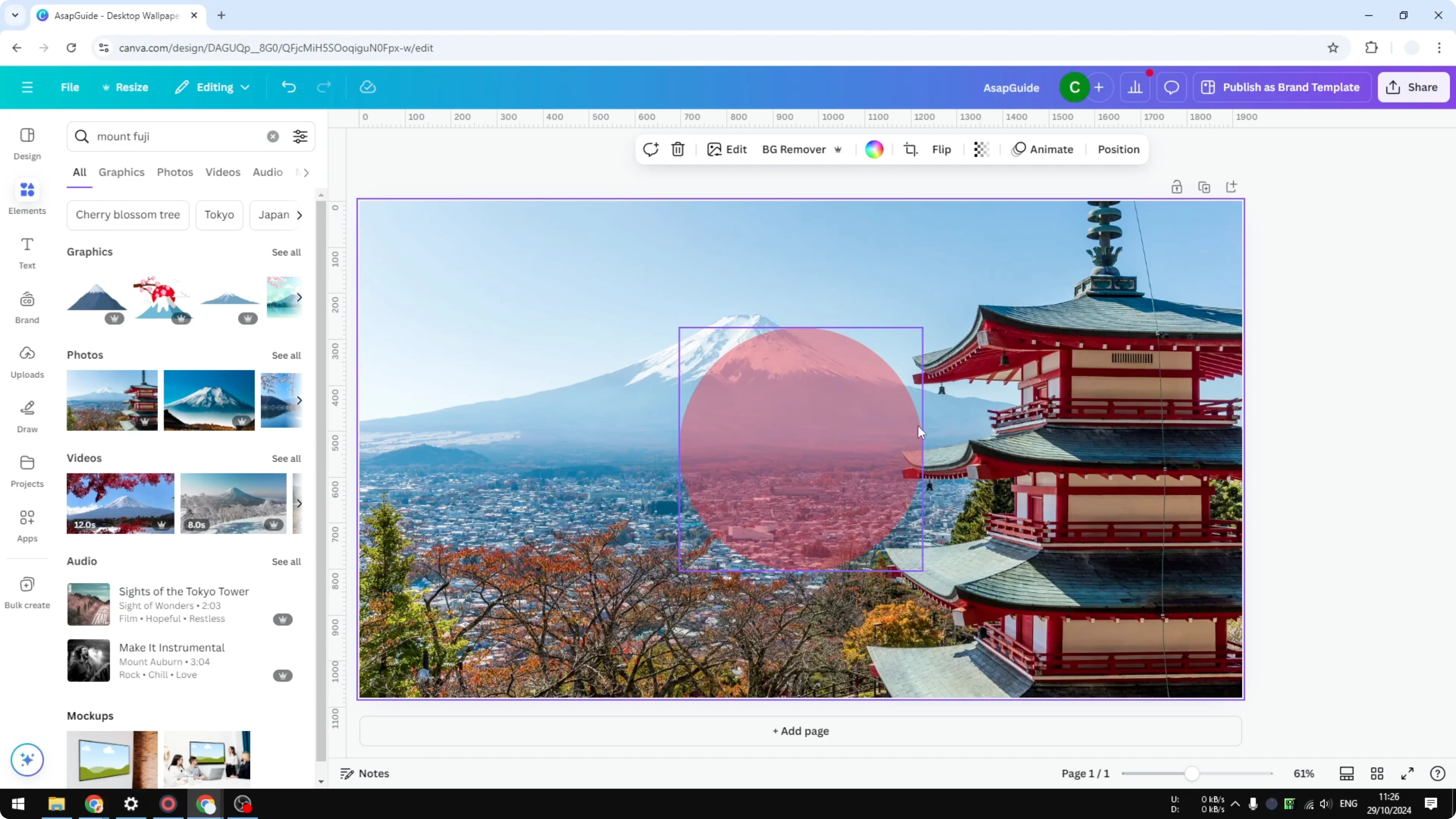
Make the shape fully visible again.
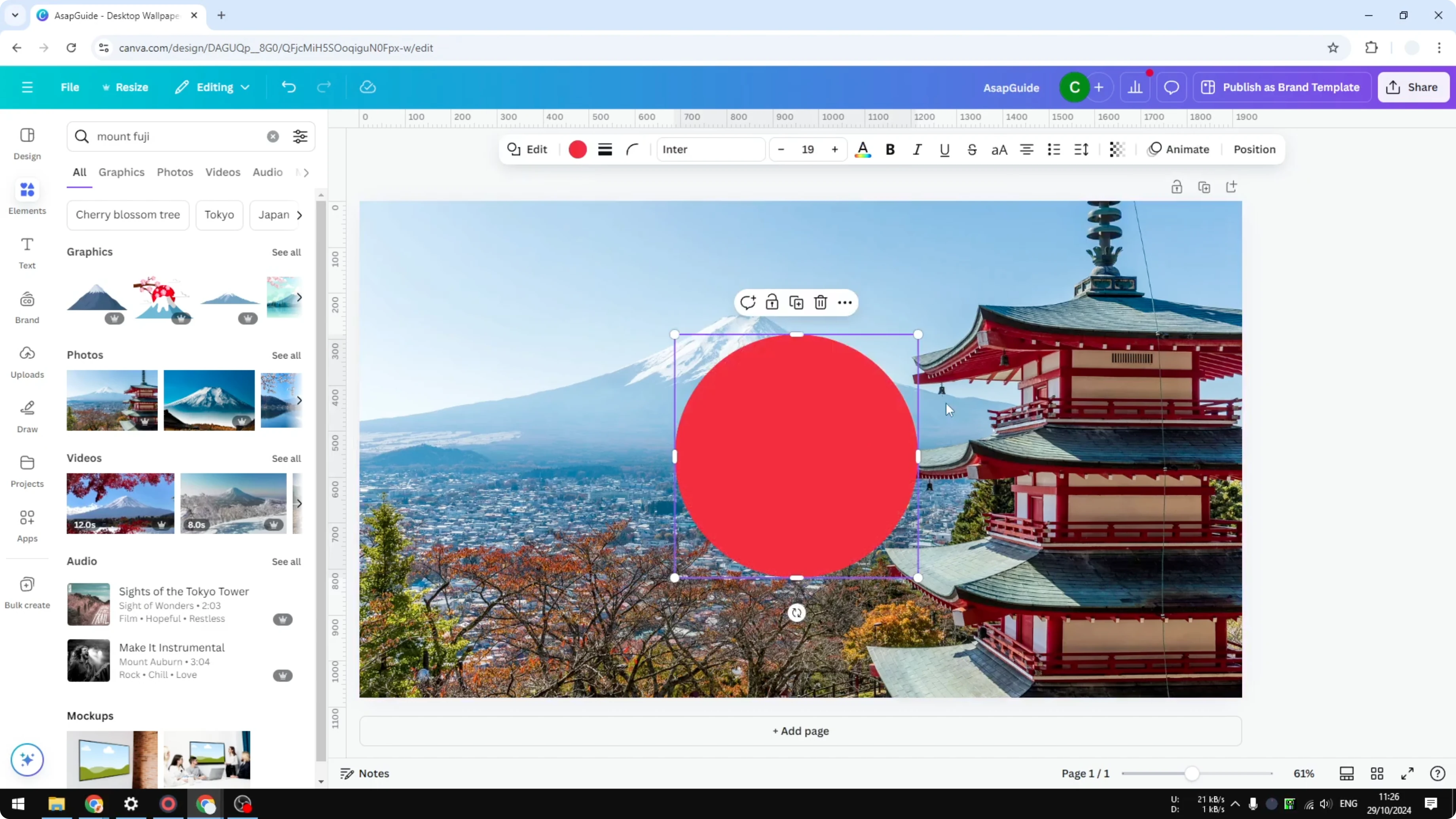
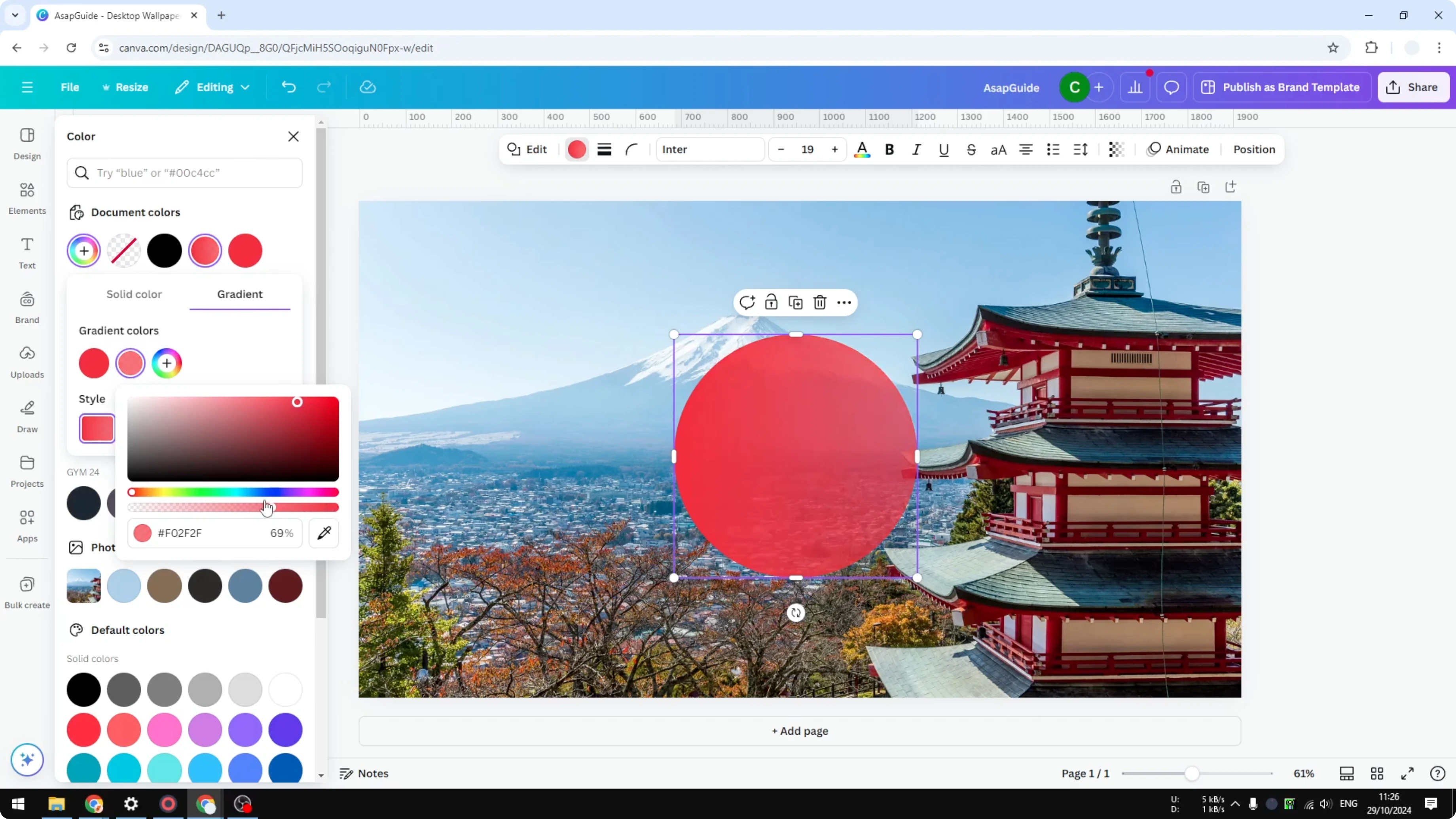
Click the shape, open Color, and add a new color.
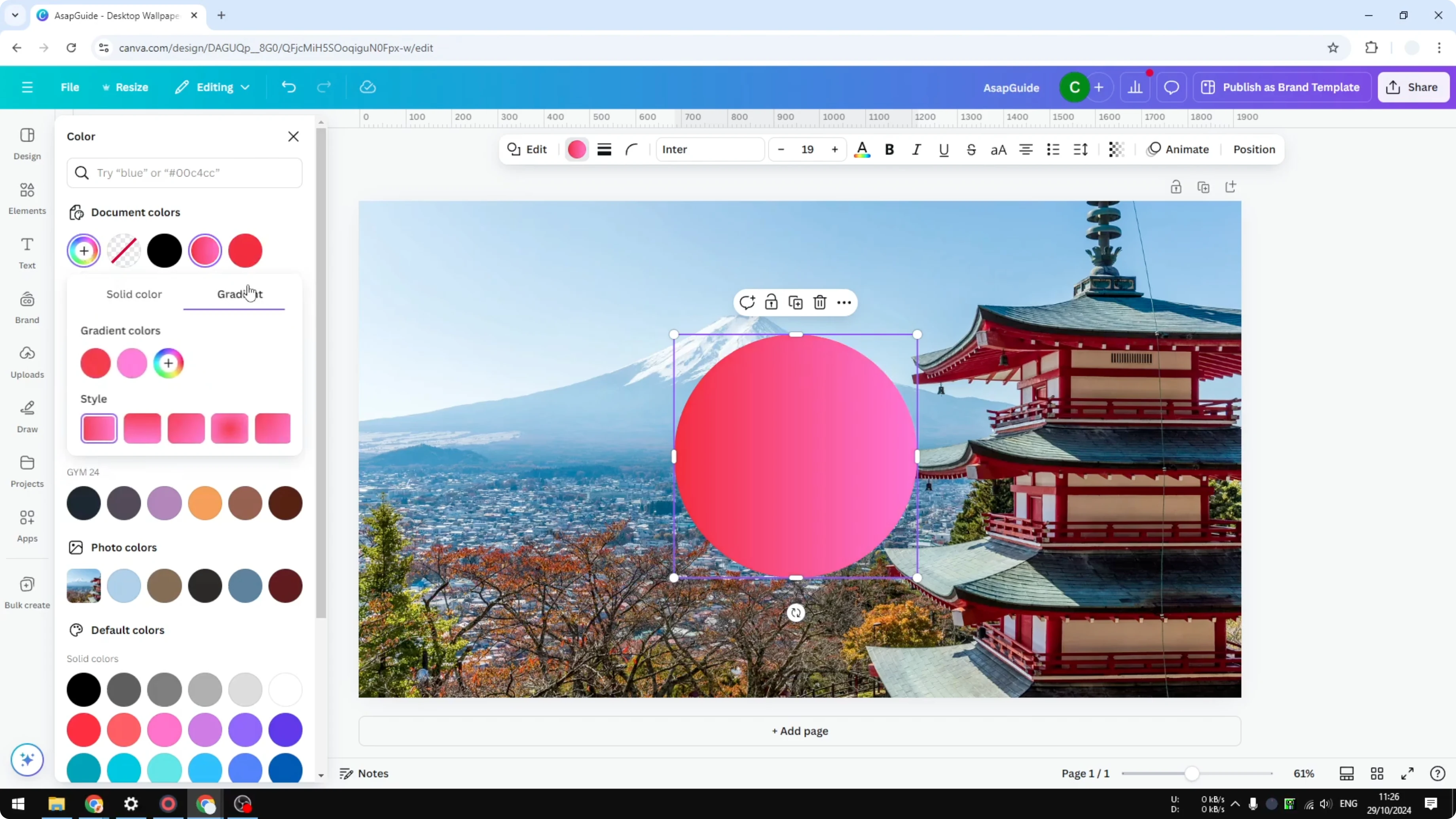
Go to Gradient.
Set the second color to be the same as the first one. I copy the color code and paste it into the second color.
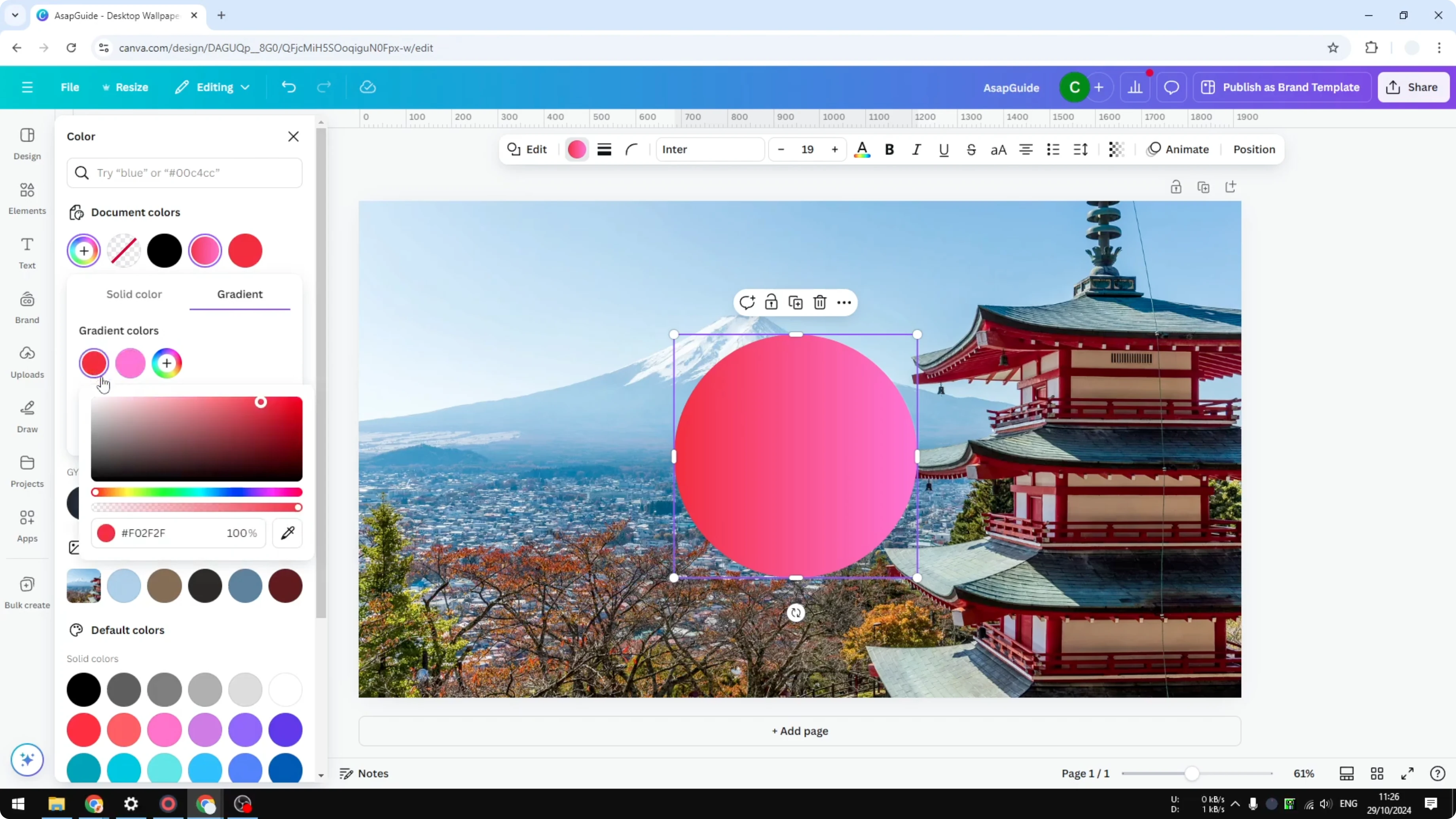
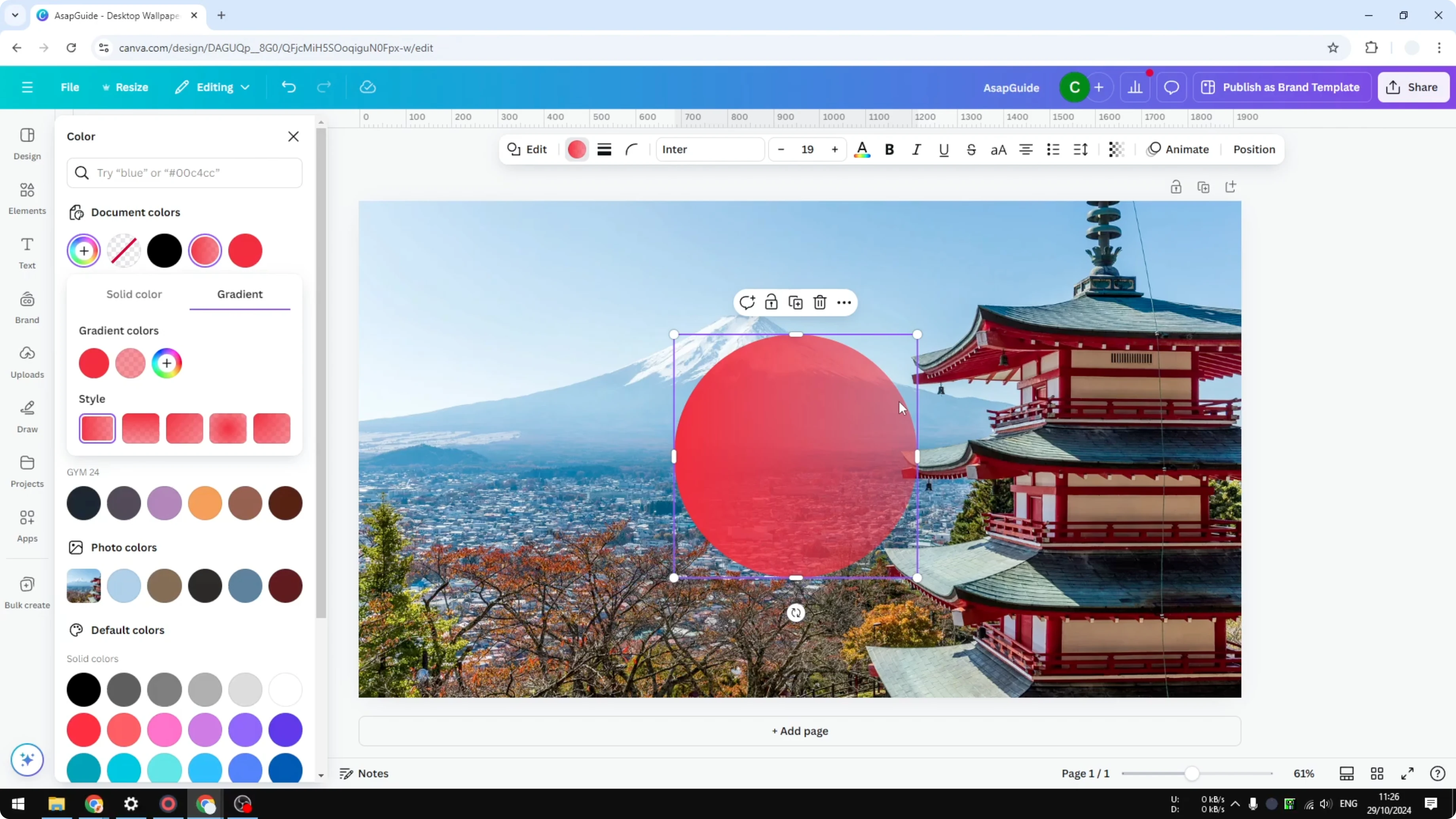
Adjust the transparency of the second color, so the other half of the gradient is transparent. You will see that one side is transparent but the other side is not, which gives a more attractive look than a simple solid color.
For typography effects that match this style, you can also make letters transparent.
Final Thoughts
Use the transparency slider for quick control over any shape. Use a gradient with one transparent stop if you want a more stylized, directional fade.
If you are editing motion content, learn how to make a video transparent in Canva to apply similar effects to clips.
Recent Posts

How to Visualize Yourself as a Pixelized Character with AI?
How to Visualize Yourself as a Pixelized Character with AI?

How to Revive Faded Memories and Enhance Image Clarity with AI?
How to Revive Faded Memories and Enhance Image Clarity with AI?

How to Visualize Yourself as an Animal Crossing Character with AI?
How to Visualize Yourself as an Animal Crossing Character with AI?