How to Make One Letter Bigger in Canva
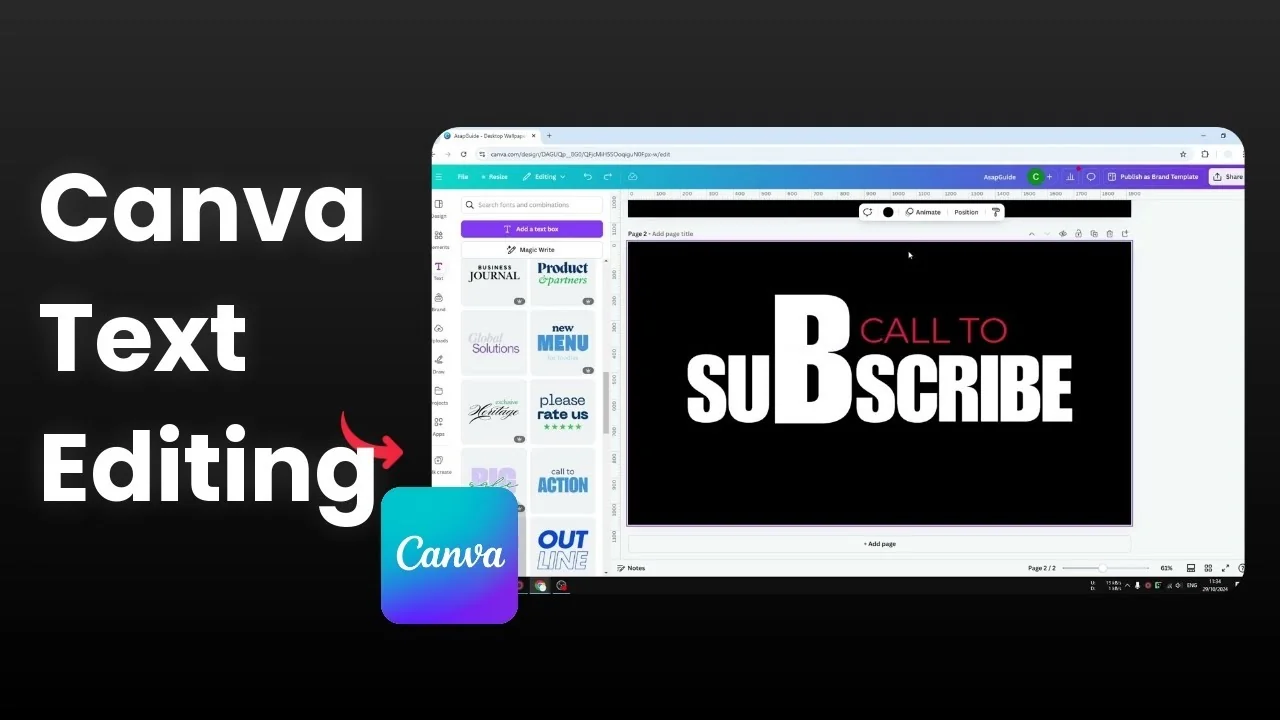
I will show you how you can make one letter bigger in a text box in Canva. This is an interesting editing process because it’s not possible to select one letter inside a text box and resize it separately. If you try to increase the size of a single character, the whole text changes.
For example, if I select one letter and increase the font size, everything else will also change size. That is not the way to do it. We can use a different method.
Make One Letter Bigger in Canva: Why direct resizing fails
Canva treats the text box as a single object for font size changes. You can select any letter, but resizing applies to the entire text. That’s why you need a workaround that separates the letter from the rest of the text.
This method gives you visual control over one character while keeping the rest consistent. It works well when you need a standout initial or a larger brand letter in a wordmark.
Read More: Create One Round Corner Canva
Make One Letter Bigger in Canva: The workaround
Prepare the letter as a separate object
Click on the text box, click More, and choose Duplicate.
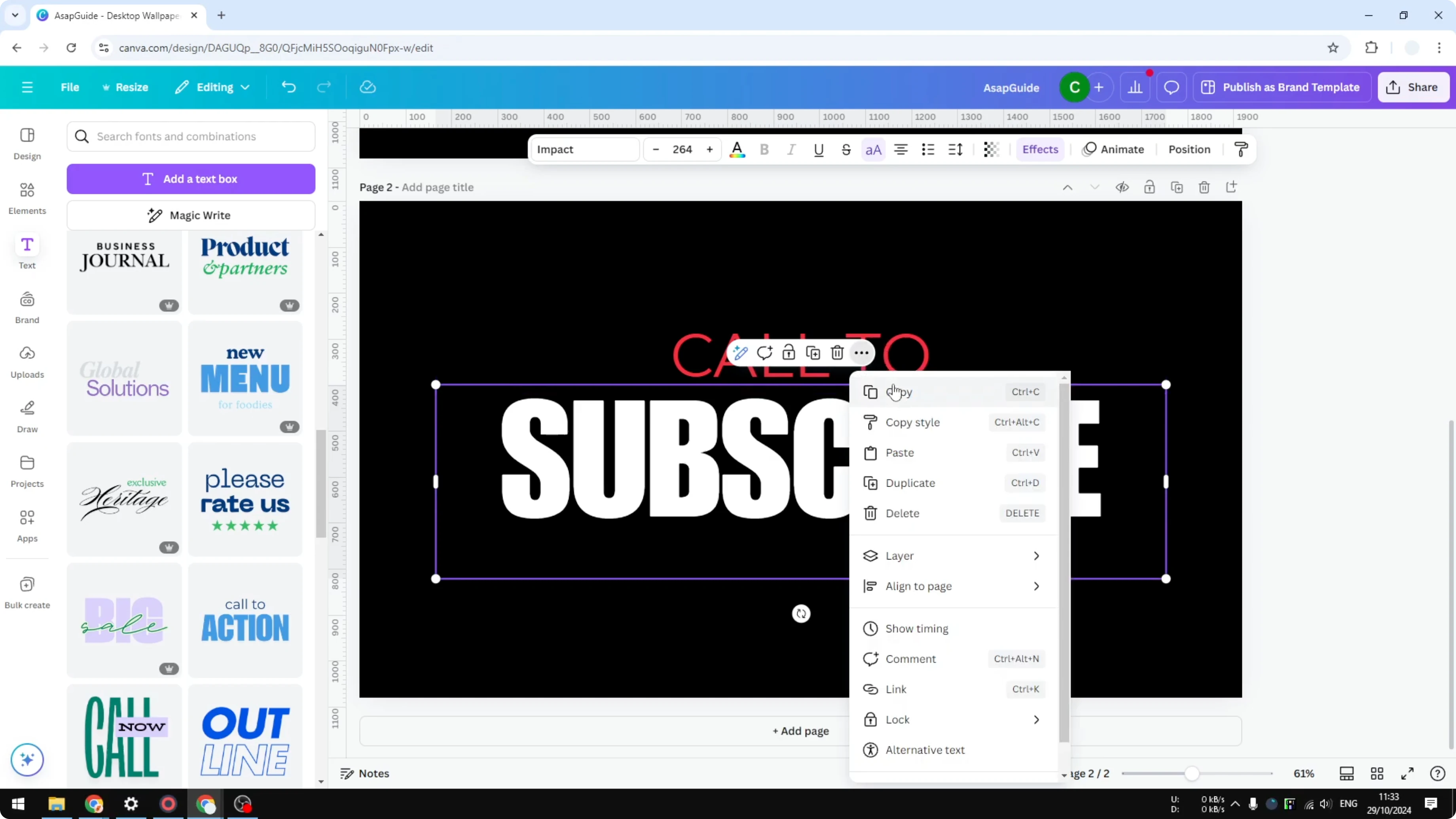
On the duplicated text, remove everything except the letter you want to make bigger.
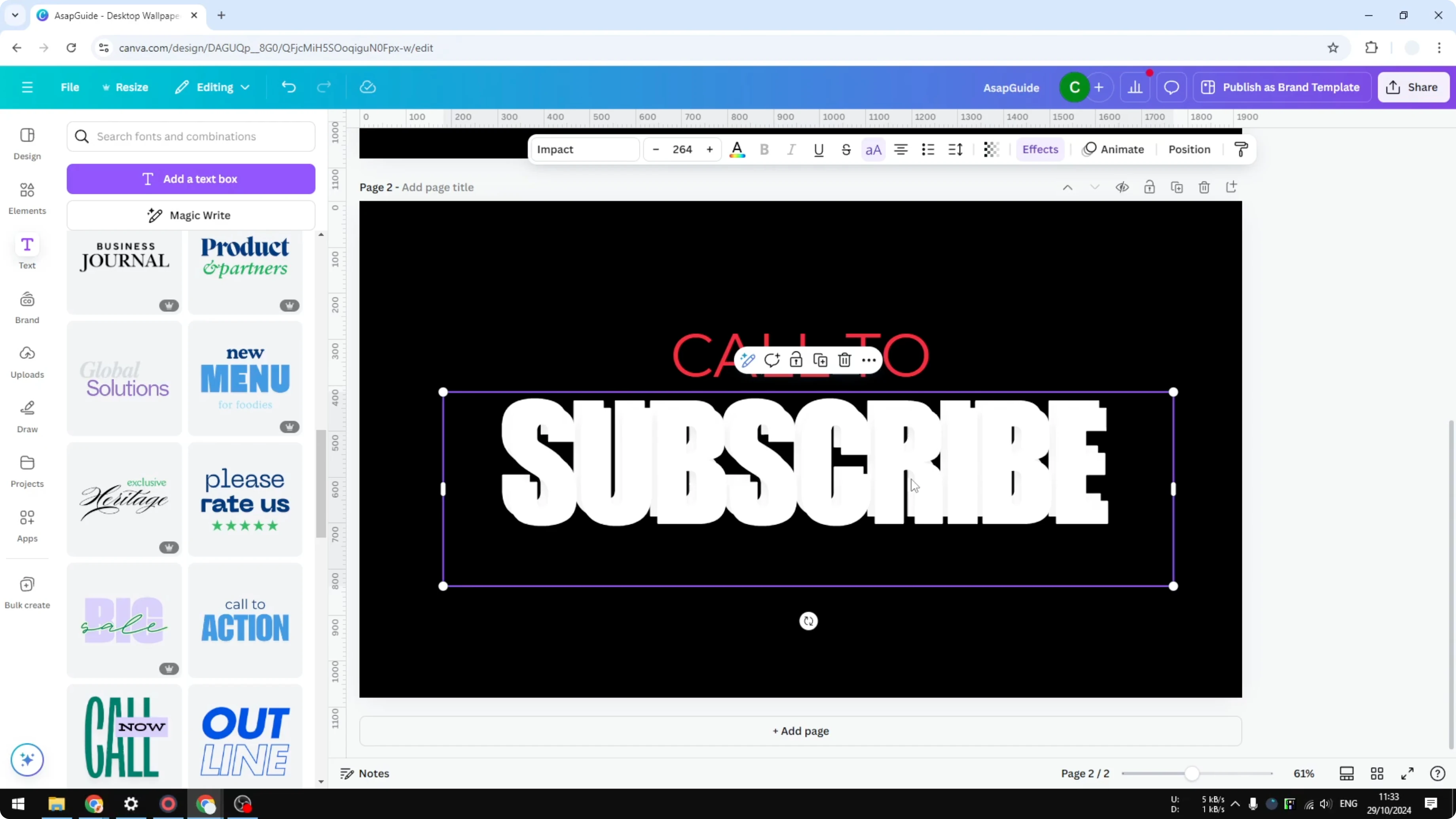
Leave that single letter in place on the duplicate.
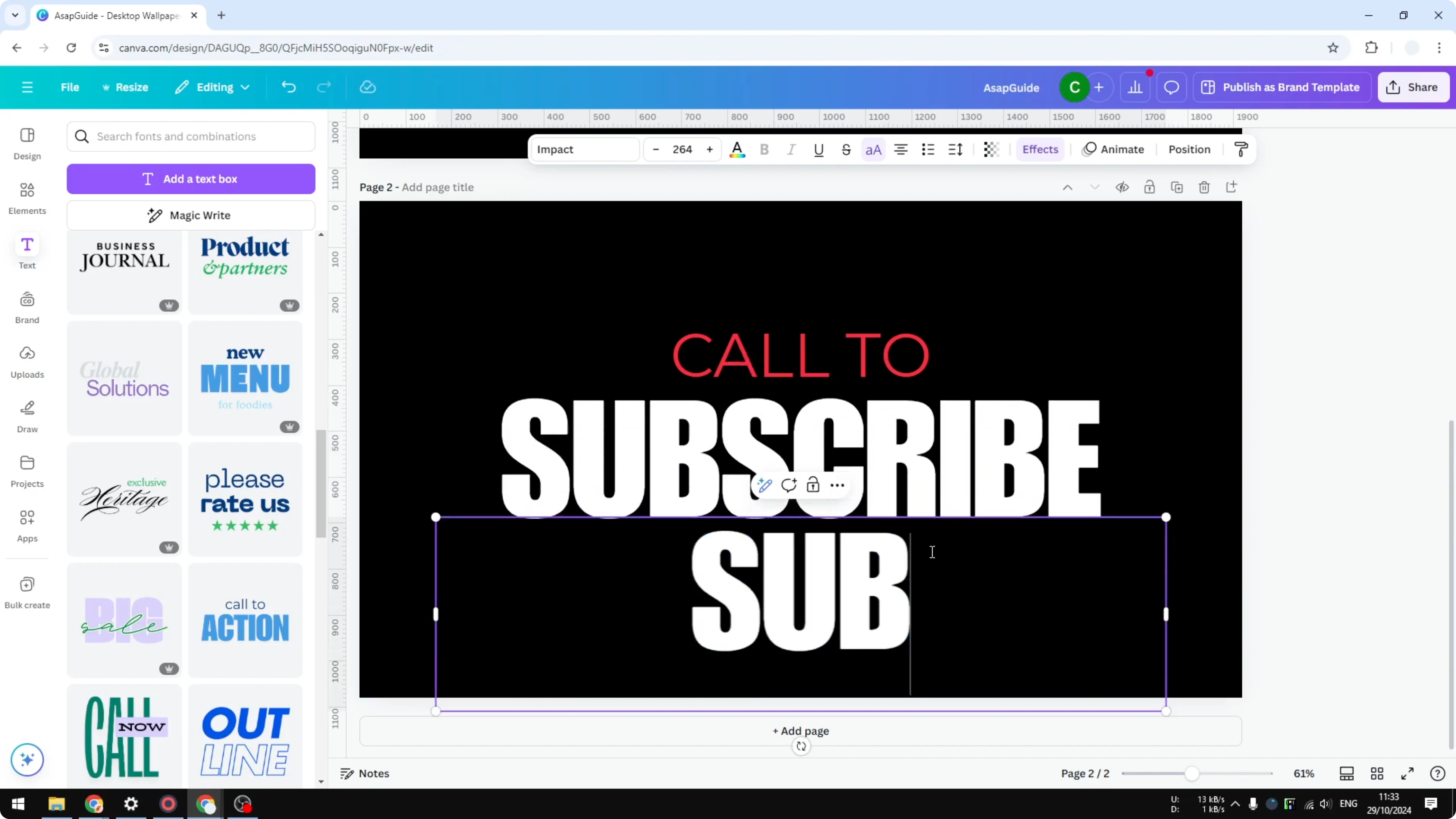
Resize the isolated letter
Click the isolated letter and drag any of the four corner handles to make it bigger.
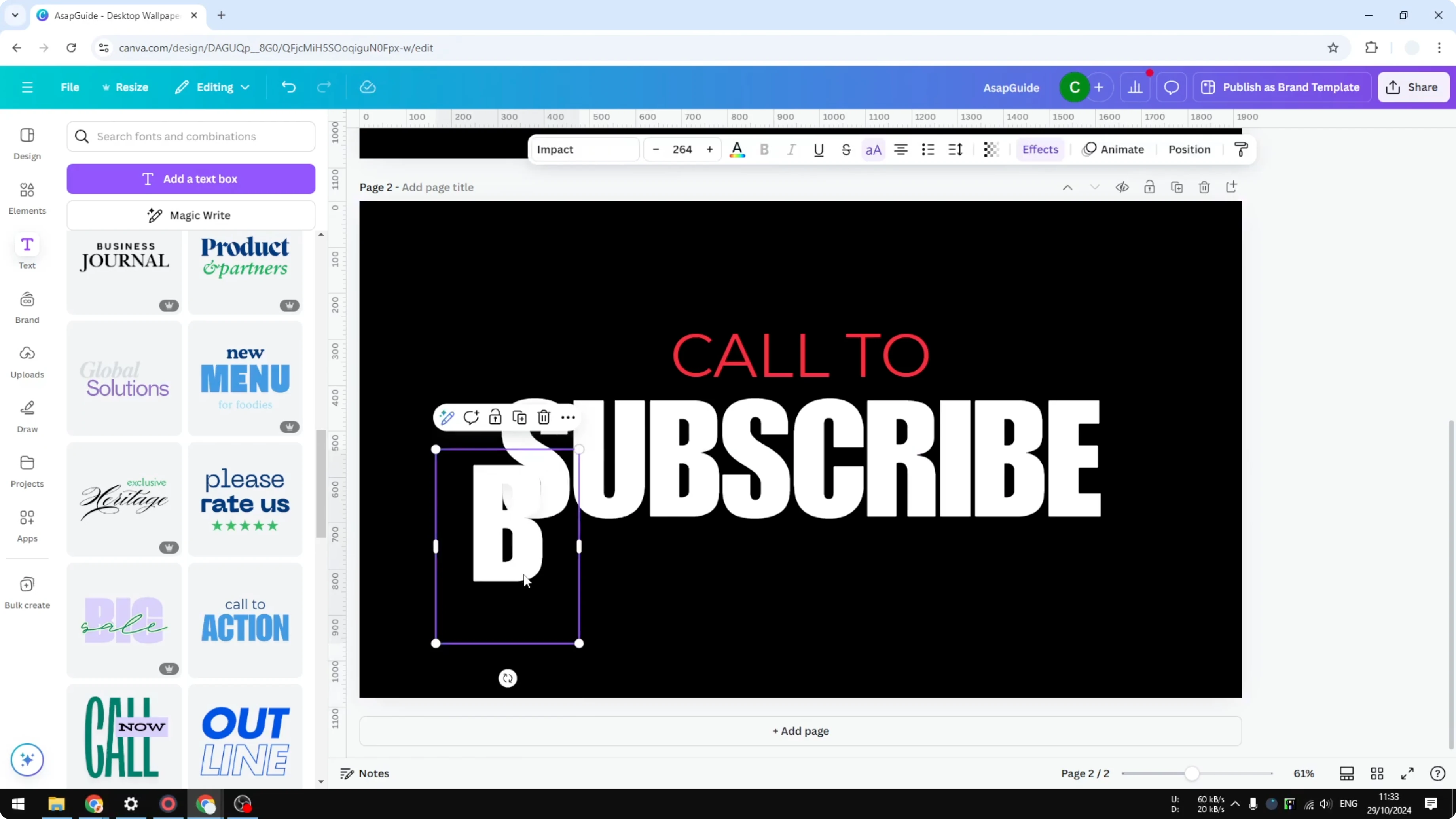
Adjust until it looks right alongside the rest of the text.
Fine-tune the size so it feels balanced with the original word.
Keep spacing in the original text
Go back to the original text box and delete that same letter from the word.
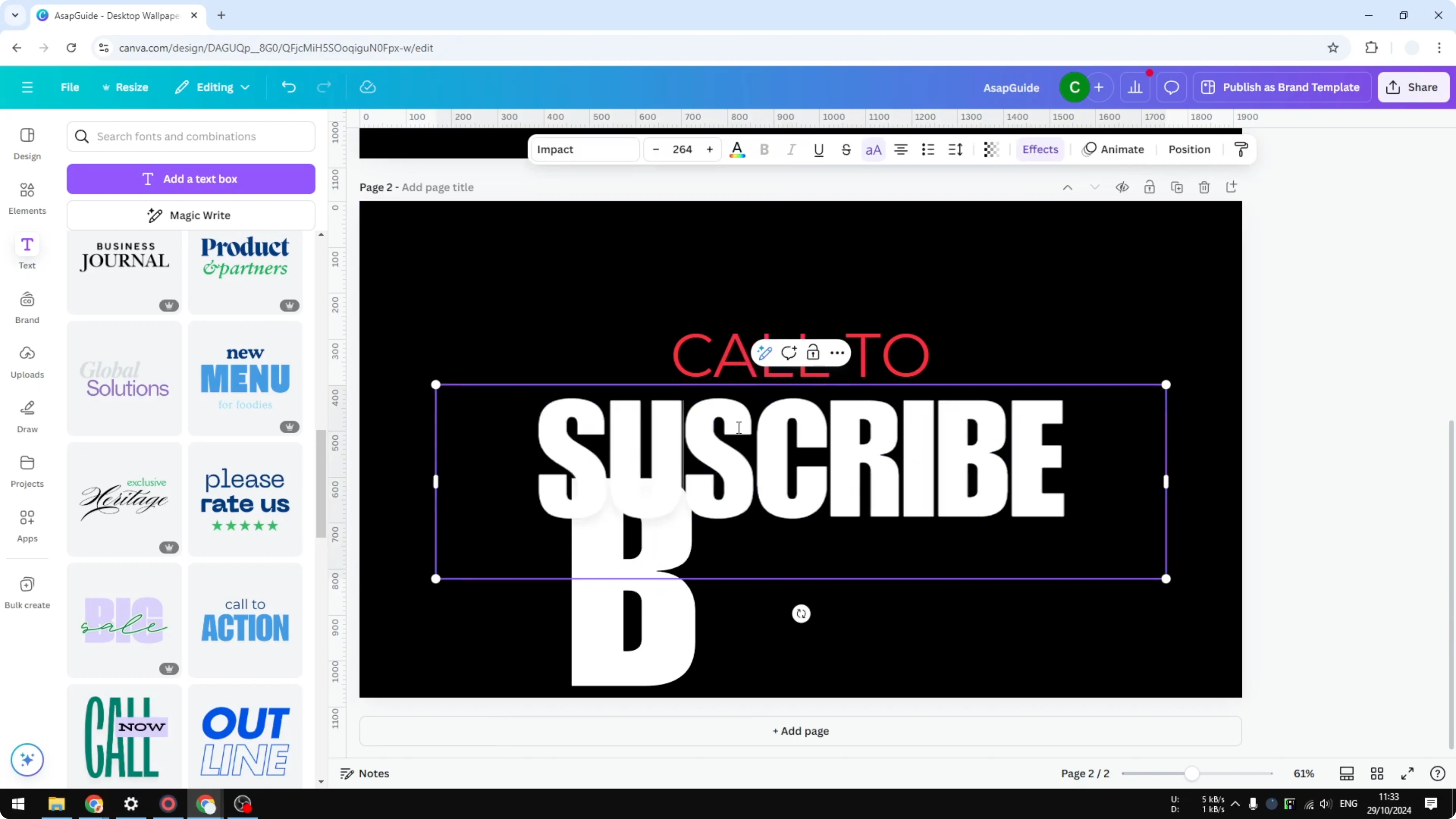
Replace it with empty spaces to create room for the bigger letter.
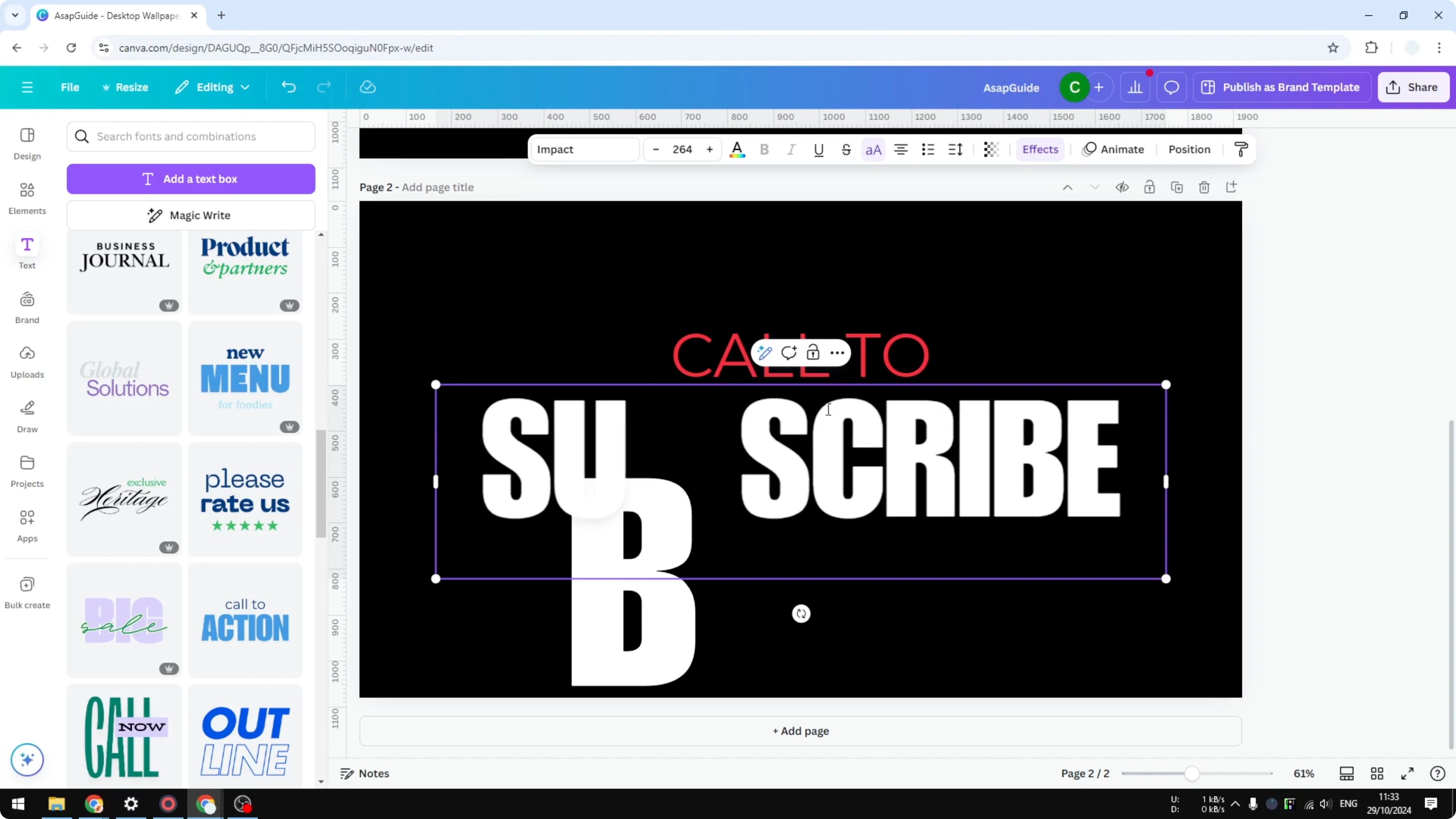
Use two to four spaces depending on the new size of the letter.
Align and blend
Place the larger letter over the empty space in the original text.
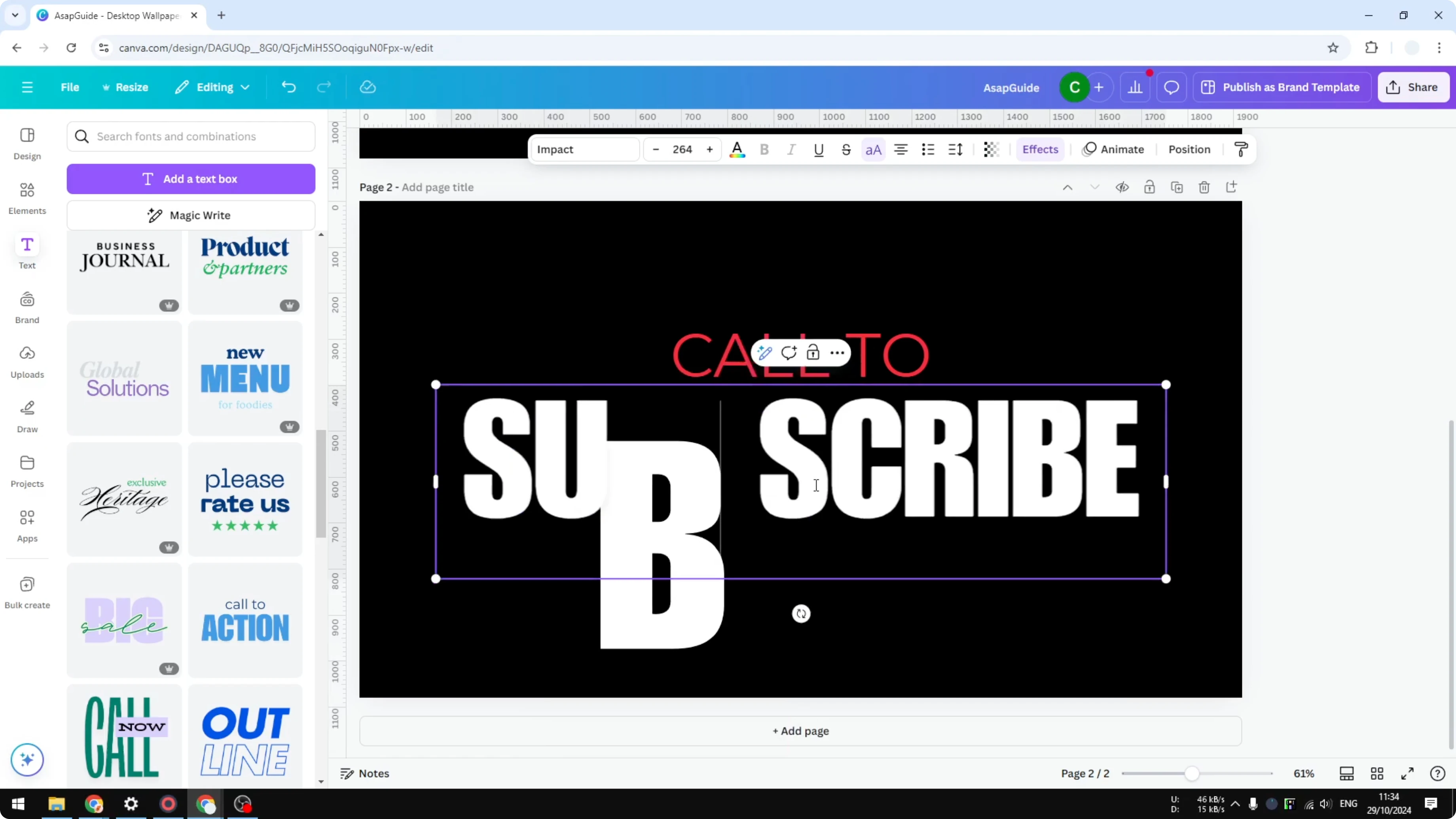
Do it carefully and make sure it blends nicely with the rest of the text.
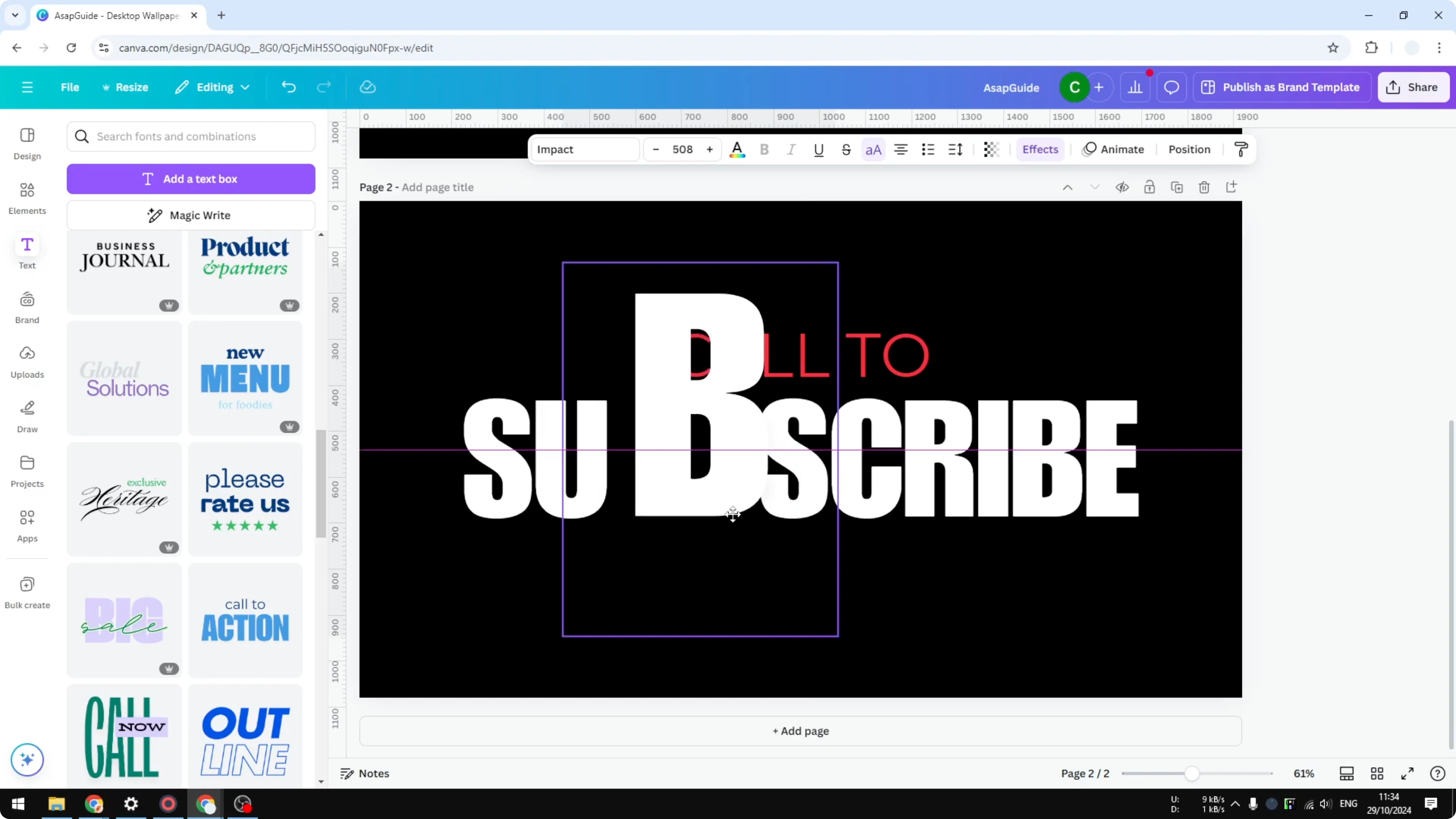
Match the baseline and spacing so it looks like one word.
Group for easy moving
Select the big letter and the original text box.
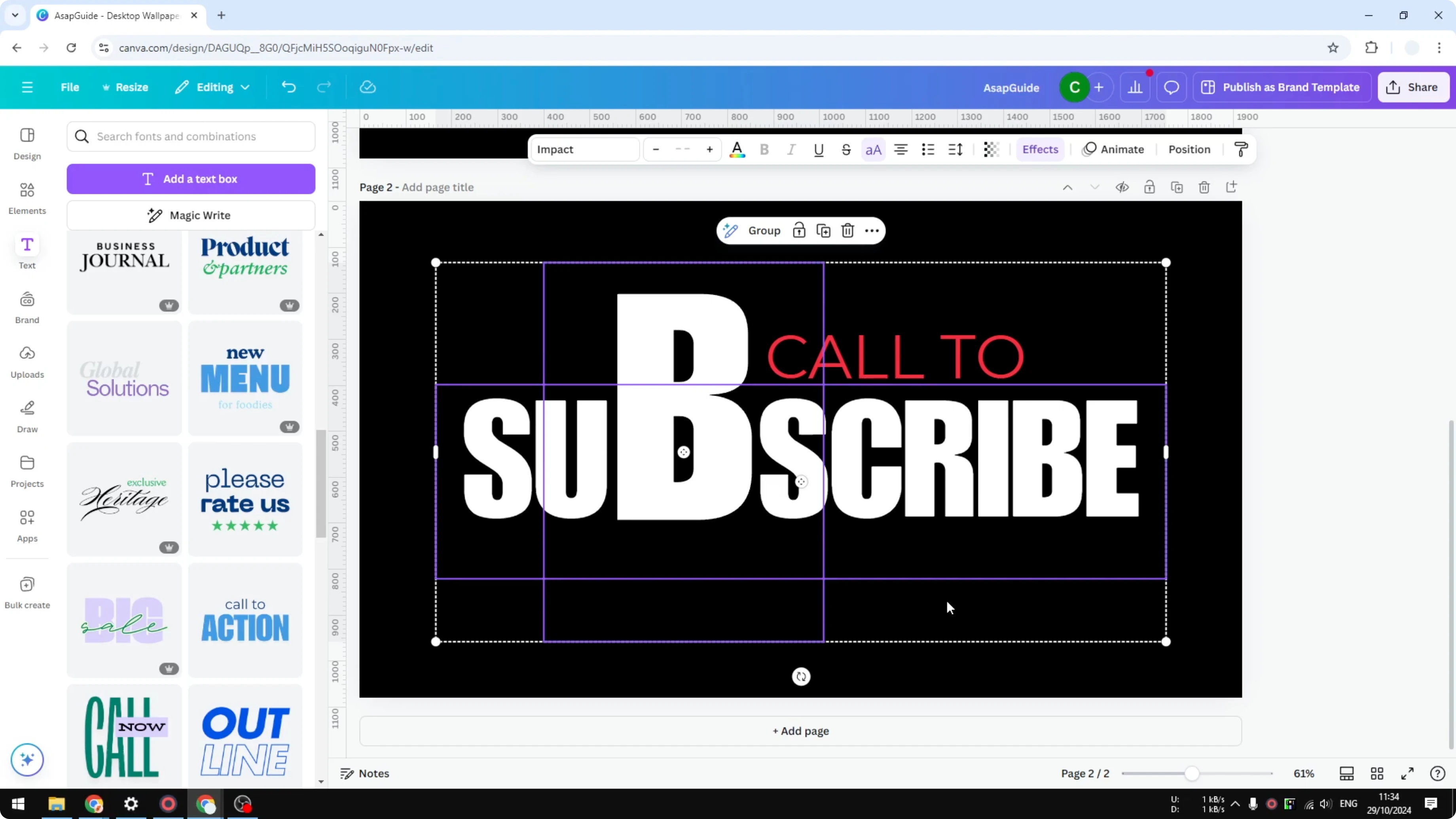
Press and hold Shift, click the other object, and group them.
When you move one, both will be moved as well.
It’s not the perfect solution, but it works as a clean workaround to make one letter bigger in Canva.
Read More: How To Make A Transparent Overlay In Canva
Final thoughts
You can’t directly resize a single character inside a Canva text box, but duplicating the text, isolating one letter, resizing it, and aligning it over spaces gives you the look you want. Group the big letter with the original text so your layout stays together. That’s exactly one workaround to make one letter bigger in Canva.
Read More: How To Make A Video Using Photos In Canva
Recent Posts

How to Visualize Yourself as a Pixelized Character with AI?
How to Visualize Yourself as a Pixelized Character with AI?

How to Revive Faded Memories and Enhance Image Clarity with AI?
How to Revive Faded Memories and Enhance Image Clarity with AI?

How to Visualize Yourself as an Animal Crossing Character with AI?
How to Visualize Yourself as an Animal Crossing Character with AI?