How to Make Logo Look Sharp in Canva
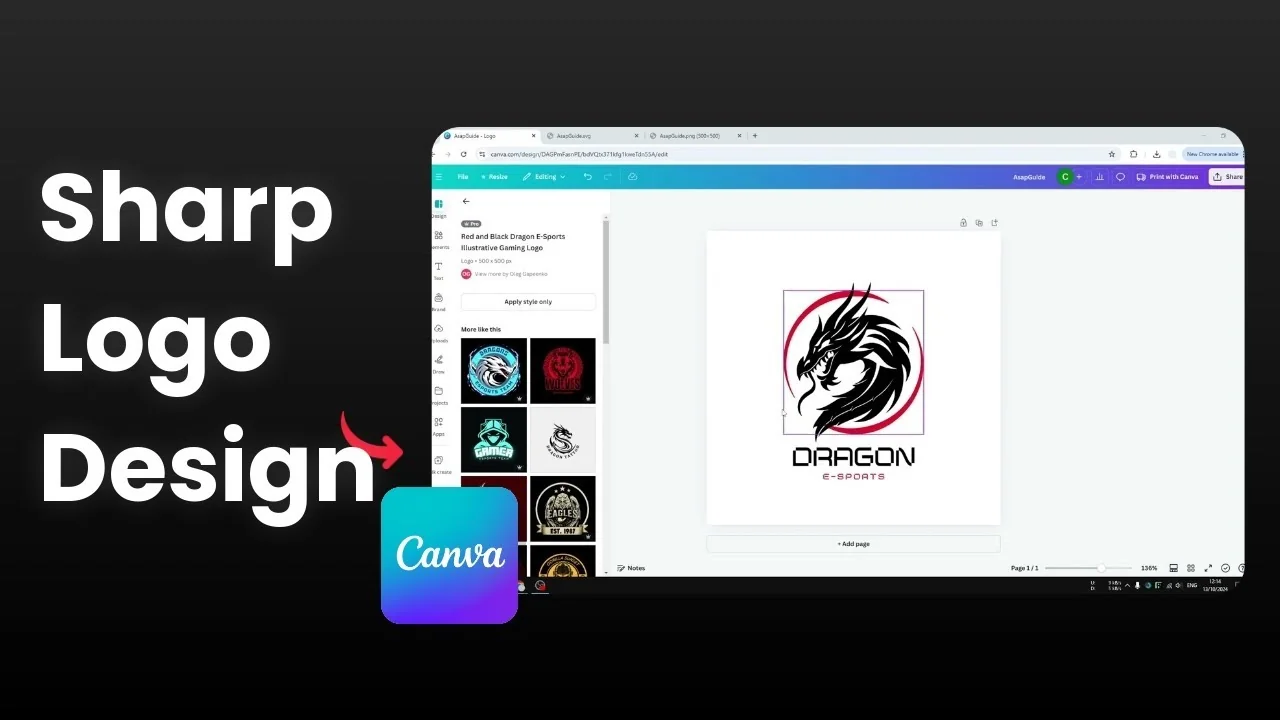
I want to share tips to make the logo you created in Canva look really sharp. It is very important to keep a logo sharp and clear so when you print or display it on a website or on a t shirt it looks as good as possible.
Make Logo Look Sharp in Canva: High Resolution Assets
There are a few things you need to know. Use high resolution assets when you design the logo. You do not want to start with anything that is low resolution.
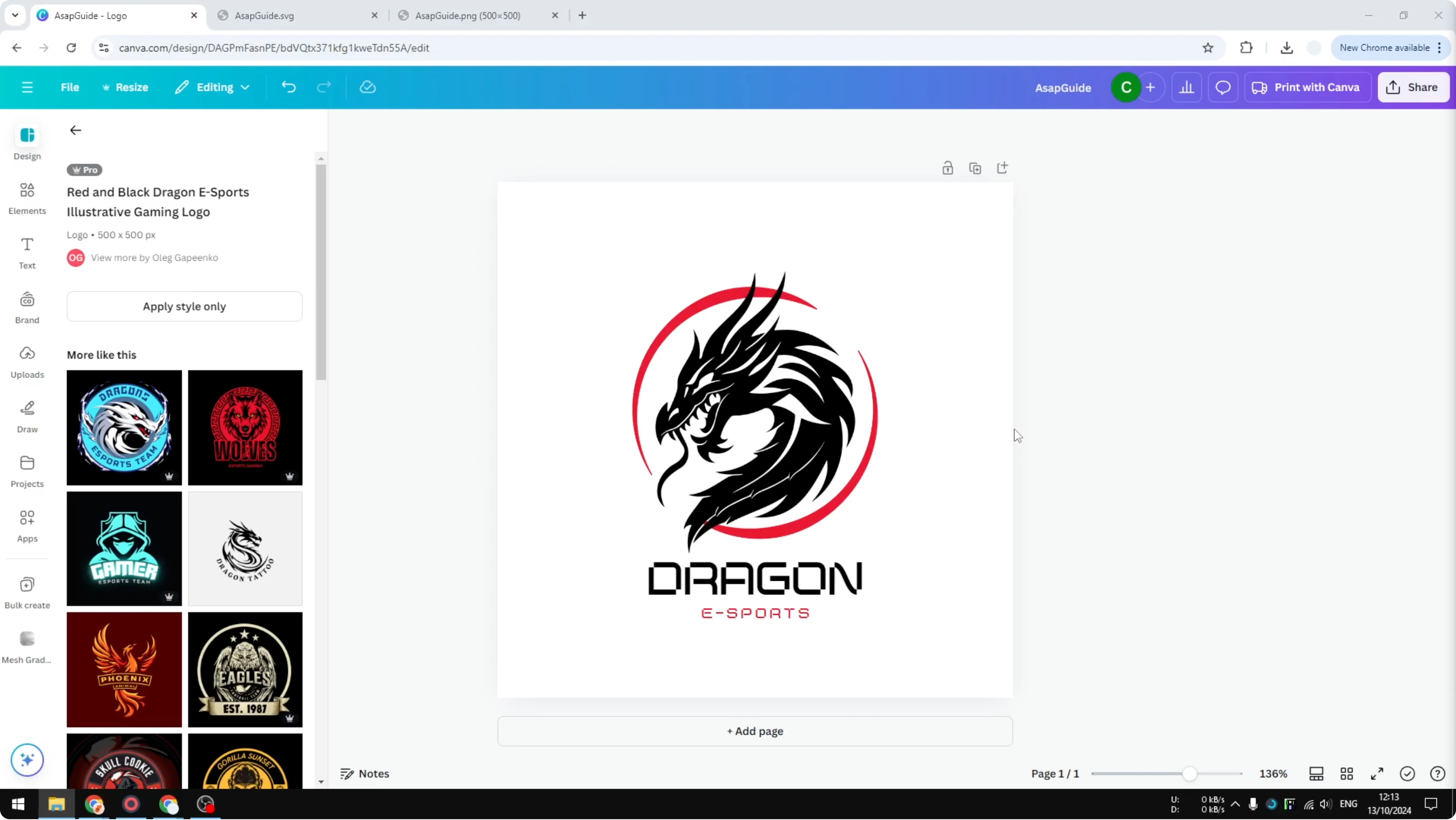
If the asset is low resolution you can upscale it using AI. Canva has an upscaling AI that can help make it sharper. Start from the cleanest source you can get.
If you are preparing a monochrome version for print or brand consistency, see this quick guide on how to make your logo black and white in Canva.
Make Logo Look Sharp in Canva: Export Formats That Keep Clarity
When you export the logo as an image you have to select the right format. PNG is probably the most popular format, but you should export it at a larger size. SVG keeps the logo sharp even at very high zoom.
PNG settings that work
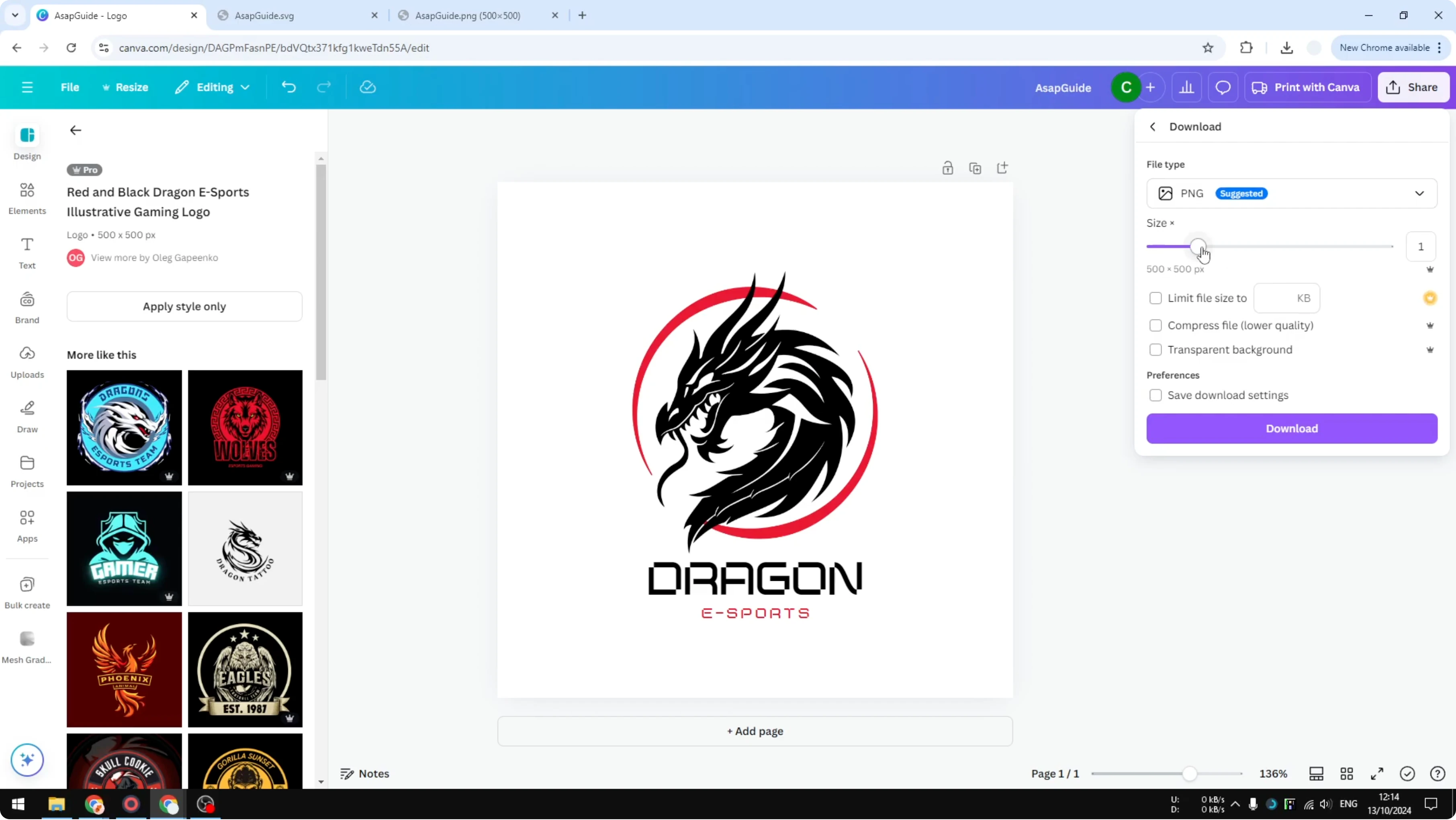
Go to Share.
Click Download.
Choose PNG.
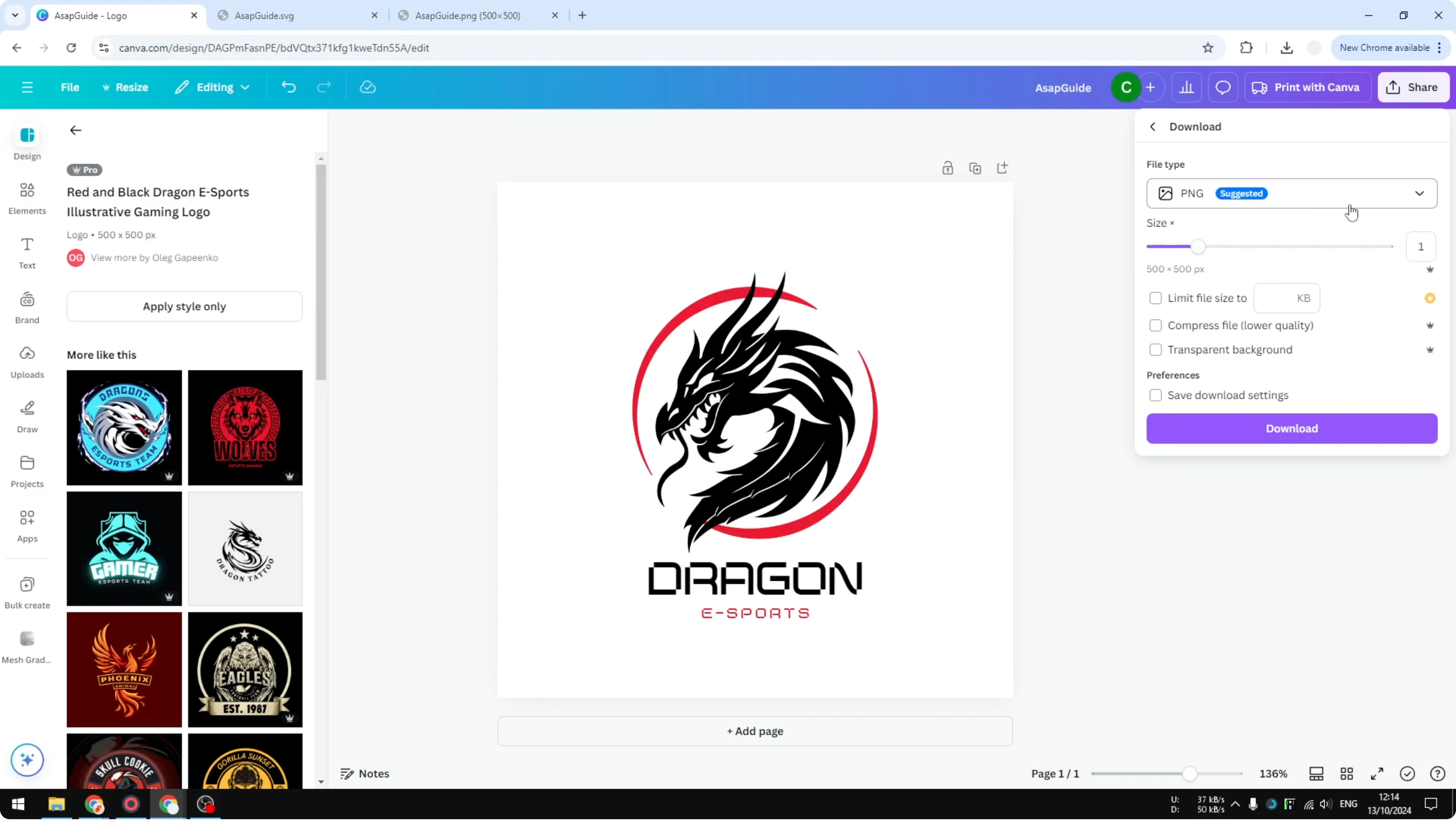
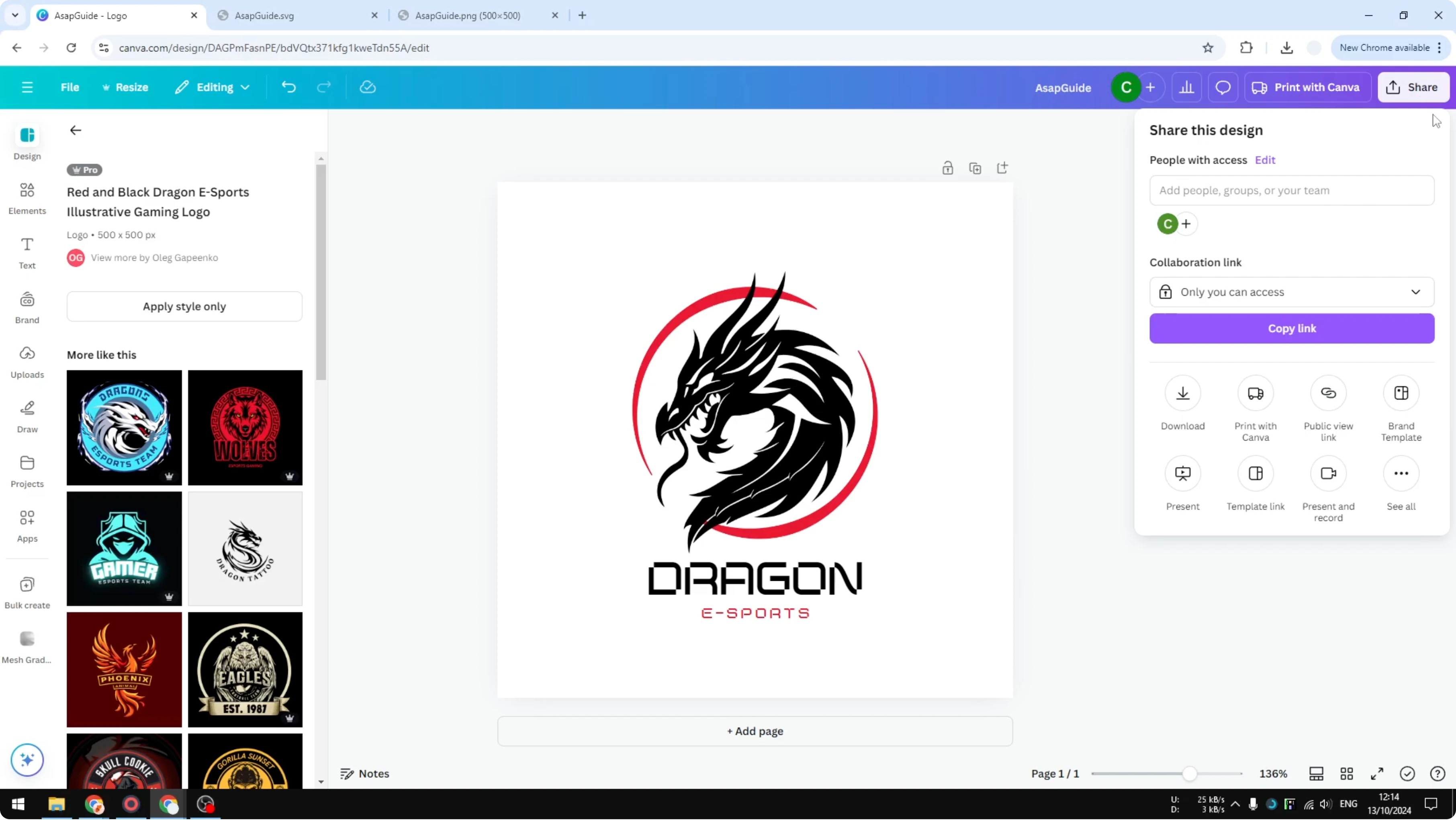
Increase the size to something like 1500 pixels, or set a size that fits your needs.
By default Canva uses 500 pixels and that is okay, but doubling or tripling the size often looks better.
Export the file.
If you need a transparent background for overlays and mockups, see how to export a transparent PNG in Canva.
SVG for infinite zoom
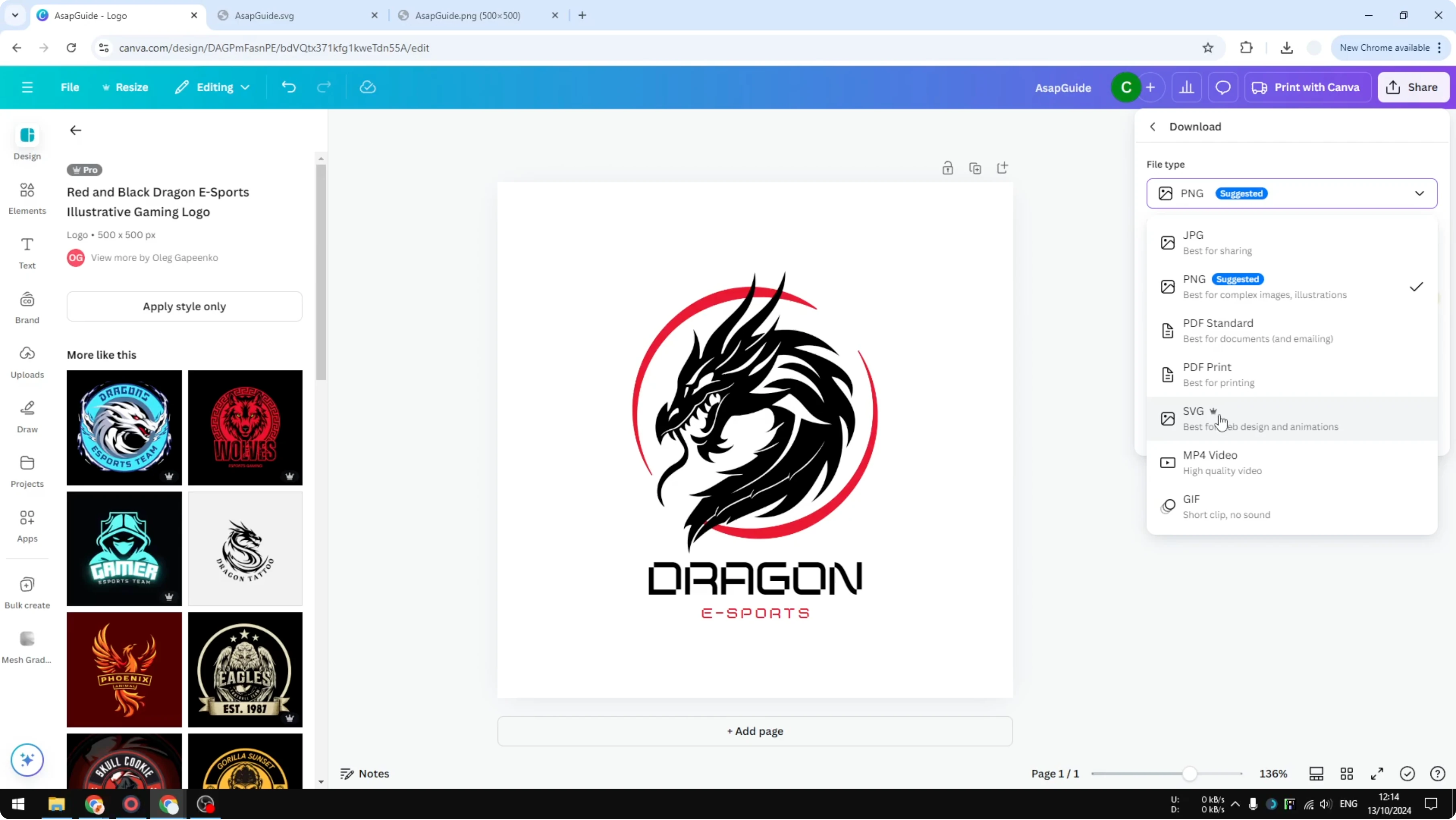
Go to Share.
Click Download.
Choose SVG.
Export the file.
SVG is great if you want to zoom in the logo to a very high level and keep it sharp.
Use SVG when you care about perfect edges at any size.
What you see at 500 percent
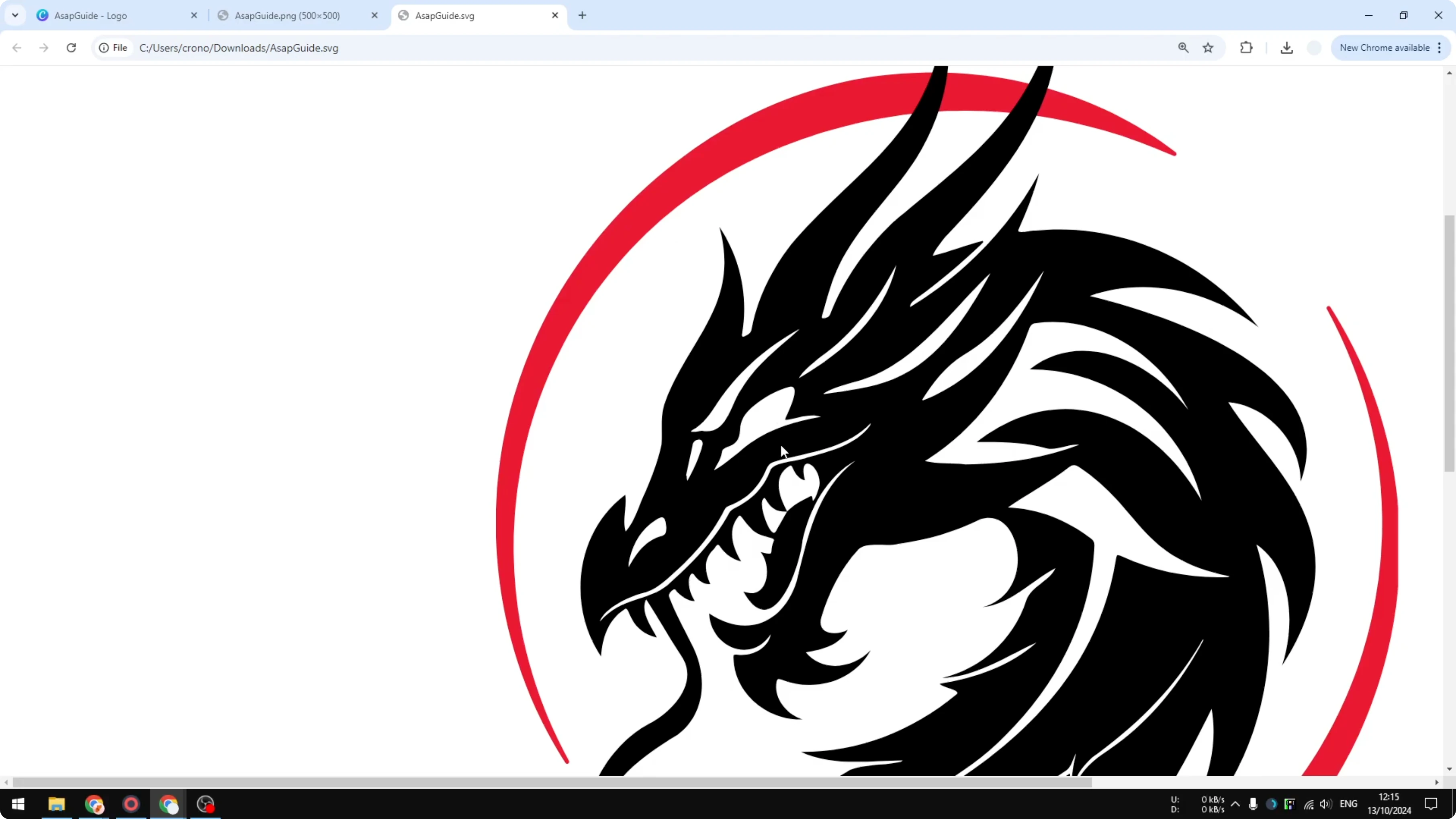
I compared a PNG and an SVG. At 500 percent zoom the PNG looks pixelated and the edges are not sharp anymore. With SVG you can zoom to 500 percent and it stays really sharp.
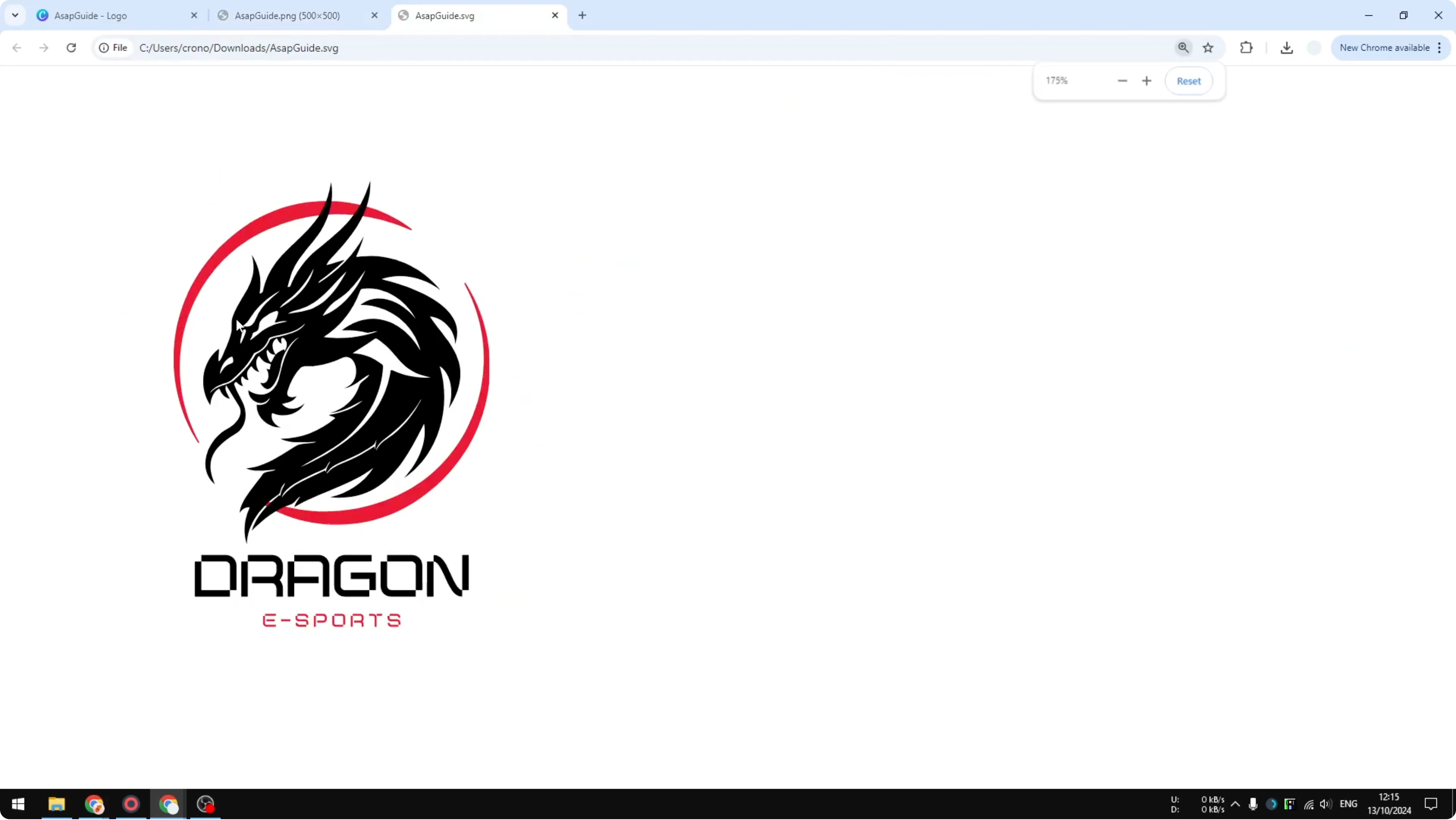
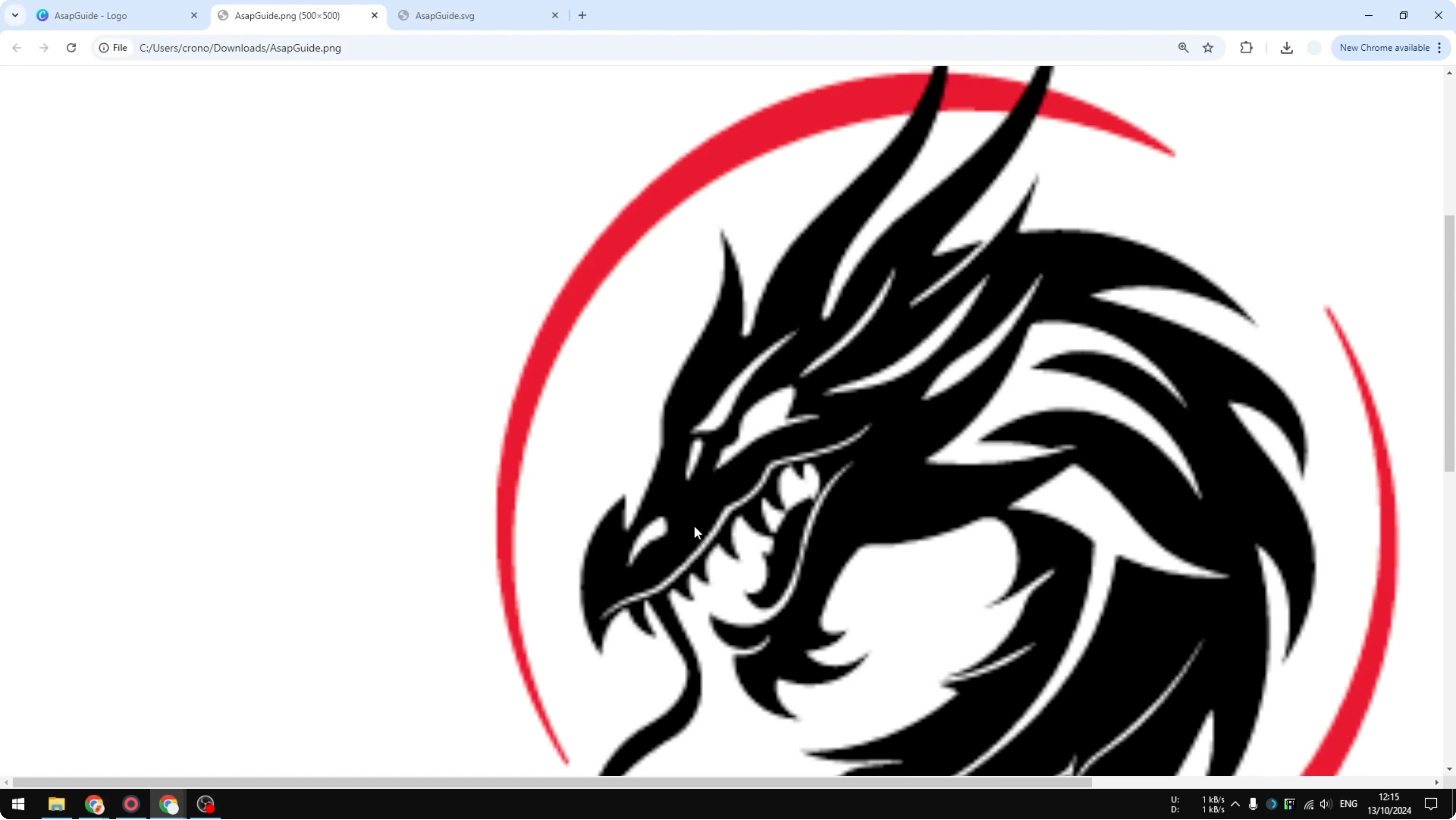
That is the benefit of SVG. It is not very popular outside web or graphic design, so keep that in mind. Pick the format based on how and where you plan to use the logo.
Final Thoughts
Start with high resolution assets and clean them up with Canva’s upscaler if needed. For export, use large PNG sizes for general use and SVG when you want perfect sharpness at any scale. That simple workflow keeps your logo looking its best on print, web, and merch.
If you plan to place the logo inside motion projects, see how to improve the look of your video in Canva so the brand mark stays crisp on screen.
Recent Posts

How to Visualize Yourself as a Pixelized Character with AI?
How to Visualize Yourself as a Pixelized Character with AI?

How to Revive Faded Memories and Enhance Image Clarity with AI?
How to Revive Faded Memories and Enhance Image Clarity with AI?

How to Visualize Yourself as an Animal Crossing Character with AI?
How to Visualize Yourself as an Animal Crossing Character with AI?