How to Make a Hanging Indent on Canva
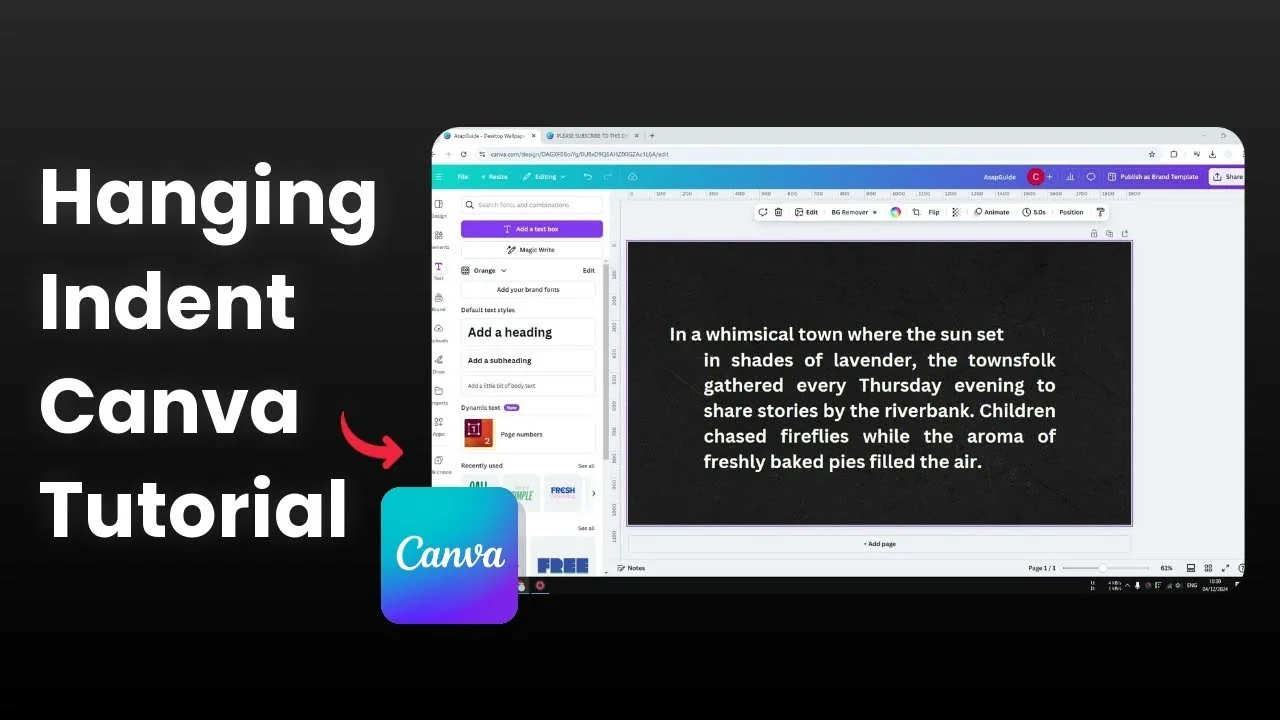
Technically you cannot add a hanging indent in Canva because Canva is not a word editing software like Microsoft Word or Google Docs. Hanging indent is not something they had in mind. There is a workaround to create an effect that is similar to a hanging indent, and it is not difficult.
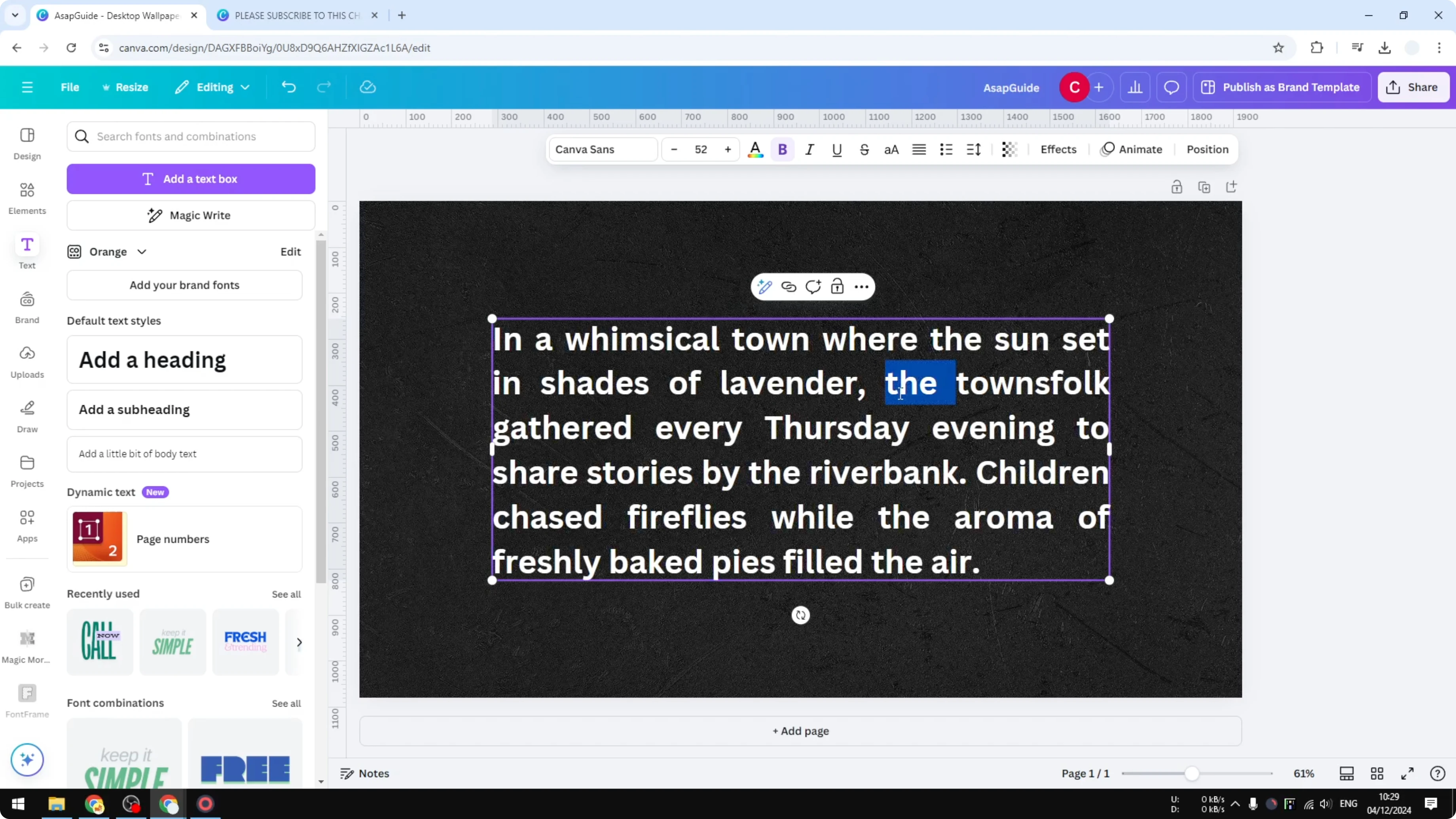
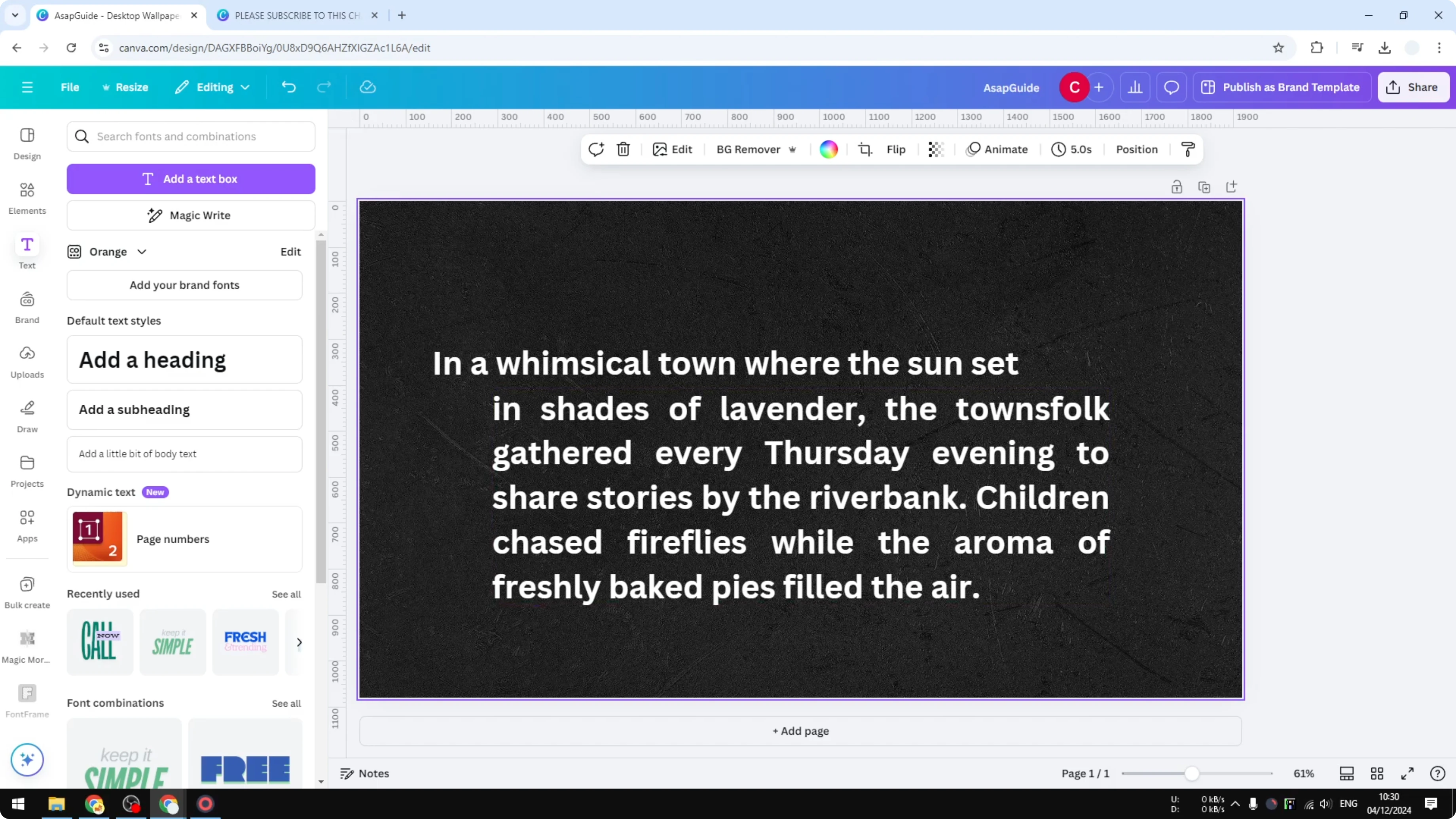
In this example I have a paragraph with justified alignment. The goal is to isolate the first line of the paragraph and move the rest of the paragraph to the other side. This creates the hanging indent effect.
Read More: How To Make A Transparent Overlay In Canva
Make a Hanging Indent on Canva - Workaround
Isolate the first line
Select the first line of the paragraph.
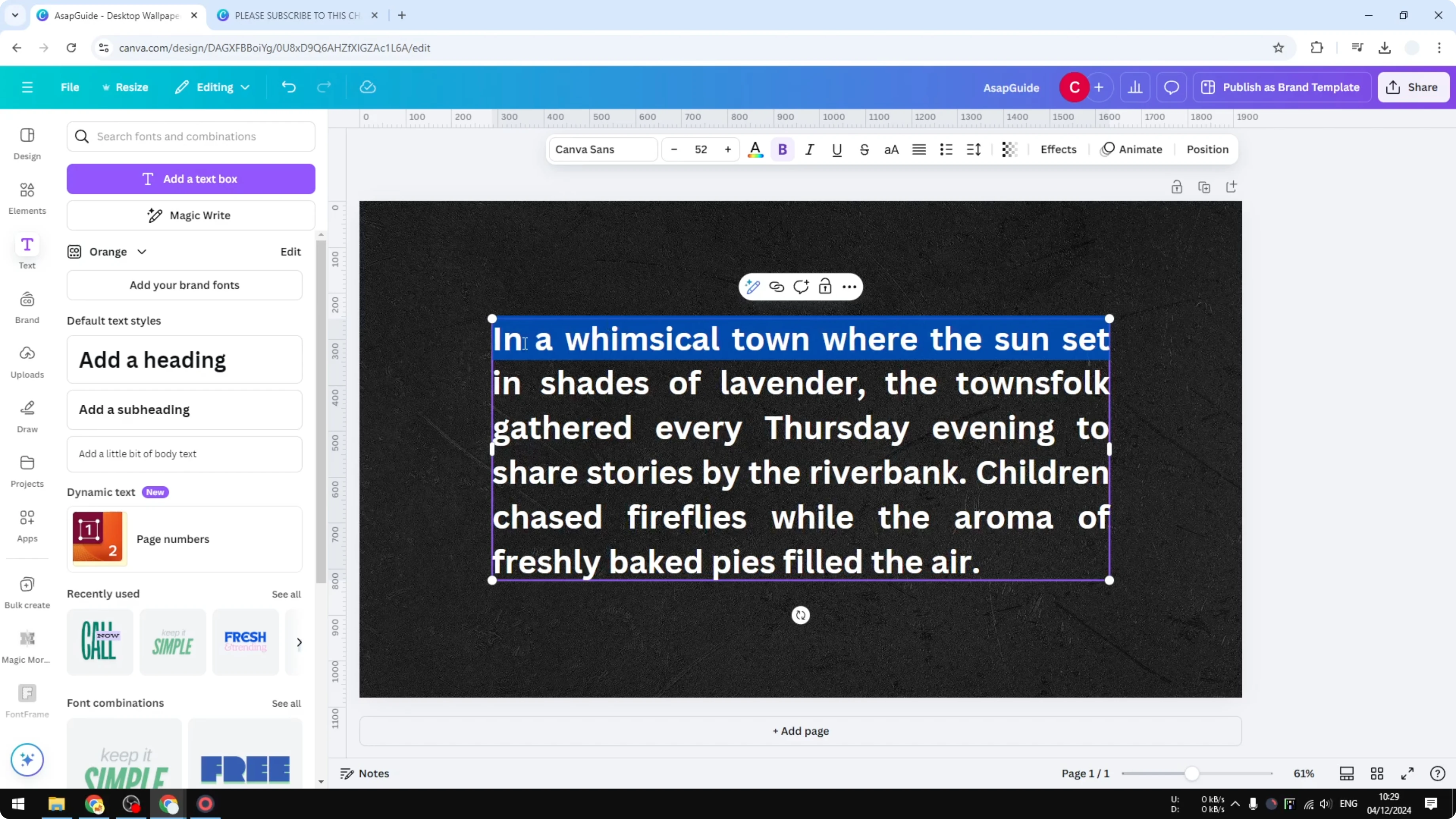
Cut it.
Duplicate the text box.
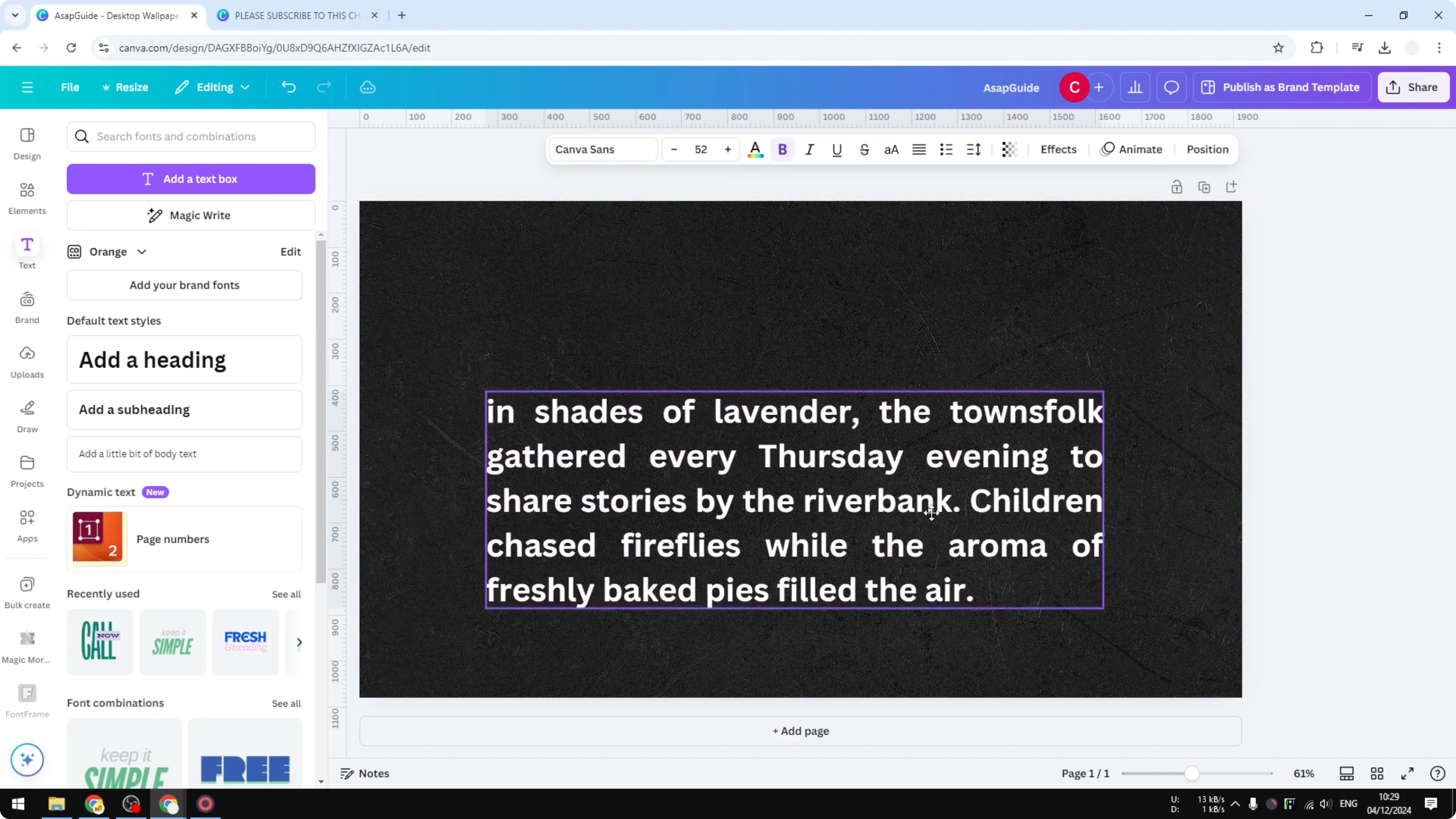
Remove all text in the duplicate and paste the line you cut.
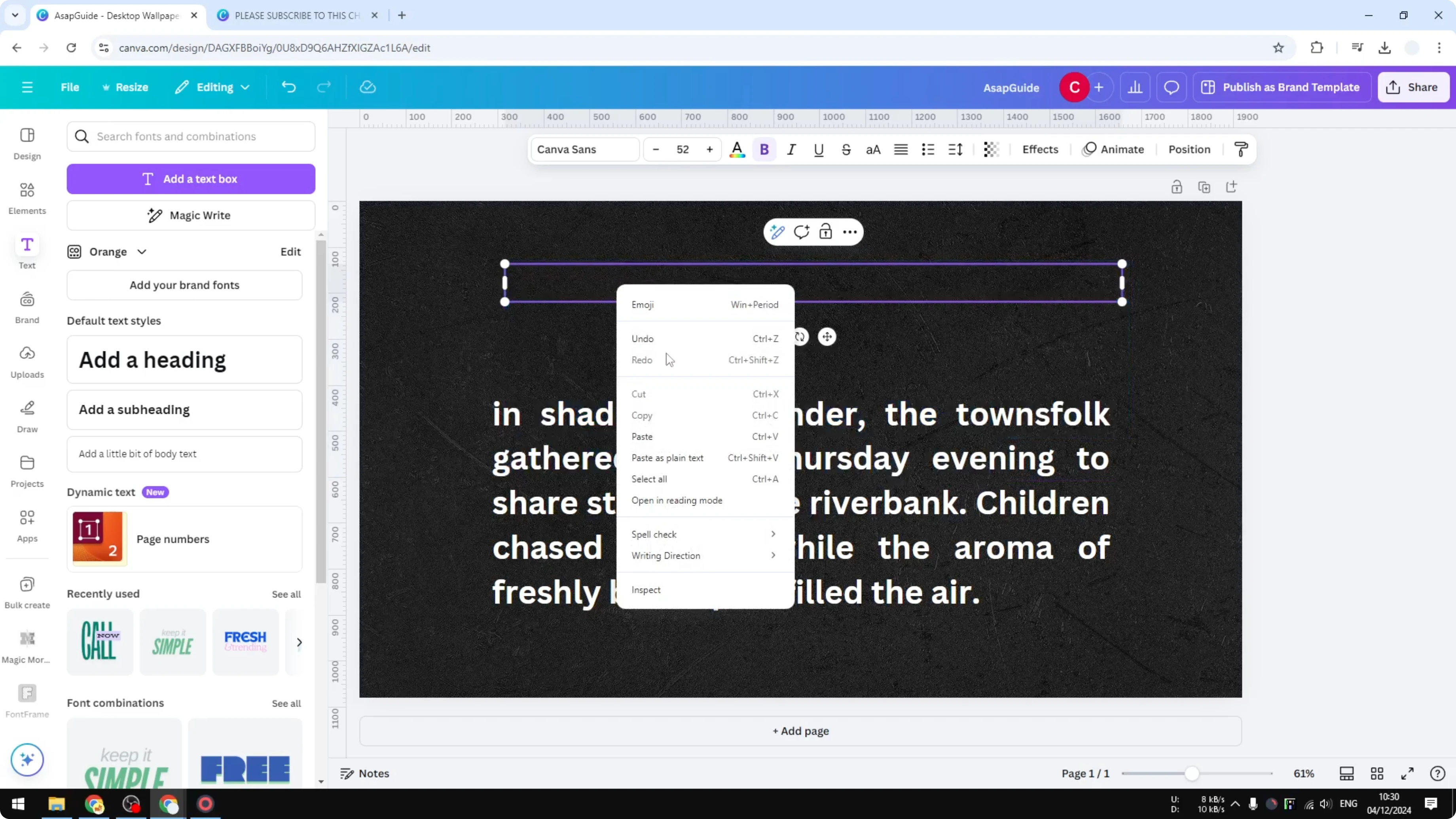
Position the pasted first line where it belongs at the left edge.
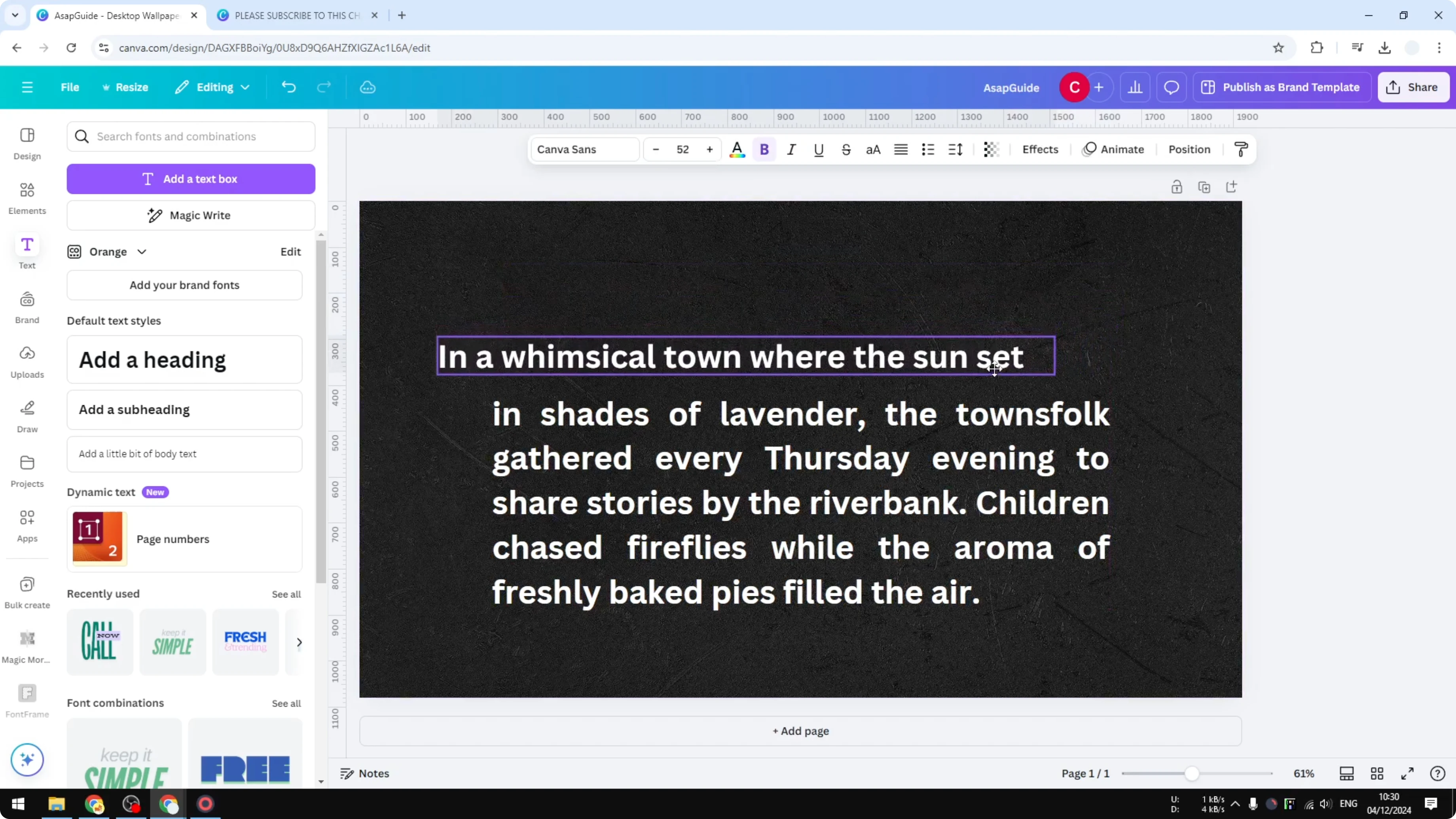
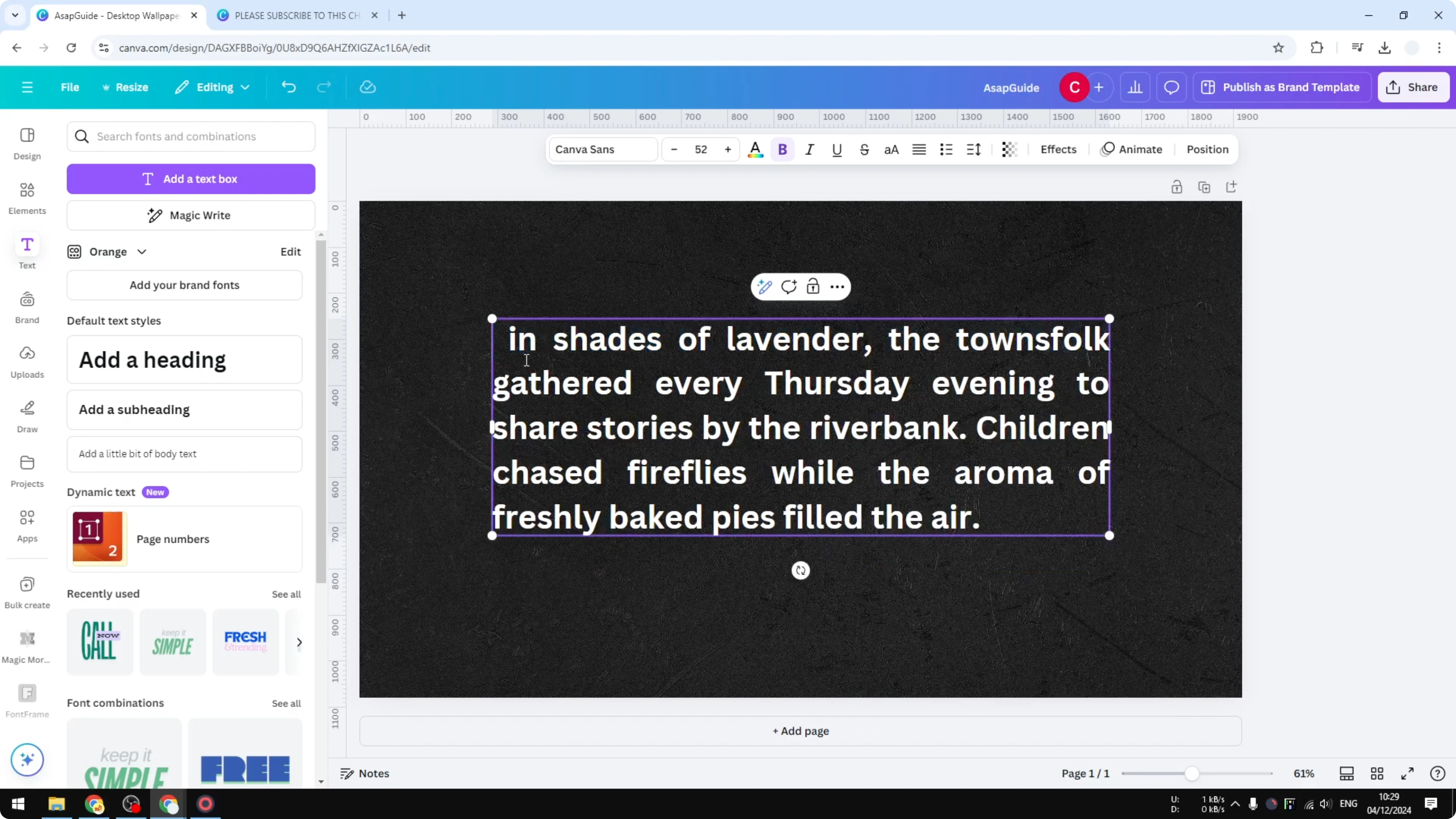
Shift the rest
In the original text box, remove the first line you cut.
Move the remaining paragraph to the other side to create the hanging indent effect.
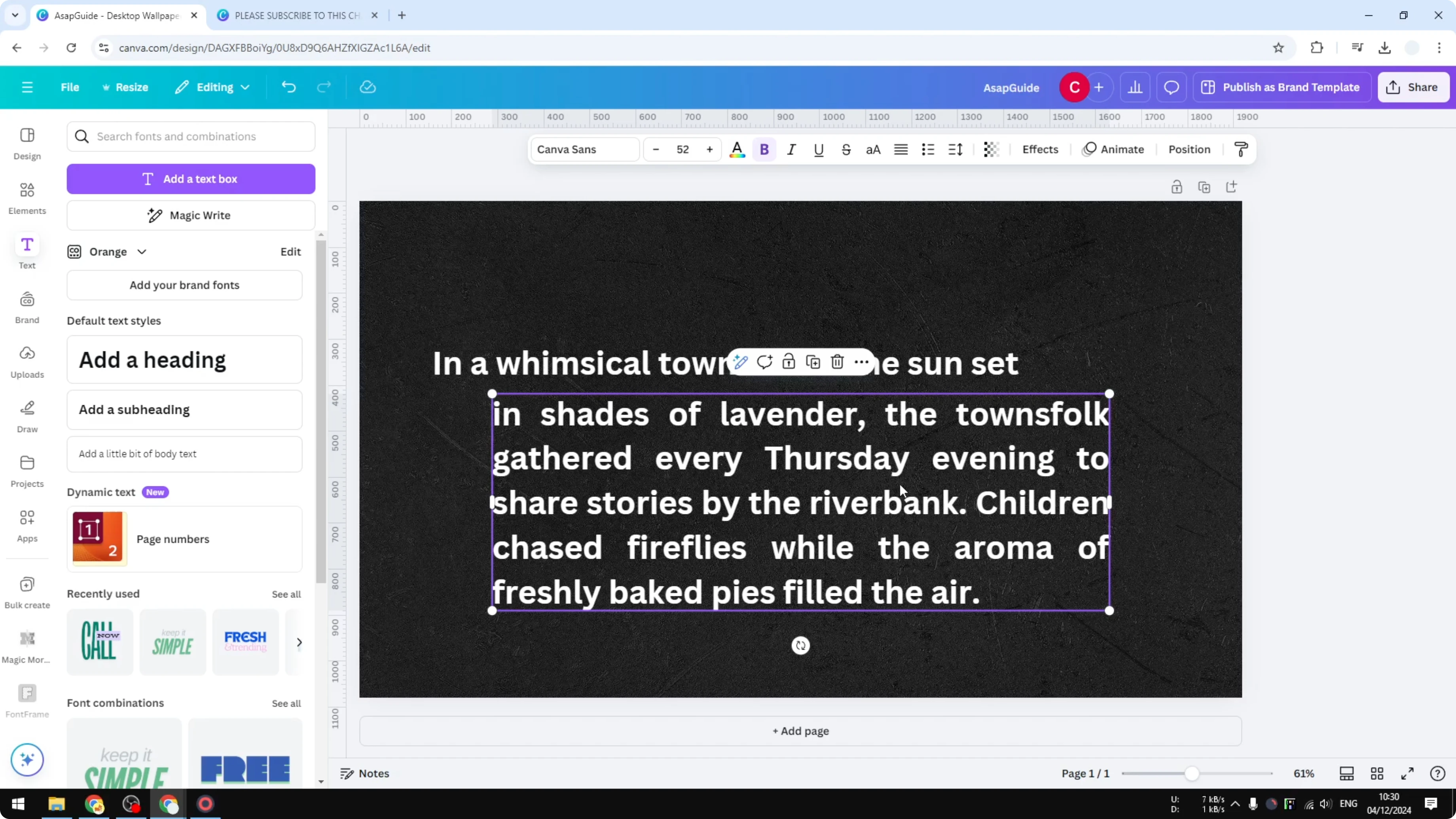
Adjust spacing so the two text boxes read like one paragraph.
Read More: How To Make Canva Ai Design Anything For You
Group the elements
Select both text boxes and group them together.
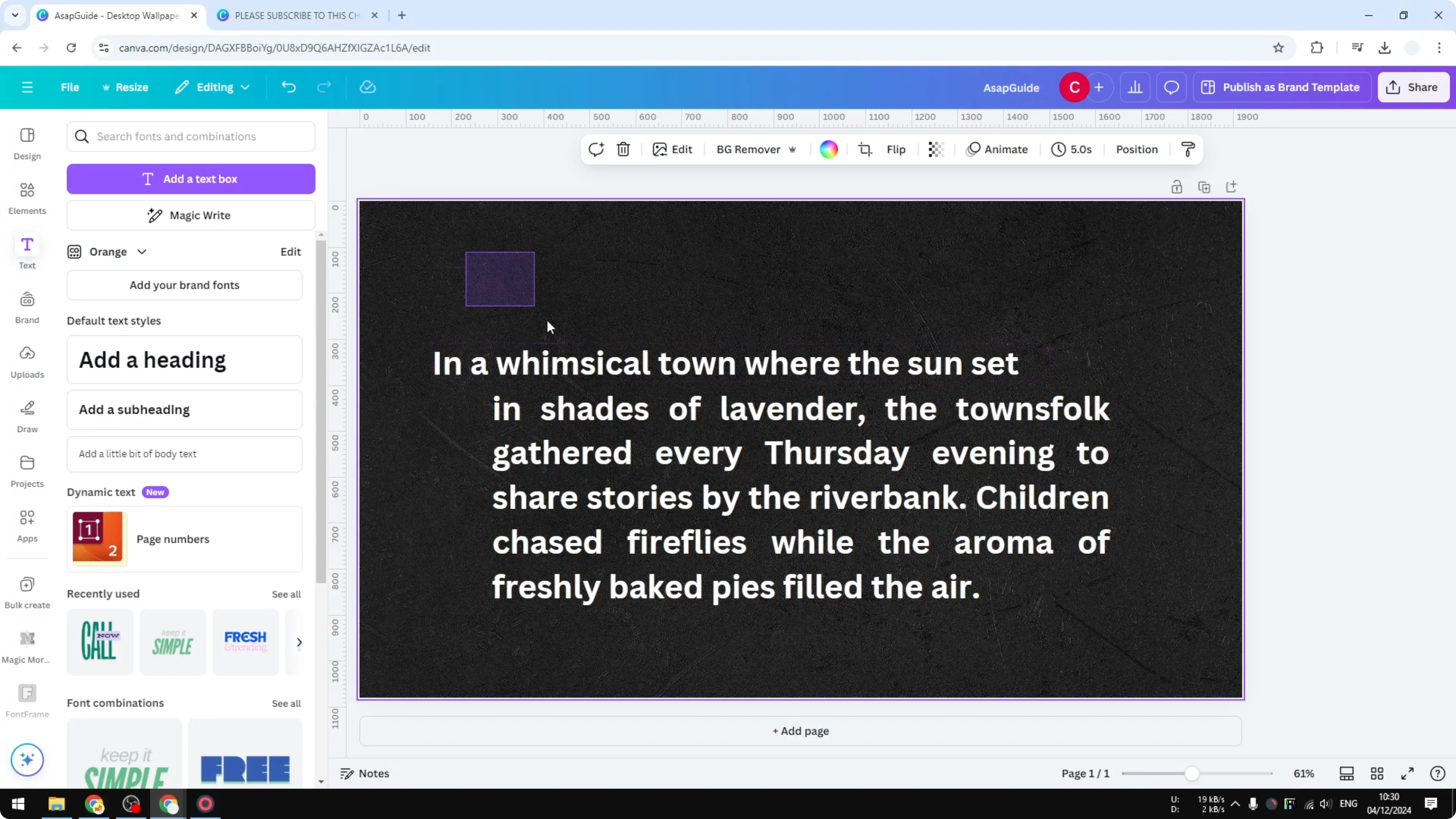
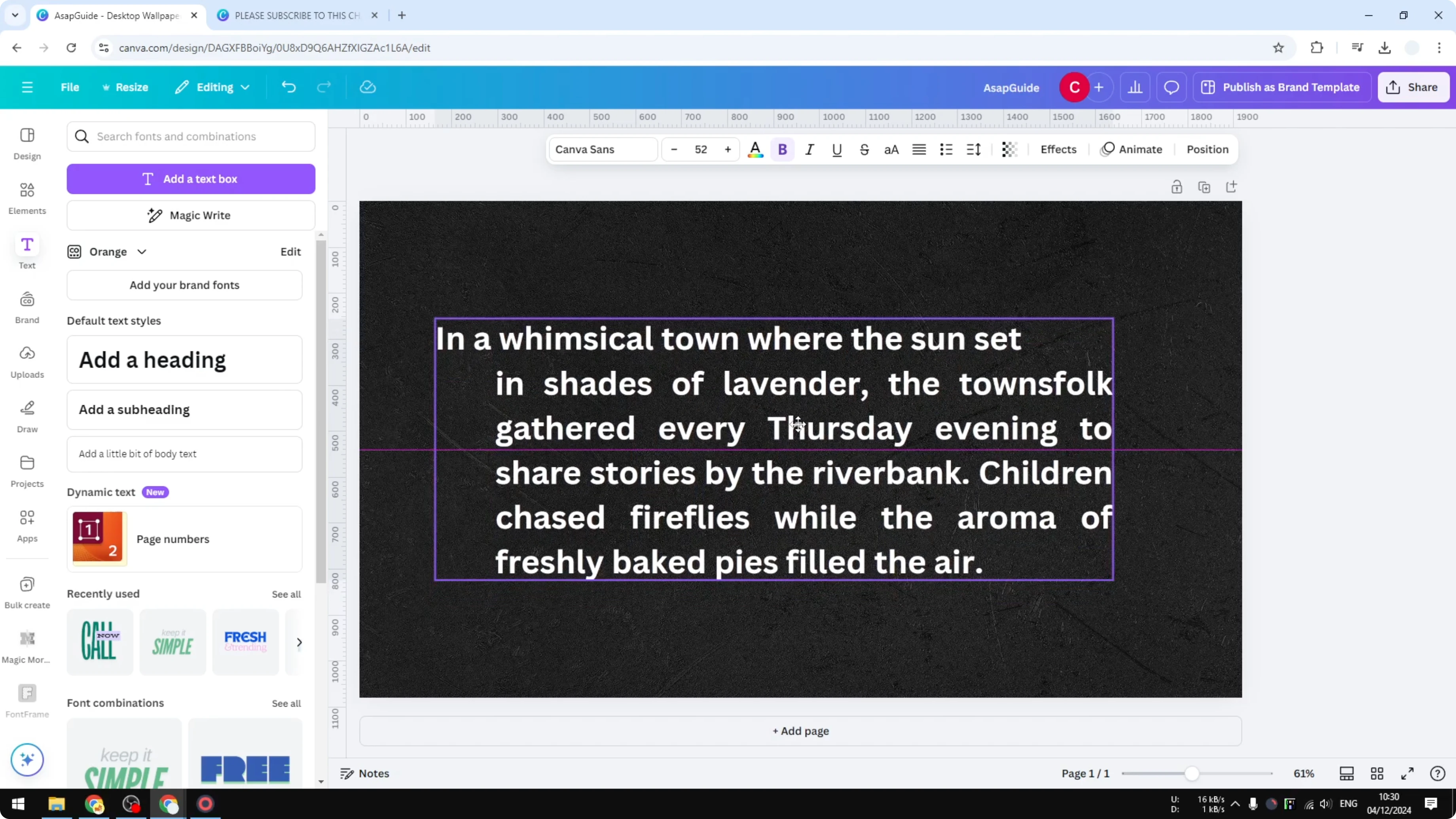
When you move the paragraph, everything will move together.
Make a Hanging Indent on Canva - Notes
This is not the perfect solution, but given the limitation, I think this is the only way to create a hanging indent effect in this program. It creates a look that is similar to a true hanging indent. This approach works well for quick layouts.
Read More: How To Make A Video Using Photos In Canva
Make a Hanging Indent on Canva - Final thoughts
You cannot add a real hanging indent in Canva, but you can fake it by splitting the first line into its own text box and nudging the rest of the paragraph to the other side. Group the two text boxes so the paragraph stays together. That is basically how you can create a hanging indent effect in Canva.
Recent Posts

How to Visualize Yourself as a Pixelized Character with AI?
How to Visualize Yourself as a Pixelized Character with AI?

How to Revive Faded Memories and Enhance Image Clarity with AI?
How to Revive Faded Memories and Enhance Image Clarity with AI?

How to Visualize Yourself as an Animal Crossing Character with AI?
How to Visualize Yourself as an Animal Crossing Character with AI?