How to Make a Grid on Canva
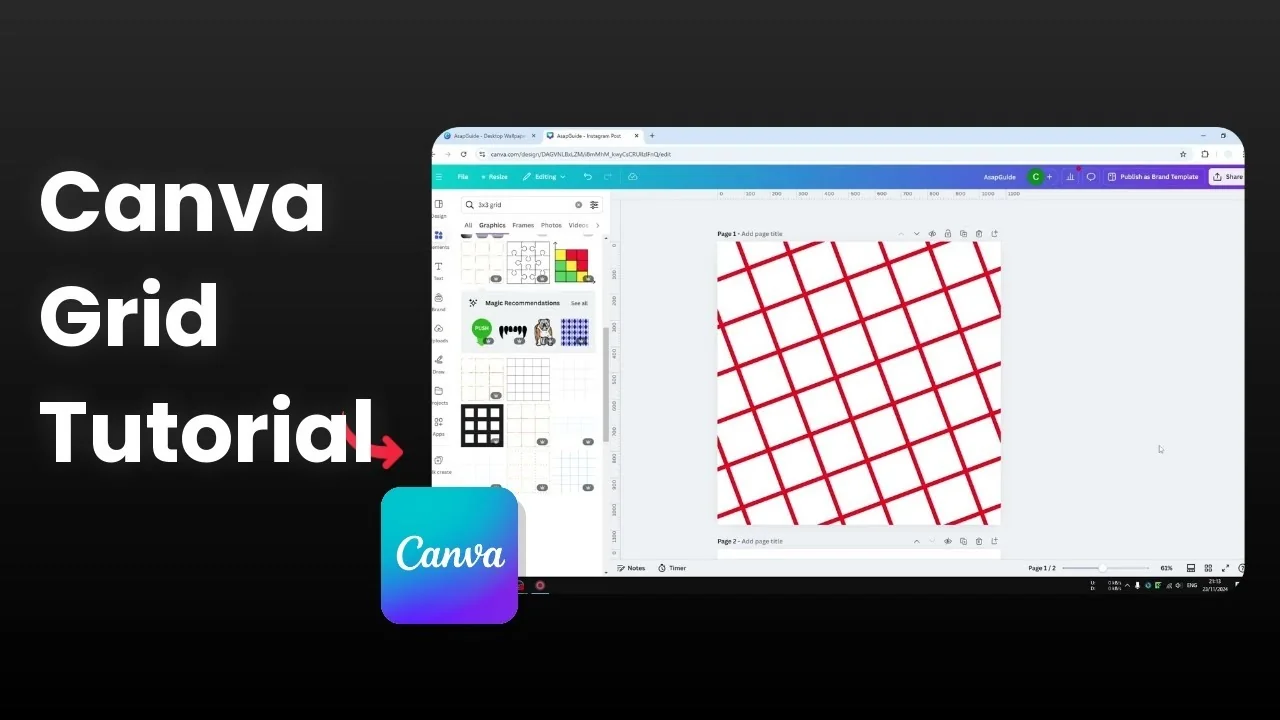
I want to show you how you can create a grid in Canva using three different methods. The first one is the simplest, the second gives you full control, and the third is the fastest for big projects. I recommend the second or third method if you care about customization or speed.
Make a Grid on Canva: Quick element search
All you need to do is go to the Elements section and search for 3x3 grid. Click one of the results under Graphics to insert the grid into your design. You can start working with it right away.
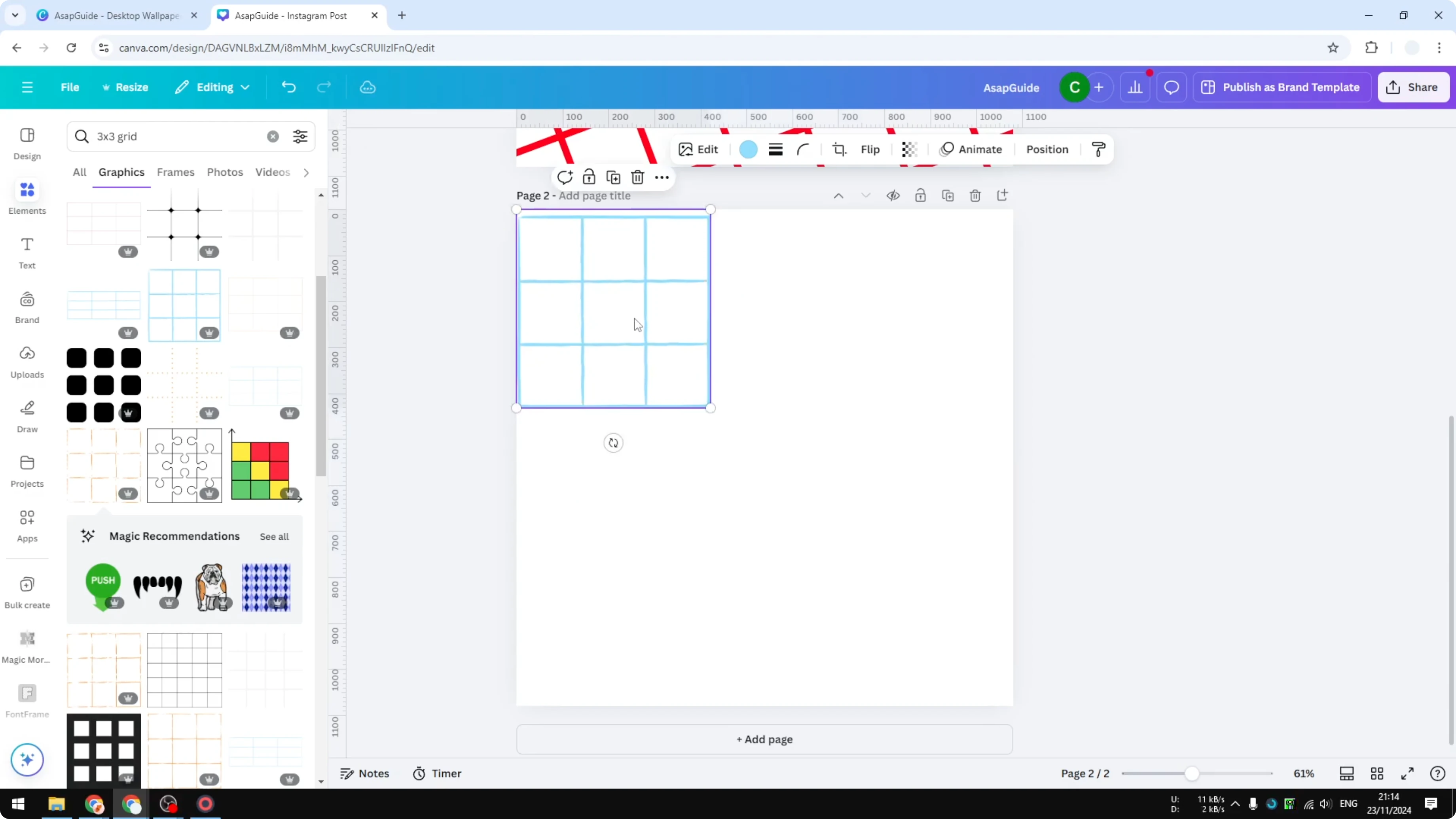
Honestly, this is not the prettiest because the options are limited. Adding more squares is challenging and the styling is basic. I recommend switching to the next method if you need control.
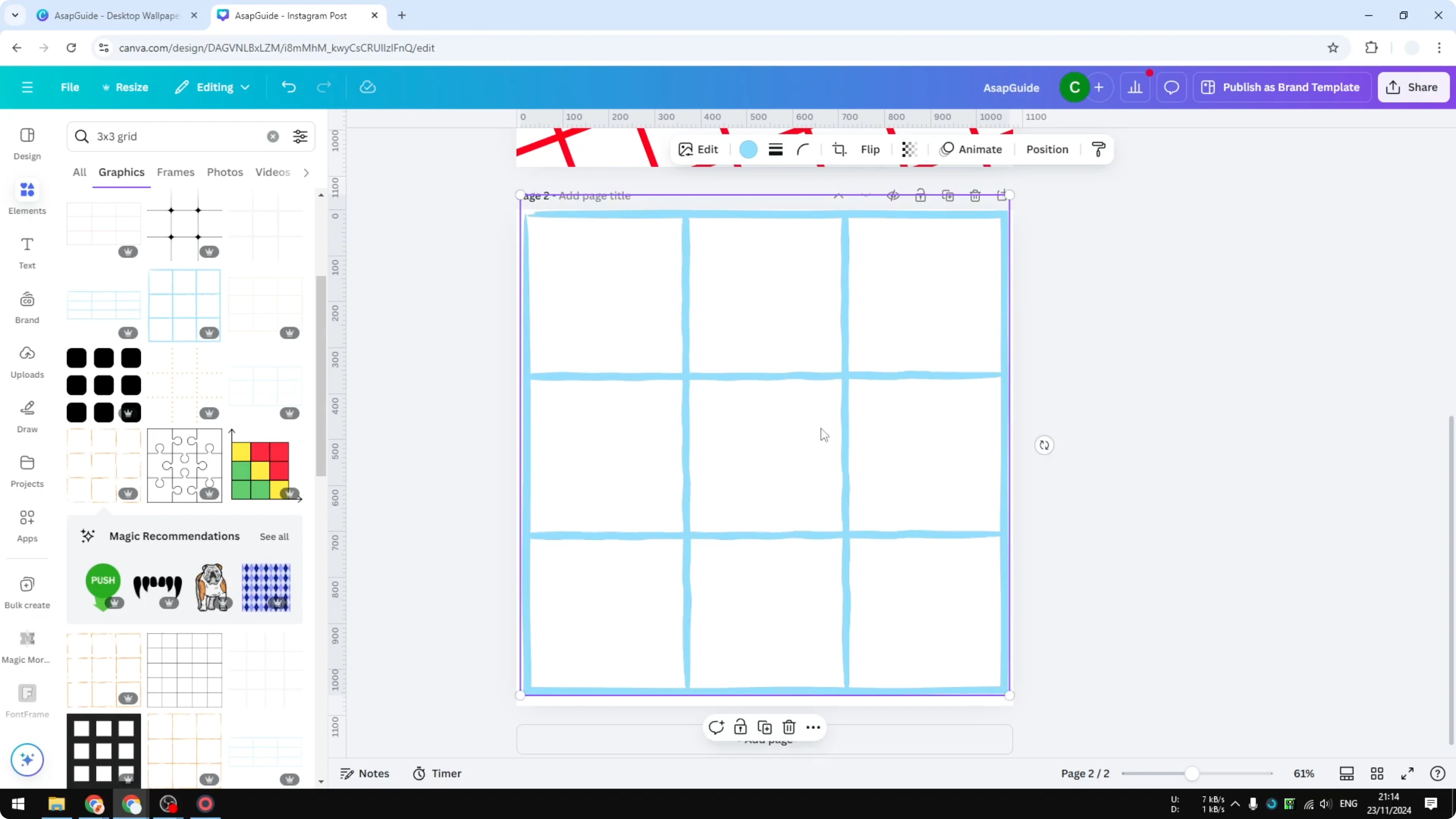
Steps
Go to Elements.
Type 3x3 grid in the search bar.
Open Graphics and click a grid to add it to your canvas.
If you plan to tint parts of your design over a grid, see this quick guide on transparent overlay.
Make a Grid on Canva: Build with lines
The second method is a bit more exhausting, but it lets you customize the style or pretty much anything about the grid. You will design your own grid using lines. It is great for setting thickness, color, and line styles.
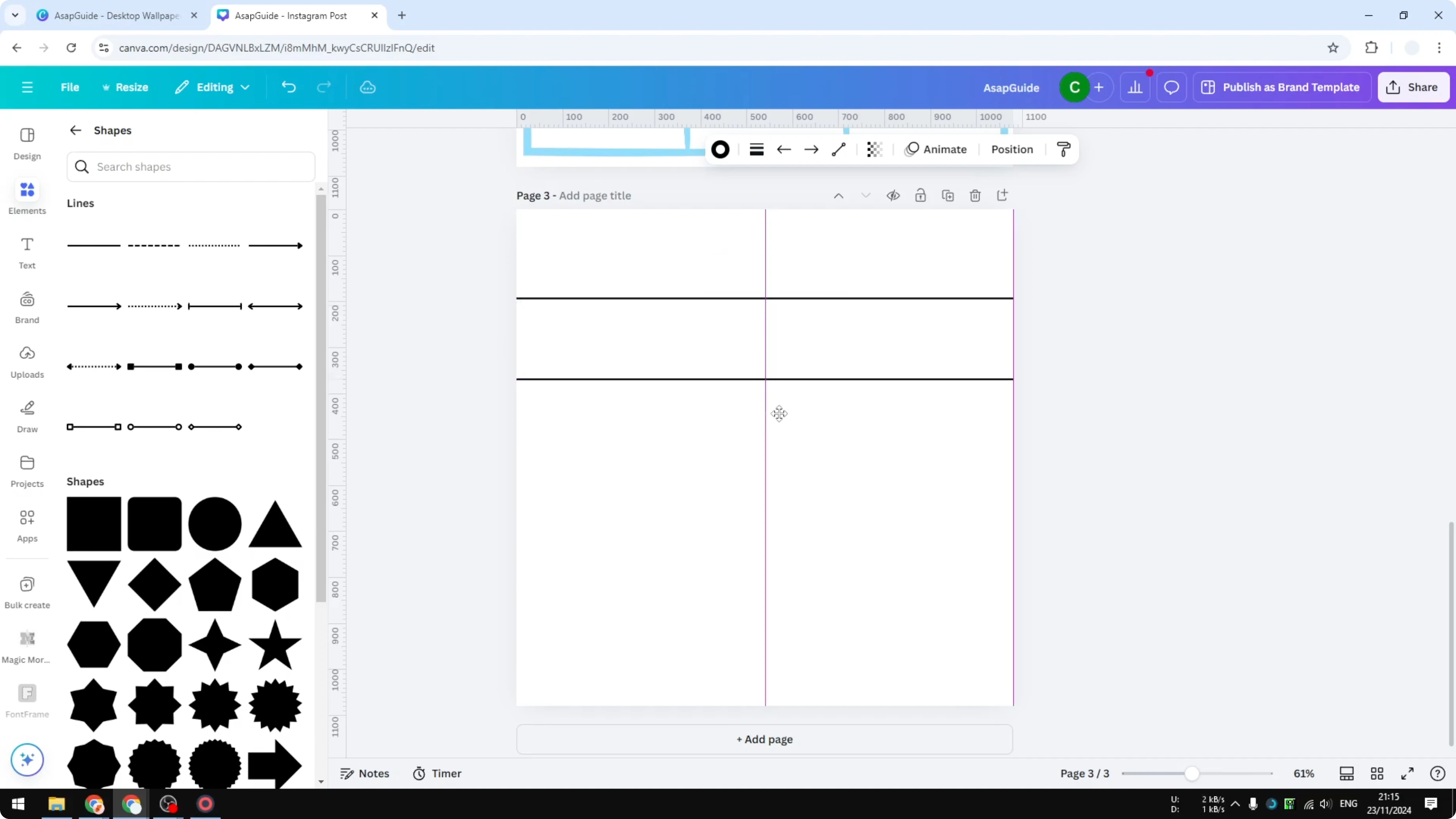
Create horizontal lines
Go to Elements, click Shapes, and insert a Line.
Position the first line where you want the top of the grid to start.
Duplicate the line and move it down to create the next row divider.
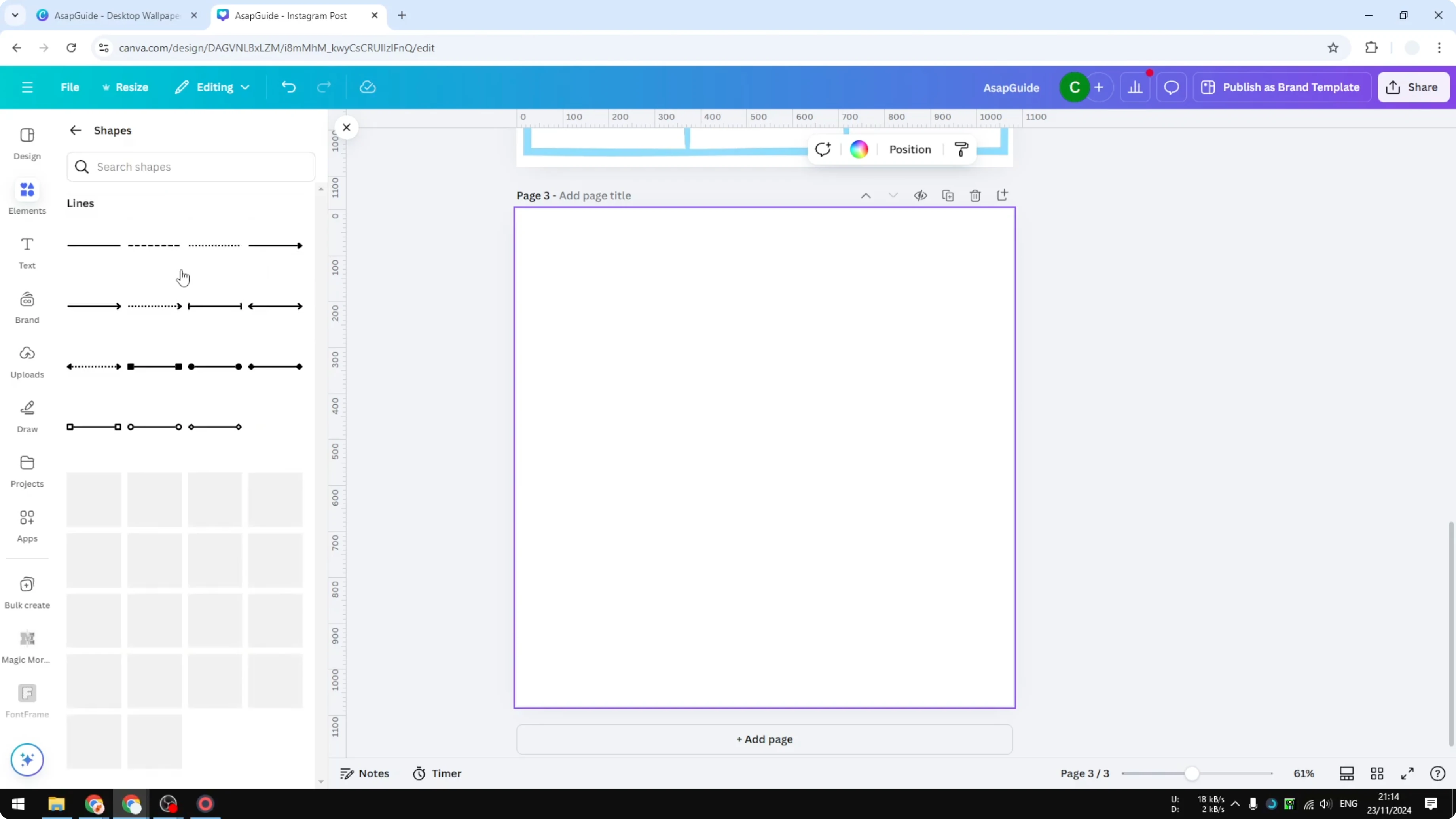
Duplicate again to add more rows.
Make sure the distance between lines is the same.
Adjust positions until the spacing looks even.
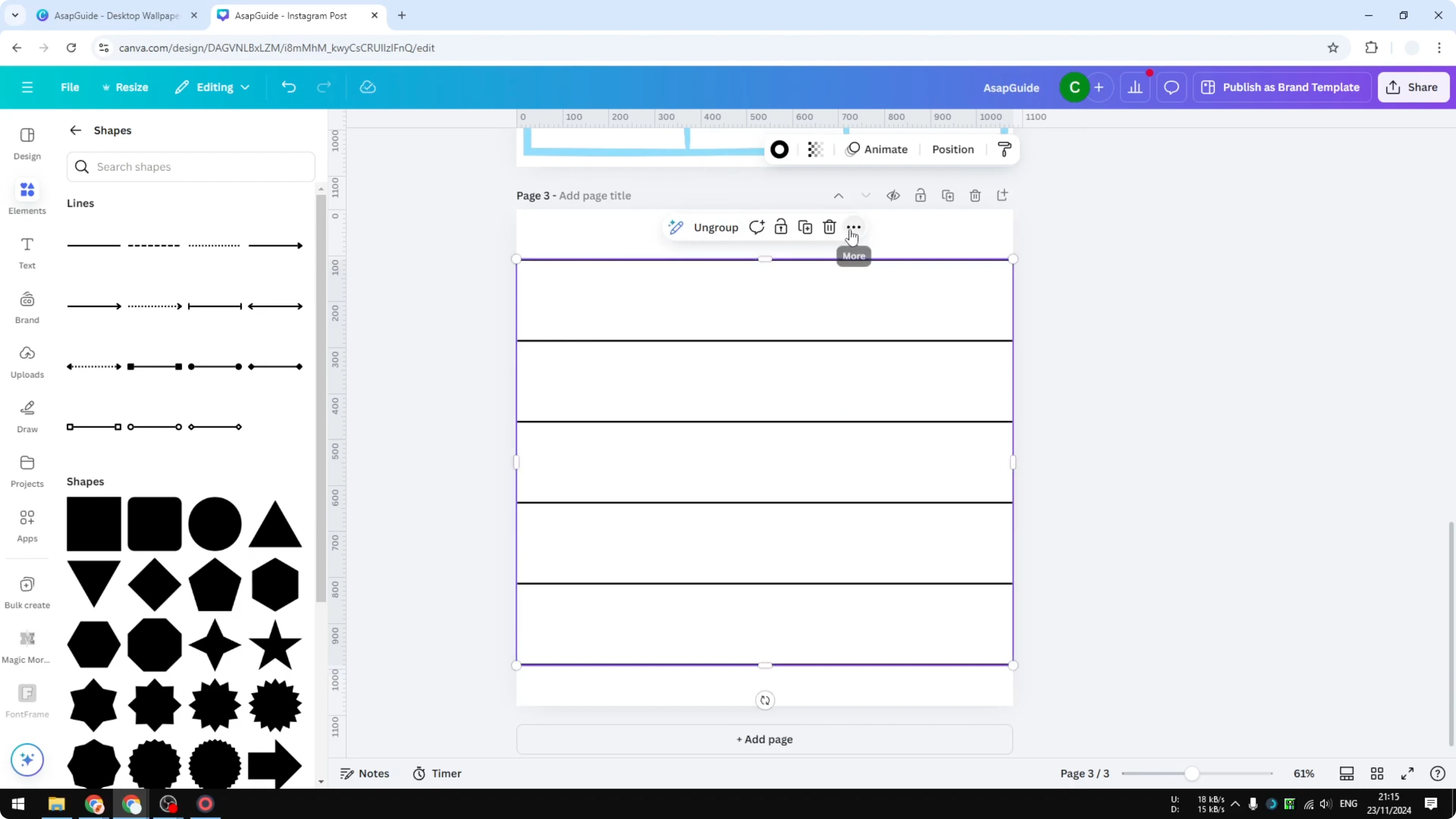
Add vertical lines
Select all horizontal lines and group them.
Duplicate the group to preserve spacing.
Rotate the duplicate 90 degrees to create vertical lines.
Move the vertical set into place so it crosses the horizontal lines.
Adjust alignment if needed for a cleaner look.
Group everything when the grid looks right.
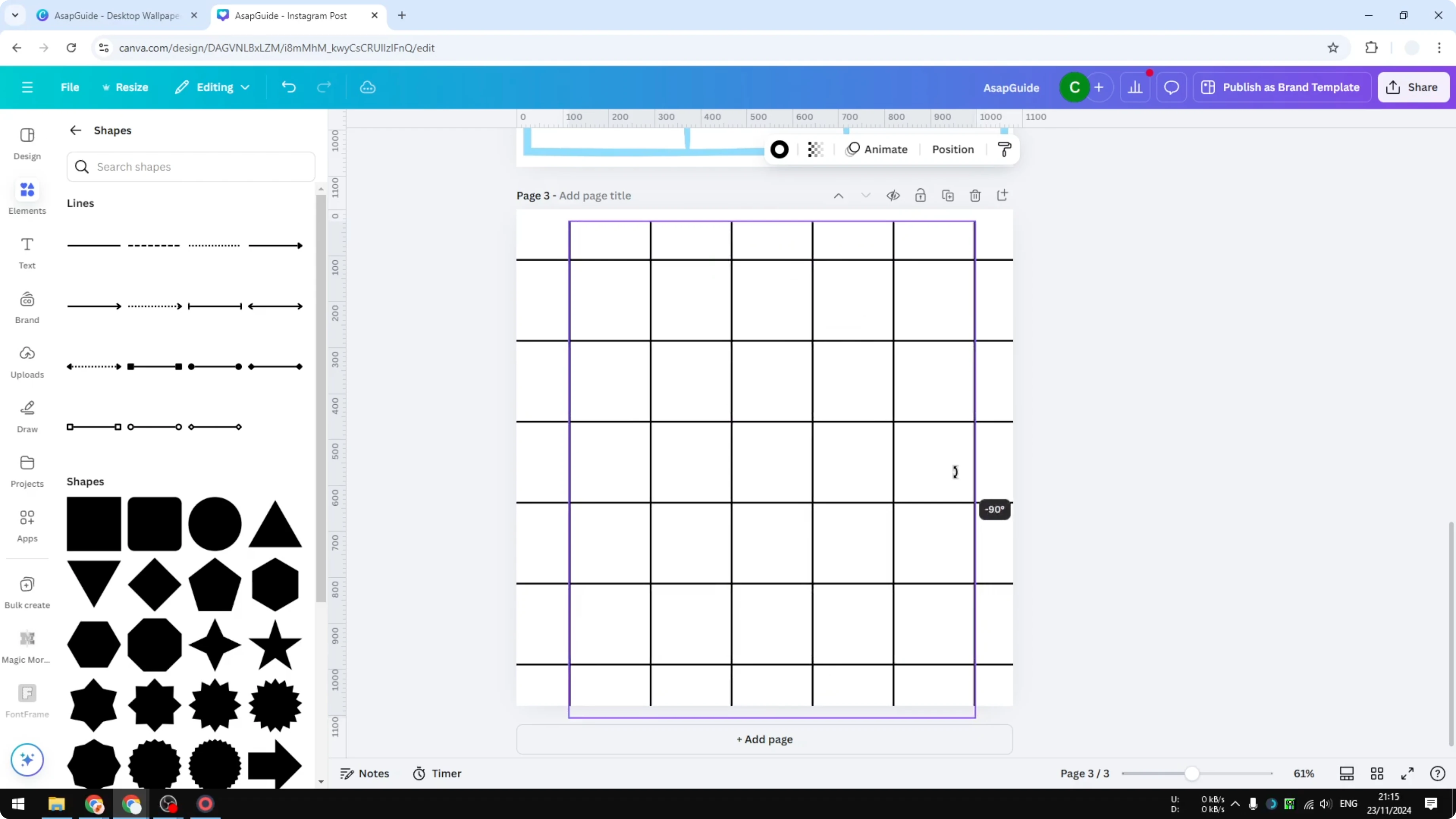
It is not perfect, but this is good enough for most designs. This method lets you customize the thickness, the color, and the style. You can use dashes or dots instead of a solid line.
If you are laying out storyboard frames or slides, you might also want to make a video from your images directly in Canva.
Make a Grid on Canva: App method
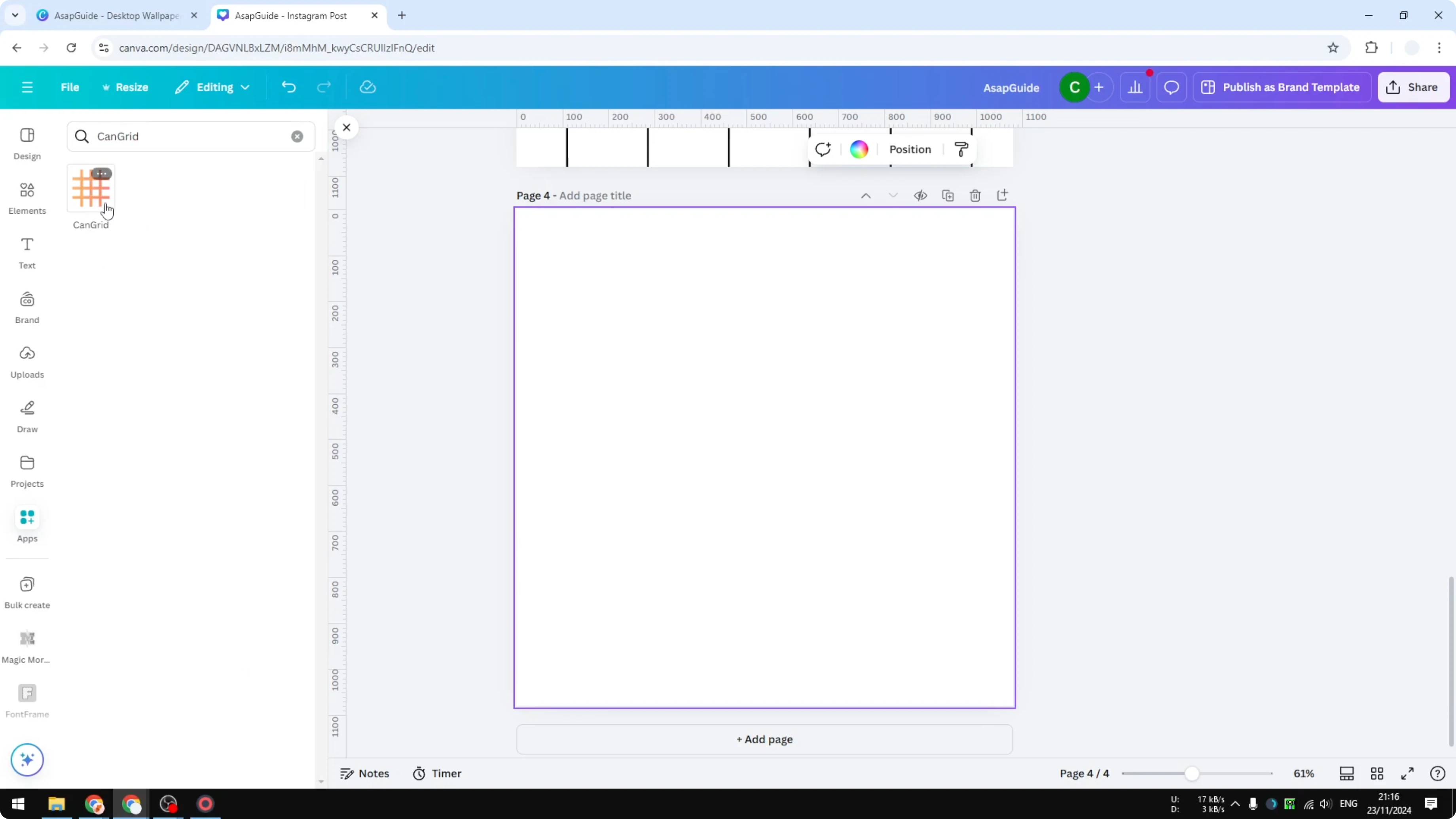
For the third method, use an app in the Canva Apps section and search for Hand Grid. Click it, open the app, and design your own grid using this tool. This is fast and very flexible for rows, columns, and styling.
Steps
Choose the line type, like Solid or Dashed.
Set Stroke width for the thickness of the grid.
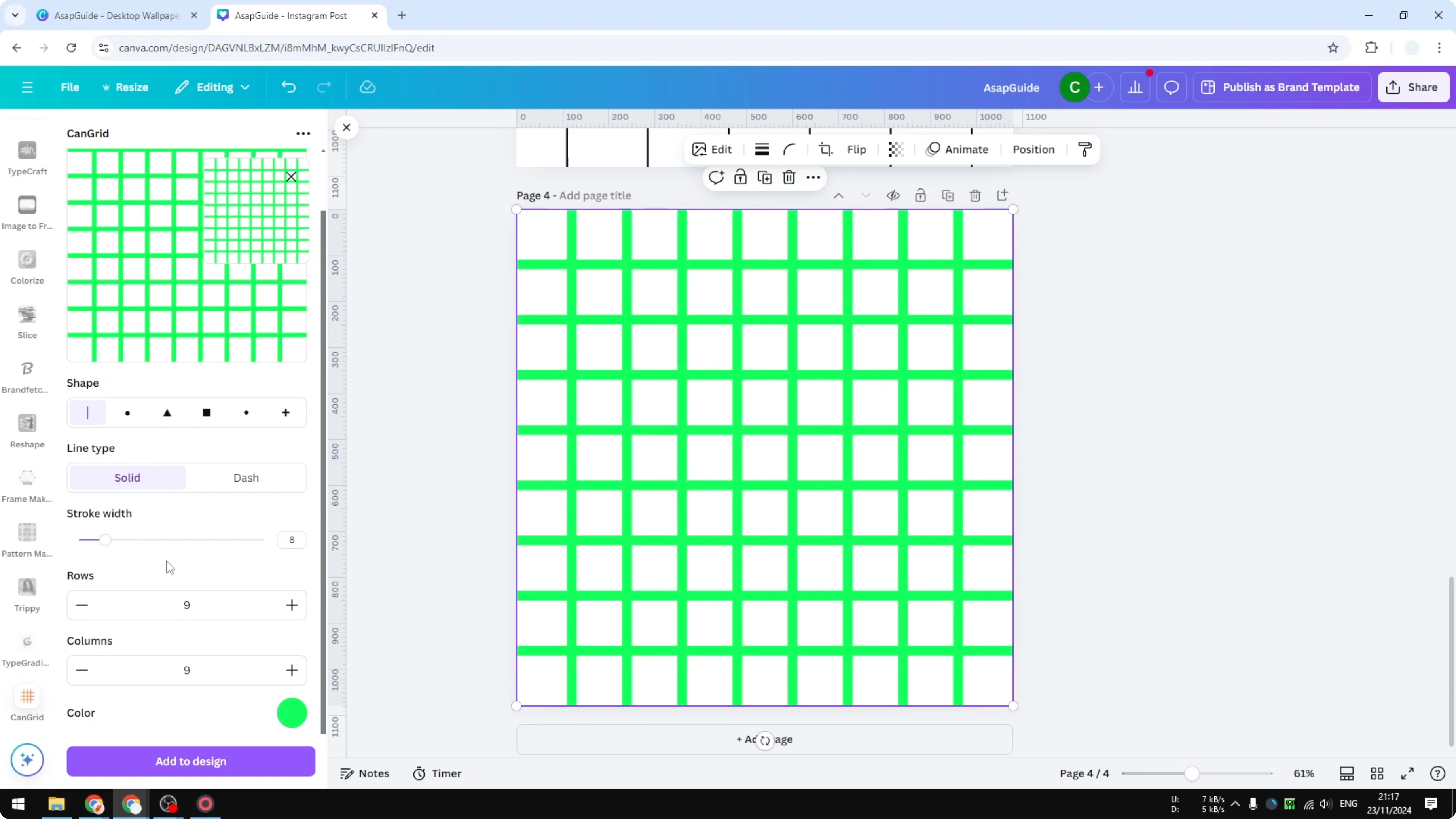
Set Rows and Columns to match the layout you want, like 9 and 9 for a square grid.
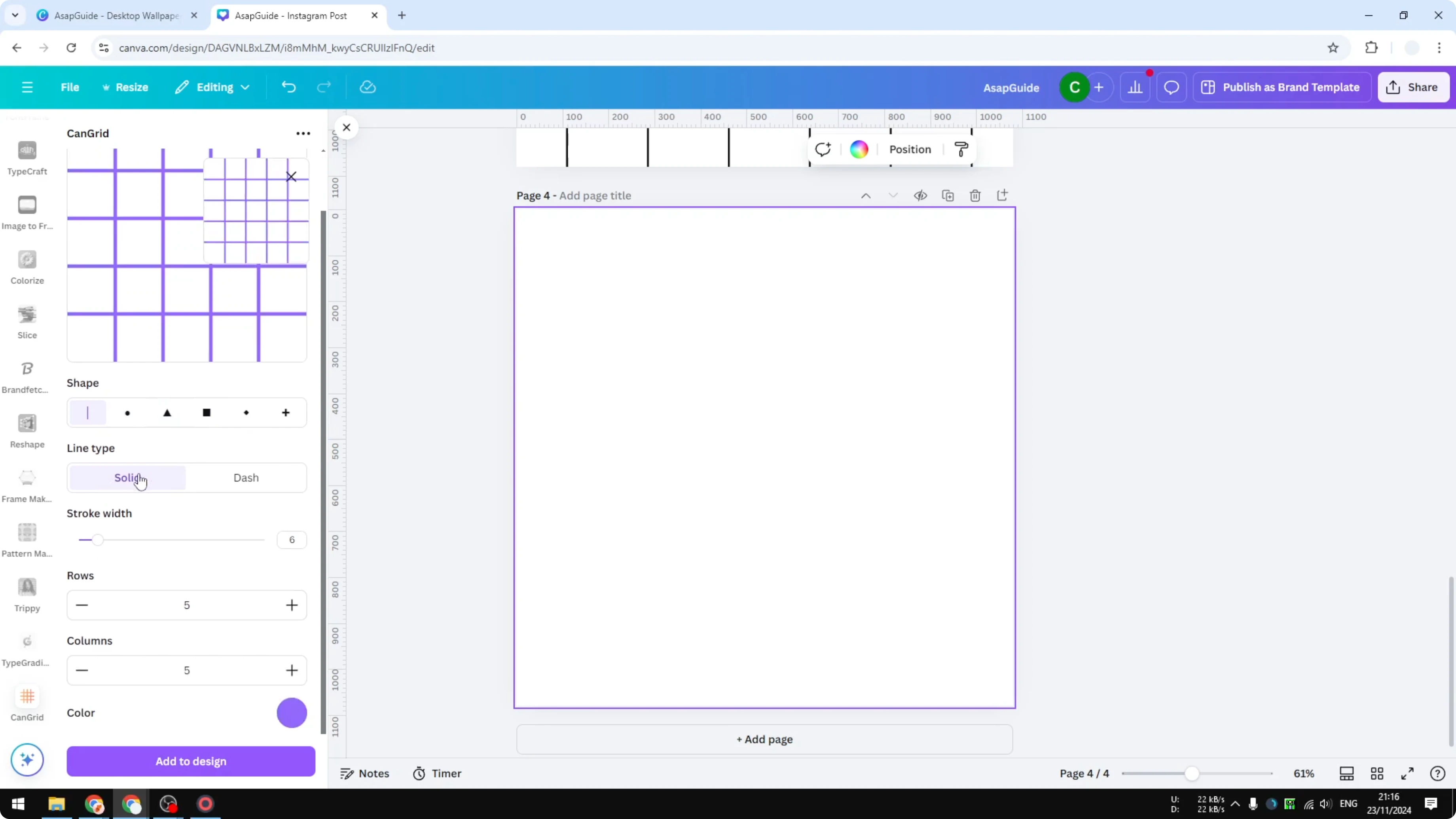
Pick a color for the lines.
Click Add to design to insert the generated grid.
Resize or position it on your canvas as needed.
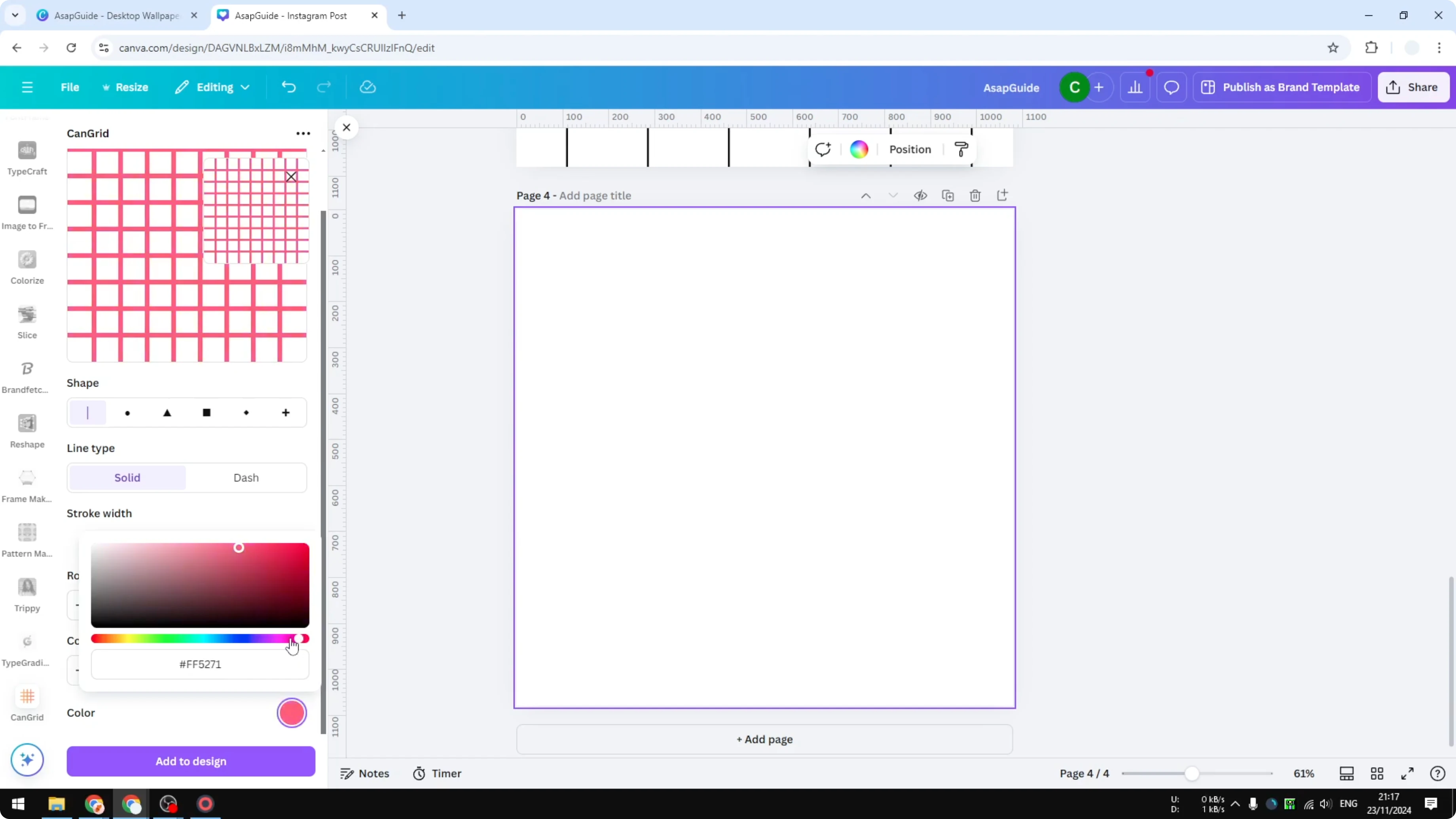
You will get your grid very quickly after setting the shape, line type, stroke width, rows, columns, and color. This is ideal if you have a big document or plenty of grids on the page. It saves time while staying customizable.
Make a Grid on Canva: Final thoughts
You can create a grid by inserting a ready-made graphic, building one with lines, or generating one with the Hand Grid app. The first method is quick but limited, the second is fully customizable, and the third is the fastest for complex layouts. If you want Canva to suggest layouts for you, check out our AI guide.
Recent Posts

How to Visualize Yourself as a Pixelized Character with AI?
How to Visualize Yourself as a Pixelized Character with AI?

How to Revive Faded Memories and Enhance Image Clarity with AI?
How to Revive Faded Memories and Enhance Image Clarity with AI?

How to Visualize Yourself as an Animal Crossing Character with AI?
How to Visualize Yourself as an Animal Crossing Character with AI?