How to Make an Element Translucent in Canva
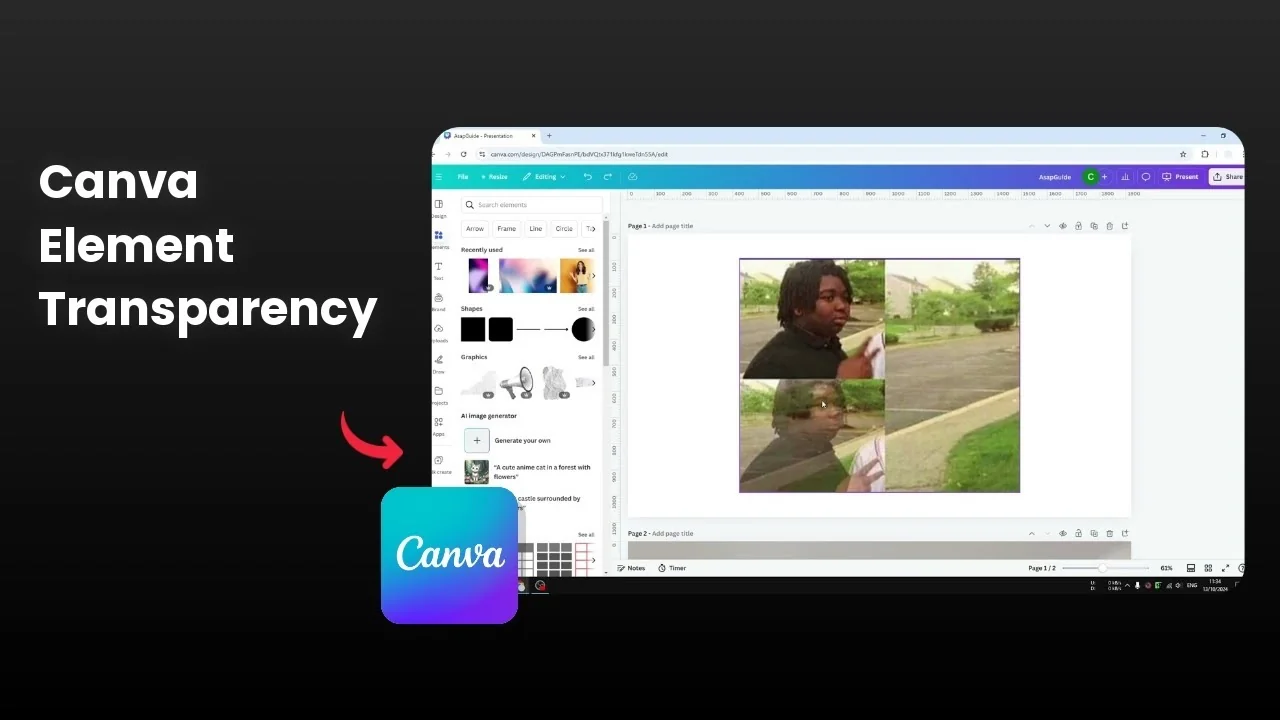
I will show you how you can make an object translucent in Canva. Translucent is different than transparent, and I will explain that using a simple meme format as a reference.
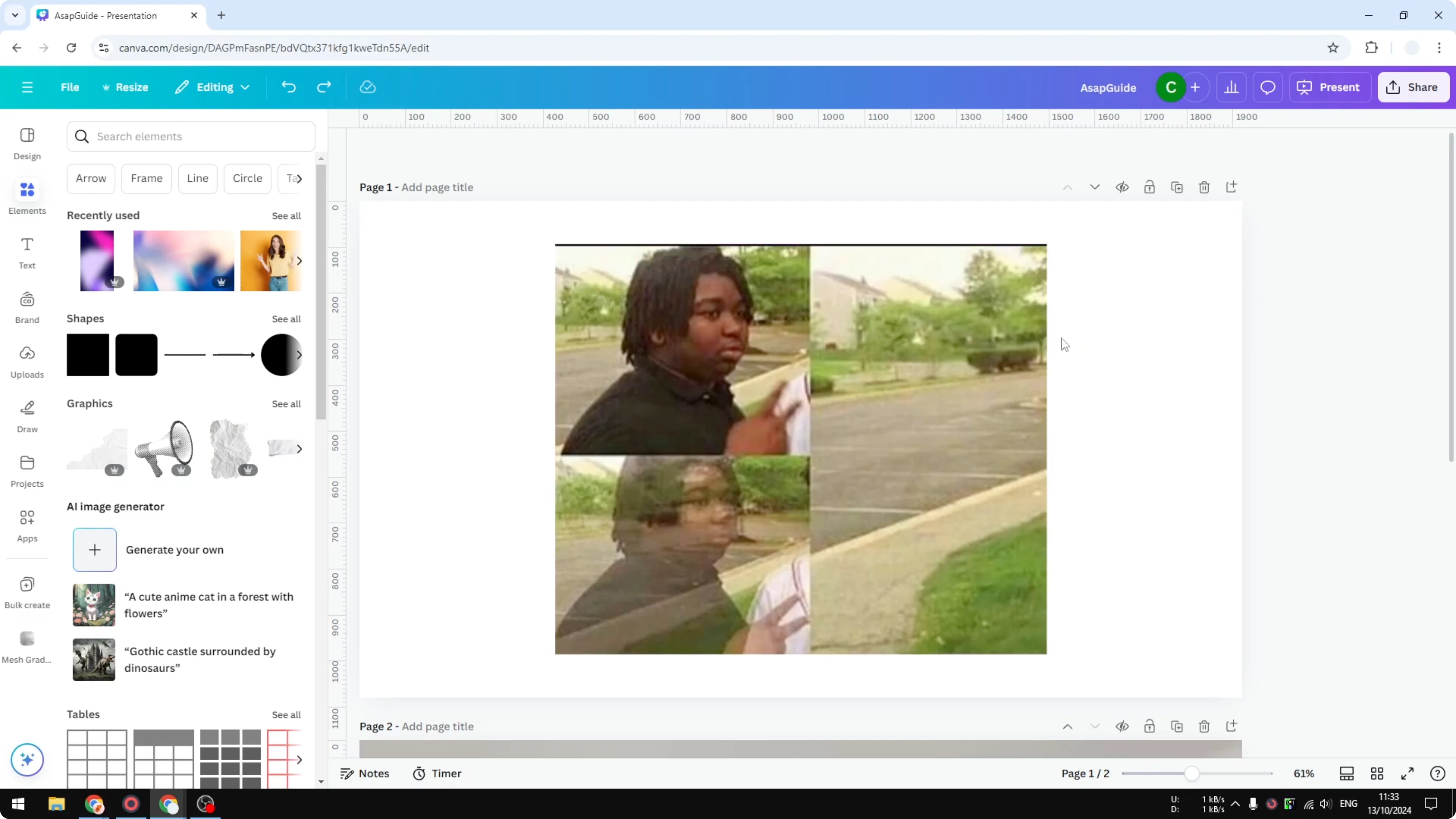
In the first picture, the object is opaque, meaning the object is fully seen. In the second picture, the object is translucent, so you can see what is behind the object while still clearly seeing the object itself. In the third picture, the object is fully transparent, almost invisible, and you can see what is behind it without any obstruction.
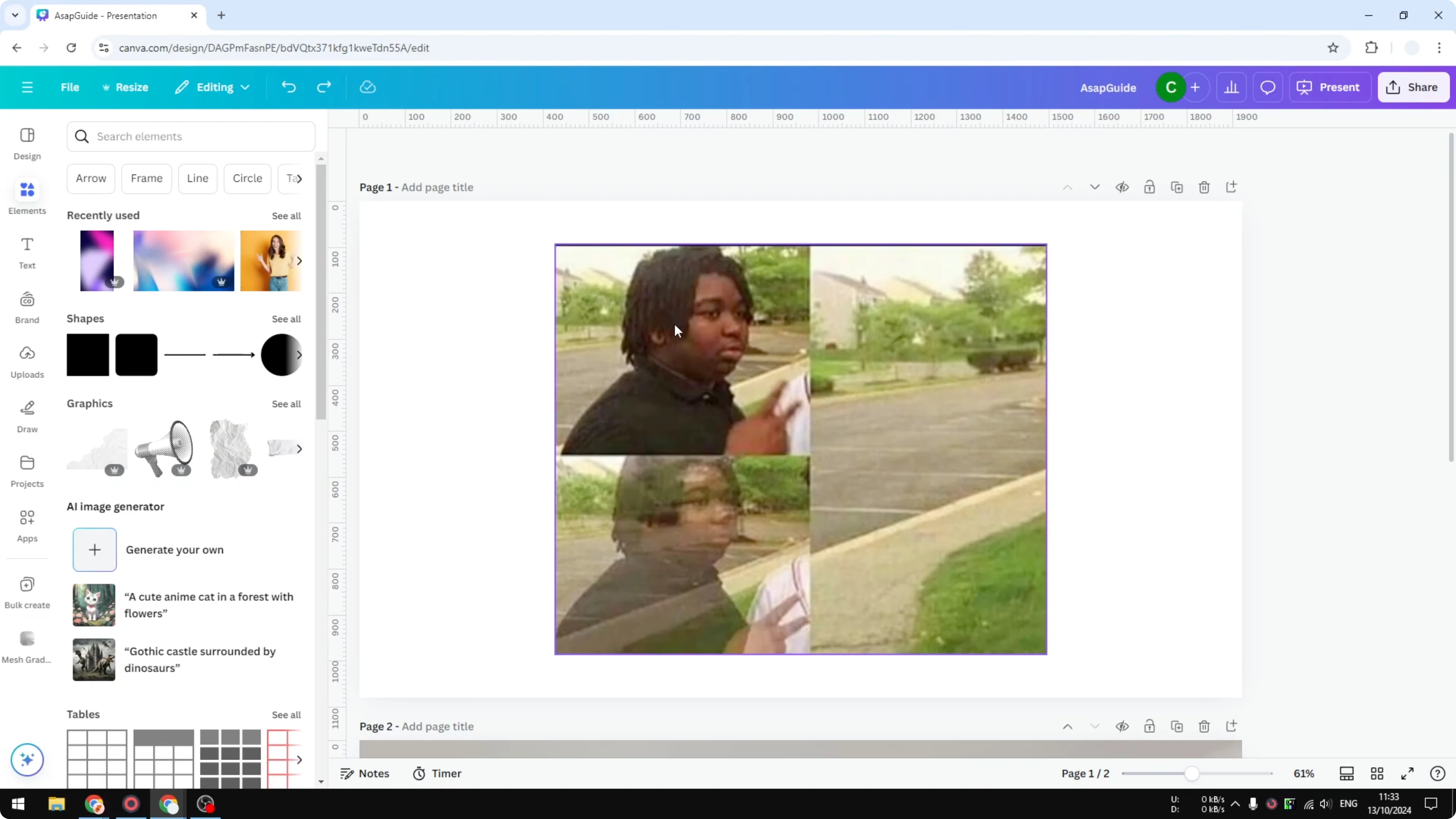
What we want to achieve is the translucent look. You can see the object and see through it at the same time, but it is not invisible. This effect is very easy to apply in Canva.
If you are exploring soft overlays that sit on top of your design, see this transparent overlay tutorial for a related approach.
Translucent vs transparent in Make an Element Translucent in Canva
Translucent means the object remains visible while revealing the background. Transparent means the object is invisible and only the background is visible. Translucent is the look we want for this effect.
You can apply this to photos, videos, or shapes. It is useful in many layouts where you want context from the background but still keep the subject visible. If you are building sequences and want to assemble moving visuals, you can also turn photos into a video after applying this effect.
Steps to apply it in Make an Element Translucent in Canva
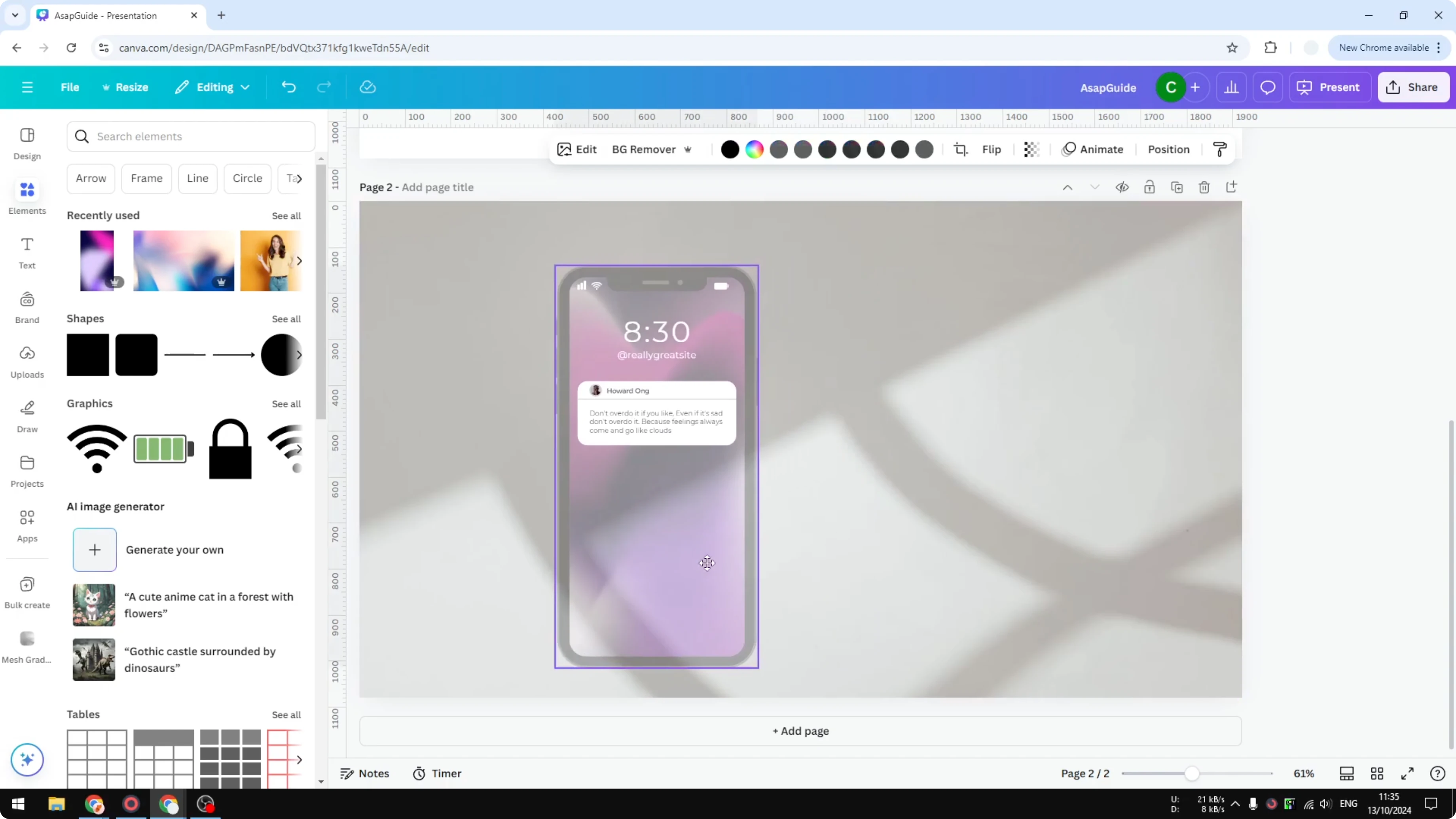
I will make a phone mockup translucent as an example. Click the object to select it. You can also click a group to make the entire contents translucent.
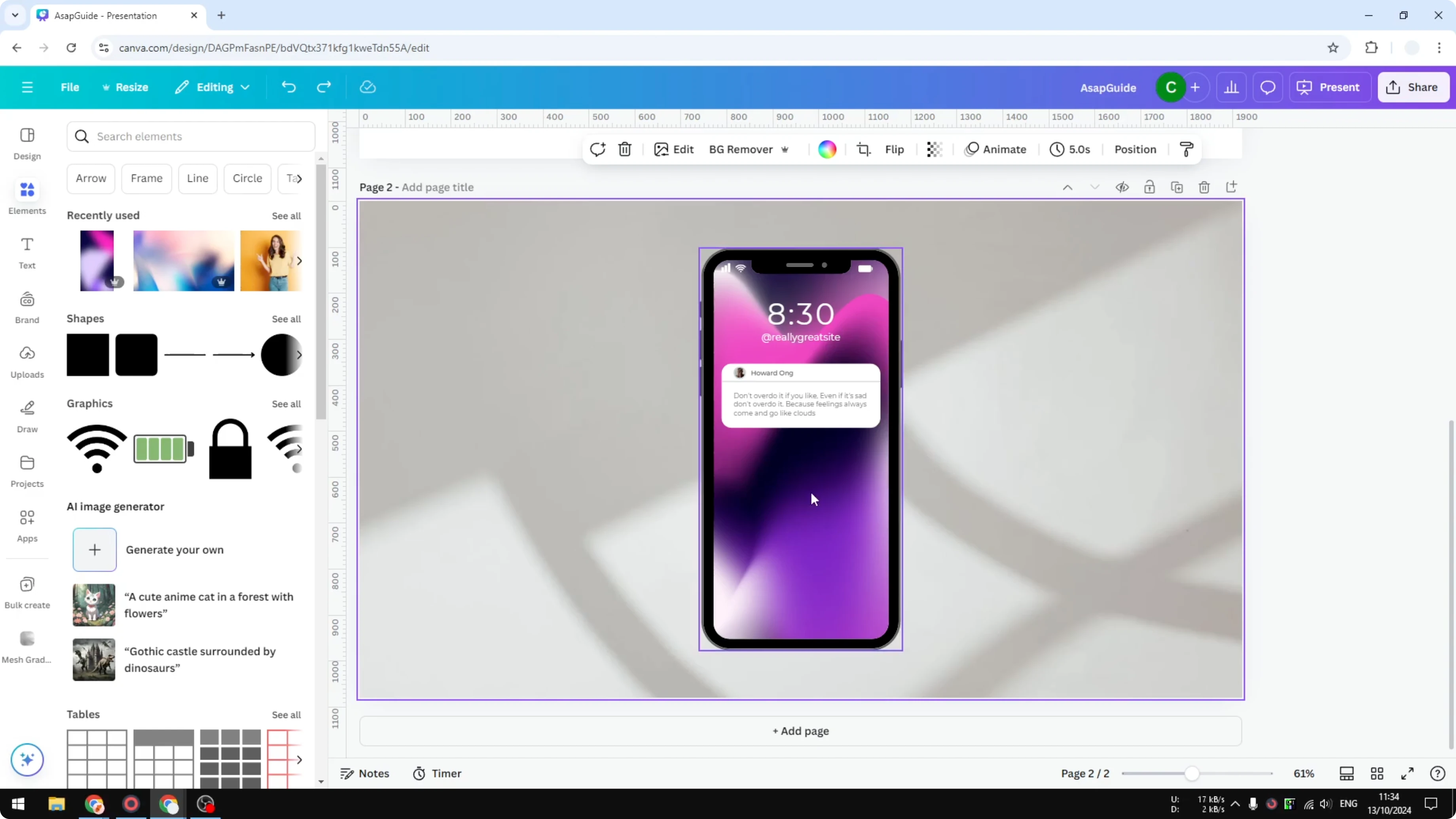
In my example, the group contains the phone background and the phone frame. After selecting, look at the top bar and find the Transparency control. Click it.
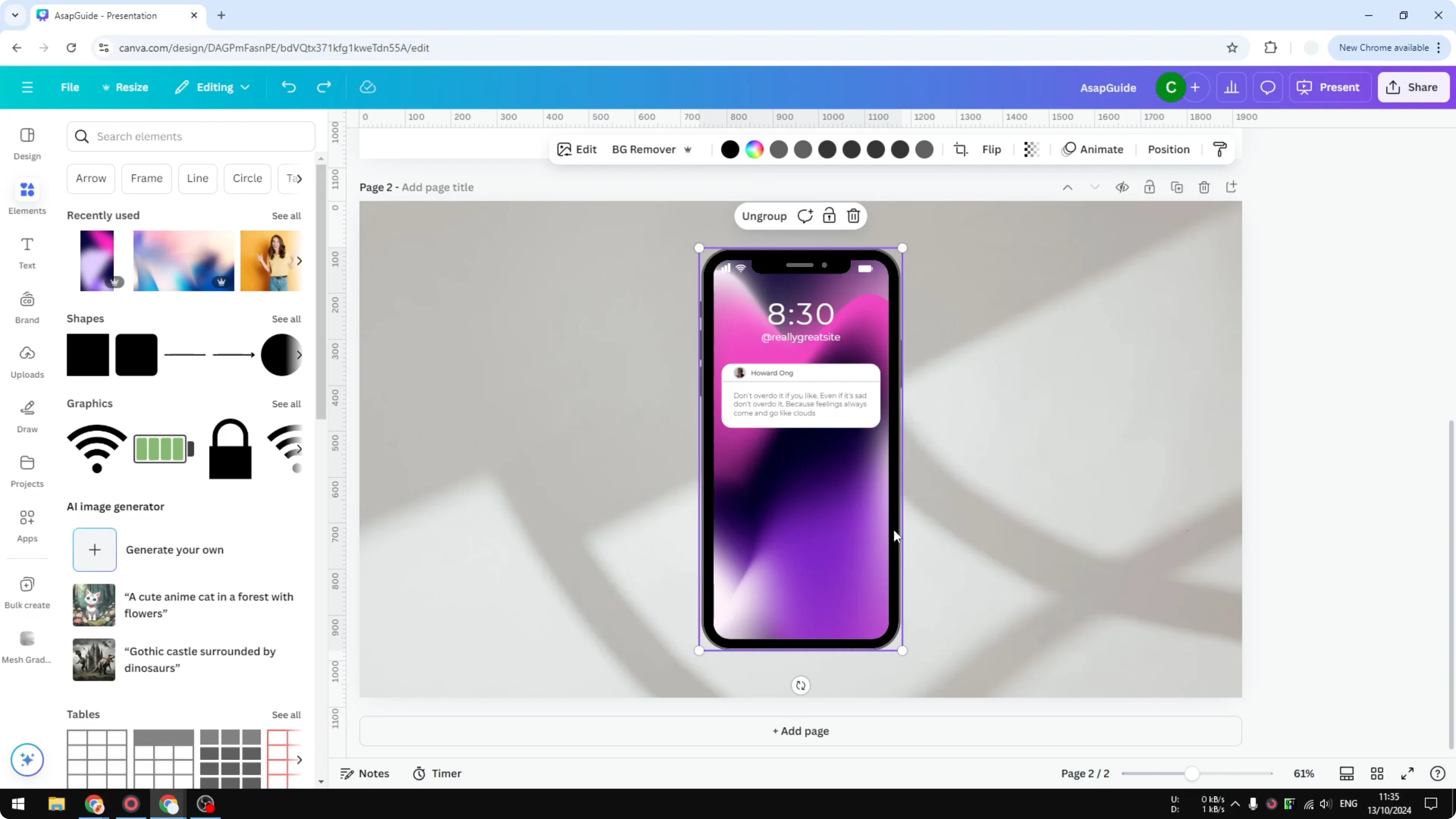
Reduce the value from 100 to a lower number. Do not set it to 0, because 0 means fully transparent. Set it to around 5 to 30 percent depending on the level you want.
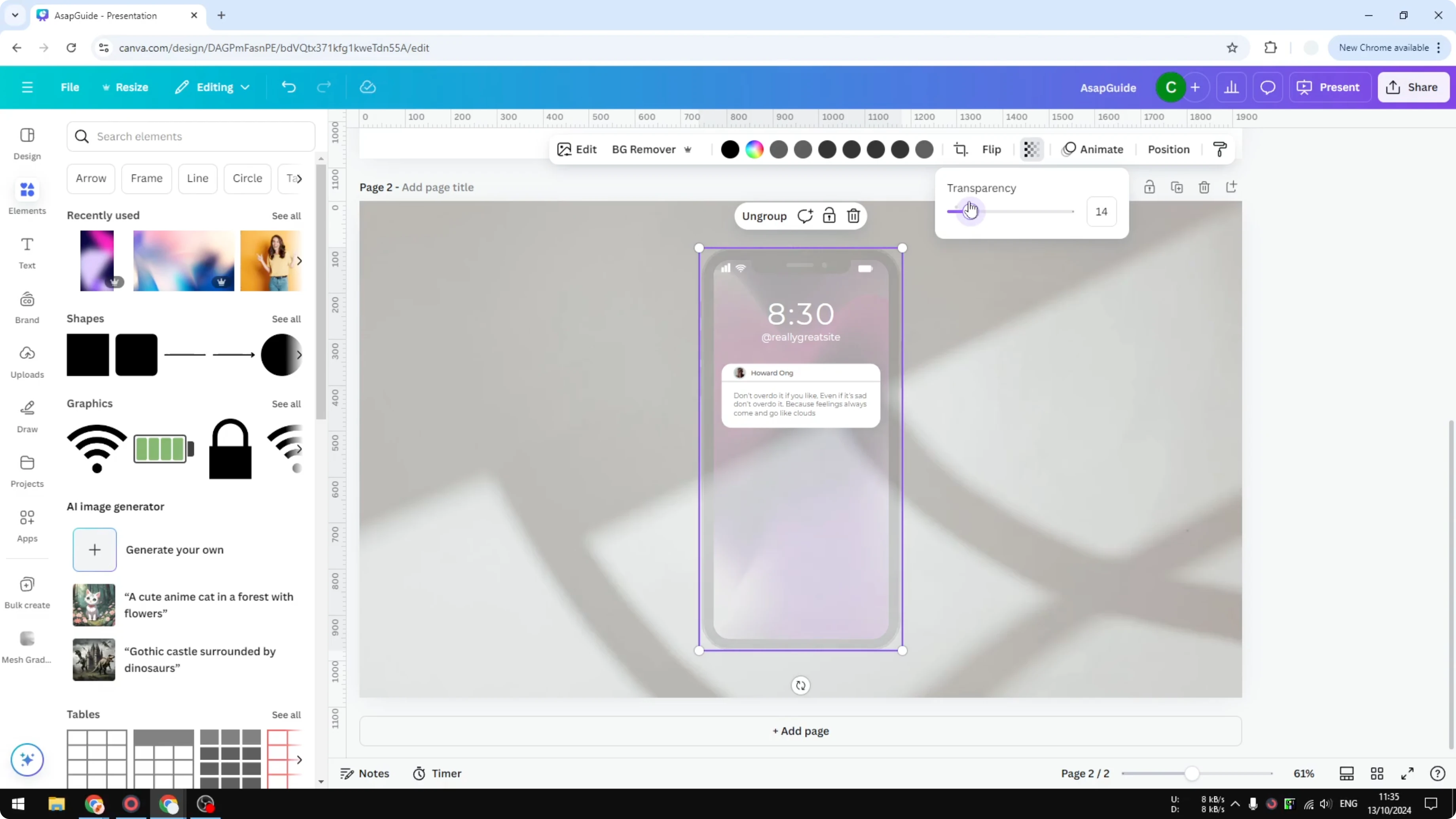
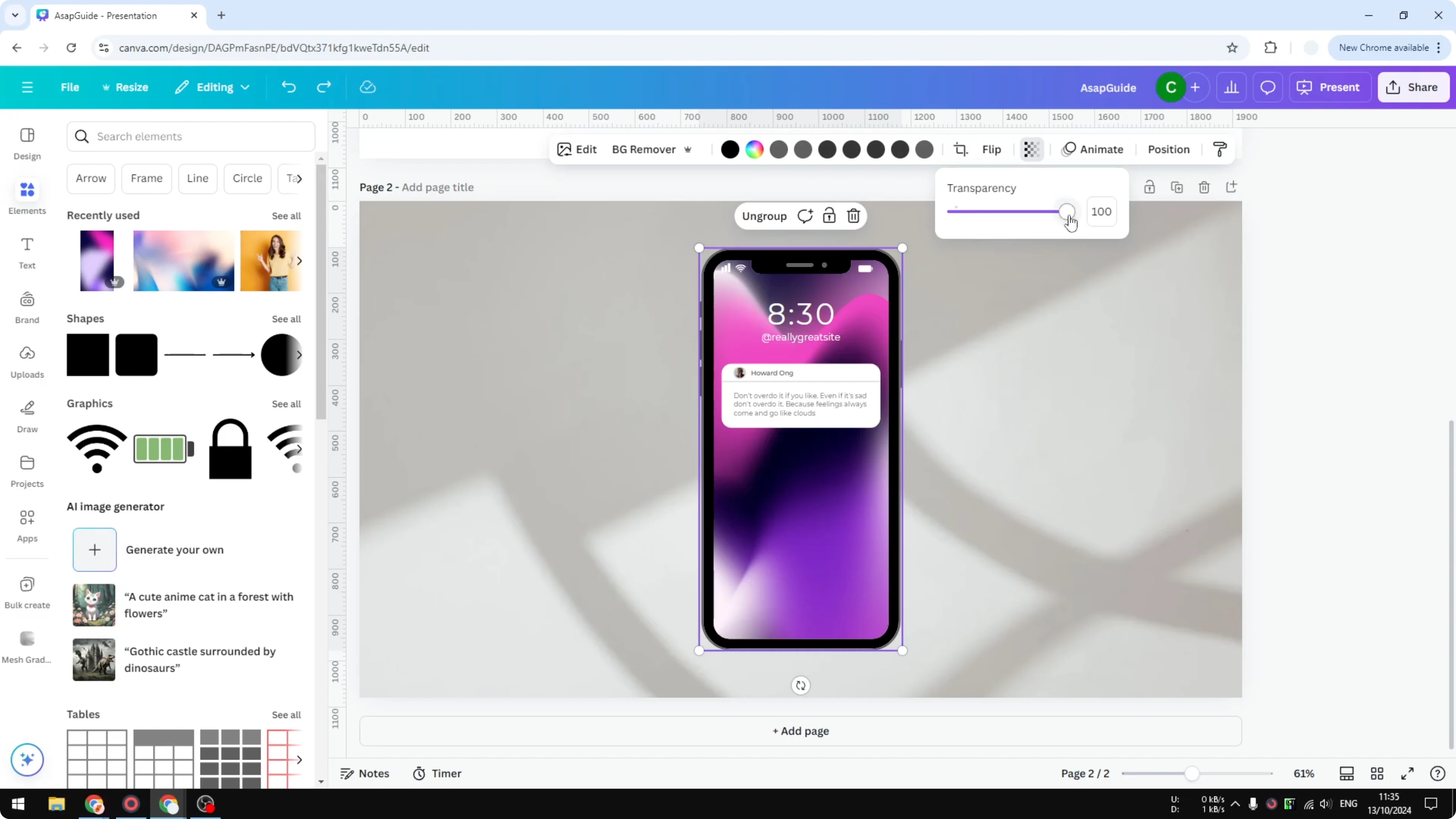
I will set it to around 30 percent. I can see the phone and the frame, and I can also see what is behind the phone. Move it around and you will see the background is visible through the object.
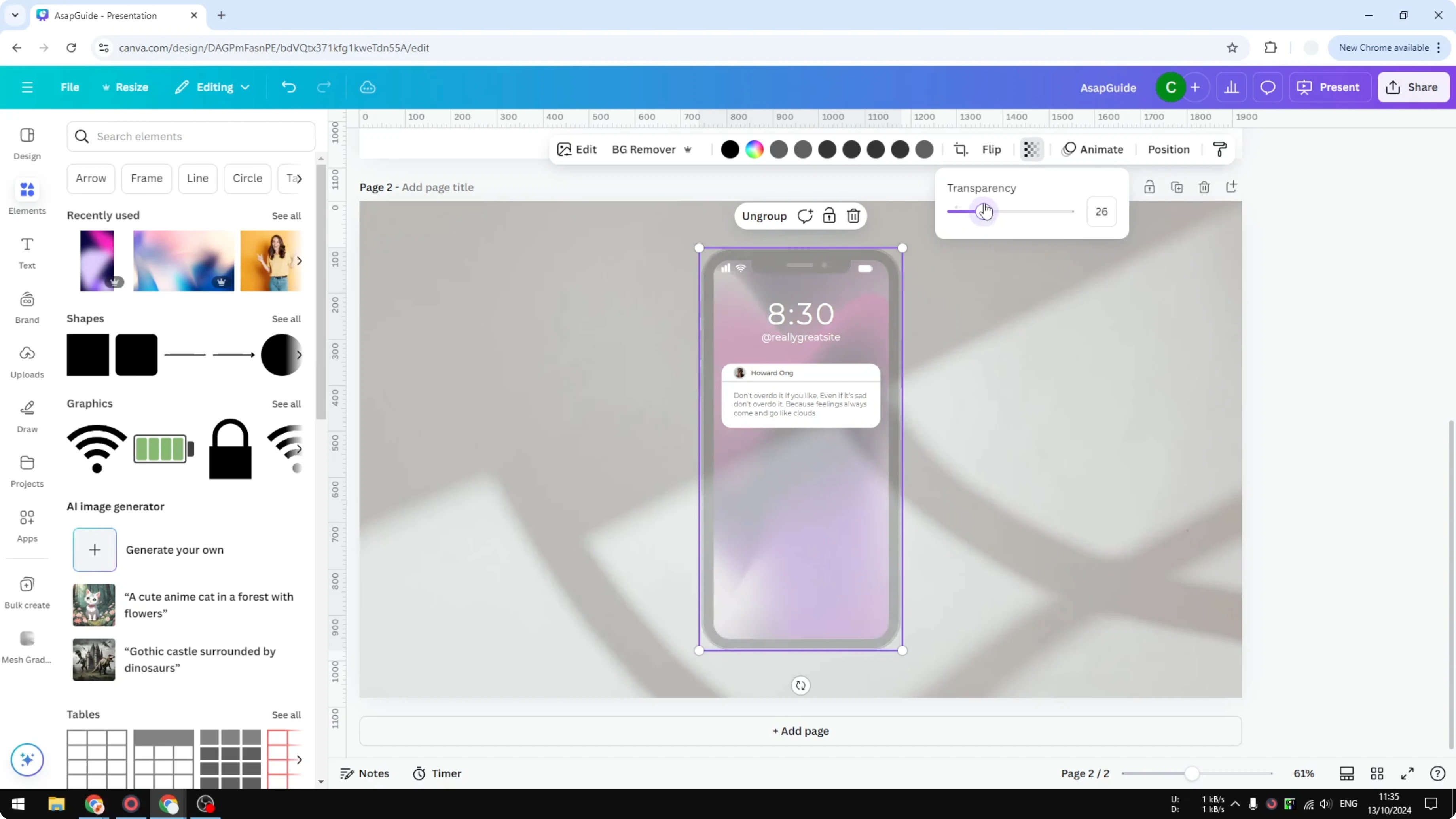
That is how you get the translucent effect in Canva. You still see the subject, and the background shows through. It works well for photos, video clips, and simple shapes.
Final thoughts on Make an Element Translucent in Canva
Translucent is a simple adjustment that keeps your subject readable while revealing the background. Use the Transparency control and pick a value that balances both. For more design help, check out our AI guide for Canva to quickly generate assets you can make translucent.
Recent Posts

How to Visualize Yourself as a Pixelized Character with AI?
How to Visualize Yourself as a Pixelized Character with AI?

How to Revive Faded Memories and Enhance Image Clarity with AI?
How to Revive Faded Memories and Enhance Image Clarity with AI?

How to Visualize Yourself as an Animal Crossing Character with AI?
How to Visualize Yourself as an Animal Crossing Character with AI?