How to Make a Color Palette in Canva
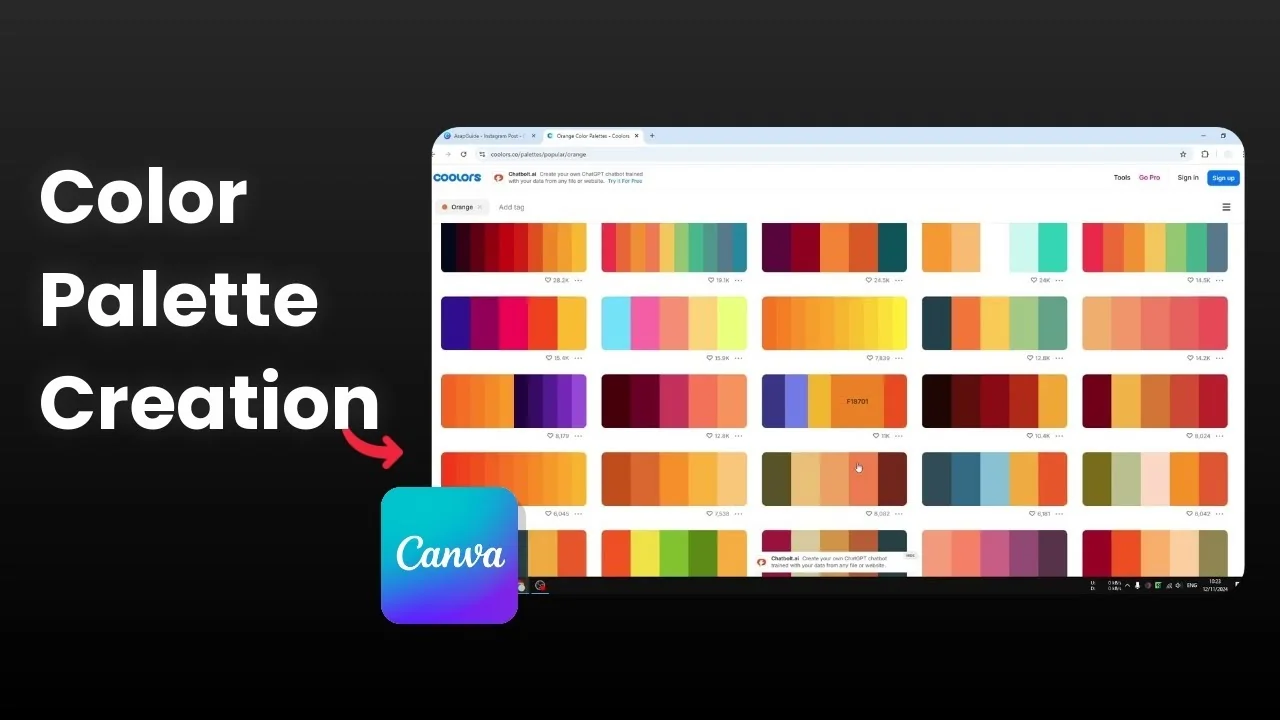
I’m going to show you how you can make a color palette in Canva. There are two approaches I use. The first lets Canva automatically set a palette based on an image, and the second is a manual brand color method.
Automatic way to Make a Color Palette in Canva
This approach lets Canva pull colors from images in your document. It’s simple and you don’t have to think too much about which colors to pick.
Open your design and go to Design, then Styles.
Scroll to the very bottom until you see Image Palette.
Click See all to view all images with the corresponding palettes detected in your document.
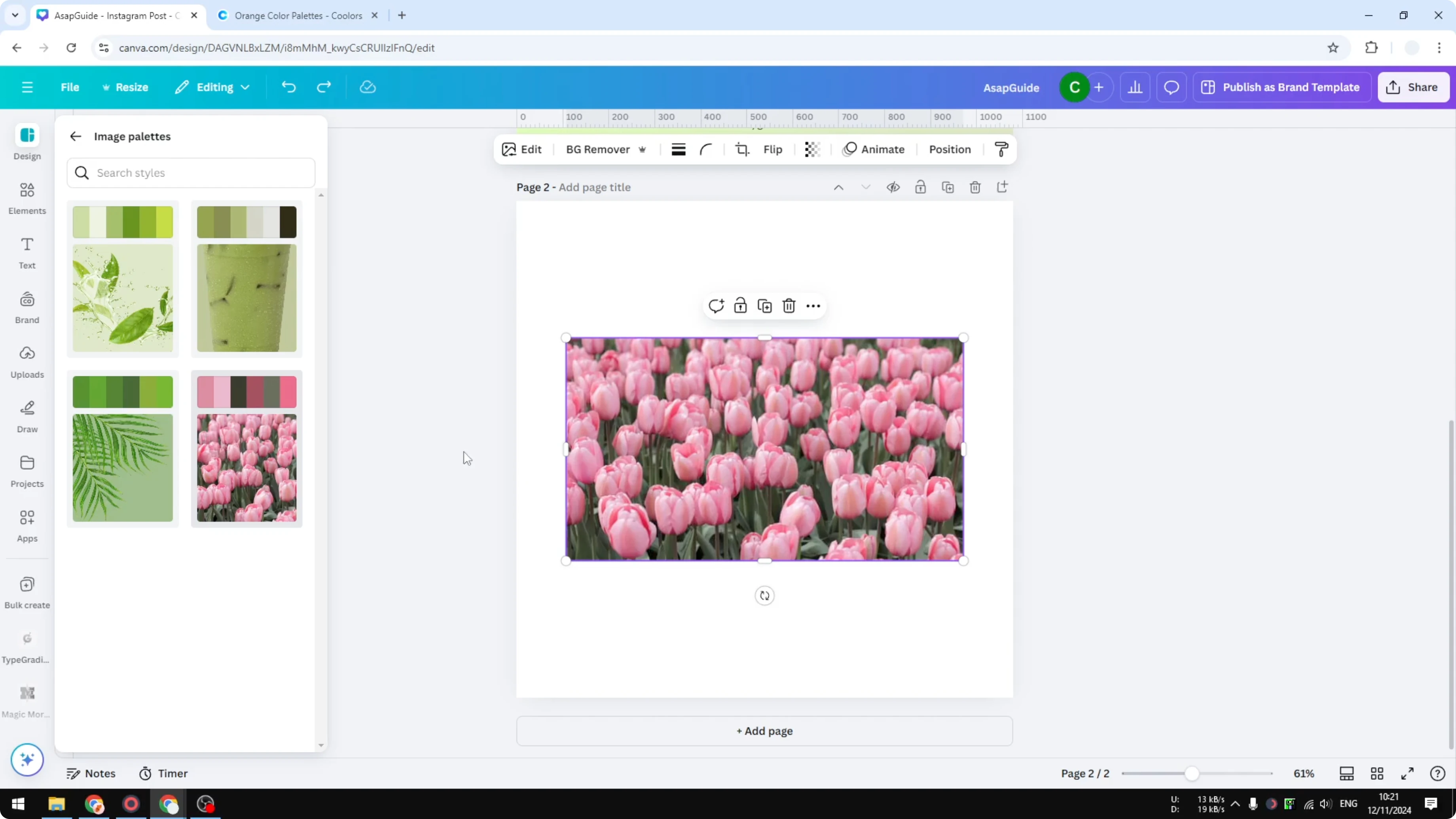
Pick an image palette and Canva will apply those colors to your current page.
If your first page is mostly green and you pick a palette from a pink image, clicking it will apply that pink-driven palette to the green page.
You can click it multiple times until you get a version that feels right, because the combinations can be a bit random.
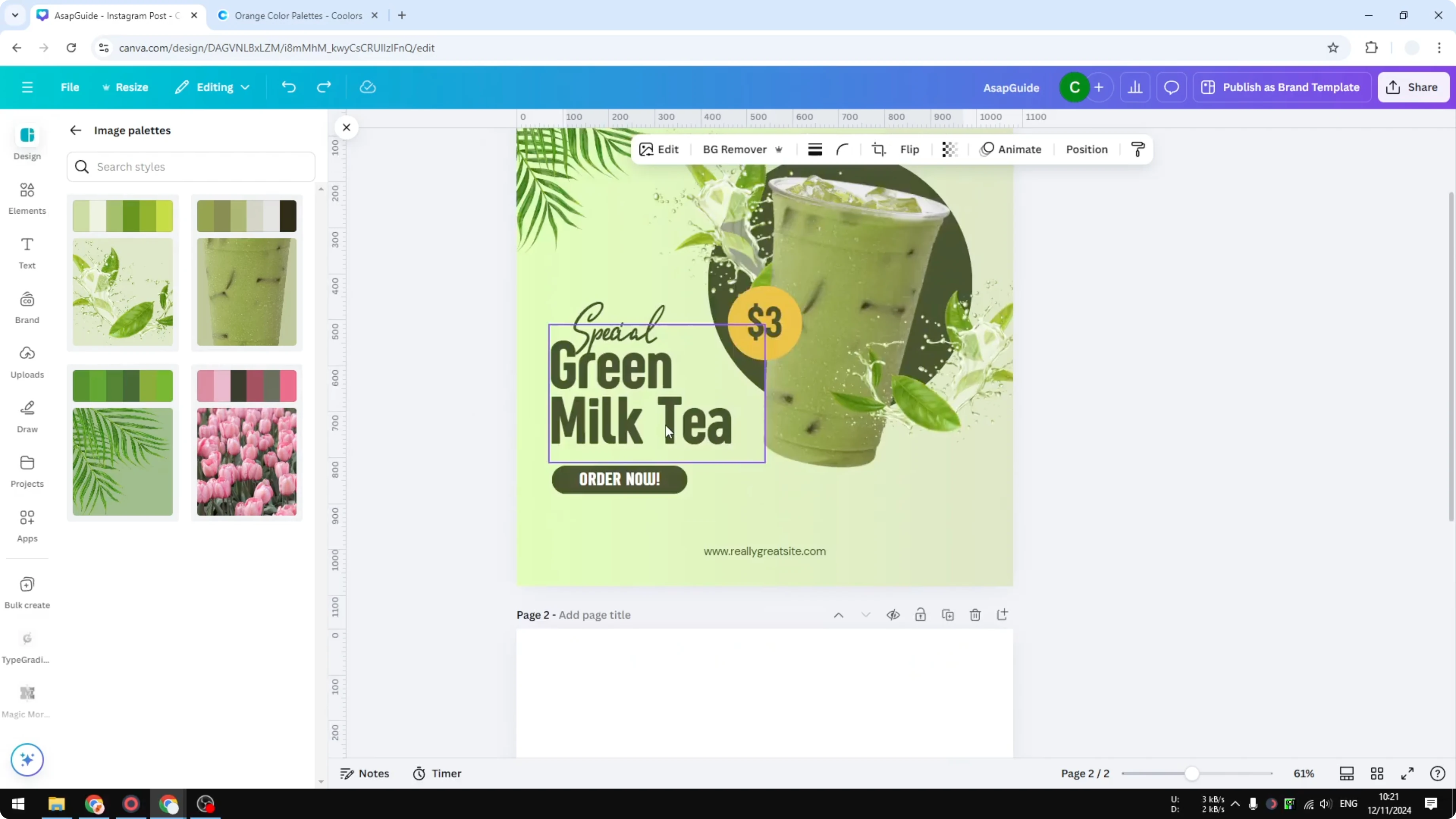
If the applied colors look too strong or too muted, fine-tune the photo colors after applying the palette by adjusting brightness, contrast, and saturation.
For detailed steps on tweaking images, see how to adjust colors in Canva images.
Manual way to Make a Color Palette in Canva
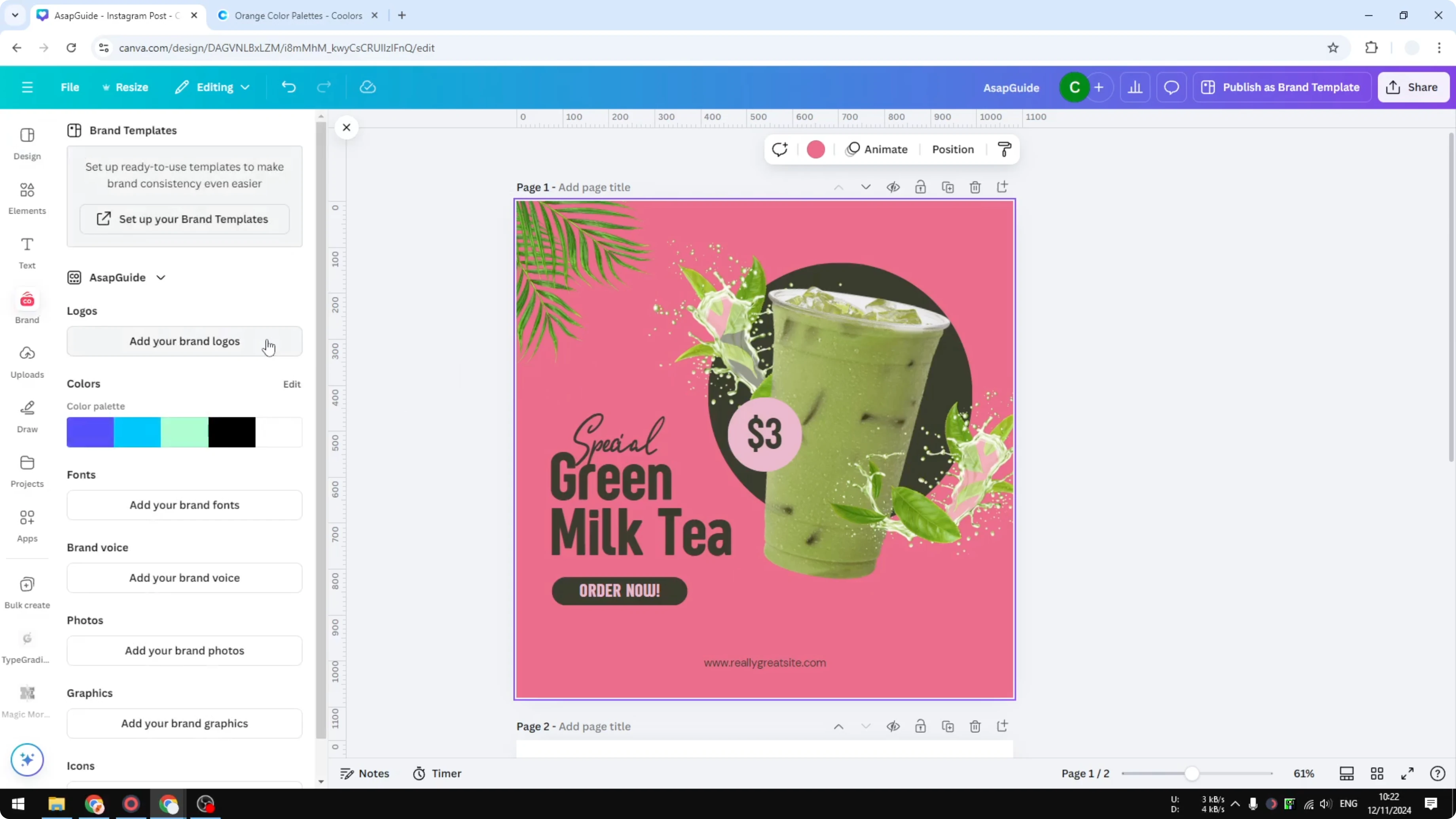
If you use Brand Kit in Canva, set your palette there and apply it to your designs. This keeps colors consistent and speeds up your workflow.
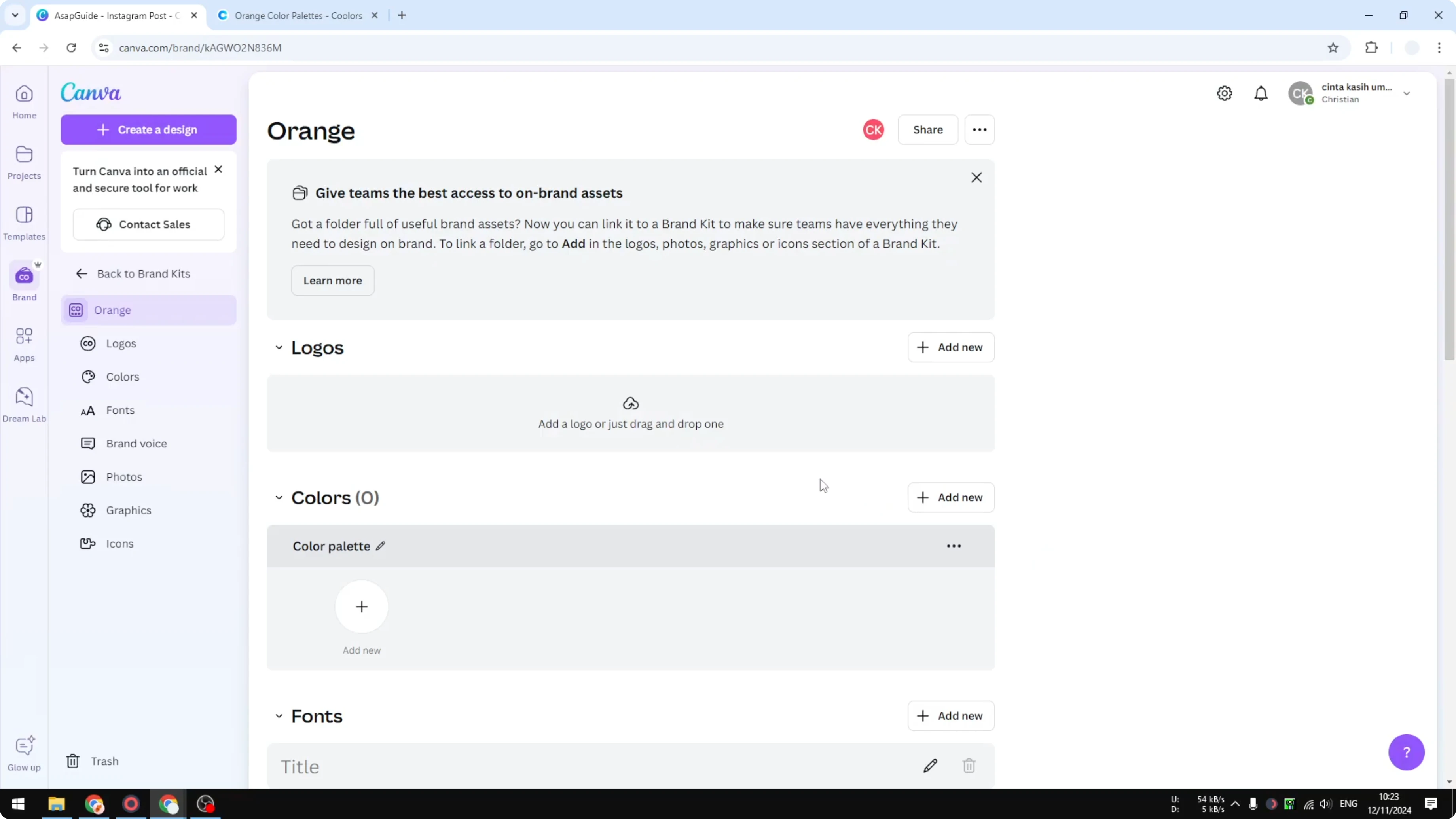
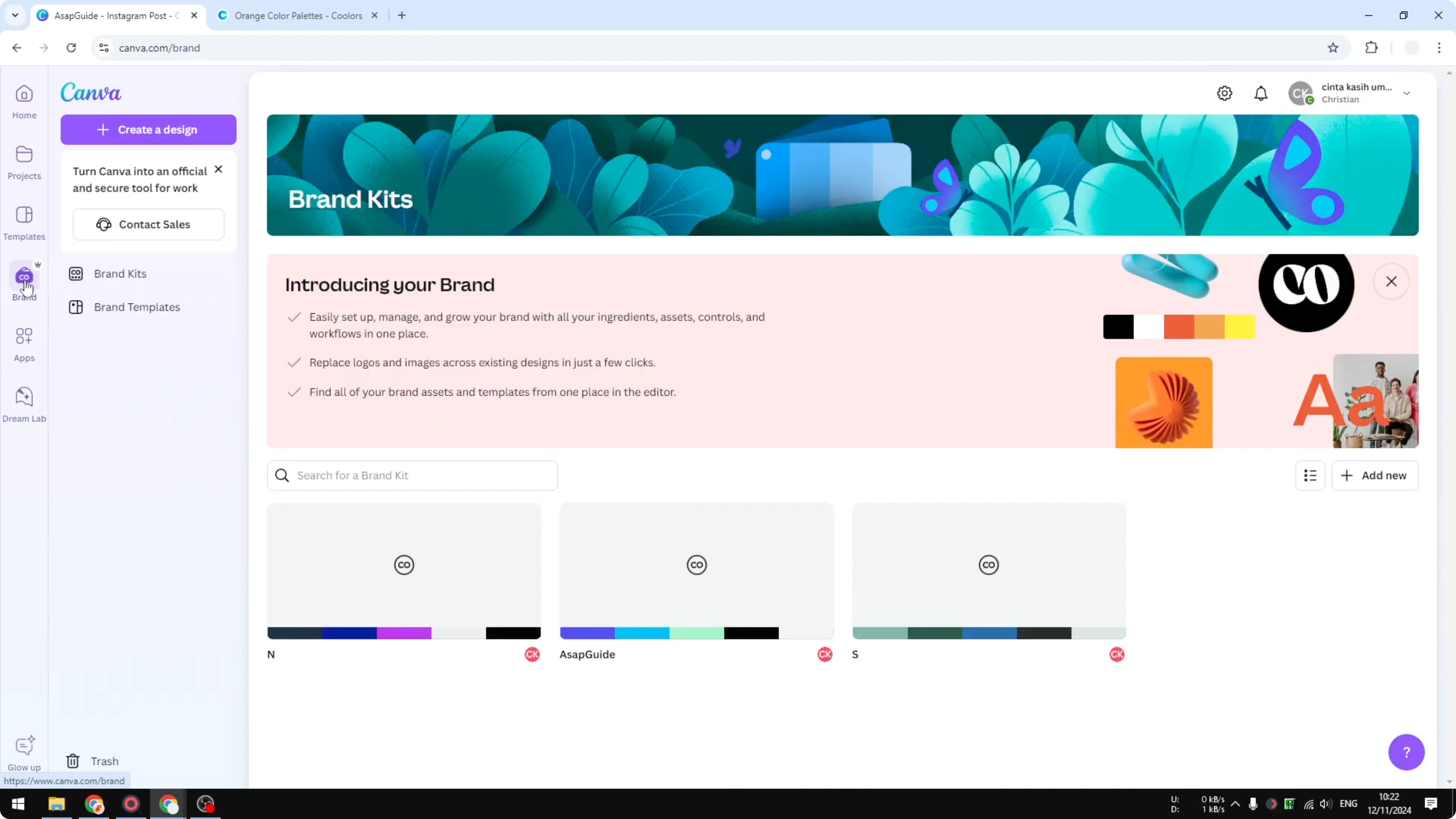
Go to Canva and click Brand.
Click Add new, give it a name like Orange, then click Create.
You’ll see options for logos, fonts, and more, but we’re focusing on the color palette.
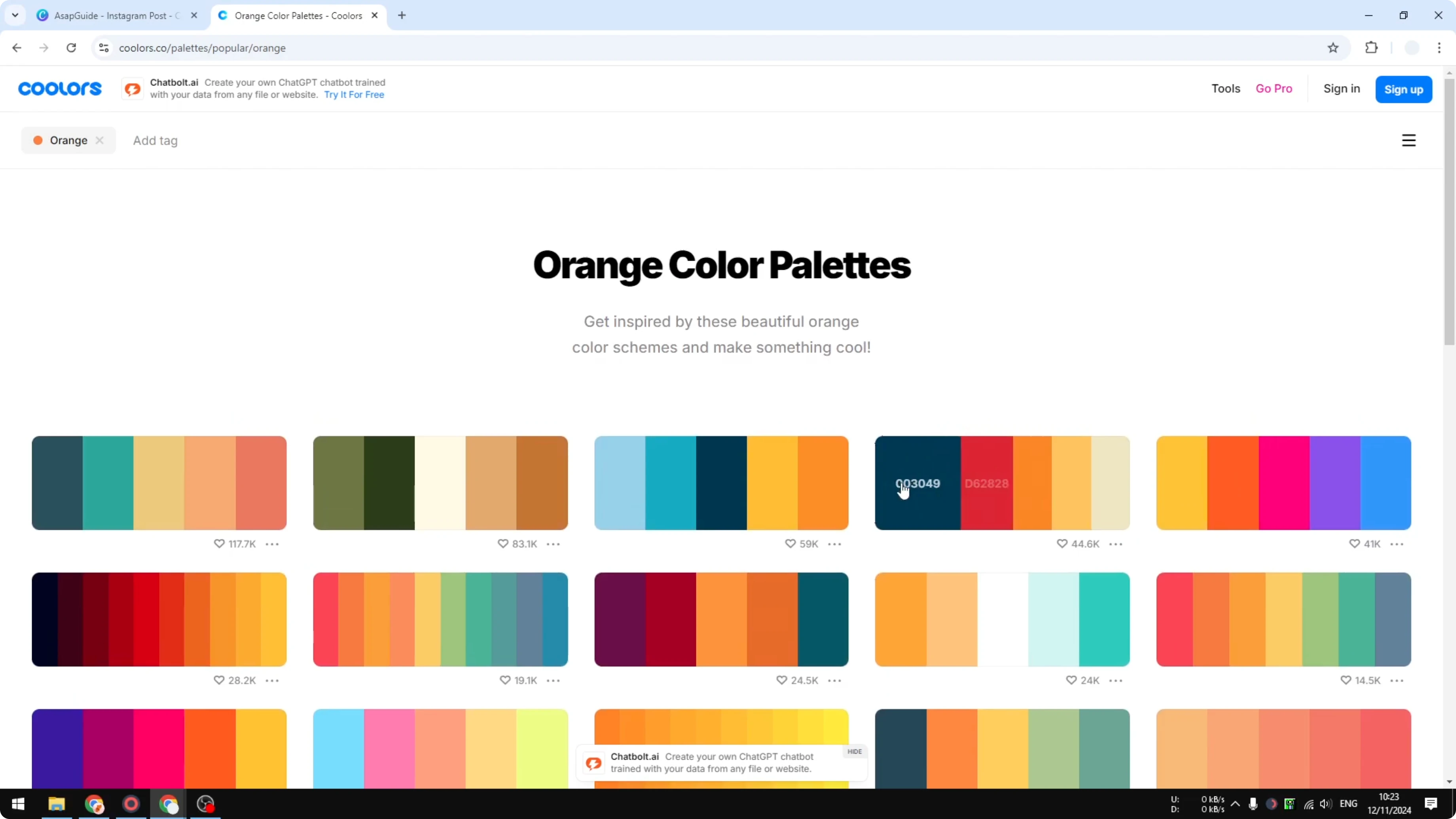
If you know the color codes, paste them into the color fields.
If you don’t know any color codes, I recommend using Coolors to pick a set, then click a swatch to copy and paste it into the palette.
Repeat this for each color you want, and this process should take less than a minute.
There is no save button in Brand Kit for palettes, because your changes apply automatically.
When you’re done, head back to your design.
# Example hex color to paste
#F28C28
Apply your palette in the editor - Make a Color Palette in Canva
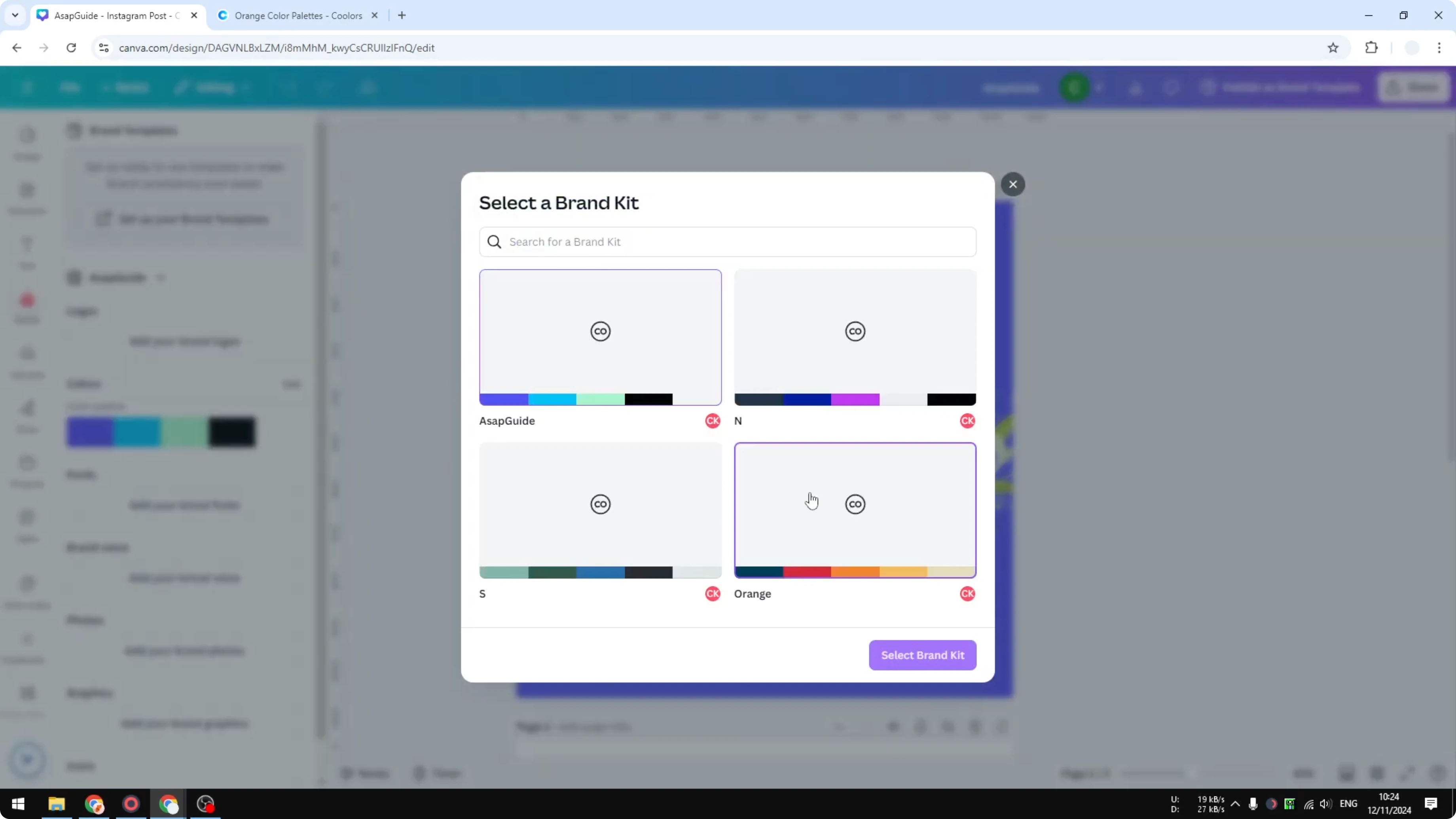
Return to your design and open your Brand palettes.
Click your new palette to apply it to the design and preview the result.
Switch between different palettes anytime to compare looks.
If you also need to recolor elements or photos after applying the palette, see this guide on changing colors in Canva images.
To quickly unify tones across a busy photo, add a soft overlay on top of your design and set its transparency.
Here’s a step-by-step on creating an overlay: make a transparent overlay in Canva.
Final thoughts - Make a Color Palette in Canva
Let Canva auto-generate a palette from your images for a quick start.
When you want consistent branding and easy reuse, build your palette in Brand Kit and apply it in any design.
Switch between palettes, then fine-tune images and overlays for a polished result.
Recent Posts

How to Visualize Yourself as a Pixelized Character with AI?
How to Visualize Yourself as a Pixelized Character with AI?

How to Revive Faded Memories and Enhance Image Clarity with AI?
How to Revive Faded Memories and Enhance Image Clarity with AI?

How to Visualize Yourself as an Animal Crossing Character with AI?
How to Visualize Yourself as an Animal Crossing Character with AI?