How to Make Canva Images Higher Resolution
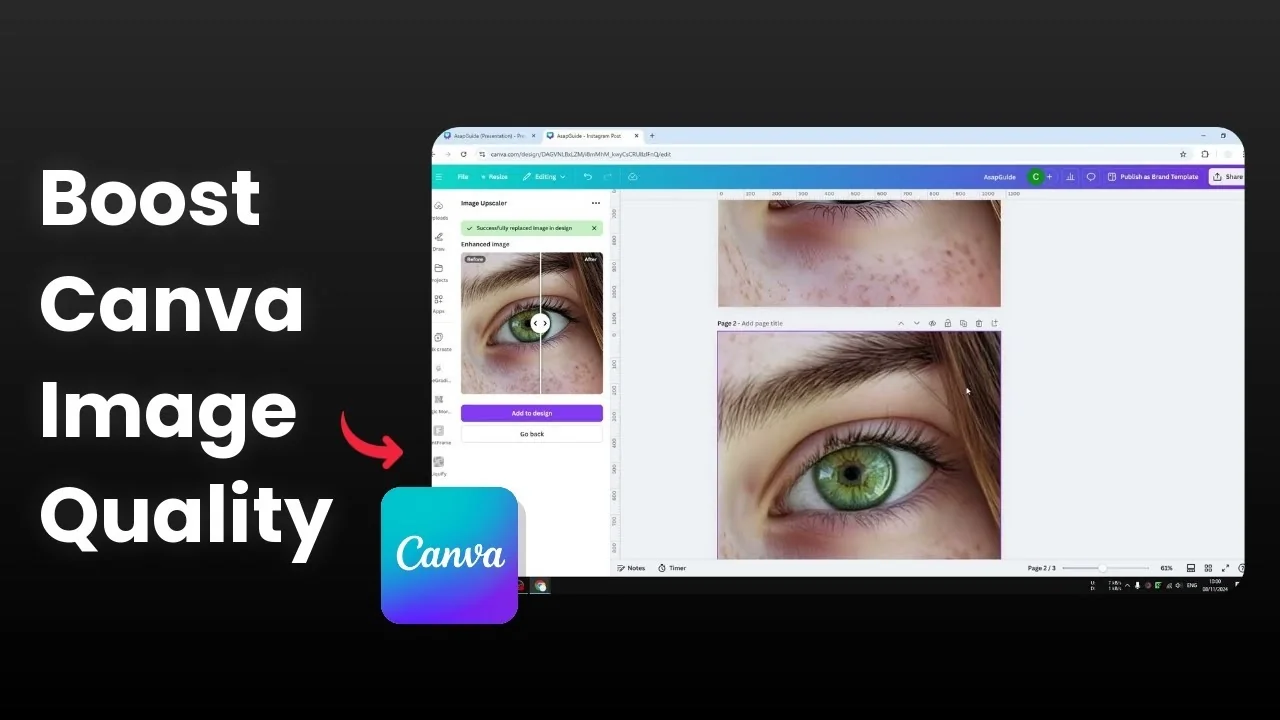
Here is how I make images higher resolution in Canva. I have this picture of an eye with 256 pixels in resolution compared to a 1000 pixel canvas. It only fits a quarter of the canvas and looks tiny.
You can resize it to fill the canvas, but that introduces pixelation and blur. It won't look sharp. If you want a much higher resolution, you need an upscaling tool inside Canva.
Why Make Canva Images Higher Resolution
Scaling a small image up to the size of your canvas without upscaling makes edges jagged and details mushy. Textures lose clarity.
Upscaling creates a larger version of the image that holds up when you resize it in your design. That way the picture stays sharp instead of breaking apart.
If the colors need a quick fix after upscaling, see how to adjust color in Canva.
Use Image Upscaler to Make Canva Images Higher Resolution
Find the app
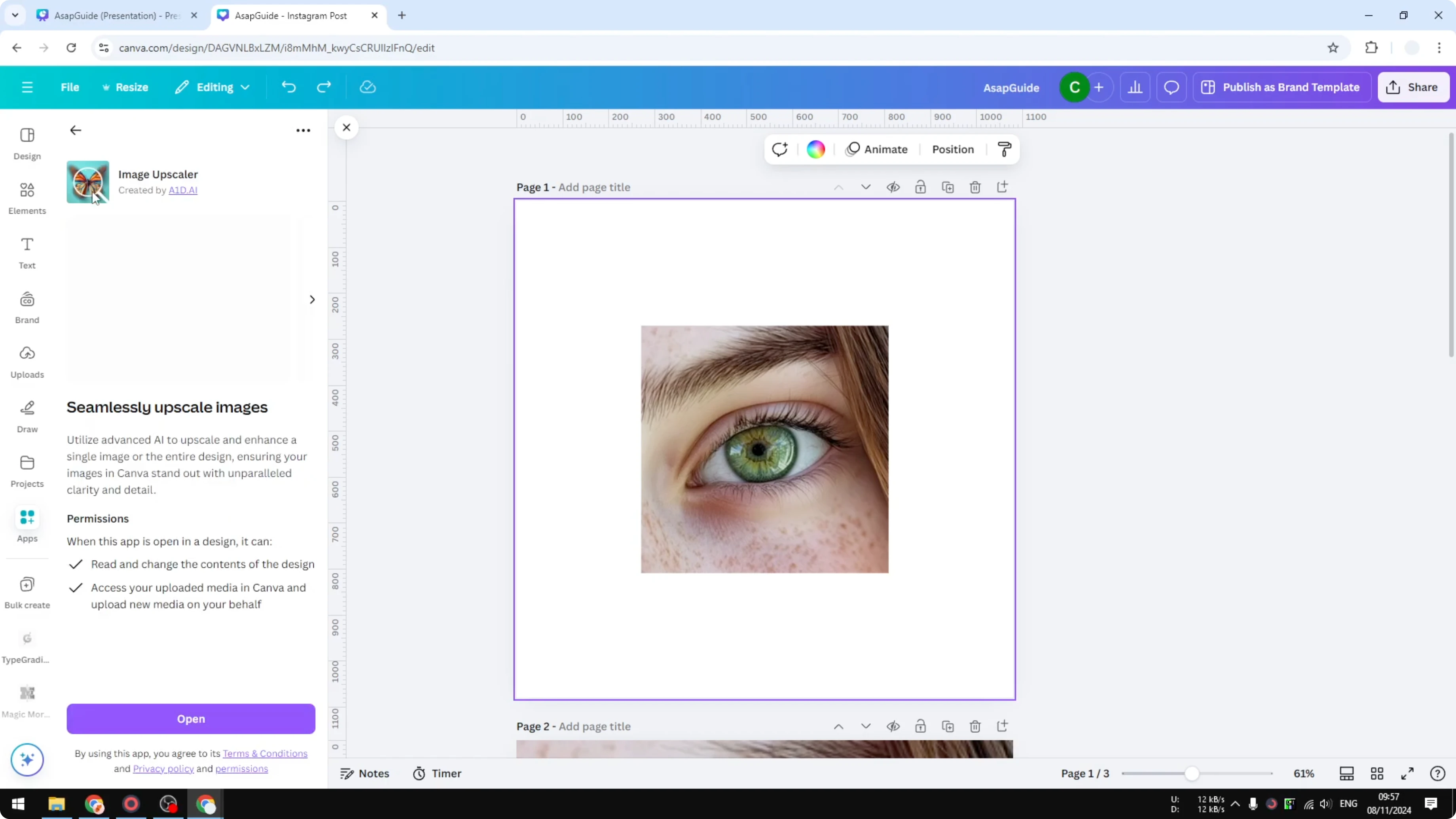
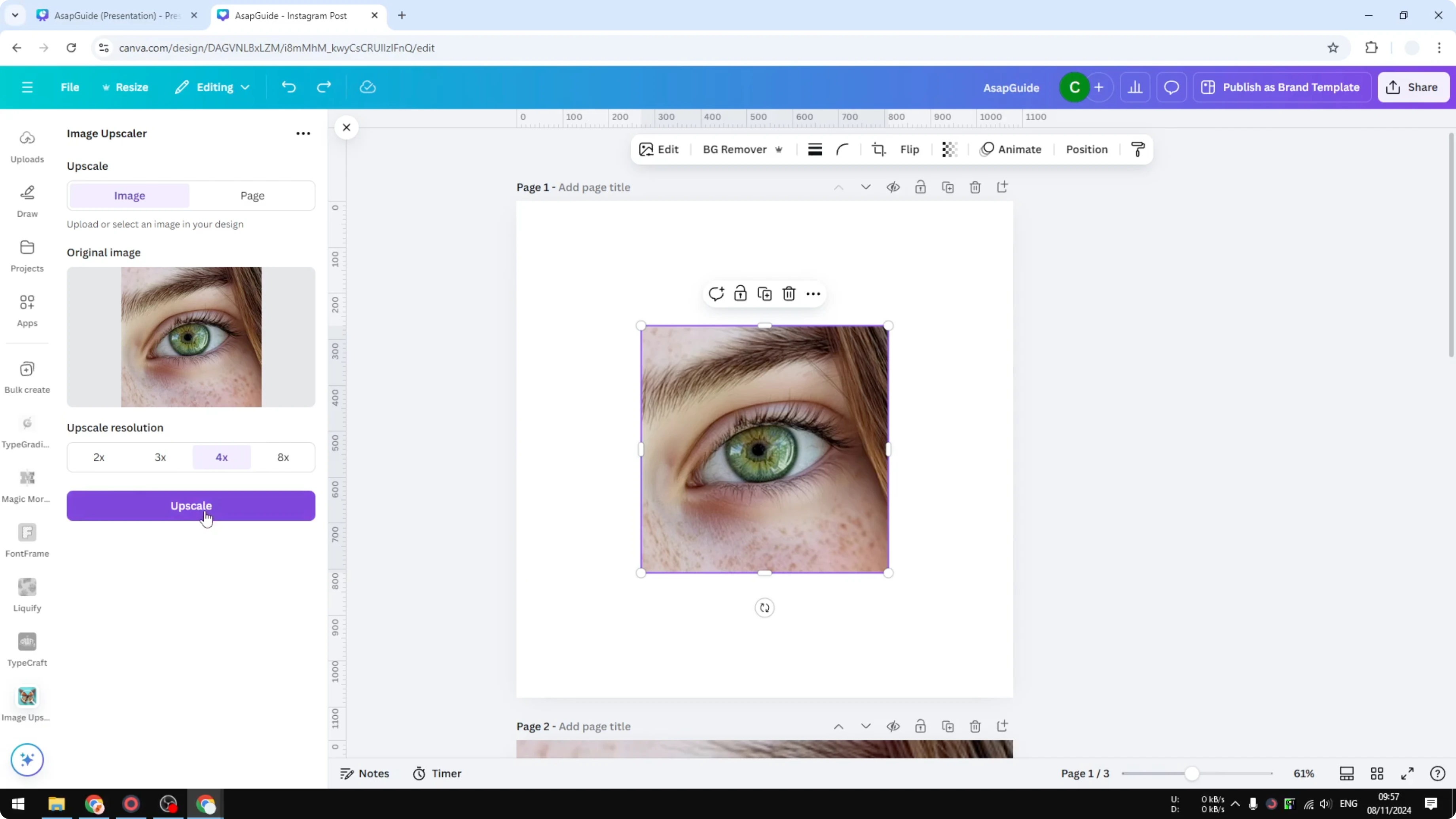
Open Apps in Canva. Search for Image Upscaler - that keyword pulls it up. Pick the Image Upscaler with the butterfly icon, then click Open to allow access.
Pick the image and scale
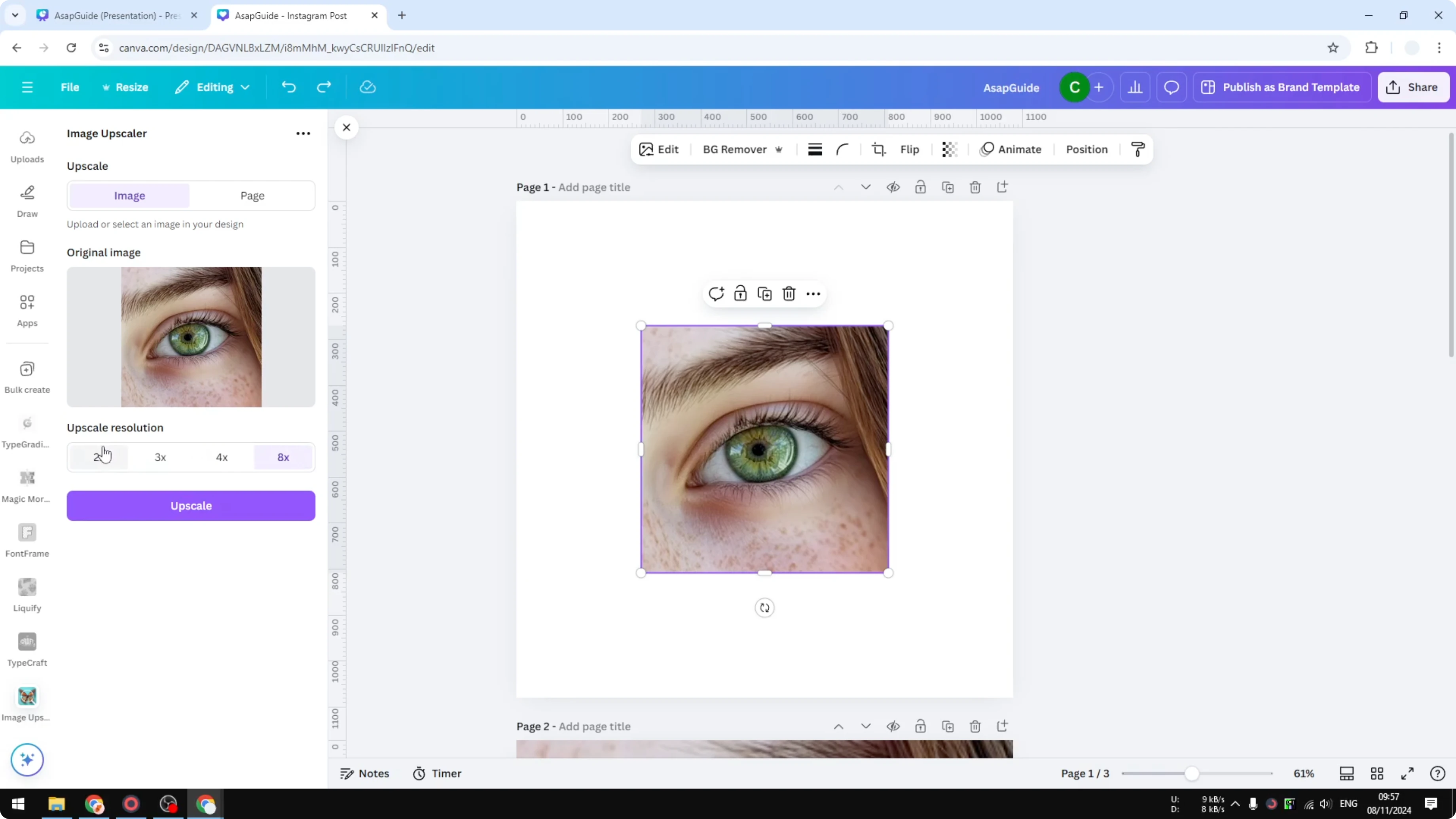
Select the image you want to upscale. Choose a scale between 2x and 8x. I go with 4x - 3x can be enough, but 4x is very sharp.
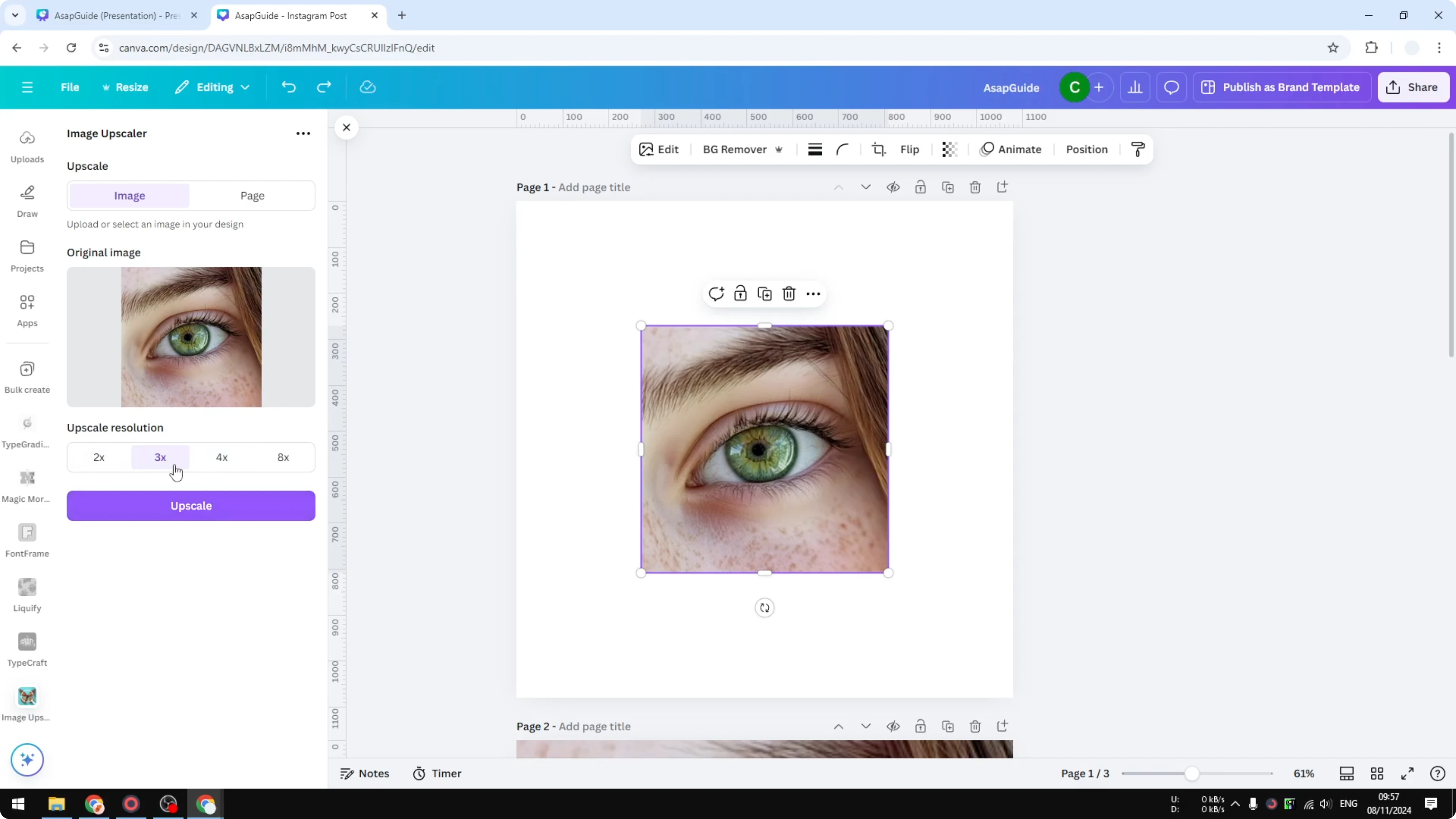
Run and wait
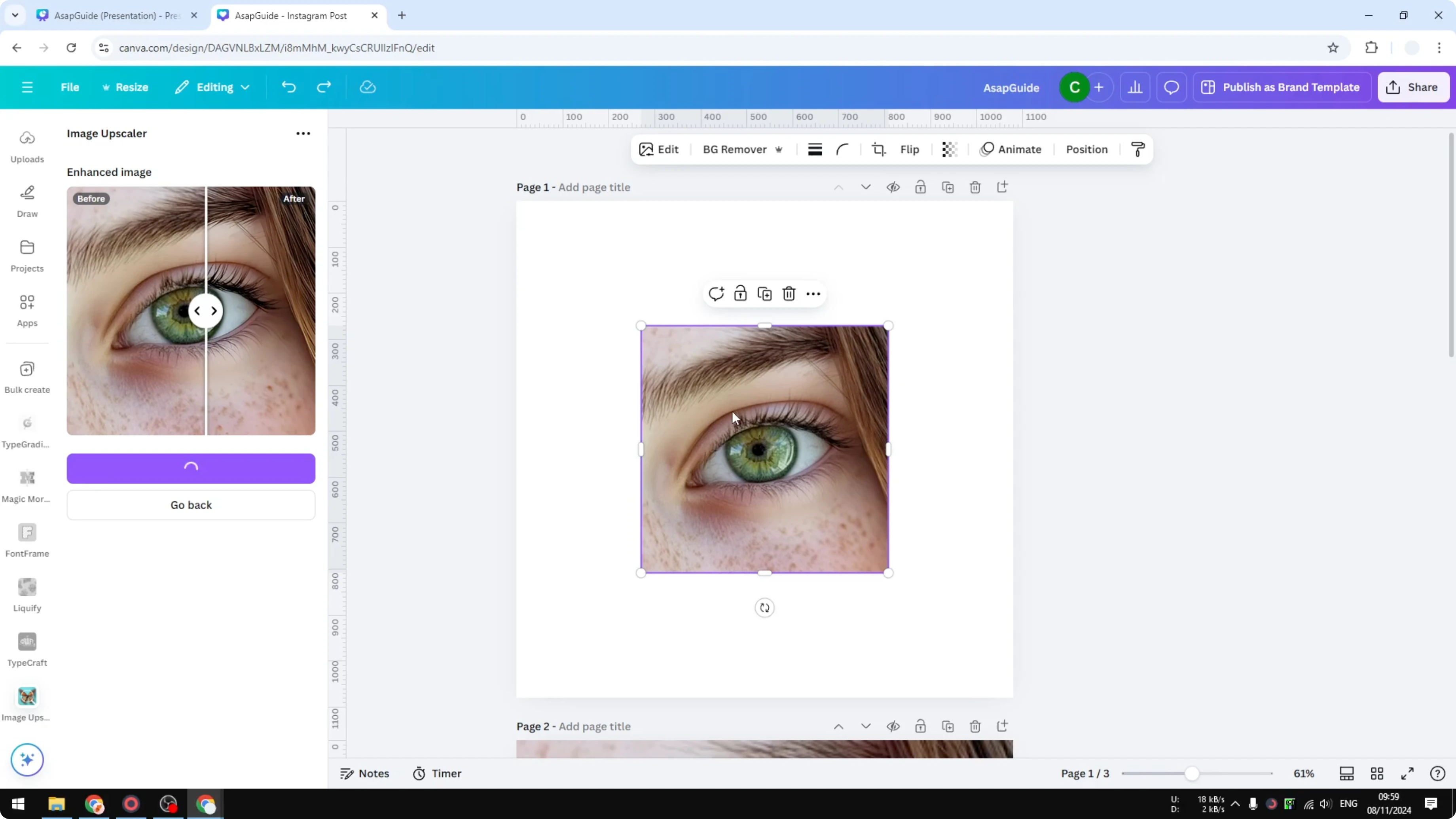
Click Upscale. Wait for the process to finish - about 20 seconds to 1 minute depending on the image size and the output you picked.
If you plan to combine the upscaled result with another photo, check this guide to blend two images with Canva AI.
Replace and resize to Make Canva Images Higher Resolution
Compare and replace
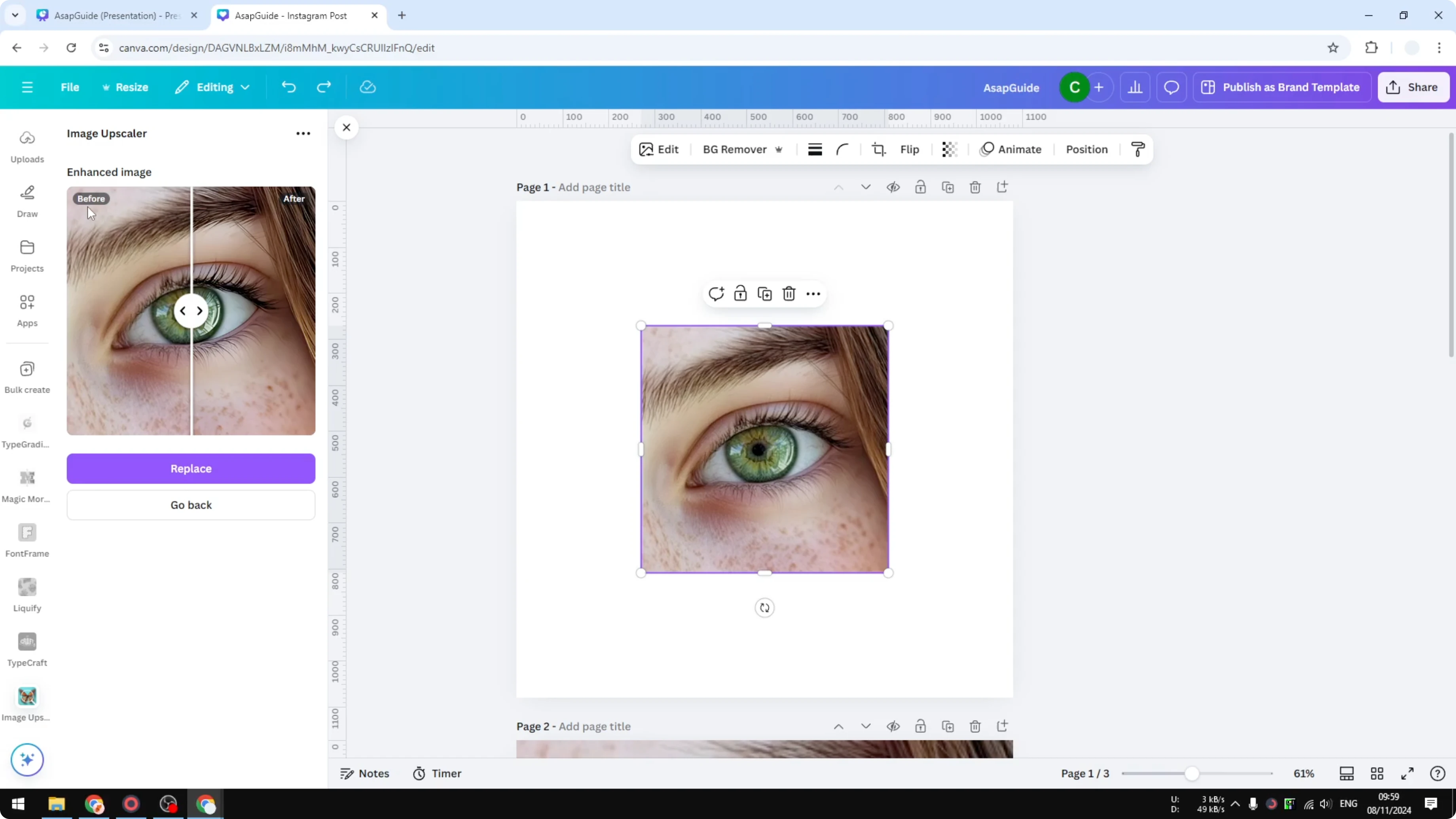
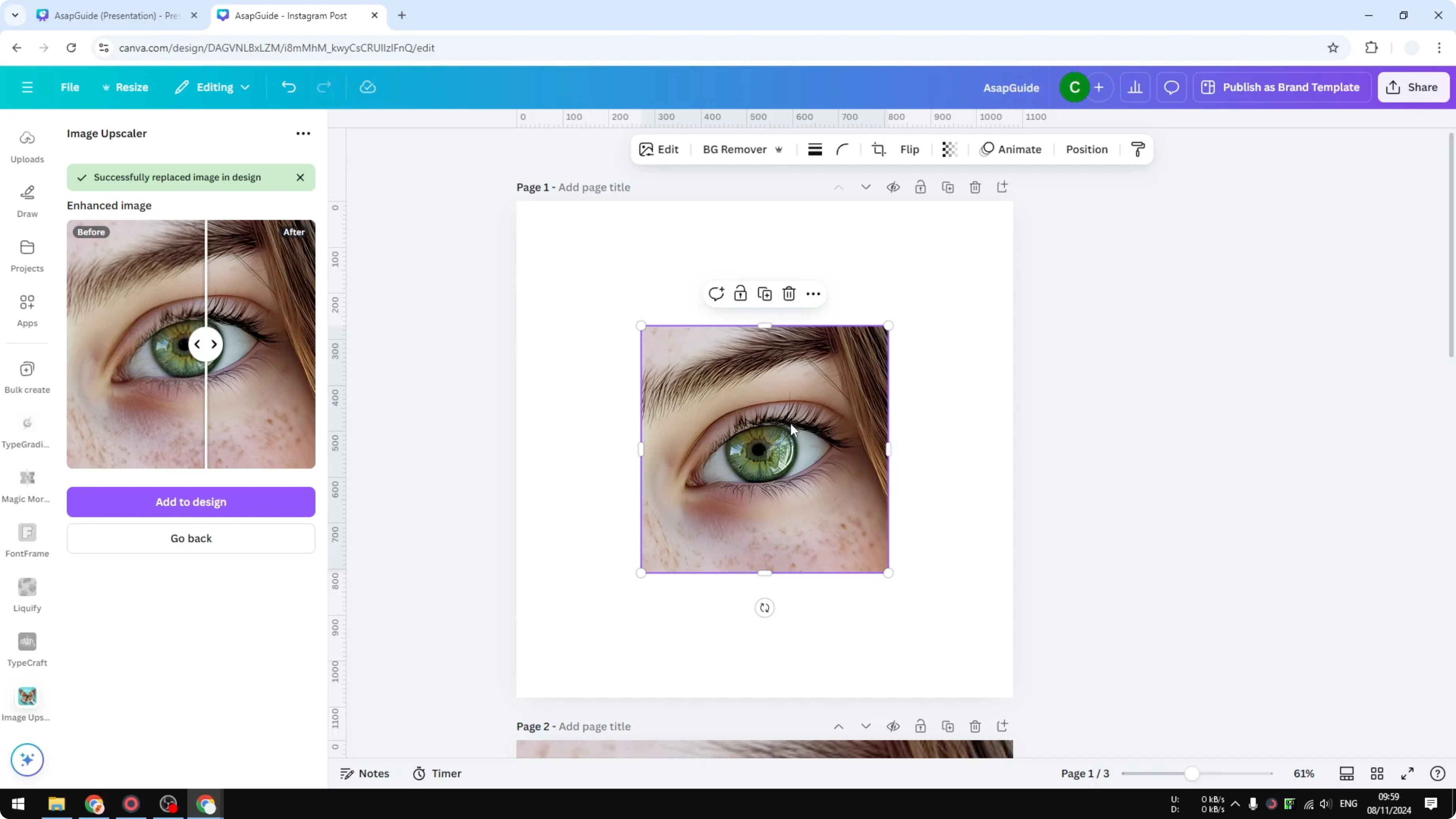
You will see a before and after. The output is way sharper and far less pixelated than the original. If you are happy, click Replace to swap the old image with the bigger one.
Resize without blur
The upscaled file is added to your Media library. Even though it may first appear small on the page, you can resize it freely and it will not go blurry. In my example I used a 4x increase and it stays crisp compared to the original.
To polish product shots after you upscale them, you can add a realistic shadow in Canva.
Final thoughts on Make Canva Images Higher Resolution
Upscaling inside Canva fixes small images that would otherwise look blurry when enlarged. Use Image Upscaler, pick 3x or 4x for a strong boost, and replace the original in your design. You end up with a bigger, sharper image that holds its quality.
Recent Posts

How to Visualize Yourself as a Pixelized Character with AI?
How to Visualize Yourself as a Pixelized Character with AI?

How to Revive Faded Memories and Enhance Image Clarity with AI?
How to Revive Faded Memories and Enhance Image Clarity with AI?

How to Visualize Yourself as an Animal Crossing Character with AI?
How to Visualize Yourself as an Animal Crossing Character with AI?