How to Use Magic Expand in Canva
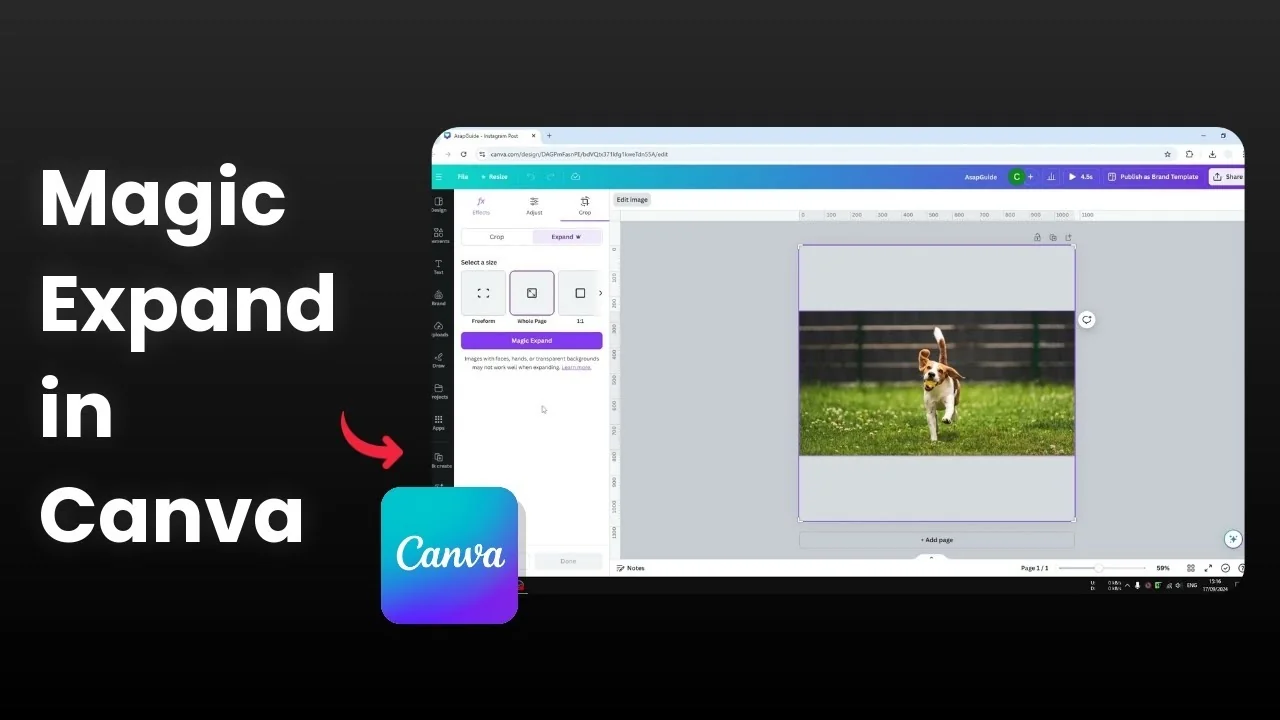
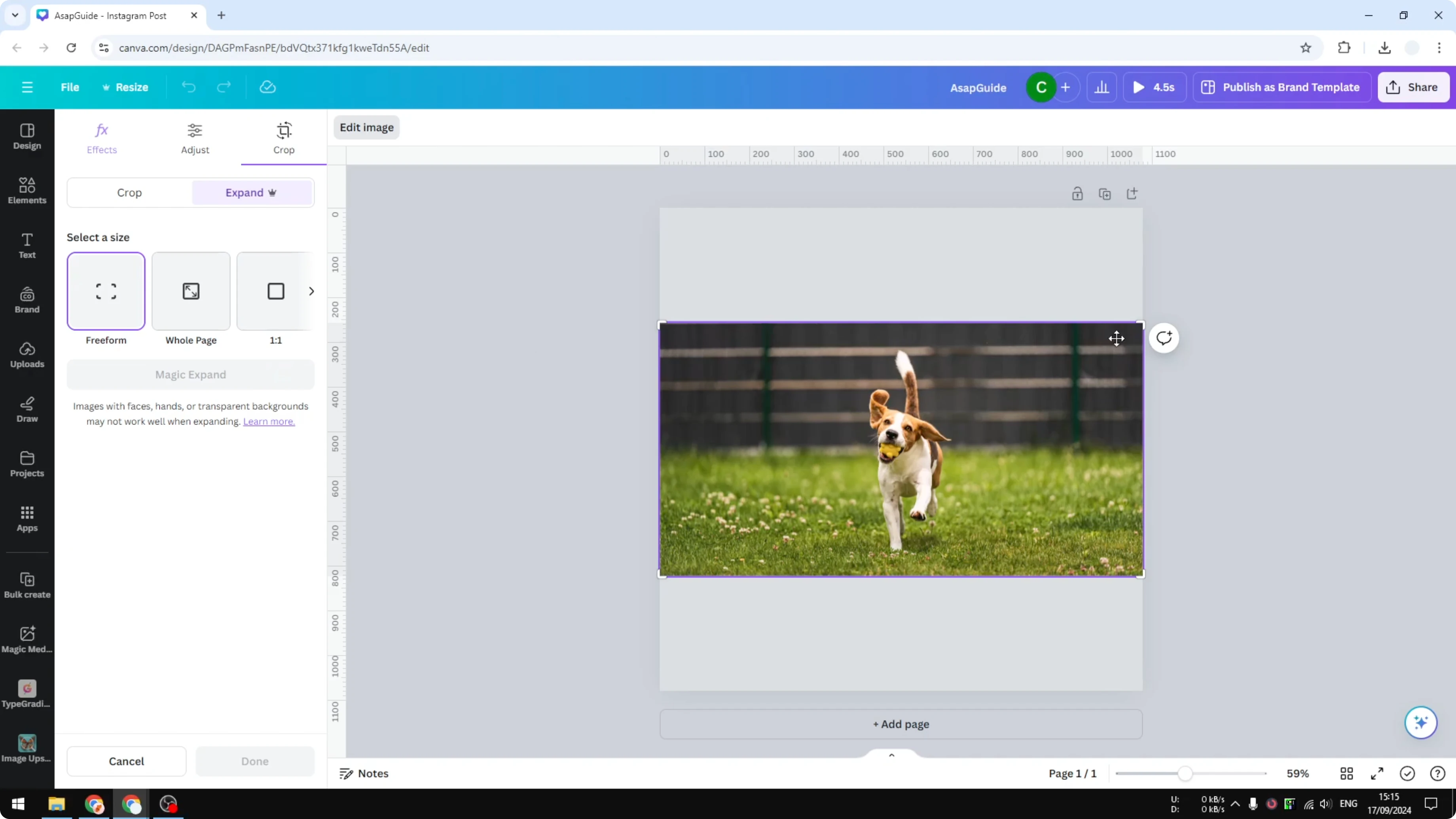
I will show you how you can use Magic Expand in Canva. As the name suggests, it uses AI to expand your image. I have an image that is horizontal while my canvas is square, so the top and bottom are empty.
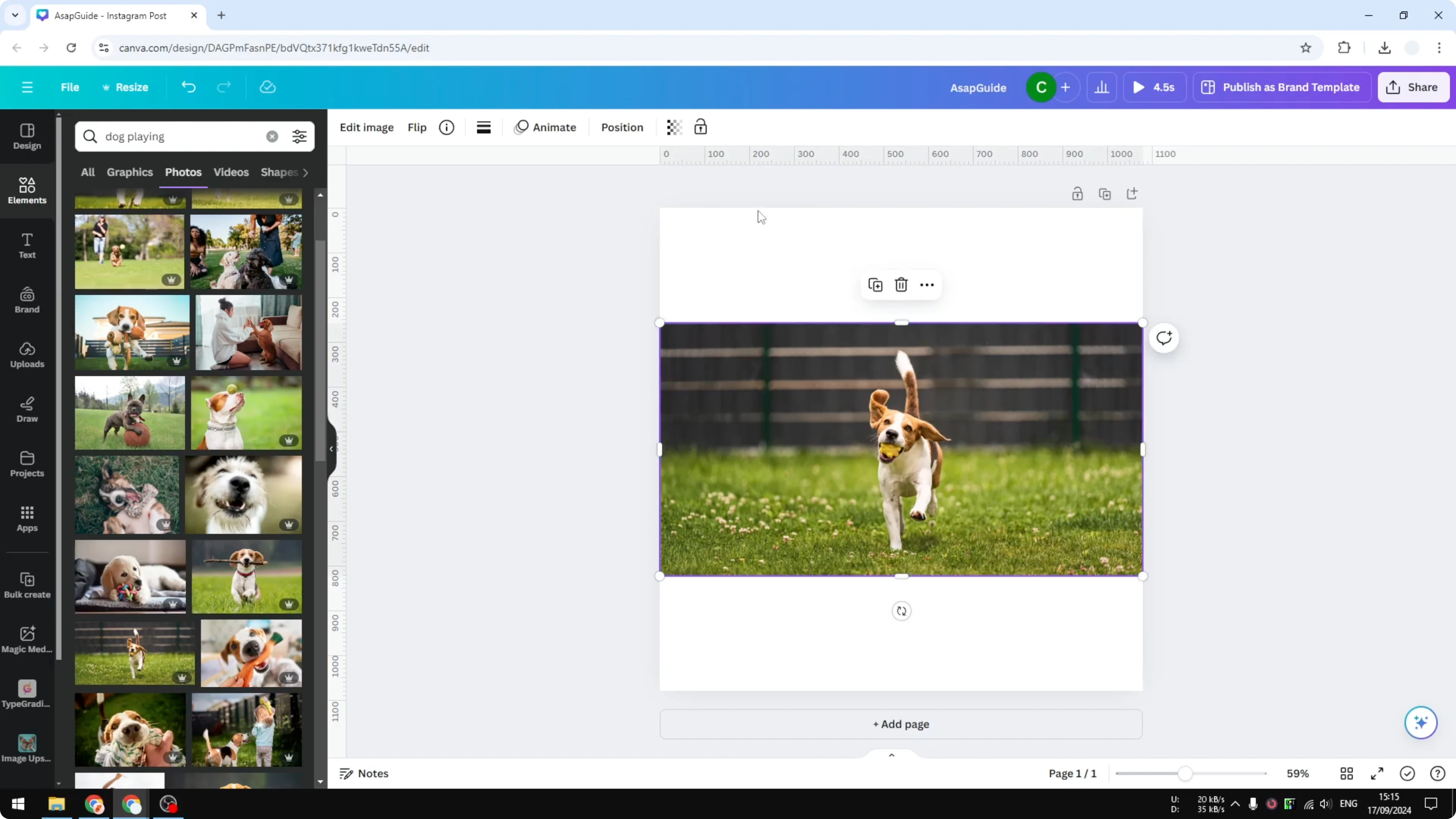
To confirm the image content, double click on it and you will see that this is the only content the image has. If you want to clean up small distractions before expanding, try the Magic Eraser in Canva. It helps the expansion look more coherent.
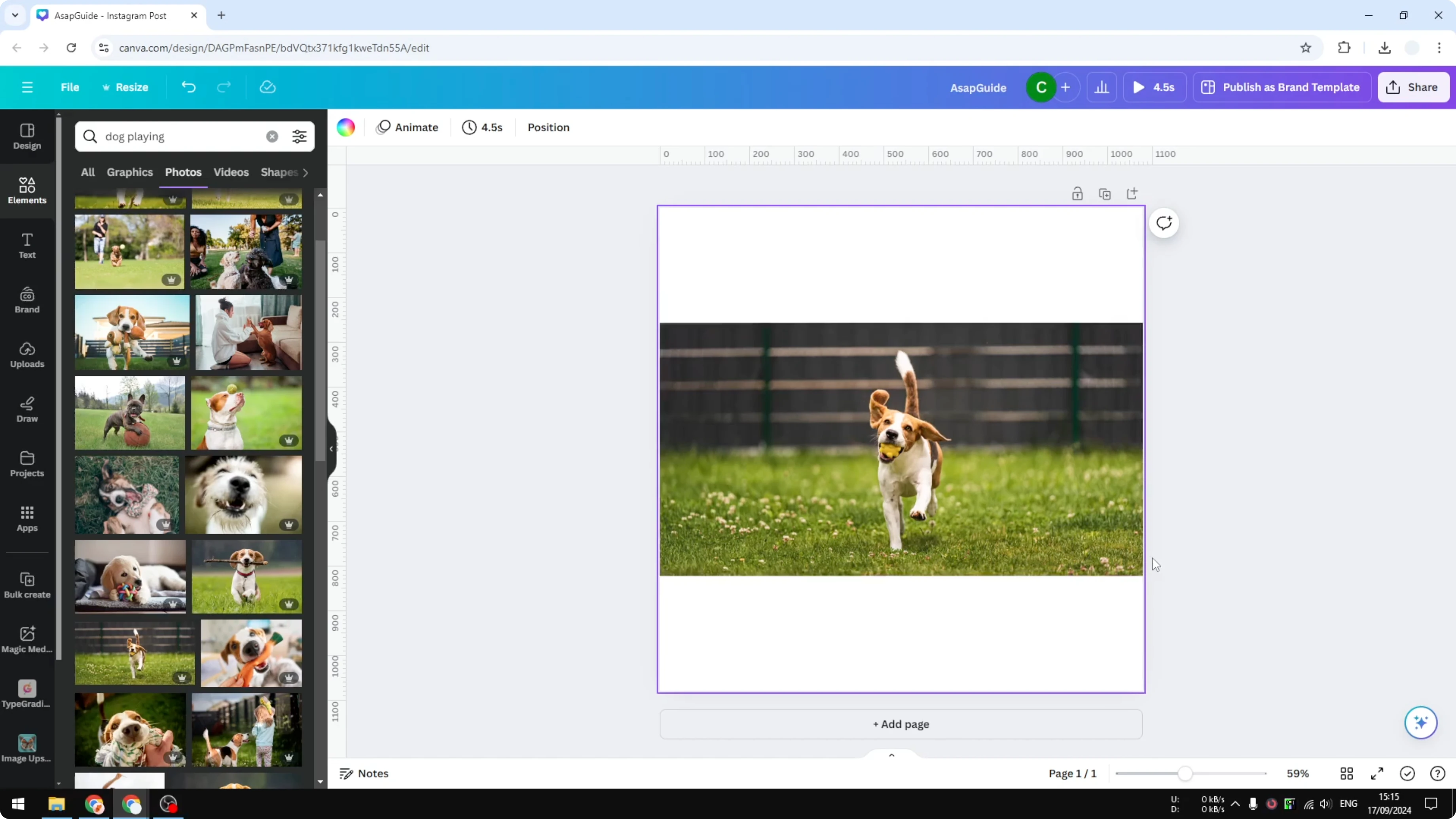
Use Magic Expand in Canva: setup
I want to make the image square or fill the whole page. Whole page is the best option if you want the image to cover the canvas. One to one is a square if you prefer a fixed ratio.
Use Magic Expand in Canva: steps
Click the image.
Click Edit image.
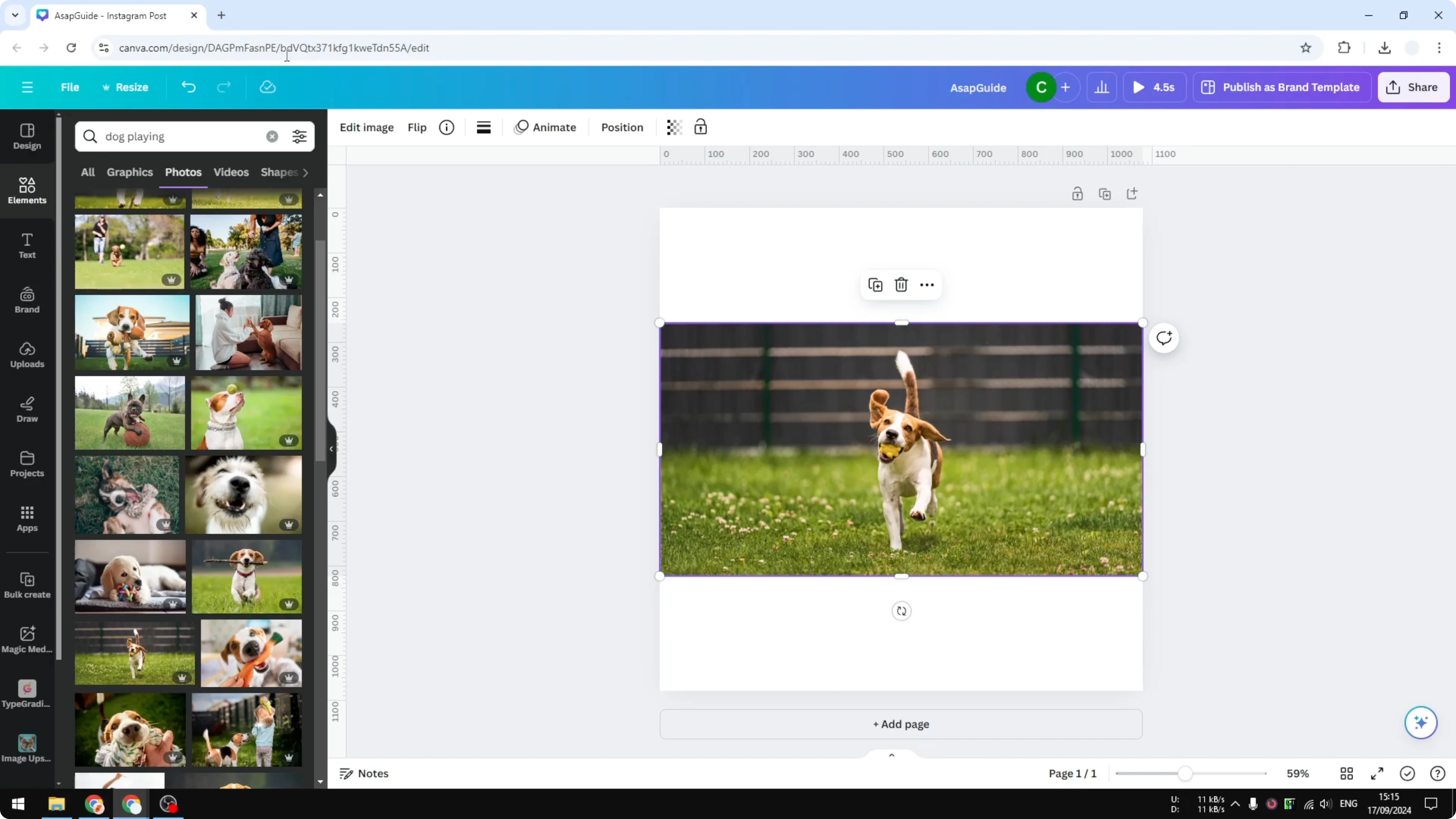
Click Magic Expand.
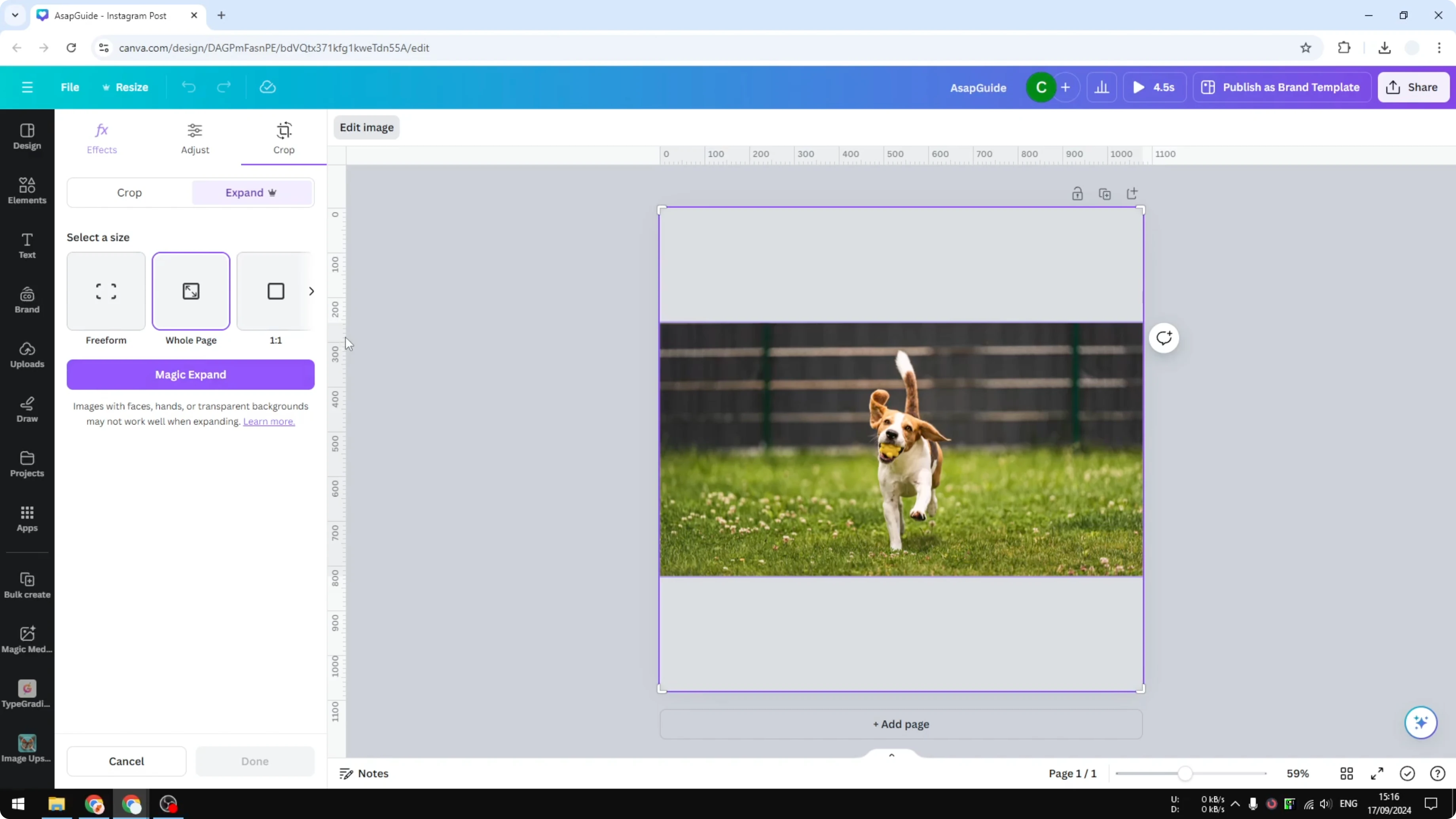
Choose the final dimension you want, for example Whole page or One to one.
Click Magic Expand again to generate results.
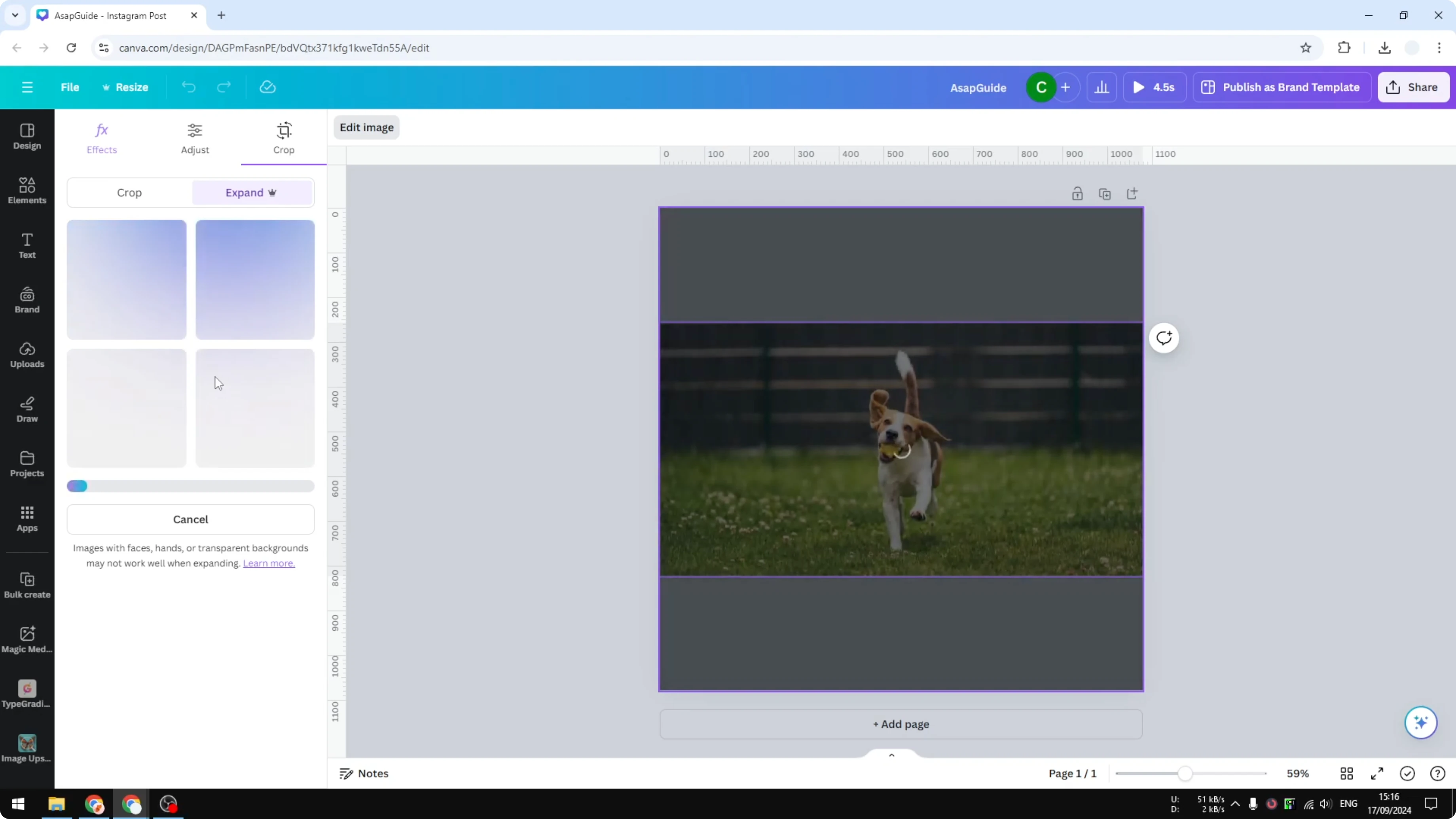
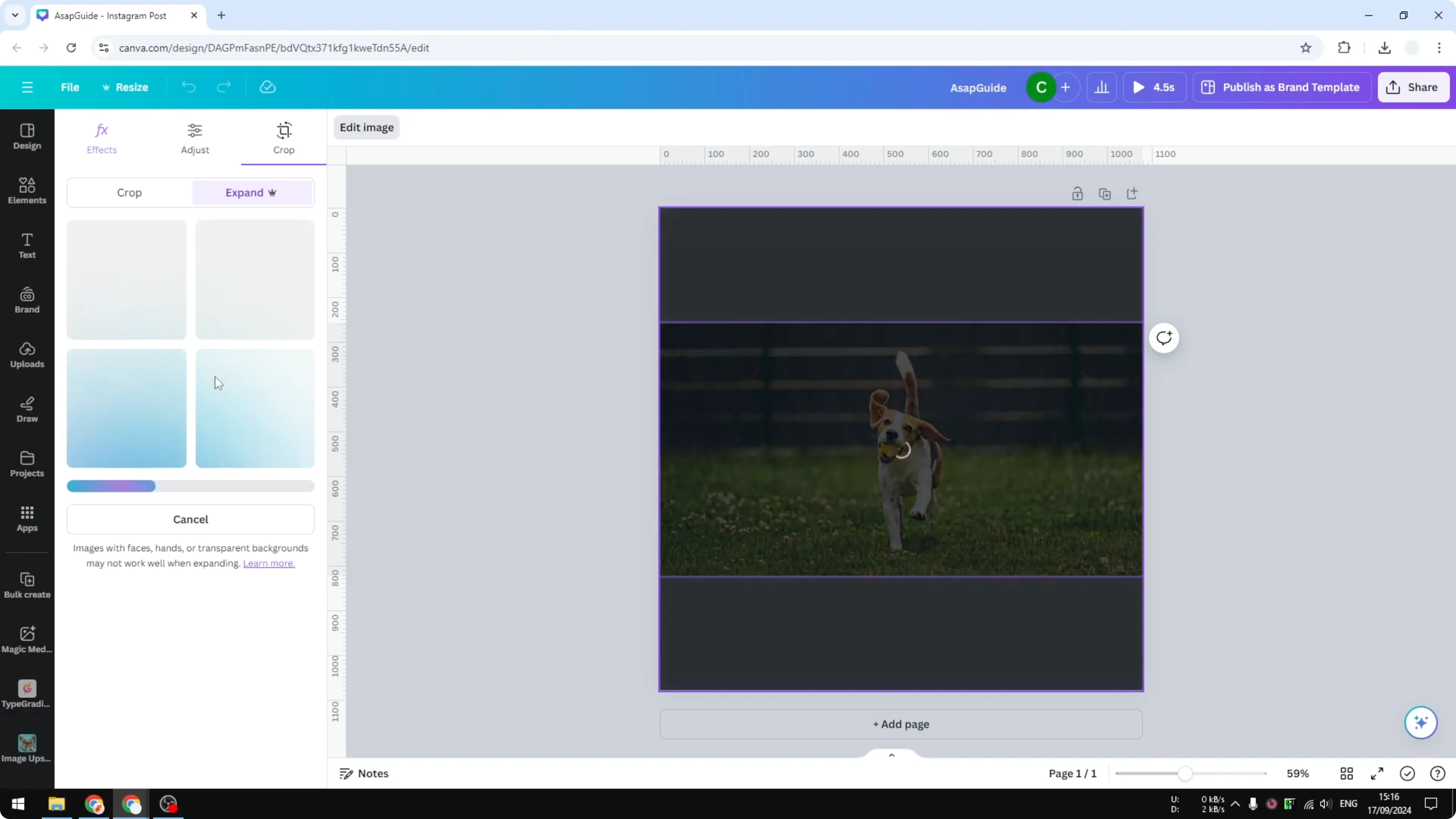
Wait for the AI to create the missing areas of the picture.
Use Magic Expand in Canva: results and tips
The process can take some time. Sometimes the result is not favorable depending on the original image. Faces or human limbs like fingers can be challenging.
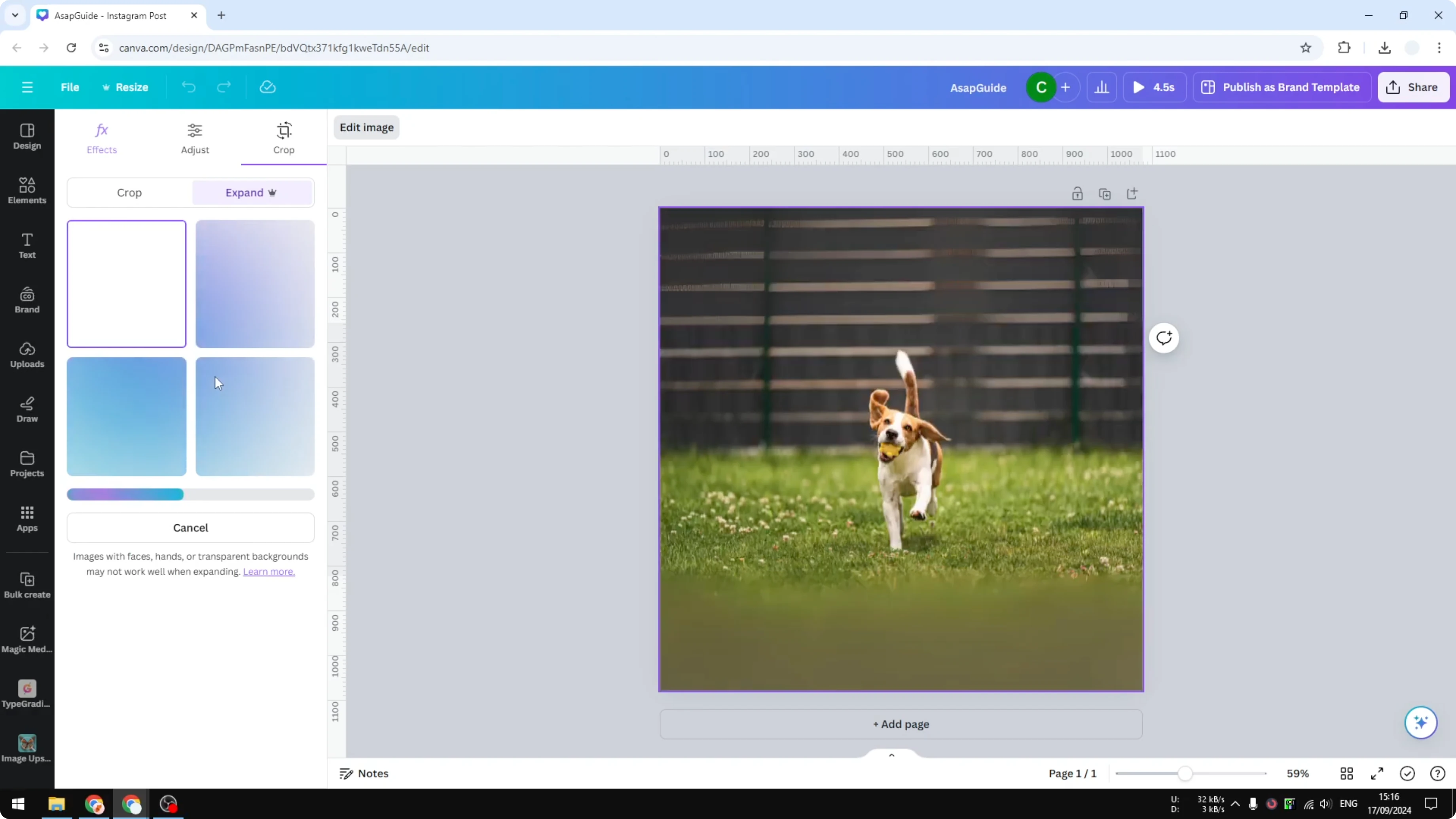
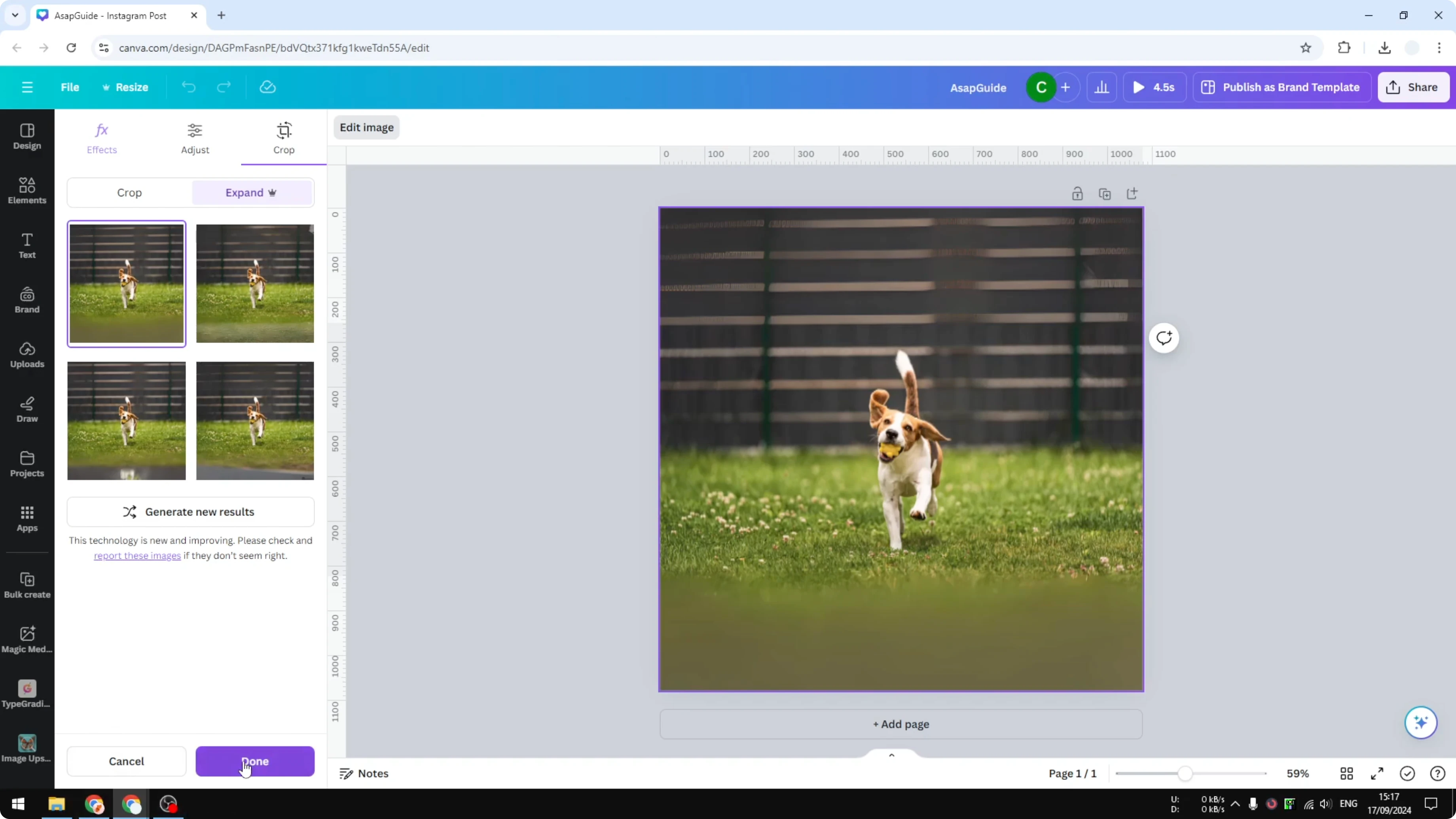
Magic Expand will create four different options, and you can choose the one you think is the best. In many cases all options look quite good. This depends on the quality of the original image and the AI.
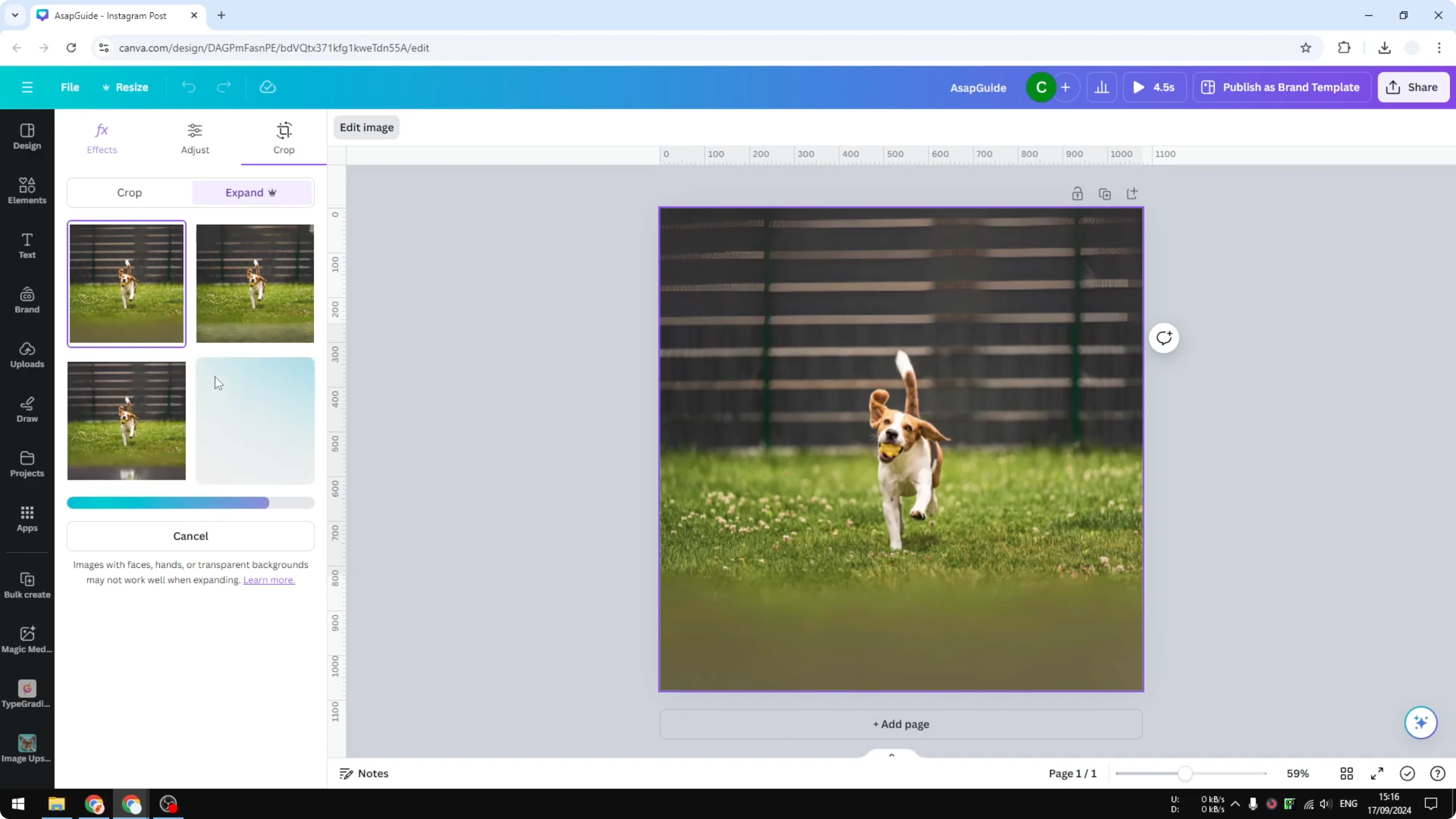
I do not know what AI is being used by Canva. For most cases this is going to be enough. If you work on slides or a whiteboard and need more room, see how to expand slides or whiteboards.
Final thoughts
That is basically how you can use Magic Expand in Canva to fill a square canvas or a full page from a smaller image. It is fast to try and you get multiple options to compare. If you plan to place expanded images in a video project, you can organize them with the Canva video timeline for better control over timing.
Recent Posts
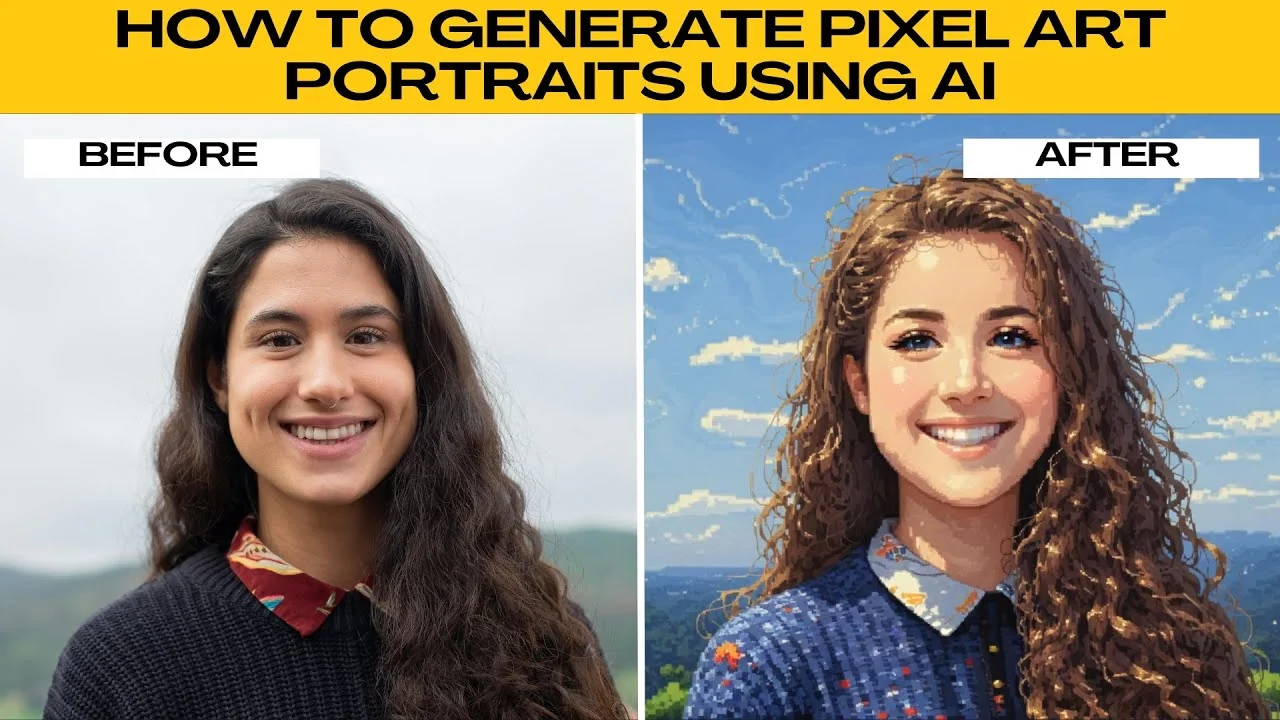
How to Visualize Yourself as a Pixelized Character with AI?
How to Visualize Yourself as a Pixelized Character with AI?
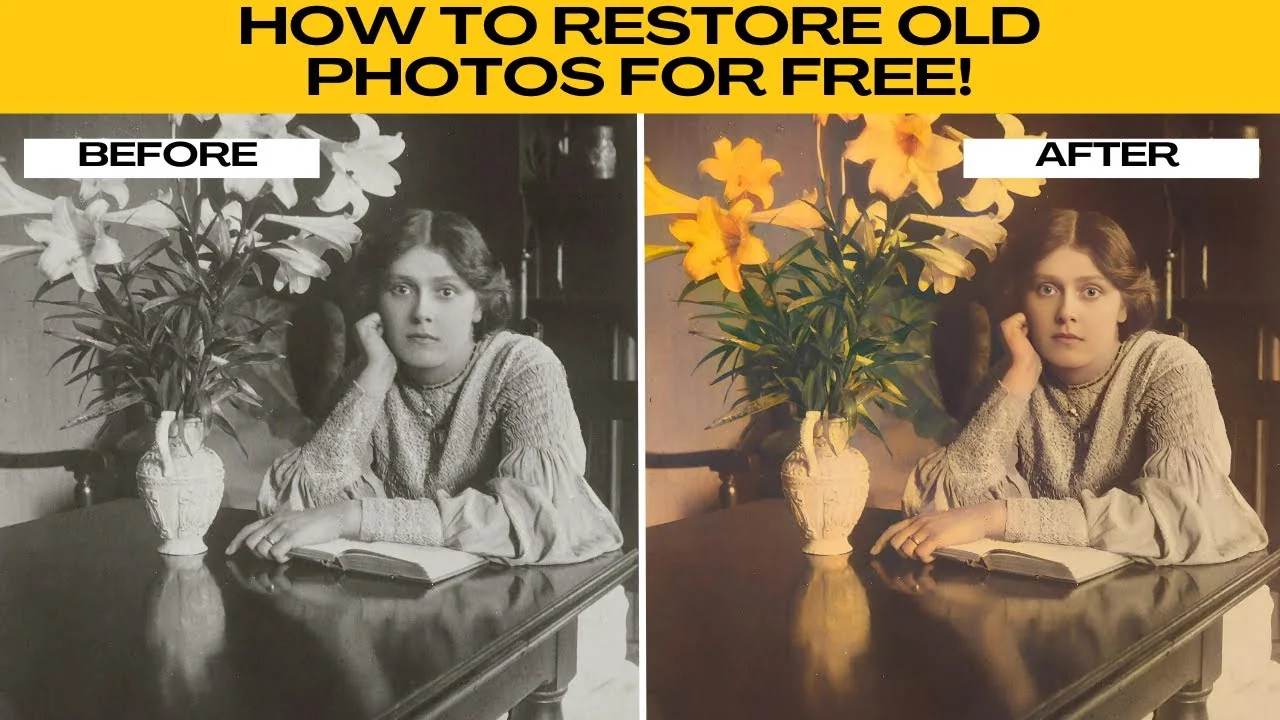
How to Revive Faded Memories and Enhance Image Clarity with AI?
How to Revive Faded Memories and Enhance Image Clarity with AI?
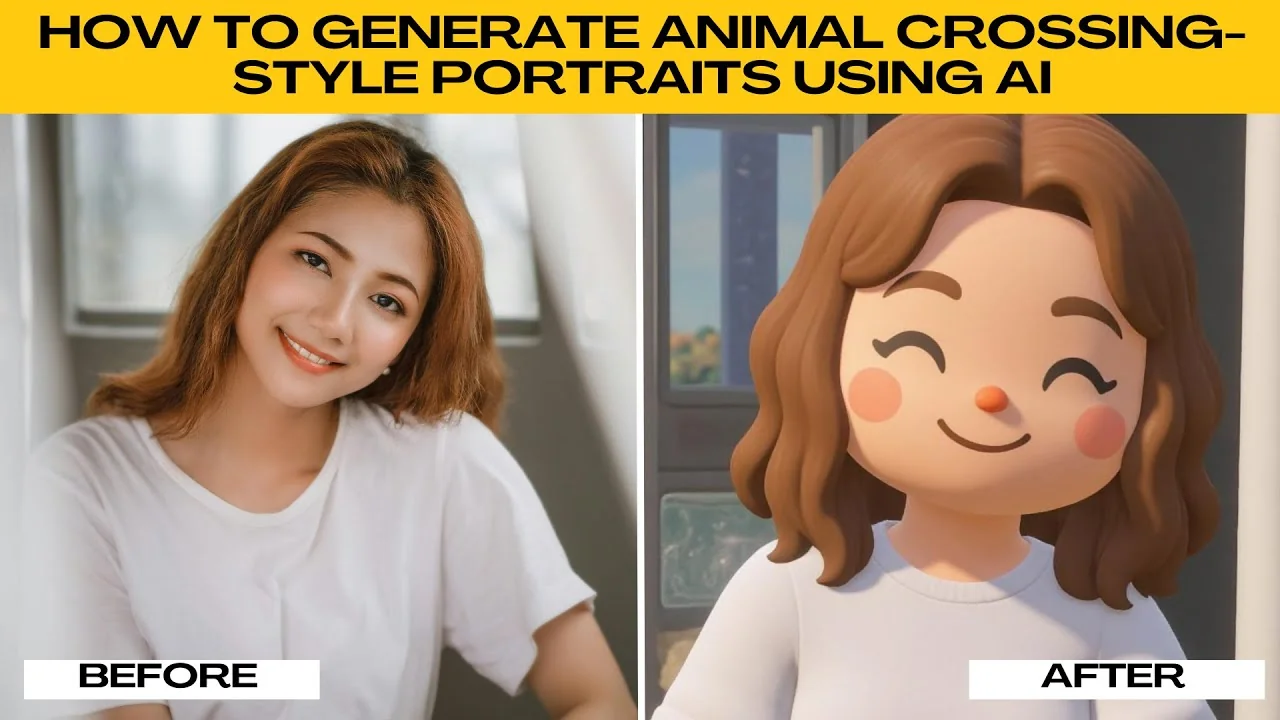
How to Visualize Yourself as an Animal Crossing Character with AI?
How to Visualize Yourself as an Animal Crossing Character with AI?