How to Loop a Video in Canva

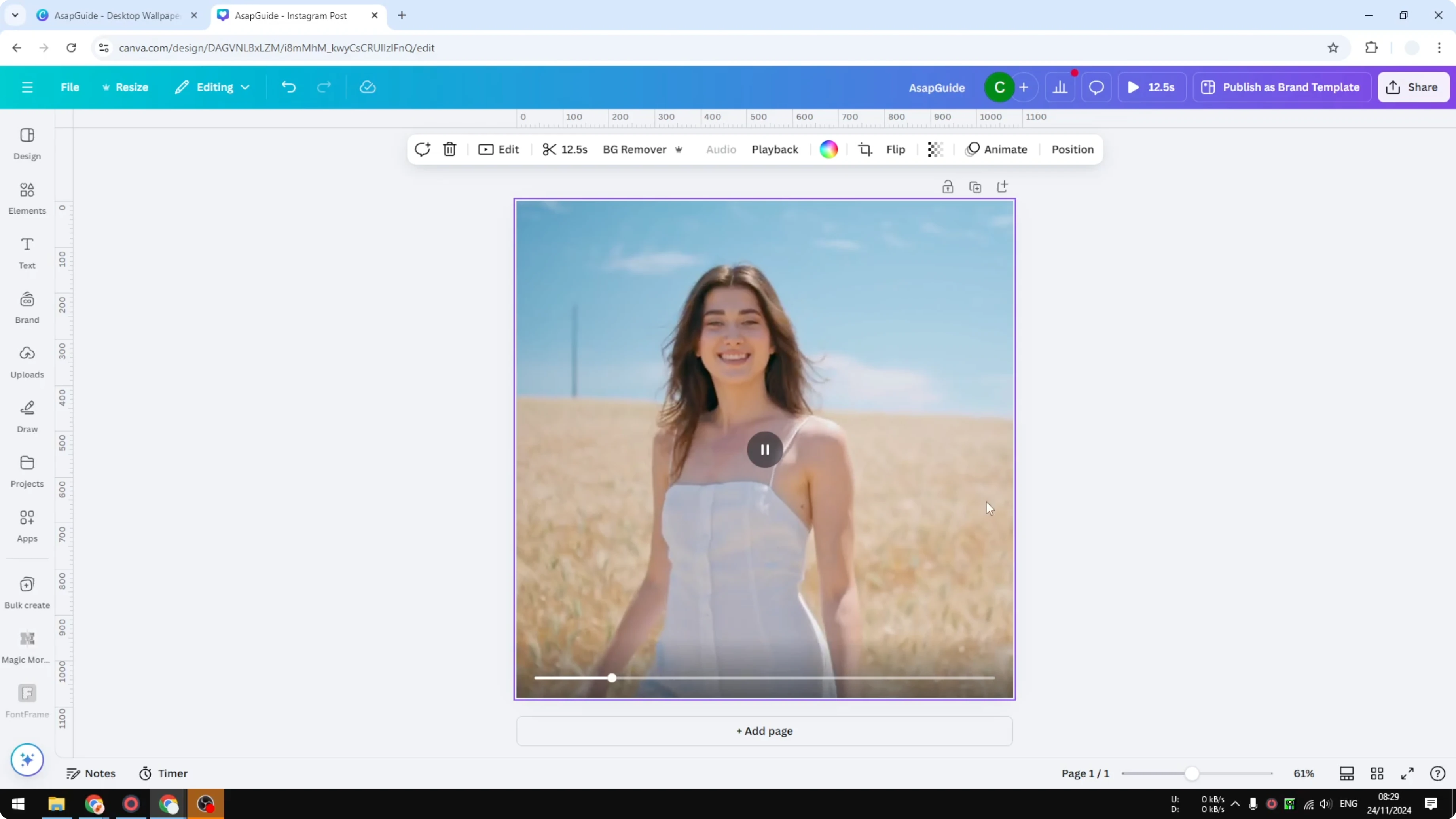
I have a video of a woman working in a field. The clip stops at 12.5 seconds, but I want it looping so it starts from the beginning again. Here is how I do it in Canva.
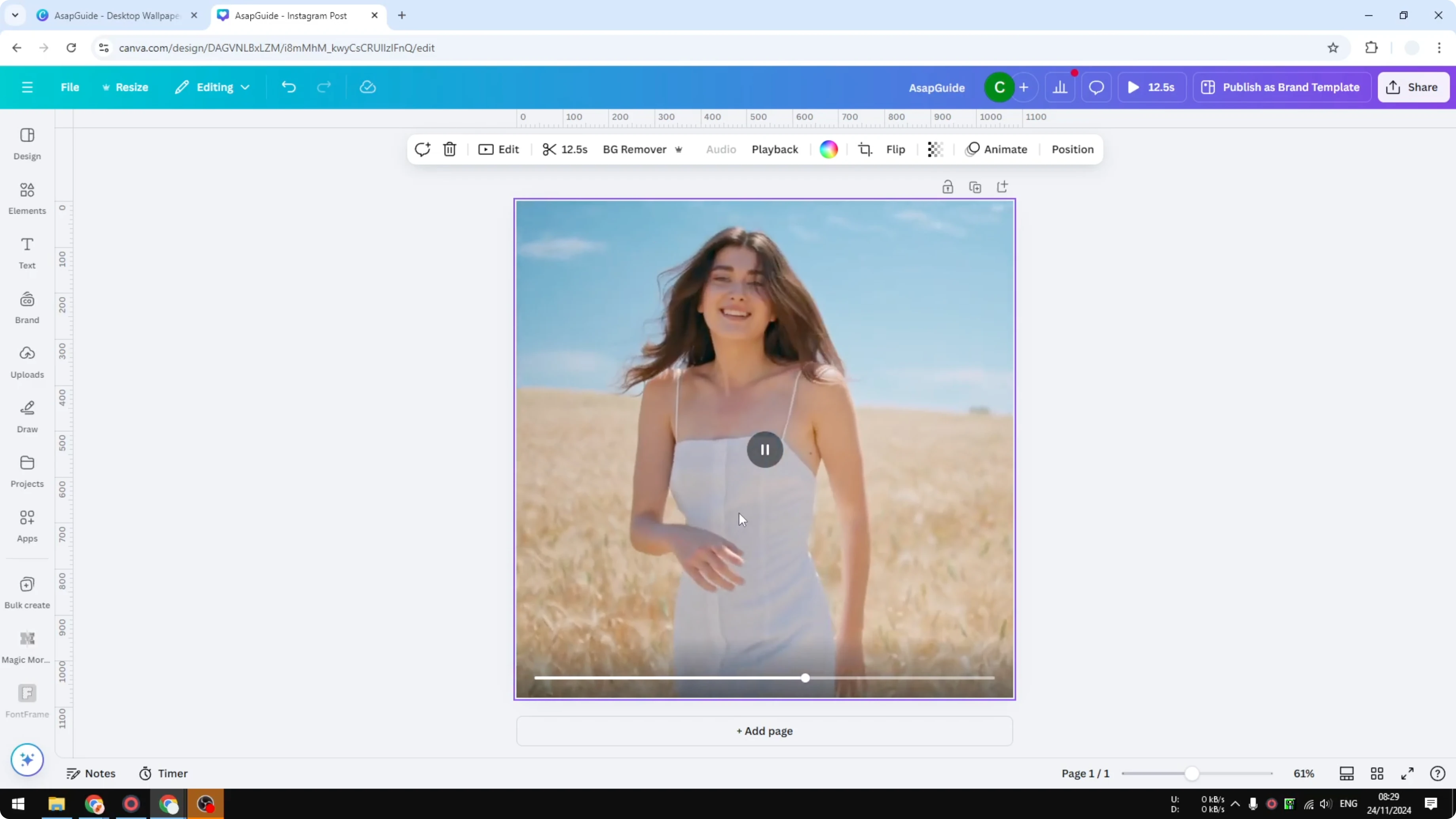
If you also need to clean up on-screen text, see remove text.
Loop a Video in Canva: steps
Select the video on your canvas.
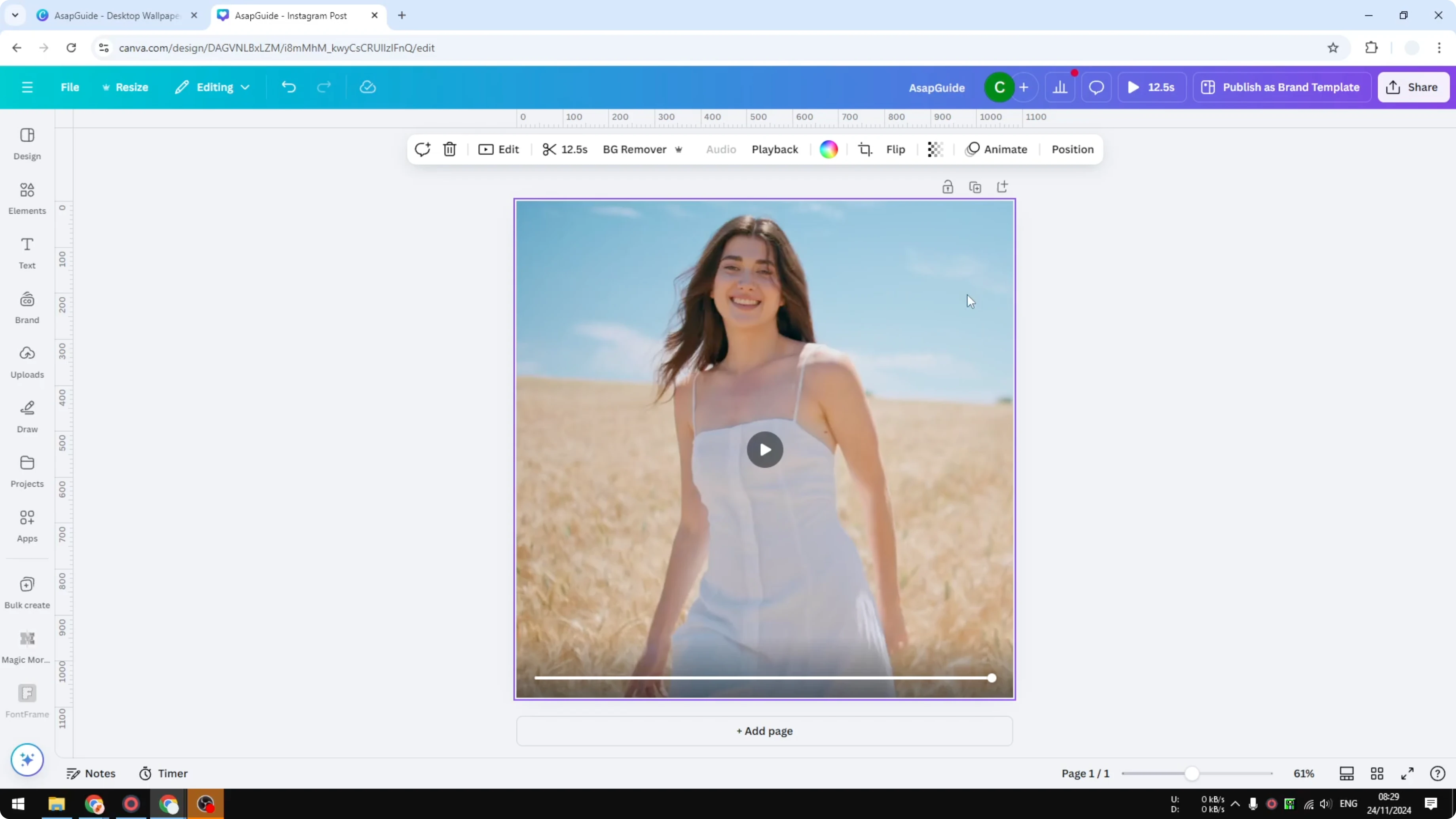
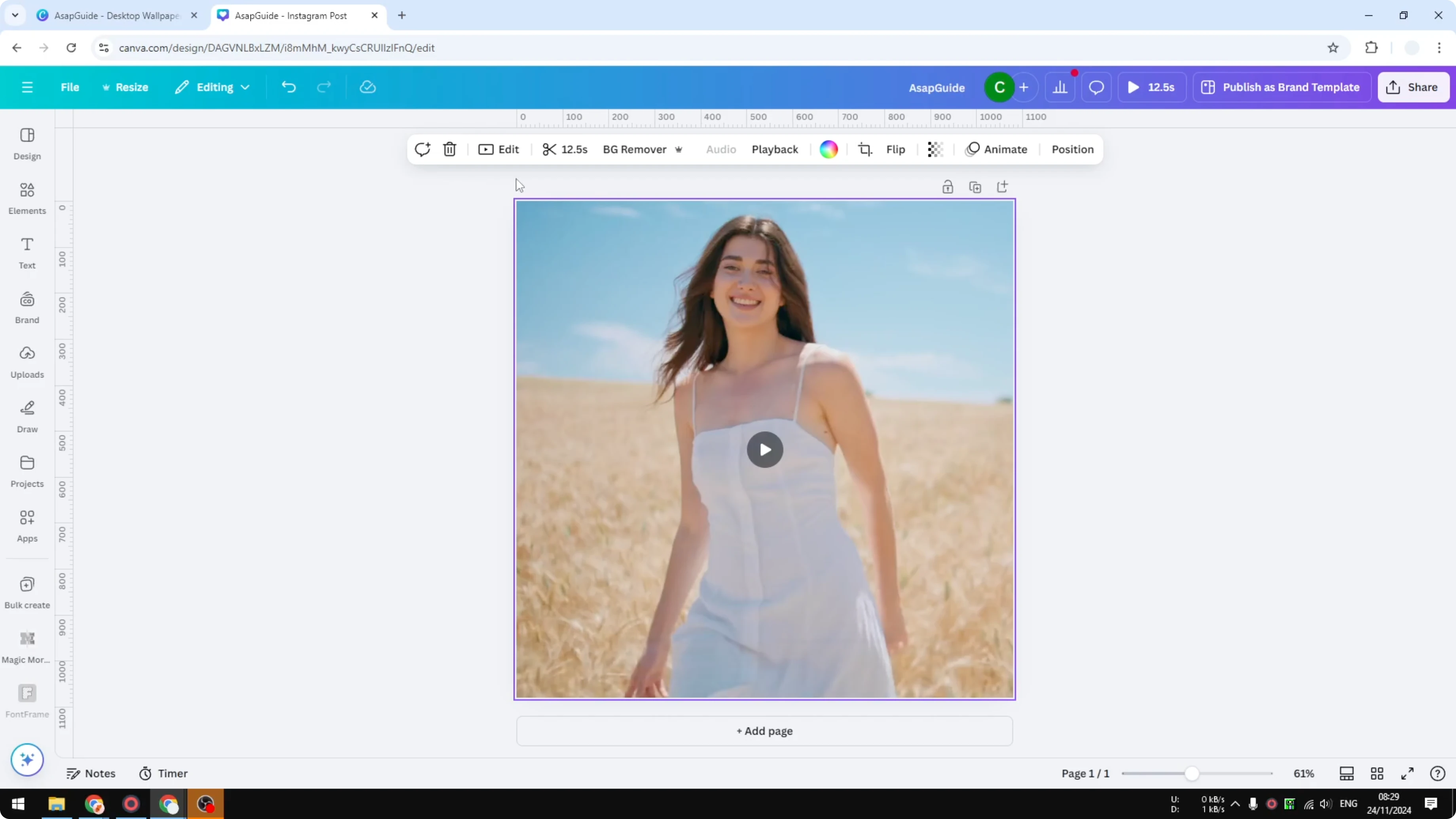
Open the top menu and go to Playback.
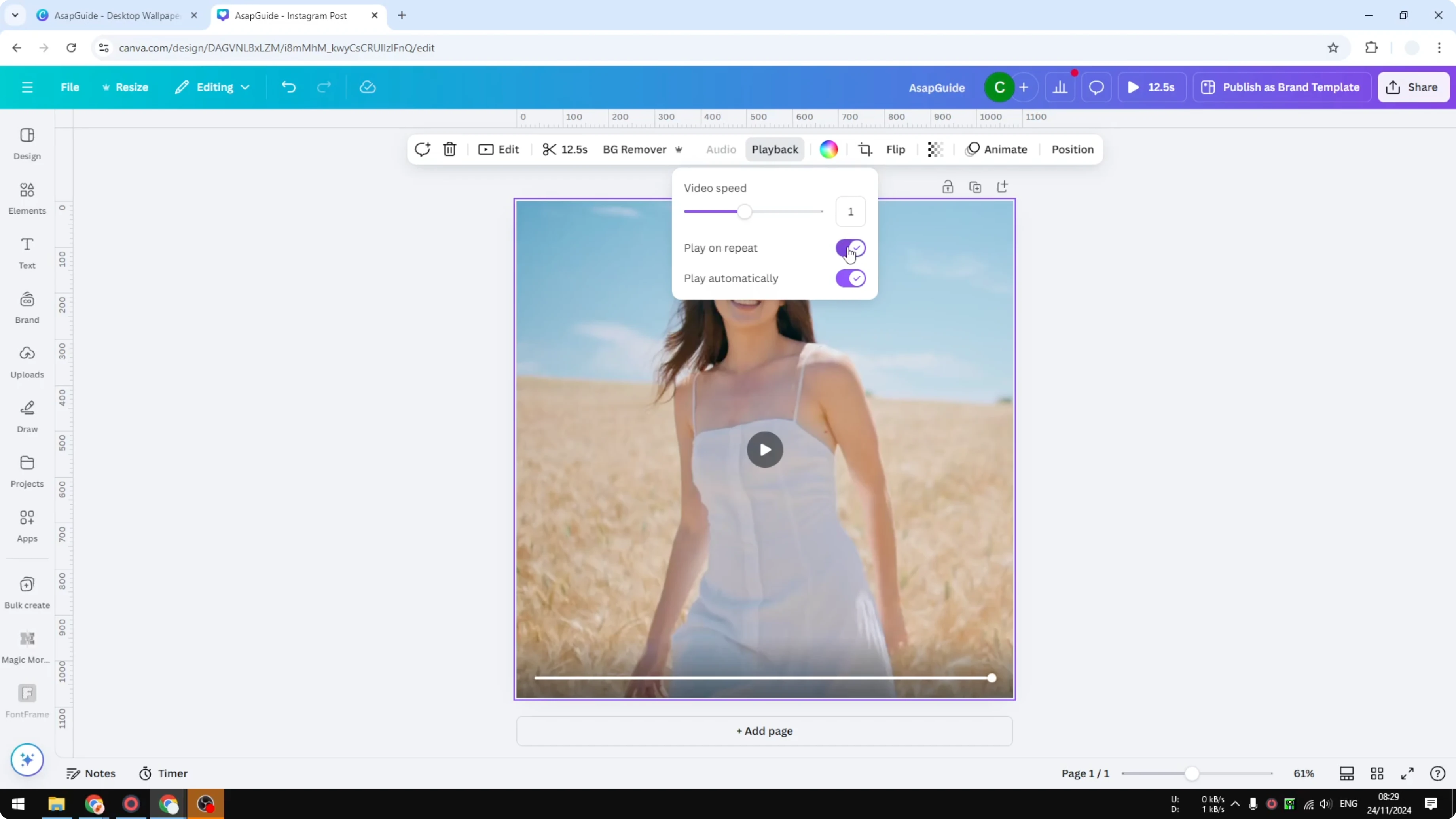
Enable Play on repeat.
Press Play to preview. It will go back to the beginning at the end and keep doing it forever. It is not going to stop.
To polish the loop or connect clips, add a video transition.
Loop a Video in Canva: presenting
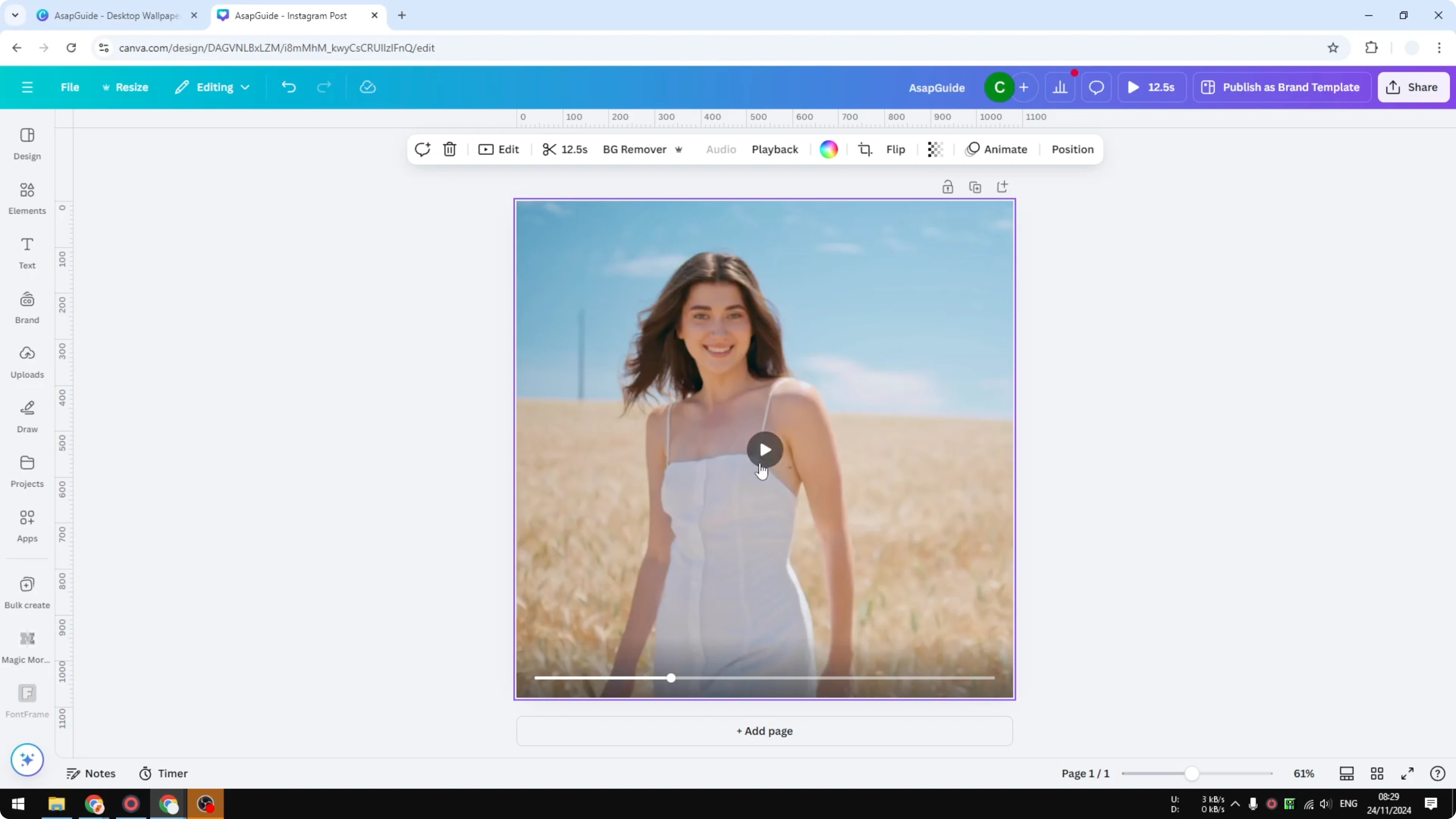
This effect is applied when you are presenting the document. If you present it as a presentation and play the video, it will keep looping.
Loop a Video in Canva: shared links
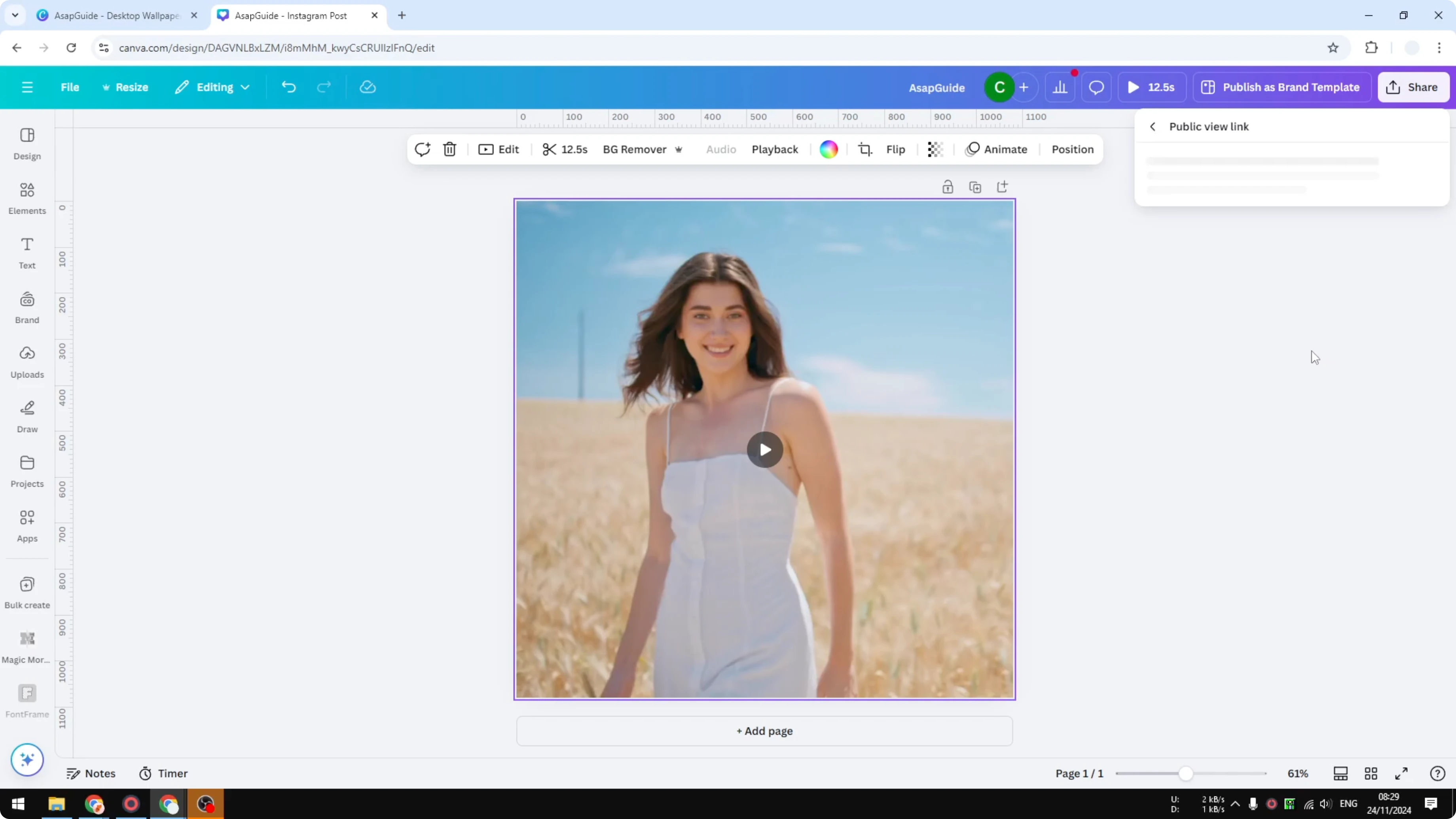
The same cannot be said when you share a public view link. In a public link, the video plays normally and the user has to control it. They have to click Play, and they will not see the video looping.
If you want to stack graphics or effects on top of your clip, use a video overlay.
Final thoughts
You can make the video looping for editing and when presenting the document. Public view links will not auto loop, and viewers must control playback. That is how to loop a video in Canva.
Recent Posts

How to Visualize Yourself as a Pixelized Character with AI?
How to Visualize Yourself as a Pixelized Character with AI?

How to Revive Faded Memories and Enhance Image Clarity with AI?
How to Revive Faded Memories and Enhance Image Clarity with AI?

How to Visualize Yourself as an Animal Crossing Character with AI?
How to Visualize Yourself as an Animal Crossing Character with AI?