How to Loop Canva Presentation
I’m going to show you how to create a looping effect in your Canva presentation. When the document reaches the end of the slides, it goes back to the very first slide and starts all over again. This is useful when you want to display something before your real presentation or keep content visible for your audience.
You can loop videos or photos and let the deck run by itself. For a custom look before you present, you can add a background to the deck.
Set up Loop Canva Presentation

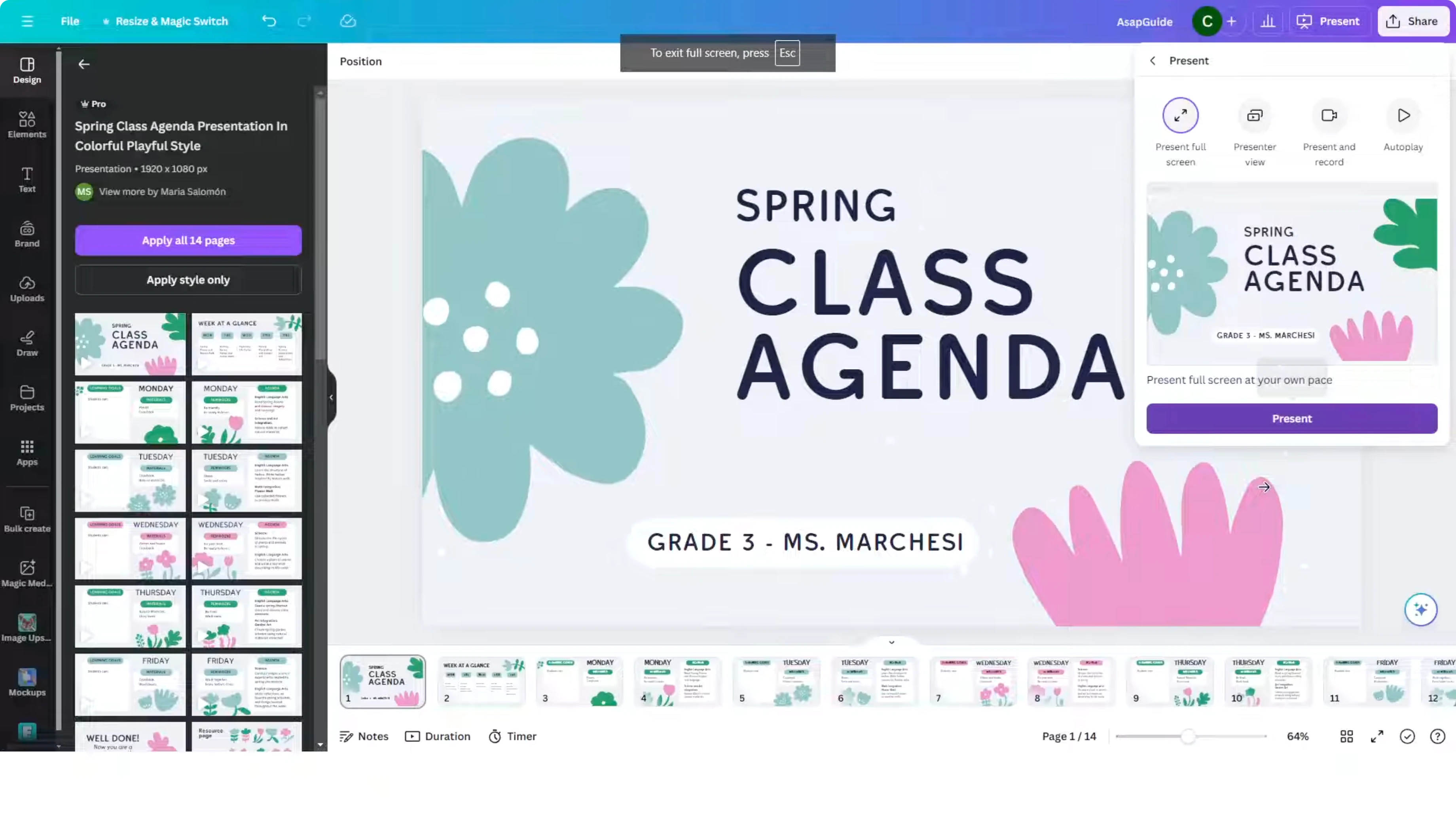
Go to the Present menu and start the presentation normally.
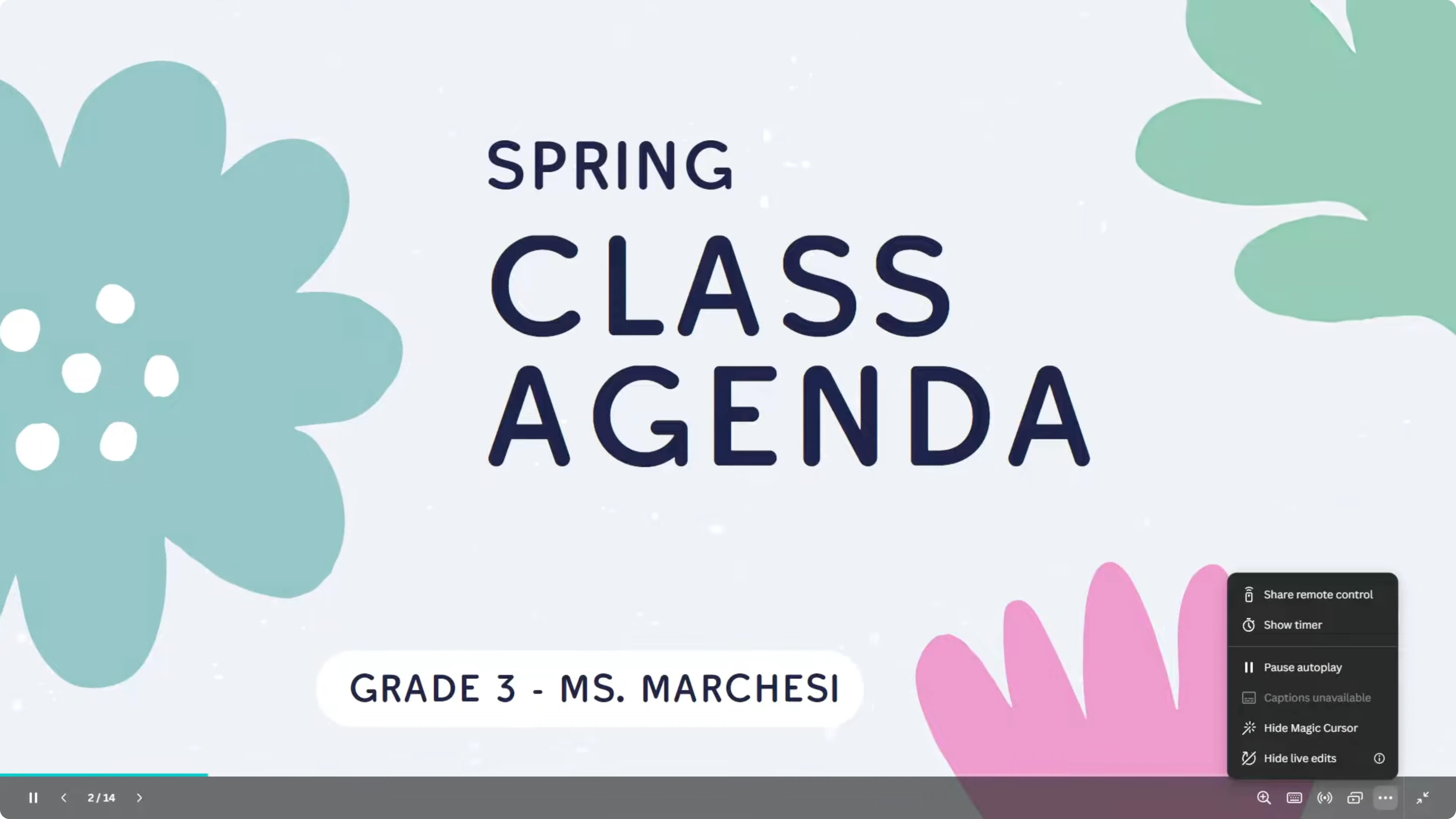
When it is running, hover your cursor at the bottom to reveal the controls.
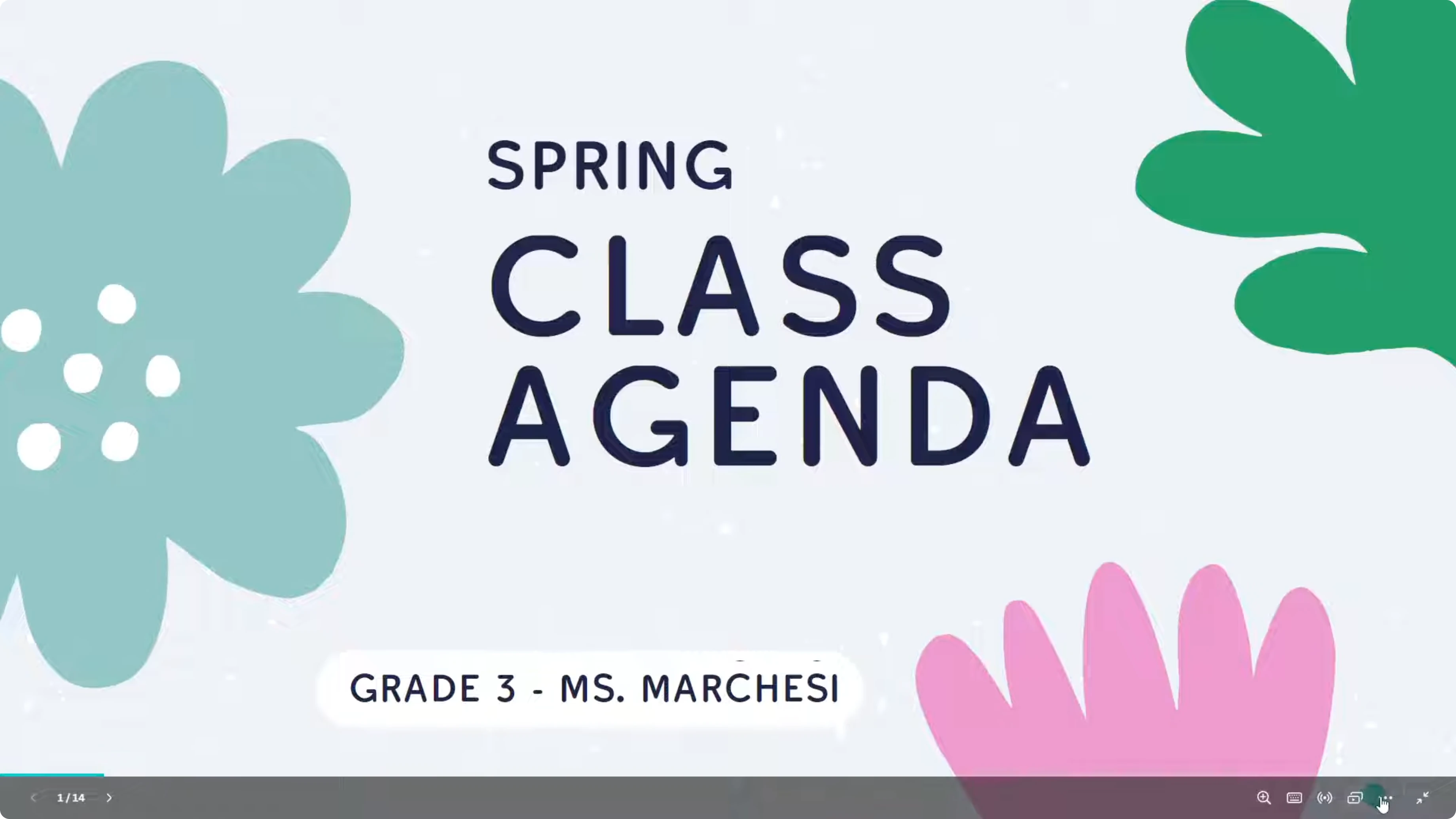
Click More.
Click Start autoplay.
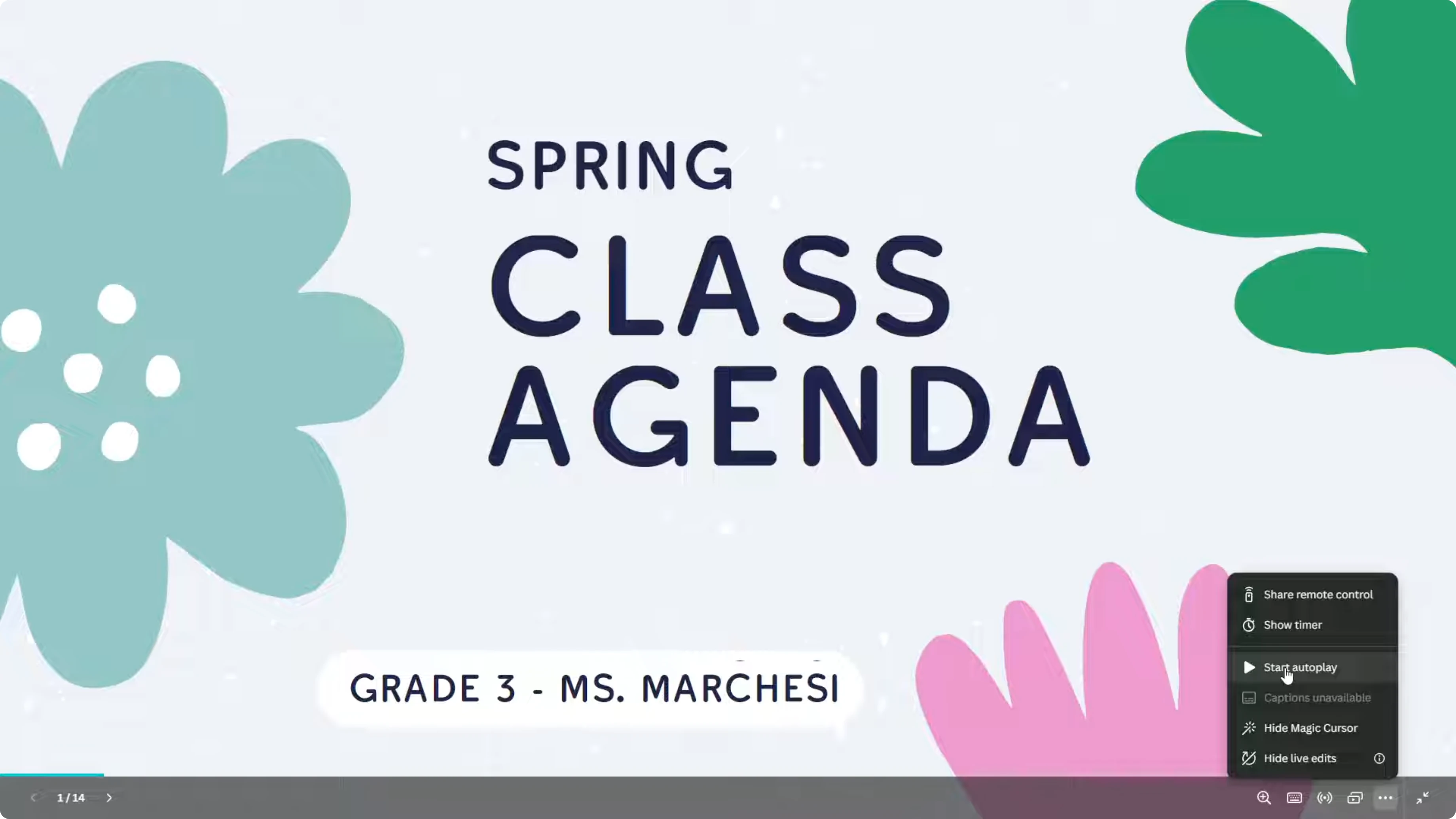
I should remind you that you will not have control over the presentation once you click this button. This happens automatically, similar to PowerPoint and Google Slides when looping is enabled. For a continuous ambiance, you can add background music before you start.
Preview Loop Canva Presentation
I visited slide 12 so you do not have to watch from the beginning. I turned on autoplay and did not click anything. The animation played, it reached slide 13, then slide 14, which was the last slide.
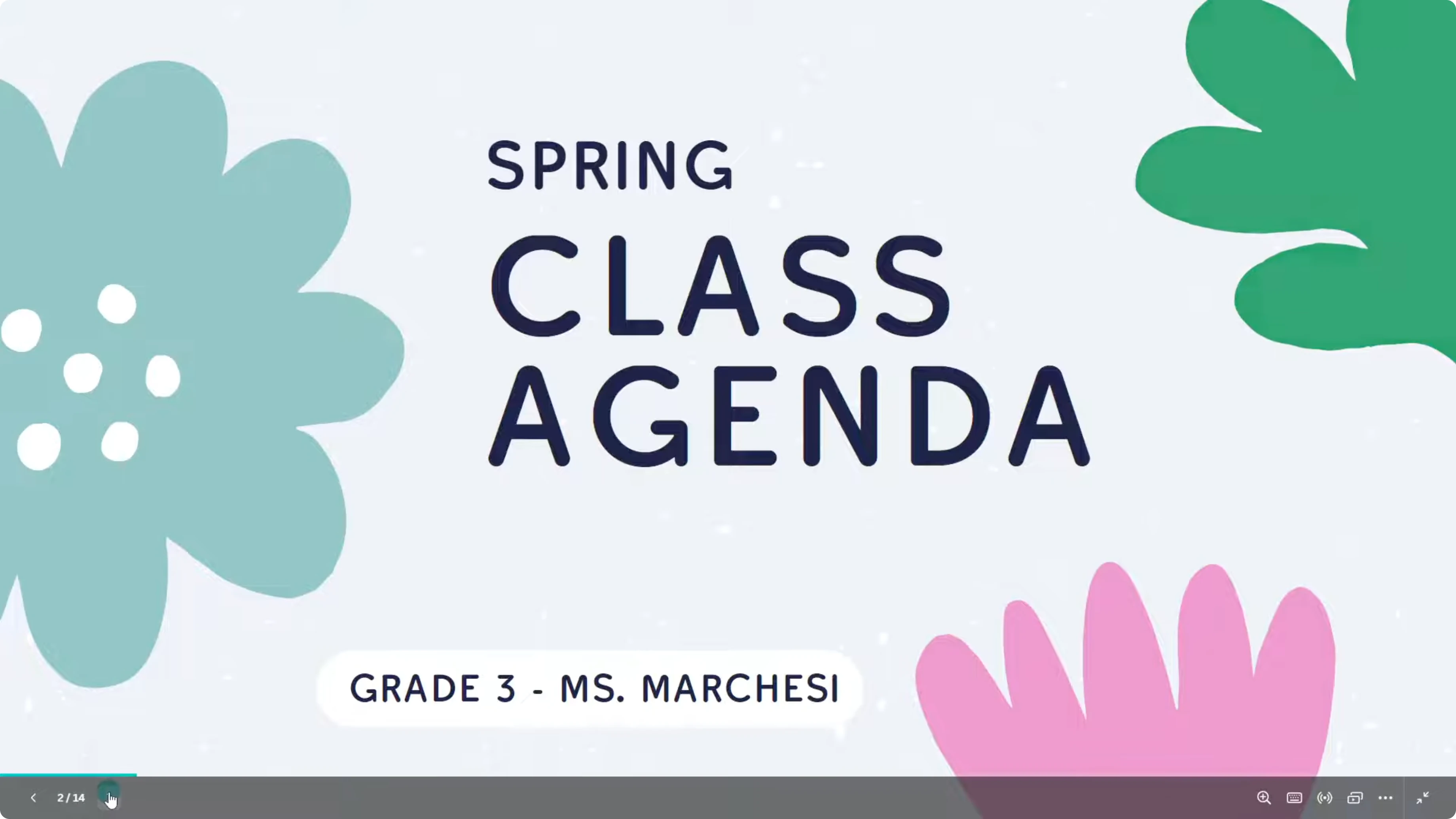
It started over and returned to slide 1, then slide 2, and continued through the deck. That is how a Loop Canva Presentation behaves. It keeps cycling until you stop it.
For extra motion on repeat, you can add a GIF to any slide and it will animate every time the loop cycles.
Autoplay limits in Loop Canva Presentation
This setting only plays automatically. You cannot manually advance or interact with elements while autoplay is active.
Use it when you just want something your audience can see on the screen without touching anything. When you are ready for your main talk, present normally without autoplay.
Final thoughts on Loop Canva Presentation
Enable Start autoplay to let your Canva presentation loop from the last slide back to the first. It is ideal for looping videos or photos and for pre presentation displays. Keep in mind that once autoplay is on, it runs automatically until you stop it.
Recent Posts

How to Visualize Yourself as a Pixelized Character with AI?
How to Visualize Yourself as a Pixelized Character with AI?

How to Revive Faded Memories and Enhance Image Clarity with AI?
How to Revive Faded Memories and Enhance Image Clarity with AI?

How to Visualize Yourself as an Animal Crossing Character with AI?
How to Visualize Yourself as an Animal Crossing Character with AI?