How to Create a Long Shadow Text Effect in Canva
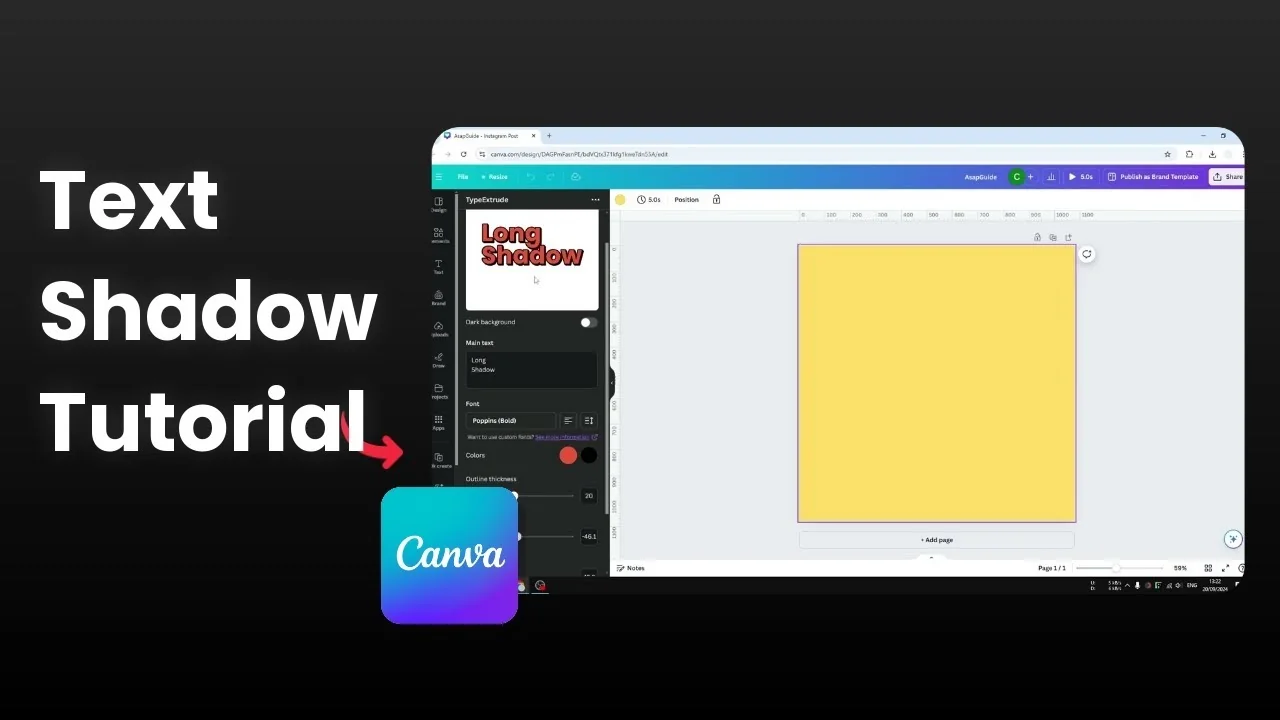
I will show you how to create a long shadow text effect in Canva. Start with a clean setup and use Canva’s Type Extrude app to build the shadow. If you enjoy layered text effects, see our echo text effect tutorial for another style.
Create a Long Shadow Text Effect in Canva
Prepare your design
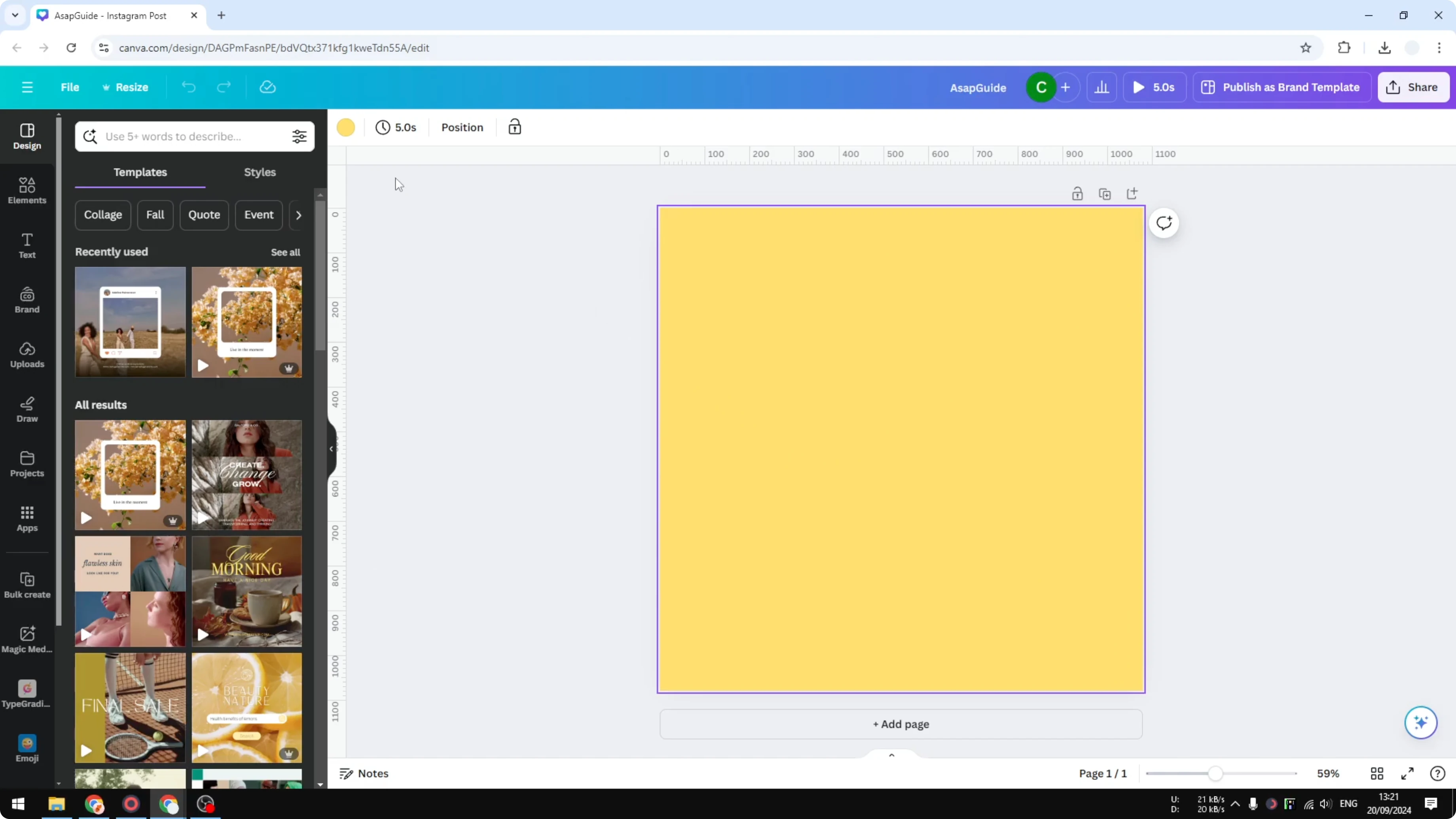
Prepare your document in Canva. I recommend a blank new document with an empty solid background. This keeps the focus on the shadow.
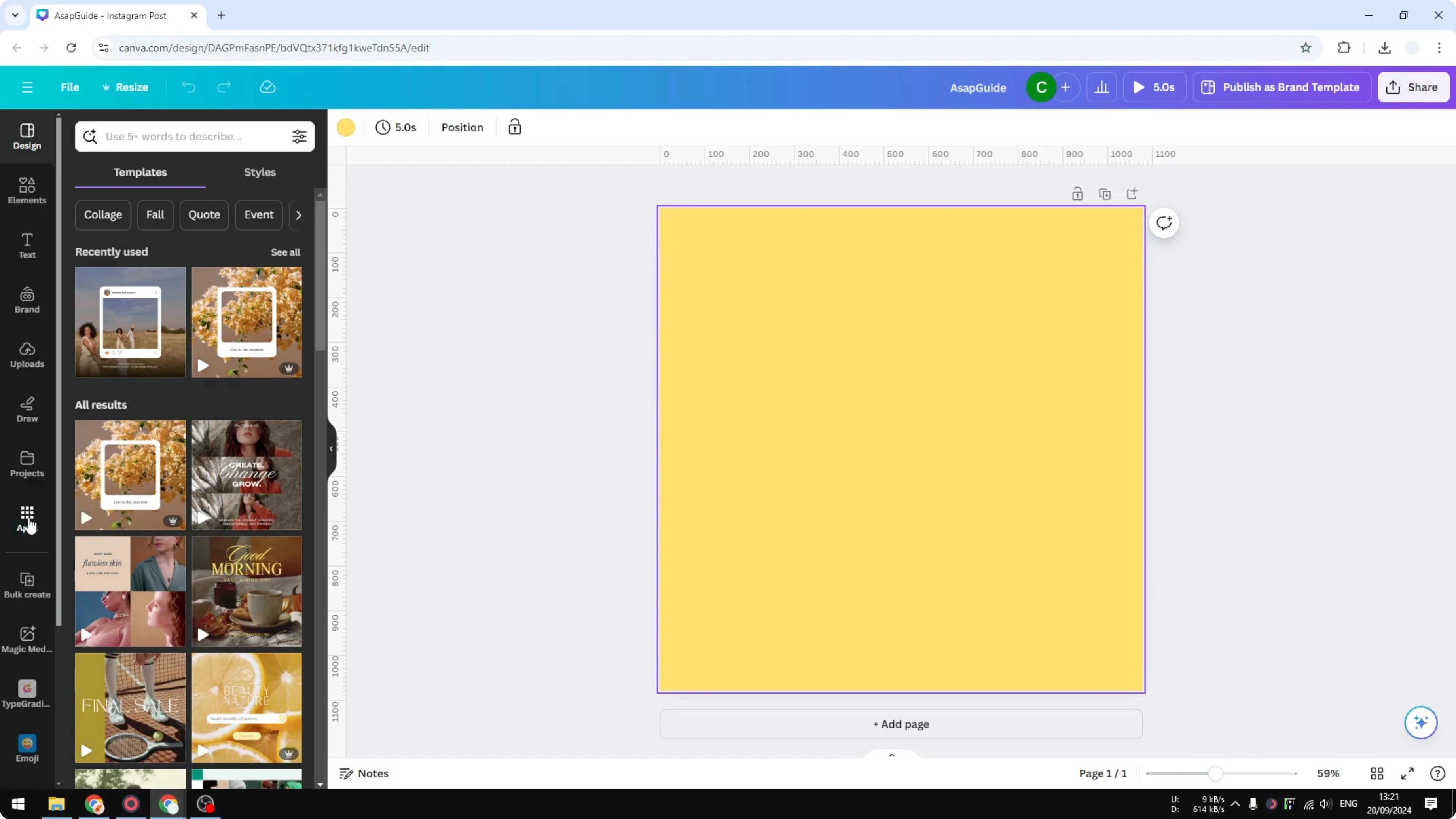
Open Type Extrude
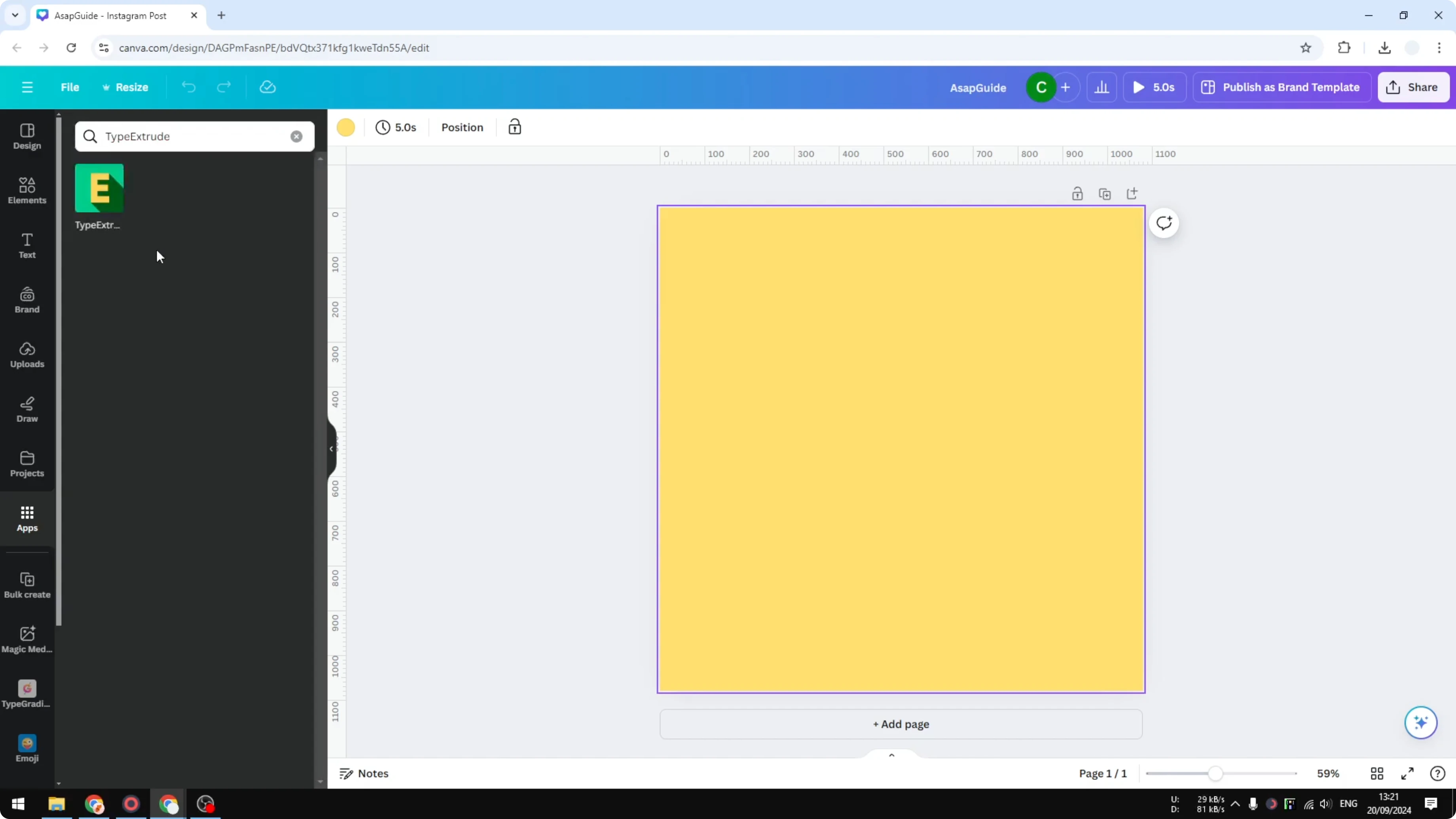
Navigate to Apps and search for Type Extrude. Open it and wait until the app fully loads in your Canva account. Then start typing your text for the long shadow.
For a playful inflated look after you try this, explore a balloon style text effect to mix up your designs.
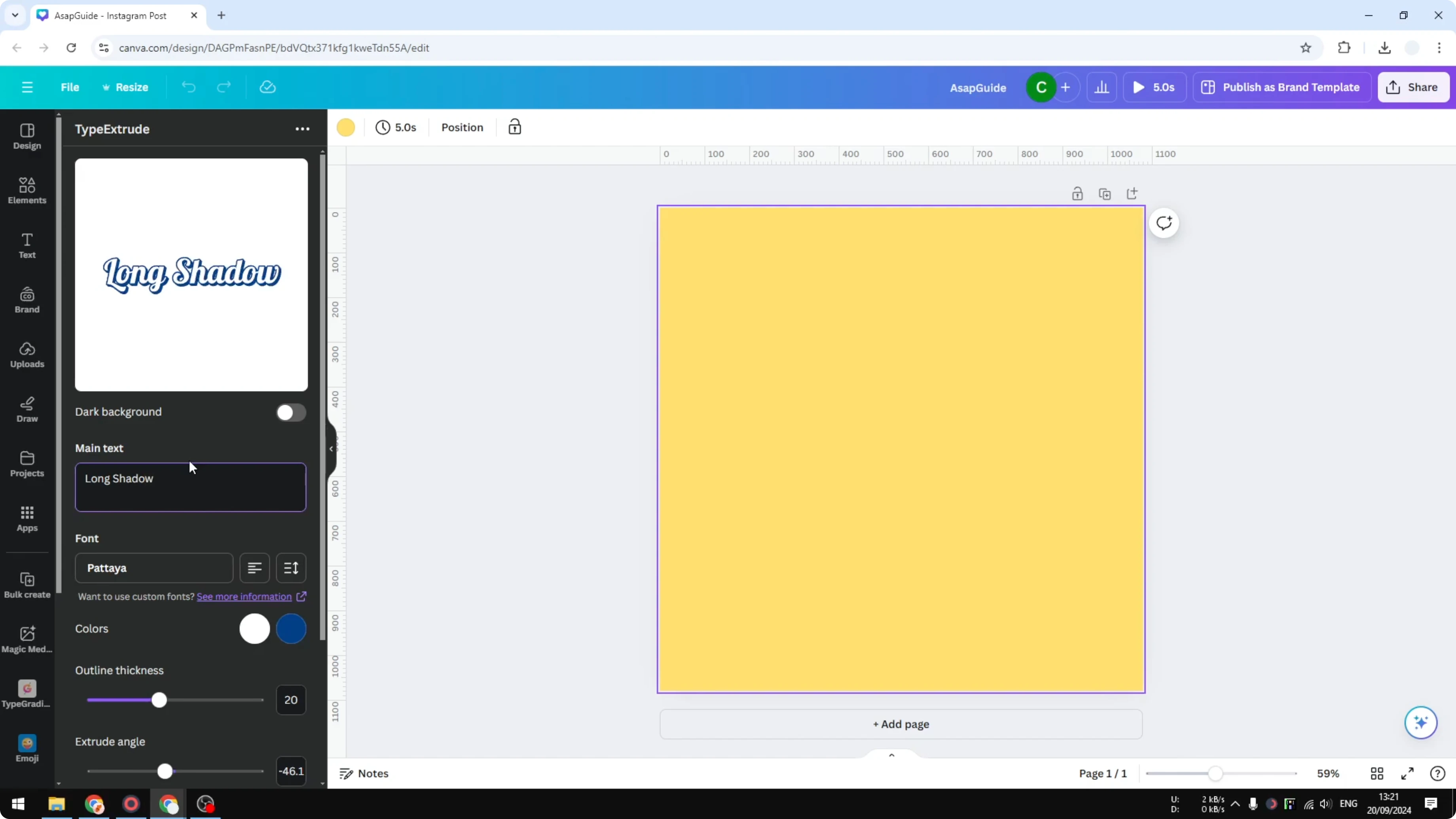
Set text and colors
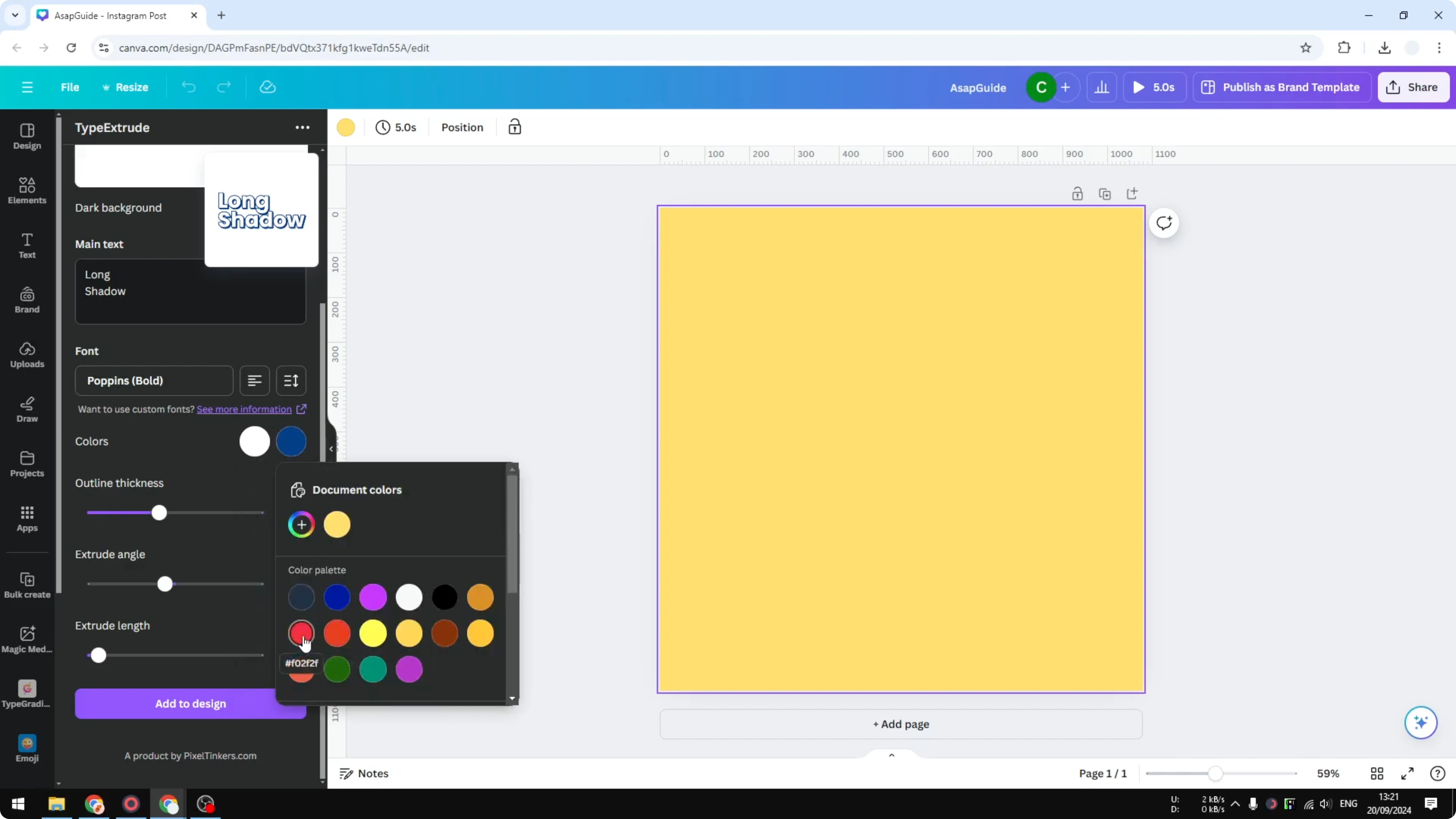
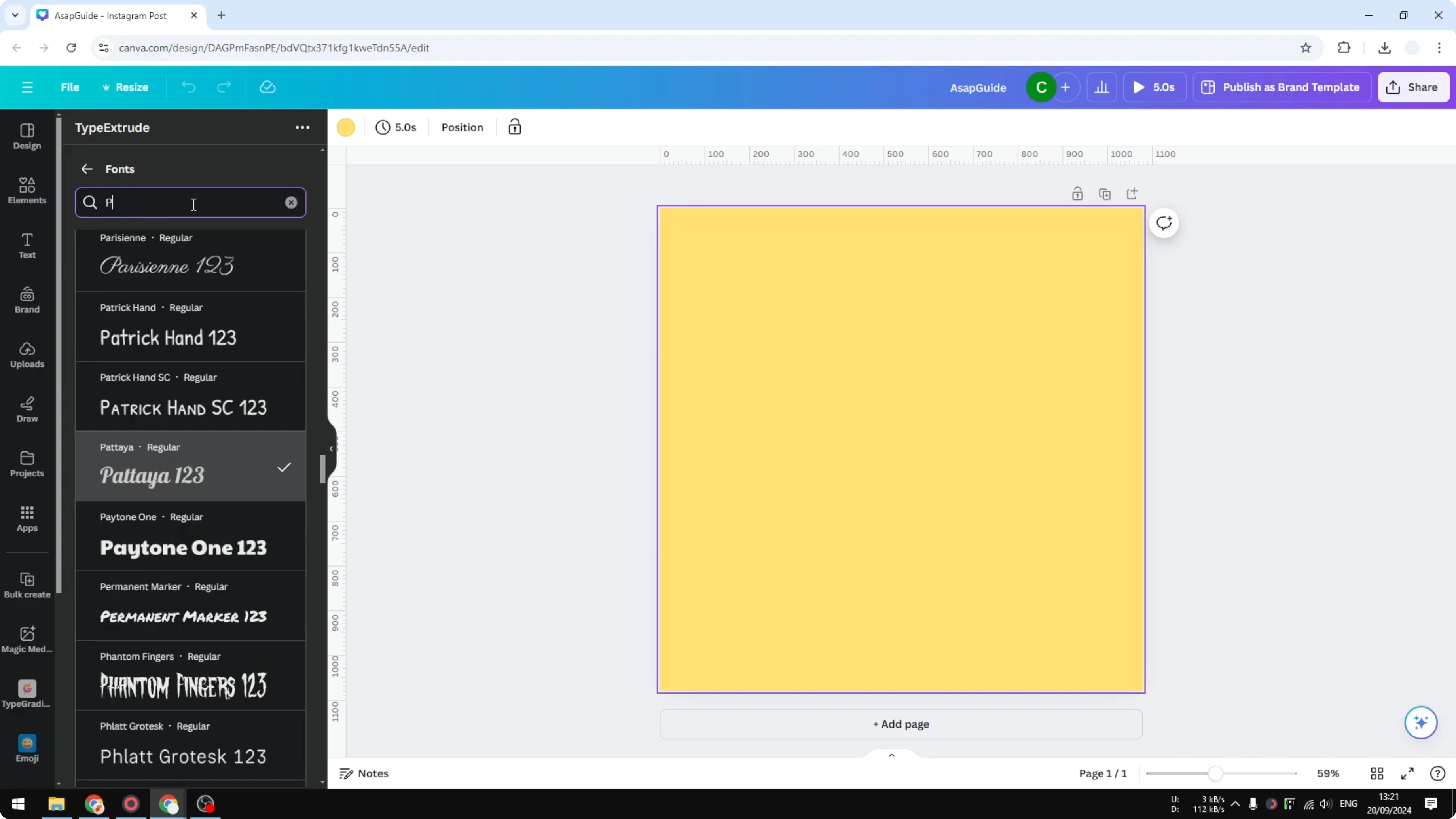
I am creating two lines of text. You can pick any font you like, and I am sticking with Poppins because it looks great. For colors, I am going with black and red.
Edge thickness
Adjust the thickness of the edge of the letters. I am keeping the default option here. It already looks solid.
Angle and length
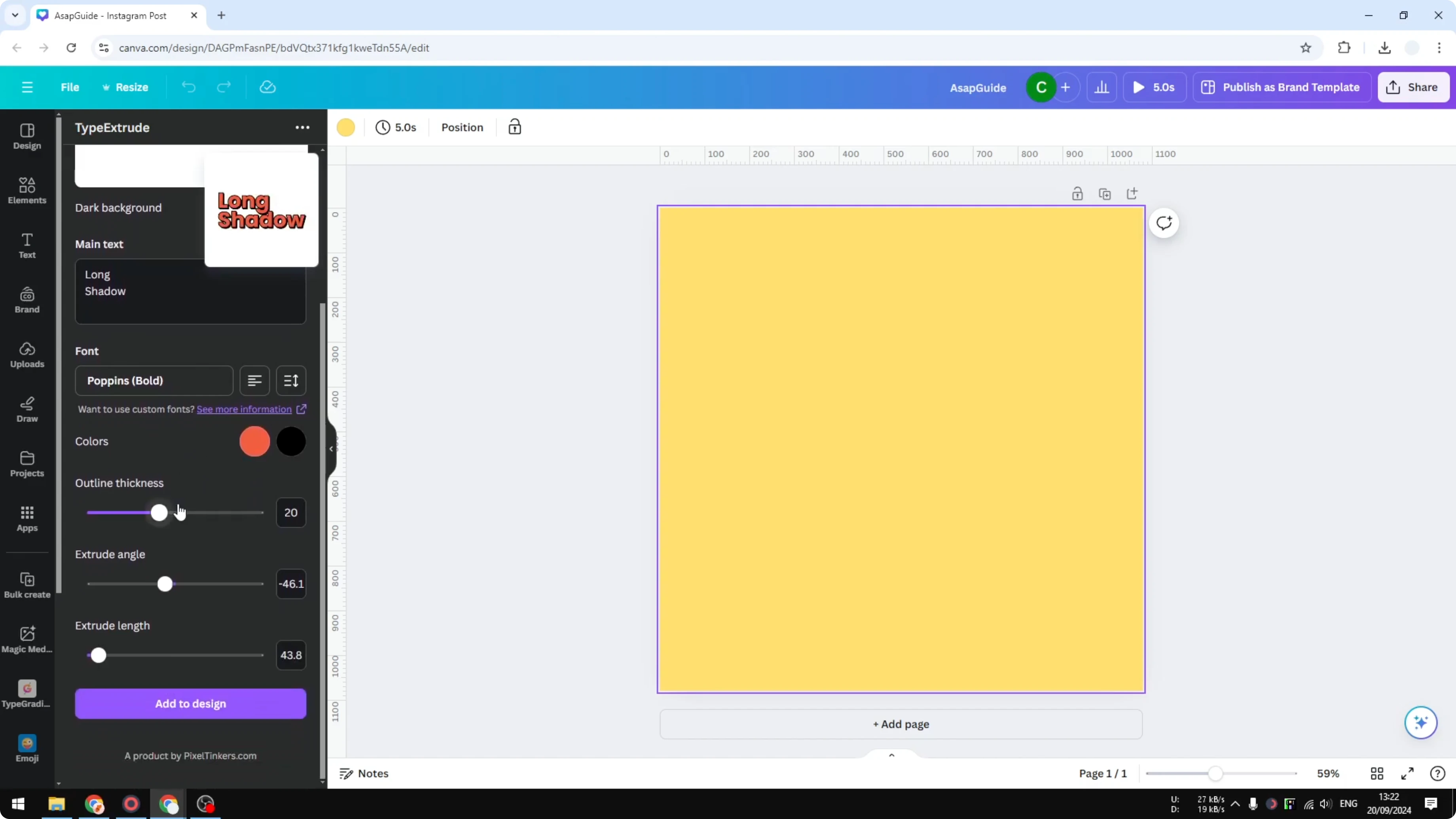
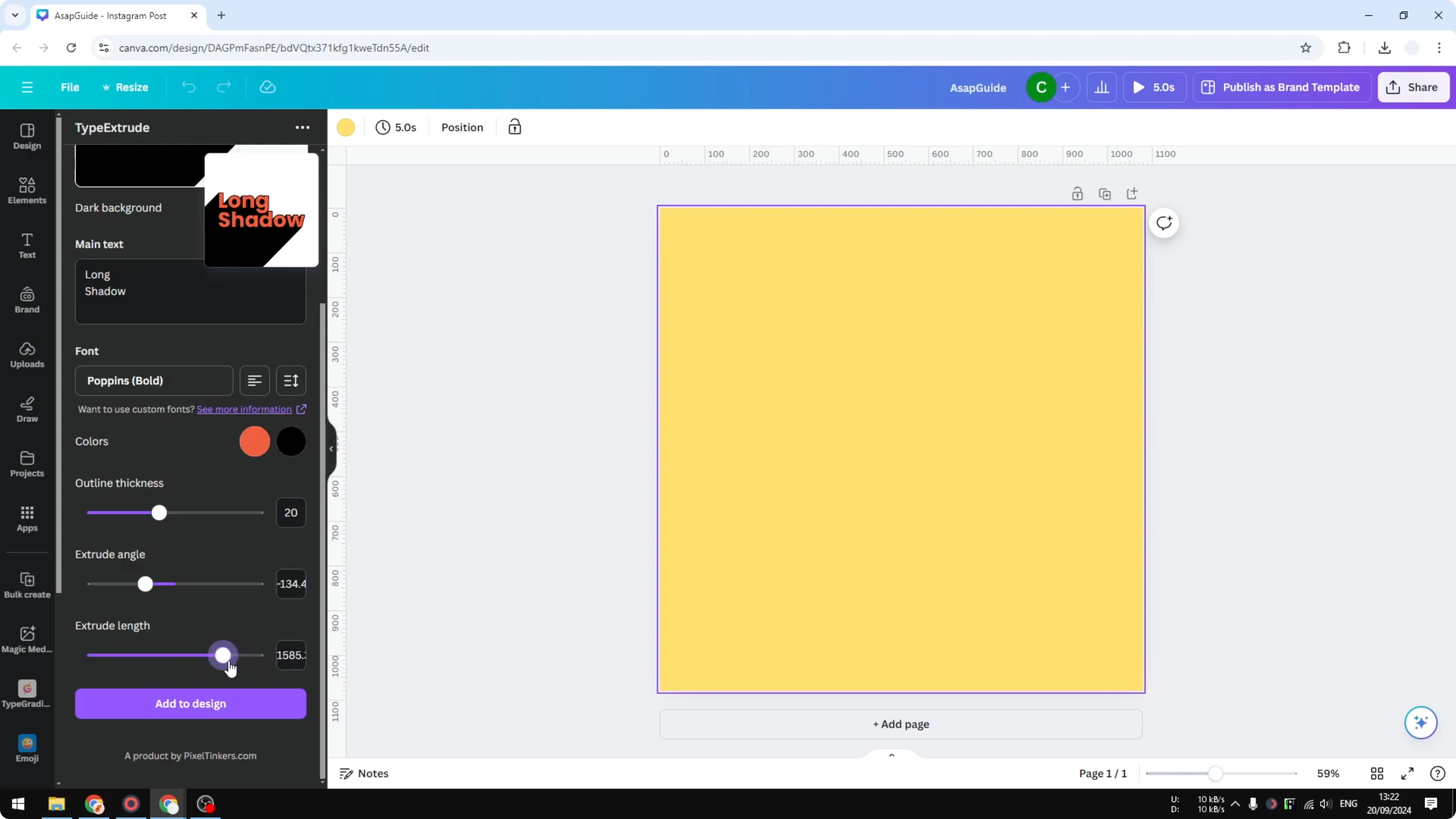
The Extrude angle is very important because it controls the orientation of the shadow. I am setting it so the shadow drops toward the bottom. This gives the look I want.
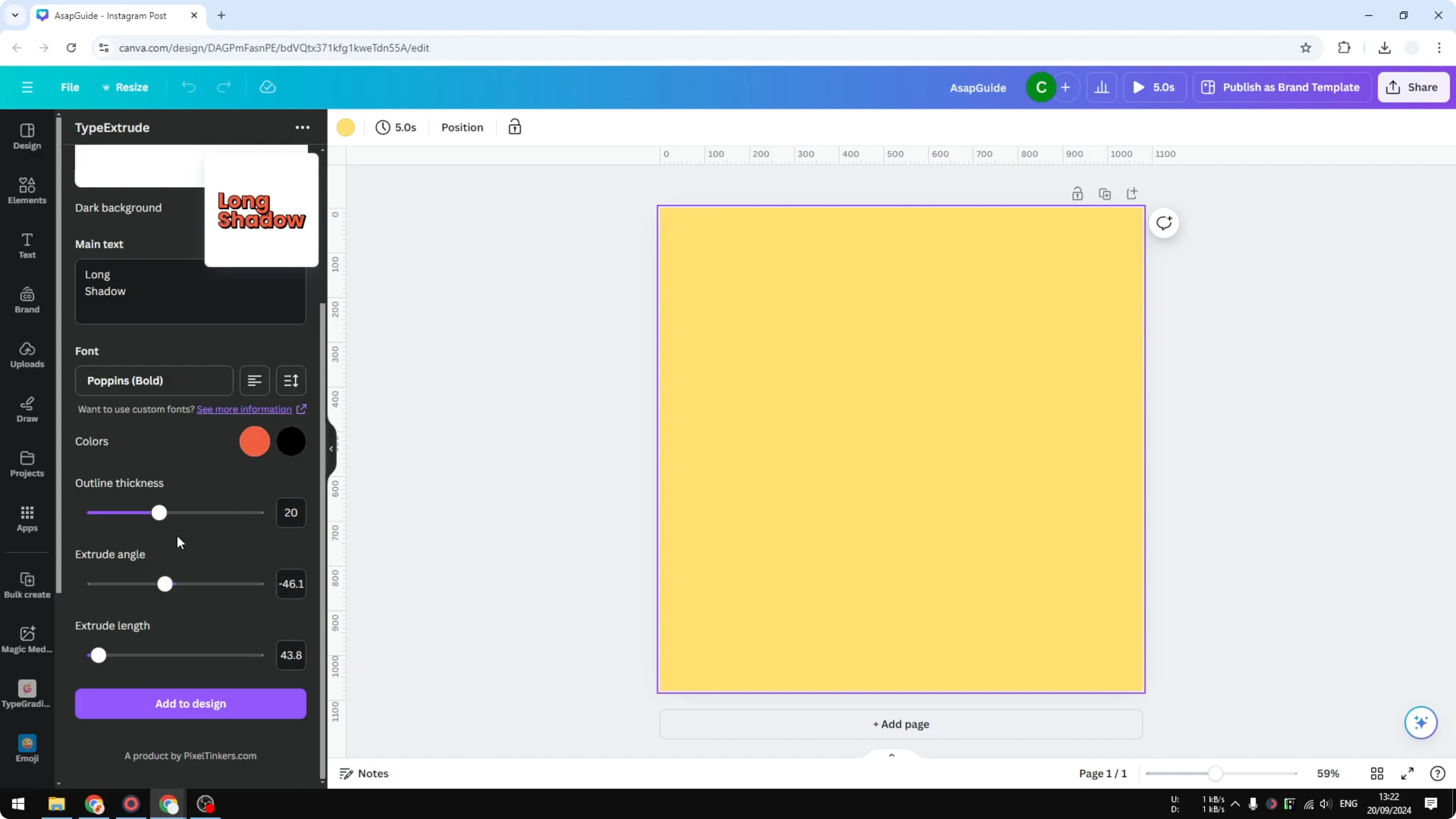
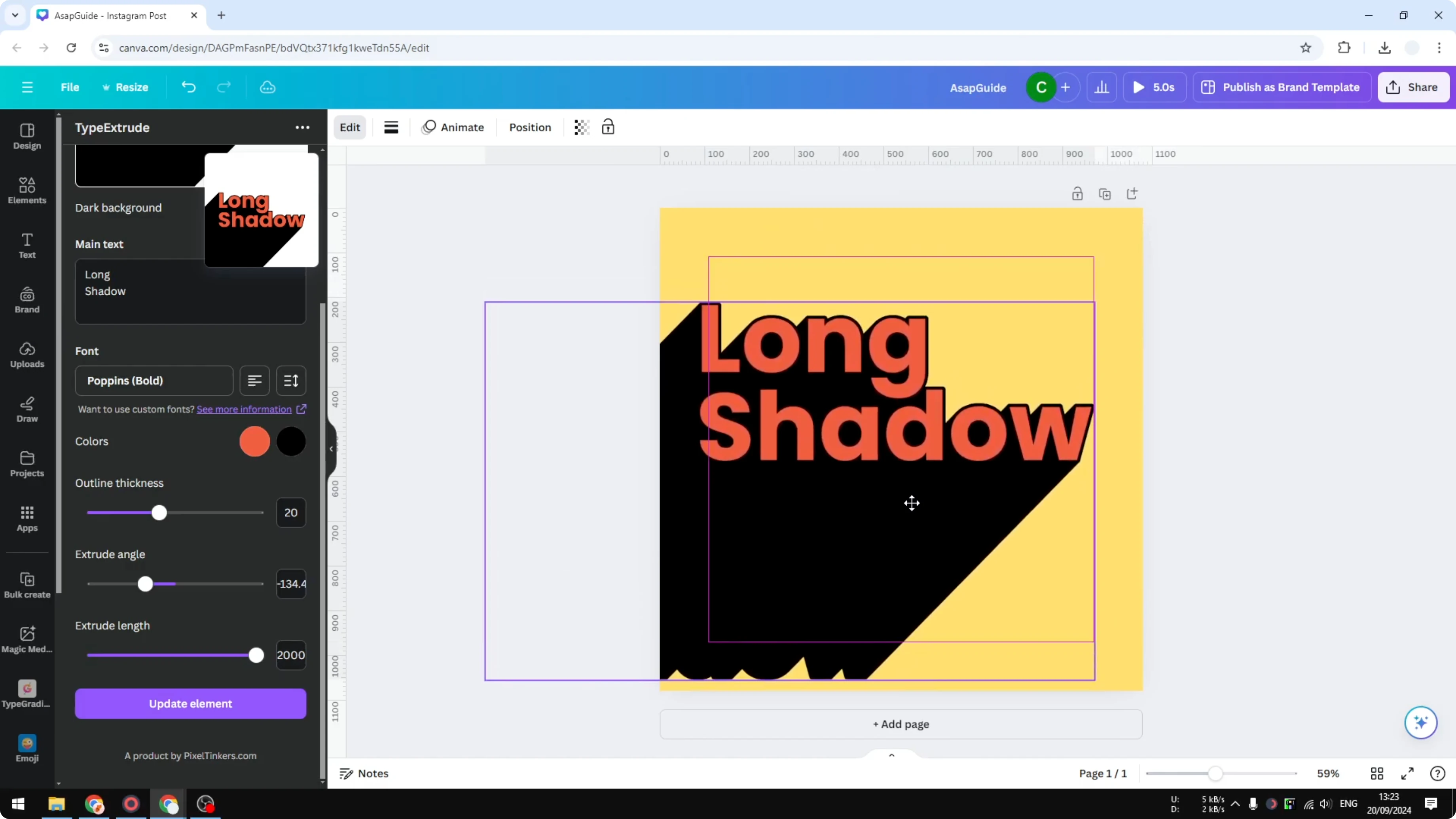
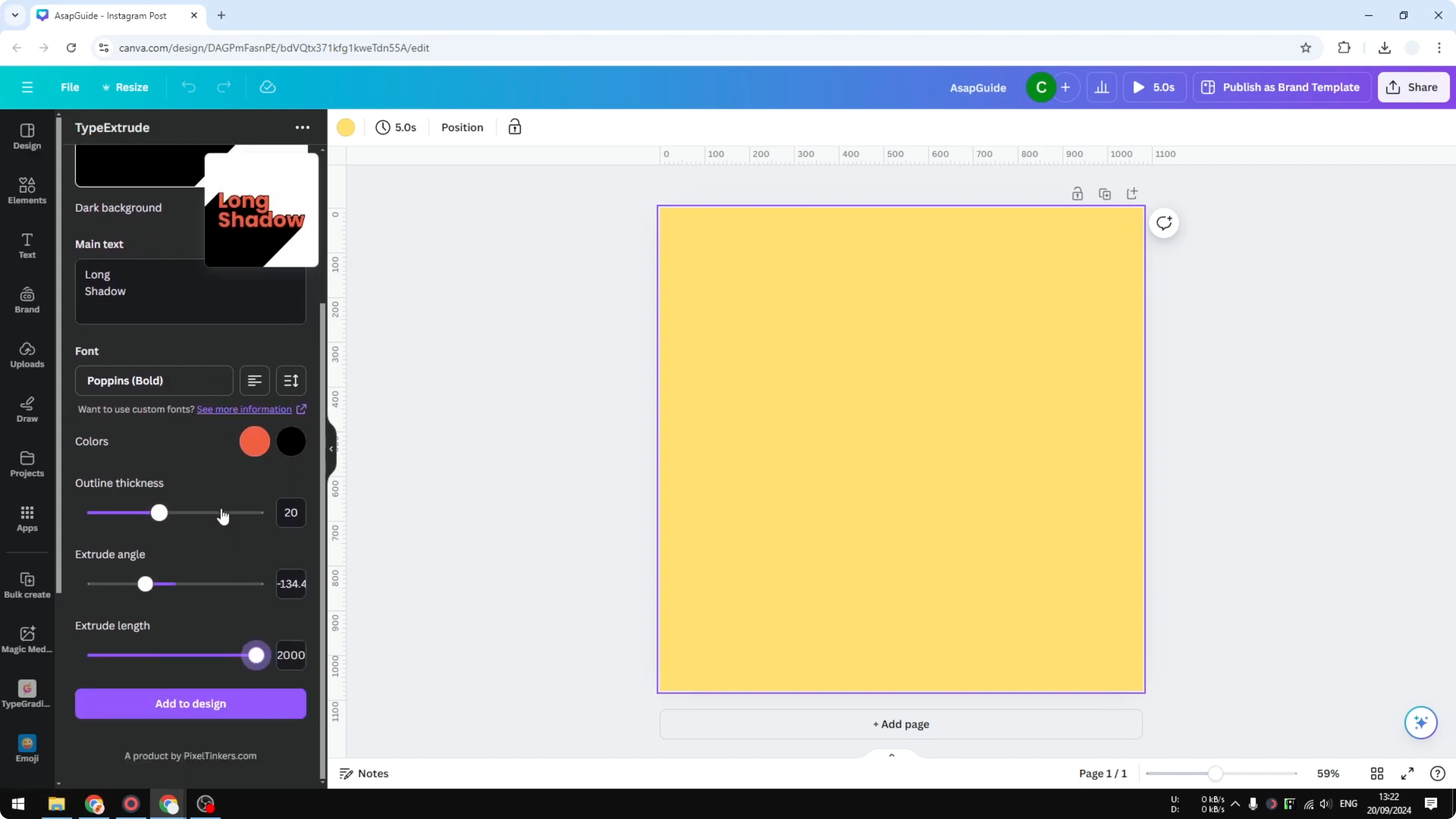
The Extrude length is the length of the shadow. You can make it very long or keep it short based on your taste. I am setting it to the maximum.
Add to design
When you are happy with the preview, click Add to design. Place the text on your canvas and make it bigger. Position it where it fits your layout.
Final Thoughts
That is how you can create a long shadow effect in Canva using Type Extrude. Start with a clean document, set your font and colors, tune the angle and length, and add it to your design. Simple steps give a bold result.
For a softer look, you can try this faded text effect to blend your typography into the background.
Recent Posts
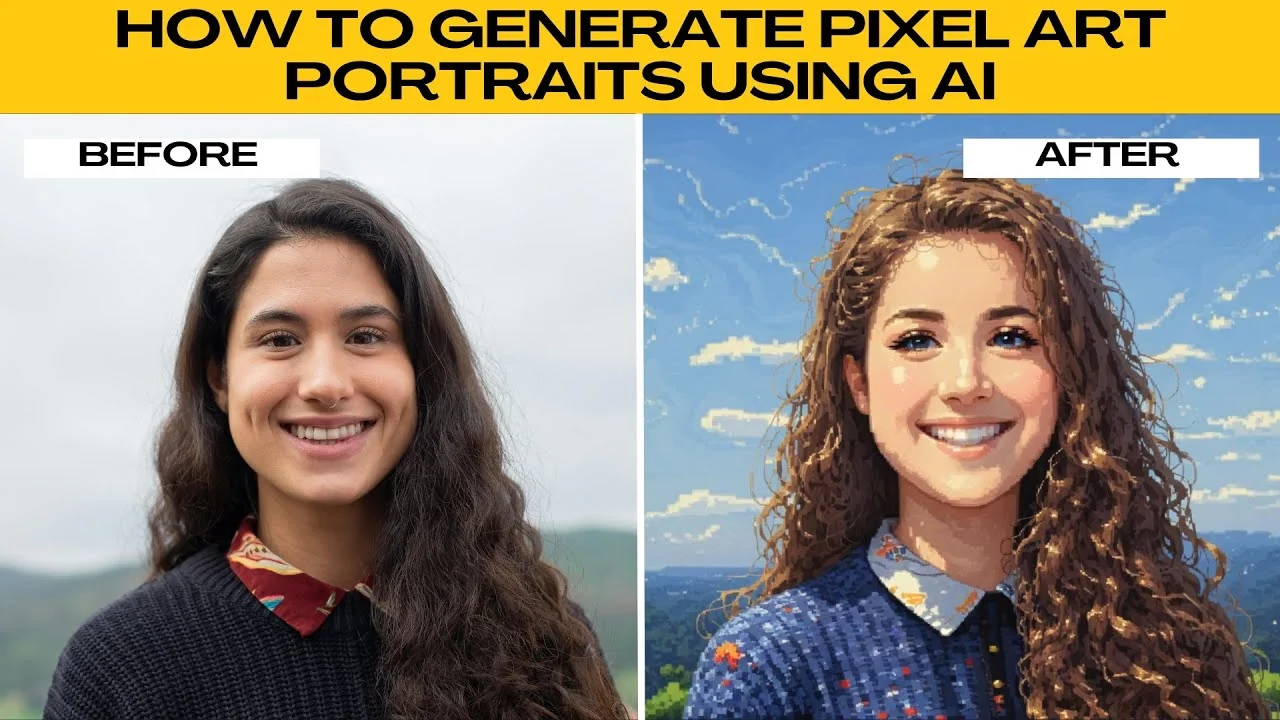
How to Visualize Yourself as a Pixelized Character with AI?
How to Visualize Yourself as a Pixelized Character with AI?
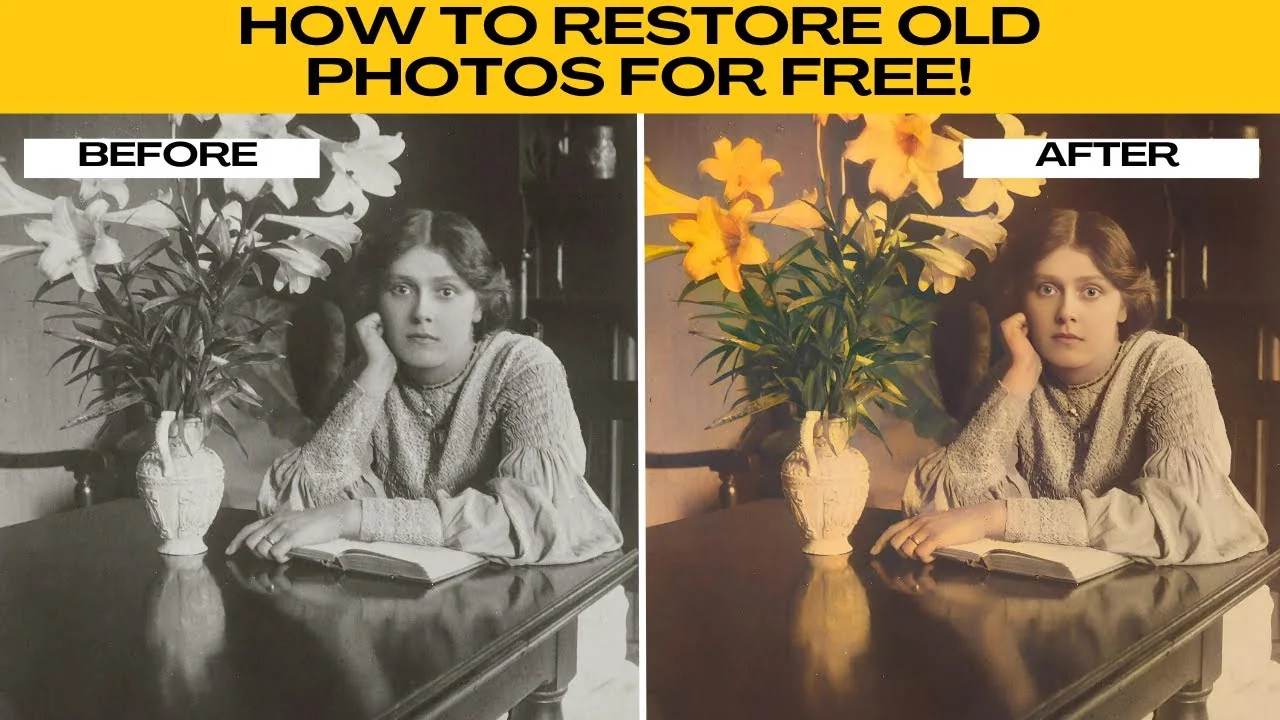
How to Revive Faded Memories and Enhance Image Clarity with AI?
How to Revive Faded Memories and Enhance Image Clarity with AI?
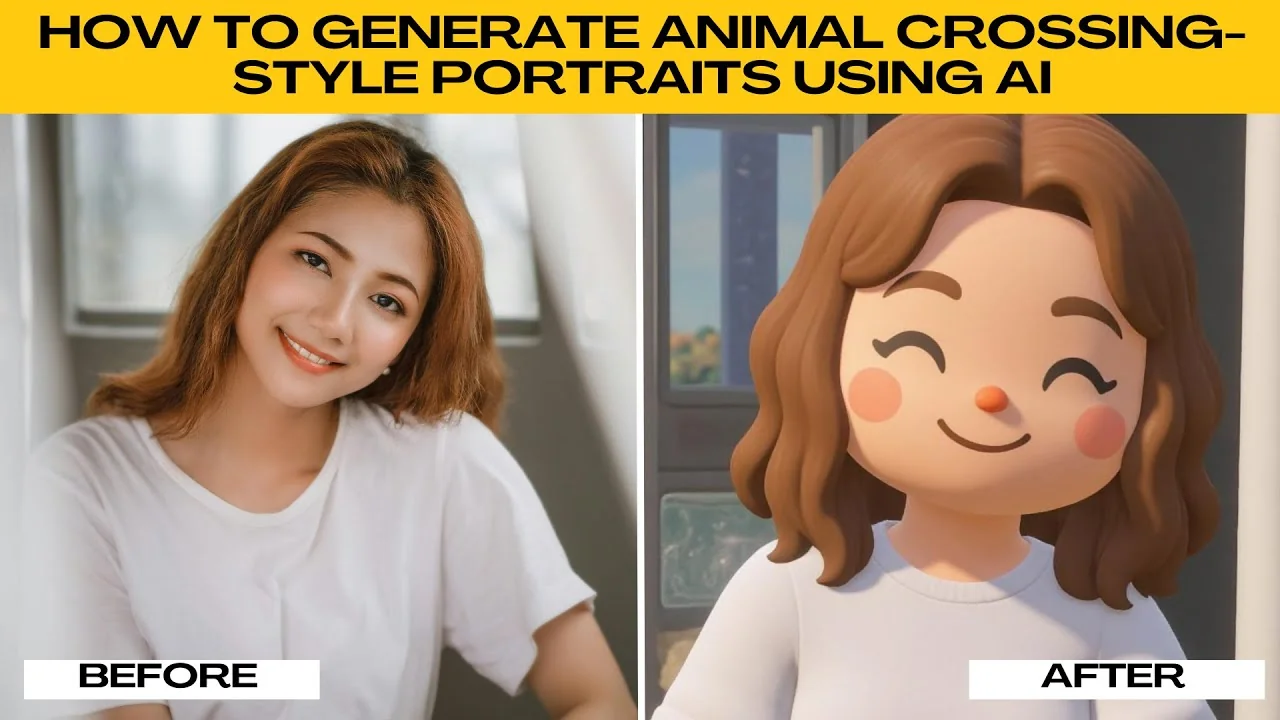
How to Visualize Yourself as an Animal Crossing Character with AI?
How to Visualize Yourself as an Animal Crossing Character with AI?