How to Justify Text in Canva
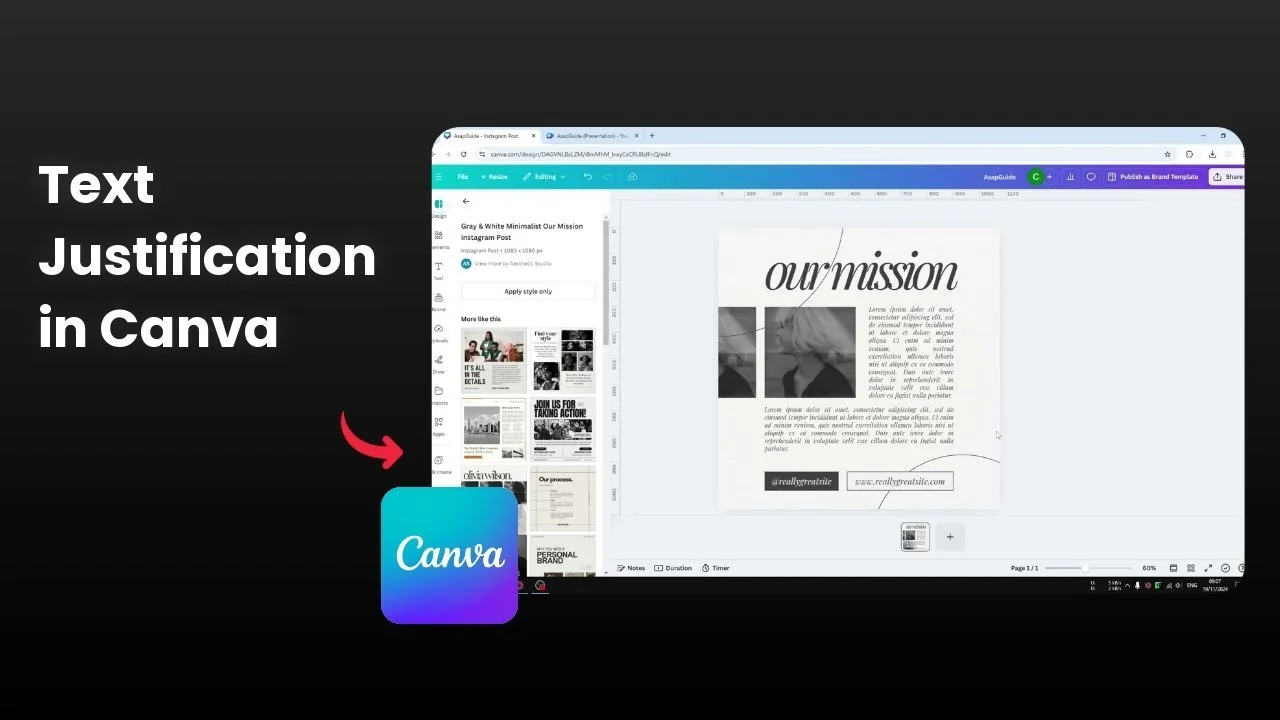
I'm going to show you how you can justify text in Canva. This is very simple and quick.
Justify Text in Canva: Quick steps
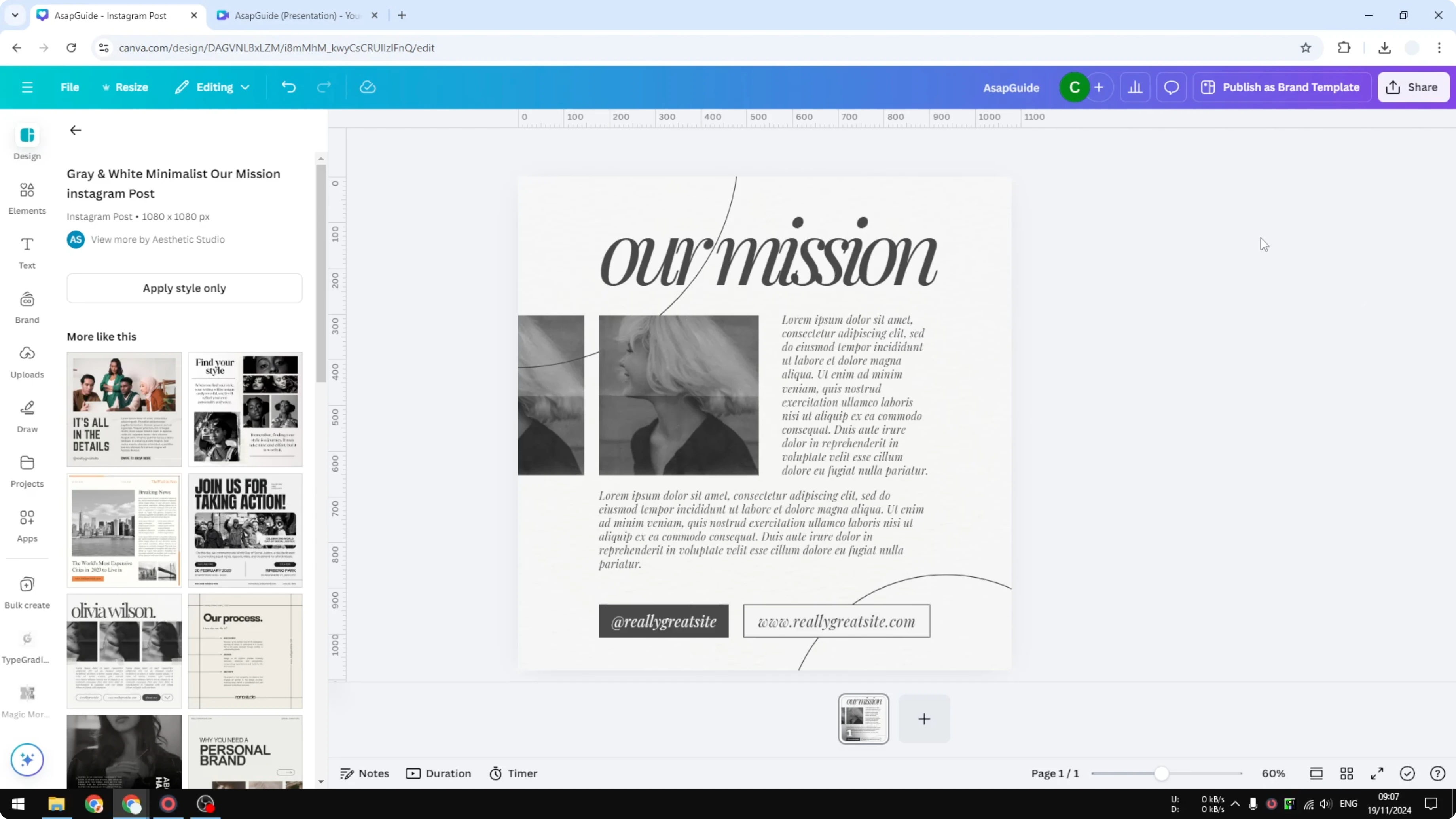
Click on the text box.
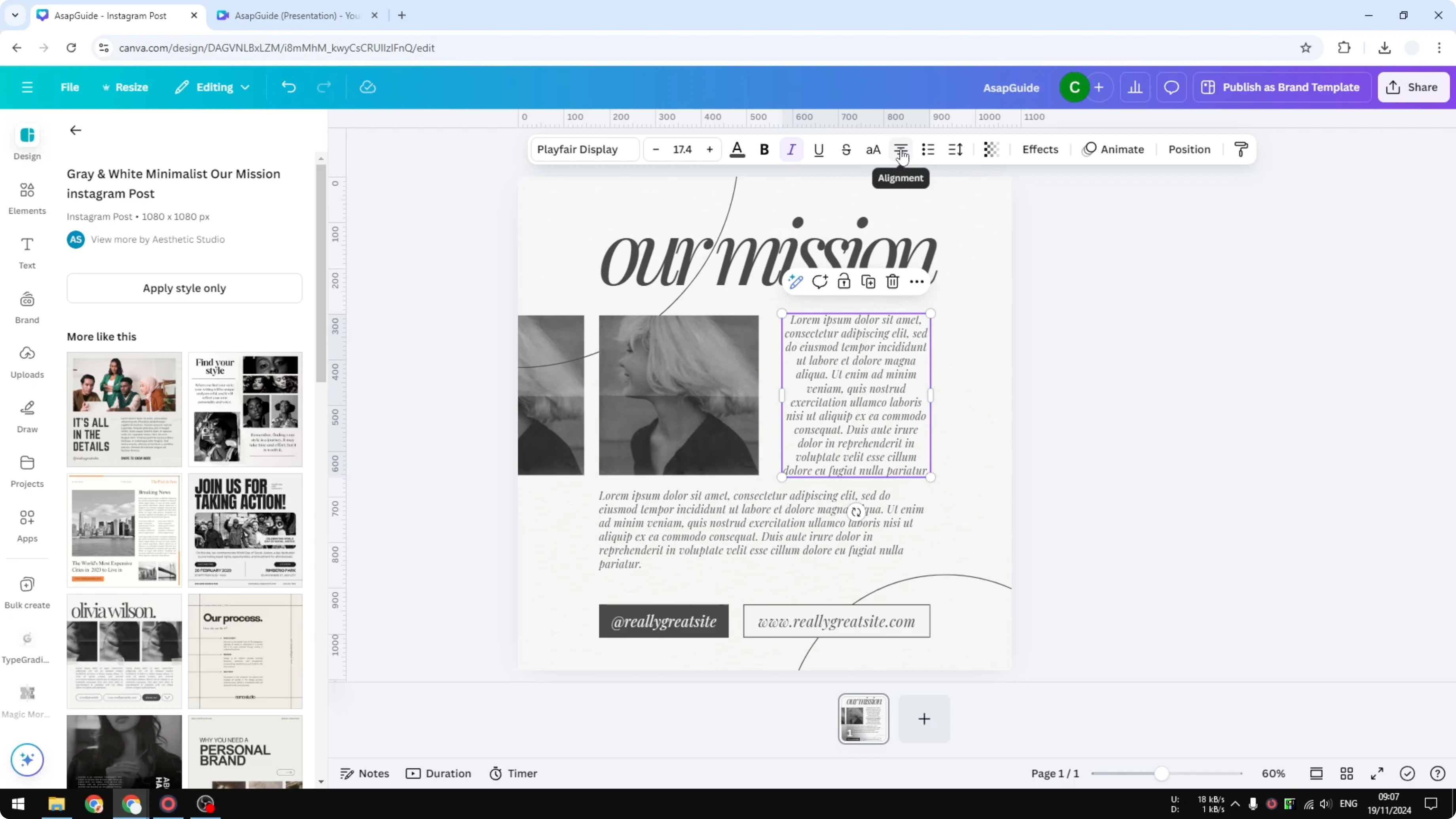
Click on Alignment.
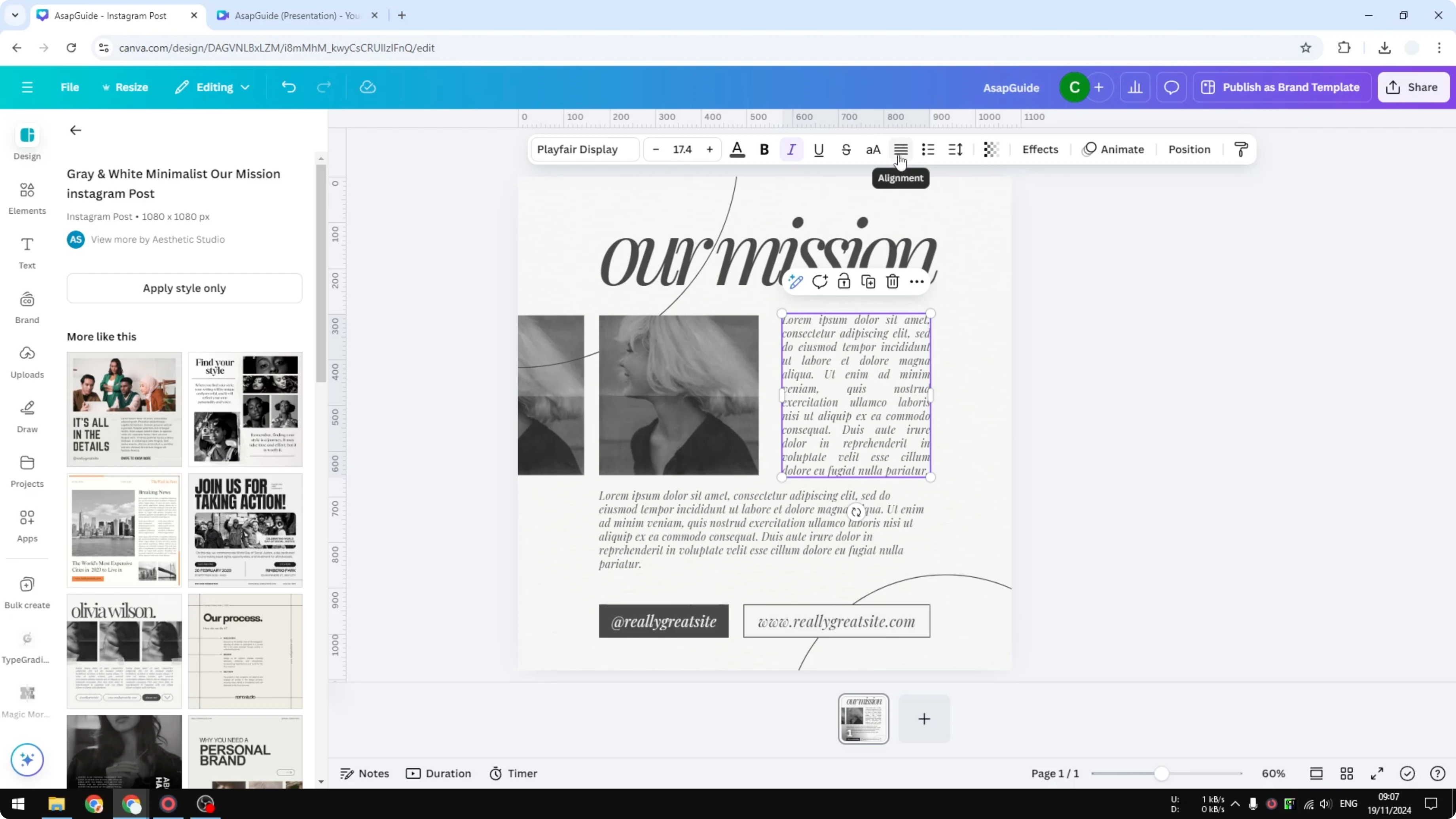
Click the alignment again until you get the kind of alignment that you want for that particular text box.
When you're done, stop and that style will be applied to the text box.
If you want your text to pop even more after justifying it, you can add background text for extra emphasis.
Justify Text in Canva: Multiple text boxes
You can also click multiple text boxes by pressing the Shift key on the keyboard, then click on each text box that you want to select.
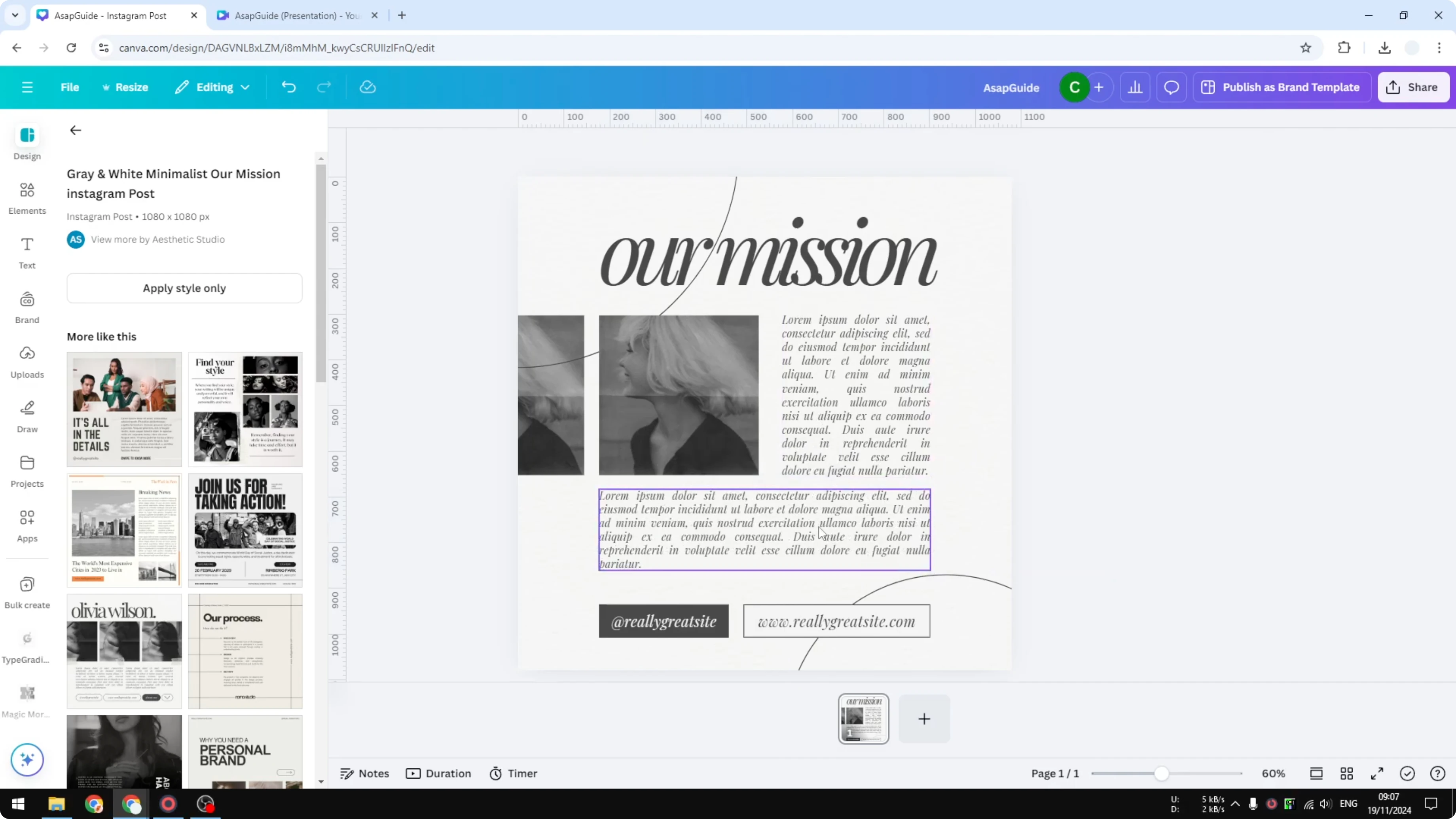
Click Alignment and that action will be applied to multiple text boxes.
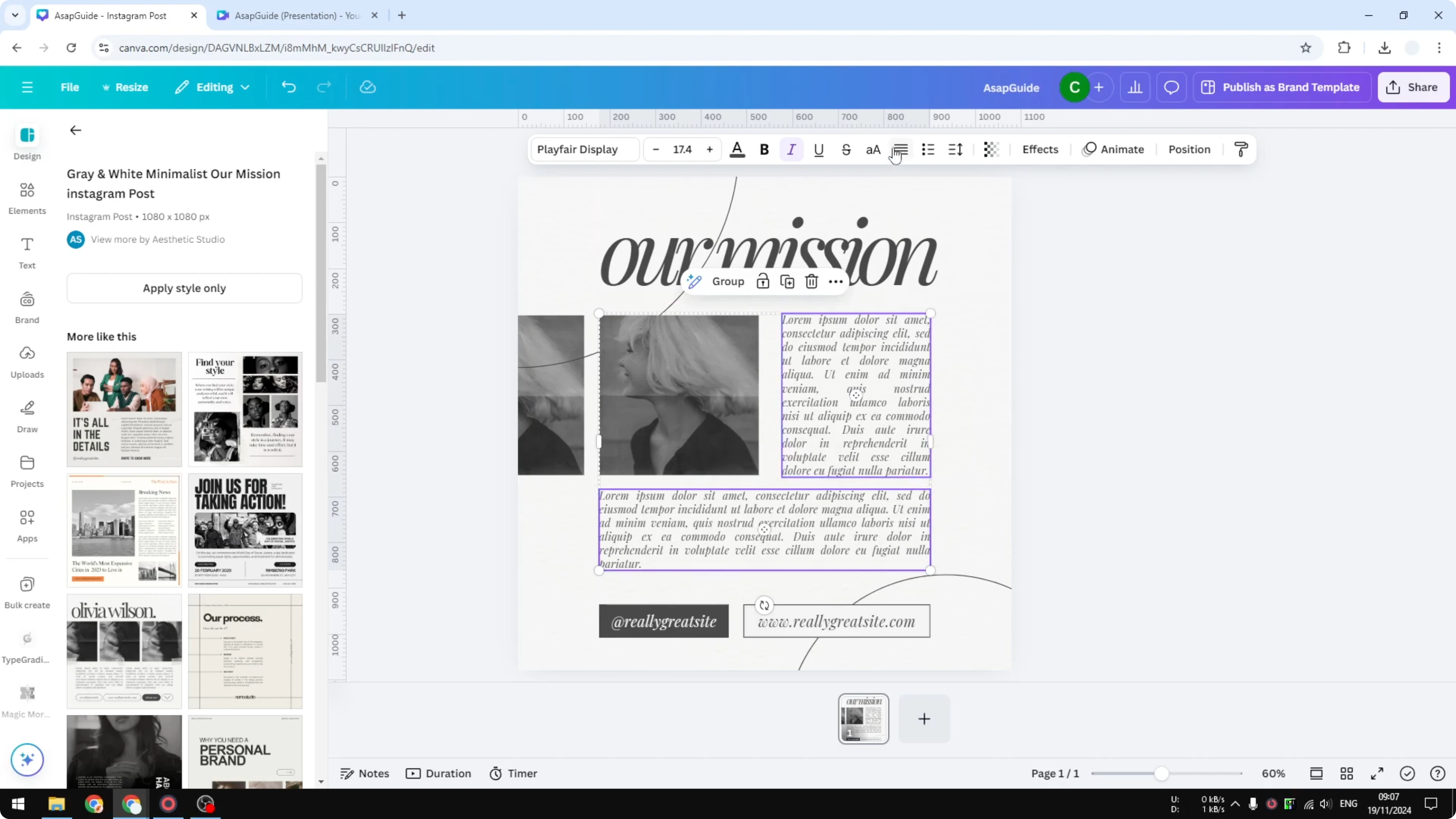
This is helpful if you are dealing with multiple text boxes in your design.
If you're styling groups of text, you might also want to add a border to a text box for cleaner layout control.
Final thoughts on Justify Text in Canva
Click the text box, use Alignment, and keep clicking until the text looks the way you want. Apply the same approach to multiple boxes by selecting them with Shift before you align. To pair justified text with shapes, you can attach text to a shape for more structured compositions.
Recent Posts

How to Visualize Yourself as a Pixelized Character with AI?
How to Visualize Yourself as a Pixelized Character with AI?

How to Revive Faded Memories and Enhance Image Clarity with AI?
How to Revive Faded Memories and Enhance Image Clarity with AI?

How to Visualize Yourself as an Animal Crossing Character with AI?
How to Visualize Yourself as an Animal Crossing Character with AI?