How to Invert Colors in Canva
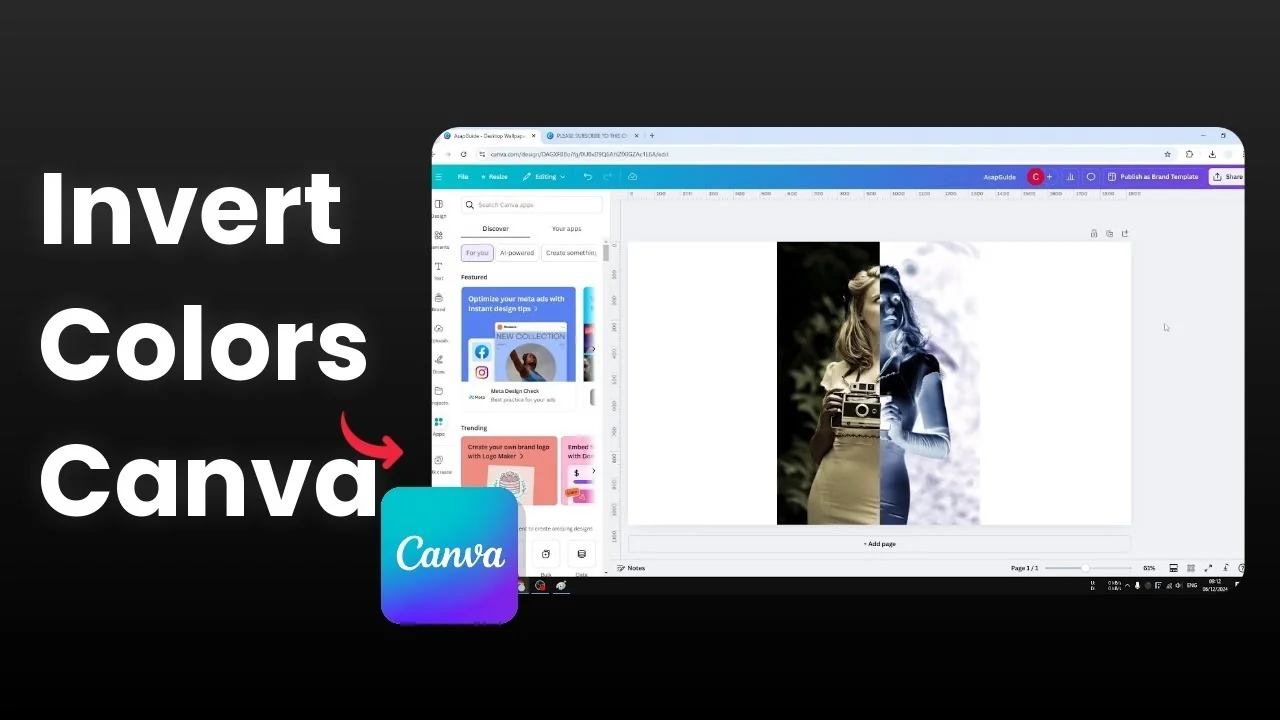
I'm going to show you how you can invert the color of a photo in Canva. It's surprising that Canva doesn't have a native color inverting feature. I couldn't find any third-party apps inside Canva that do it, so this seems pretty niche.
The only way to invert the color in Canva right now is by not using Canva. You can use any third-party web application or software on your computer to invert the color. I’ll use Microsoft Paint on Windows, then bring the picture back into Canva.
No built-in Invert Colors in Canva
Canva doesn't have a color invert tool, which is something you'd expect in a photo editor. I haven't found any app integration in Canva that adds it either. That’s why the workaround below is necessary.
If you only need basic color tweaks instead of a full invert, see adjust colors.
Workaround to Invert Colors in Canva
Prepare the image
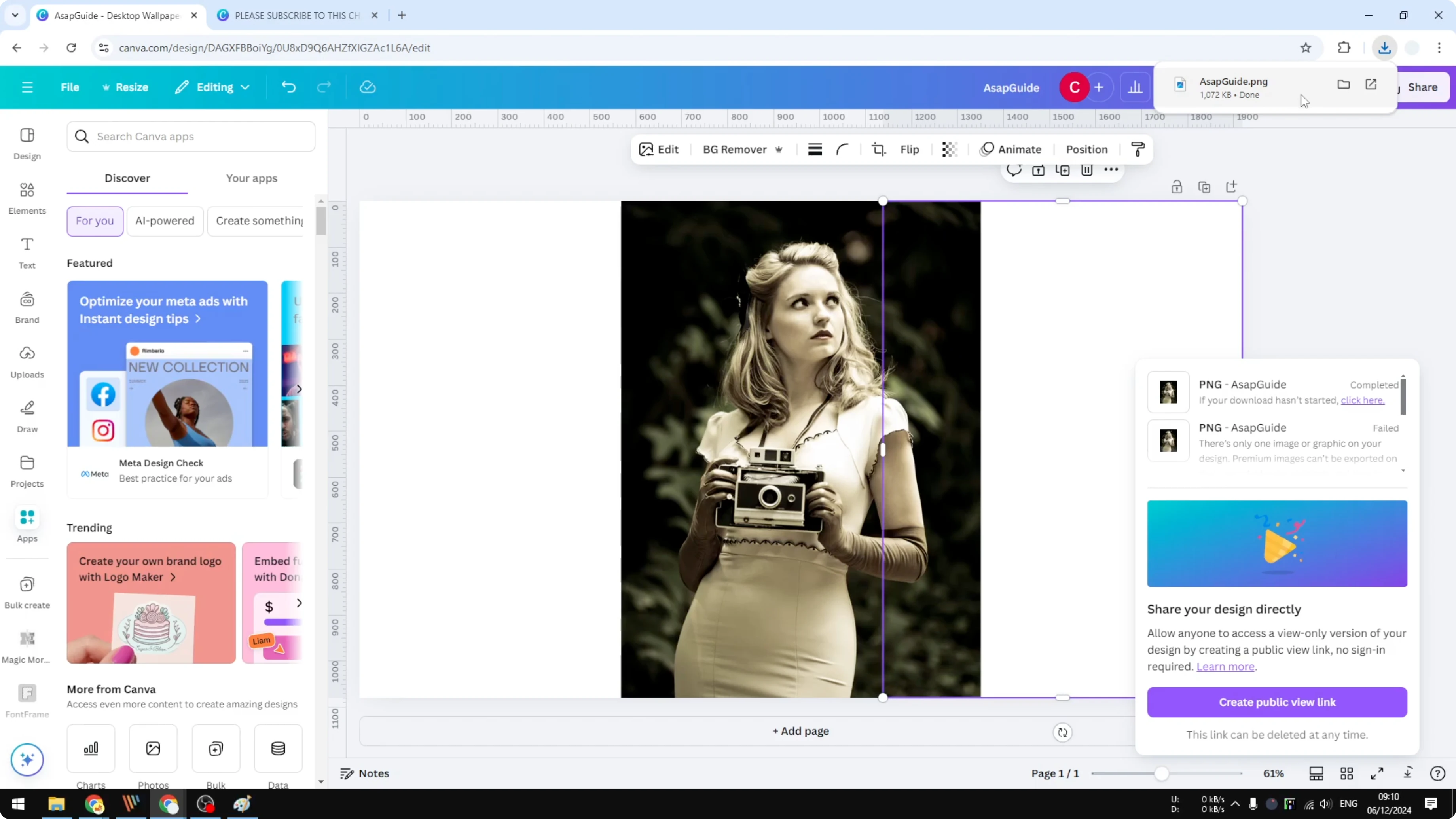
Click Share, then Download.
Select PNG and enable Transparent background.
Click Download and wait.
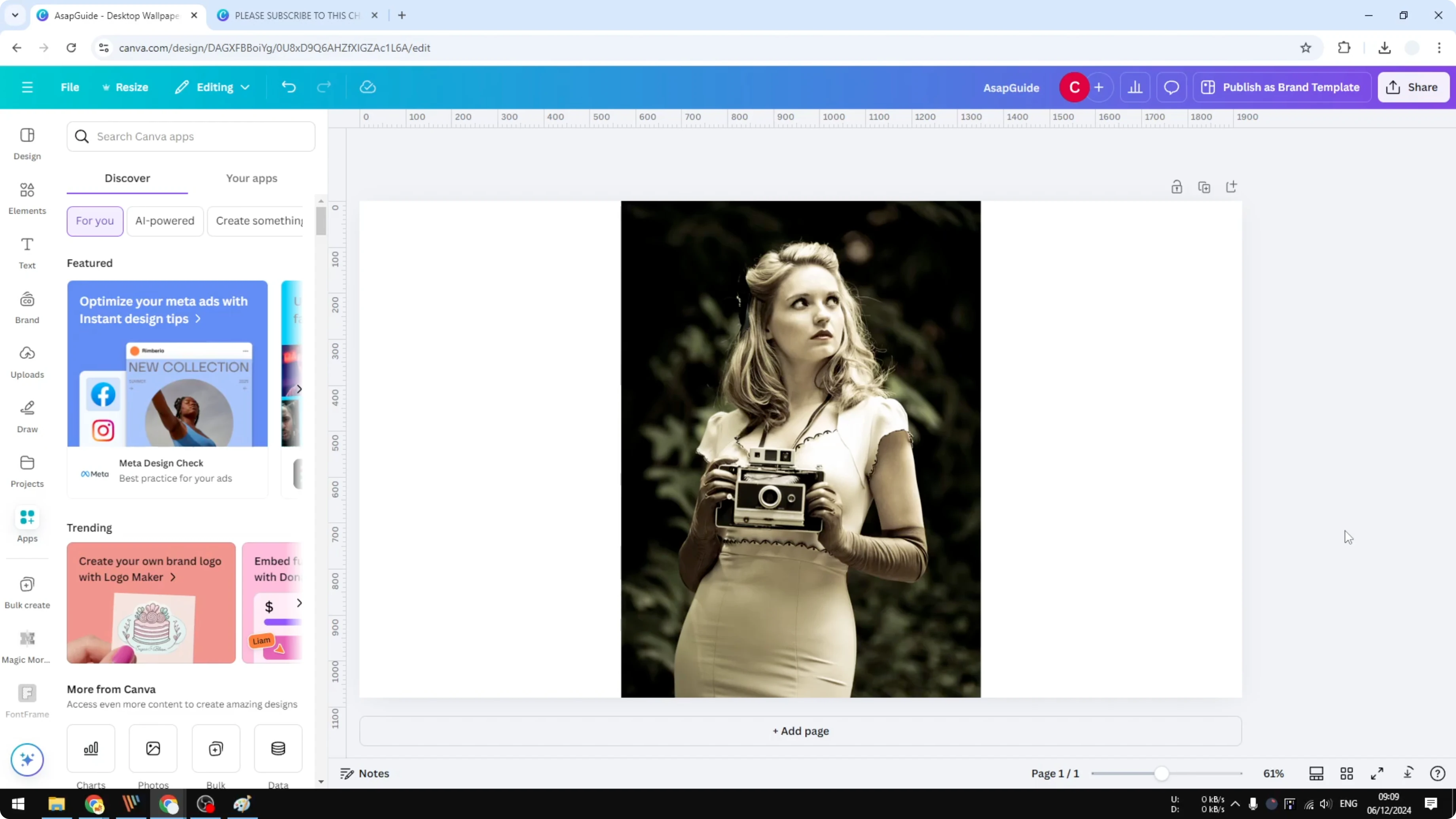
If you get an error because your design includes a single premium element, duplicate the picture on the canvas.
Set the duplicate to fully transparent so it basically doesn't exist.
Try downloading again.
Invert with Microsoft Paint
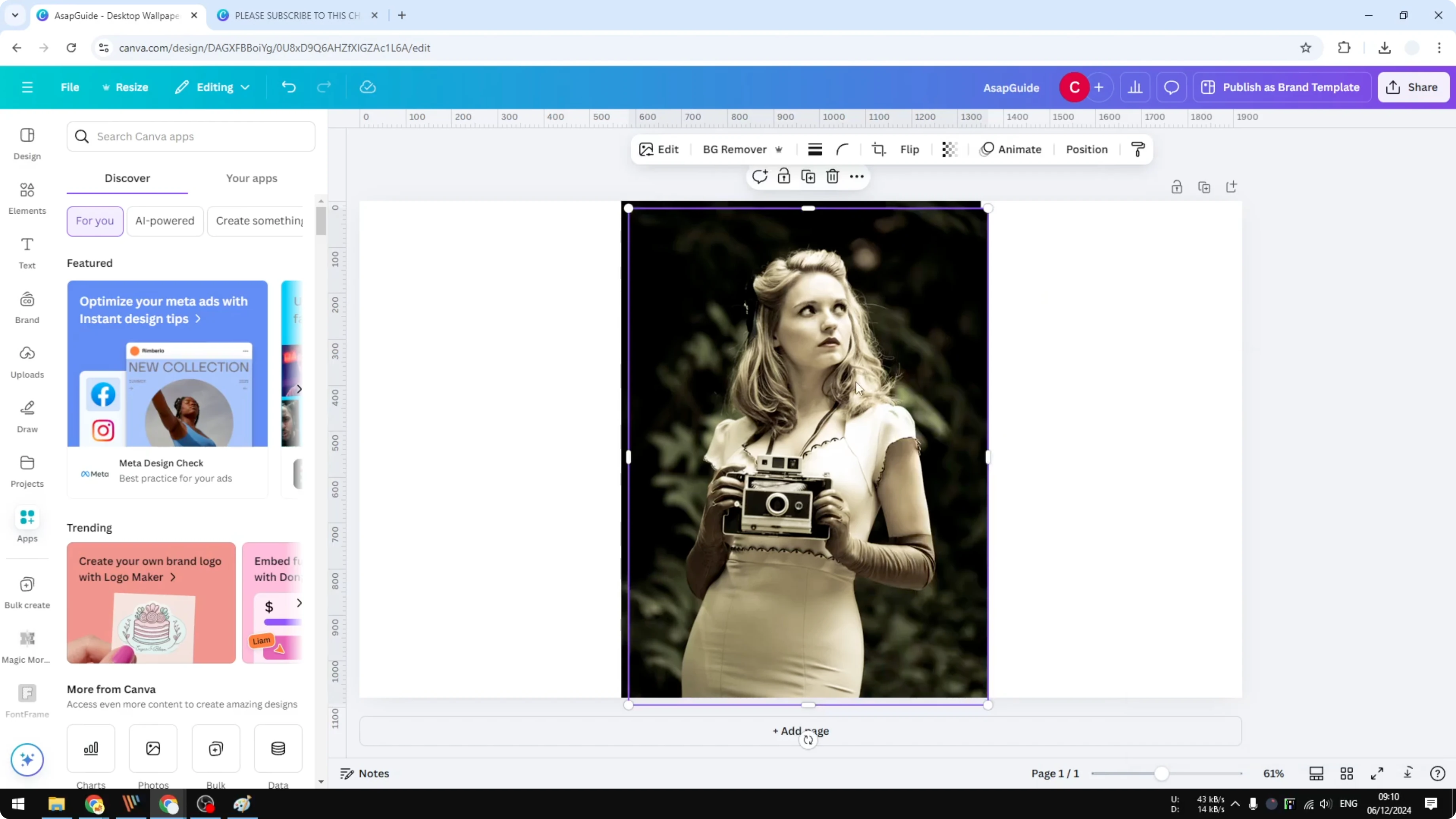
Open the downloaded file with Paint on Windows.
Click Select, right-click anywhere on the image, and click Invert color.
Click File, then Save.
Bring it back to Canva
Remove the temporary transparent layer in your Canva design if you added one.
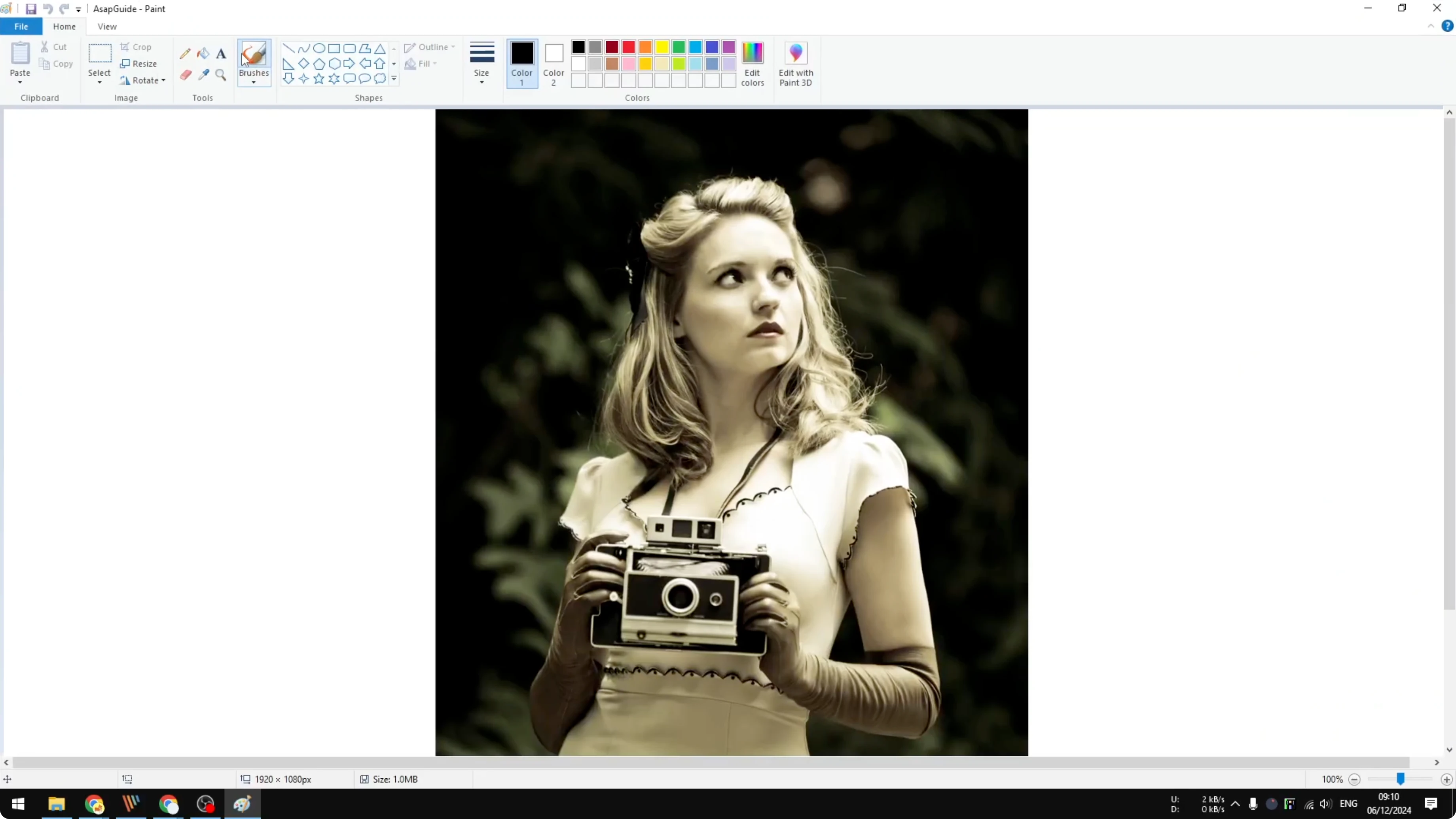
Upload the inverted picture back to Canva.
Wait for the upload icon to finish before editing.
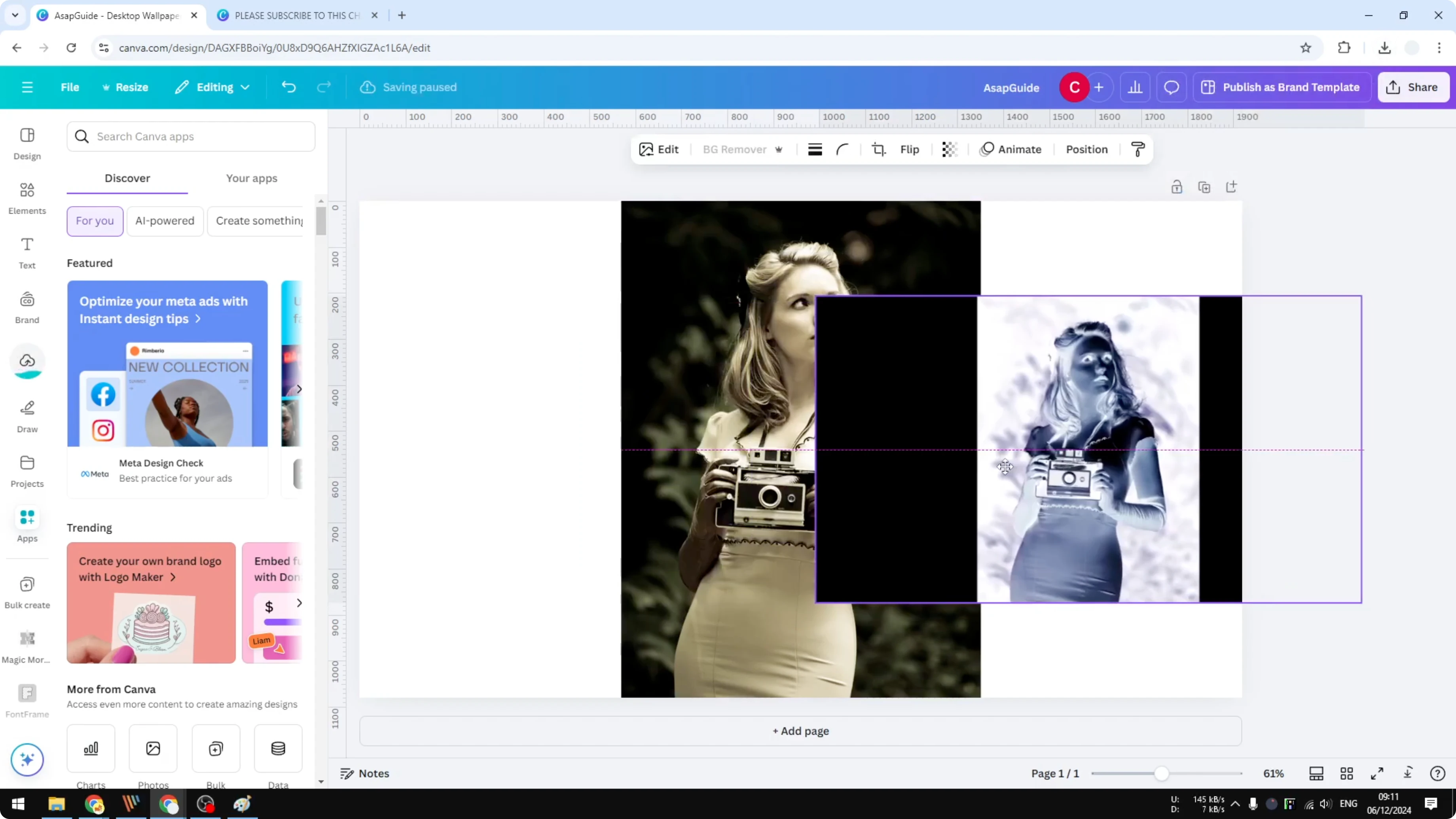
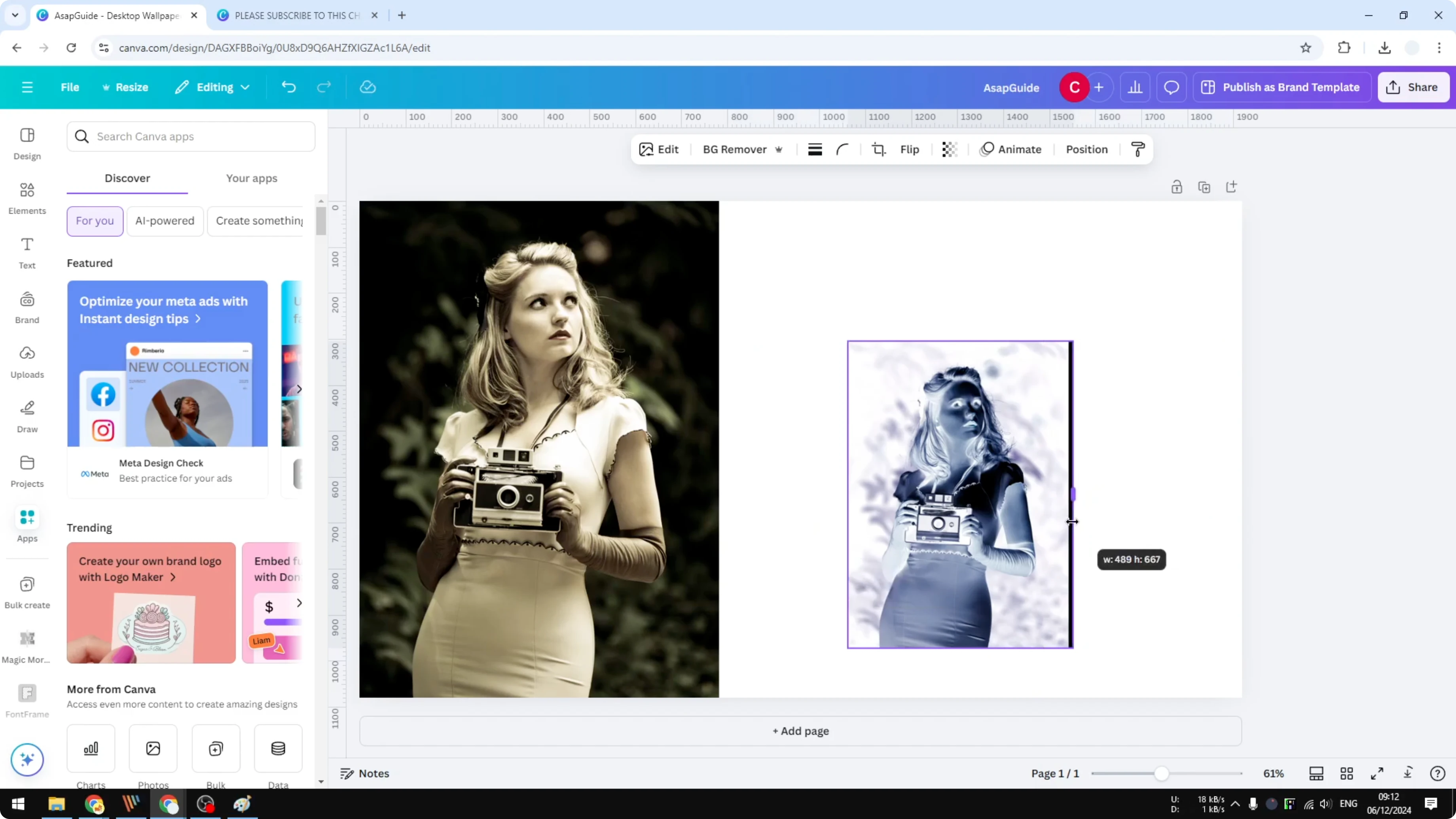
Remove the black area if the inversion added one around your subject.
Try Background Remover, but if it removes everything, undo and switch to manual cleanup.
Manually erase the dark area with the erase tools until it looks right.
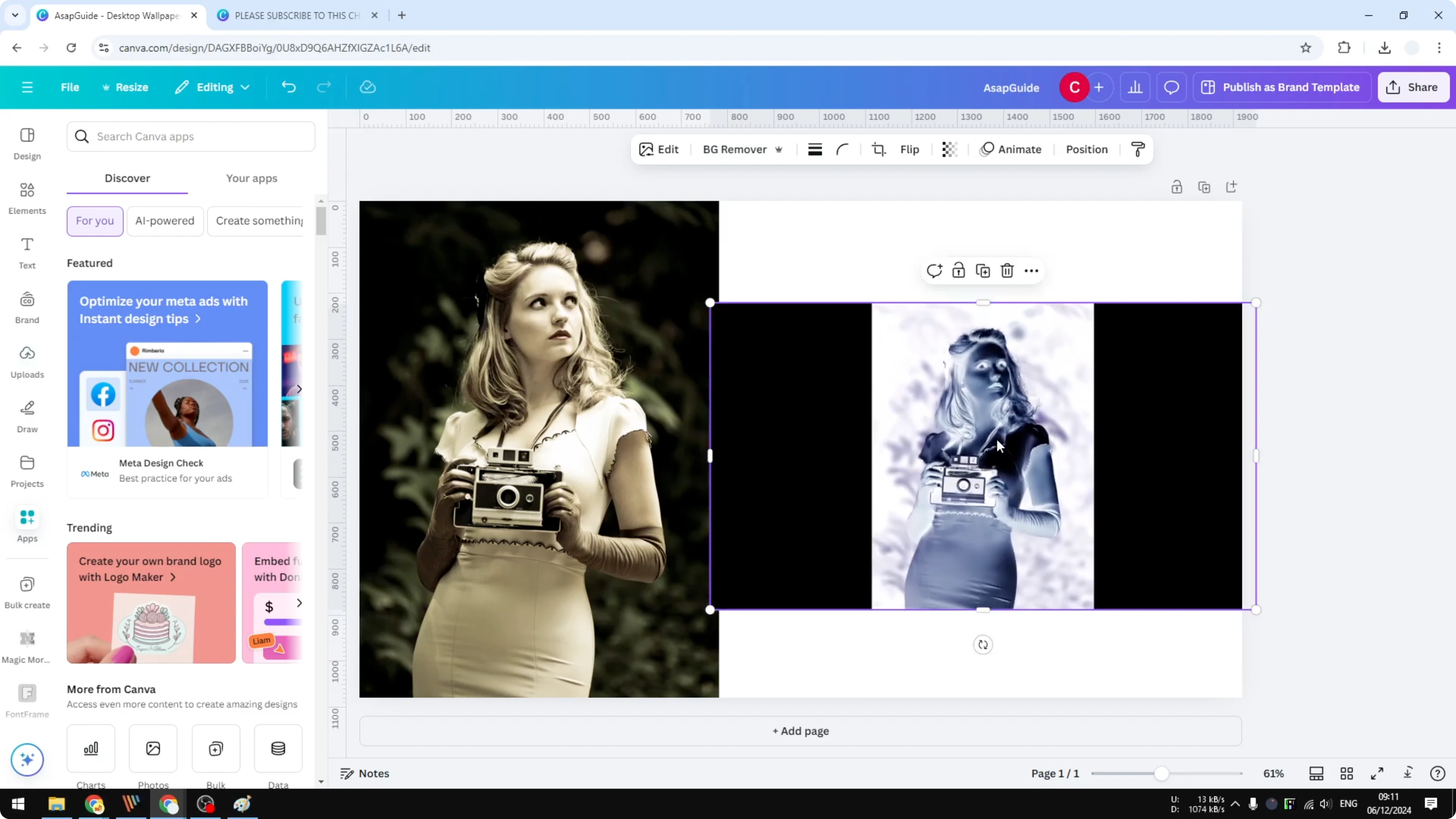
Place the inverted picture next to the original if you want both.
Keep the normal one and the inverted one in separate layers for flexibility.
That’s the basic process end-to-end.
Working on a design like a cover after this edit? Take a look at book cover for presentation ideas.
Limitations and notes on Invert Colors in Canva
This isn’t the easiest method, but given the limitation, it works fine. Using a third-party tool like Microsoft Paint or another photo editor gets the job done. After saving, just re-upload to Canva and continue designing.
If your design needs shaped typography along with the inverted photo, see text shapes for a quick trick.
Final Thoughts
Canva doesn't currently offer a color invert feature, so the workaround is to invert outside Canva and bring the result back in. Microsoft Paint on Windows is a simple option to do this quickly. Once imported, clean up any unwanted areas and continue your design with both normal and inverted versions as needed.
Recent Posts

How to Visualize Yourself as a Pixelized Character with AI?
How to Visualize Yourself as a Pixelized Character with AI?

How to Revive Faded Memories and Enhance Image Clarity with AI?
How to Revive Faded Memories and Enhance Image Clarity with AI?

How to Visualize Yourself as an Animal Crossing Character with AI?
How to Visualize Yourself as an Animal Crossing Character with AI?