How to Make Instagram Grid in Canva
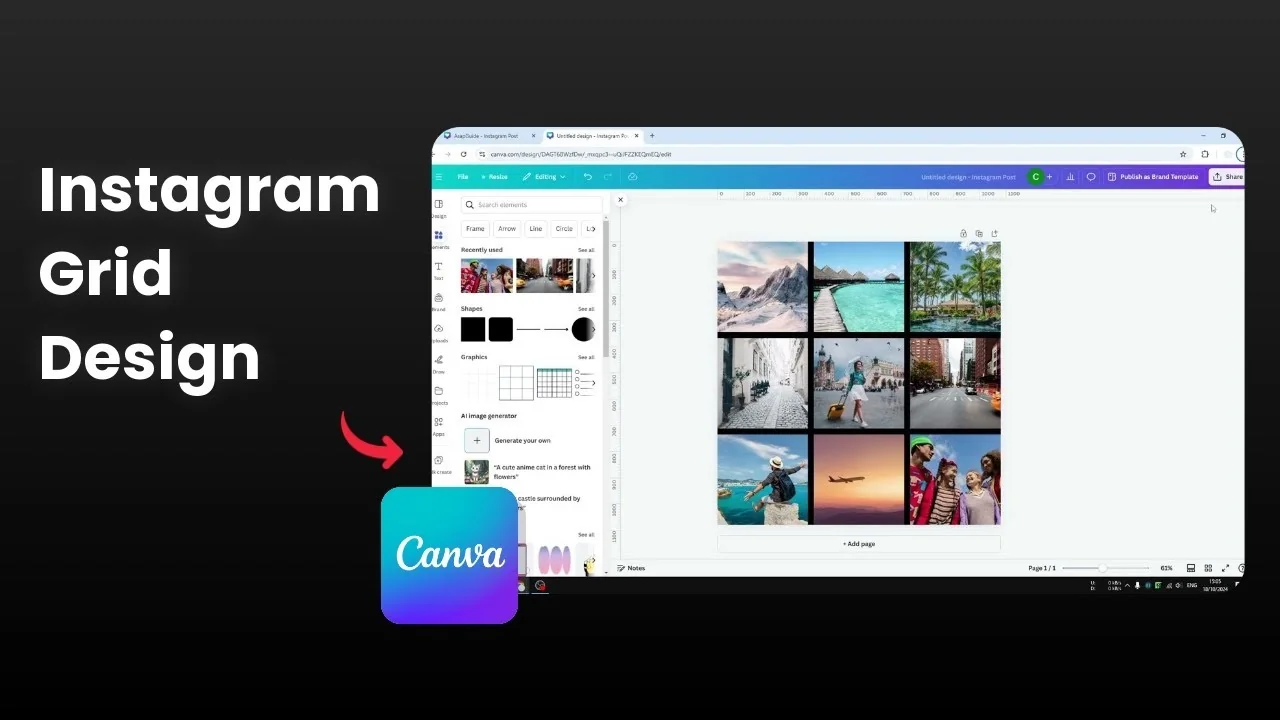
The 3x3 grid layout is very popular on Instagram because profiles display posts in this arrangement. You will see nine tiles showing the latest content from a profile. This design is simple, and you can create one easily in Canva with a few different methods.
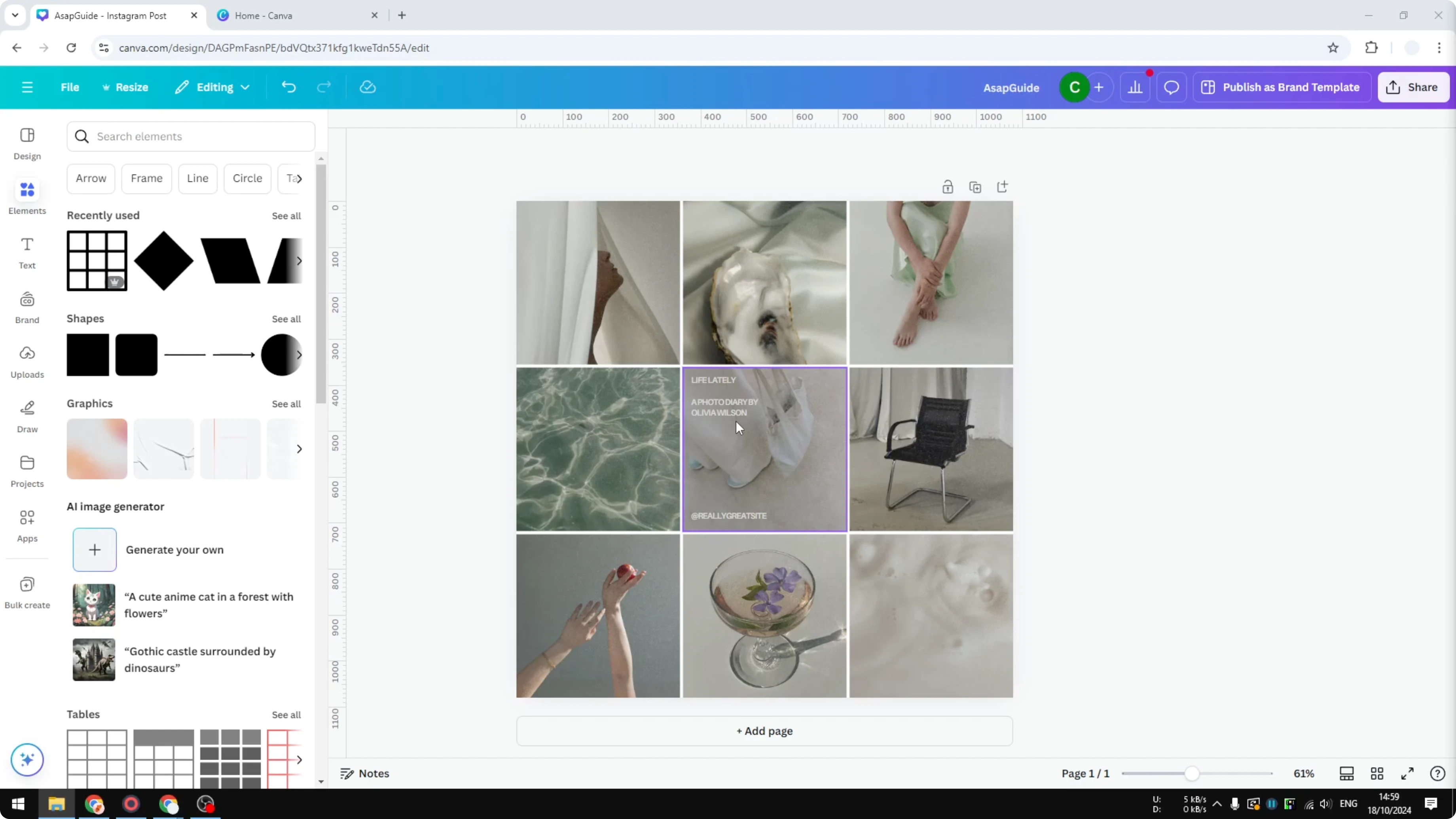
I will show the easiest method first and then a slightly more involved method using elements and frames. Both give you full control over your images. You can adjust and replace every photo later with simple drag and drop.
Make Instagram Grid in Canva
Start with the right size
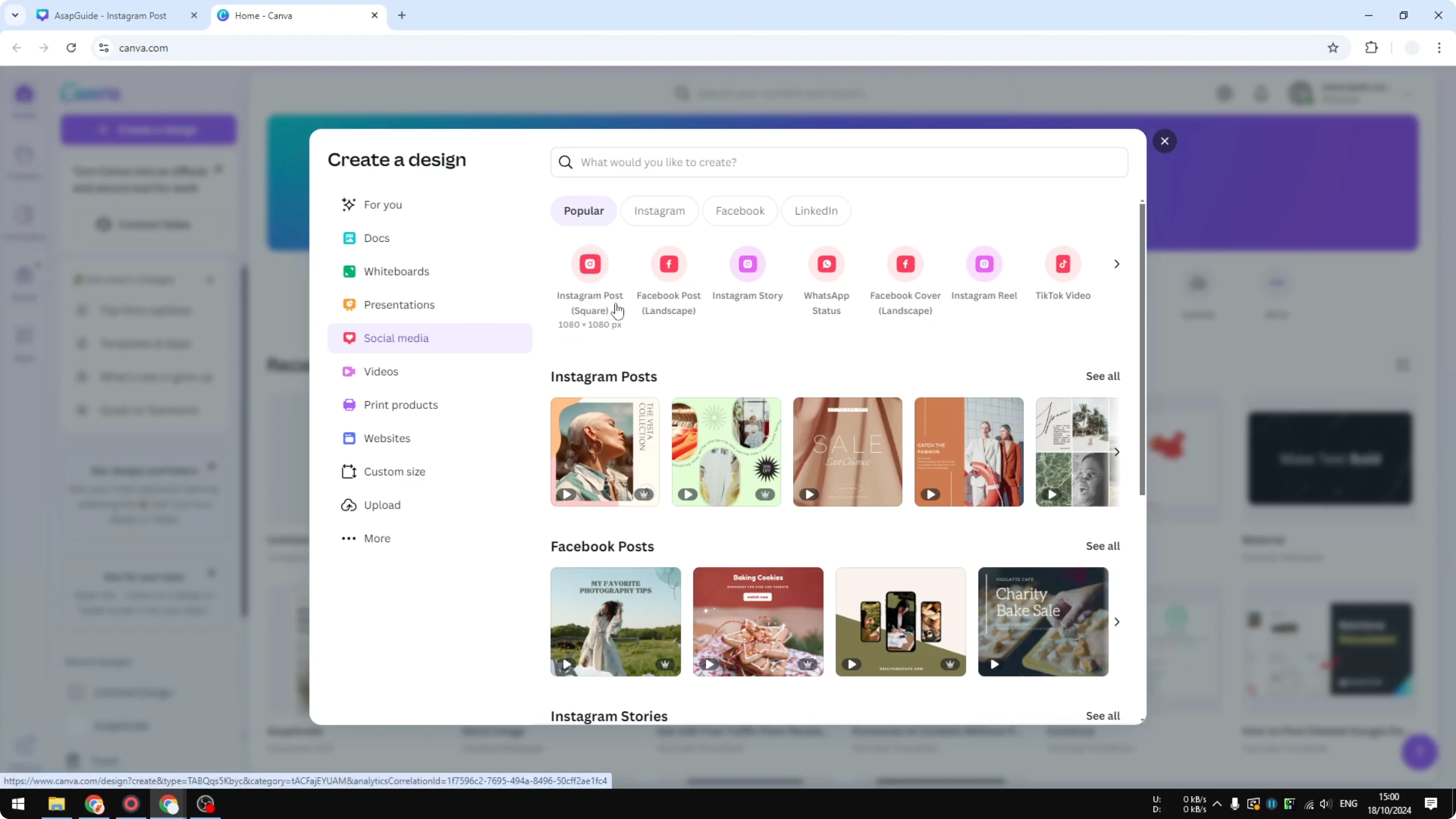
Create a new design using the Instagram Post Square template.
Choose the size 1080 by 1080 px so each square remains proportional.
Canva will open a blank document where you can start building your grid.
If you want more foundations on building layouts, see this guide on making grids in Canva.
Templates method
Open the Design tab.
Search for Instagram grid or type 3x3 grid.
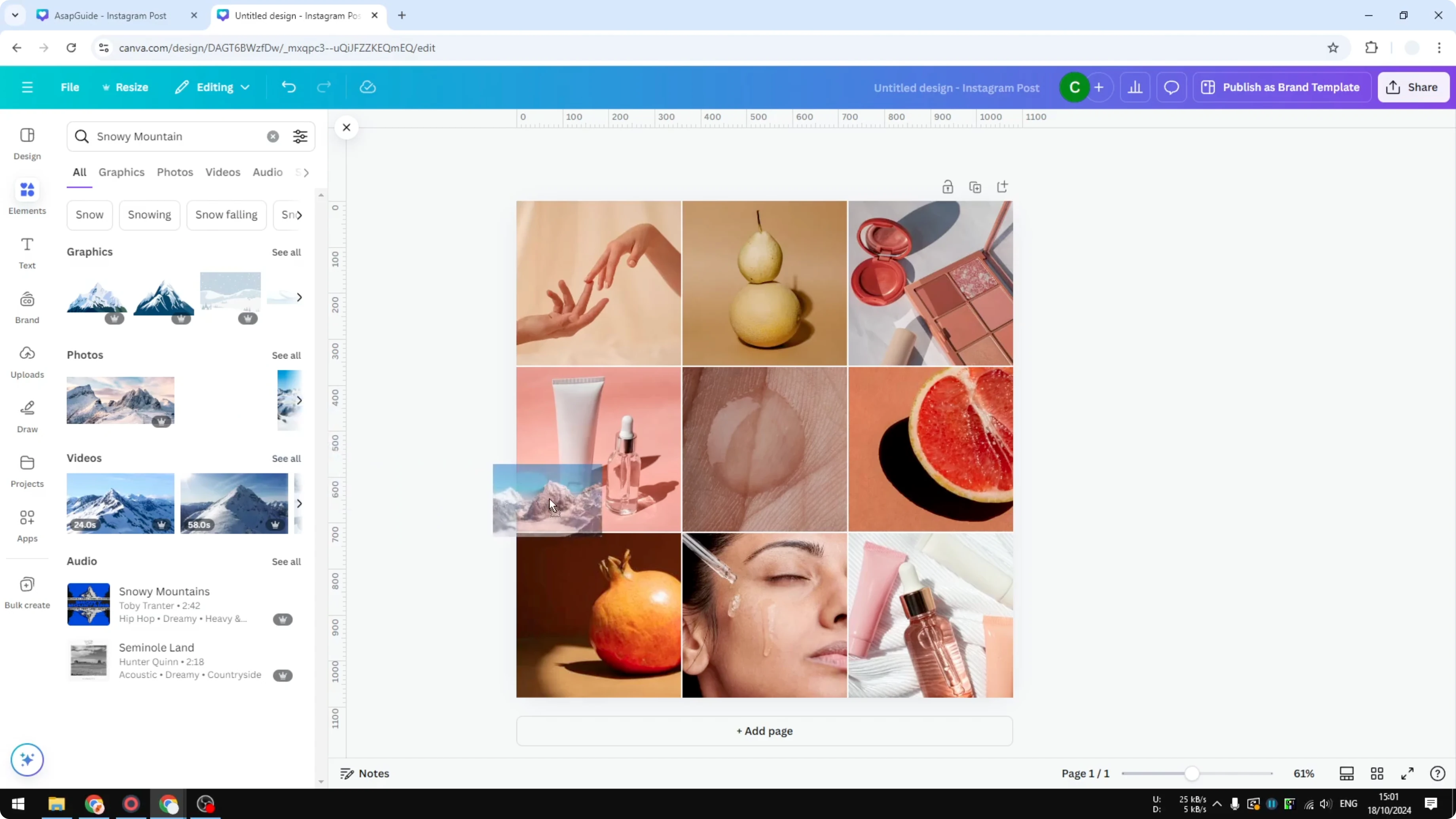
Insert a template you like and it will place the 3x3 style on your canvas.
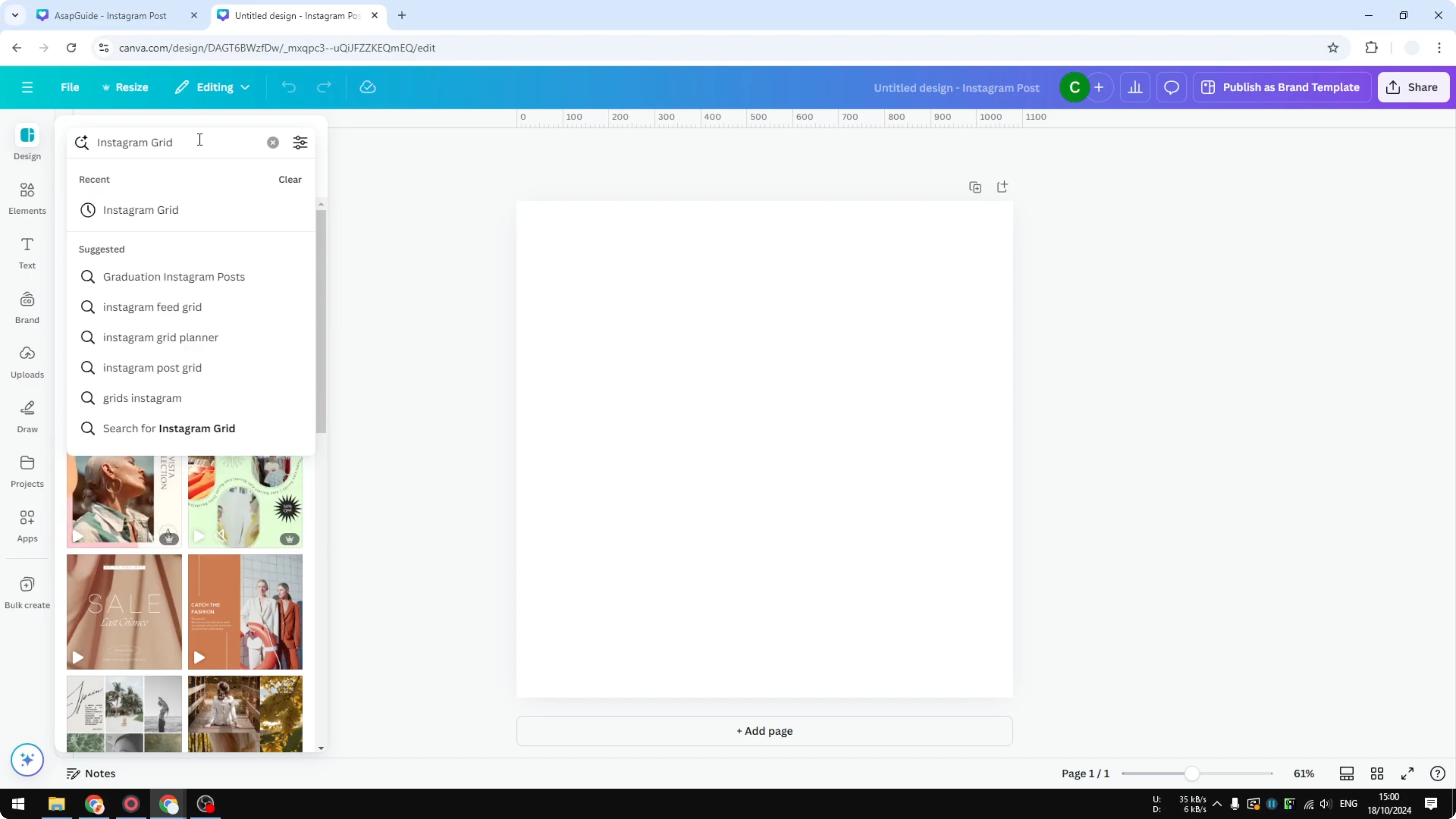
Replace images by dragging a new photo over any tile.
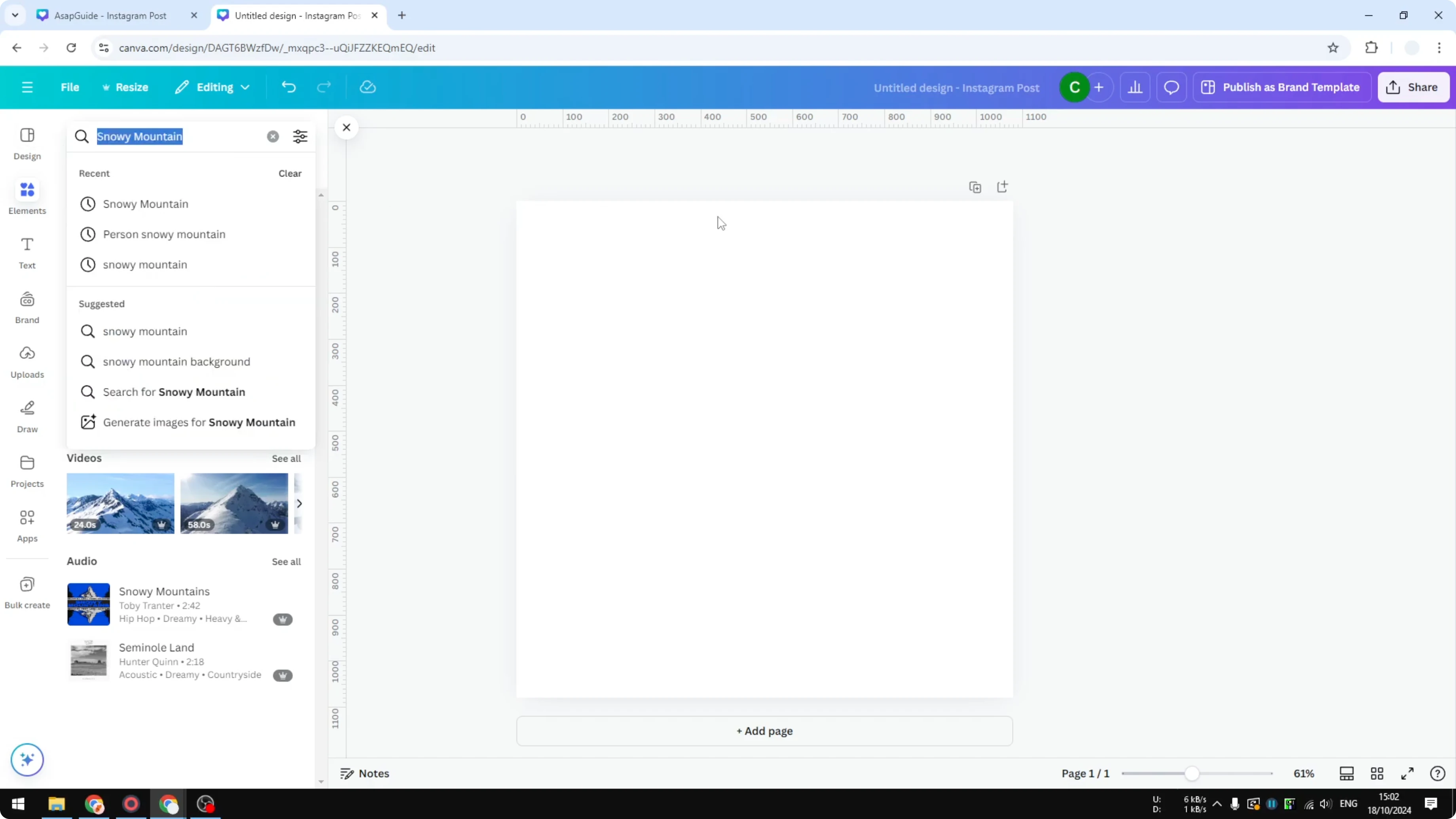
For example, search for a Snowy Mountain image, then drag it into the middle tile to swap it in.
You can repeat this for each tile until all nine images are set.
Read More: Transparent overlays in Canva
Elements method
This method uses a grid and frames so you can build everything manually.
It is still very easy to follow and gives you more control.
You will place frames on top of a 3x3 guide and then drag images into the frames.
Insert the grid
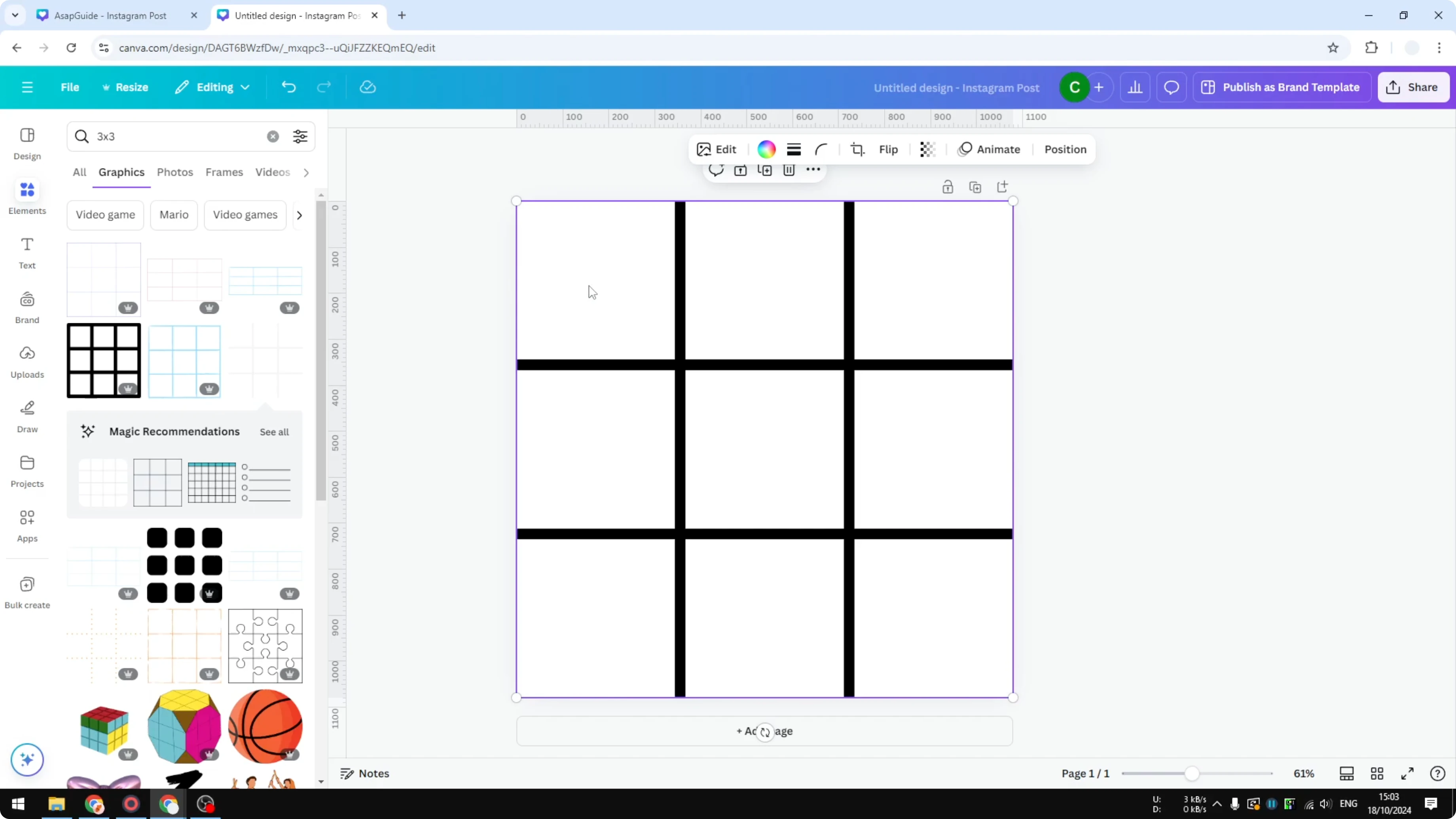
Open Elements and search for 3x3 grid in Graphics.
Click See all to view the options and pick a simple 3x3 layout.
Change the background color if the default white makes the grid hard to see.
Resize the grid to fill the canvas area.
Center it so all squares are even.
This will act as your visual guide.
Add frames
Open Elements and search for frame.
Select a simple square frame and place it carefully over the first square of the grid.
Duplicate the frame and position it over the next square.
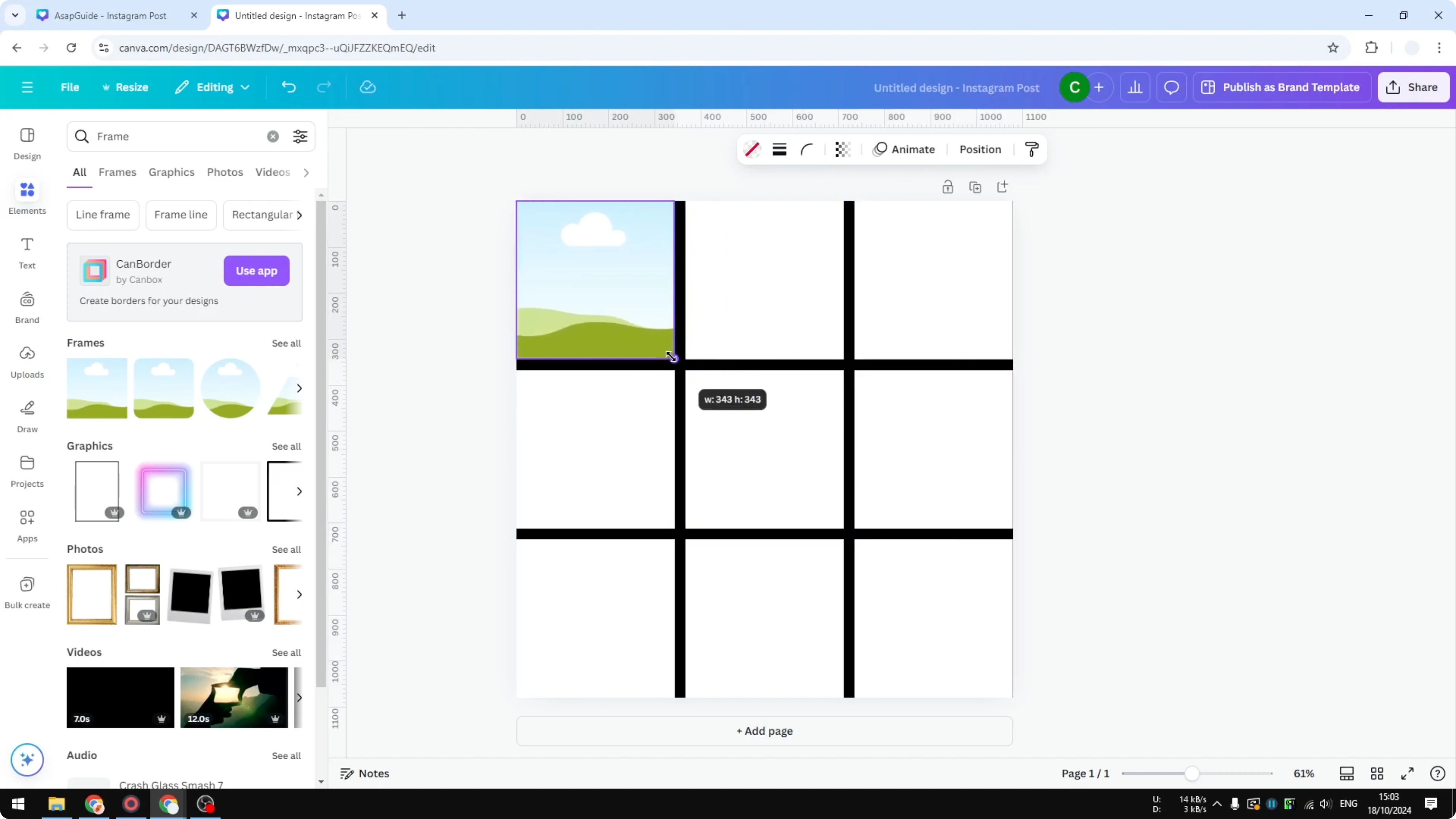
Duplicate again until the entire top row is covered.
Hold Shift to select all three frames in the first row.
Duplicate the selection to create the second row, then duplicate again to create the third row.
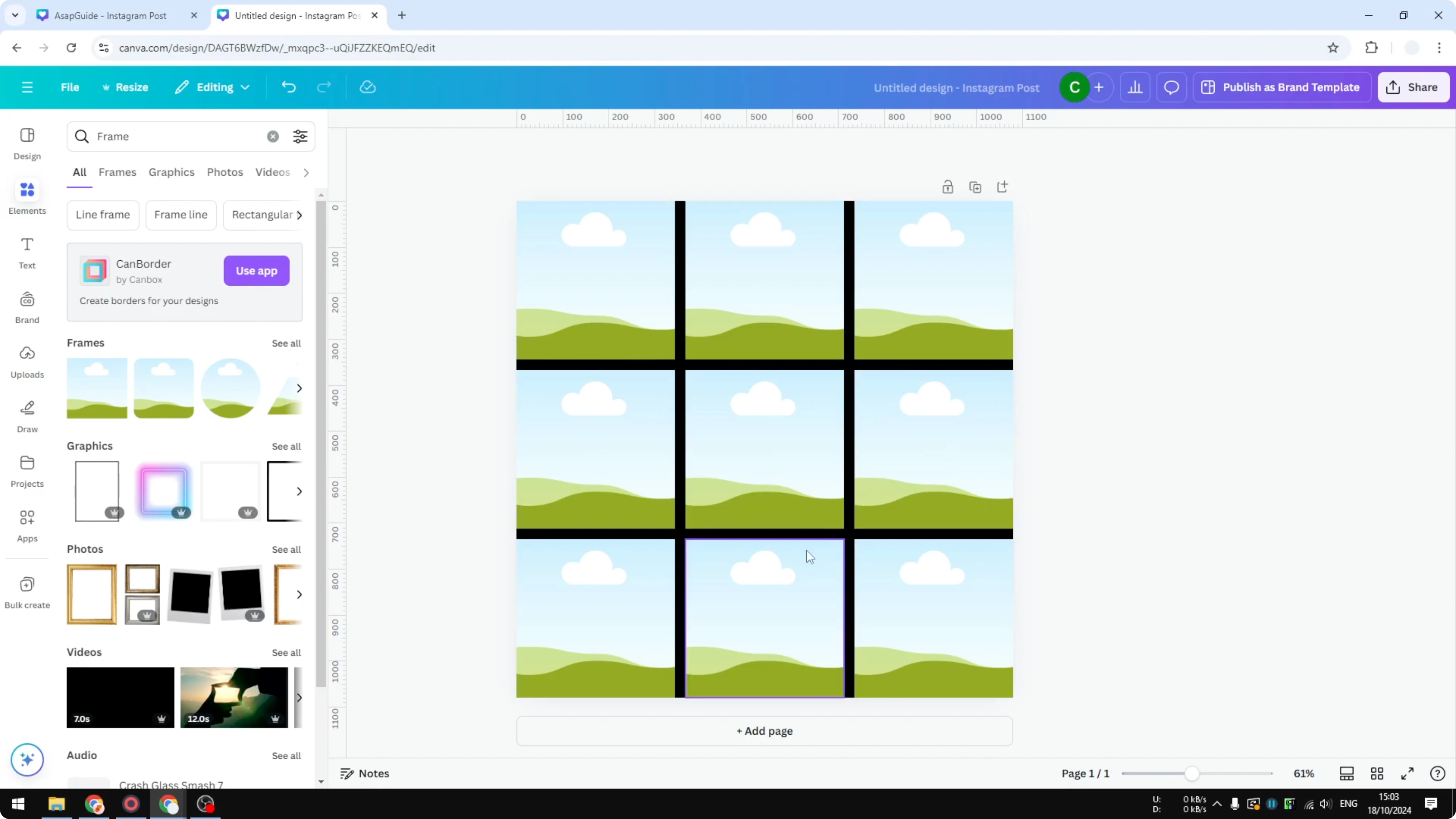
Make sure each frame snaps neatly into place.
Keep frames aligned so the borders match the guide squares.
Now every square is ready to accept an image.
Fill the images
Find photos in Elements or upload your own.
Drag a photo into any frame and it will insert immediately.
Repeat until all nine frames are filled.
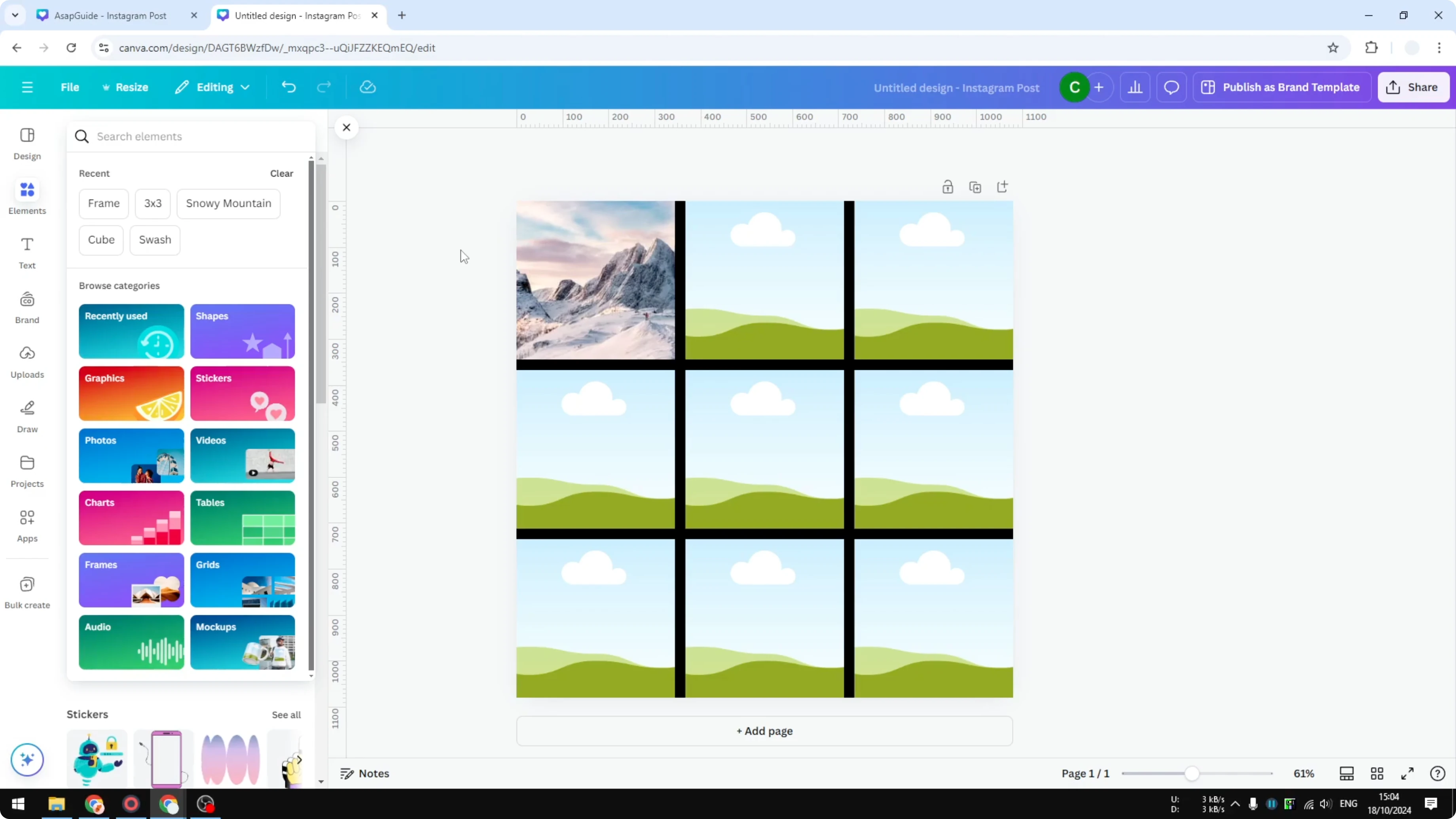
Adjust the crop by double-clicking a frame and moving the image within it.
Replace any tile by dragging a new image over the old one.
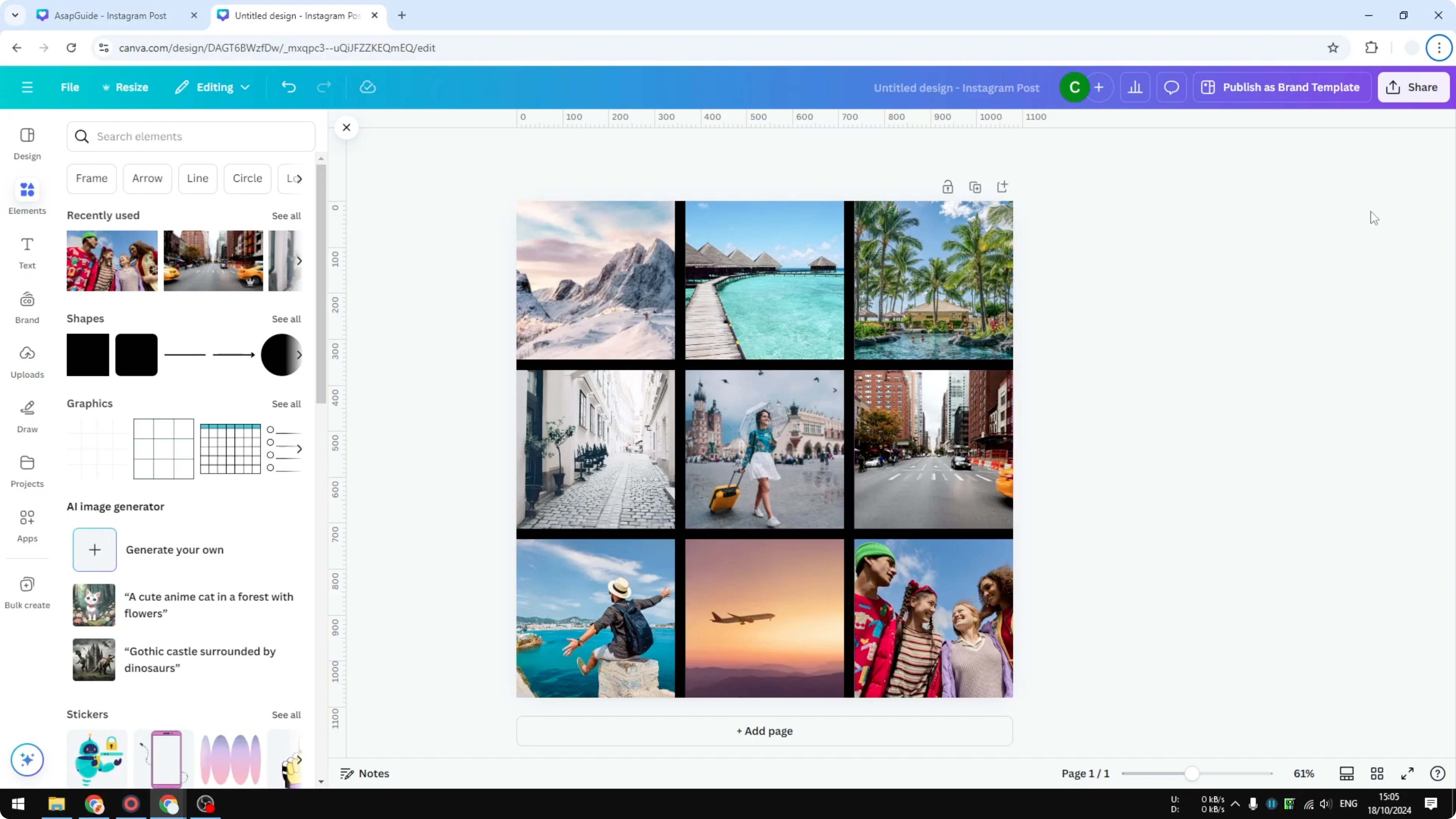
Keep refining until the full grid looks cohesive.
Read More: Create a video from photos in Canva
Export
Click Share and choose Download.
Export as PNG or JPEG for best quality.
You can share the final grid on your social media account.
Final thoughts
An Instagram 3x3 grid is quick to build in Canva.
Use a ready-made template for speed or frames for precise control.
Drag in your images, adjust the crop, export, and your grid is ready to post.
Recent Posts

How to Visualize Yourself as a Pixelized Character with AI?
How to Visualize Yourself as a Pixelized Character with AI?

How to Revive Faded Memories and Enhance Image Clarity with AI?
How to Revive Faded Memories and Enhance Image Clarity with AI?

How to Visualize Yourself as an Animal Crossing Character with AI?
How to Visualize Yourself as an Animal Crossing Character with AI?