How to Insert Text to a Shape in Canva
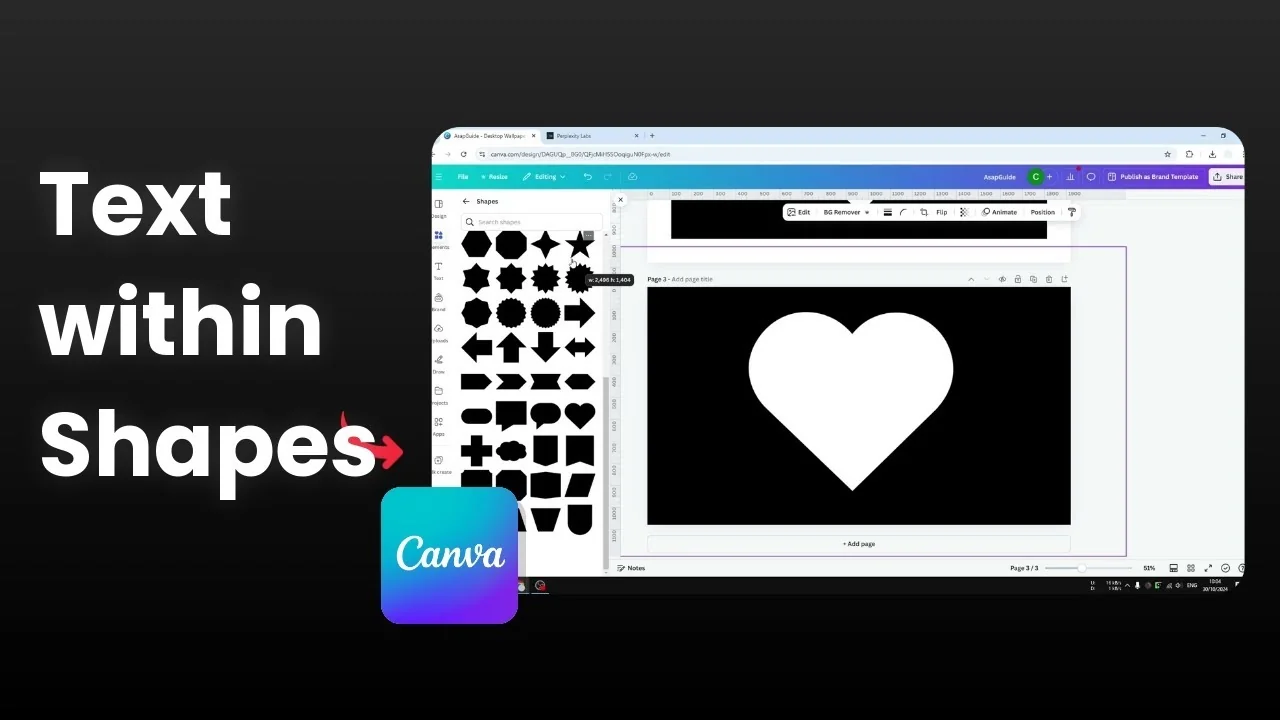
I am going to show you how to put a body of text into a shape in Canva. You cannot really mold text into a particular shape. What you can do, without any third-party app, is place a paragraph behind a silhouette or transparent silhouette of a shape in Canva.
Here is how you can create this for your document or design. If you need a different text-to-shape effect, see how to attach text to a shape in Canva.
Insert Text to a Shape in Canva: Build the silhouette
Create the shape image
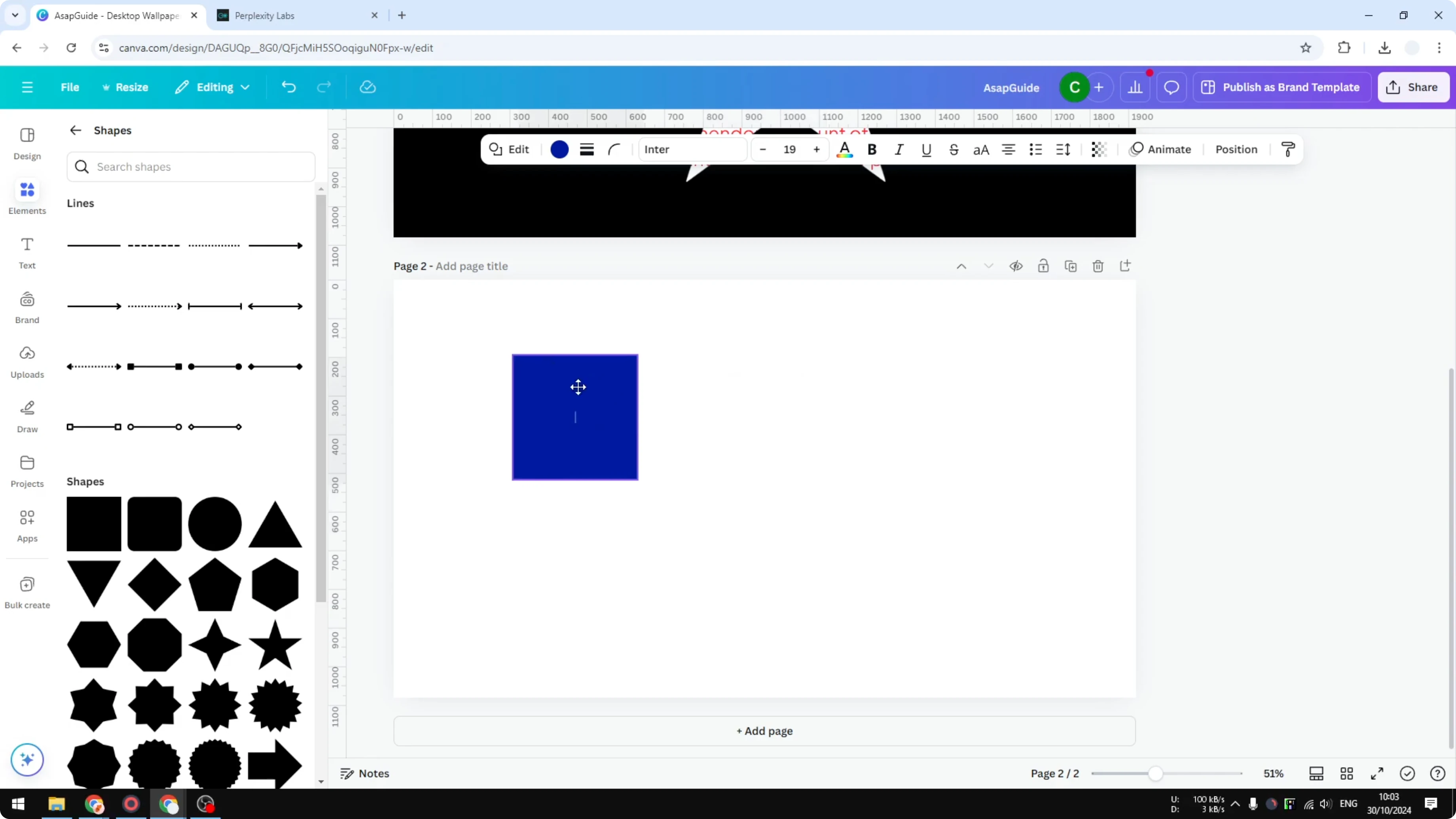
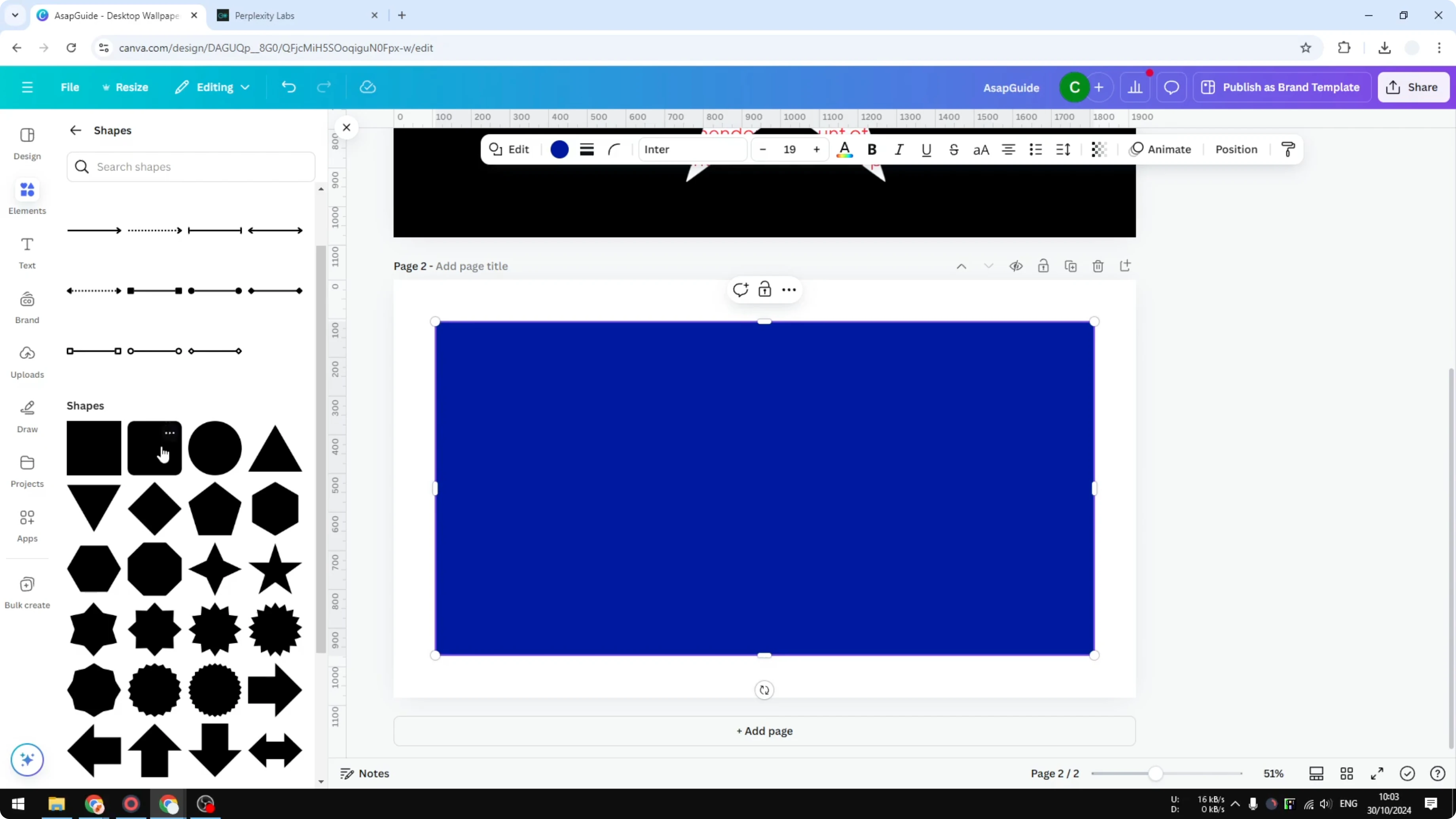
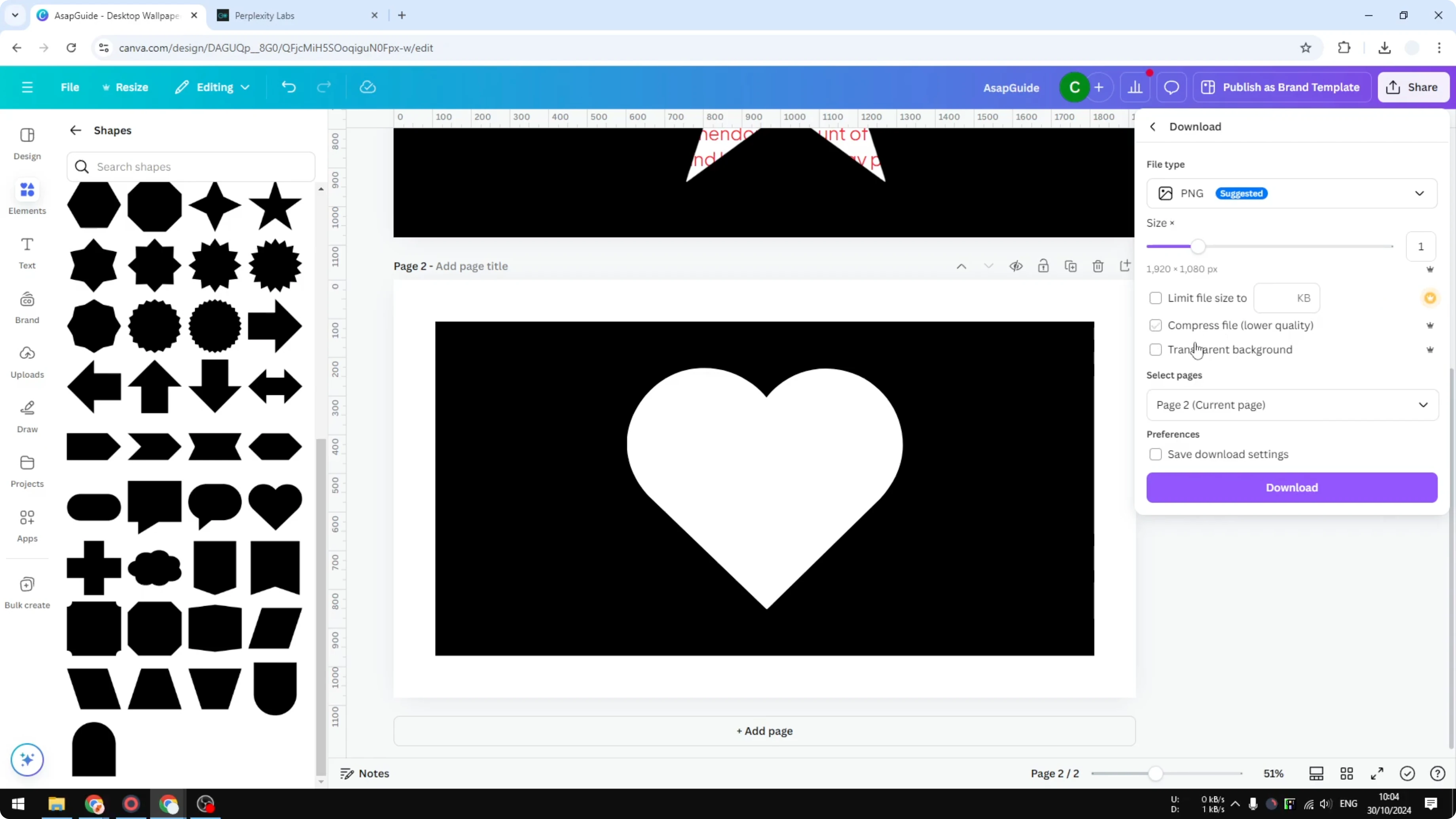
Add a new page. Go to Elements, open Shapes, insert a square, and make it bigger.
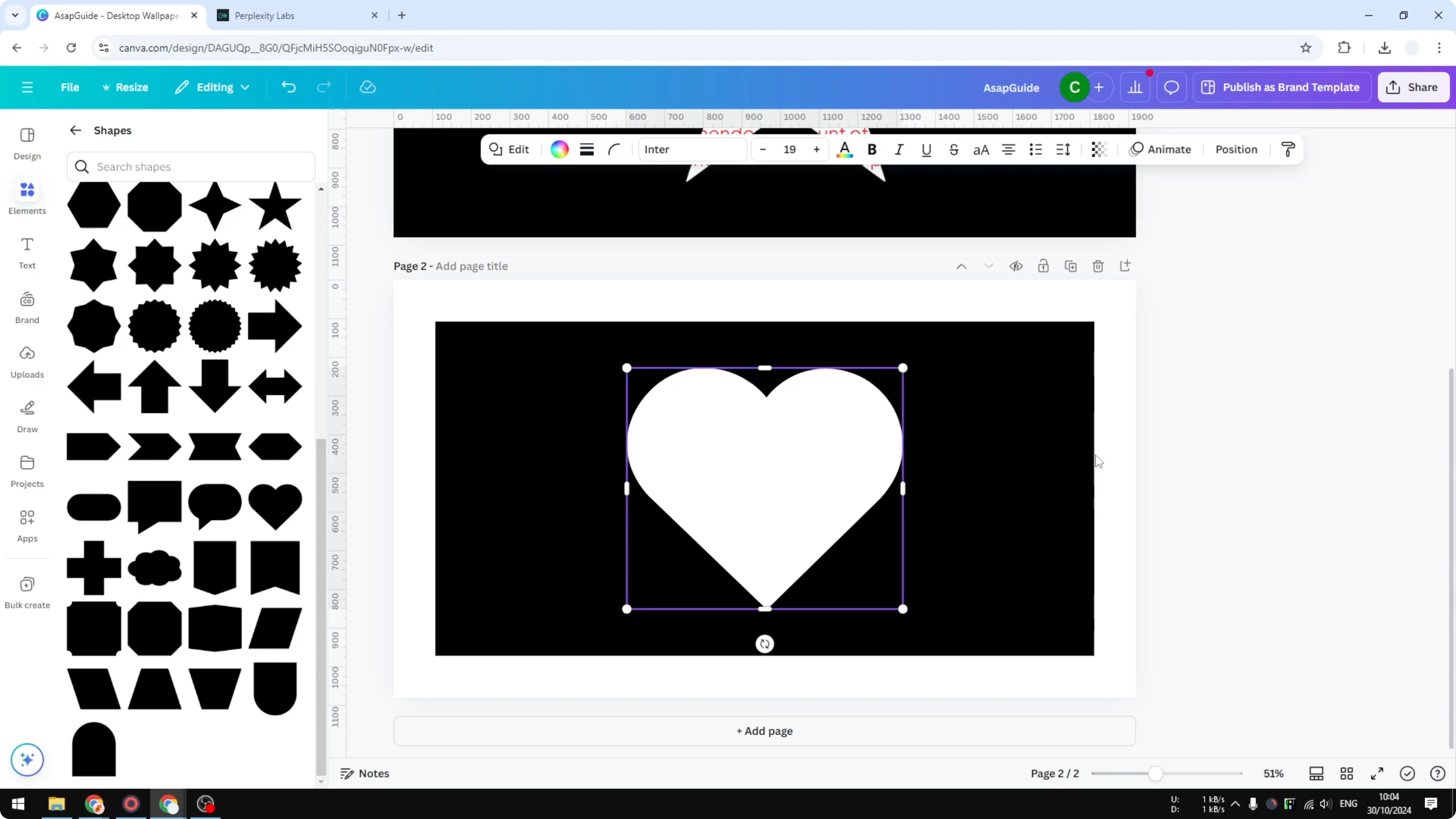
Insert a different shape such as a heart. Change the heart color to white and the square color to black. It is very important that you have some extra area and make sure it has the same color as the shape you want to use later.
Export the shape image
Increase the size of the heart. Go to Share, click Download, and select the second page only.
Leave the settings alone and do not check Transparent background. Click Download and wait for the file to finish downloading.
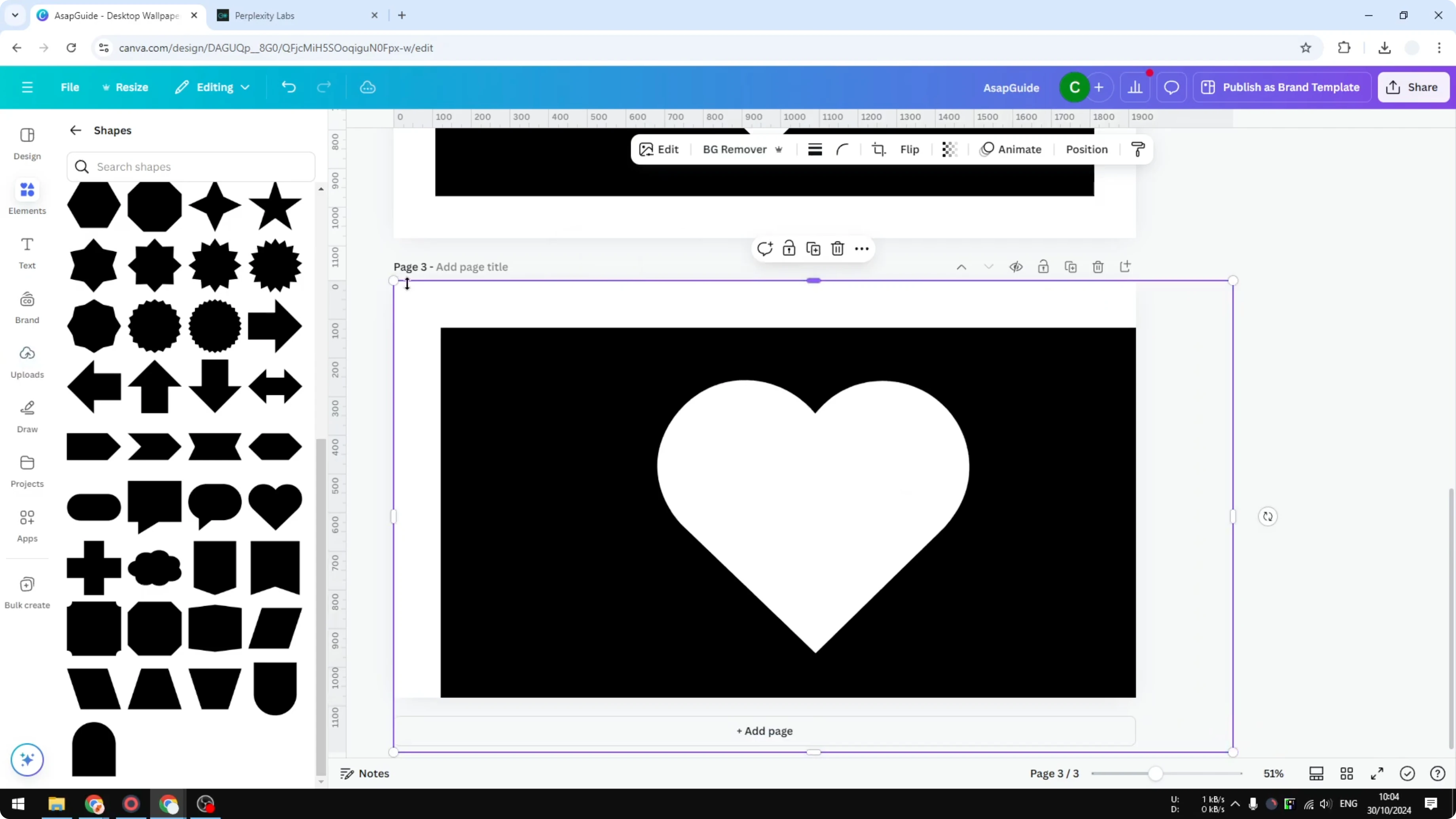
Add another page. Upload the file to the new page. Make it a little bigger and center it.
Insert Text to a Shape in Canva: Prepare and place your text
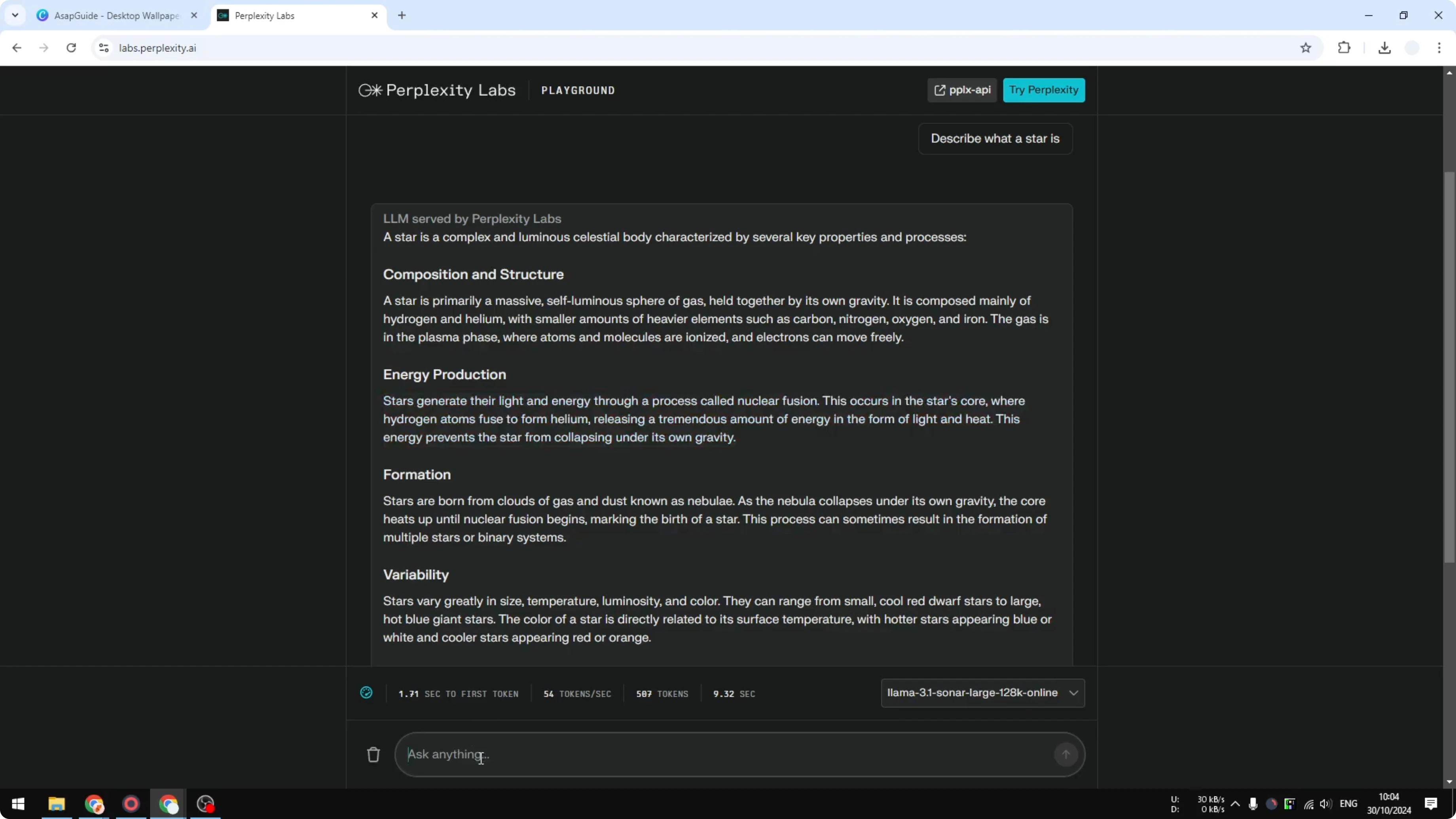
Go to Text and add a text box. Paste your paragraph into the new text box.
Change the text color to red. Increase the size, change the font, and make it bold as needed.
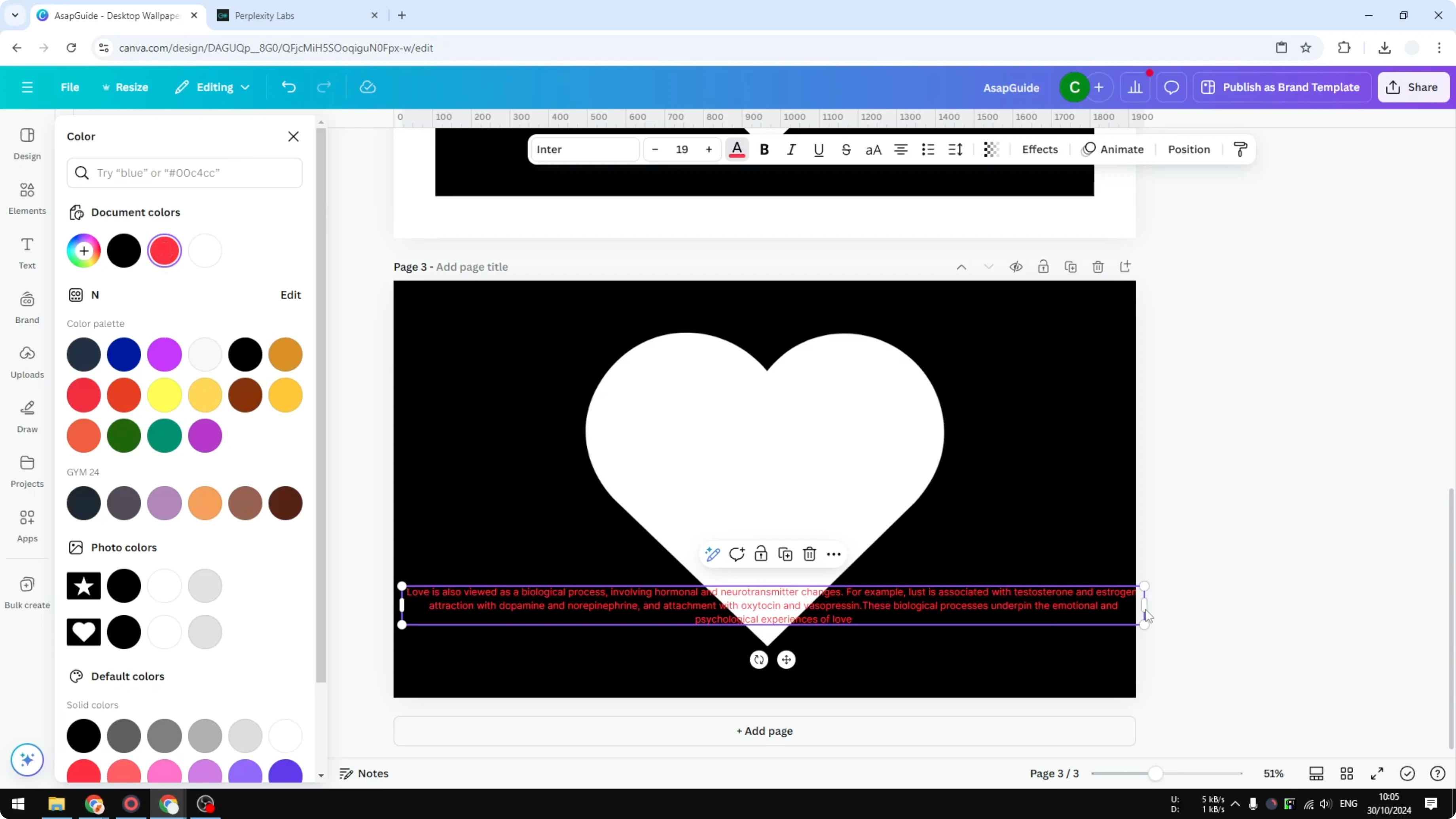
Add another text block if the paragraph is not long enough. That is it for the text setup. For big background-style headings, see how to add background text in Canva.
Insert Text to a Shape in Canva: Reveal the text through the shape
Send the text behind the uploaded shape image. Right click the text layer and choose Send backward or Send to back.
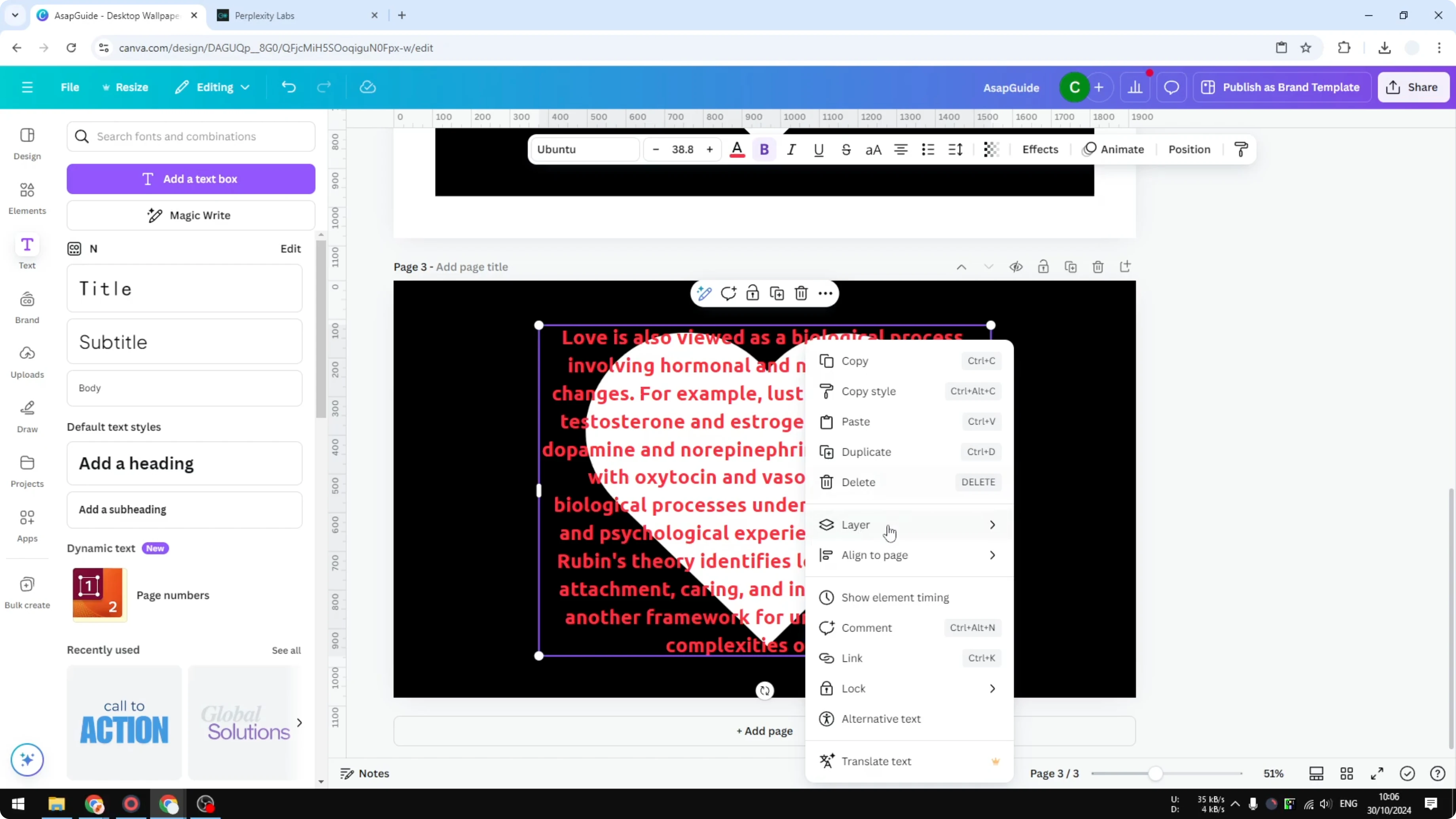
Click the shape image and click Background Remover. Wait for it to finish, and you will see the paragraph inside the shape.
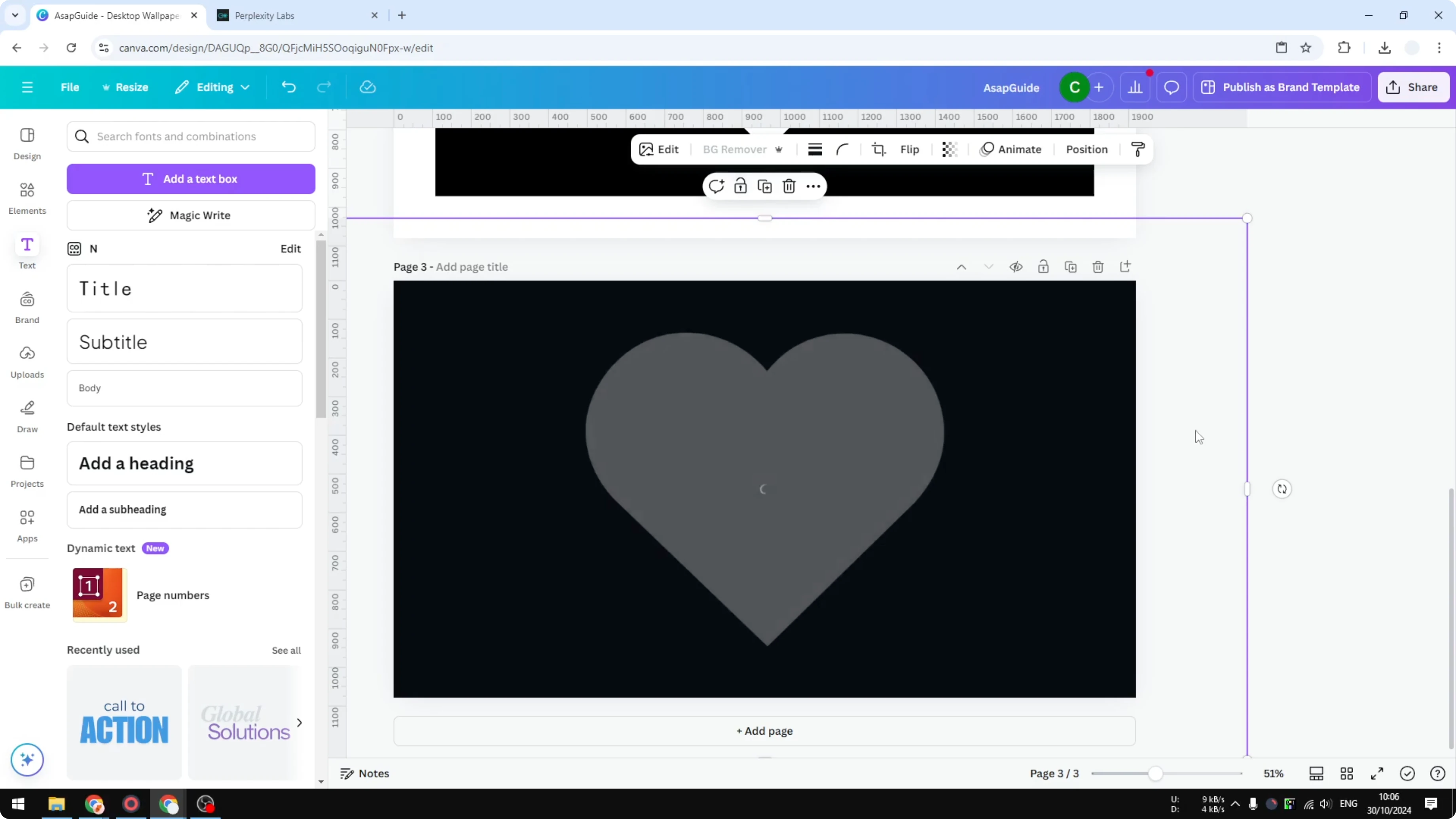
That is exactly how you can create this effect in Canva. If you want to style your captions or callouts, you can also add a border to a text box in Canva.
Final thoughts
You cannot reshape a paragraph to conform to a complex outline, but you can reveal text through a silhouette by exporting a shape image and using Background Remover. The key is stacking: text at the back, the shape image on top, and a clean cutout. This gives you a bold, readable text-inside-shape effect with only Canva tools.
Recent Posts

How to Visualize Yourself as a Pixelized Character with AI?
How to Visualize Yourself as a Pixelized Character with AI?

How to Revive Faded Memories and Enhance Image Clarity with AI?
How to Revive Faded Memories and Enhance Image Clarity with AI?

How to Visualize Yourself as an Animal Crossing Character with AI?
How to Visualize Yourself as an Animal Crossing Character with AI?