How to Insert Social Media Icons to Canva
Finding and inserting real social media icons in Canva can be tricky. Canva has plenty of media assets, but official brand logos often don’t show up as exact matches. Here are three ways I use, and the one I recommend.
Insert Social Media Icons to Canva - built-in search
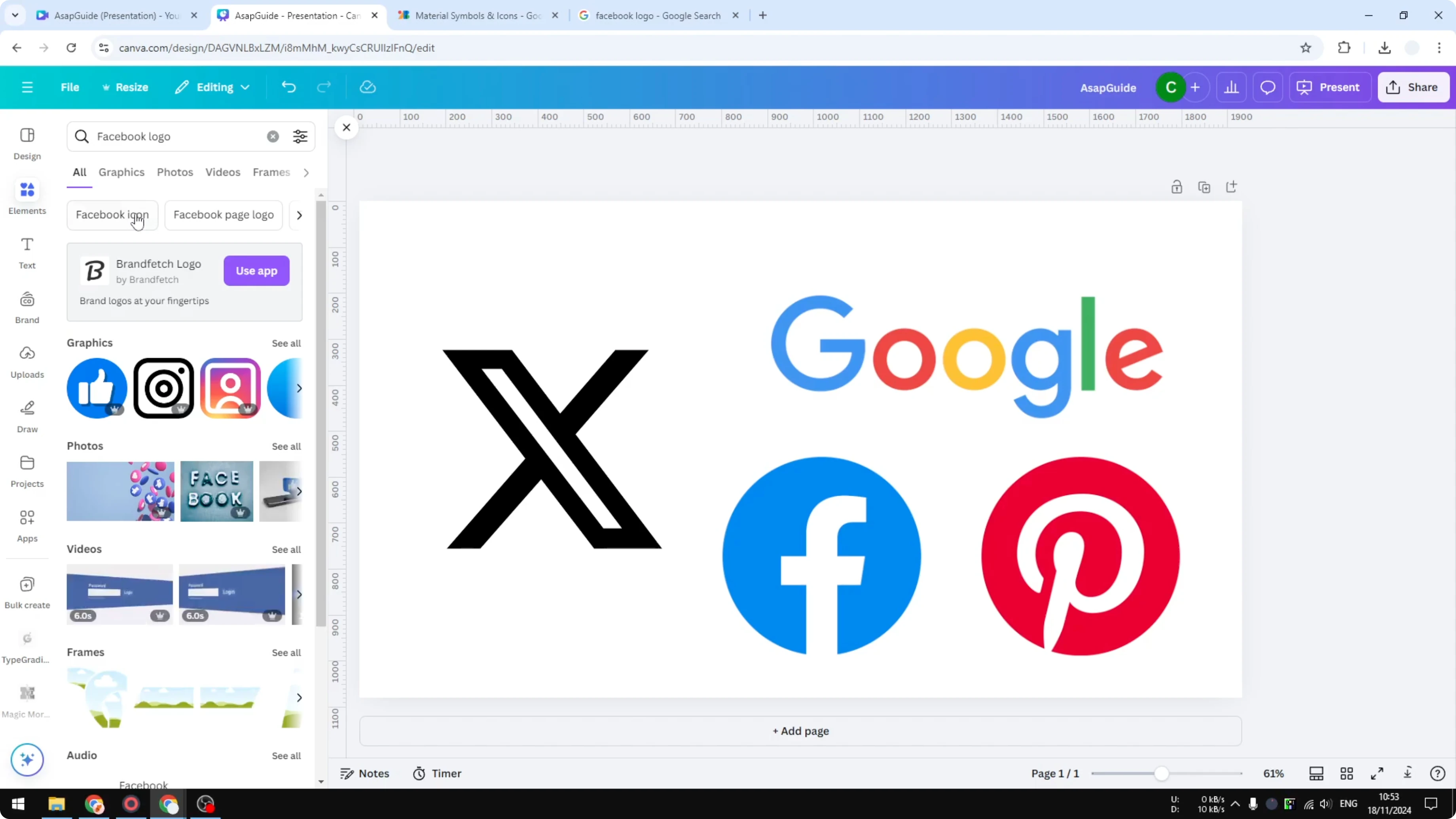
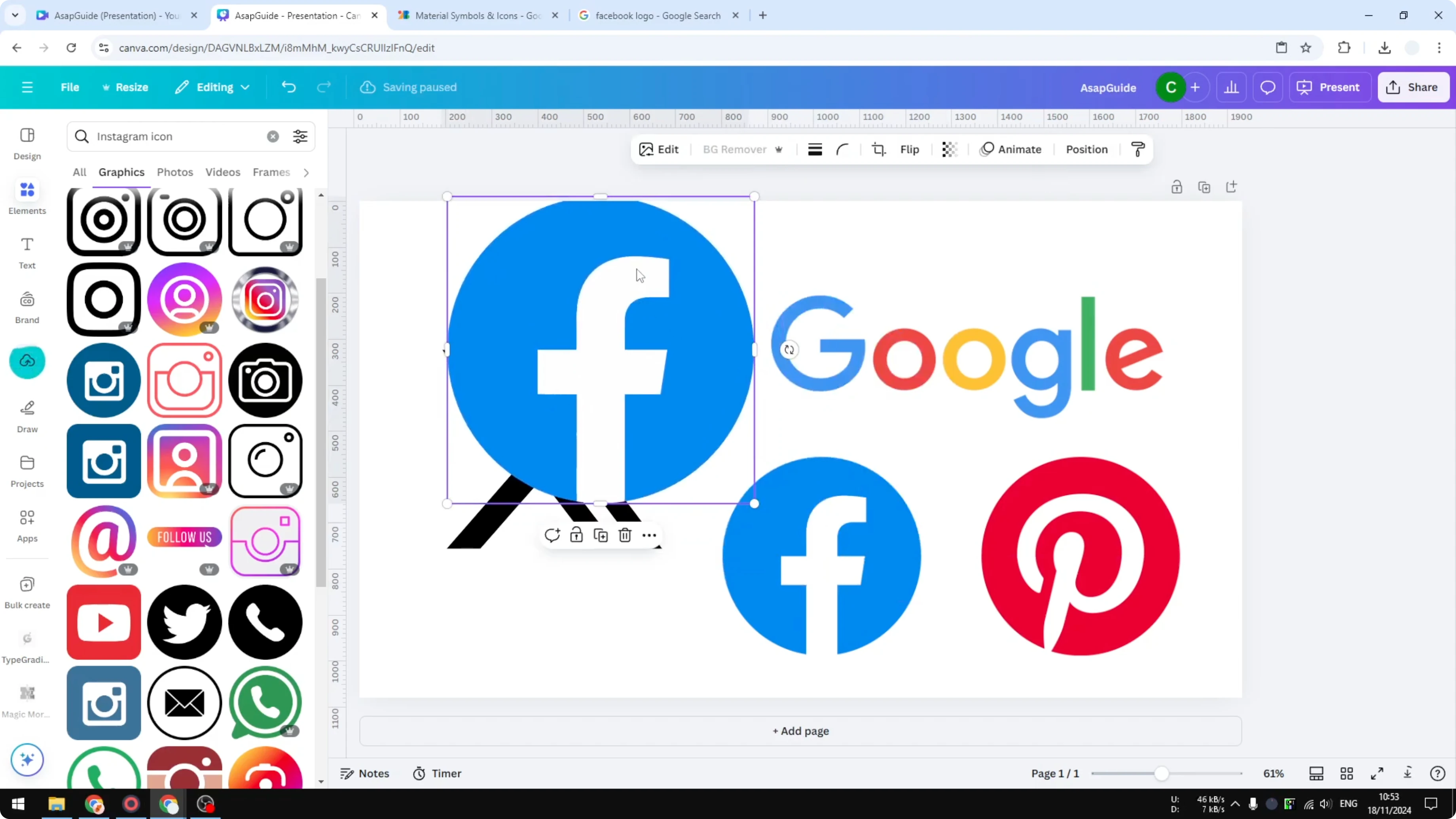
Open Elements and search for “Facebook logo.” You’ll see options that resemble Facebook, but they’re not the exact logo.
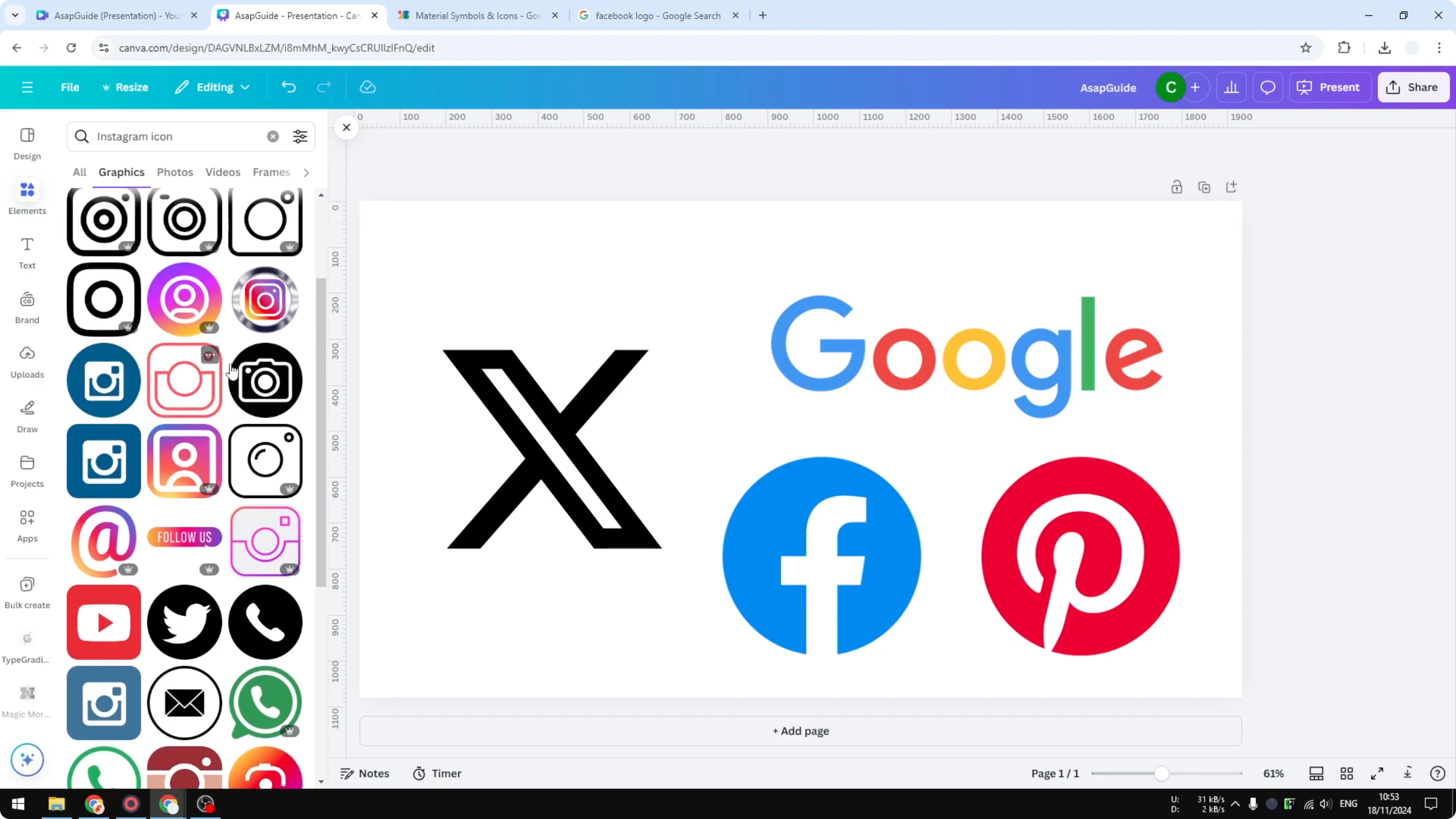
Search “Instagram icon” and you’ll run into the same thing. You could use these, but they’re not exactly the same logos used by the companies, which isn’t the best option in my opinion.
If you’re also working on typography polish, see adding background text in Canva to style captions that sit under your icons.
Insert Social Media Icons to Canva from Google images
Go to Google and search for the logo you need. Right-click the logo, copy the image, and paste it into your Canva design.
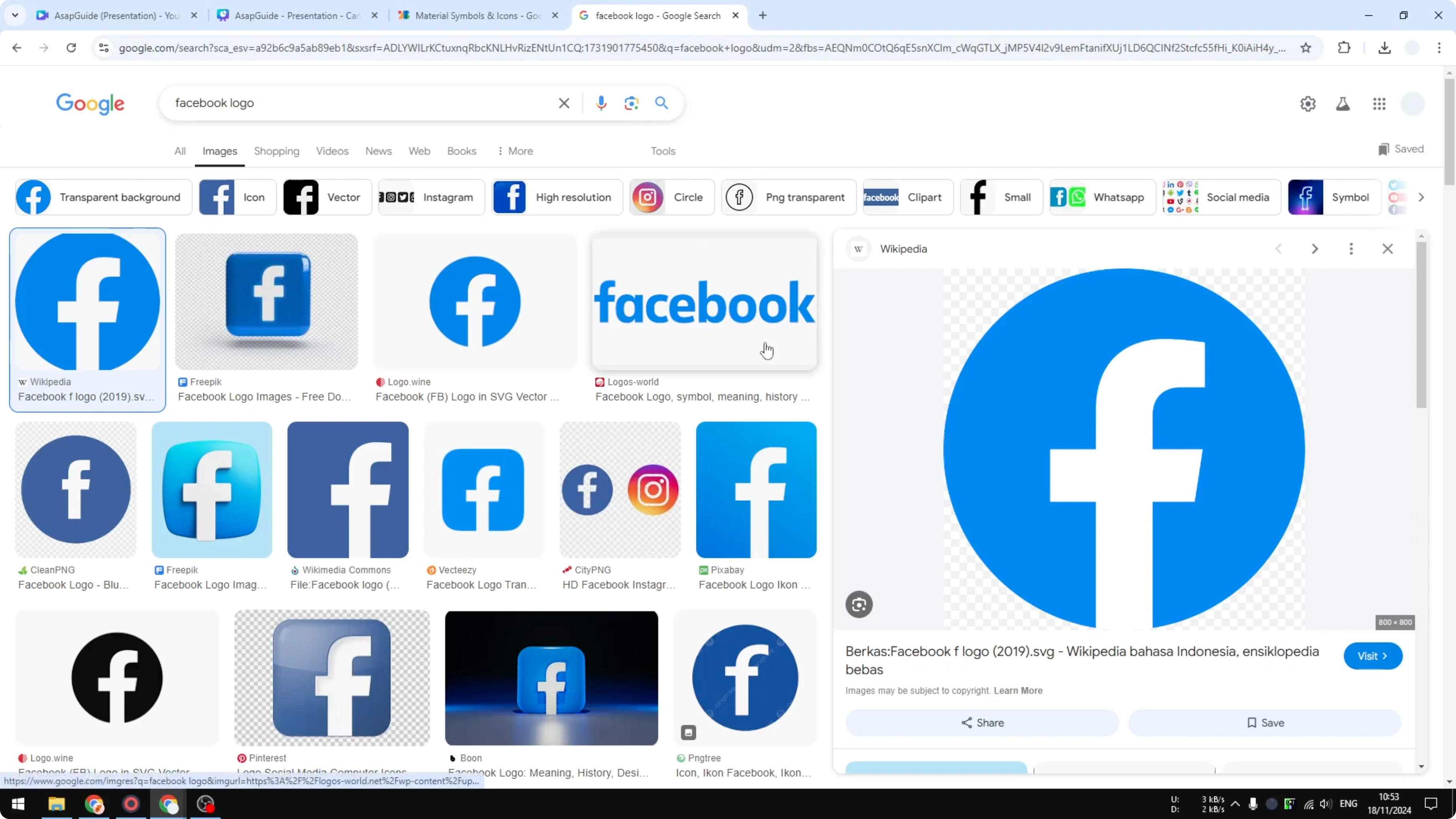
The image will upload to your Canva account automatically. This works, but I still prefer the next method.
If your project includes product visuals, you can also create a 3D book cover in Canva to pair with your social icons.
Insert Social Media Icons to Canva with Brandfetch
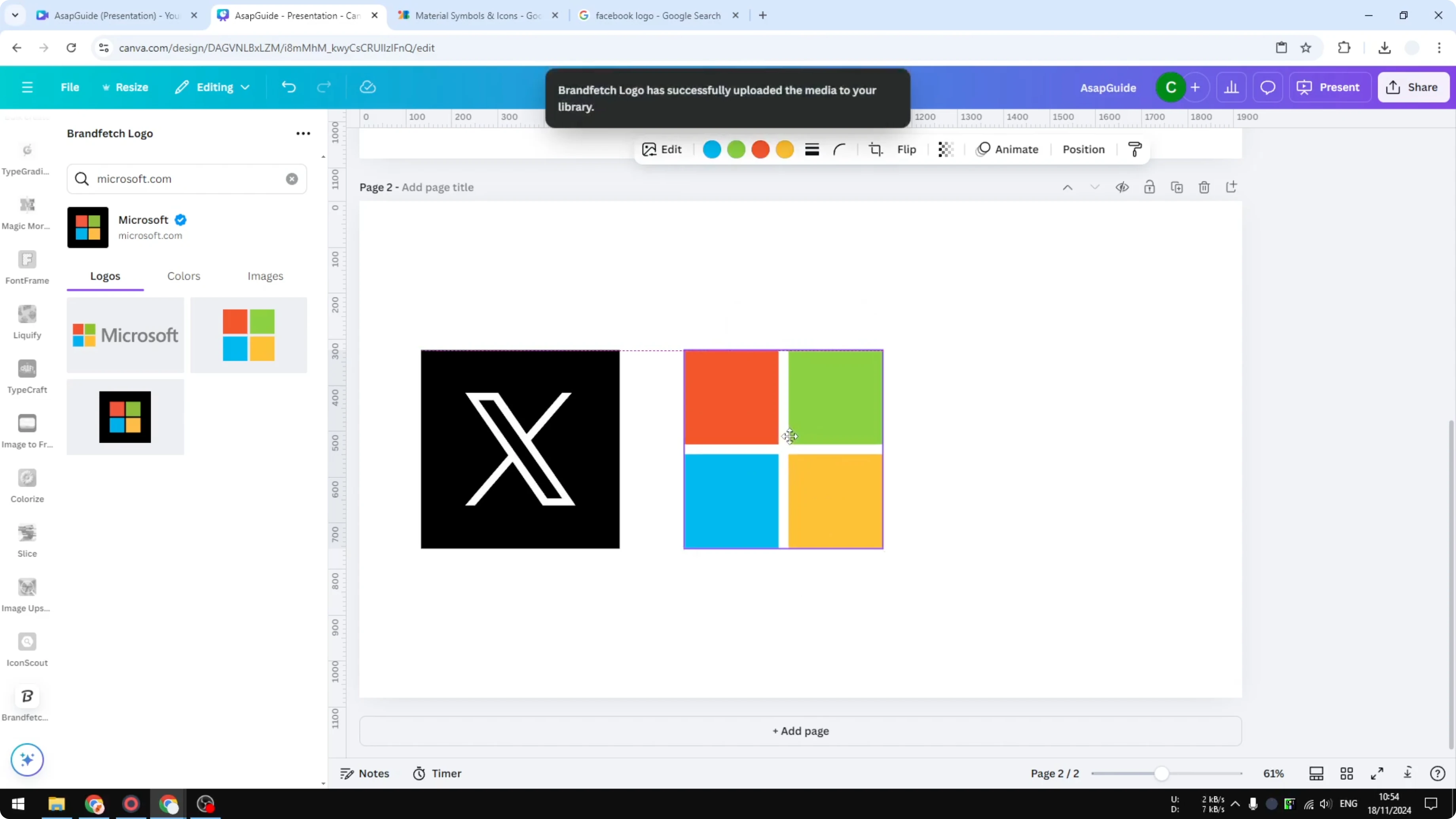
Install the app called Brandfetch. Open it to get access to tons of popular company logos.
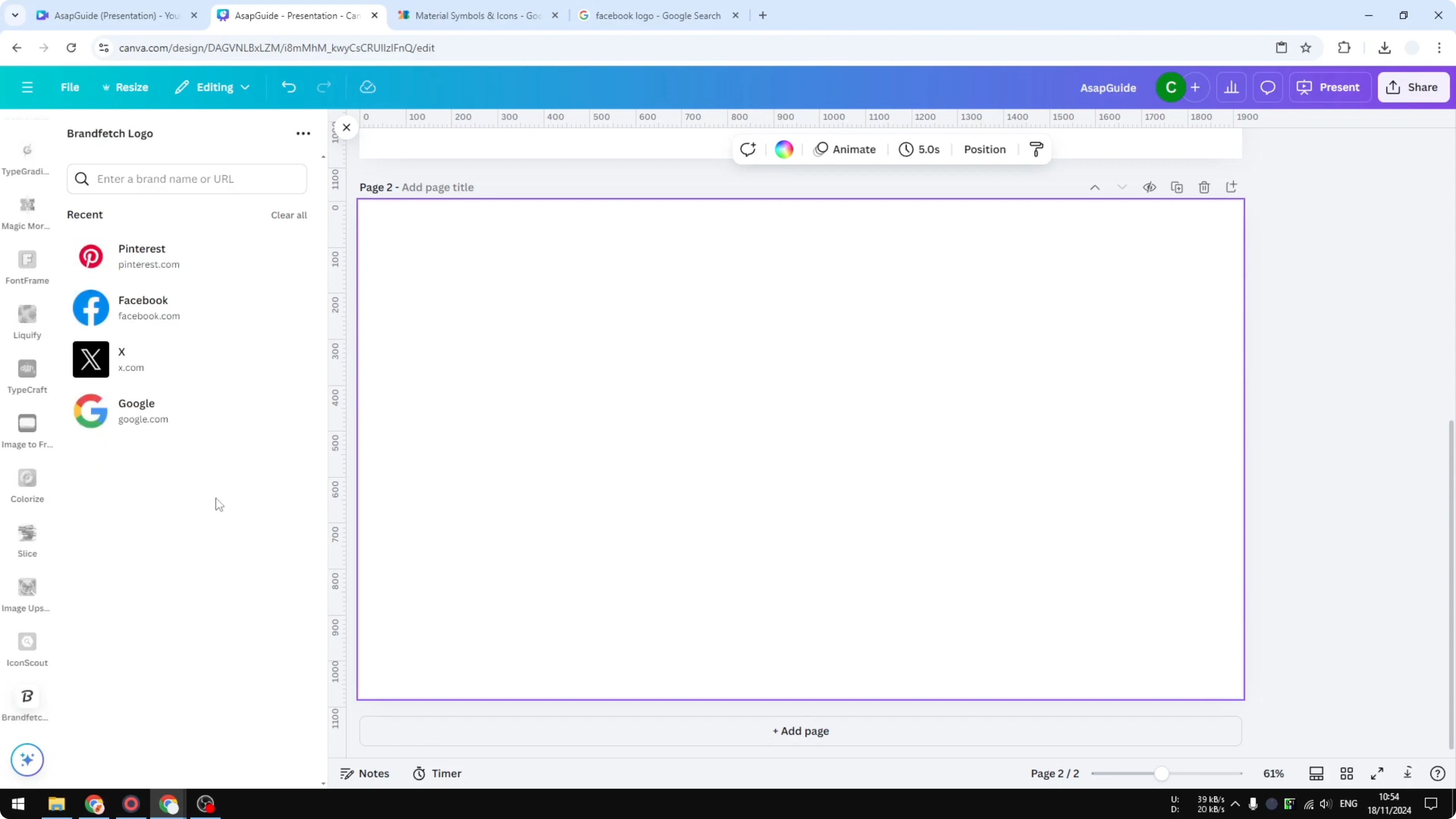
Insert the logo for Twitter... not Twitter, it’s X now, it’s X. I can also insert Microsoft, and it’s as simple as one click to add it to my Canva document.
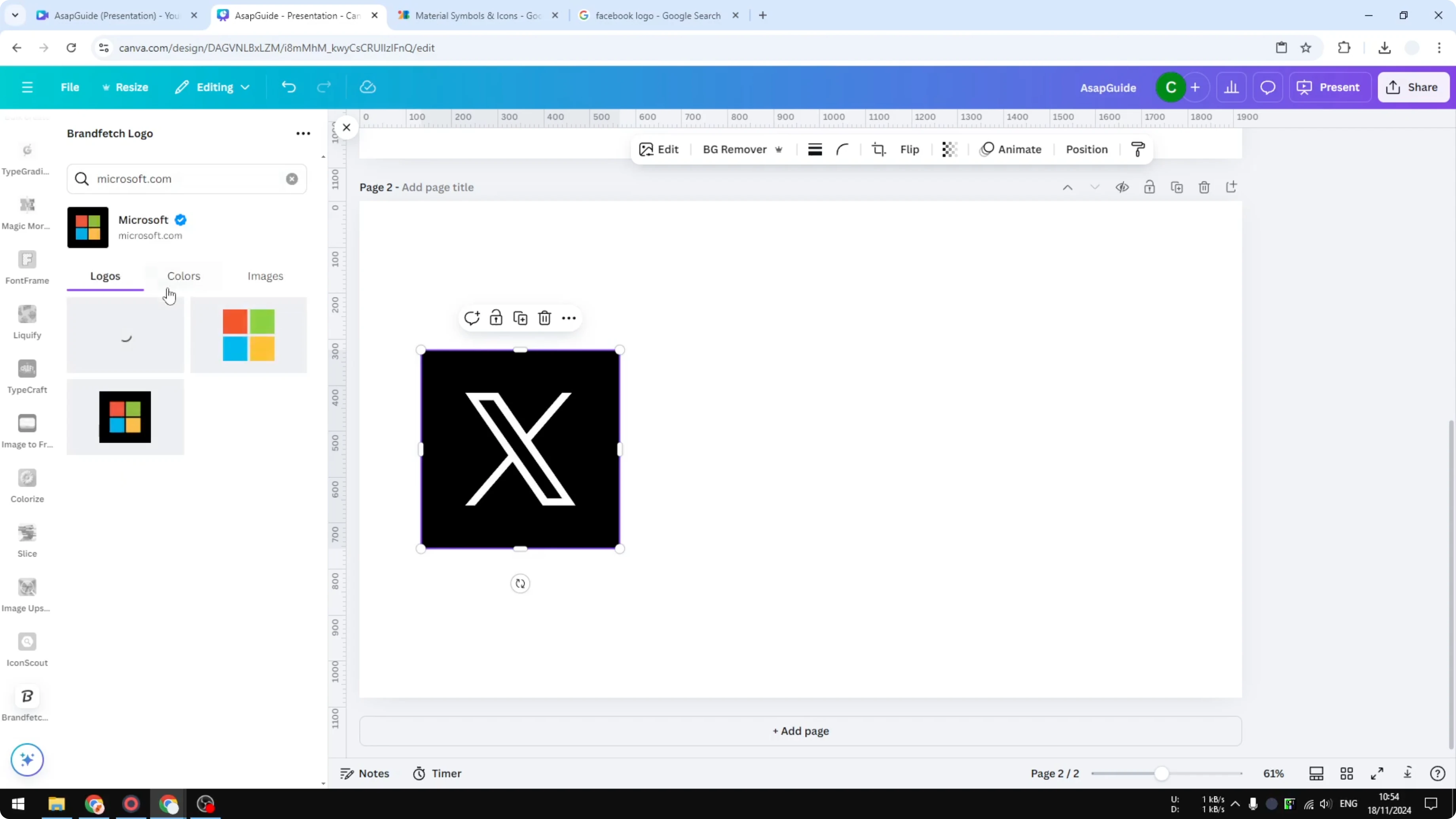
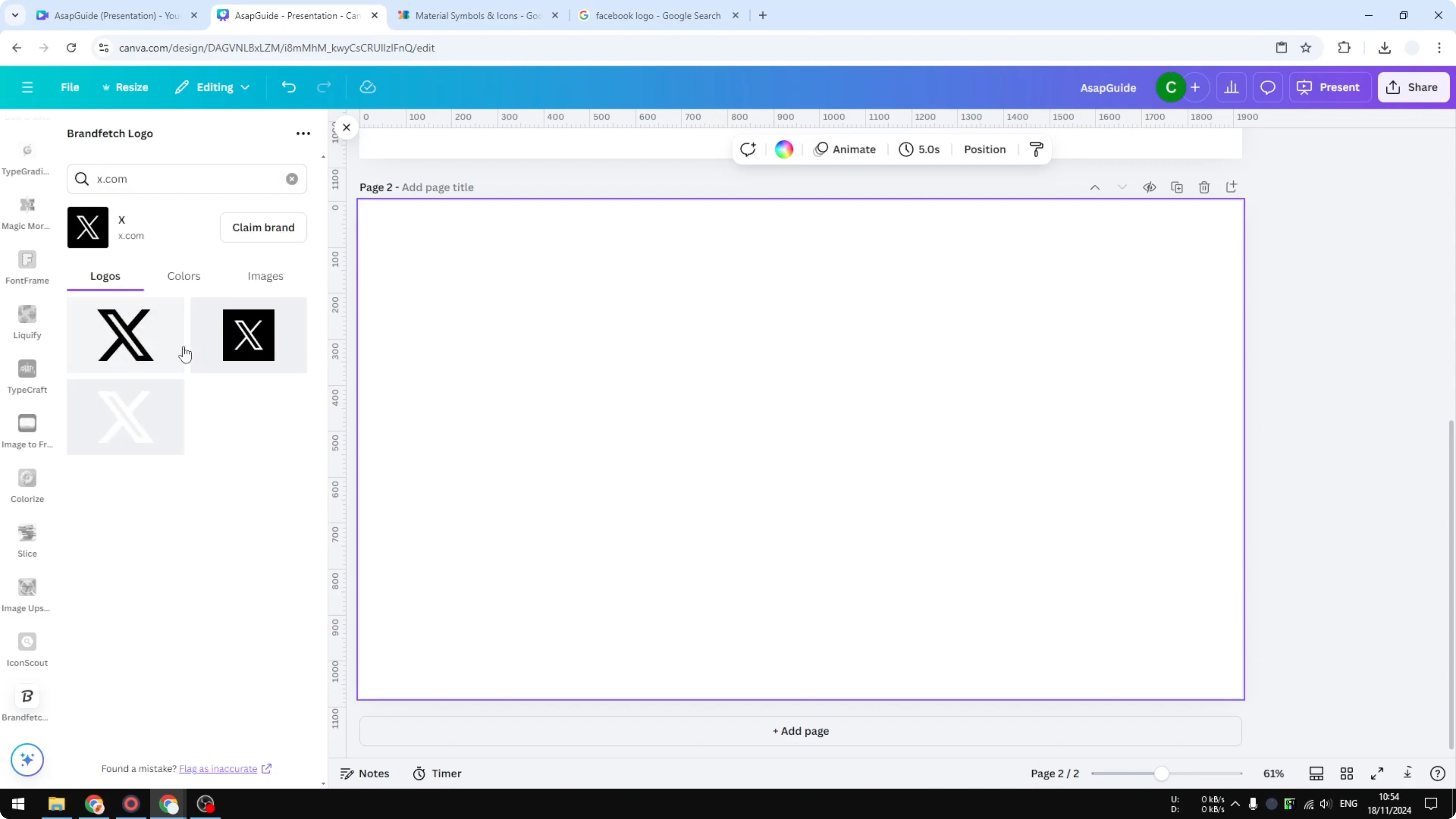
I find this very useful and a lot faster than the other methods. It’s my recommended approach for accurate, official marks.
If you’re moving assets between tools, learn how to insert a Canva video in Google Slides to keep your workflow consistent.
Final thoughts
You can search Canva’s Elements, copy logos from Google, or use Brandfetch. All three work, but Brandfetch gives you quick access to official logos and inserts them in a click. That’s how I insert social media icons into my Canva designs.
Recent Posts

How to Visualize Yourself as a Pixelized Character with AI?
How to Visualize Yourself as a Pixelized Character with AI?

How to Revive Faded Memories and Enhance Image Clarity with AI?
How to Revive Faded Memories and Enhance Image Clarity with AI?

How to Visualize Yourself as an Animal Crossing Character with AI?
How to Visualize Yourself as an Animal Crossing Character with AI?