How to Insert Canva Video in Google Slides
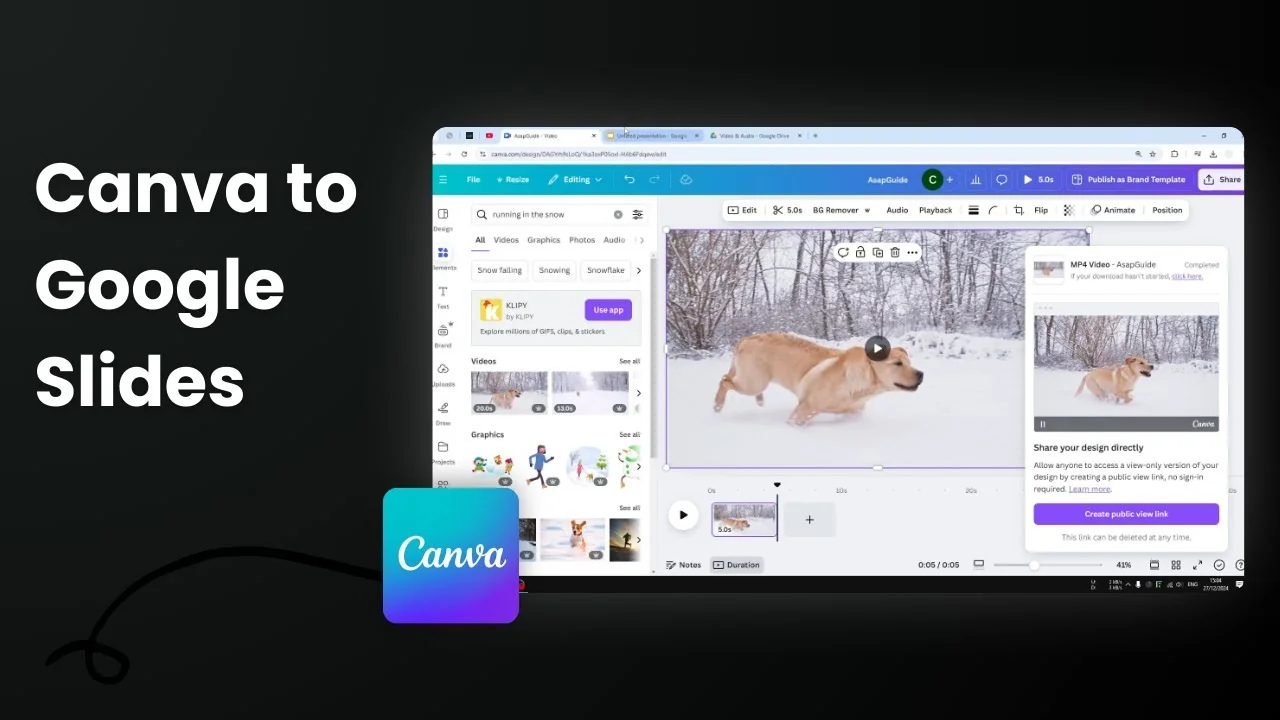
I’m going to show you how you can insert a Canva video into your Google Slides presentation. There are a few ways to do this. The first method is the easiest. The second method keeps a connection to your Canva project by linking to it.
Insert Canva Video in Google Slides with a direct upload
Download the Canva video to your computer, upload it to Google Drive, then insert it into Google Slides.
Prepare and download your video from Canva
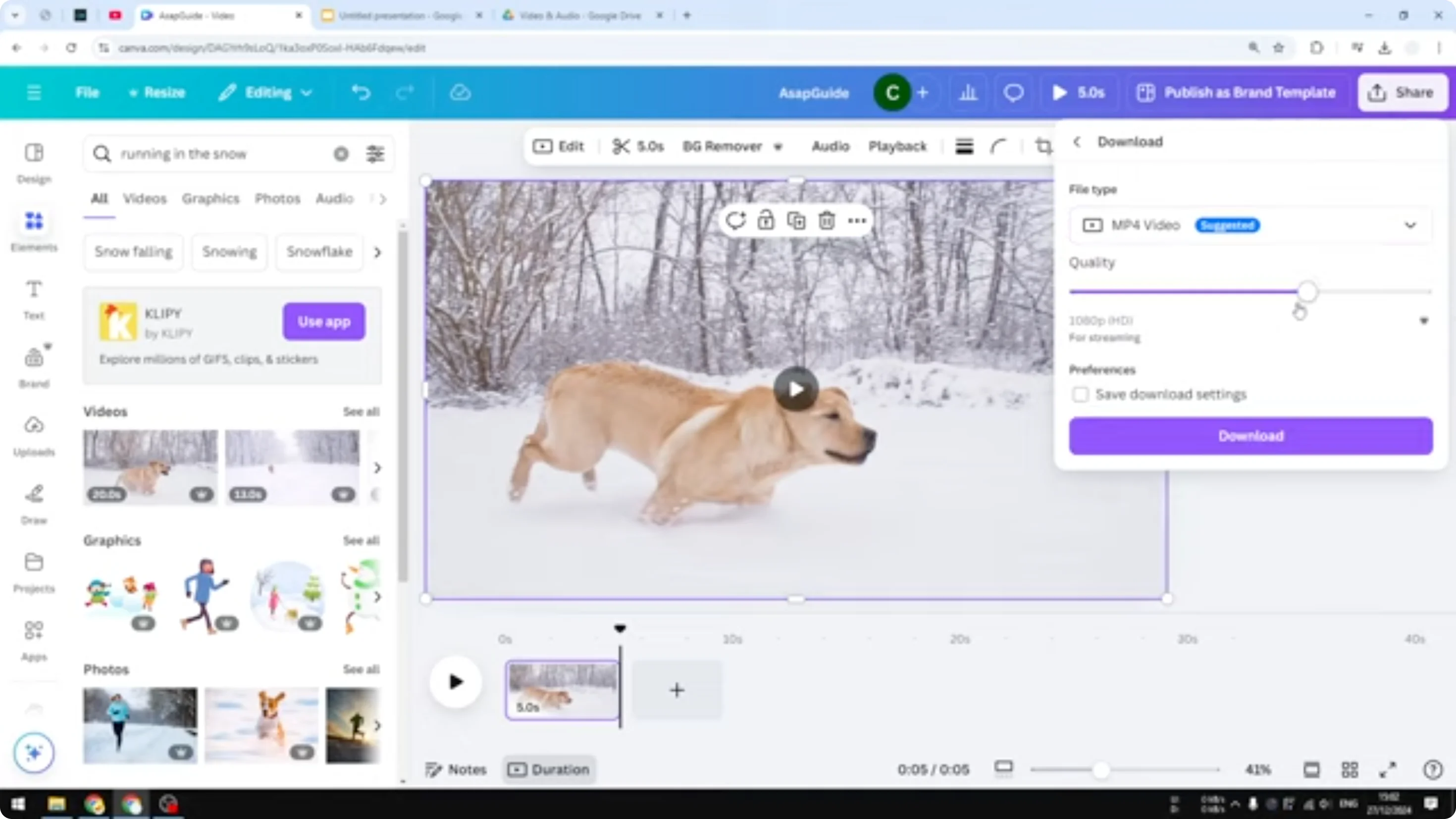
- Prepare a video you created in Canva. I have a video of a dog running through the snow in slow motion.
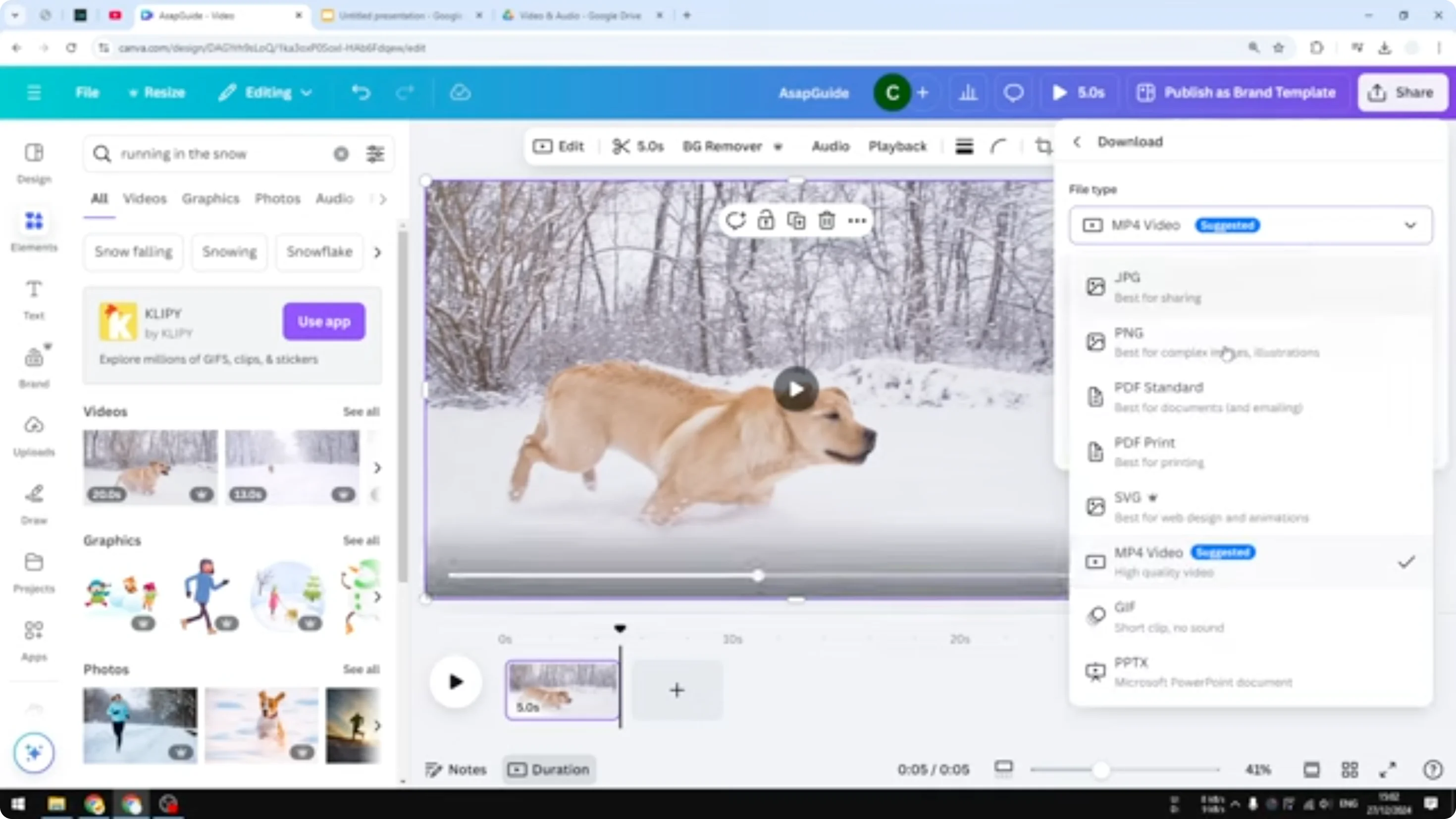
- Click Share, then Download.
- Select MP4 Video as the file format.
- For the quality, 1080p is good enough.
- Click Download and wait until the video finishes downloading to your computer.
Upload the video to Google Drive
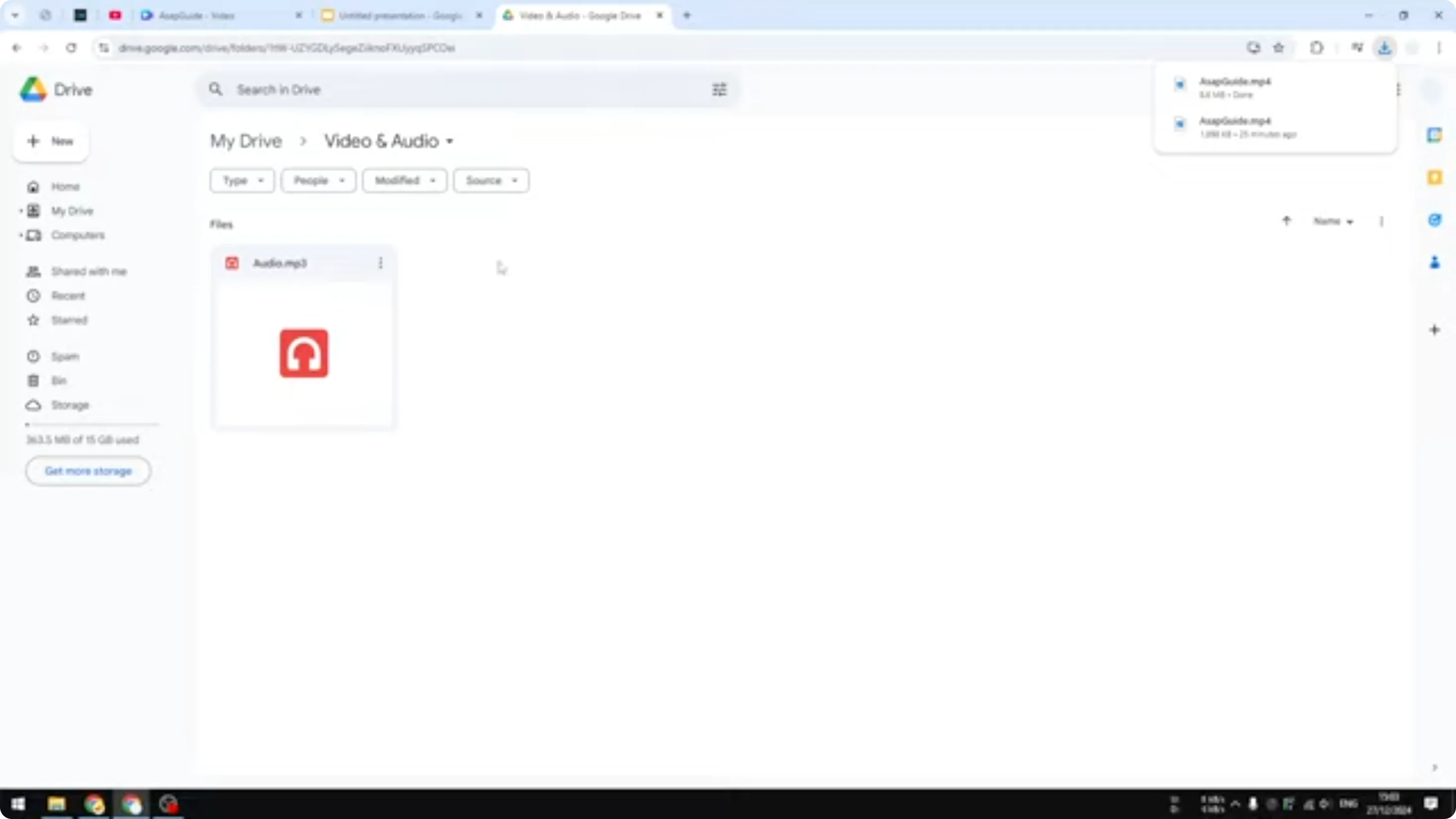
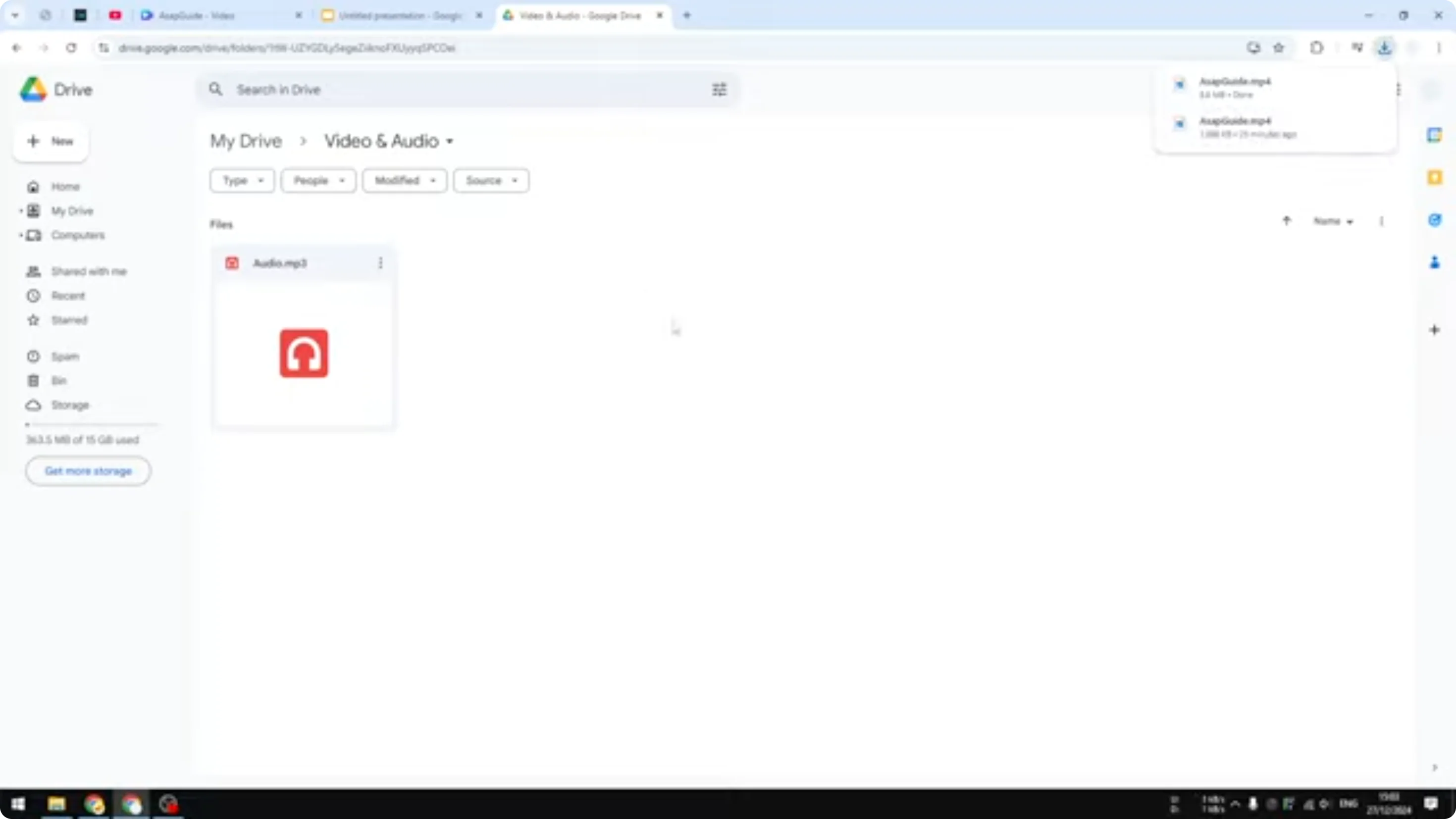
- Go to drive.google.com.
- Select where you want to store the file.
- Drag and drop the video into the area you chose.
- Wait until the upload finishes. Upload time depends on the file size and your network speed.
Insert the video in Google Slides
- Open Google Slides.
- Click Insert > Video.
- Select Google Drive as the source.
- Navigate to the folder where you stored the video. Your folder could be different from mine.
- Select the video and click Insert.
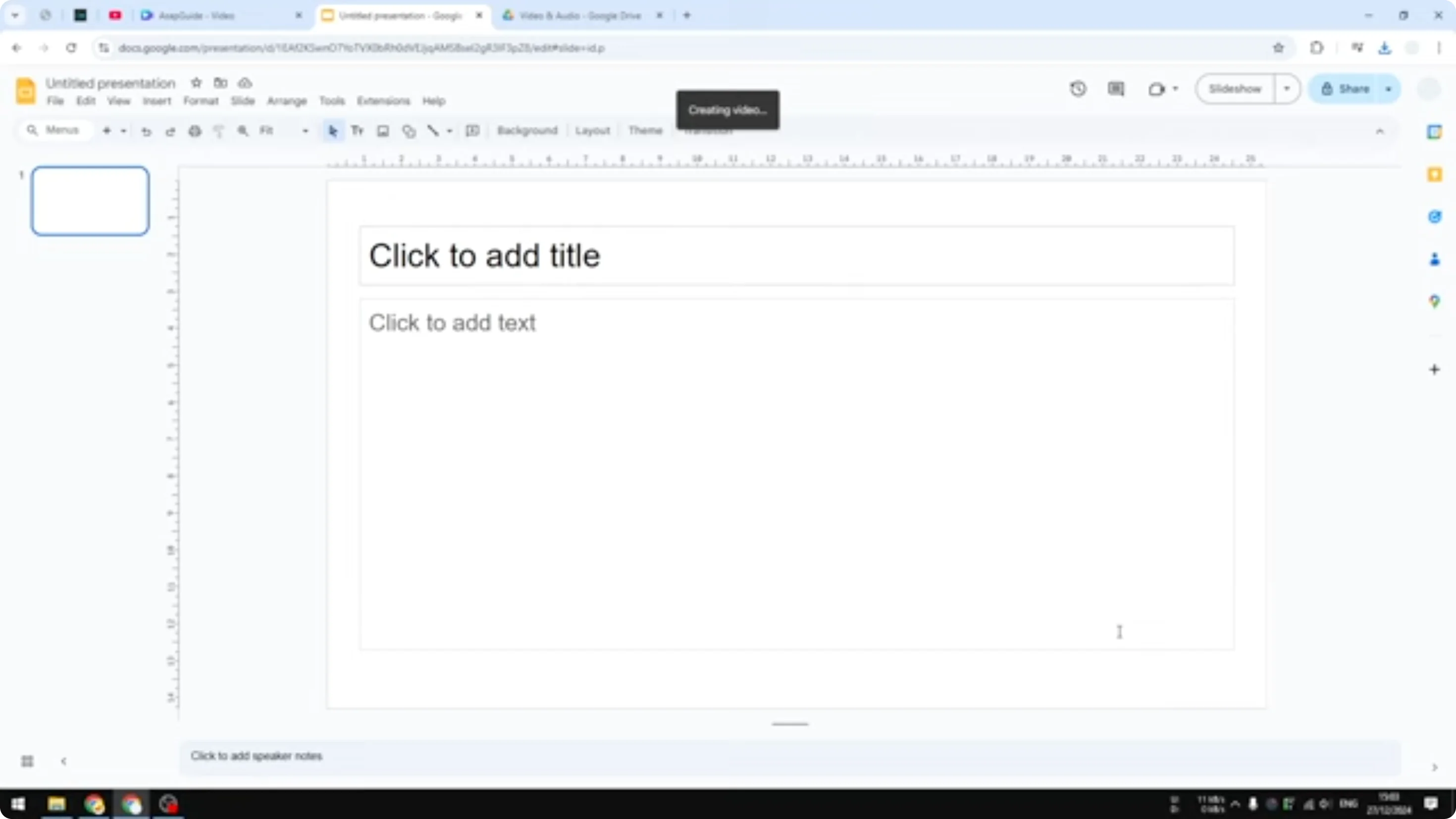
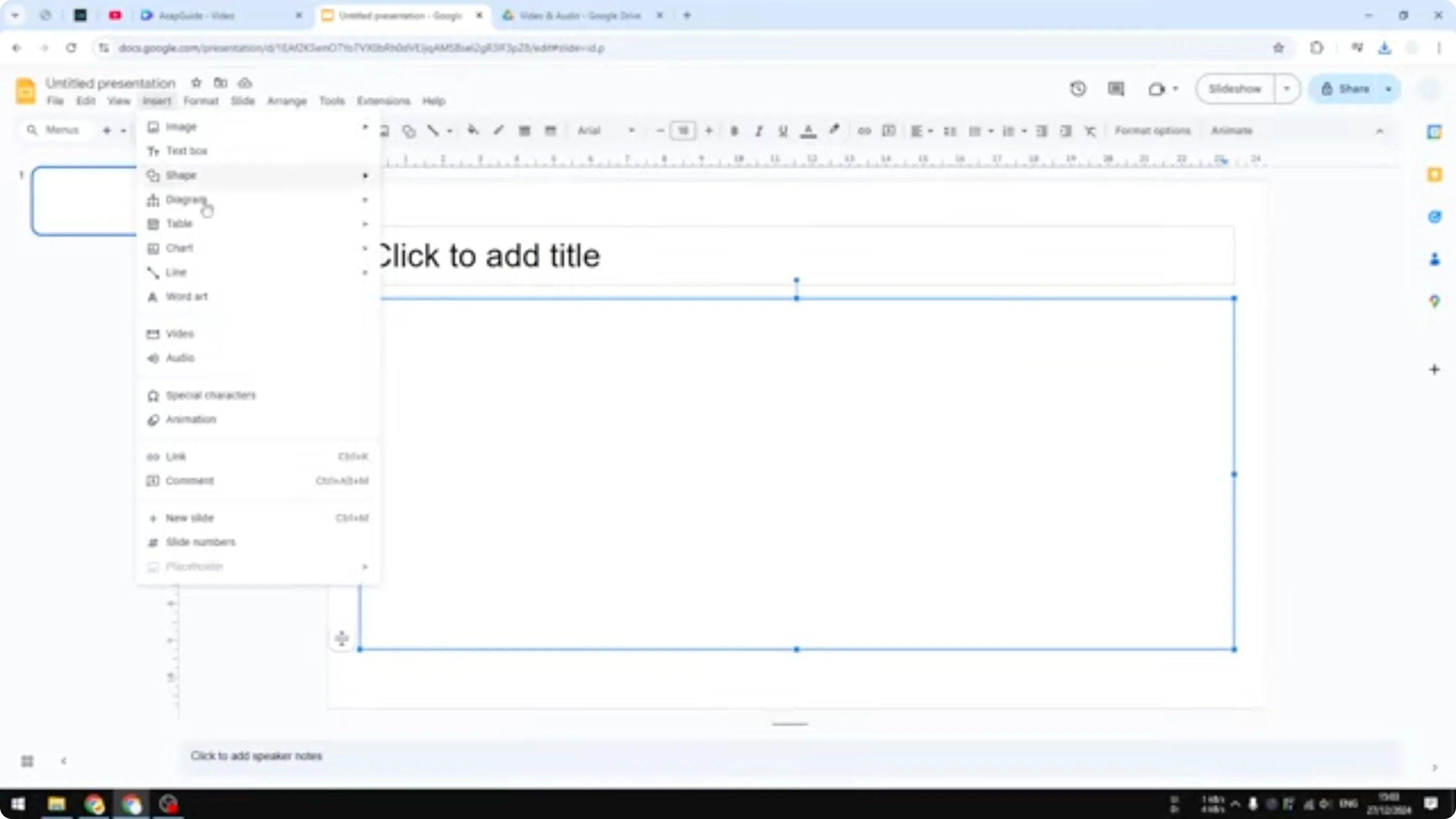
The video is inserted into your Google Slides document. You can play it while presenting. There are plenty of customizations you can apply to the video.
Note on project connection
Even though the file came from Canva, it is not directly attached to your Canva project. You could have an ongoing Canva video project that changes any day. If you want some level of connection between Canva and Google Slides, use the linking method.
Insert Canva Video in Google Slides with a link to your Canva project
This method does not insert a video directly. It links to a video you can watch by clicking a link in your Google Slides document, while the video stays hosted in Canva.
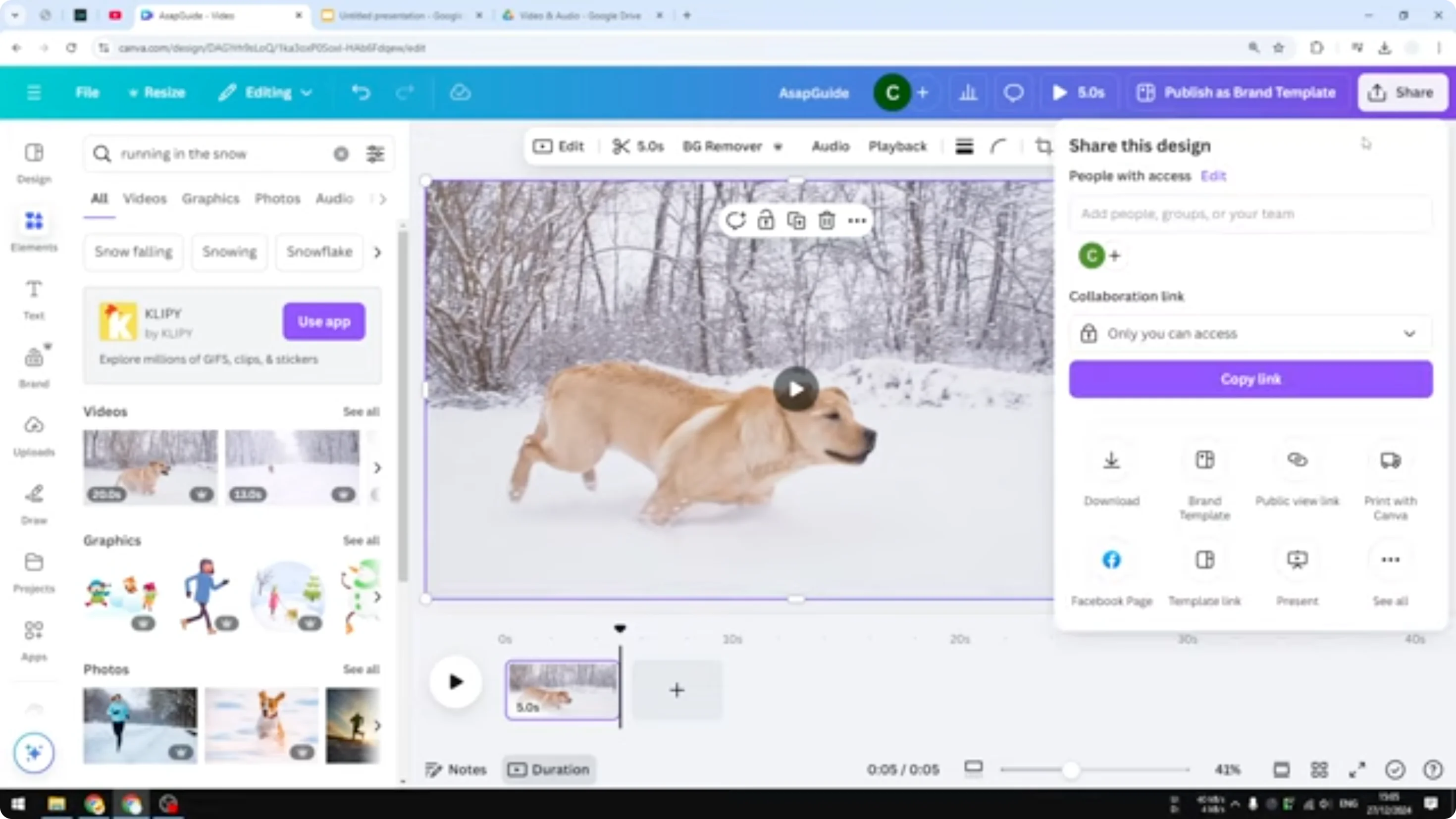
Create a public view link in Canva
- Open the video in Canva.
- Click Share.
- Click Public view link.
- Click Create public view link.
- Click Copy link.
Add the link to Google Slides
- Add a new slide or select an existing one.
- Type text like “Click here to watch the video.”
- Select the text and click Insert link.
- Paste the Canva link and click Apply.
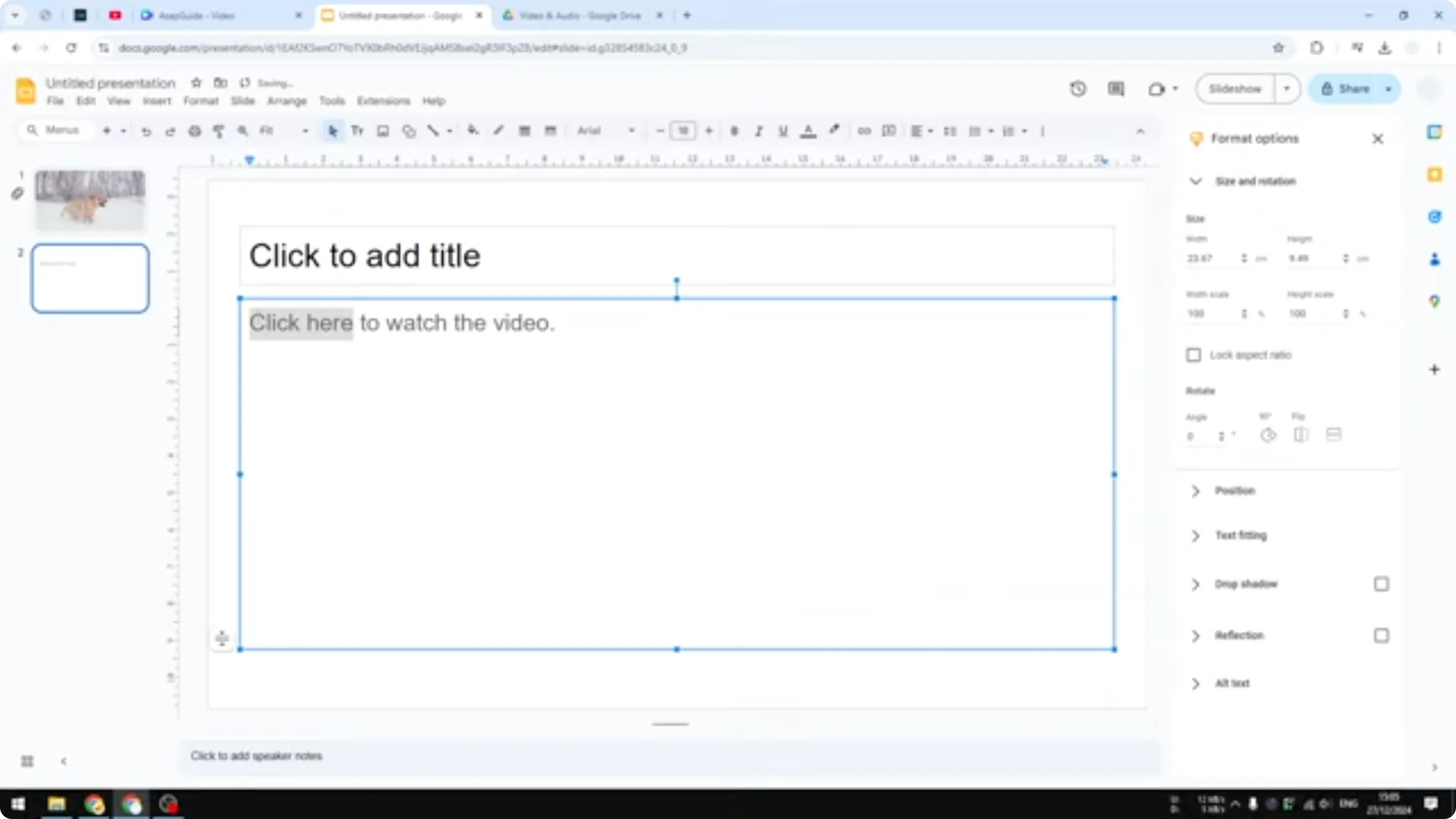
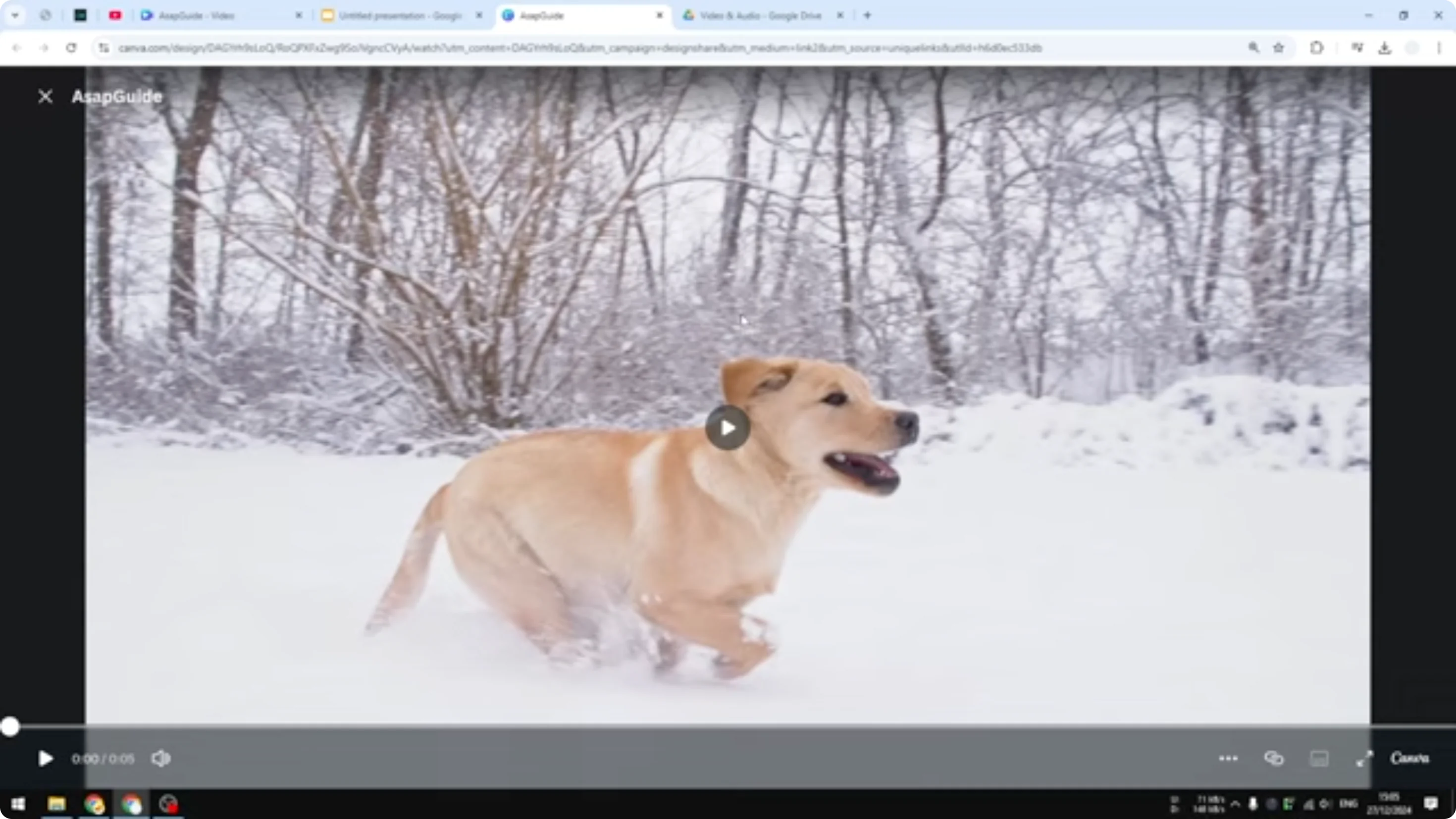
When you present, you can click the link. A new tab will open and display the video. The video is based on your Canva project, and you can add something to the video in real time and have it reflected on the link.
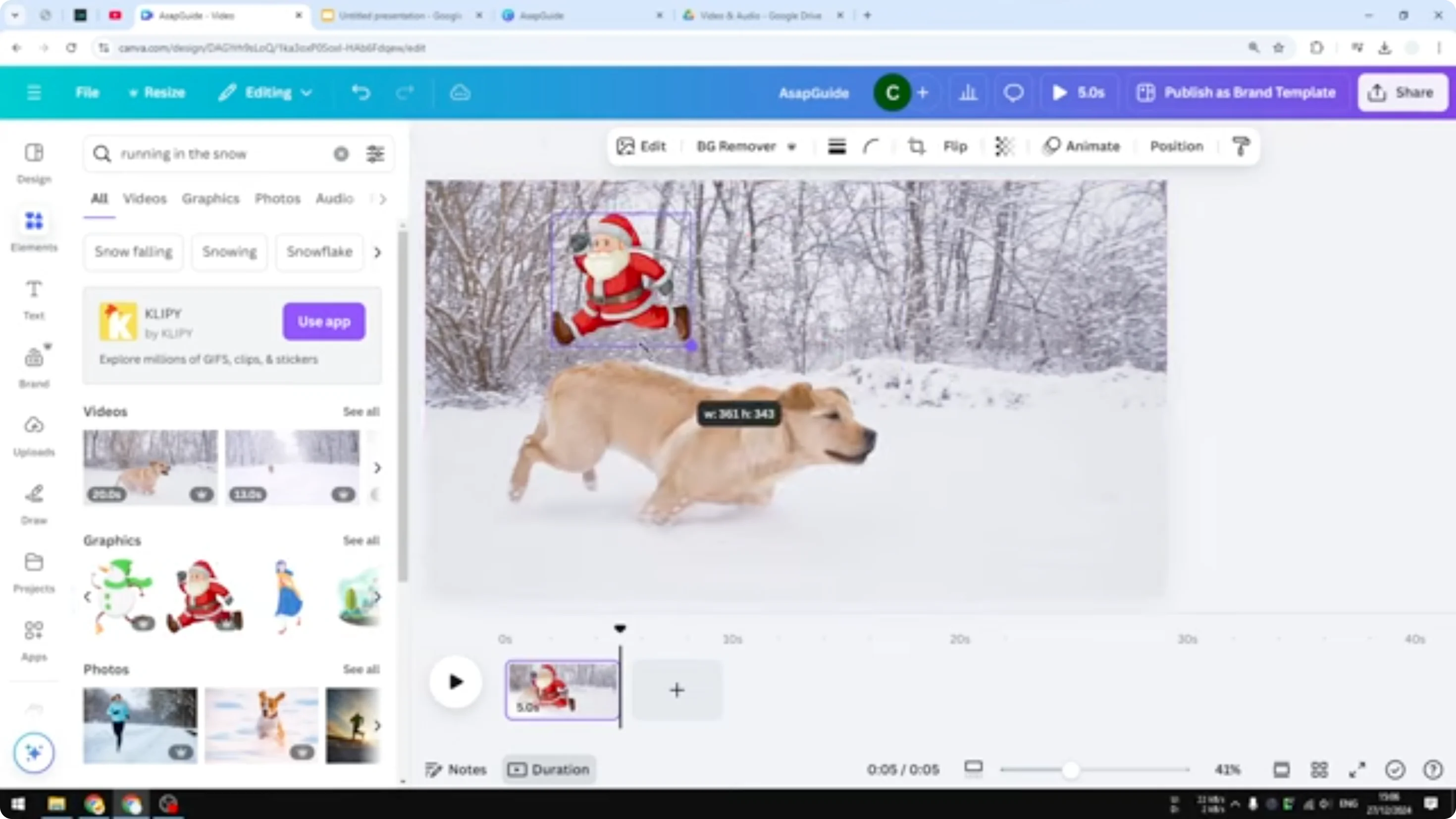
Update timing and refresh
I added a picture of a Santa in the top left corner. If you refresh the page, you should see it. Sometimes the change is not immediate. It can take a few seconds or a few minutes to appear, and you might need to refresh again or recreate the public view link to get the most recent version.
Final Thoughts
- Direct upload: download from Canva, upload to Google Drive, and insert into Slides. The video plays inside your presentation, but it is not connected to your Canva project for future updates.
- Link method: create a public view link in Canva and add it to Slides. The video opens in a new tab and reflects updates from your Canva project, but changes may take a little time to appear.
Recent Posts

How to Visualize Yourself as a Pixelized Character with AI?
How to Visualize Yourself as a Pixelized Character with AI?

How to Revive Faded Memories and Enhance Image Clarity with AI?
How to Revive Faded Memories and Enhance Image Clarity with AI?

How to Visualize Yourself as an Animal Crossing Character with AI?
How to Visualize Yourself as an Animal Crossing Character with AI?