How to Insert Shapes in Canva
I will show you how you can insert shapes in Canva. Canva has many different shapes that help you create a beautiful design. I think shapes are probably the most used feature in Canva because you can create a flexible element that is customizable.
You can change the size and the color. You can also add features to it. It is better than using a regular photo because at the end of the day a shape is a vector object.
If you want to place a photo inside a shape, see place a photo inside a shape.
Basics of Insert Shapes in Canva
Add a shape in Insert Shapes in Canva
Open your document in Canva.
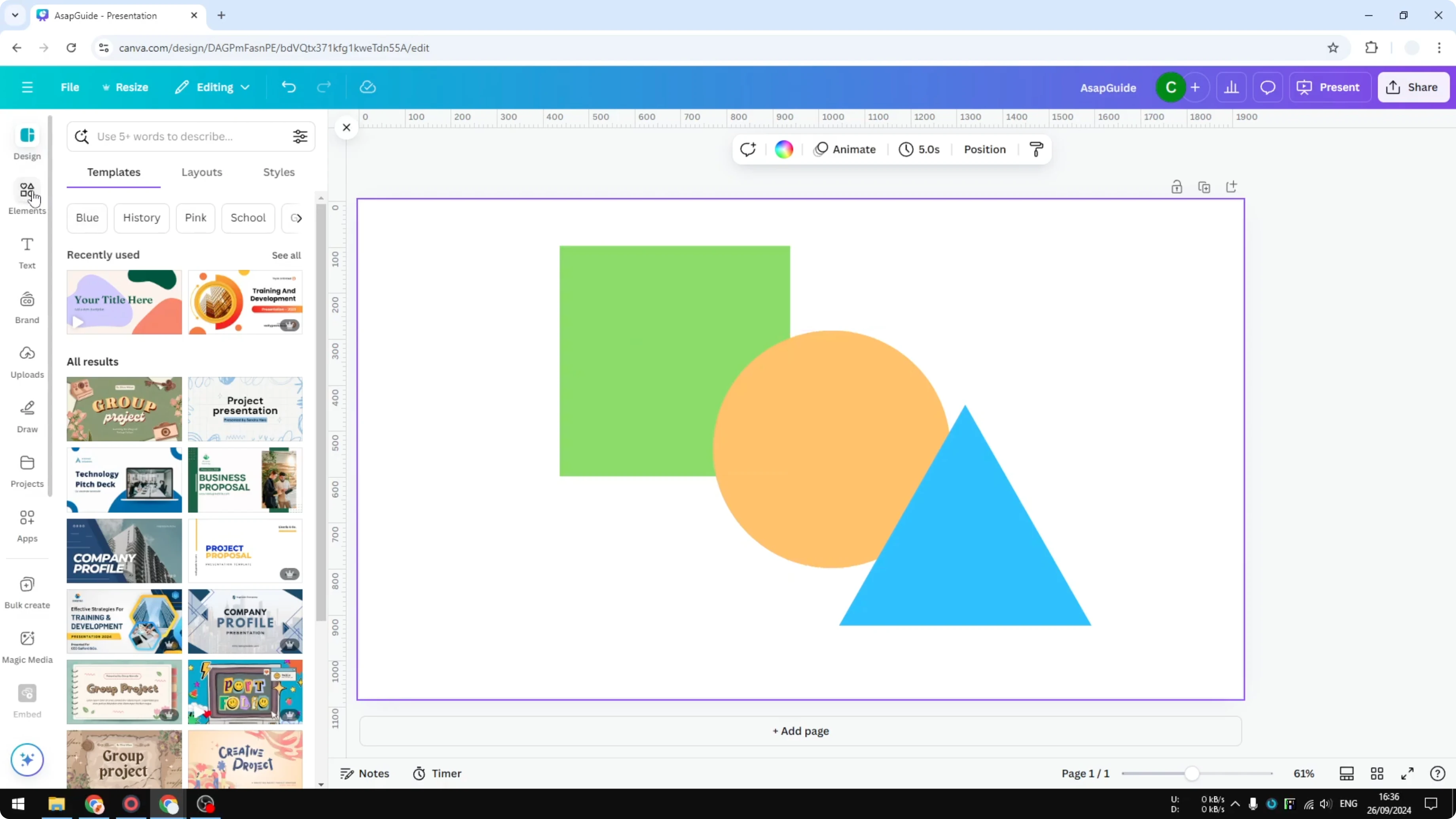
Navigate to Elements.
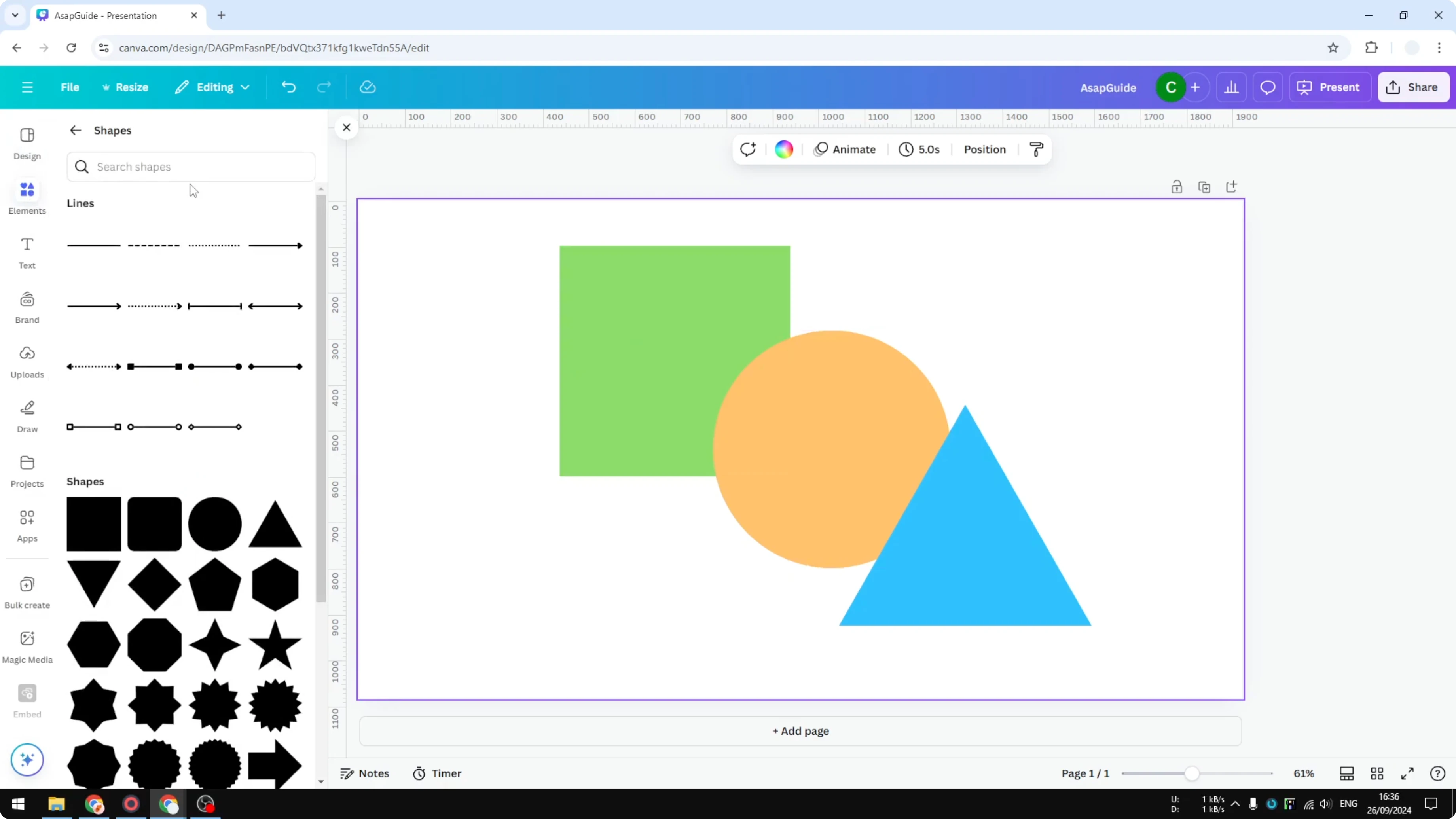
Go to the Shapes option.
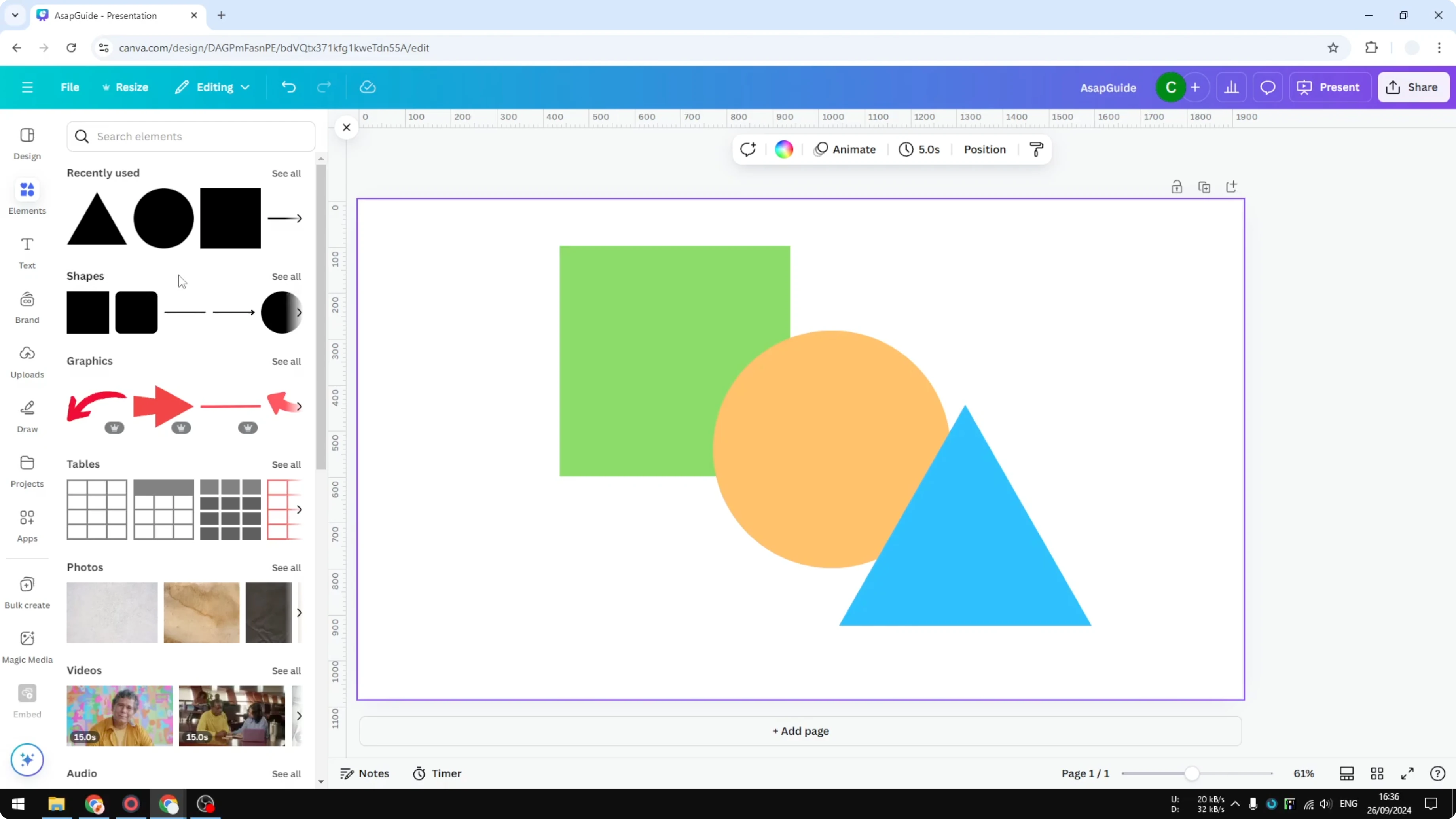
Select All to see both lines and shapes.
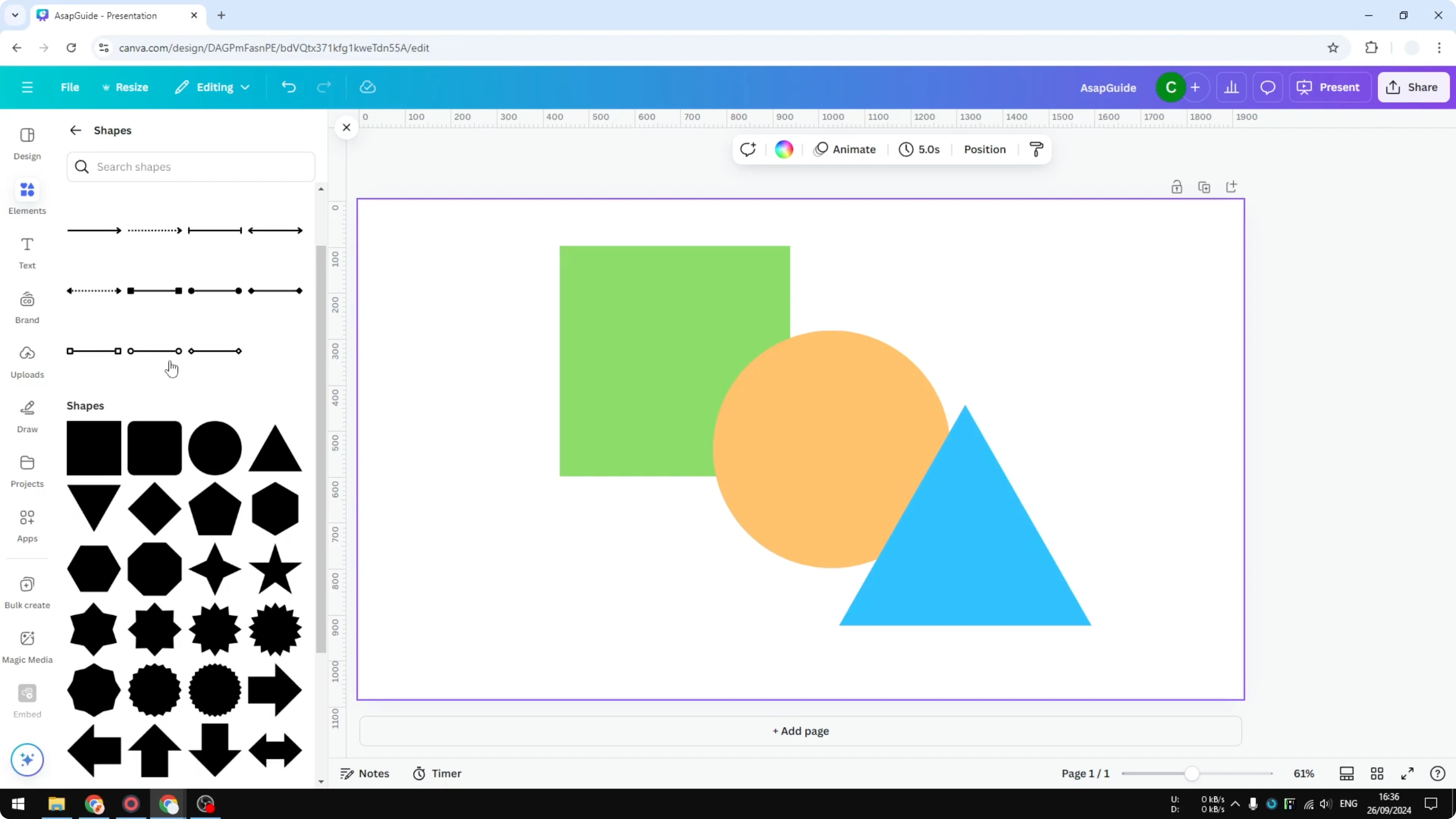
Scroll to view the available options.
Insert a shape such as a square.
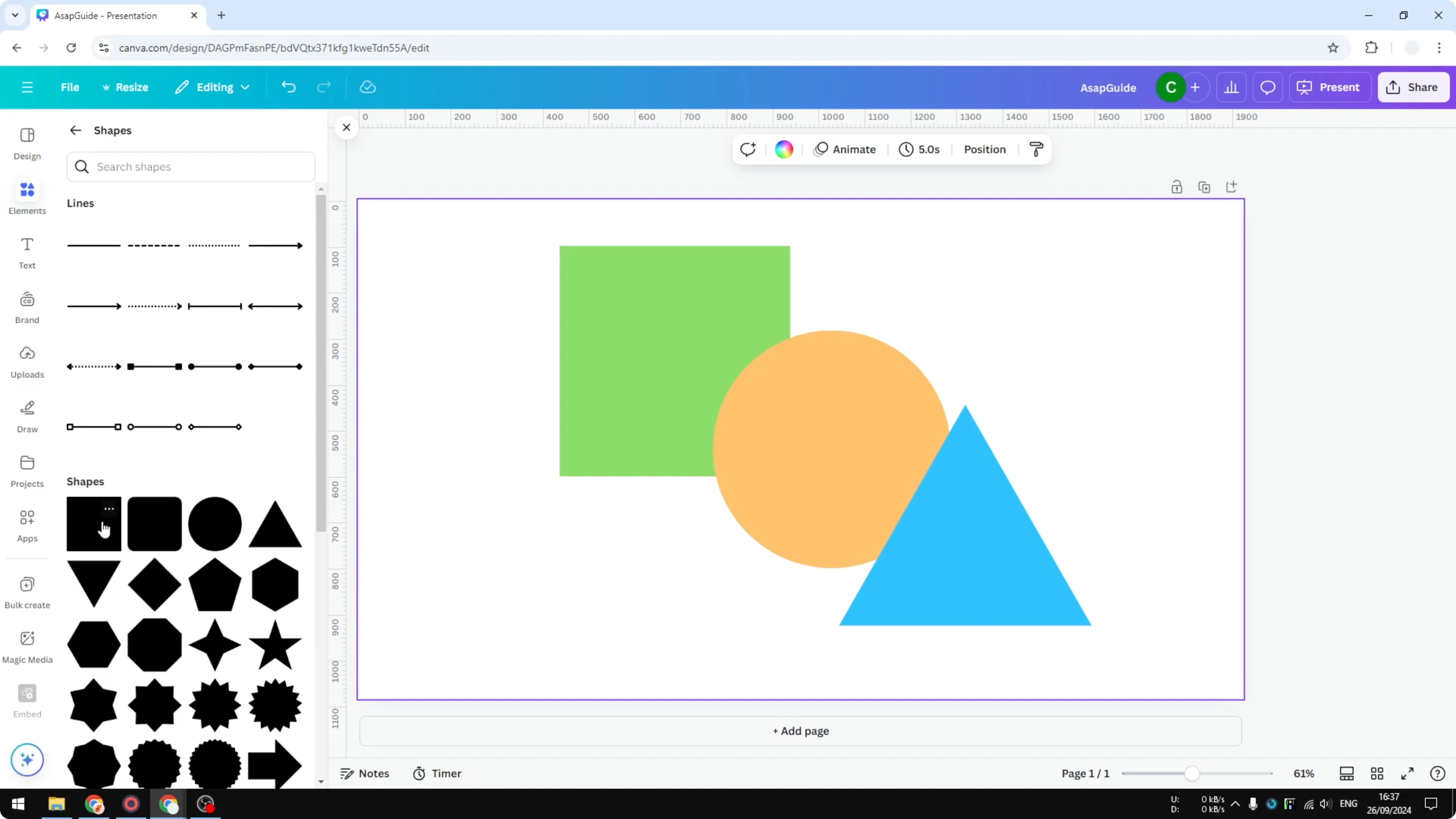
Move the object to position it.
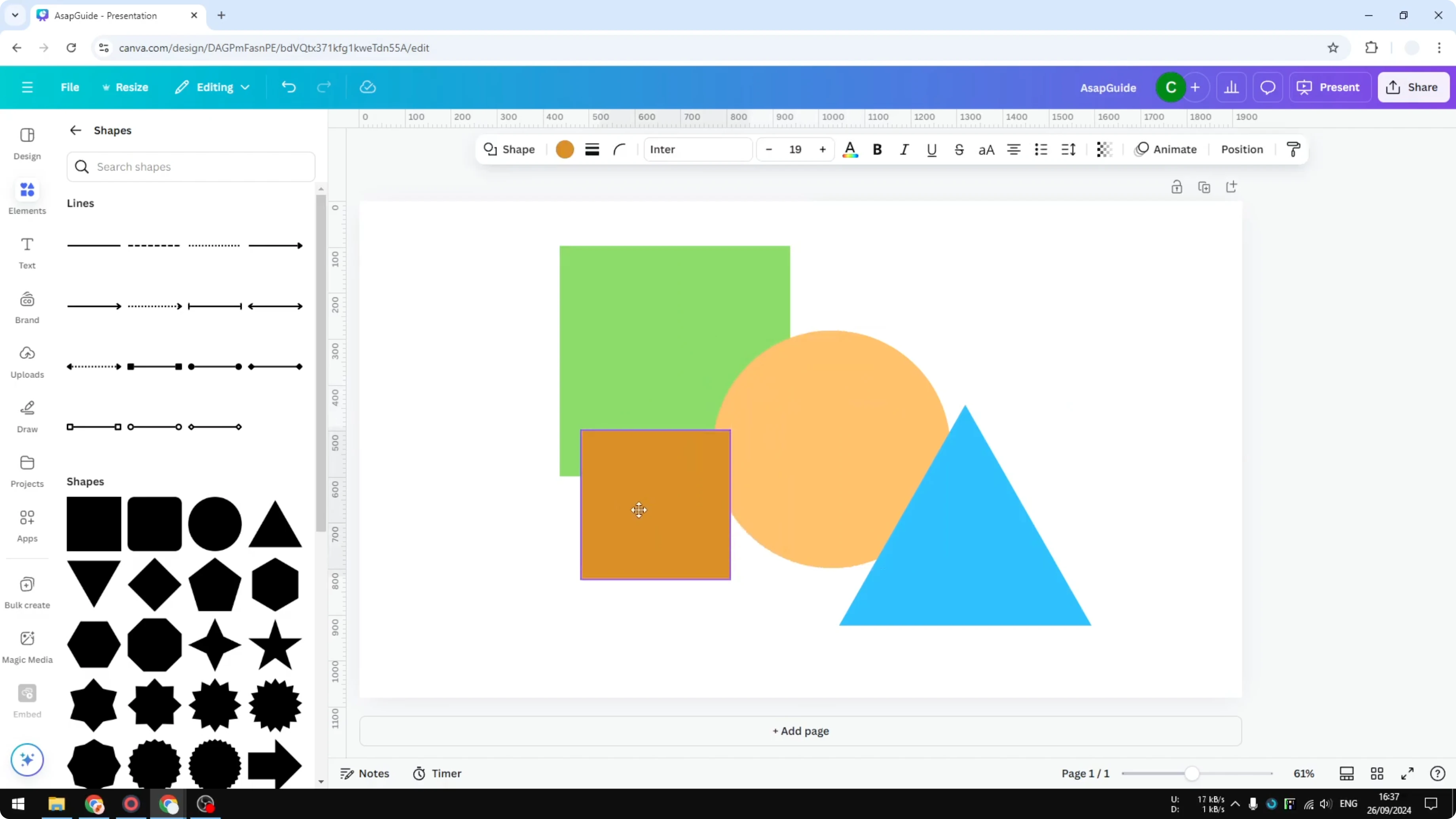
Customize color and border in Insert Shapes in Canva
When you select the object, a menu opens that lets you change its properties. You can change the color to red. You can go to the border style and add a border.
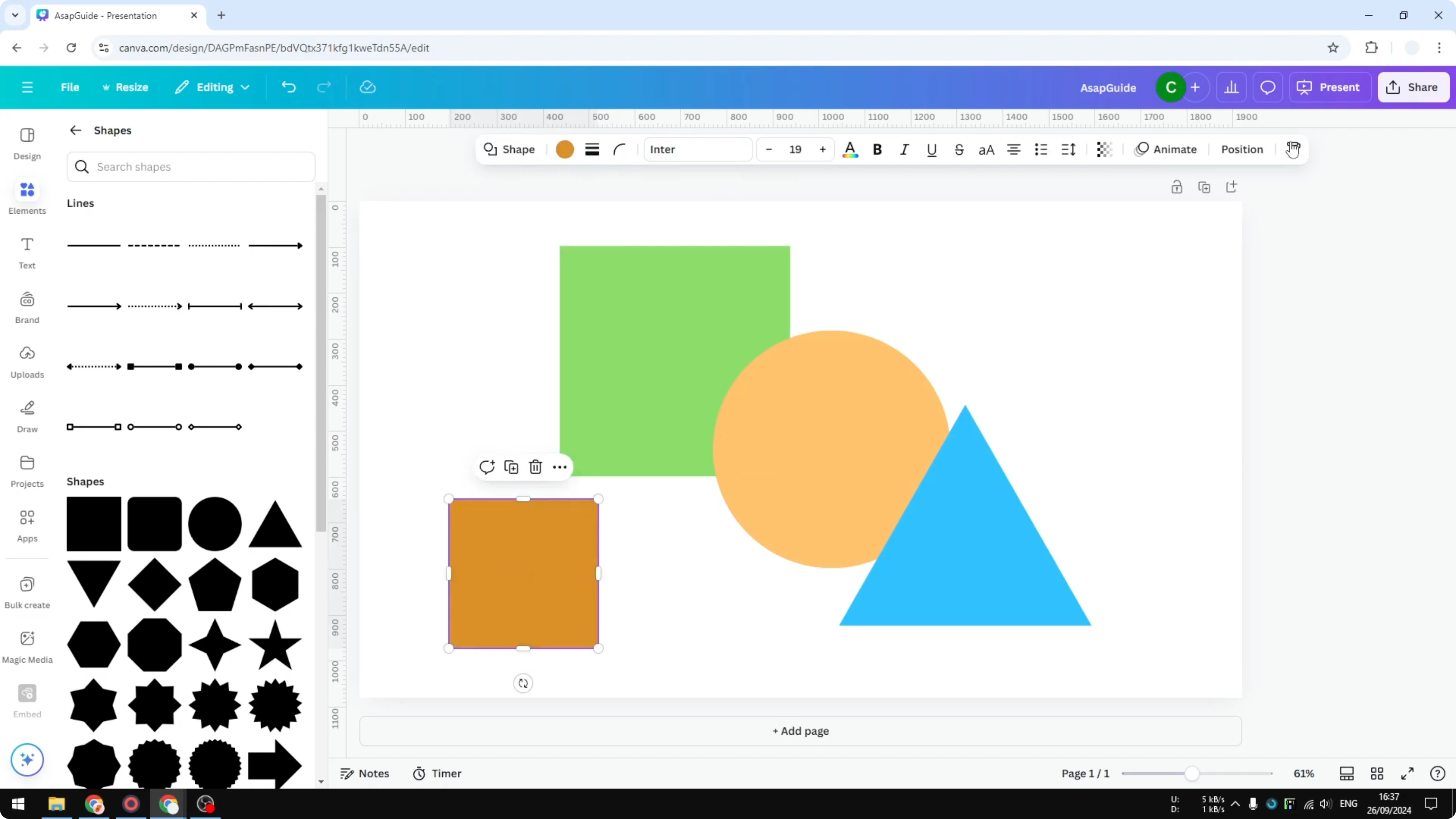
Increase the border thickness or remove the border entirely. There is also an option for rounding that is popular in modern design. It removes the corner of the square so the edge looks smoother, almost like a circle.
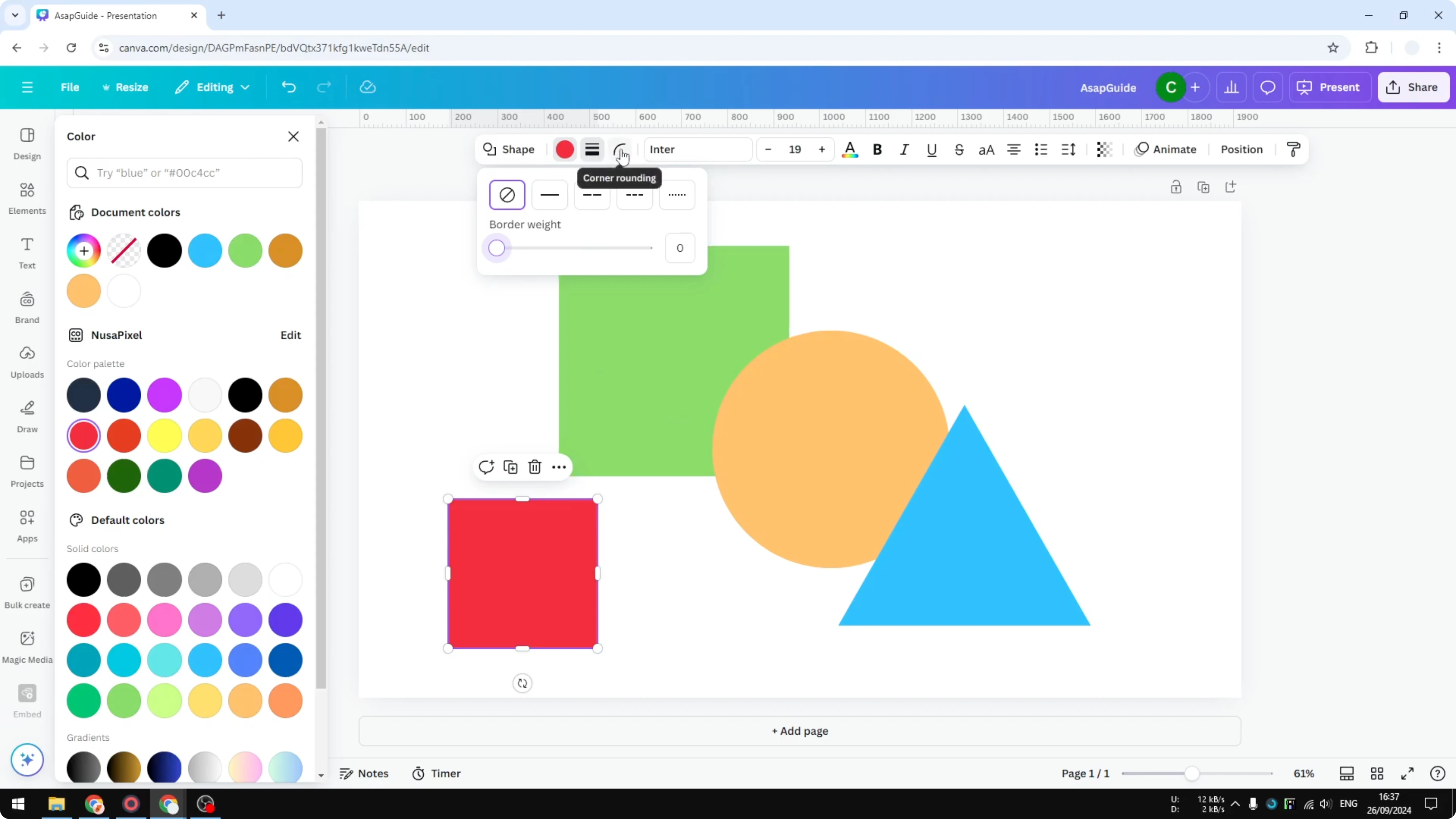
If you need to flip a shape horizontally or vertically, check how to flip basic shapes.
Text and animation in Insert Shapes in Canva
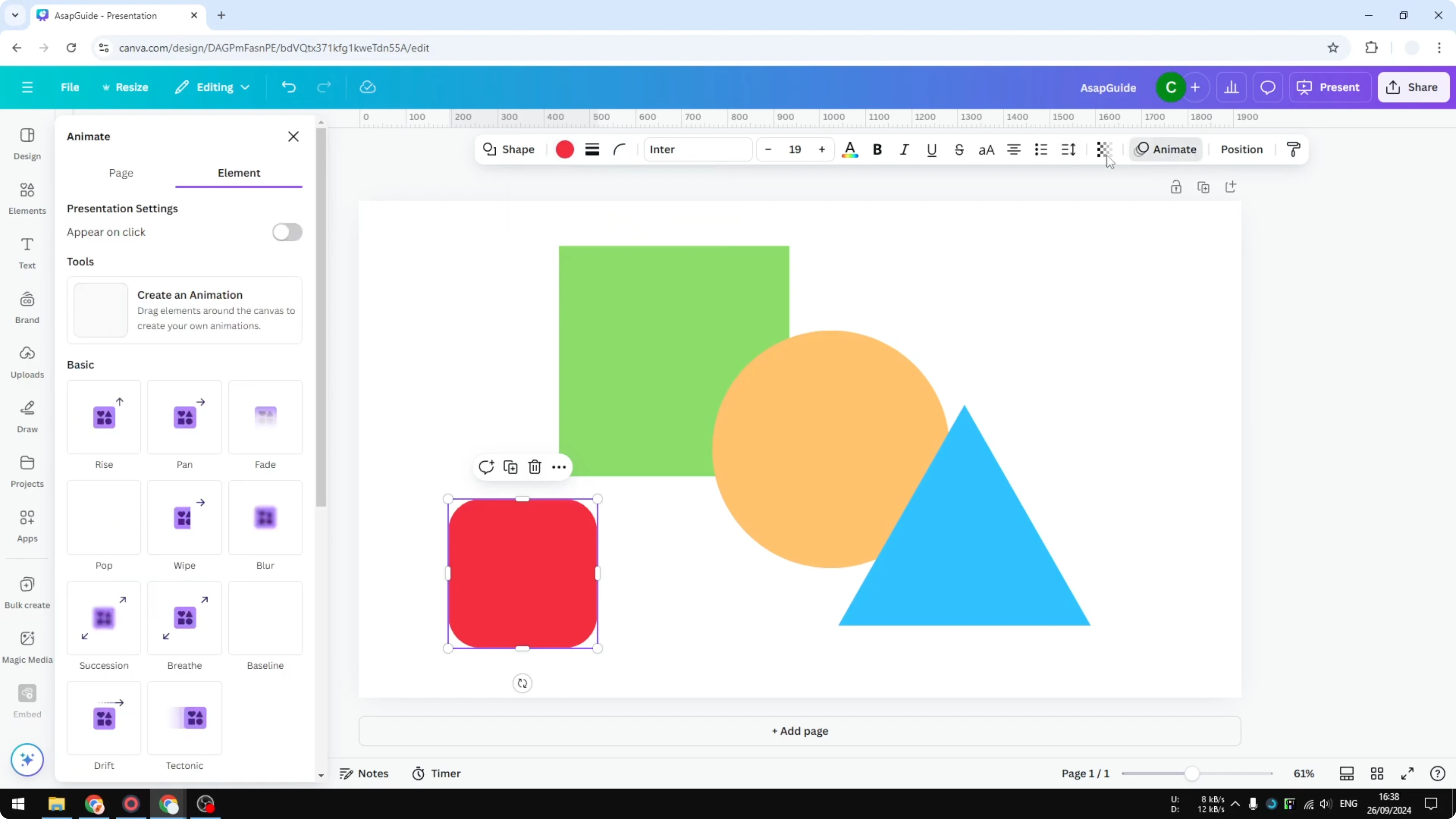
The rest of the options are usually for text, except for animation. Click Animate if you plan to use this shape in a presentation or a video. You can add an animation to the shape.
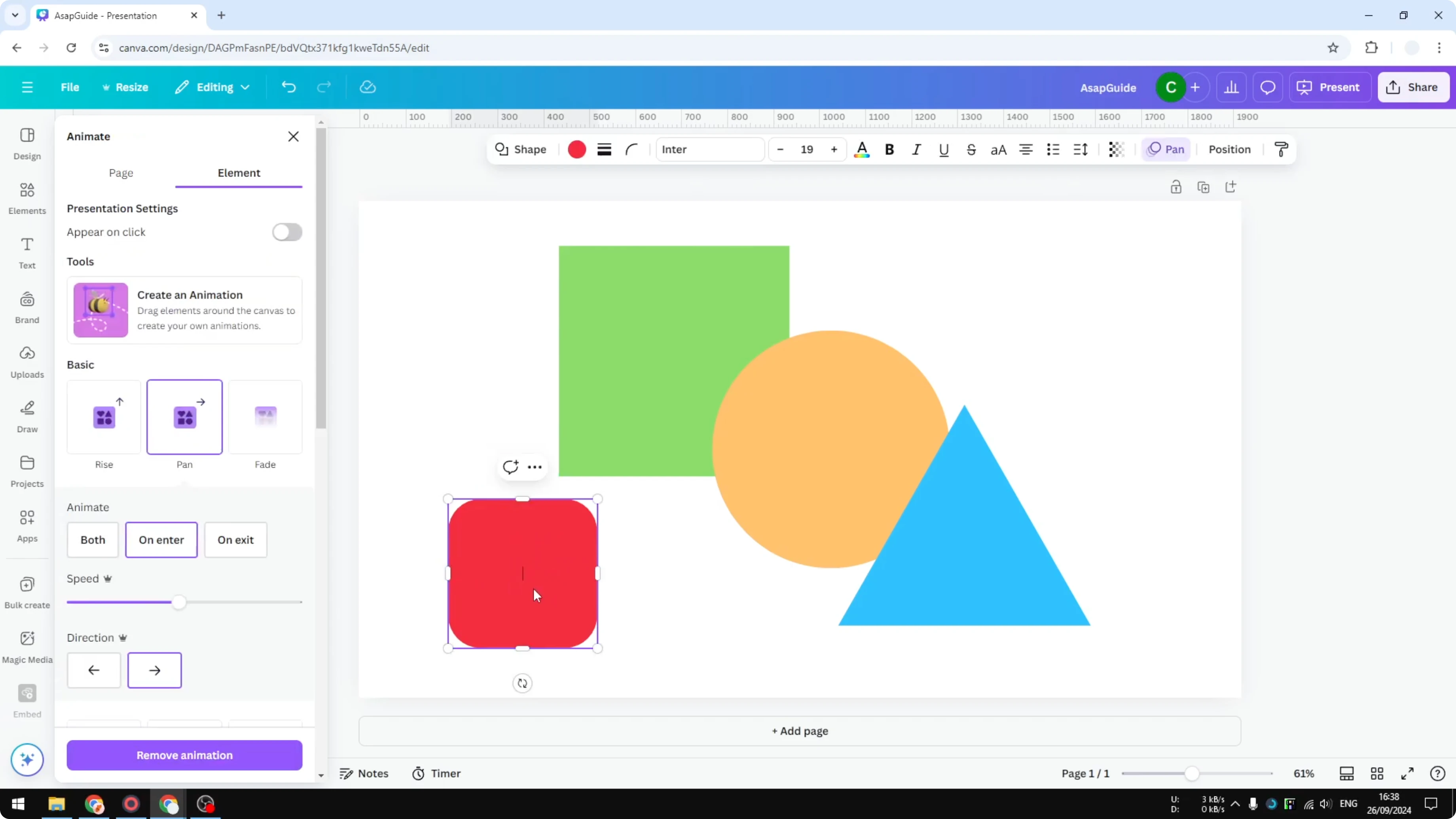
You can also add text to this shape natively. Double click on it and a cursor appears so you can start typing. The text becomes part of the shape.
Read More: Insert Canva video in Google Slides
Lines in Insert Shapes in Canva
You might have noticed there is also an option for lines. Lines can be converted into arrows like this. Insert a simple line to get started.
Weight and style
You will see an option to increase the weight. There is also an option to change the style. You can make the endpoint rounder.
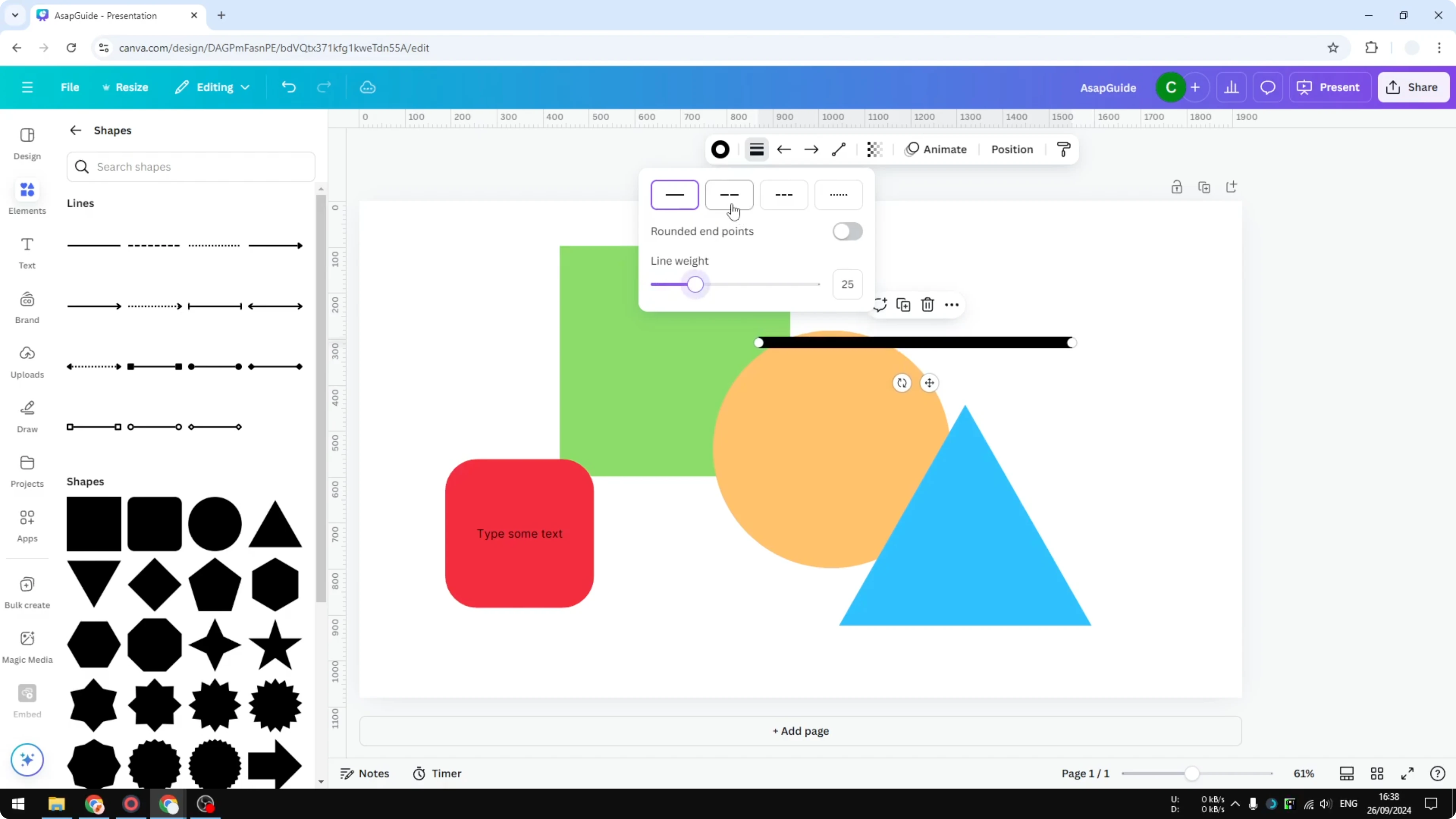
Ends and types
Add a line end or a line start if you want to. You can change the line type to elbow or curve. Elbow is useful for creating a family tree or a chart like that.
Final thoughts on Insert Shapes in Canva
That is how you can insert and use some of the shapes in Canva. There are many other options here and they are almost the same.
You are going to use this a lot in your design. I hope you find this helpful.
Recent Posts

How to Visualize Yourself as a Pixelized Character with AI?
How to Visualize Yourself as a Pixelized Character with AI?

How to Revive Faded Memories and Enhance Image Clarity with AI?
How to Revive Faded Memories and Enhance Image Clarity with AI?

How to Visualize Yourself as an Animal Crossing Character with AI?
How to Visualize Yourself as an Animal Crossing Character with AI?