How to Insert a Photo to Shape in Canva
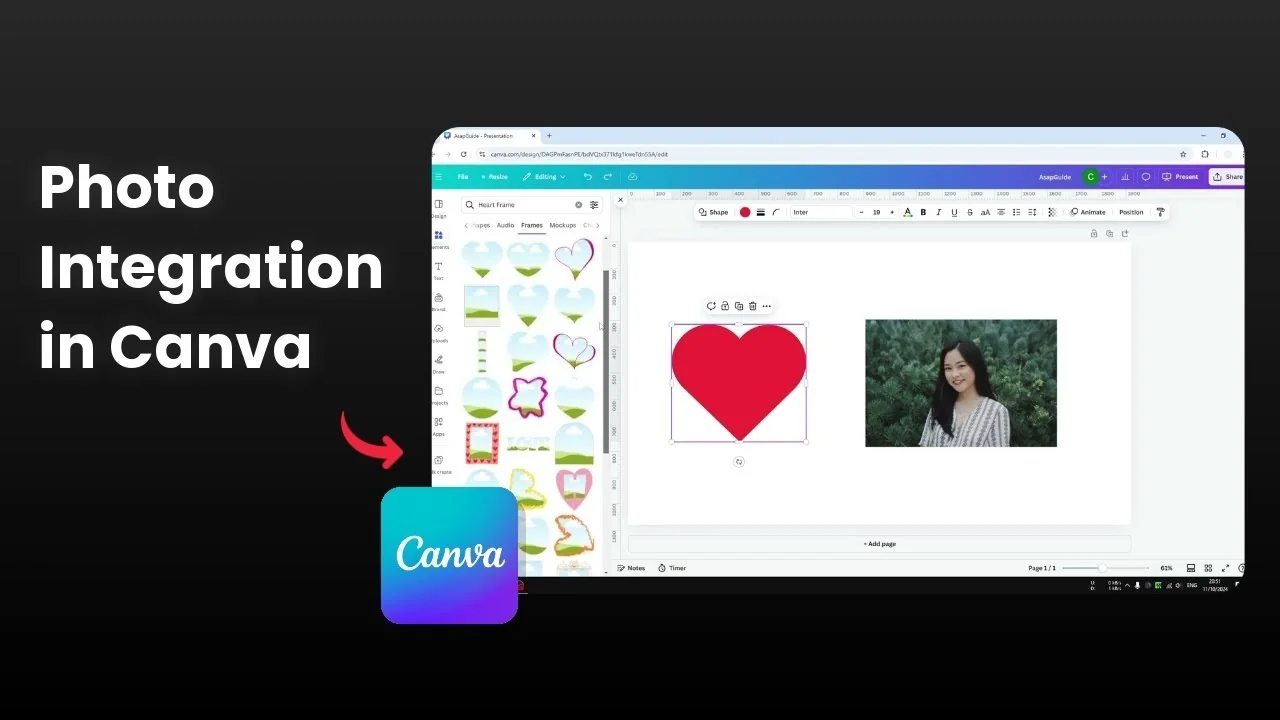
I will show you how you can insert a picture into a shape in Canva. You can work with many shapes like a square, circle, or triangle. I am using a heart shape because it looks a lot prettier than a regular rectangular image.
Insert a Photo to Shape in Canva with Frames
You cannot insert a picture into a shape object in Canva directly. What you need to use is a frame. Canva has a feature called frame that makes this easy.
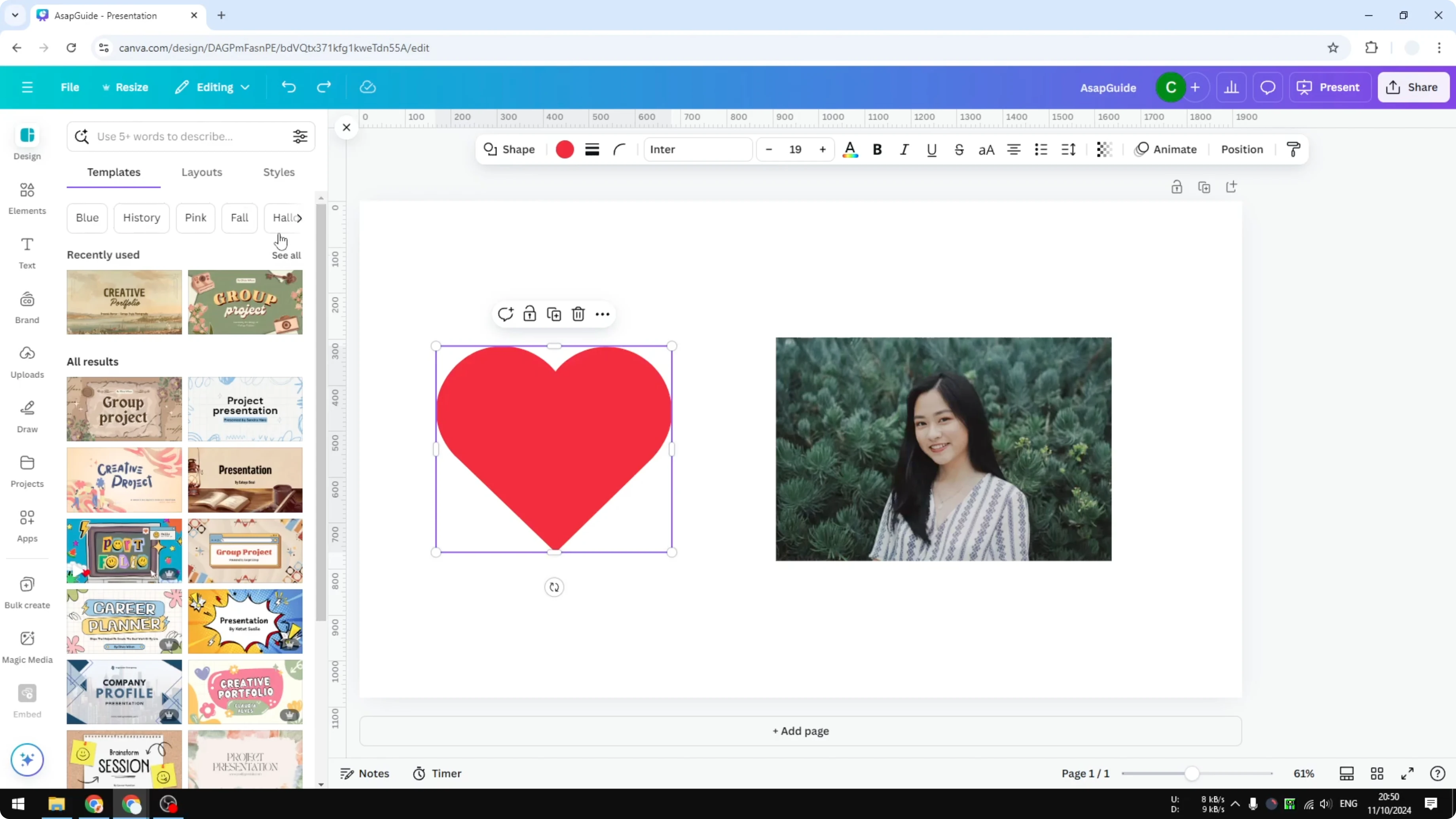
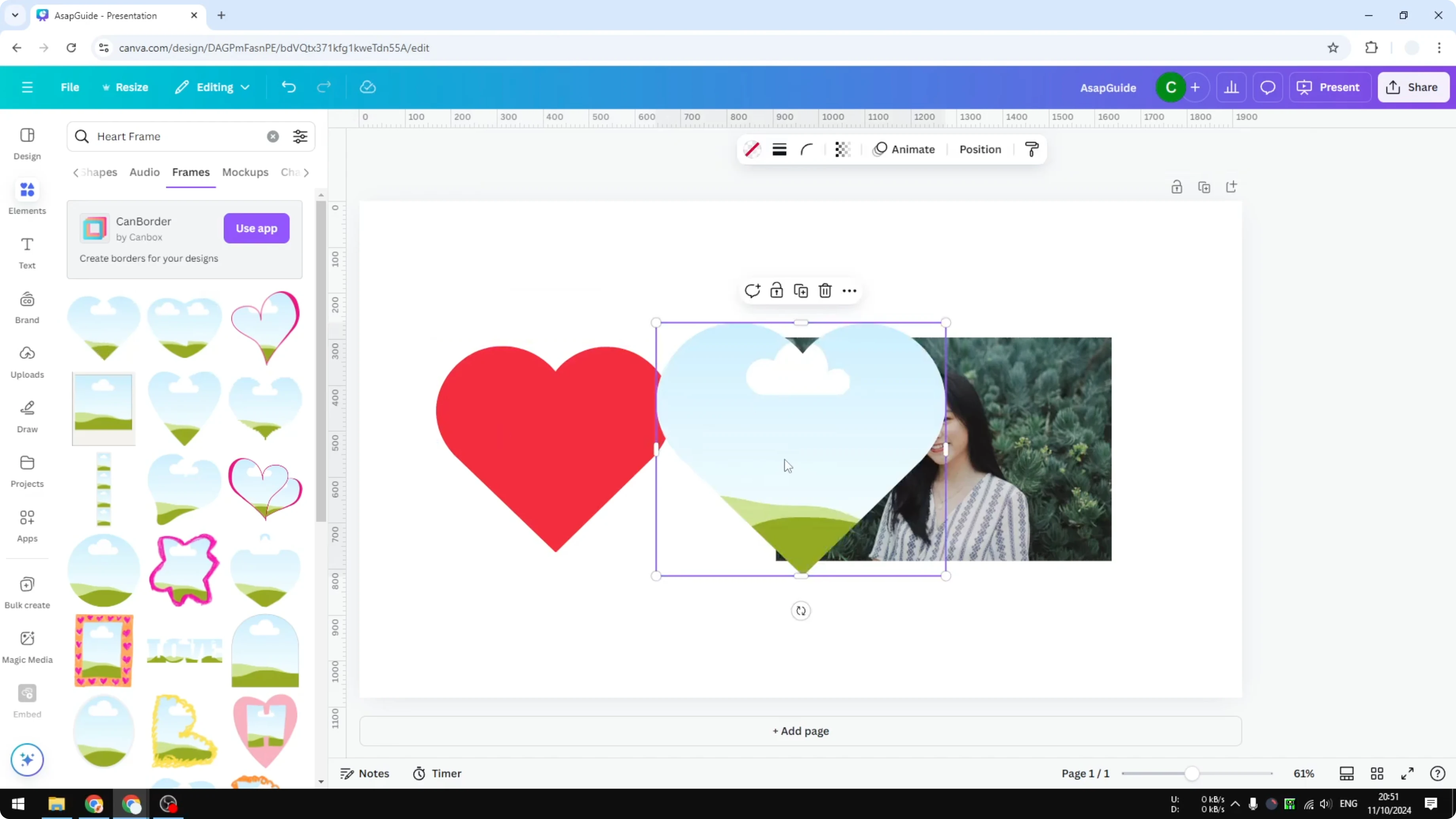
Go to the Elements menu and search for the shape of frame you want to use. Include the word frame in your search, for example heart frame. The top results show the Frame section, and you can click See all to discover more variations.
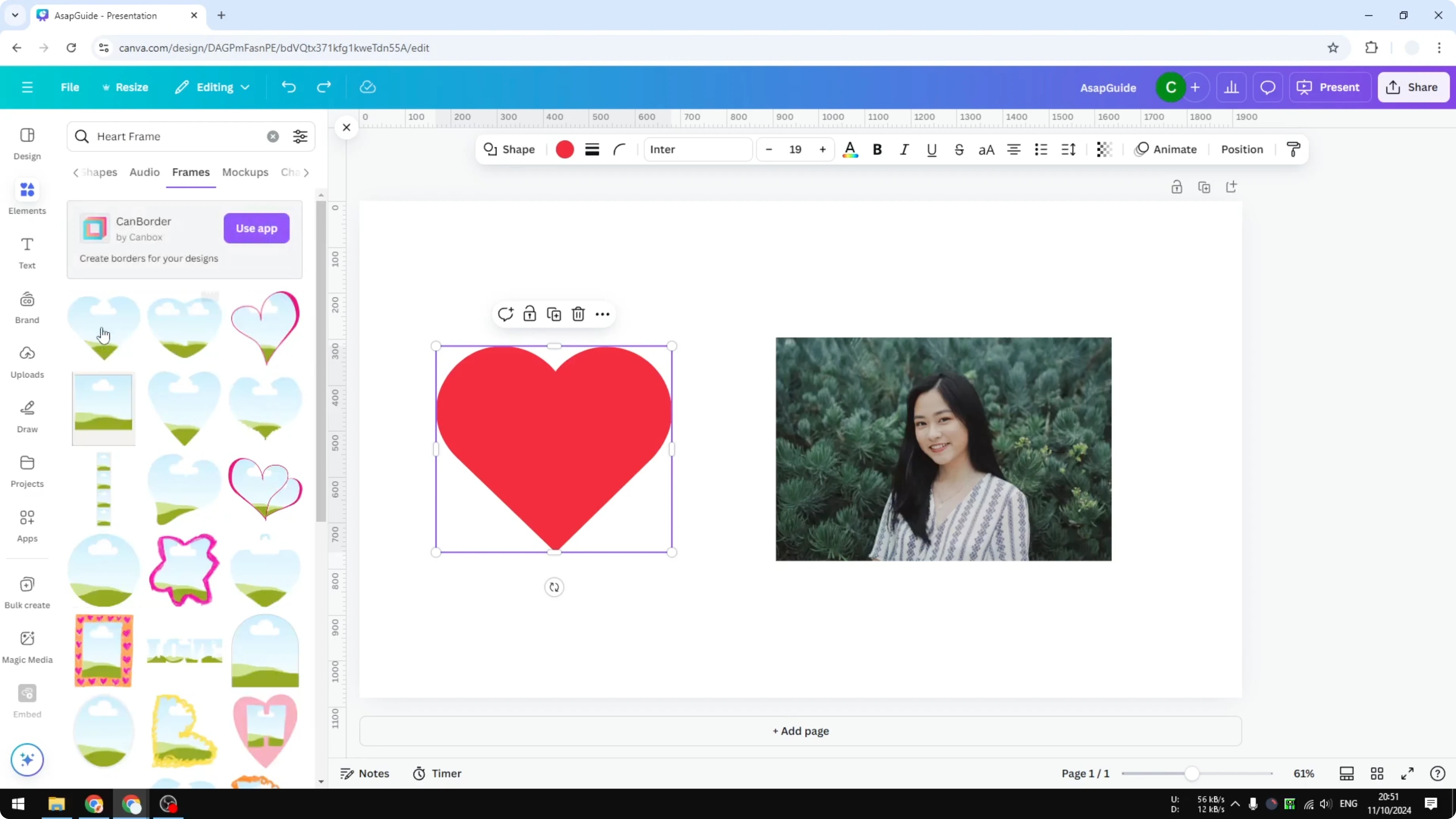
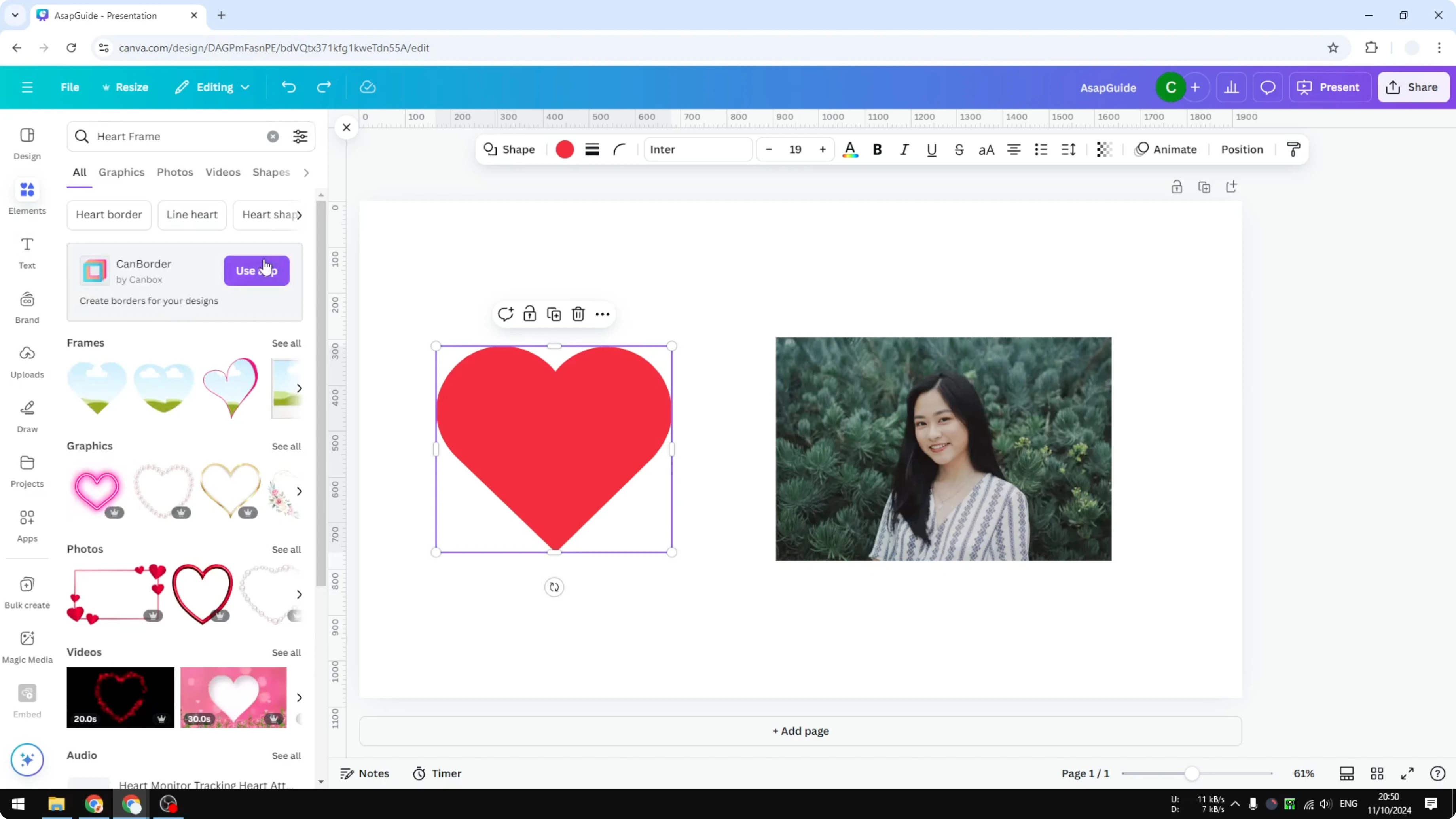
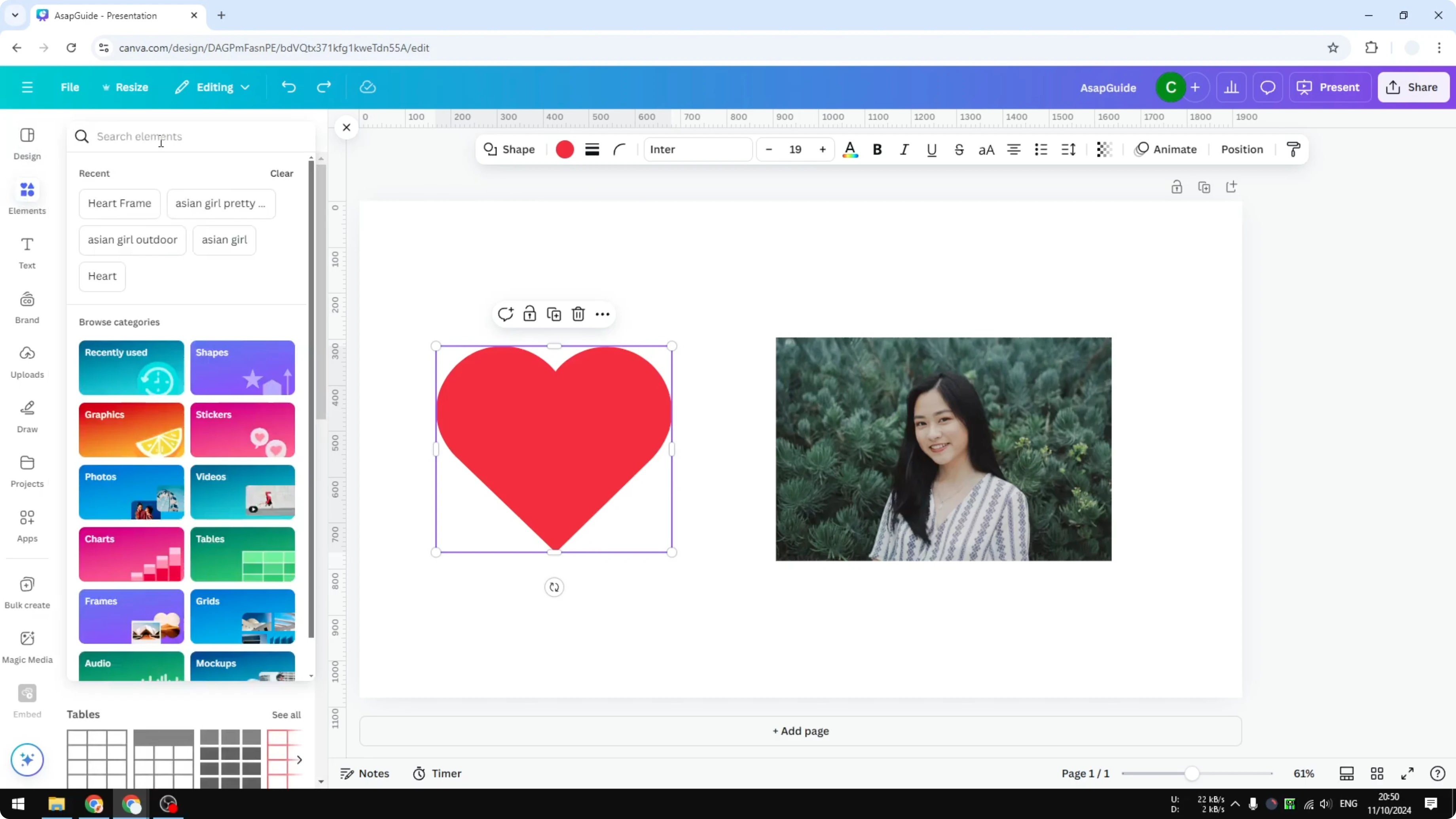
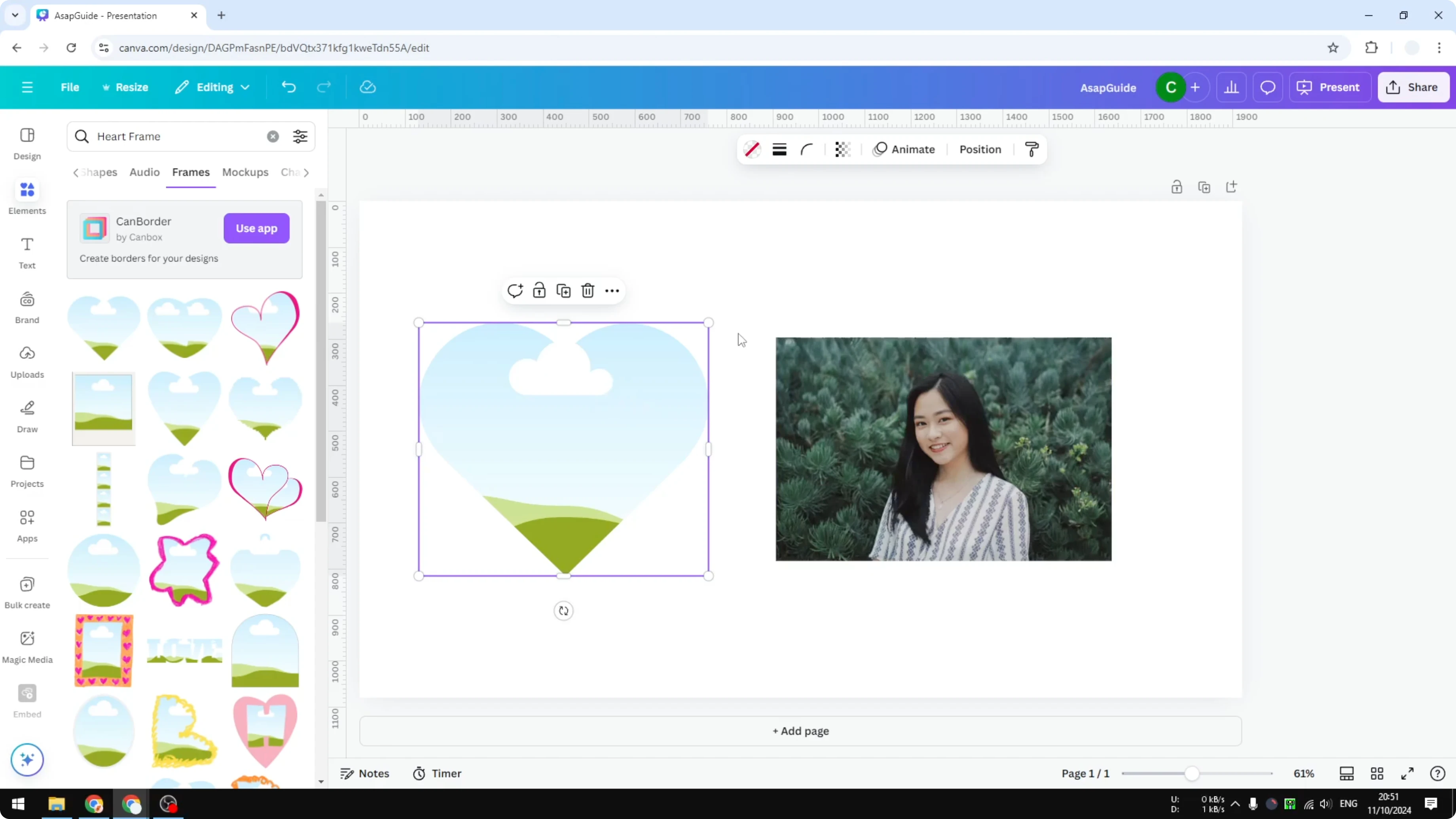
I just want to use the simple heart frame. Click on it and the frame is inserted into your document. Remove the shape object because you will not use it.
If you also need to put words inside shapes, see how to insert text into a shape.
Insert a Photo to Shape in Canva by Drag and Drop
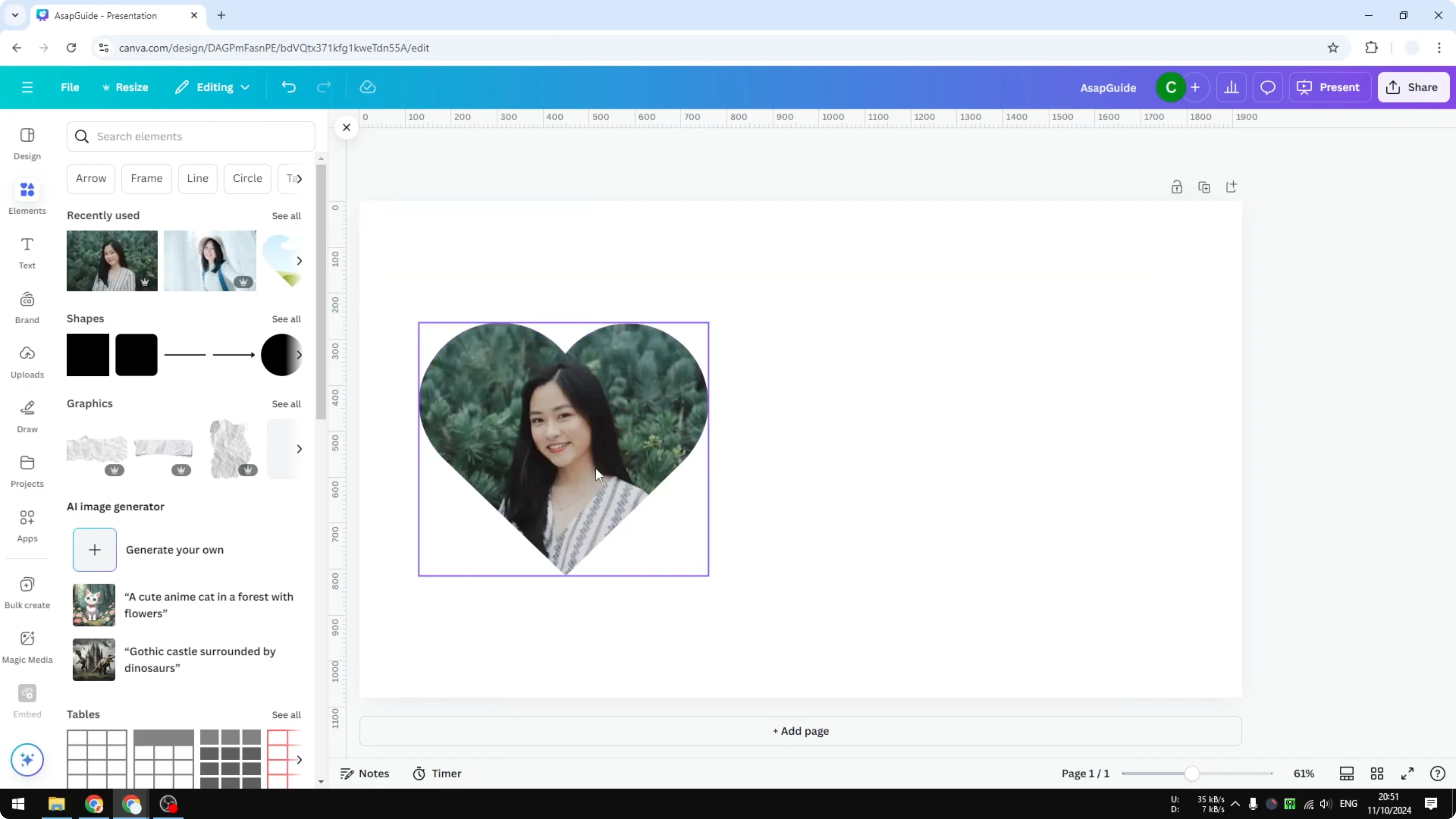
It is time to put a picture into the frame. Drag and drop is all you need. Click on the image and drop it onto the frame, and Canva will recognize the element and place it inside.
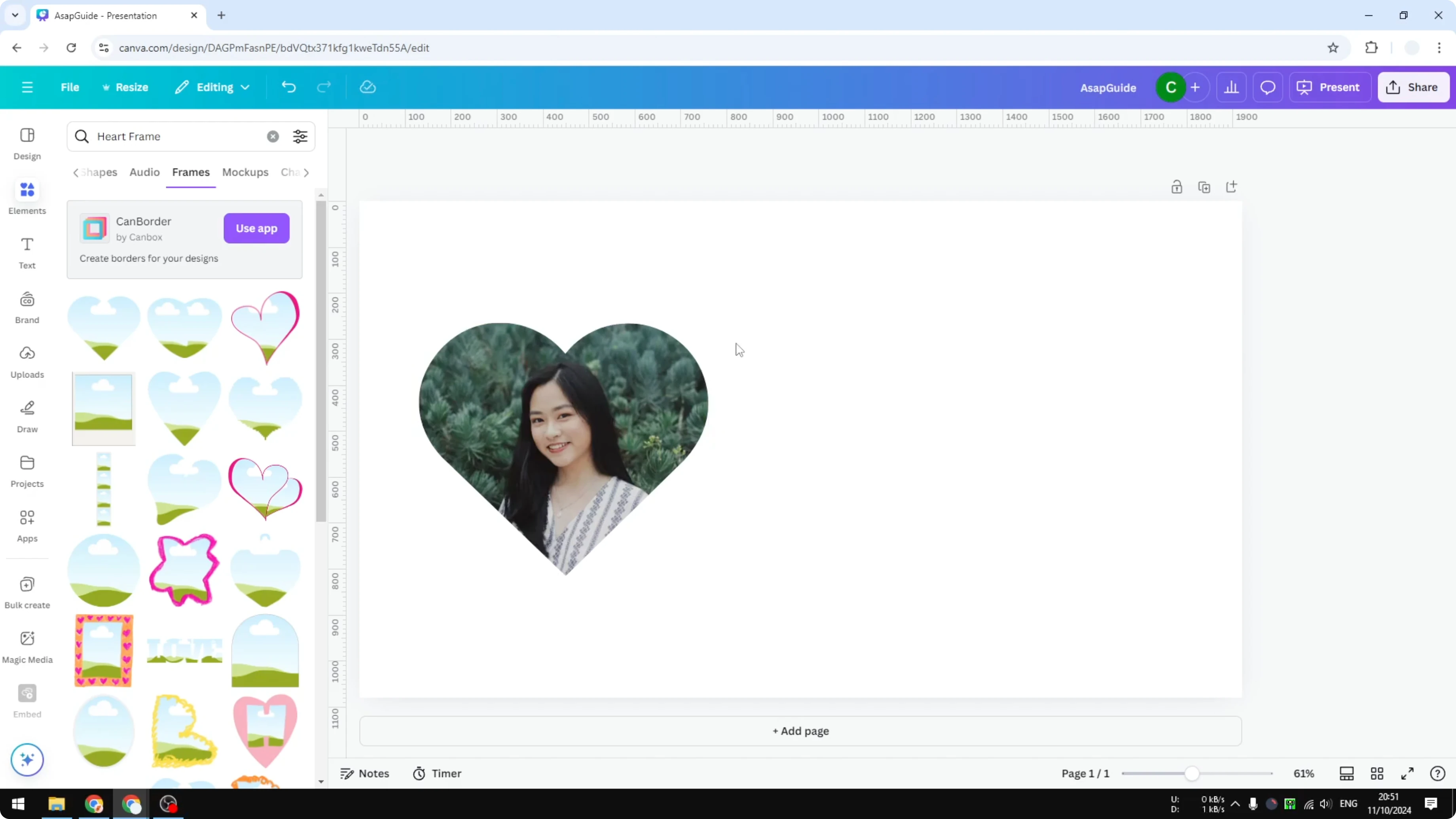
The same thing works if you drag the picture from the Elements menu or from the Uploads menu. I can do it with a different picture and the result looks amazing.
For layouts that fill the page, you can set a photo as your background.
Insert a Photo to Shape in Canva and Crop Inside the Frame
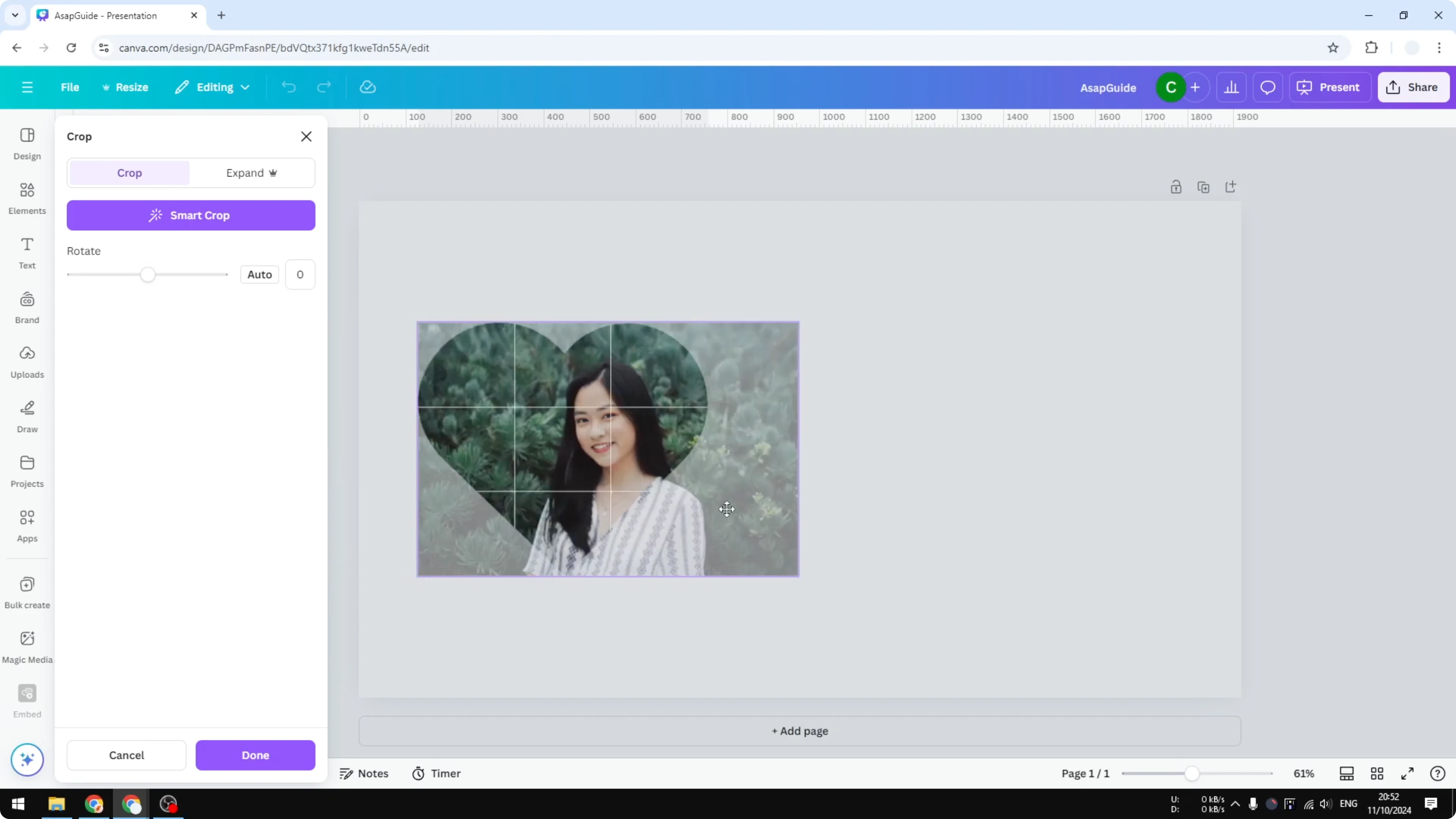
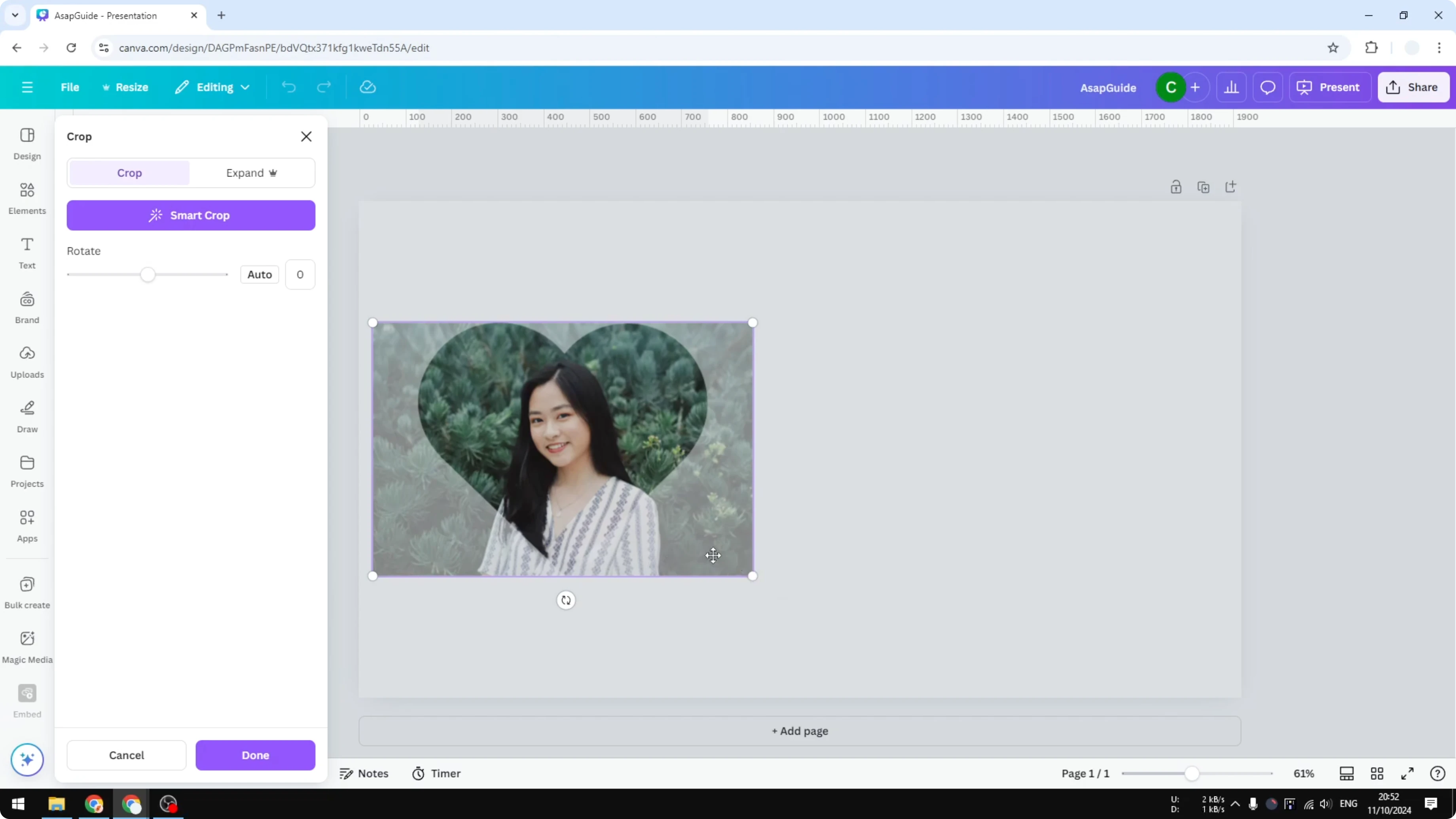
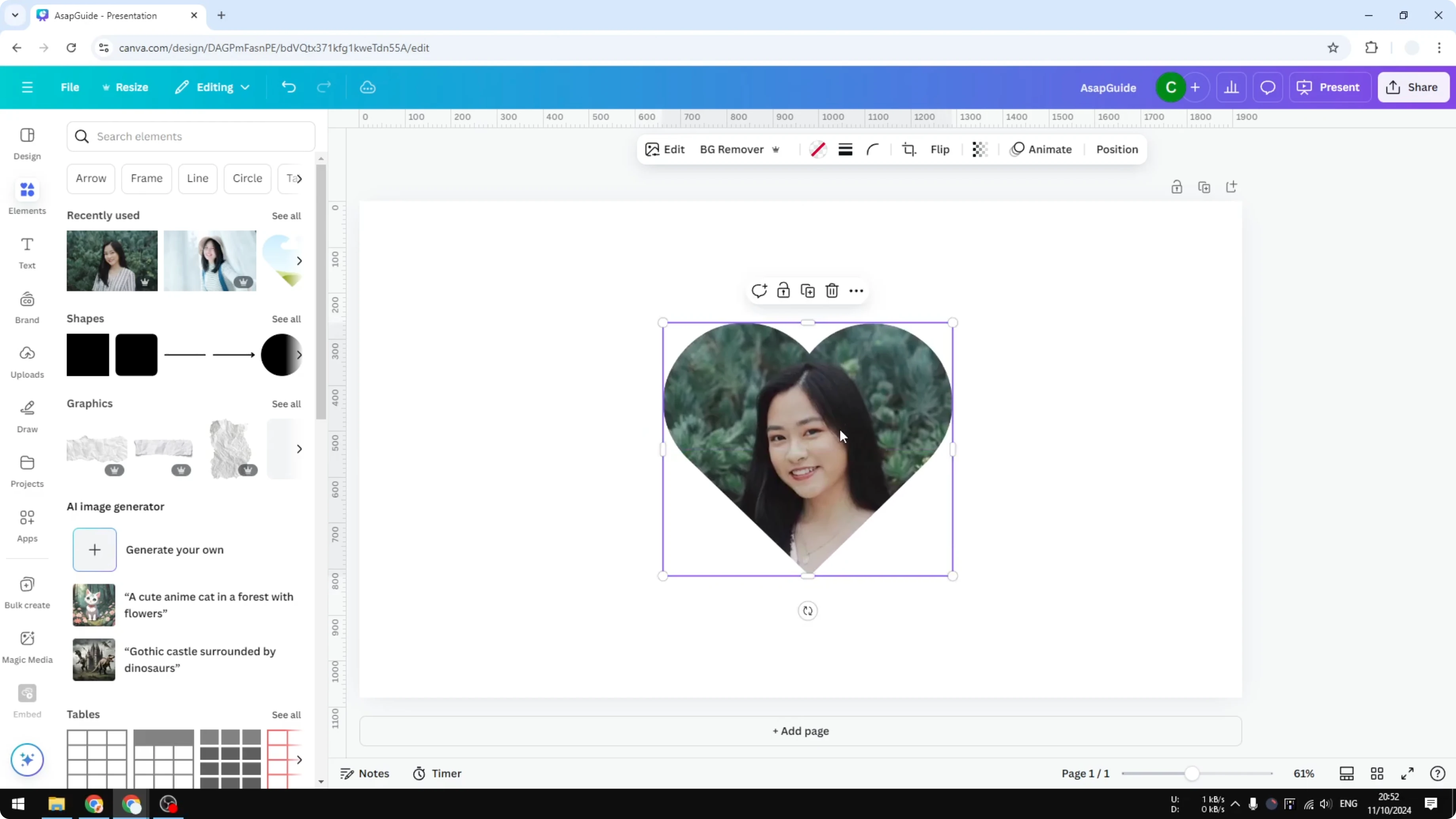
Double click on the frame to reveal the cropping menu. This lets you adjust the size of the image and choose what area shows inside the frame. Move the picture to the left or right, or make it bigger to focus on the face.
If you want softer edges around your image, you can add blending edges to a photo.
Final Thoughts on Insert a Photo to Shape in Canva
That is how you can insert a picture into a shape, actually into a frame, in Canva. Use a frame from Elements, drop your image in, then fine tune the crop. It is simple once you know frames are the way to get shape based images in Canva.
Recent Posts

How to Visualize Yourself as a Pixelized Character with AI?
How to Visualize Yourself as a Pixelized Character with AI?

How to Revive Faded Memories and Enhance Image Clarity with AI?
How to Revive Faded Memories and Enhance Image Clarity with AI?

How to Visualize Yourself as an Animal Crossing Character with AI?
How to Visualize Yourself as an Animal Crossing Character with AI?