How to Flip Basic Shapes in Canva
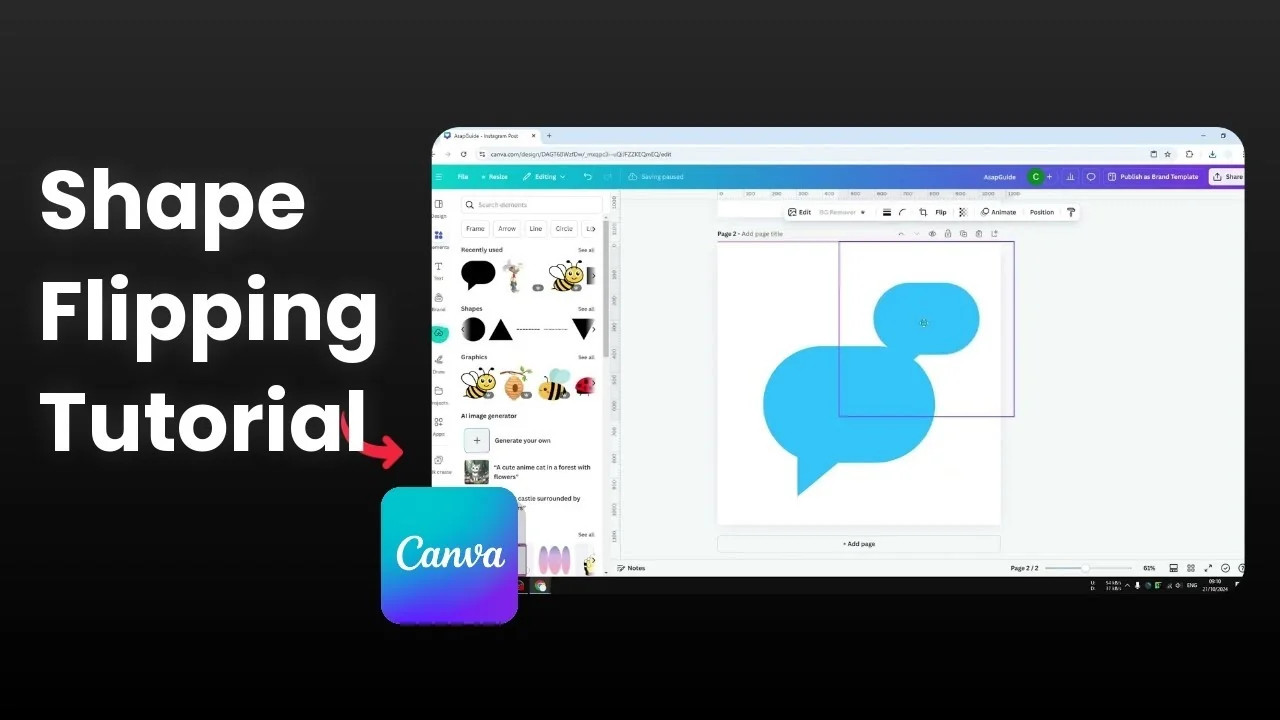
I will show you how to flip basic shapes in Canva. Canva does not have a native feature to flip shapes in the platform. That is interesting and also a bit embarrassing for Canva because this tool can do a lot of things except a basic flipping.
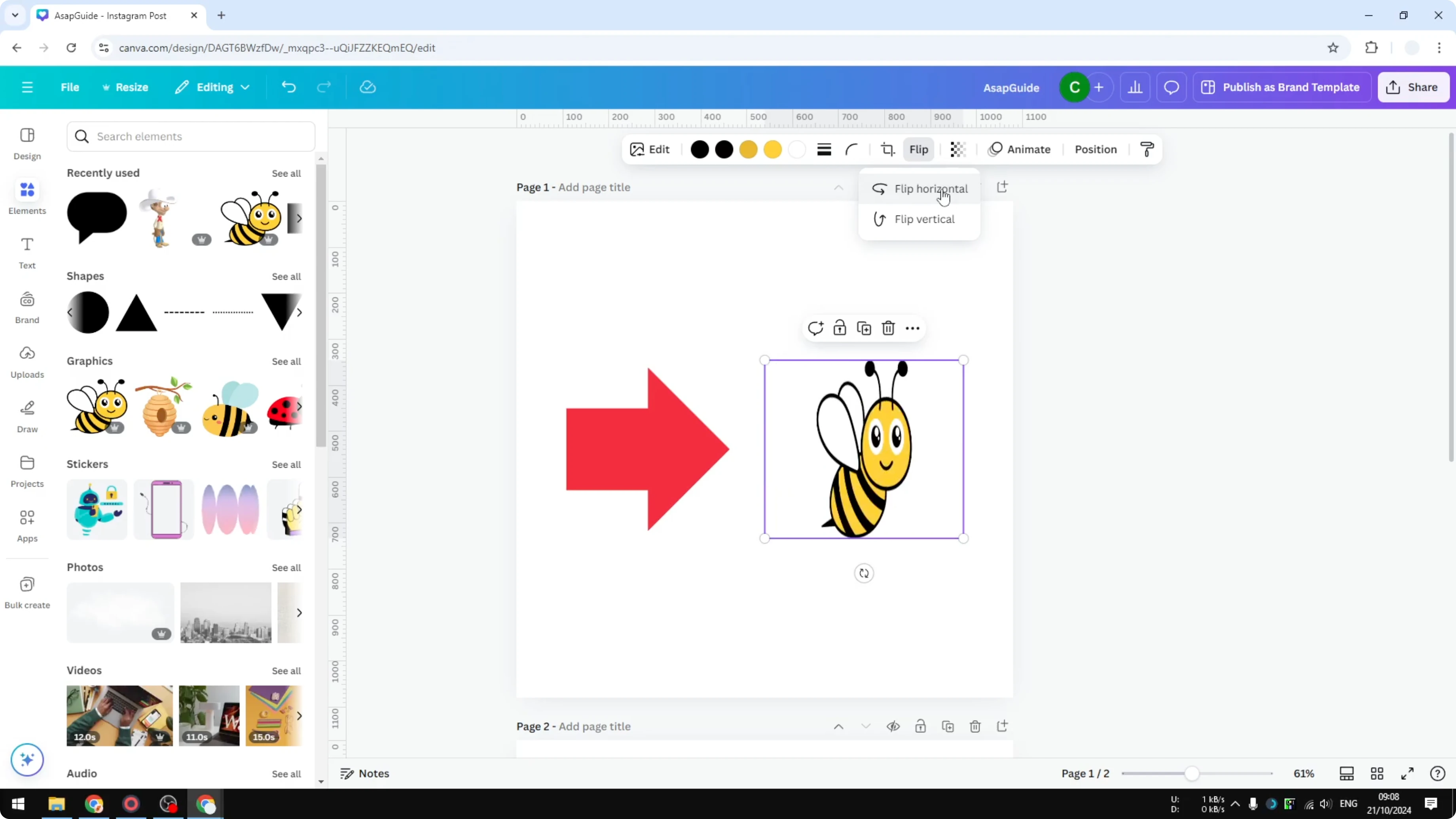
I have two elements to explain the workarounds. One is a basic shape, an arrow pointing to the right. The other is a vector graphic.
On the vector, I have the option to flip the content to the left or to the right. I can also flip it vertically. The same cannot be said for a basic shape like this, because there is no flip option.
Why Flip Basic Shapes in Canva needs workarounds
There are two workarounds that allow you to flip shapes. They are not ideal, but these are the options you can use right now.
First workaround to Flip Basic Shapes in Canva
I want to turn the arrow from pointing to the right to pointing to the left. One way to do that is by rotating the shape. Click the rotation handle and drag it to the left and it has the same effect as flipping, even though this is not exactly flipping.
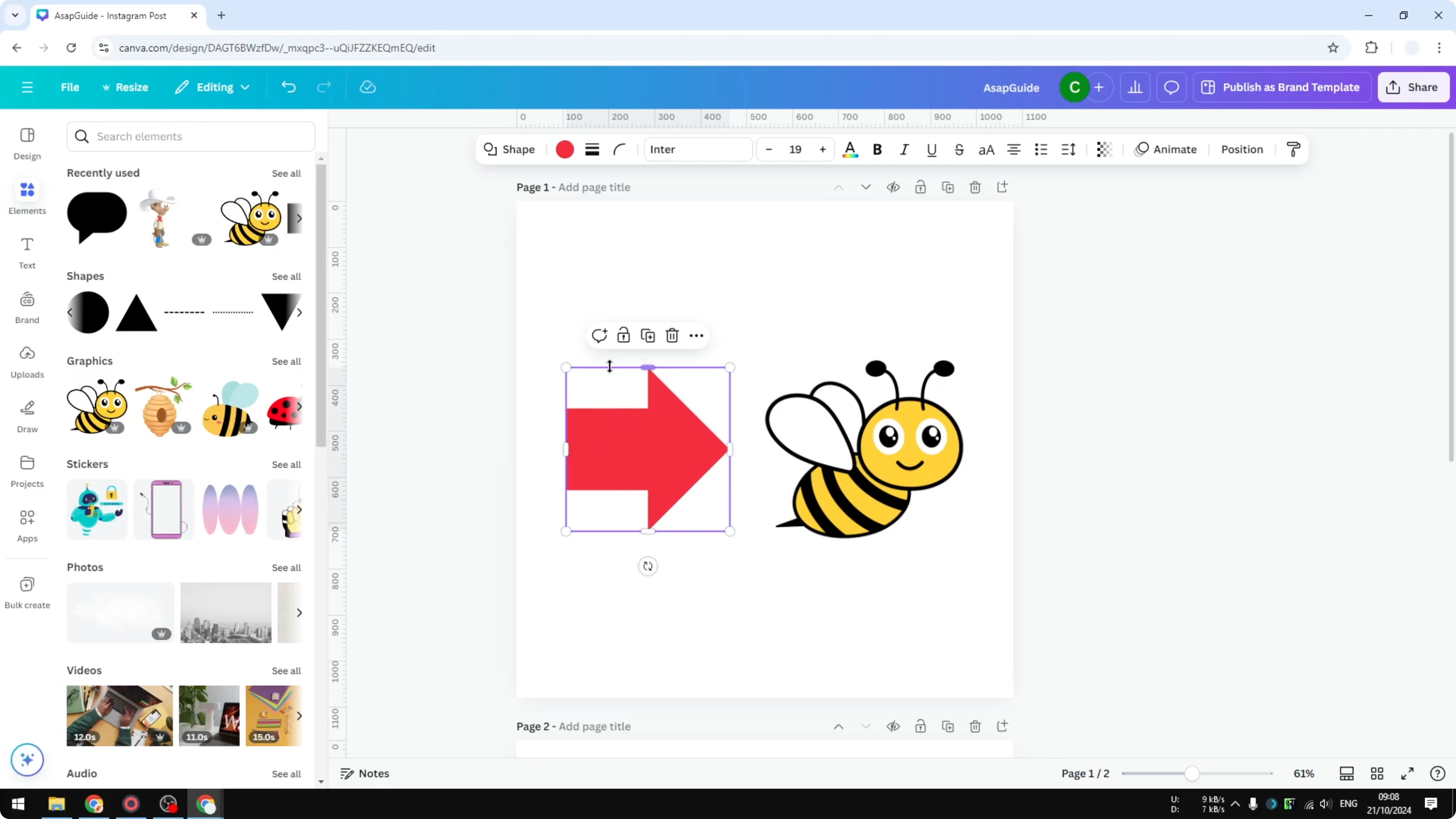
I can only do this because it is a simple arrow shape. This will not apply to every other shape.
Read More: Resize shapes in Canva
Second workaround to Flip Basic Shapes in Canva
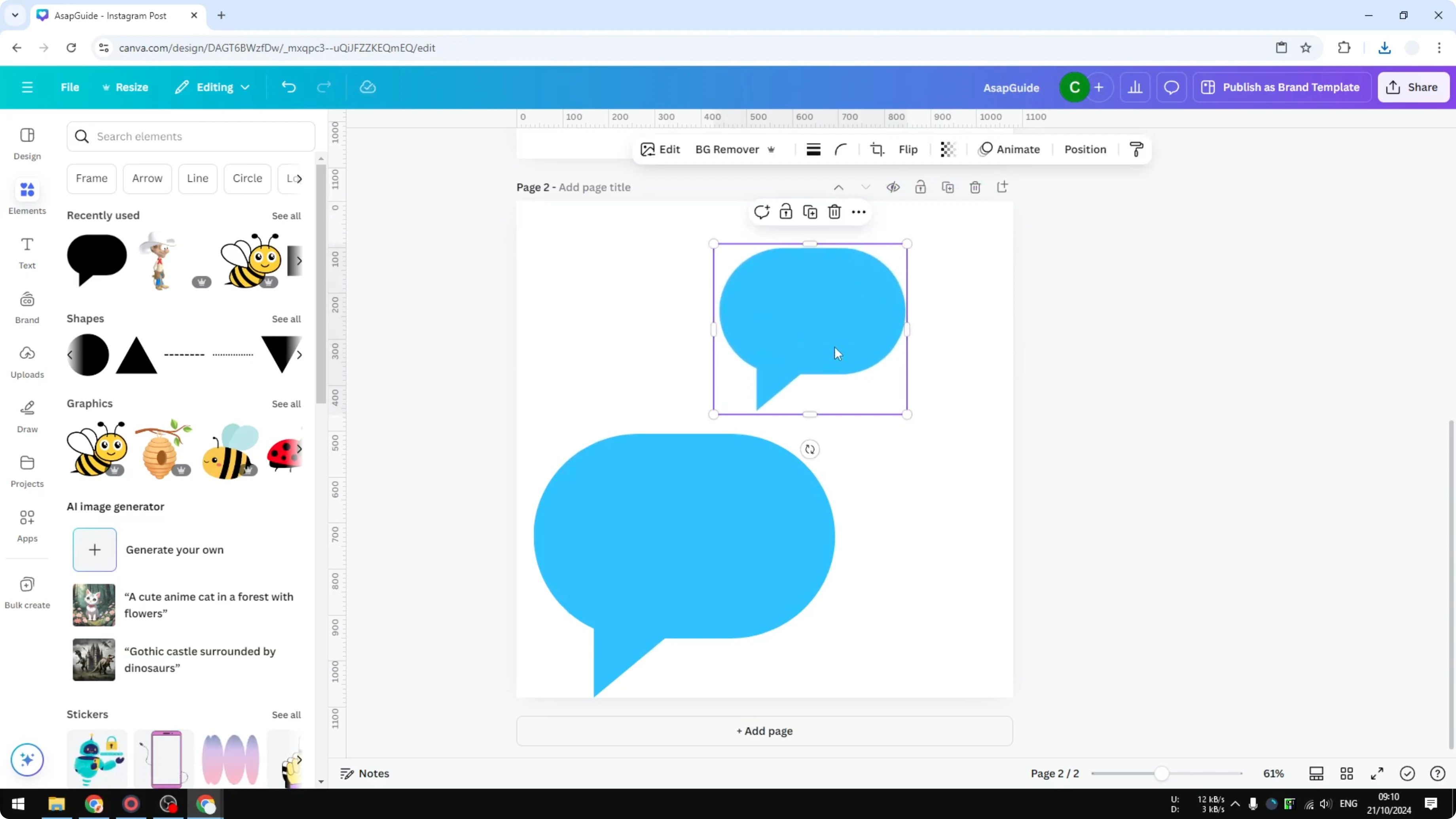
I have a speech bubble. You cannot apply the same rotation trick for that shape. It is not going to work.
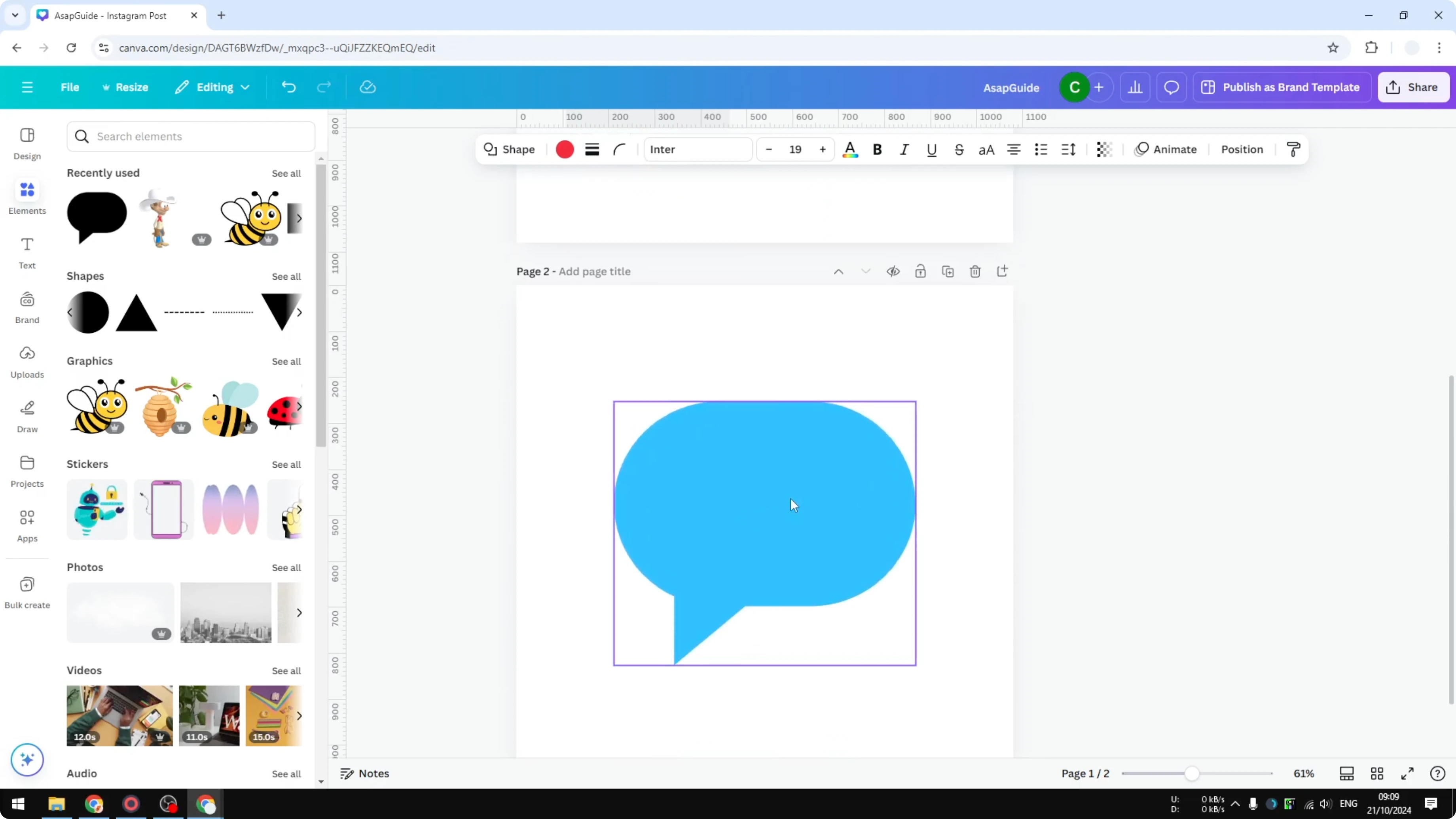
One way to solve the problem is to download the shape as a picture, upload it again to Canva, and then flip the content.
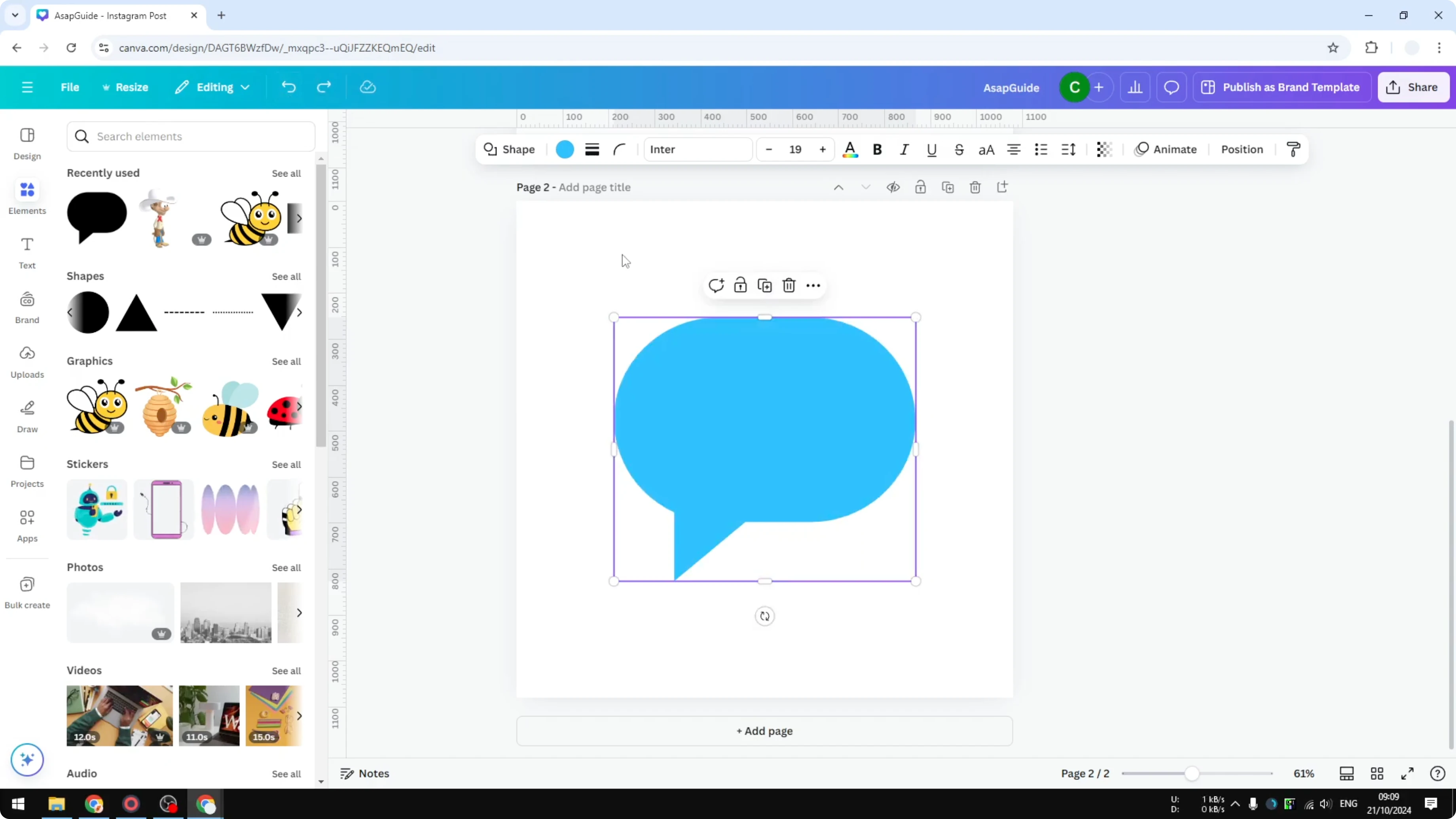
Prepare the export
Click Share.
Click Download.
Select PNG to keep the content transparent.
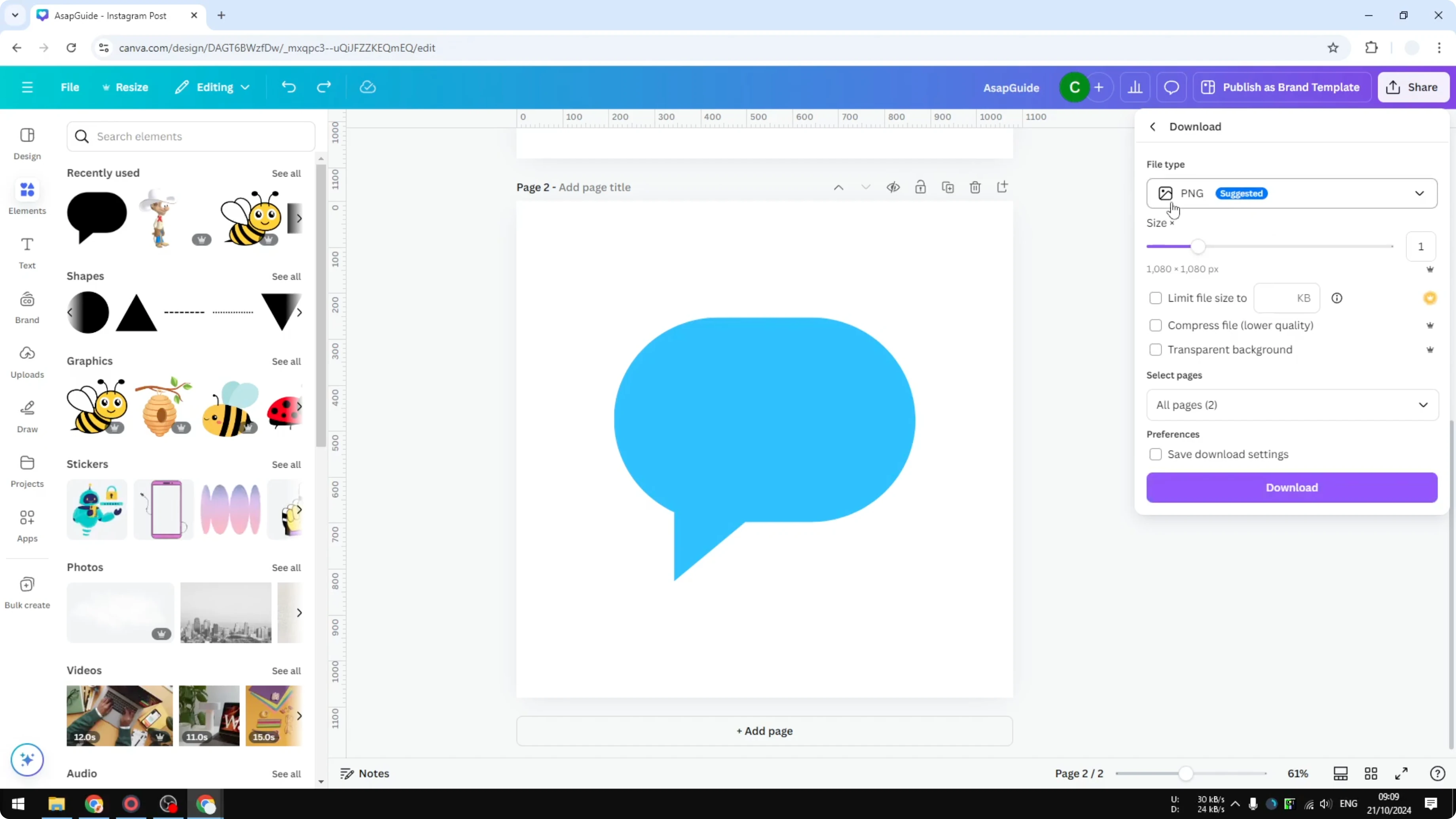
Enable Transparent background.
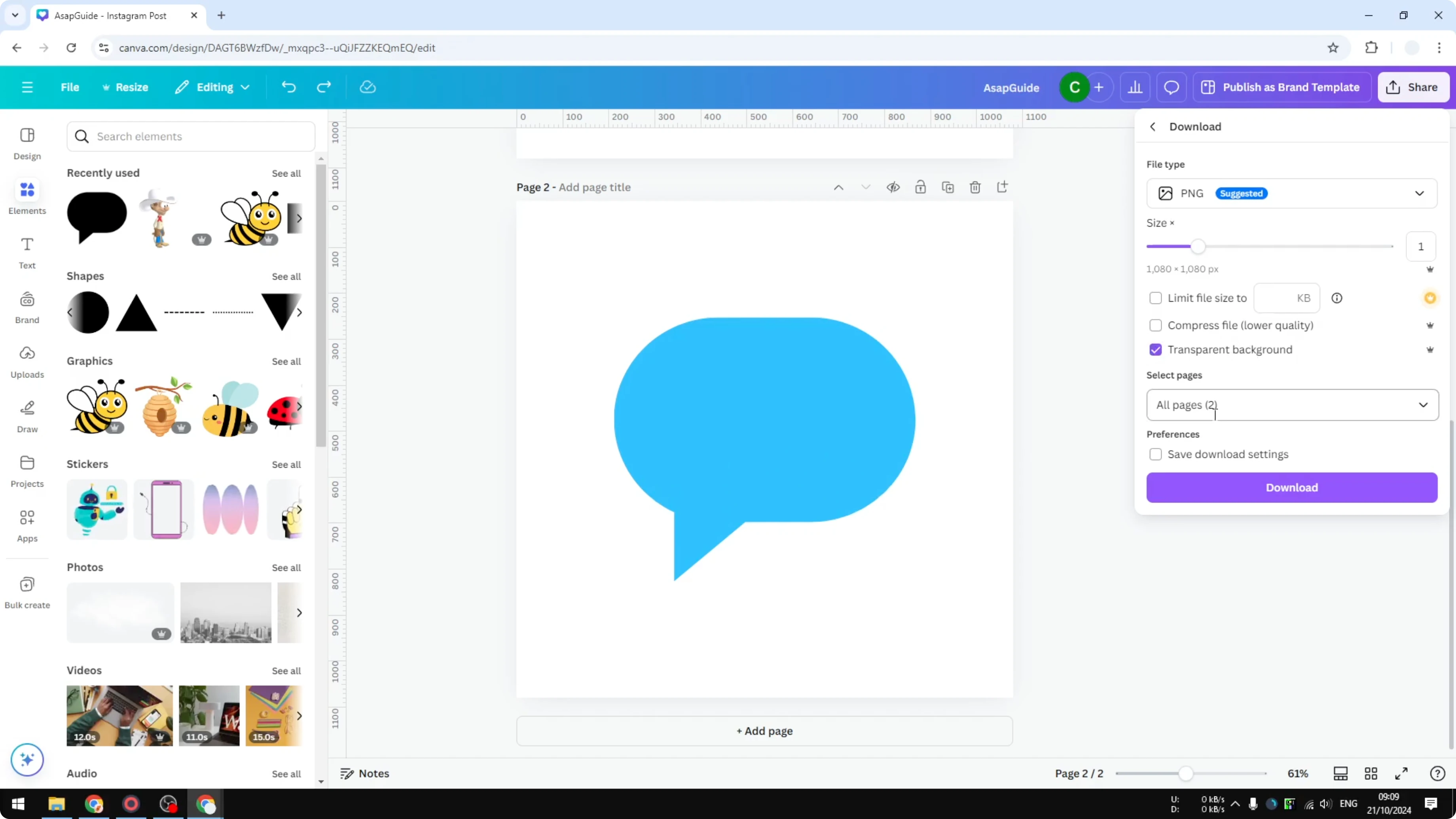
Select the correct page.
Click Done.
Click Download.
Reimport and flip
Upload the PNG back to Canva and wait a few seconds for it to appear. Once it appears on the canvas, select it. This is not a shape anymore, it is an image that gives you more options to modify the content.
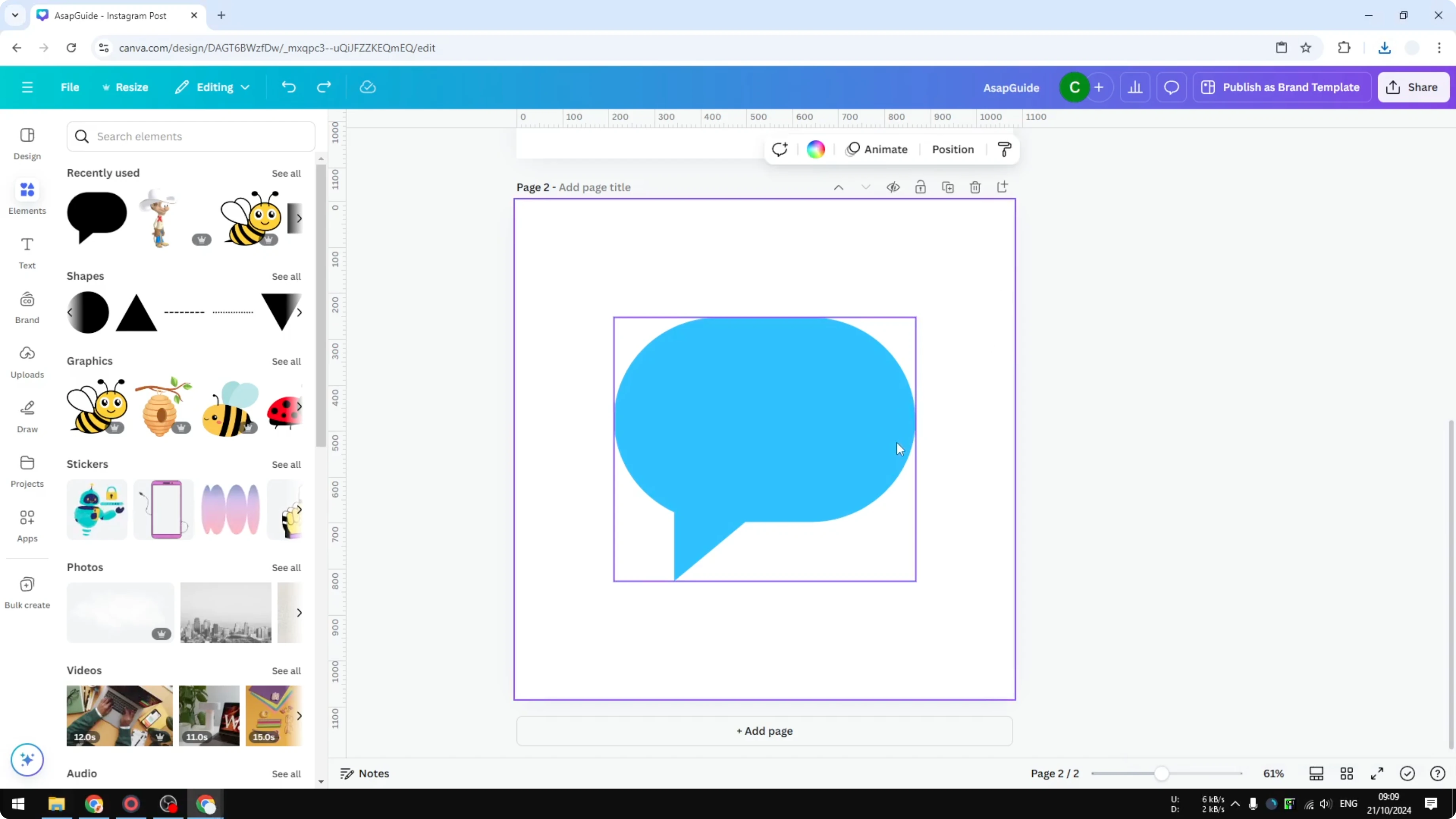
Click Flip and choose horizontally or vertically.
Read More: 3D book cover in Canva
After you Flip Basic Shapes in Canva as images
This is one way to solve the problem. It is not ideal, but at least we have this option right now. The image type unlocks the flip controls.
If your design also includes text, you may need to add accent marks in Canva.
Final thoughts
Canva does not let you flip basic shapes directly, but you can rotate simple shapes or convert them to images and flip them. The rotation trick is quick for very simple shapes. For everything else, the PNG export and reimport method gives you a reliable flip control.
Recent Posts

How to Visualize Yourself as a Pixelized Character with AI?
How to Visualize Yourself as a Pixelized Character with AI?

How to Revive Faded Memories and Enhance Image Clarity with AI?
How to Revive Faded Memories and Enhance Image Clarity with AI?

How to Visualize Yourself as an Animal Crossing Character with AI?
How to Visualize Yourself as an Animal Crossing Character with AI?