How to Insert Icons to Canva
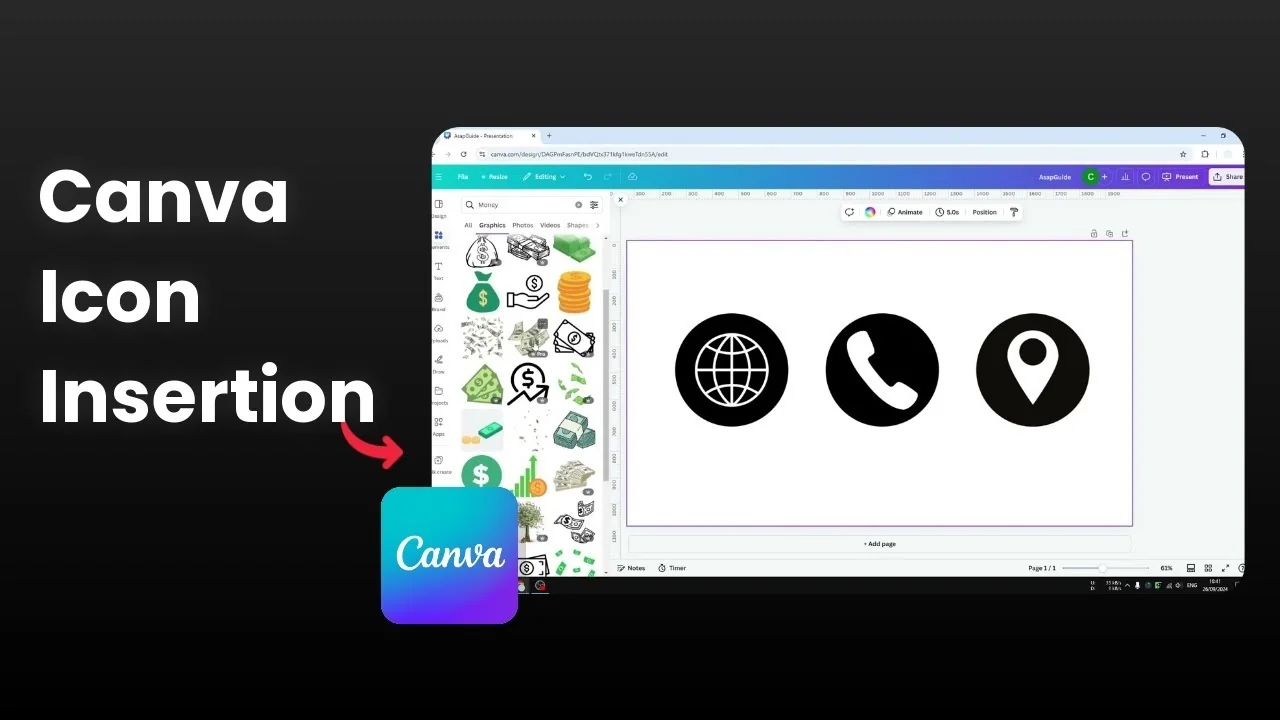
I will show you how you can insert icons to Canva. In Canva there are icons that you can insert to complement your design, and many of them are customizable.
You can change the size and the color. Some icons have multiple colors that can be customized, which makes the icons prettier and lets you make them yours.
Insert Icons to Canva
Find icons
Go to the Elements section.
Type the kind of icon you want to insert, for example money.
You will see options for Graphics, Photos, Videos, and Audio. For a proper icon, choose Graphics.
Click an icon to add it to your document. If you need branded marks, add social media icons to your design.
Read More: How To Insert Canva Video In Google Slides
Customize single color icons
After you insert an icon, you will see customization options. You can change the color to whatever color you find the best.
There is an option to add a border, although you may not need it for this type of icon. Corner rounding can appear for some shapes, but it is not useful for every icon.
You can crop the icon. You can flip it and adjust the transparency.
Customize multi color icons
Some icons are colorful and contain more than one color.
You can adjust the color of the background and the symbol separately. For example, change the background to yellow and set the dollar sign to black.
If you want to place photos inside shapes alongside your icons, see how to place photos in shapes.
Final thoughts on Insert Icons to Canva
That is how you can insert icons in Canva and customize them.
Search in Graphics, pick an icon that fits your idea, and adjust colors and other settings to match your design.
Recent Posts

How to Visualize Yourself as a Pixelized Character with AI?
How to Visualize Yourself as a Pixelized Character with AI?

How to Revive Faded Memories and Enhance Image Clarity with AI?
How to Revive Faded Memories and Enhance Image Clarity with AI?

How to Visualize Yourself as an Animal Crossing Character with AI?
How to Visualize Yourself as an Animal Crossing Character with AI?