How to Import a Canva Presentation into Google Slides
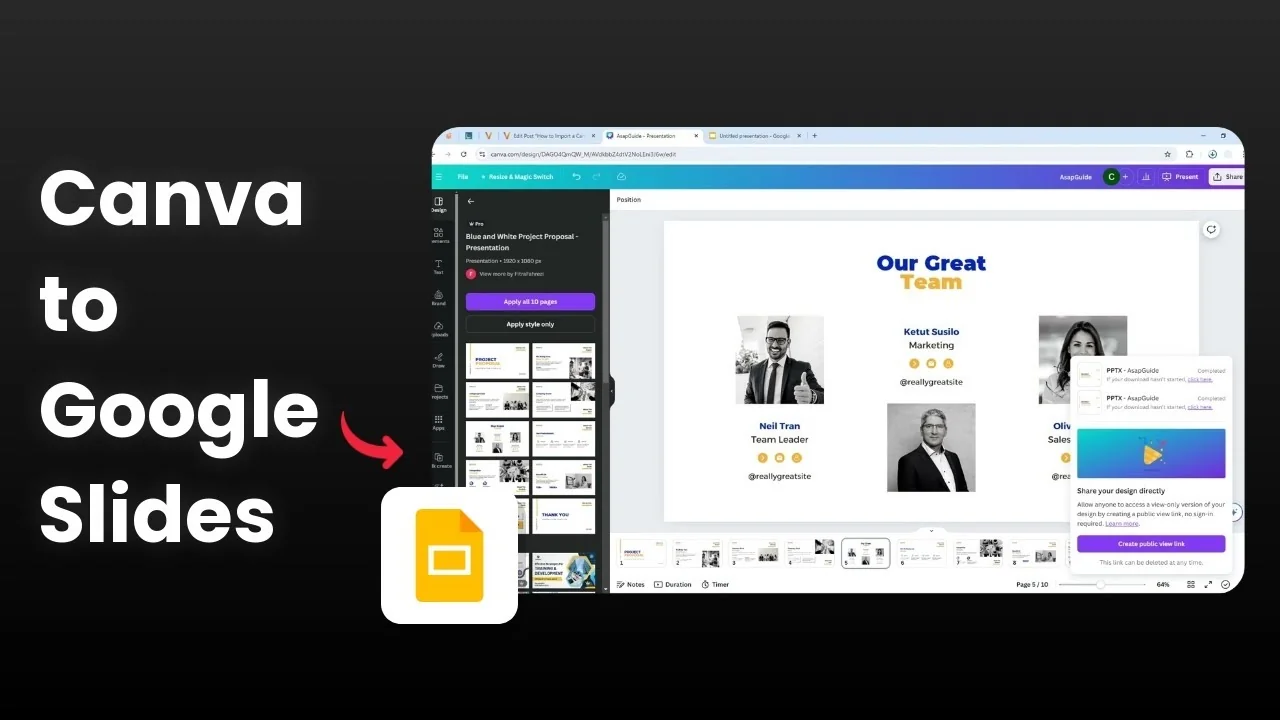
I am going to show you how to import your Canva presentation document to Google Slides. I have a document in Canva that I want to download and then upload to Google Slides. Here is the exact process I use.
Import a Canva Presentation into Google Slides
Export from Canva
Step 1: Go to the Share menu and click Download.
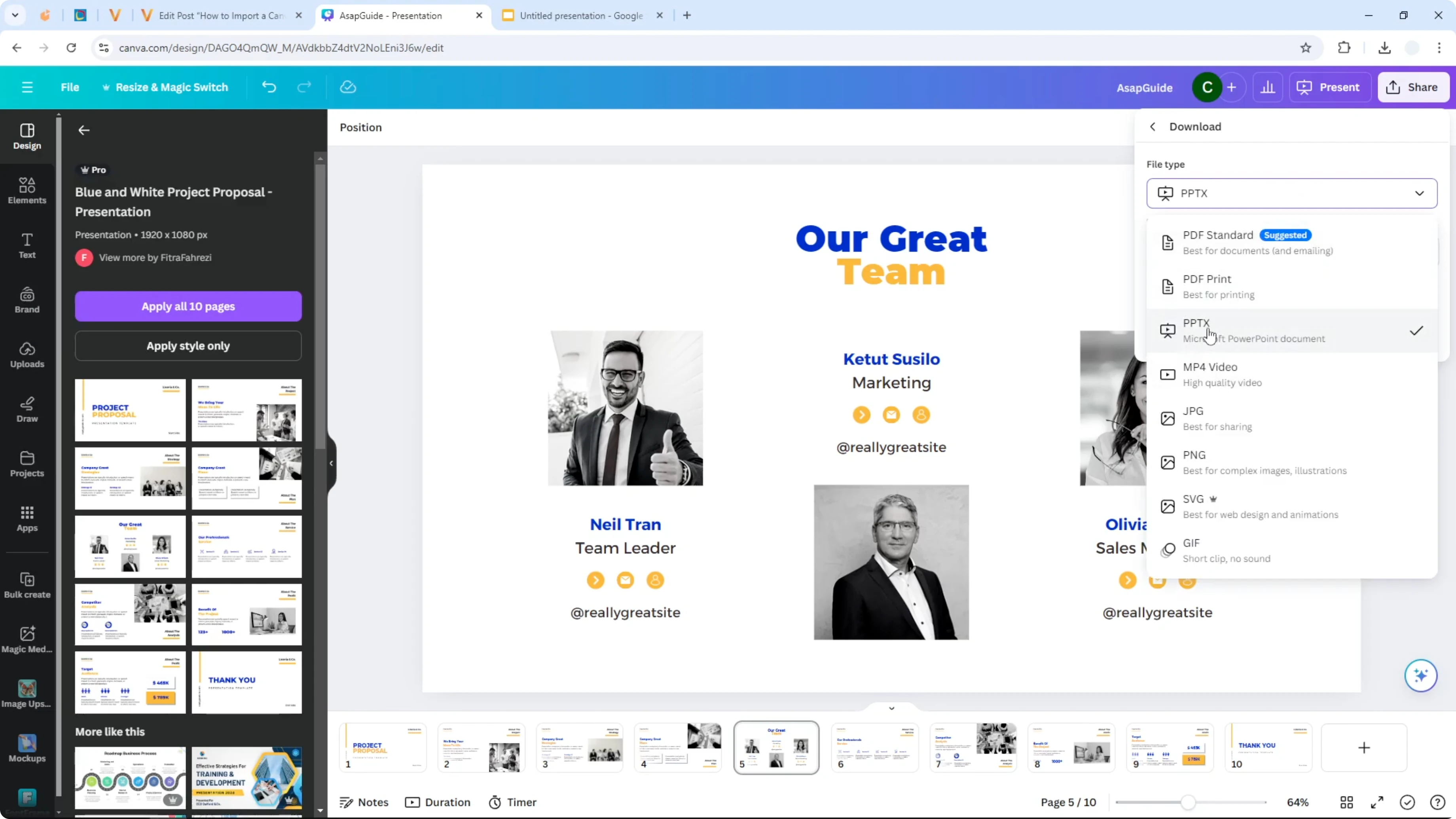
Step 2: On File type, you can only choose PPTX. This is the only format that is both compatible with Canva and also Google Slides.
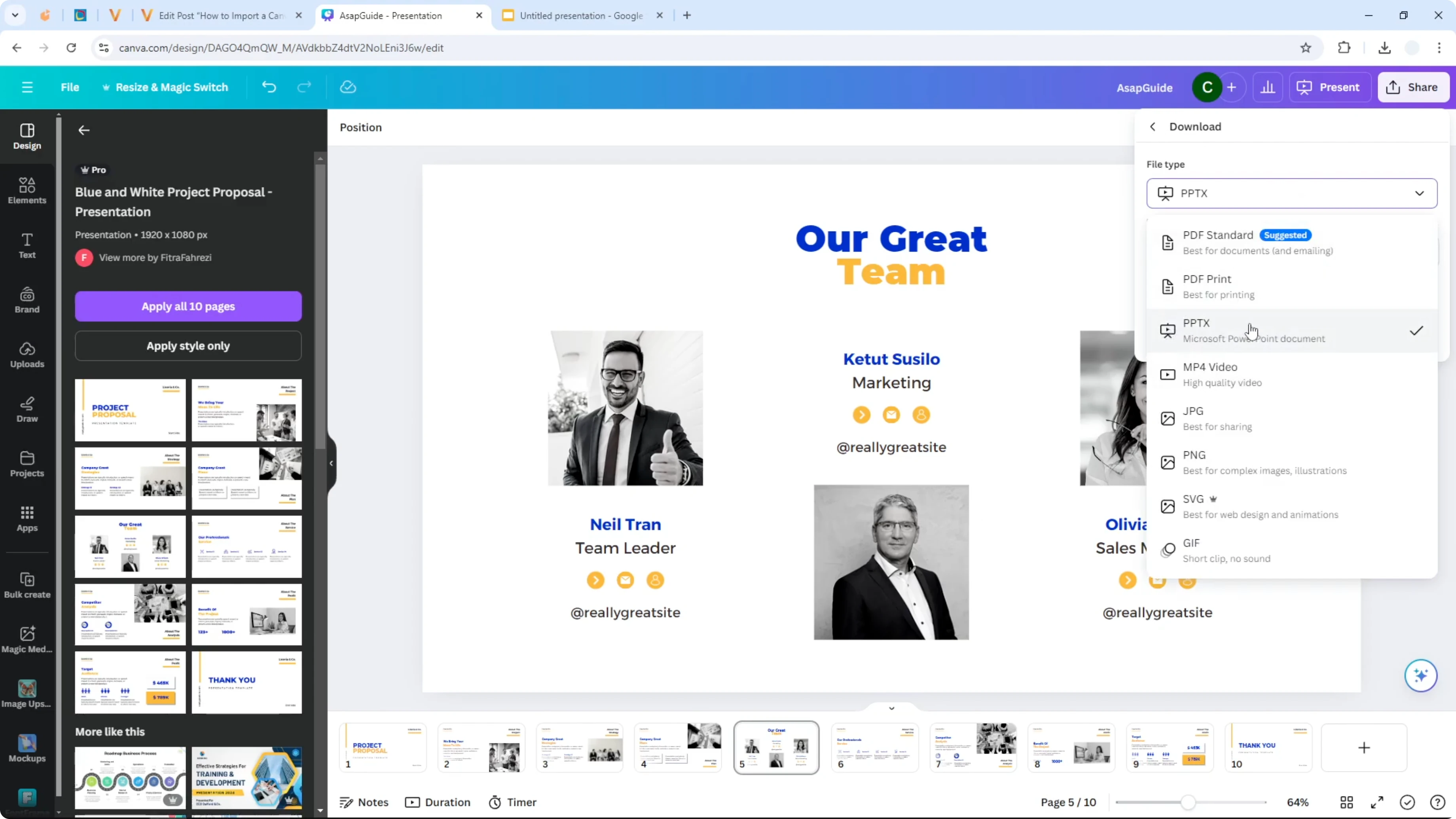
Step 3: Click Download and wait. It will usually get some assets that may need to be downloaded or transferred to your Canva account, so it could take quite some time if you are doing it for the first time.

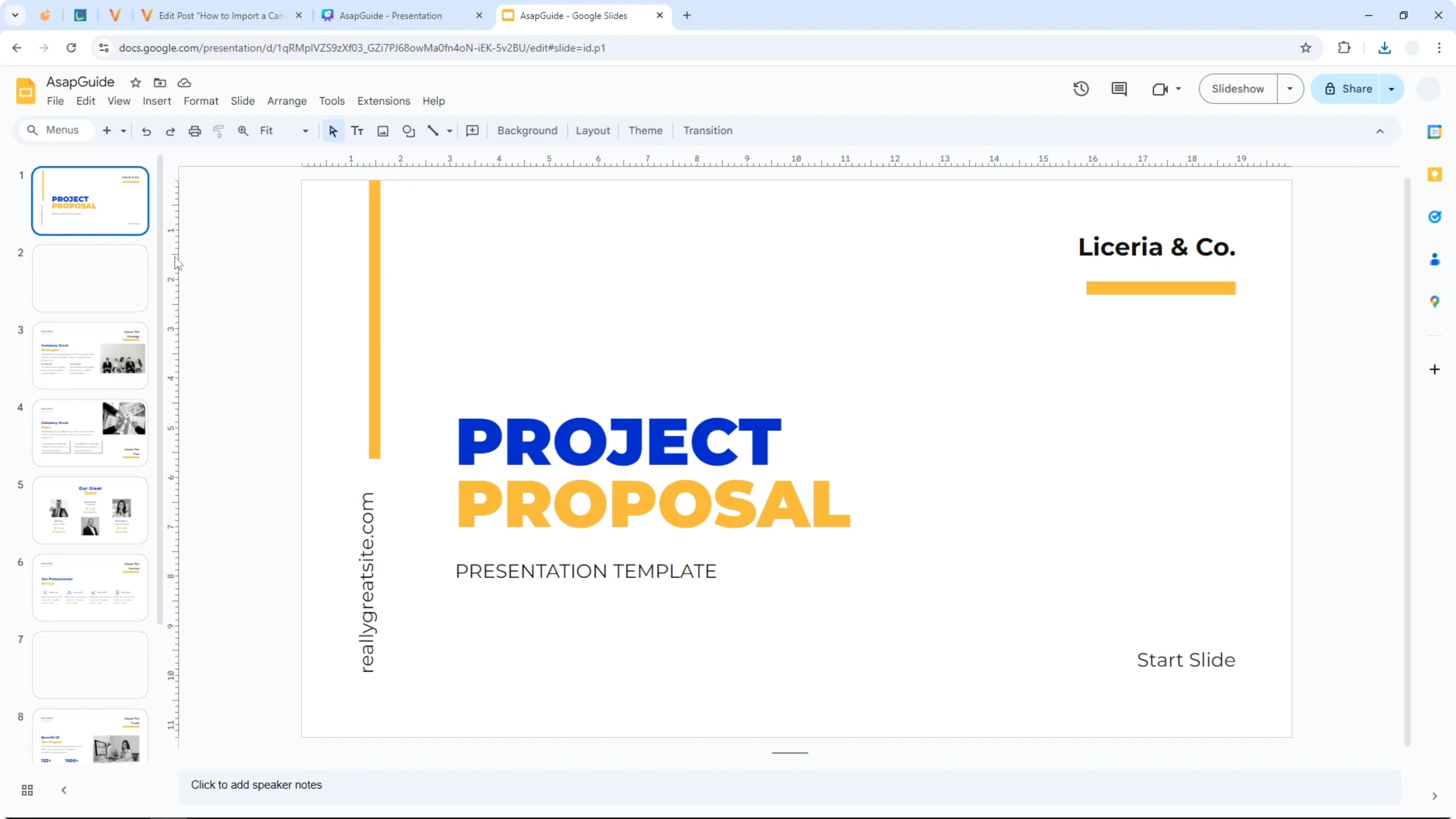
Step 4: After the download finishes you will get a document that can be opened using PowerPoint. I have this document ready and it looks pretty similar to the original document.
Upload to Google Slides
Step 1: Open Google Slides and create a blank new untitled presentation.
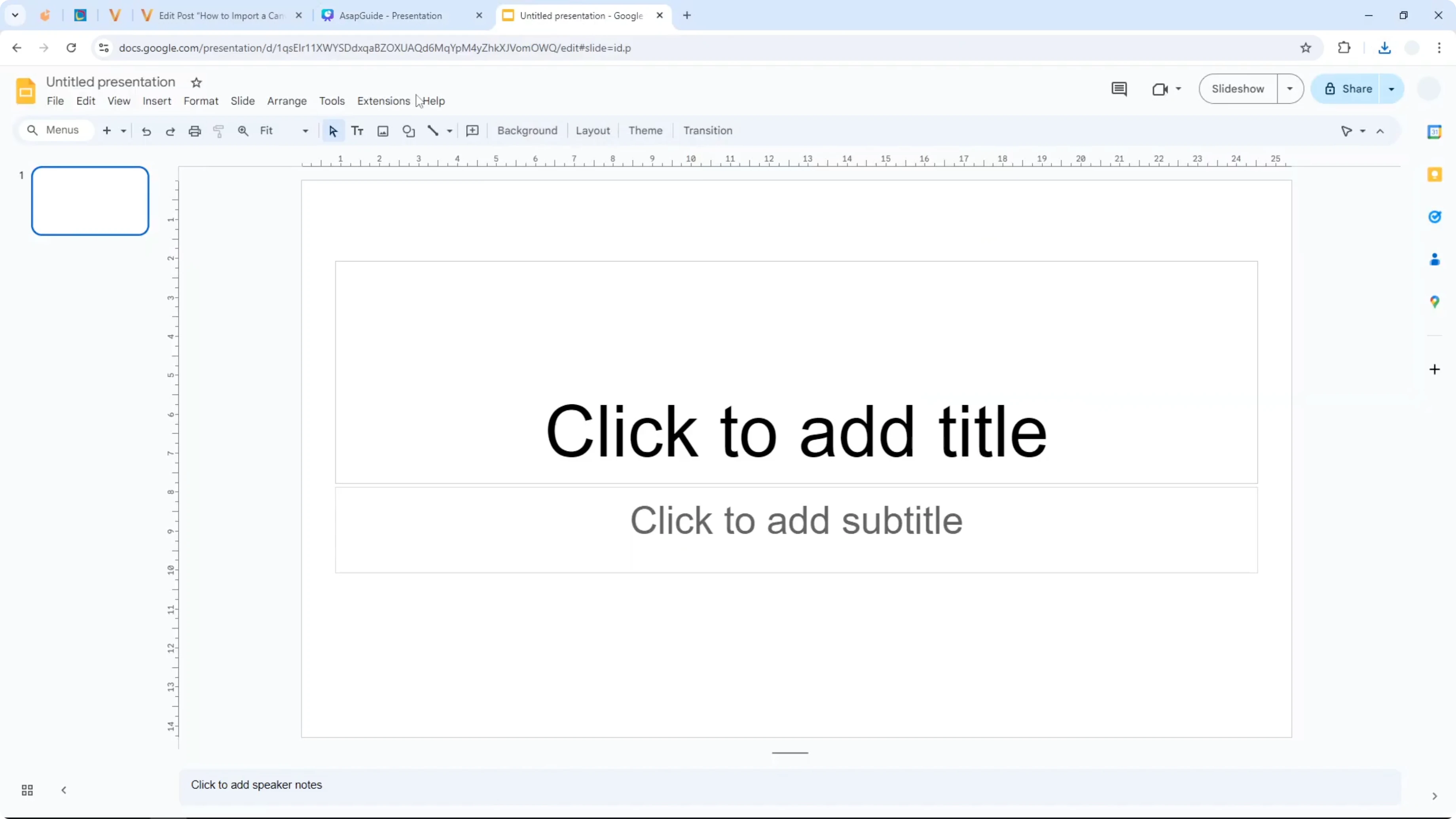
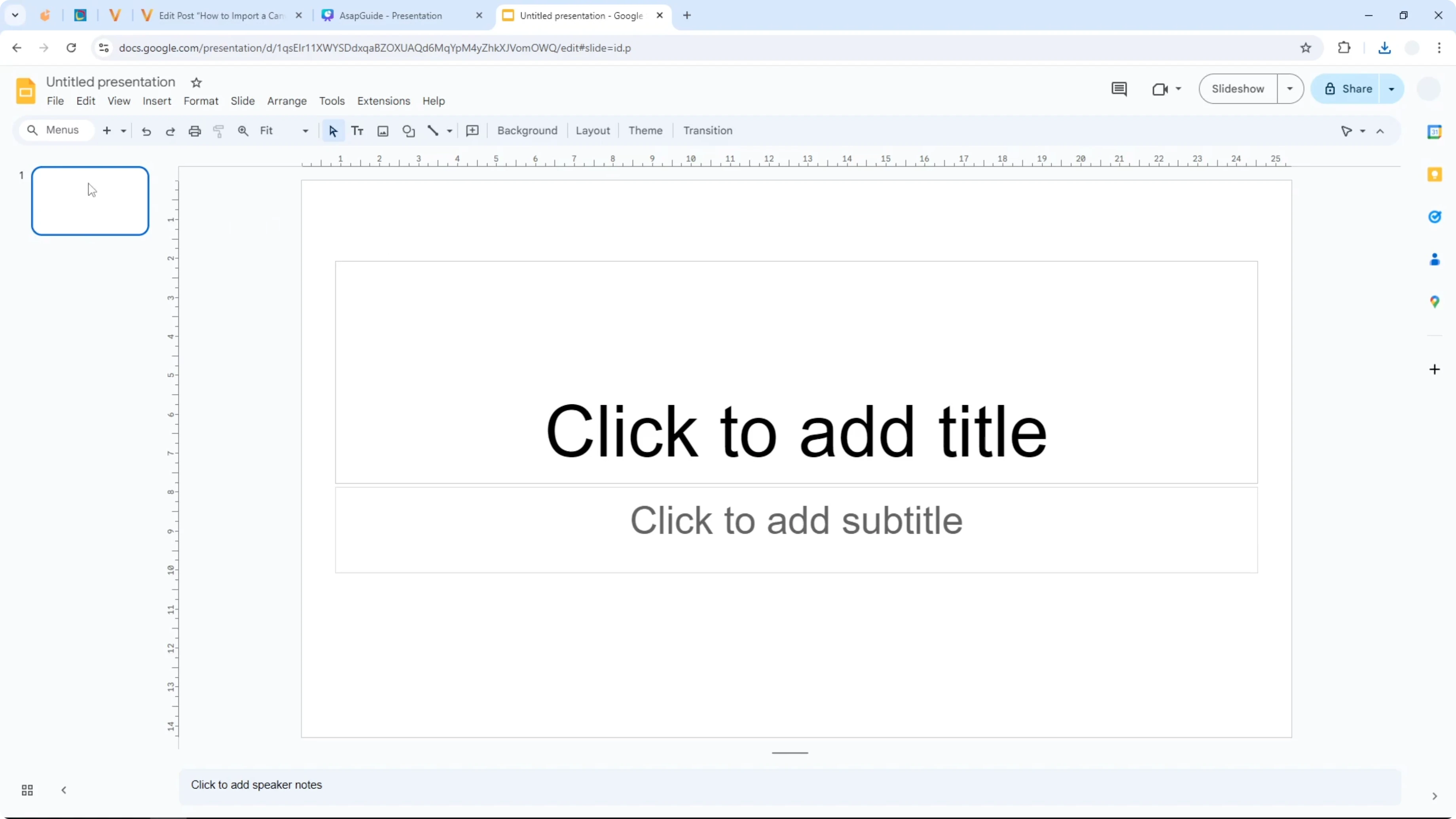
Step 2: Go to the File menu and click Open.
Step 3: Select Upload because we want to upload the document from our computer to Google Slides.
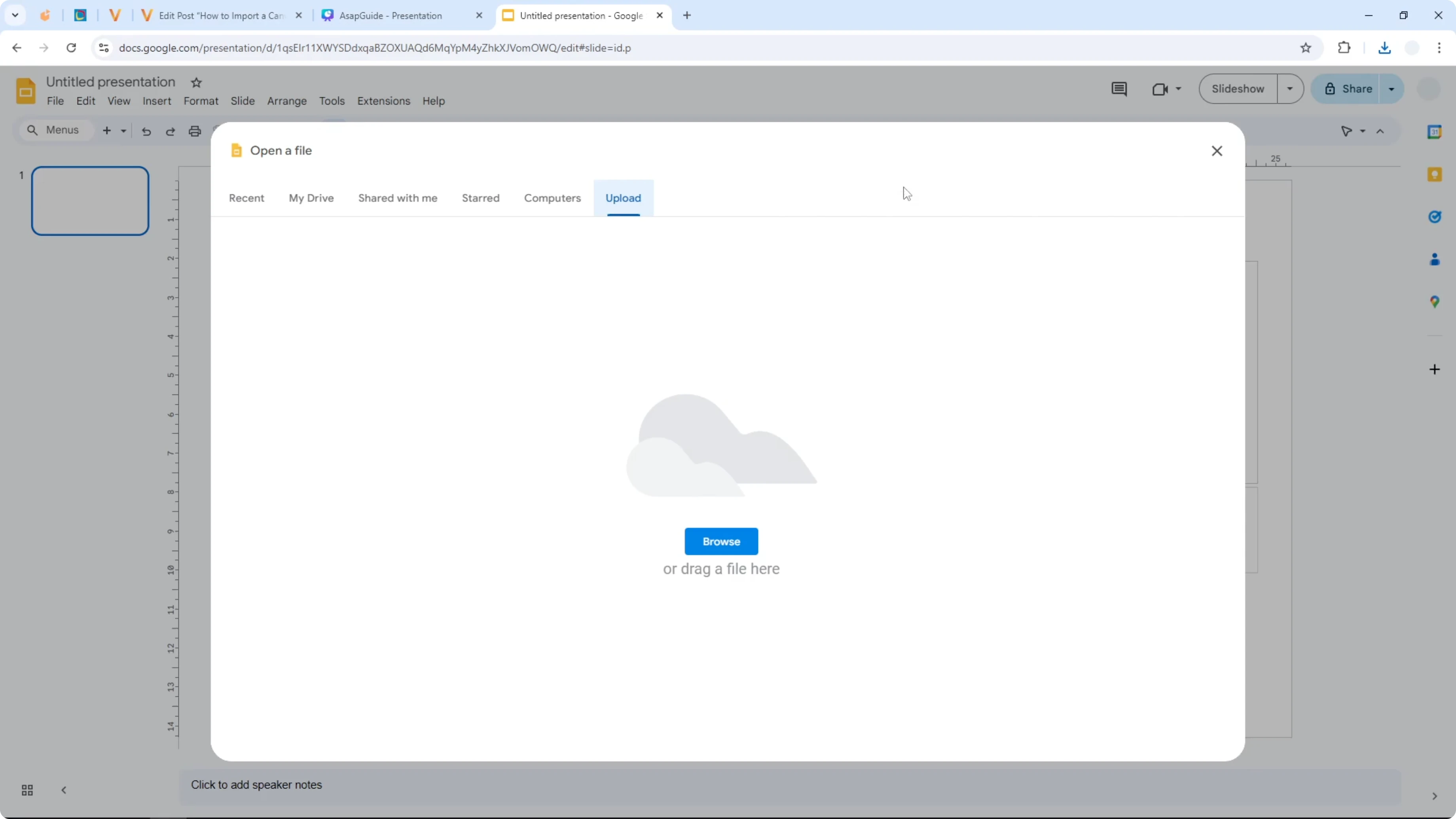
Step 4: Click and drag the PPTX file into Google Slides and wait until it finishes uploading. It usually only takes a few seconds depending on the size of the document, and the file needs to be translated to a different architecture.
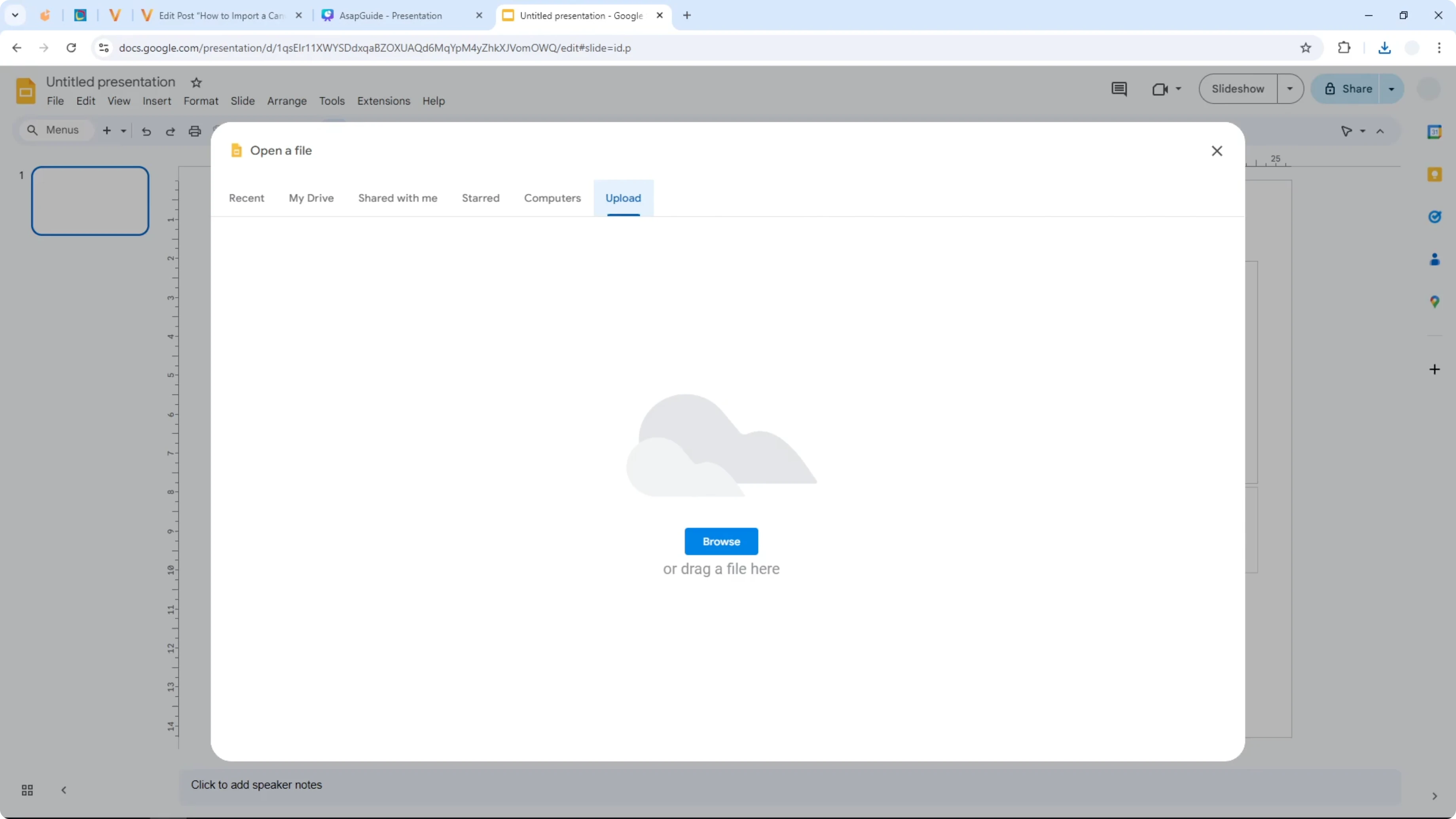
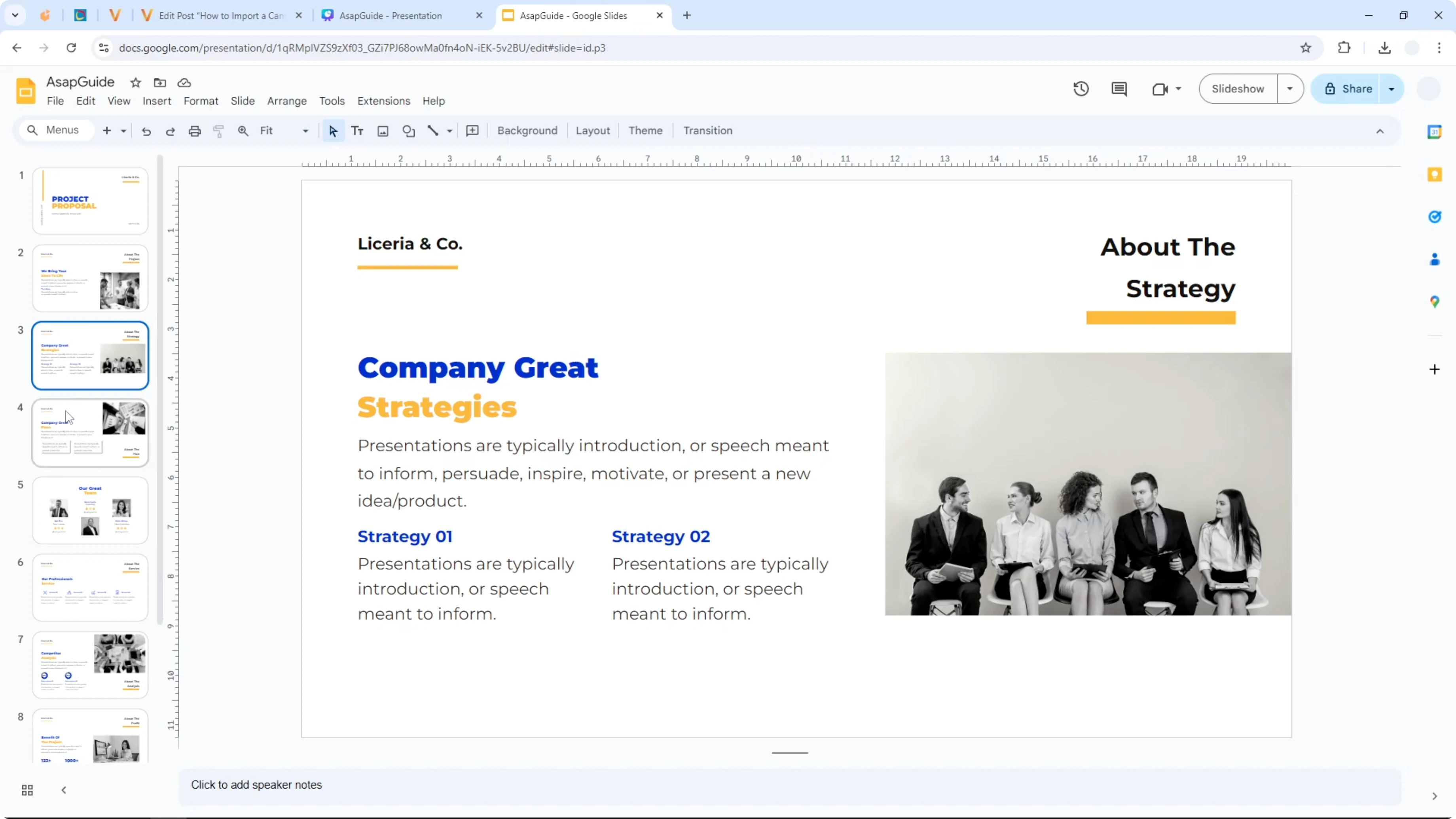
After upload, the document is ready and editable. You can modify the document, add colors, add text, and add images as needed. If you plan to bring in video content, see how to insert a Canva video in Google Slides.
Read More: Add Background Canva Presentation
Animations
One thing that is missing is the animation. You cannot get the animation from Canva to Google Slides. If you want animation, you have to recreate the animation one by one in Google Slides or in PowerPoint.
Read More: Add Background Music Canva Presentation
Final Thoughts
Export the presentation from Canva as PPTX, then upload that file into a blank Google Slides project. The upload is quick and the content stays close to the original, and you can keep editing in Google Slides. Animations do not transfer, so plan to rebuild them inside Google Slides if you need them.
Recent Posts

How to Visualize Yourself as a Pixelized Character with AI?
How to Visualize Yourself as a Pixelized Character with AI?

How to Revive Faded Memories and Enhance Image Clarity with AI?
How to Revive Faded Memories and Enhance Image Clarity with AI?

How to Visualize Yourself as an Animal Crossing Character with AI?
How to Visualize Yourself as an Animal Crossing Character with AI?