How to Transform Anime Images into Realistic Portraits with AI?
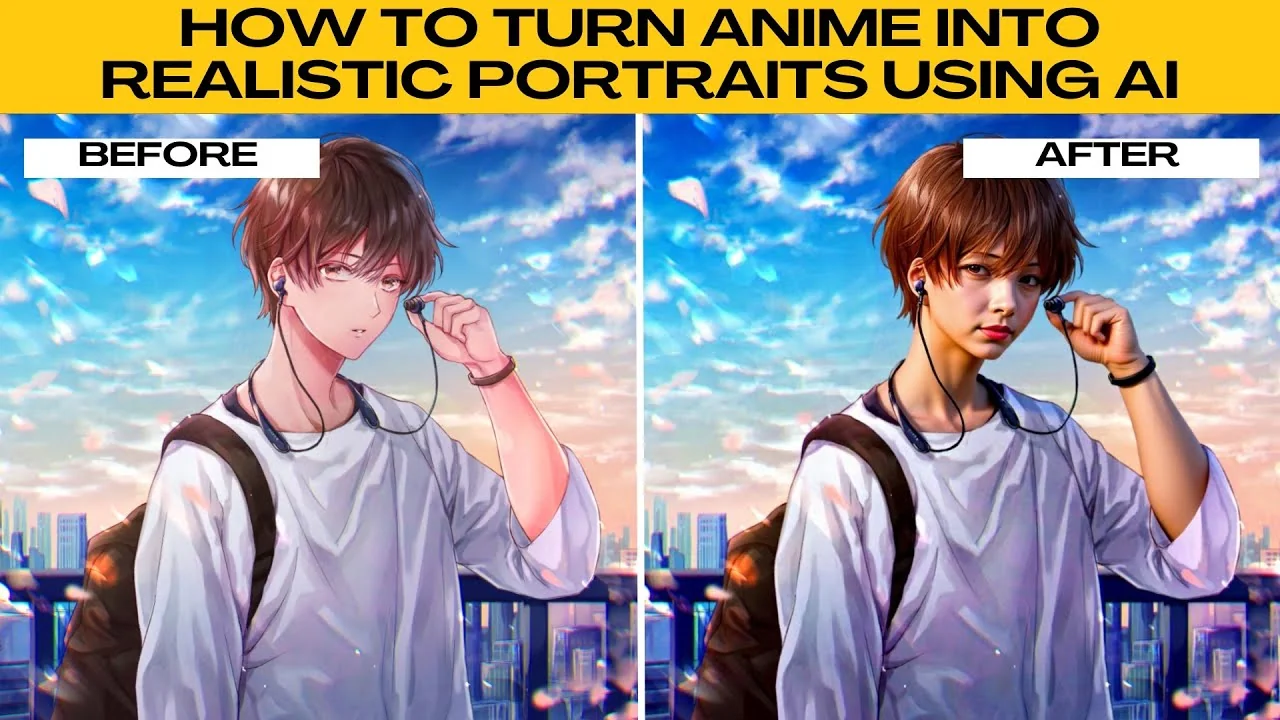
I teach you how to turn anime into realistic portraits using AI. With the help of Photo's AI artifact, you can convert 2D anime style images into hyperrealistic portraits using AI. This easy to follow tutorial is designed for complete beginners, and you do not need to know any design software or editing tricks.
You need just a photo and a few clicks.
Start
Open your browser and go to photos AI artifacts.
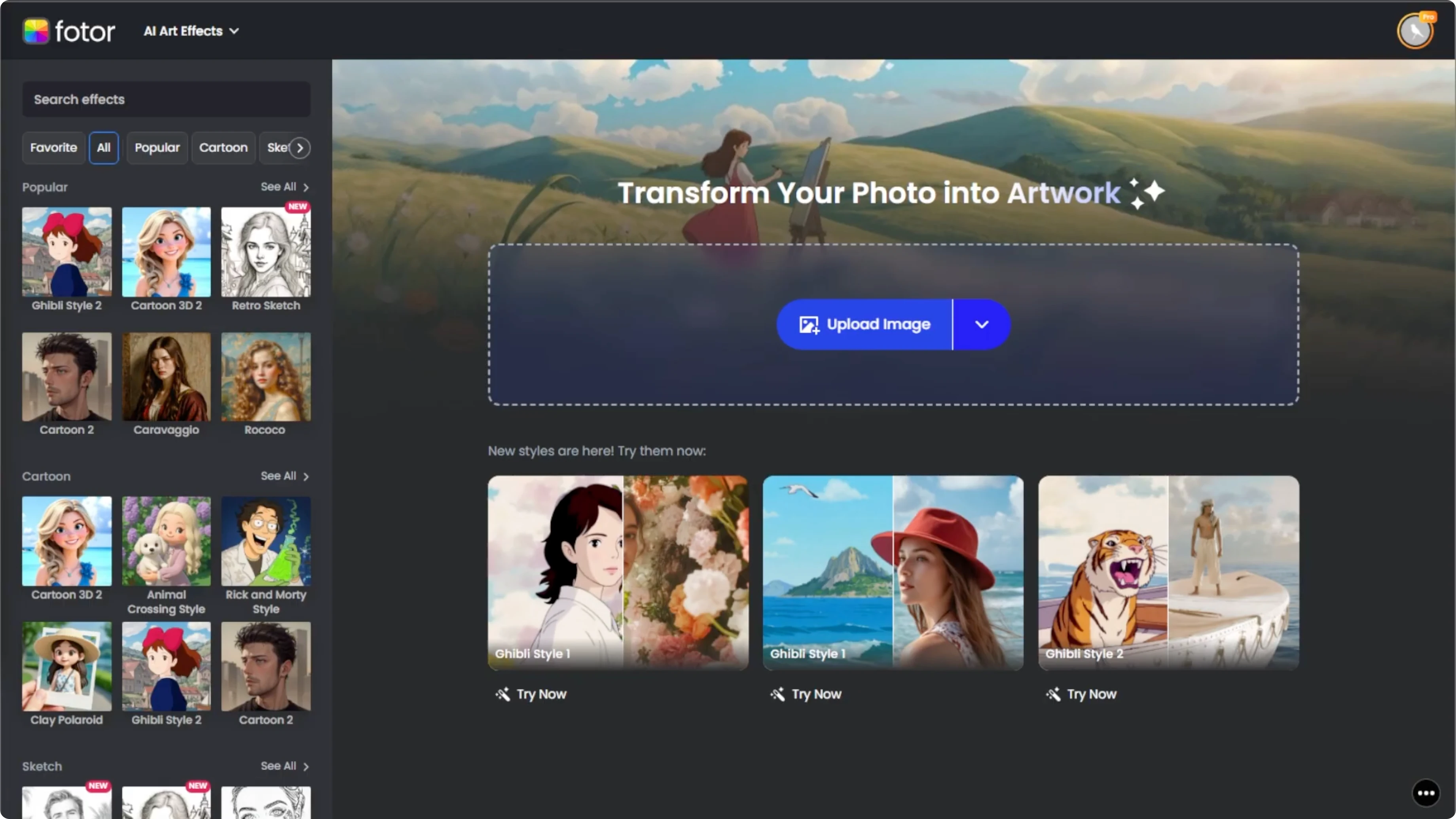
Click on the Upload image button or drag an anime style photo into the upload area.
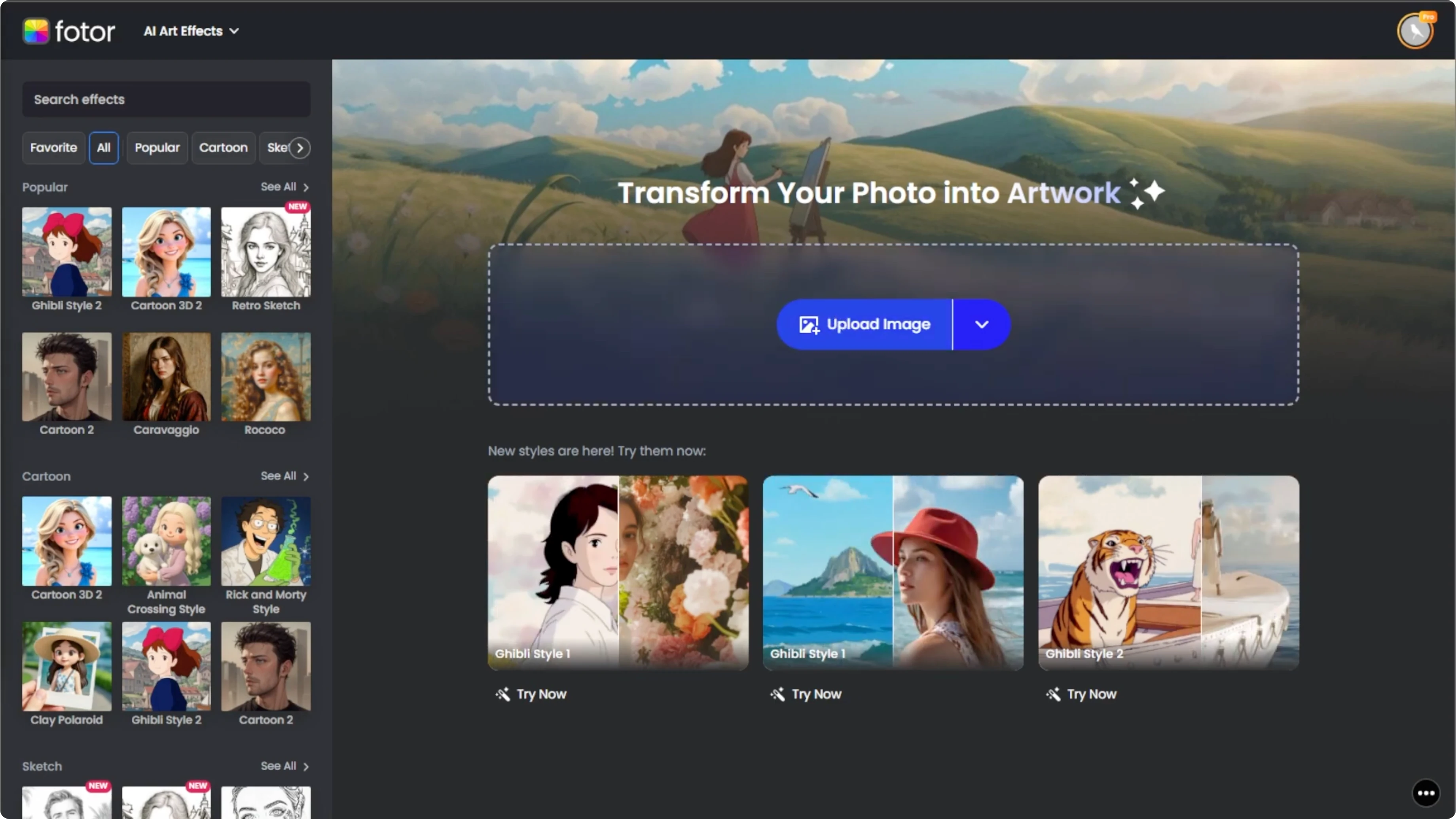
Wait a few seconds for your image to load into the editor.
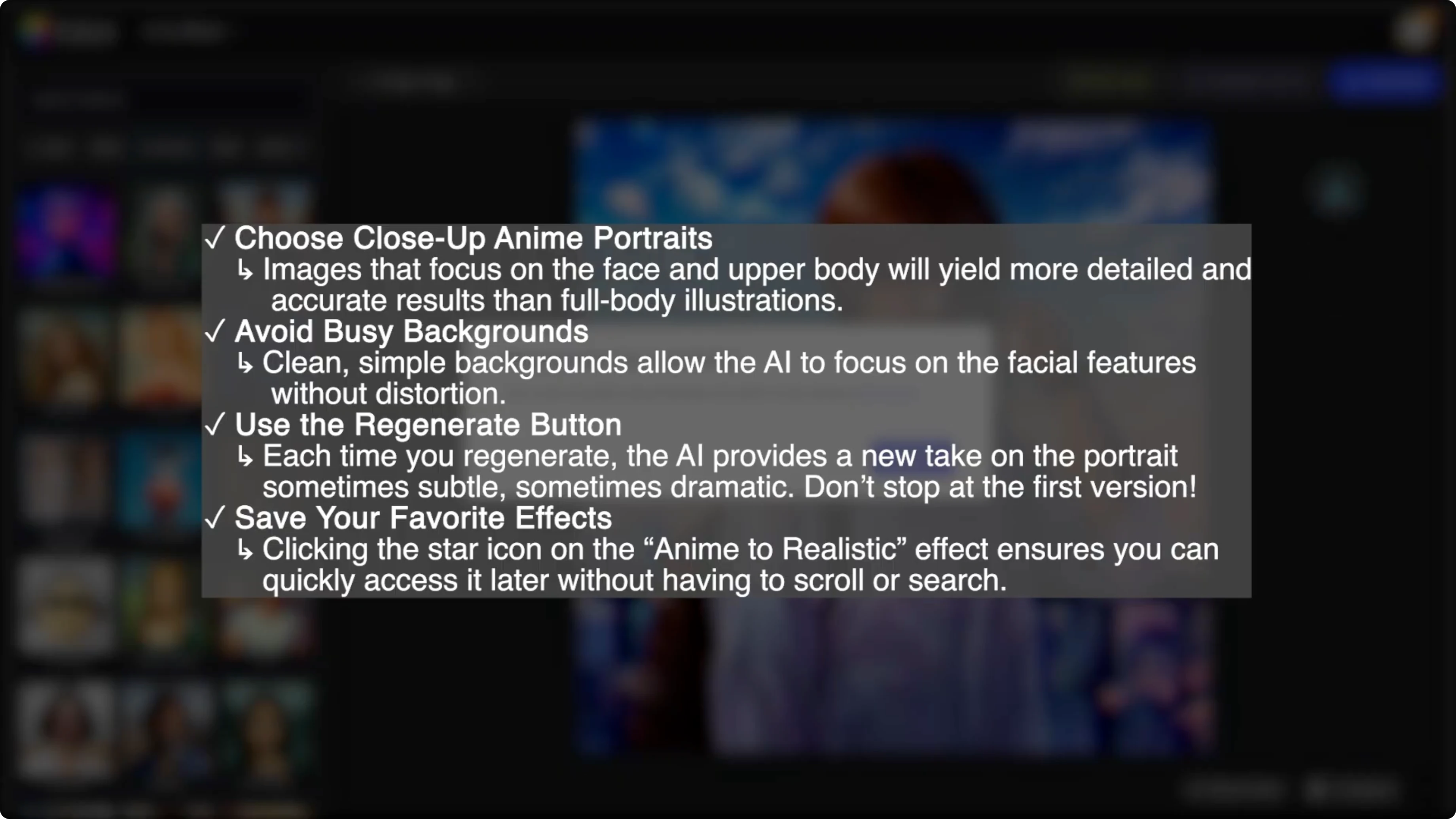
Best input
Clear high quality anime portraits with a plain background give the best results.
Close ups of the face work better than full body shots.
Choose the effect
Go to the left panel where the art styles are listed.
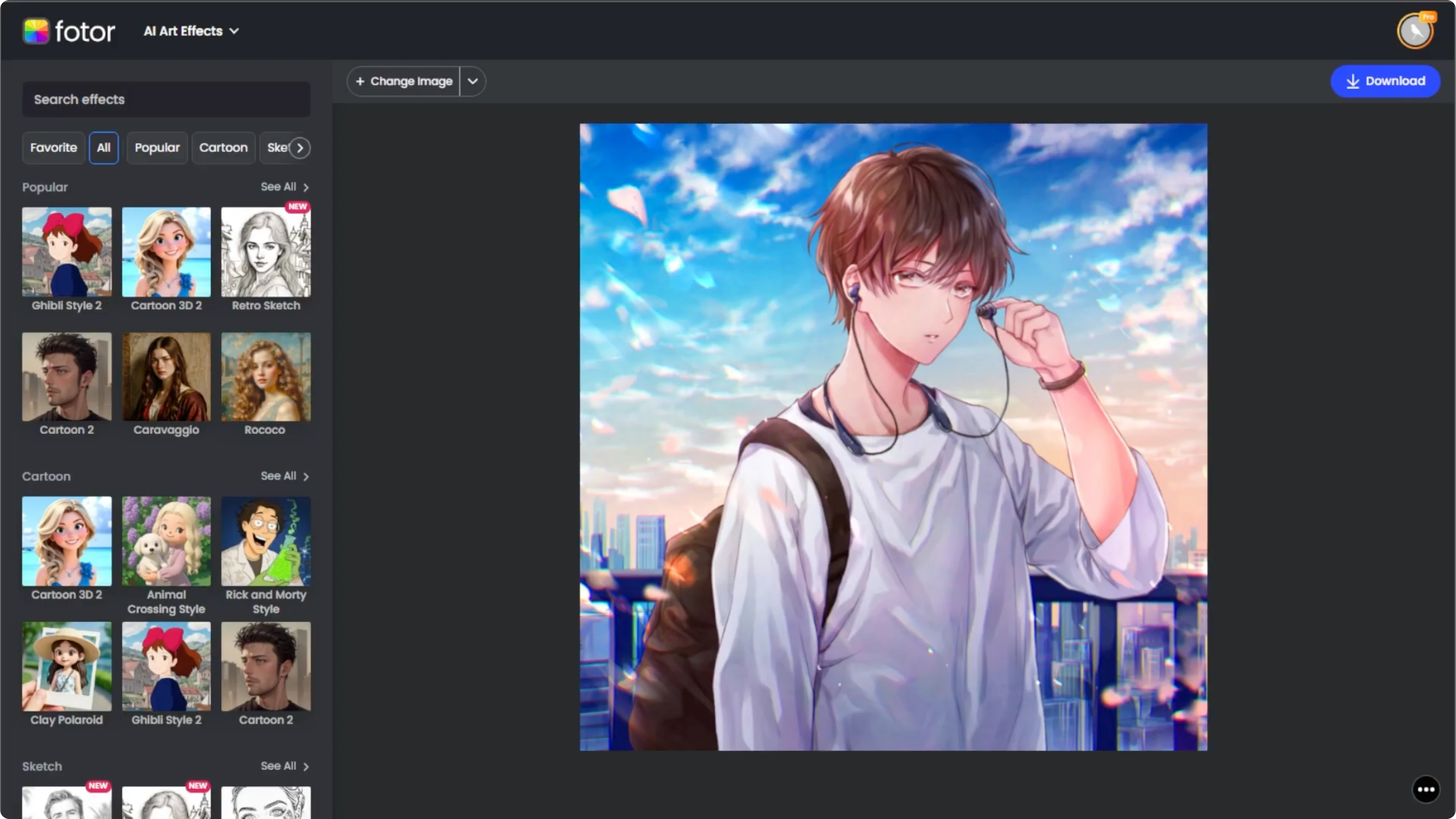
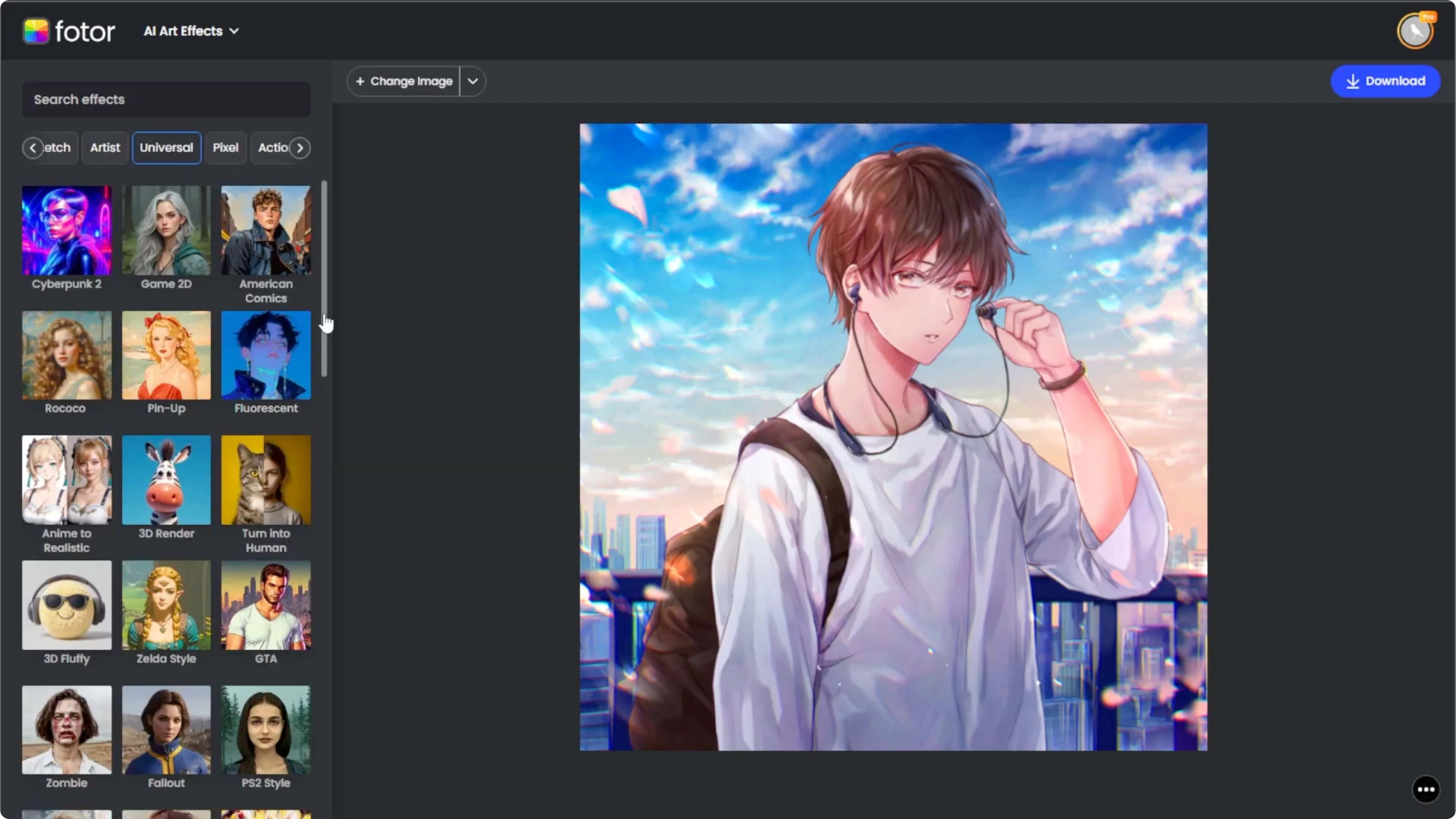
Scroll down to the universal section.
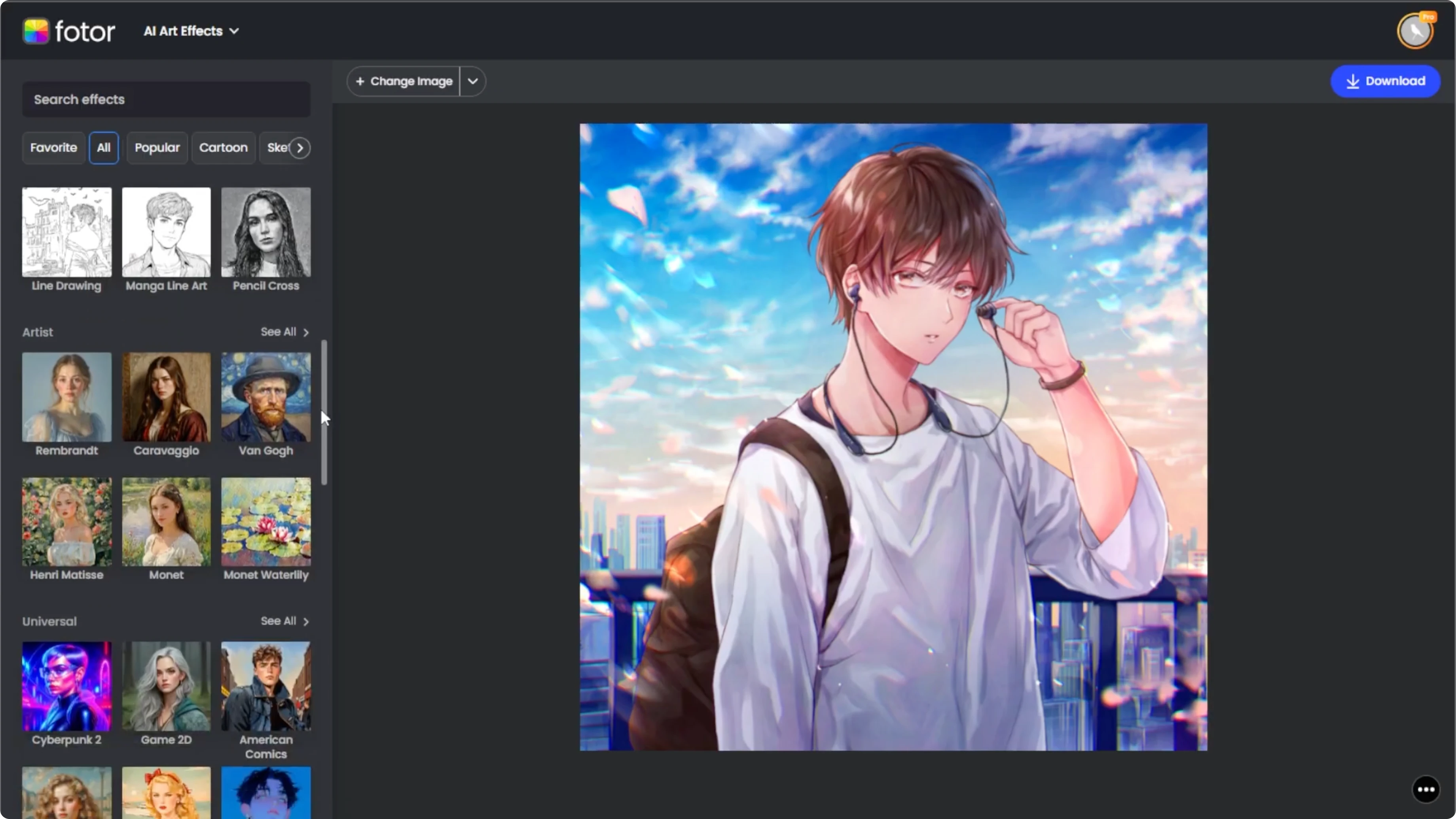
Select Anim to Realistic from the available options.
Wait a few seconds as the AI processes your anime image into a realistic human portrait.
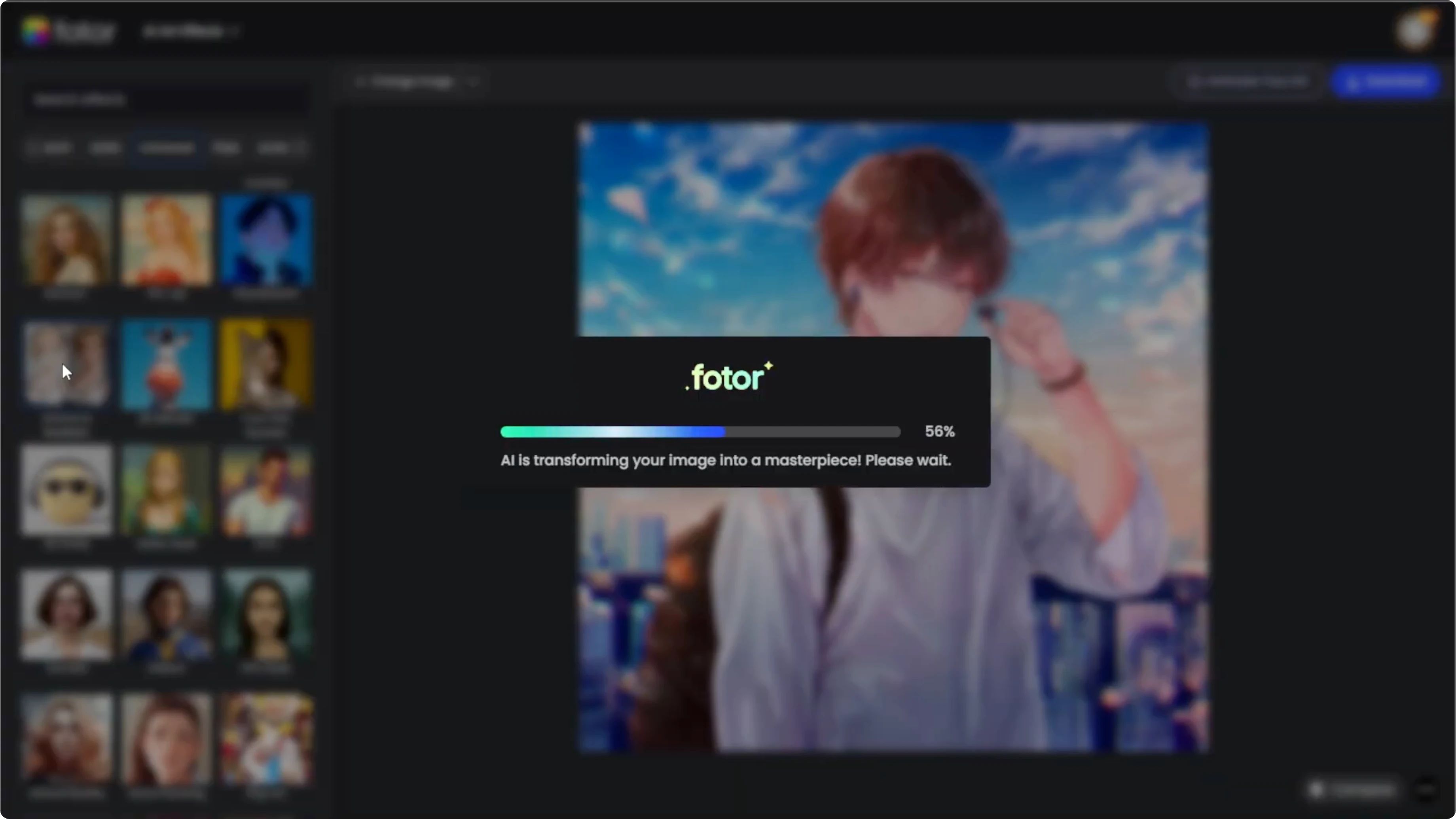
This usually takes around 10 seconds and you will see your image morph into a photorealistic version of your anime character with humanlike skin, facial features, and hair texture.
Read More: Emoji Portraits
Compare and refine
Click the Compare button to view the before and after side by side.
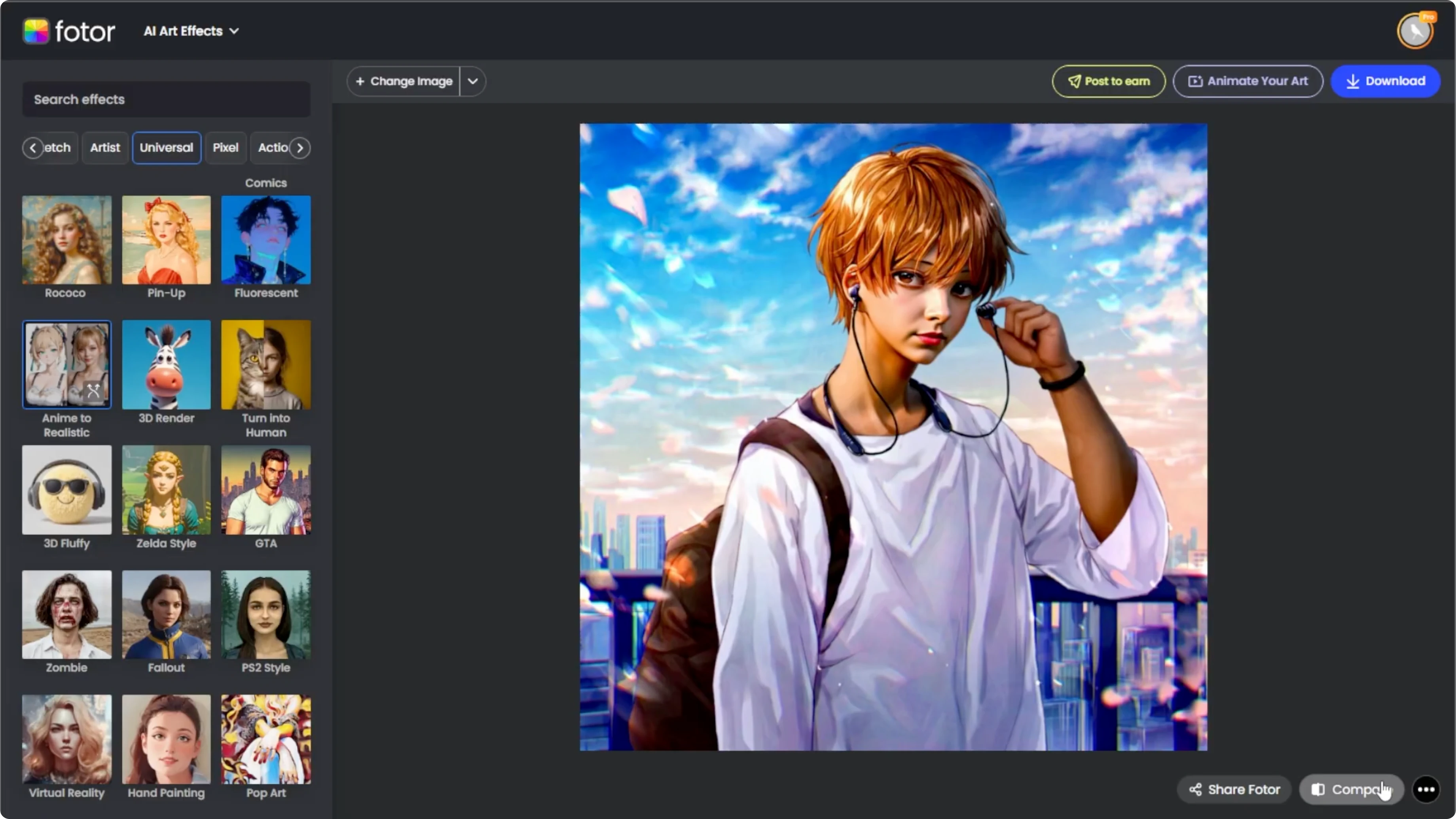
If you are not happy with the result, click the Regenerate button located on the effect thumbnail.
This refreshes the AI render with subtle differences.
Try regenerating two or three times to get the version that you like best.
Read More: Funko Pop AI
Save and organize
An optional step is hovering your mouse over the Anim to Realistic effect thumbnail and clicking the star icon to add it to your favorites.
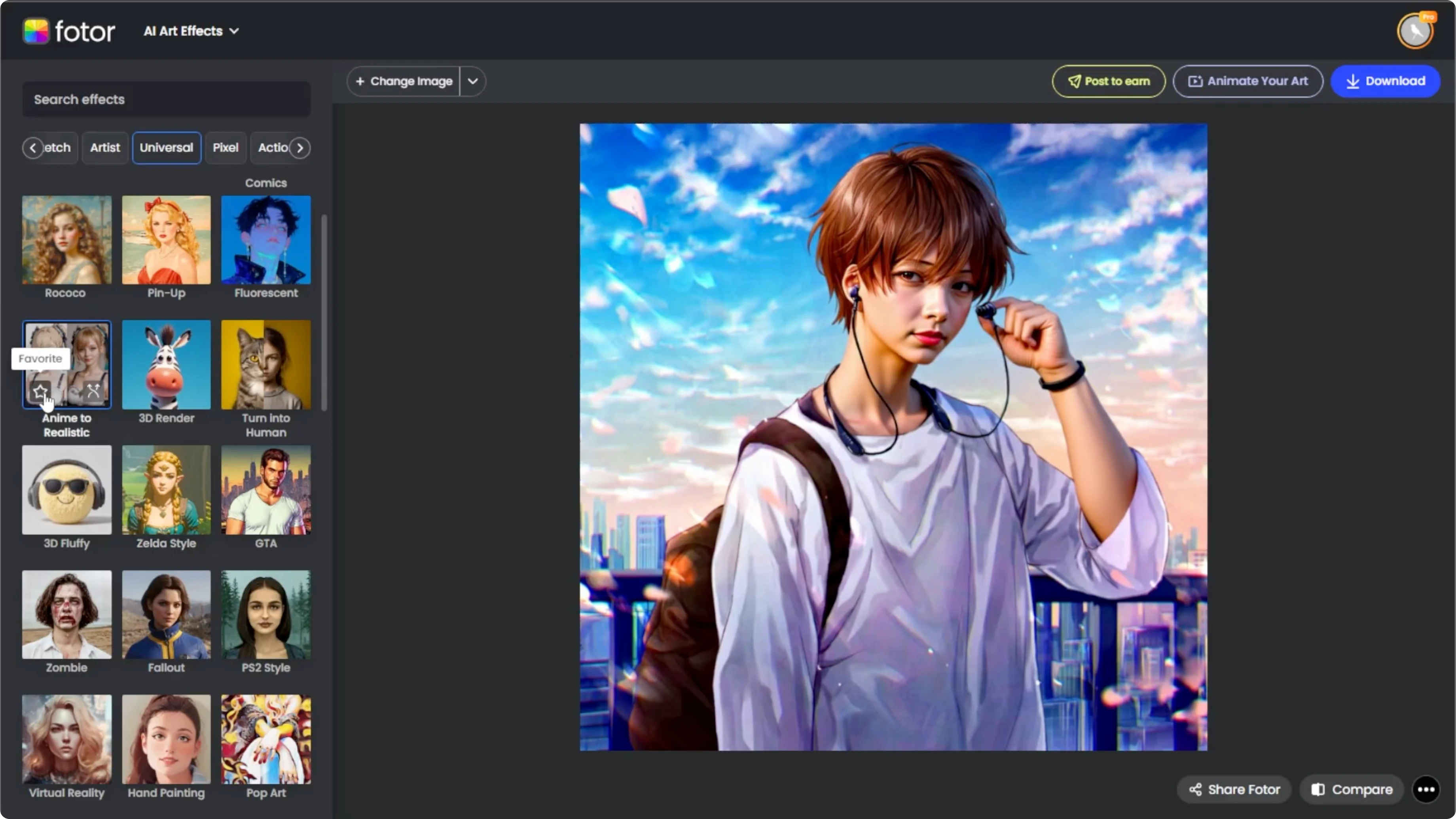
You will be able to access it quickly in the favorites section in future sessions.
Once you are satisfied with the result, click the Download button to save your image to your computer.
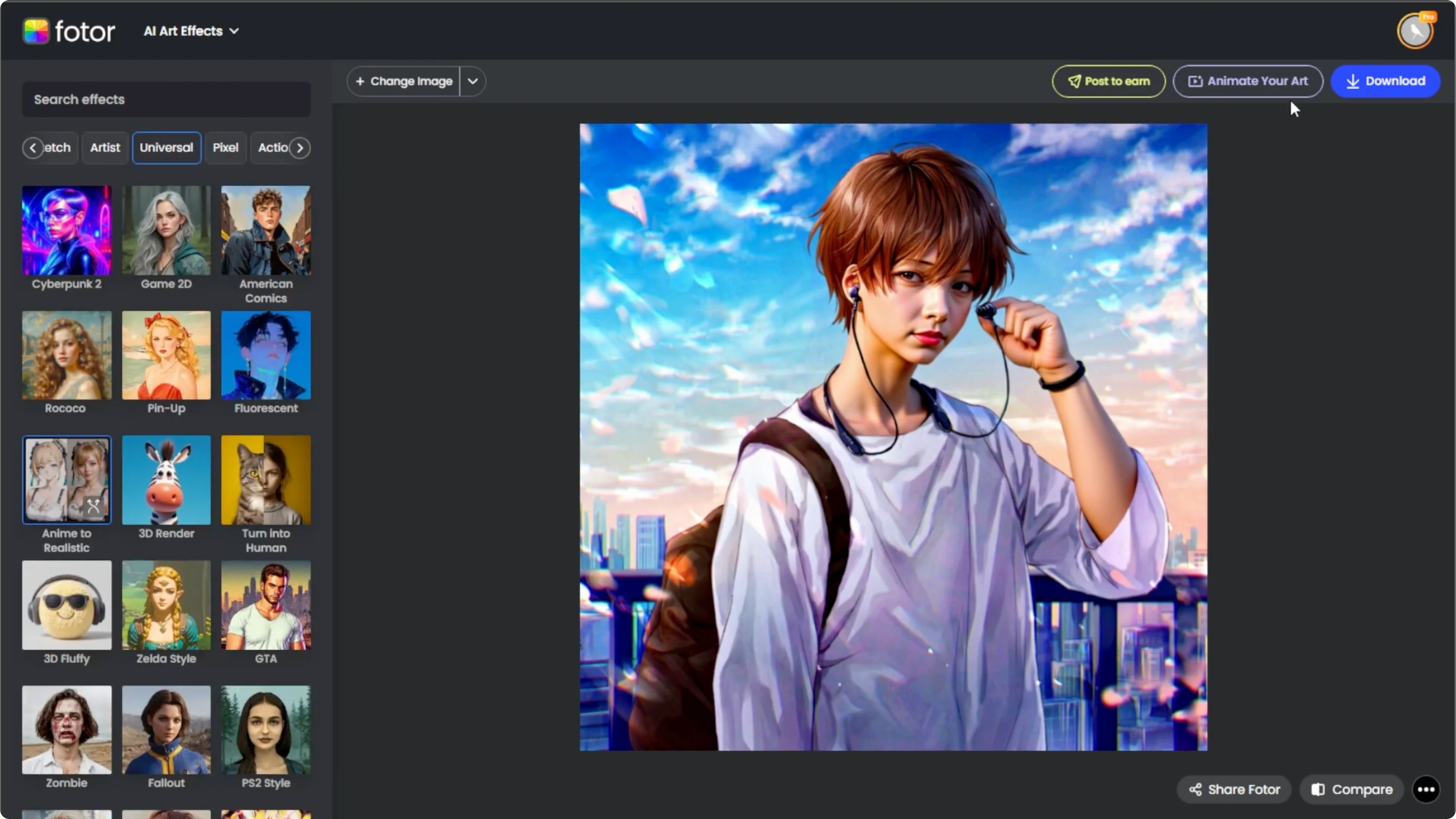
Read More: Add Realistic Tattoos
Pro tips
Pro tips for best results.
With just a few clicks, you can see your favorite anime characters come to life in a realistic human form.
It is a fun way to reimagine your art, explore character design, or create something visually stunning.
Final thoughts
Upload a clean anime portrait, apply Anim to Realistic, compare and regenerate if needed, then download your favorite version.
These simple steps make it easy to turn anime into realistic portraits with consistent results.
Recent Posts

How to Visualize Yourself as a Pixelized Character with AI?
How to Visualize Yourself as a Pixelized Character with AI?

How to Revive Faded Memories and Enhance Image Clarity with AI?
How to Revive Faded Memories and Enhance Image Clarity with AI?

How to Visualize Yourself as an Animal Crossing Character with AI?
How to Visualize Yourself as an Animal Crossing Character with AI?