How to Visualize and Add Realistic Tattoos to Your Photos with AI?
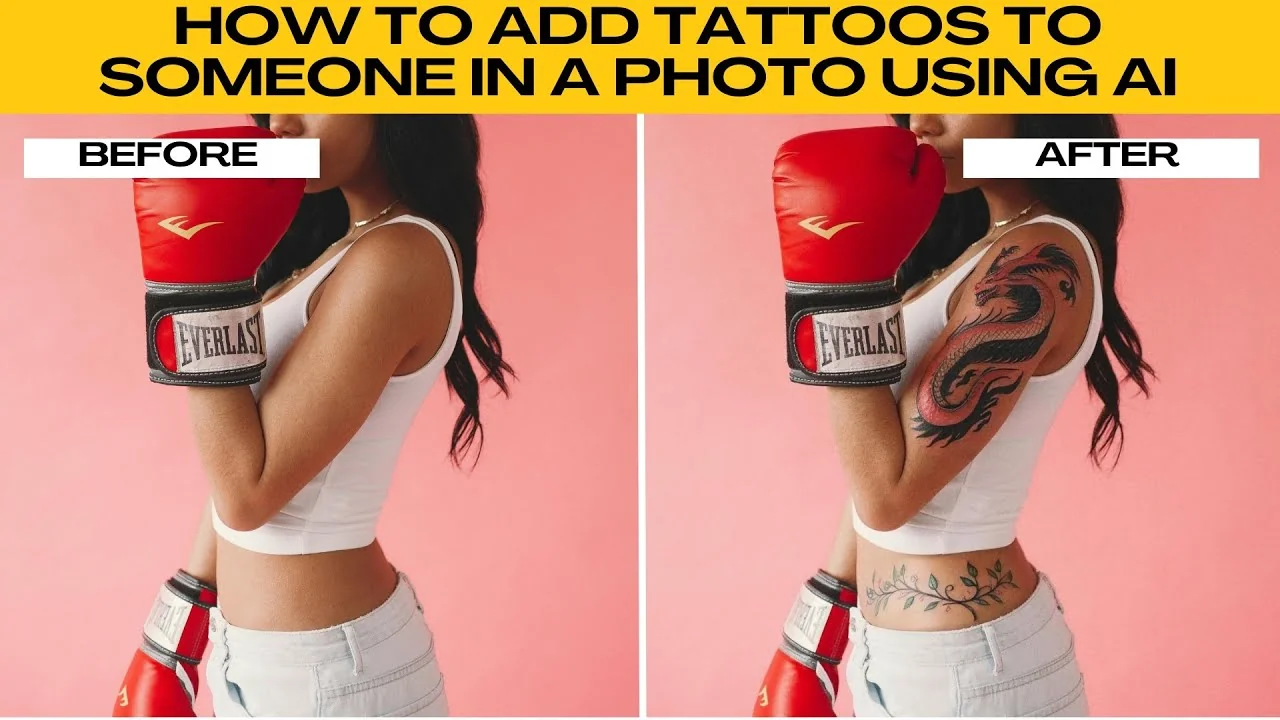
I will teach you how to add tattoos to someone in a photo using AI. If you want to visualize what a tattoo would look like before committing or just add some cool ink to your portraits for fun, you can use PhotoR's AI Replace tool.
If you are exploring other portrait edits, see how to change your hairstyle in photos using AI for more creative options.
Setup
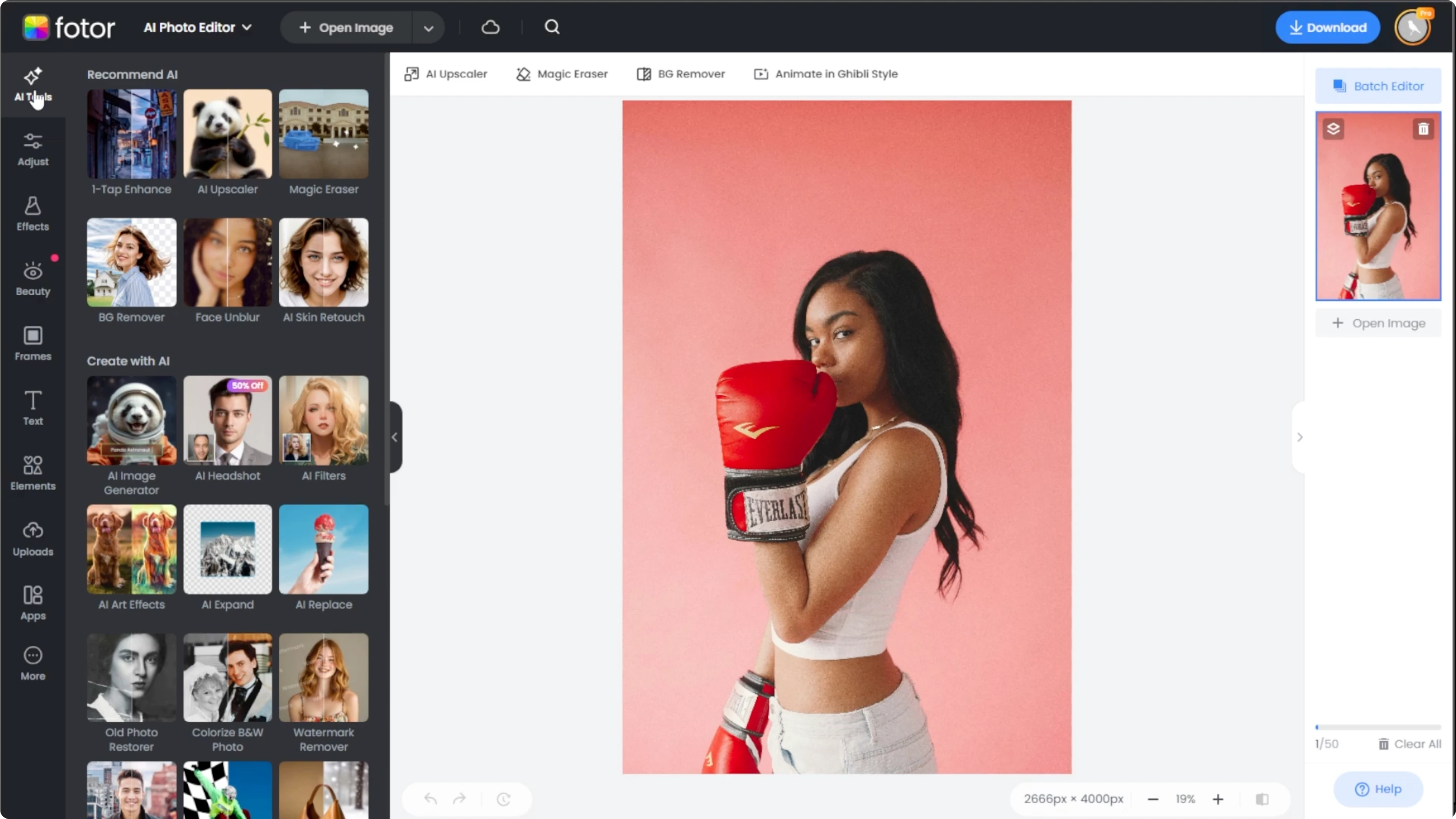
Upload your own image or use one of PhotoR's sample photos to test the feature. Go to the left panel and select AI tools. Scroll down to the Create with AI section and click AI Replace.
Select the area
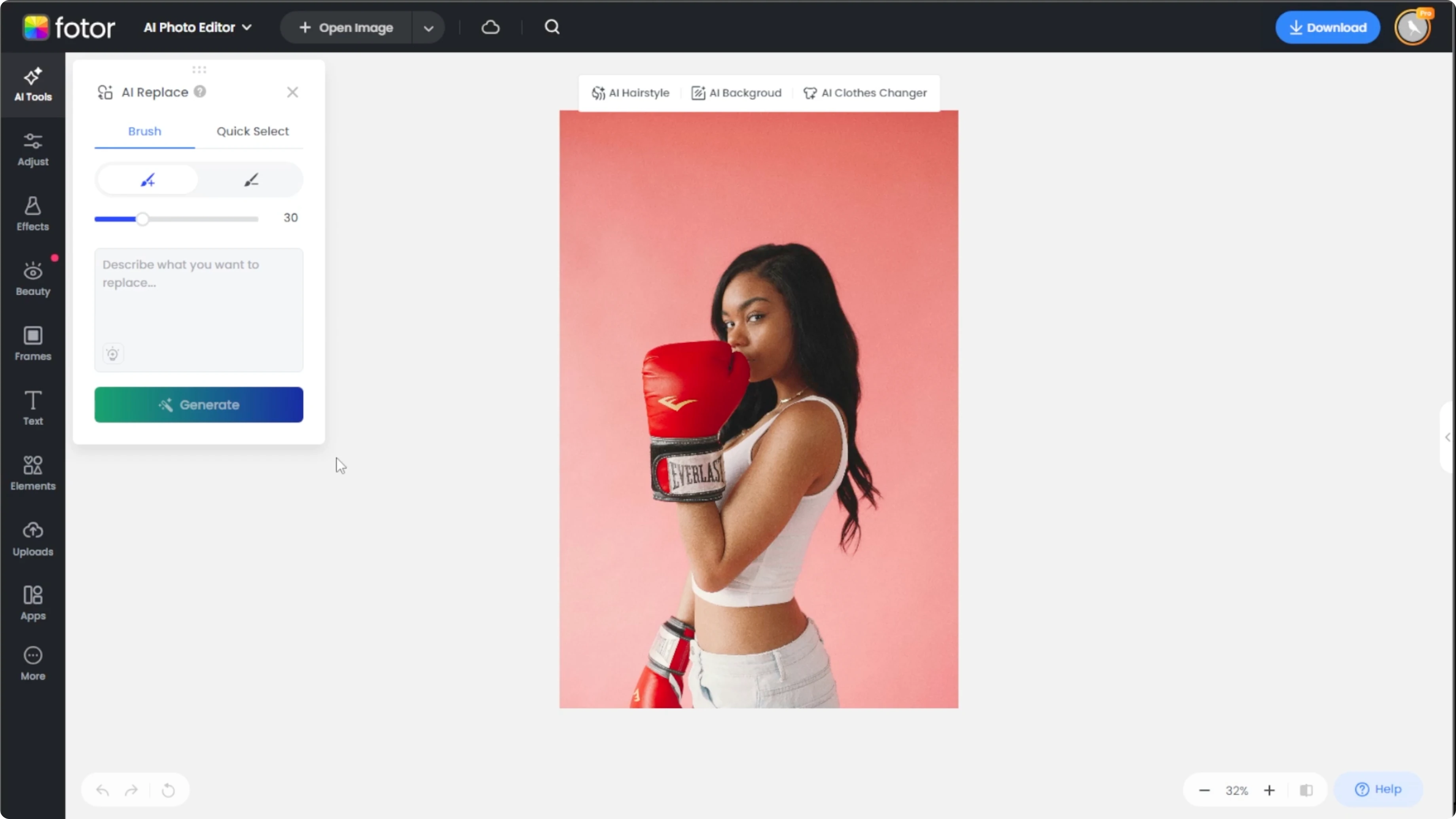
You have two options to define where the tattoo will appear. The first option is the brush mode. The second option is the quick select mode.
Brush mode
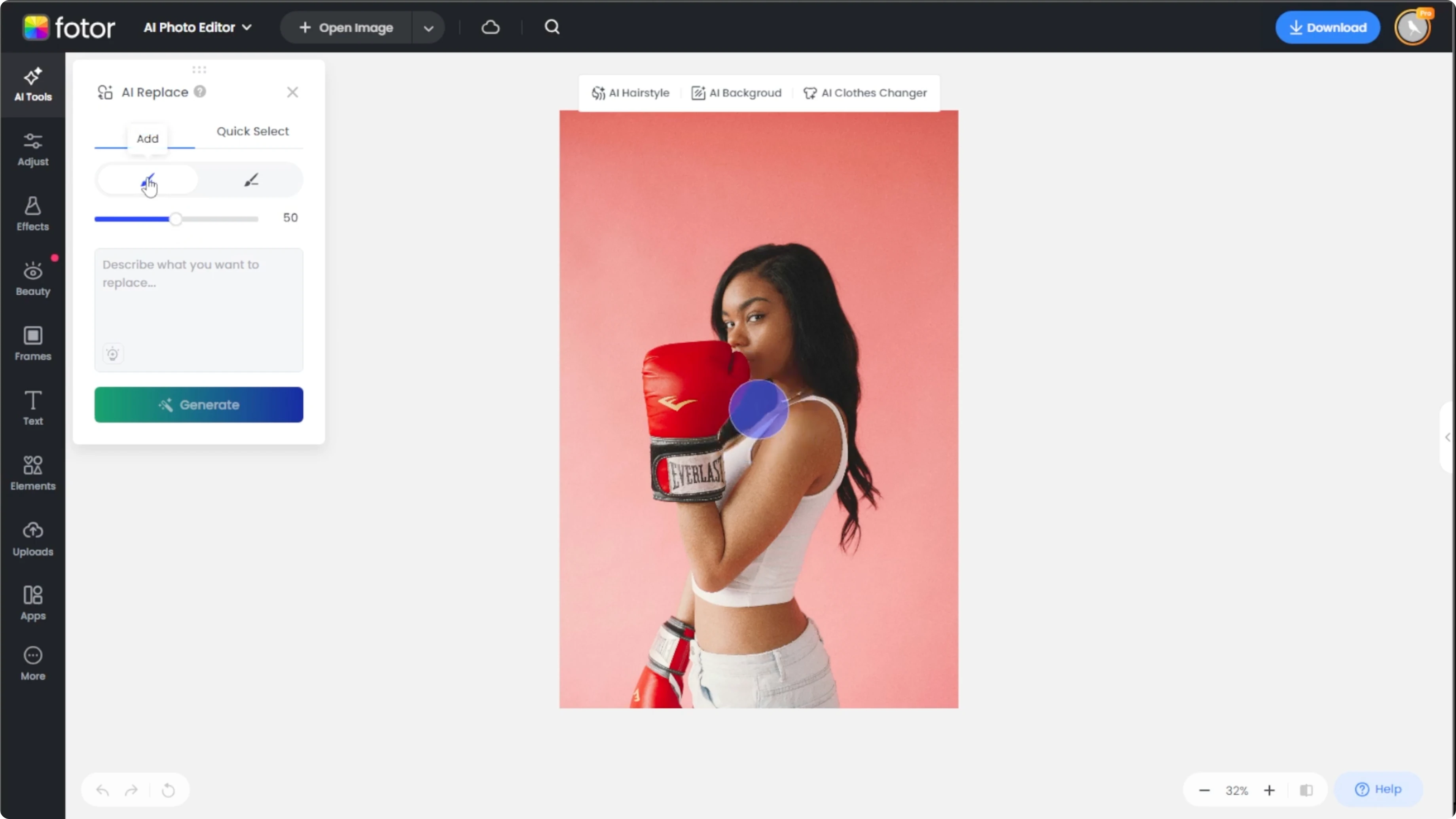
Choose Brush from the tool options and adjust the brush size using the slider. Use the Add mode to paint over the area where you want the tattoo. Switch to the Select mode to erase any excess selection and refine the area.
Quick select
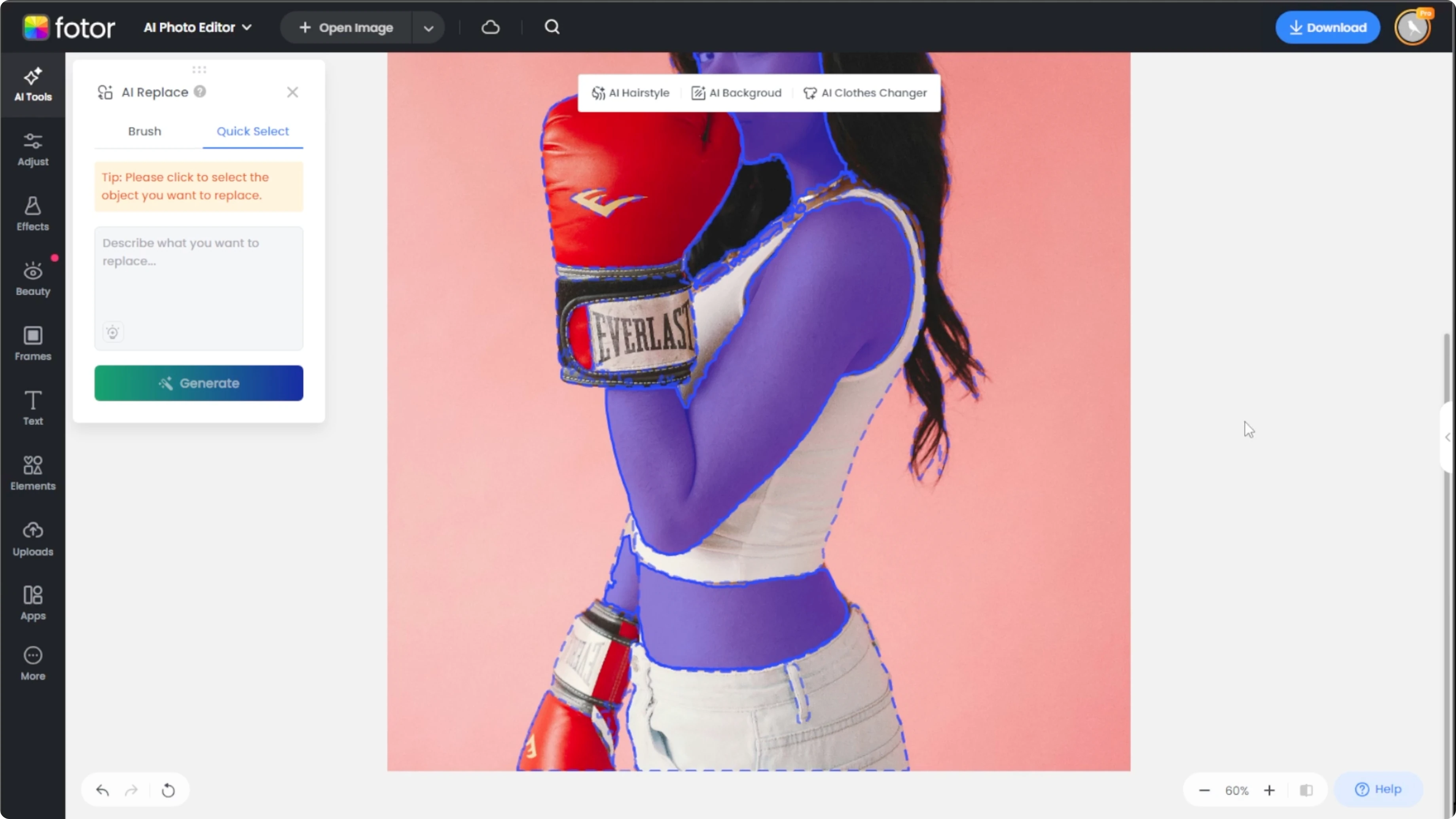
Type your tattoo description in the text box. PhotoR will pre-select areas on the photo. Click the part of the body that you want to add a tattoo, for example arm, back, or shoulder.
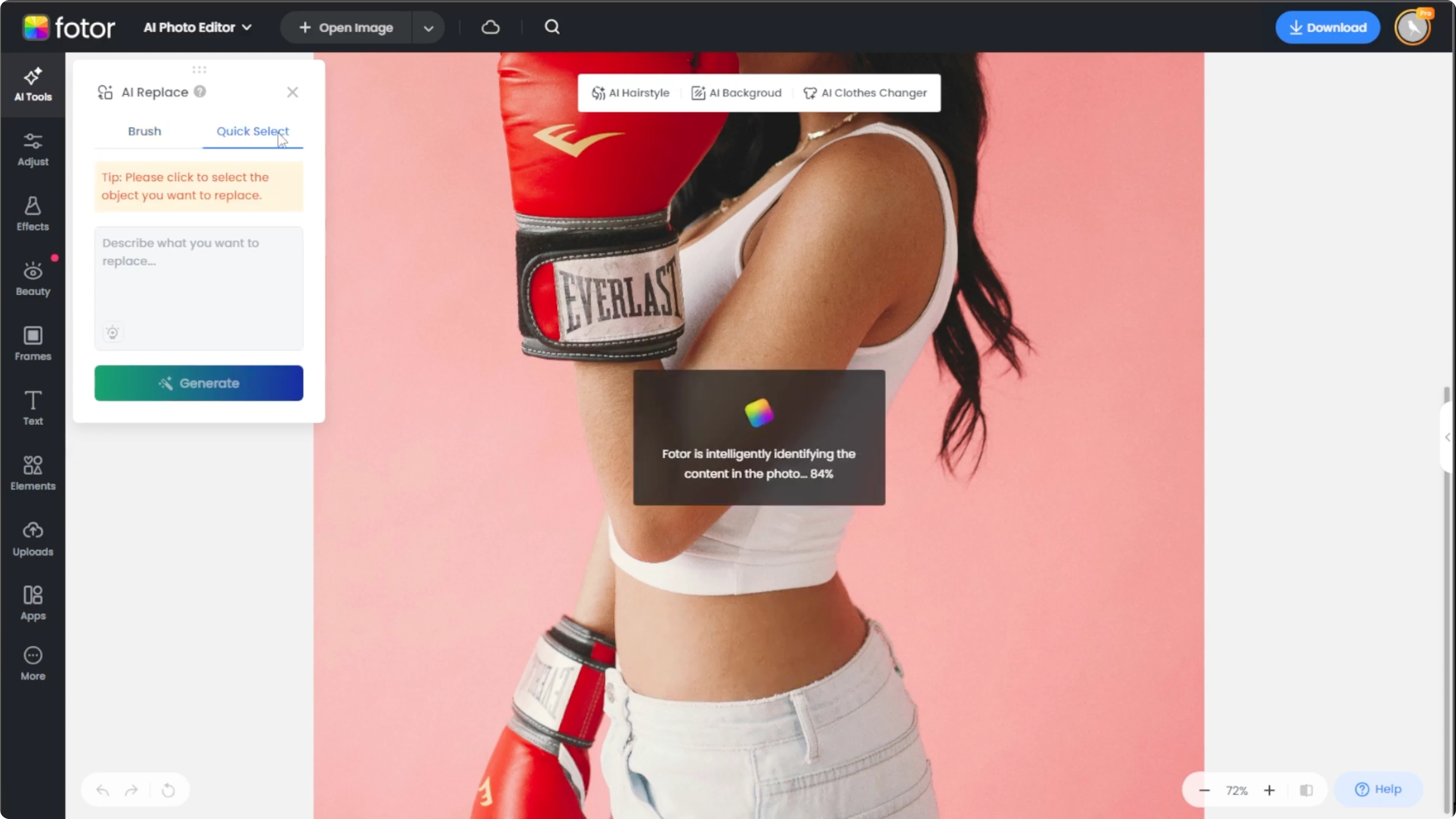
This is ideal for applying tattoos over larger areas quickly.
For stylized edits once you are done, you can try a cartoon effect in Canva AI to create an artistic version of your portrait.
Describe the tattoo
In the text box, describe a tattoo in detail. The more descriptive you are, the better the result.
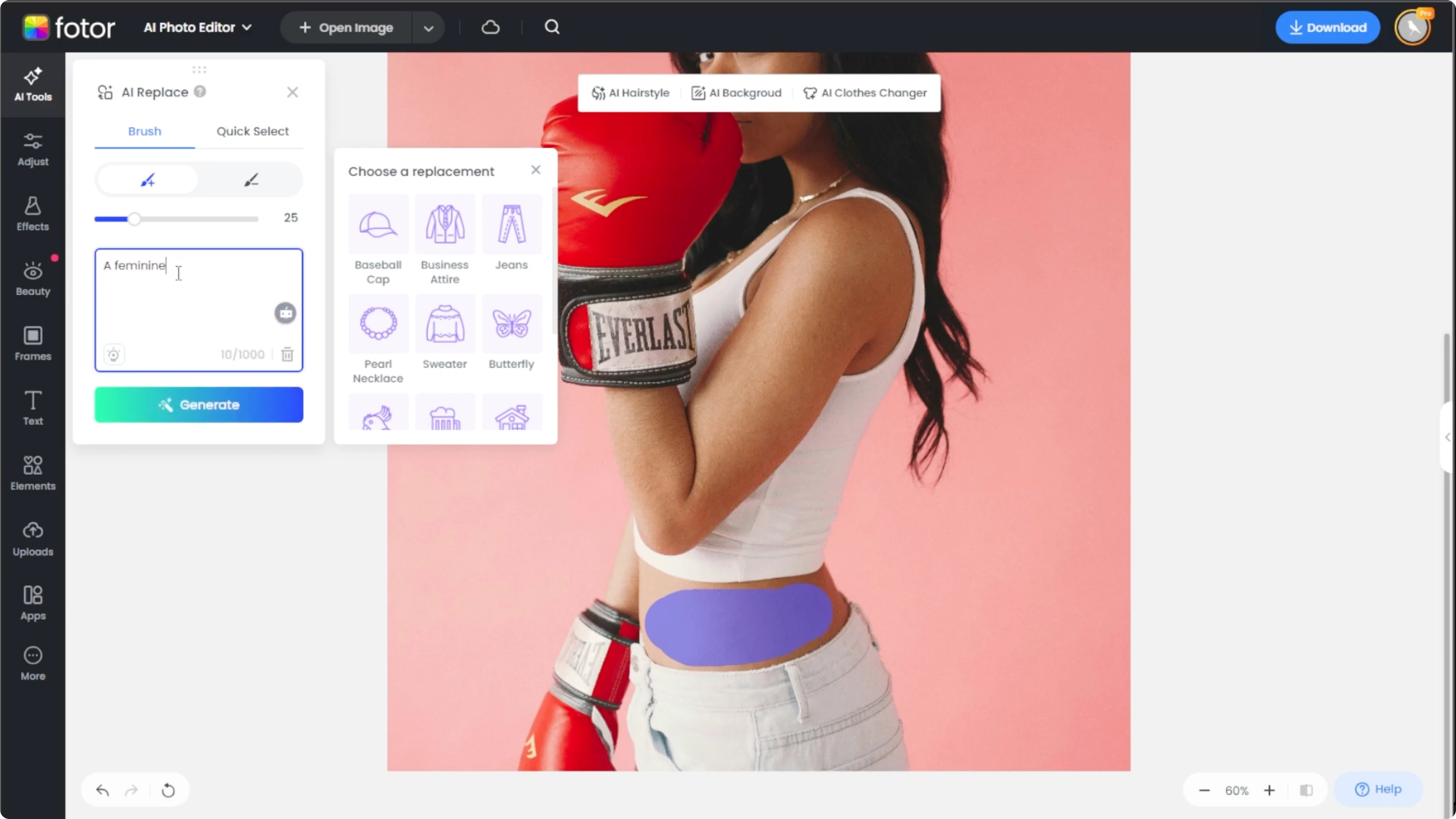
black ink mandala on inner forearm, fine line, centered, subtle shading
small minimalist rose on left shoulder, thin lines, no color
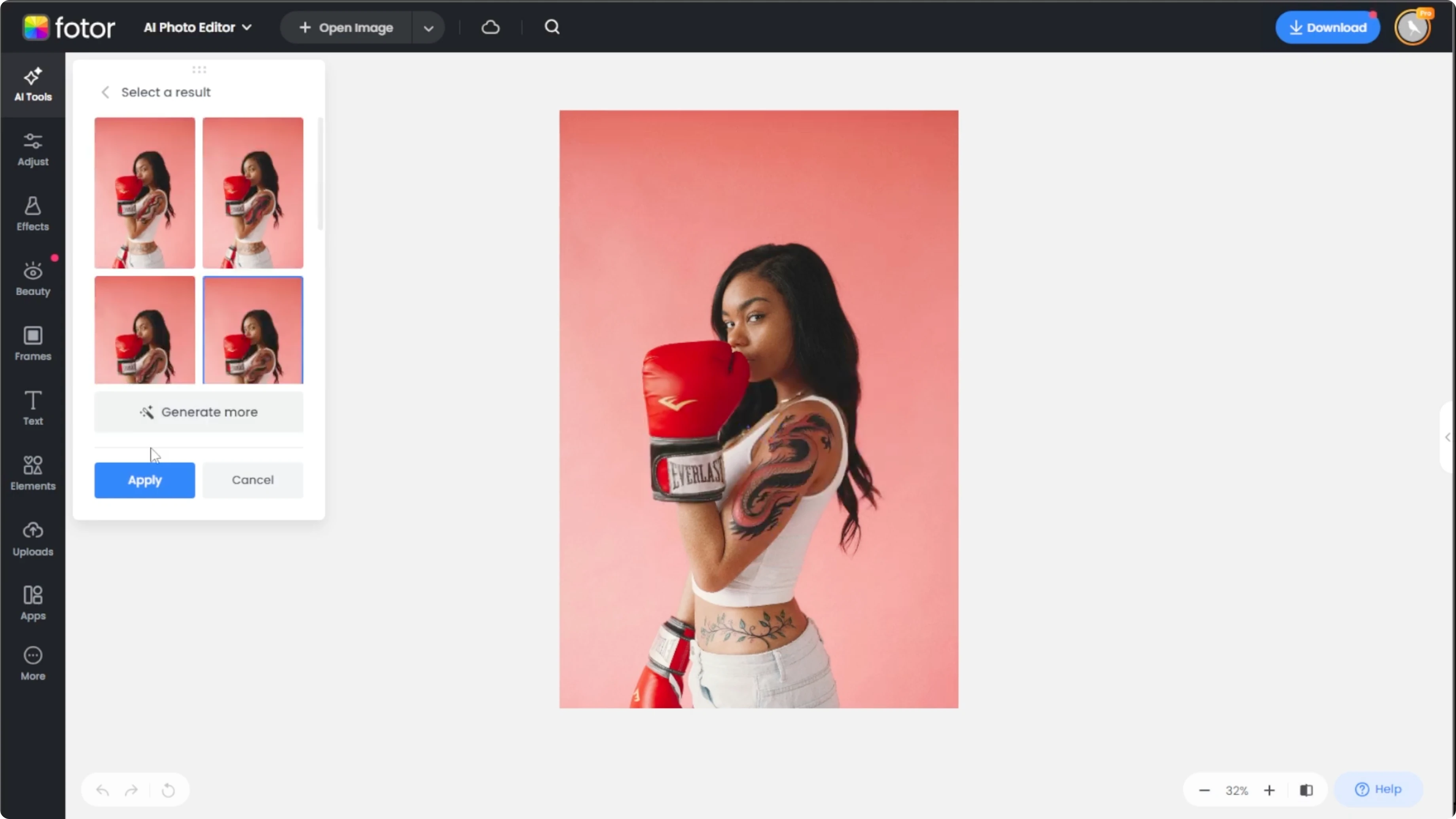
traditional dragon sleeve on right arm, bold lines, color, wraps around
Generate and refine
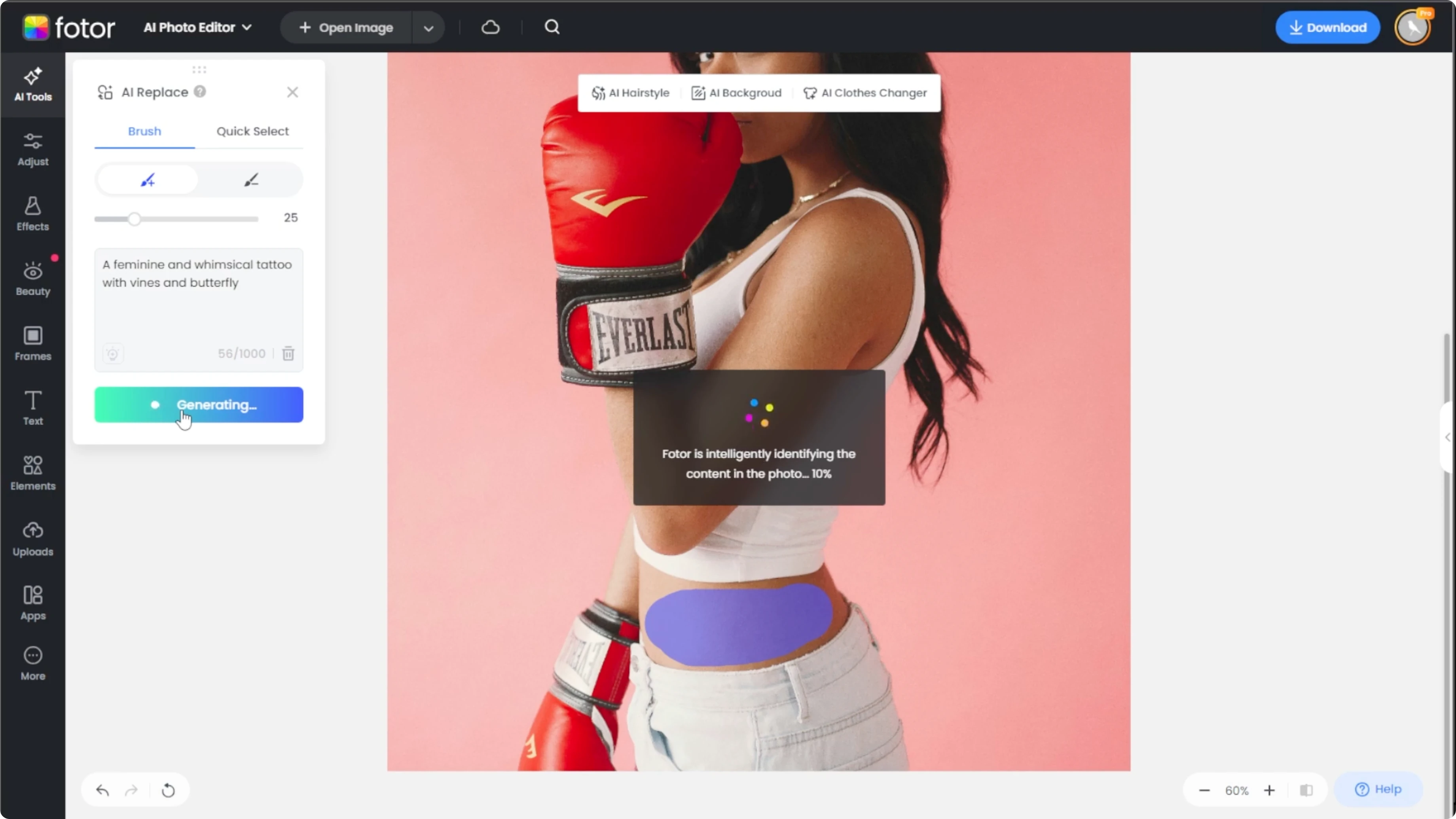
Click Generate and let the AI work. It may take a few seconds depending on your image and description. If you are not satisfied, click Regenerate to try a new variation.
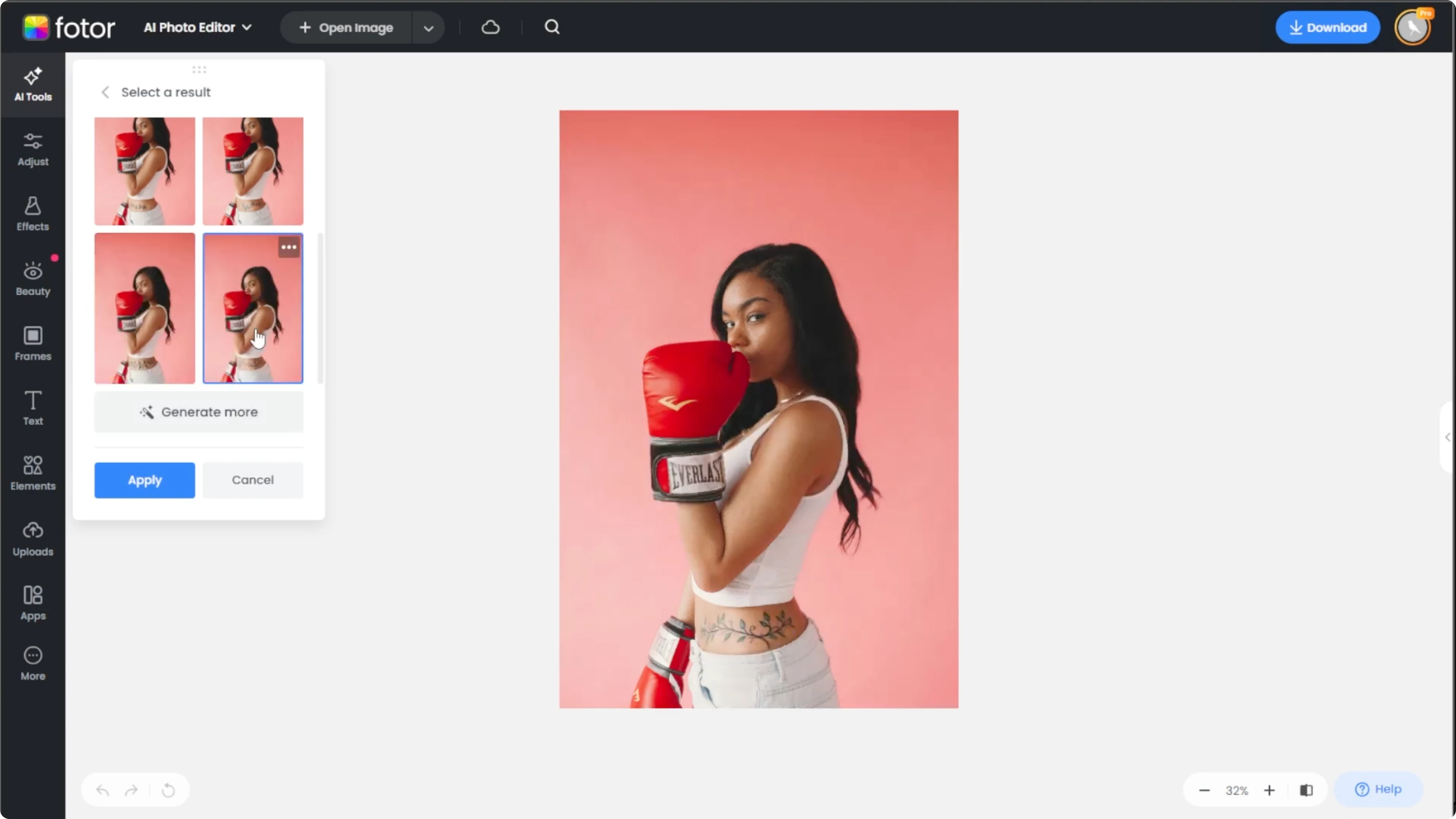
When you are happy with the design, click Apply. Click the Compare button at the bottom right to see the before and after. When you are ready, click Download to save the final image.
If you are creating visuals for video projects too, you can add a realistic AI voice to videos in Canva to complete your workflow.
Final thoughts
AI Replace in PhotoR lets you place realistic tattoos exactly where you want them. Careful selection and a detailed description produce the best outcomes. Generate, refine, and compare until the ink looks right for your photo.
Recent Posts

How to Visualize Yourself as a Pixelized Character with AI?
How to Visualize Yourself as a Pixelized Character with AI?

How to Revive Faded Memories and Enhance Image Clarity with AI?
How to Revive Faded Memories and Enhance Image Clarity with AI?

How to Visualize Yourself as an Animal Crossing Character with AI?
How to Visualize Yourself as an Animal Crossing Character with AI?