How to Seamlessly Swap and Alter Elements in Your Photos with AI?
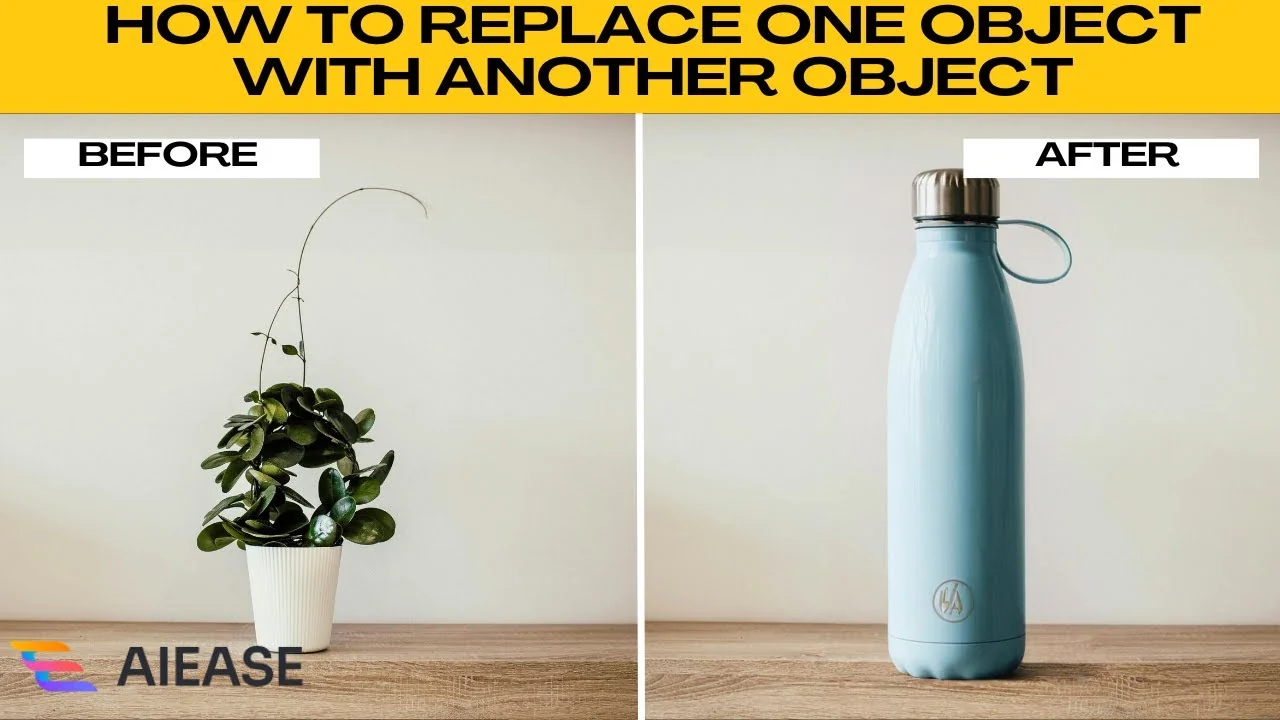
I will teach you how to replace one object with another object using AIE. If you need to remove an object from a photo and replace it with something else, AIE makes it easy using powerful AI tools. Swapping out a product, changing scenery, or having fun with creative edits can be done in just a few clicks.
If you are exploring style transformations, check out our guide to changing your hairstyle in photos for more ideas you can try next.
Get started
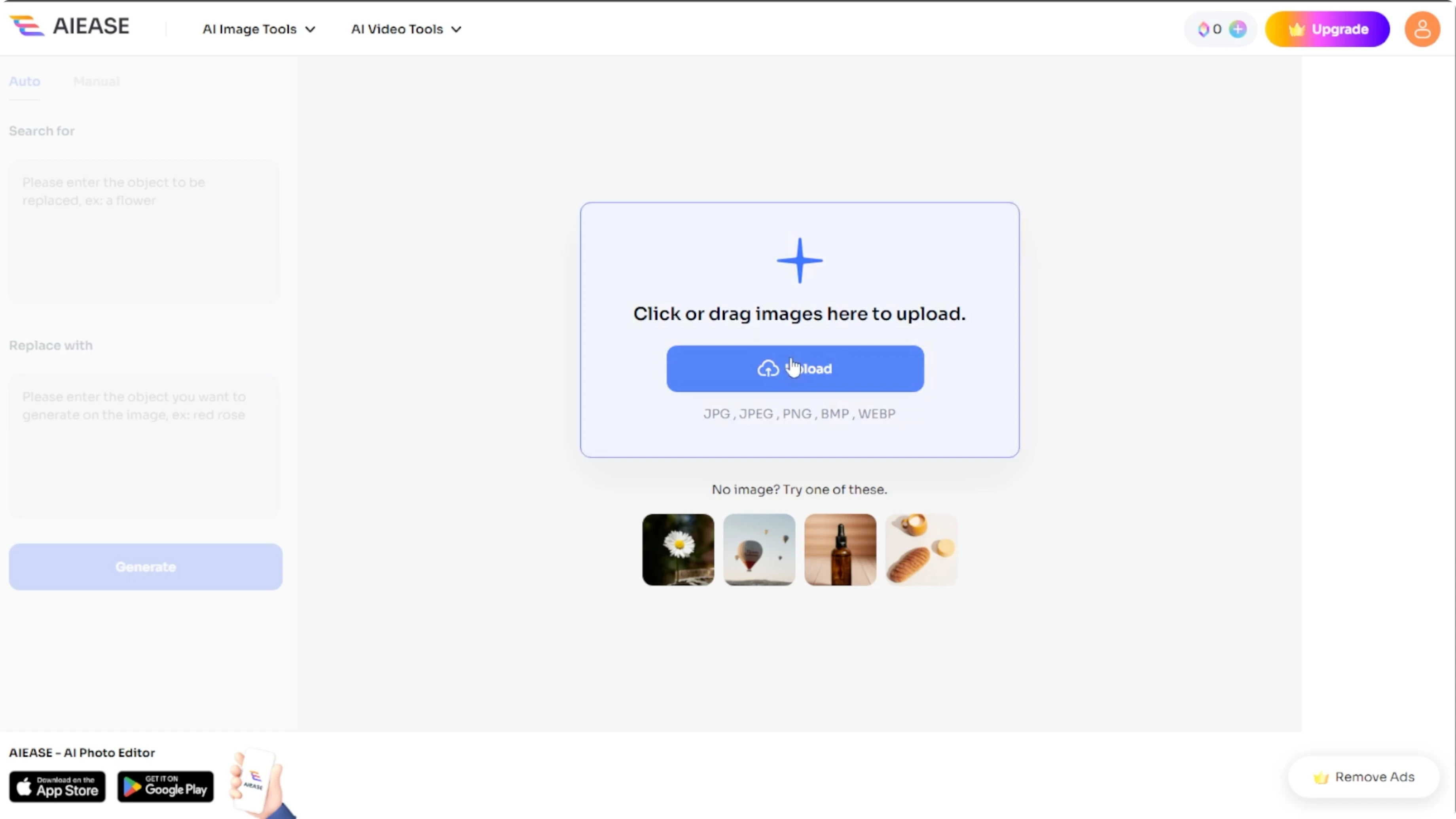
Open your browser and go to AIE AI Object Replacer. Upload your own image or try a free sample provided by the site. AIE supports JPEG, JPG, PNG, BMP, and WEBP file formats.
Click Upload and choose your image, or select a sample to test it out. Pick the editing mode that fits your workflow. You will see two tabs on the left side labeled Auto and Manual.
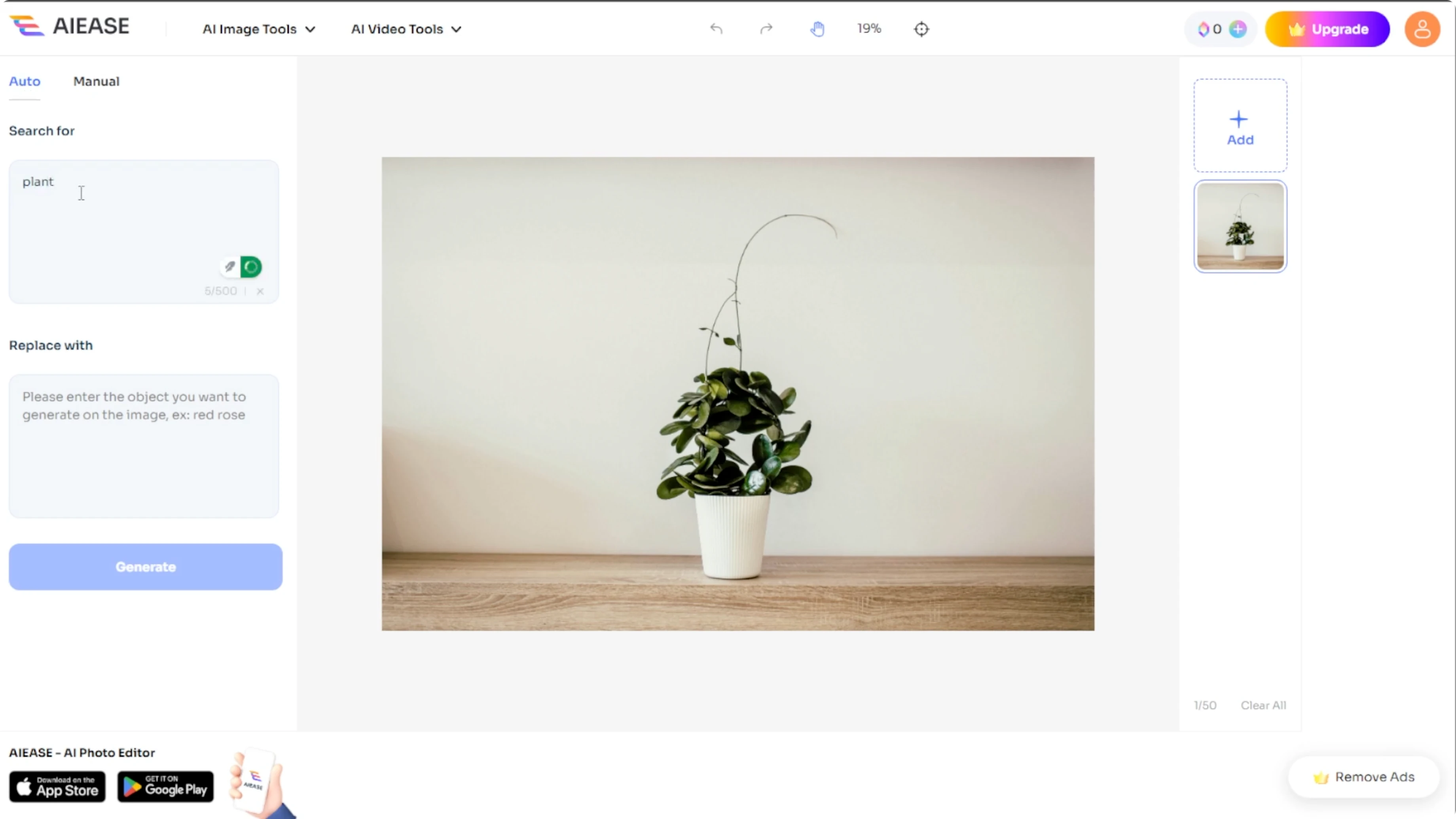
Auto mode
The Auto mode is text prompt based. In the Search for box, type the object you want to remove like lamp, dog, or tree. In the Replace with box, type what you want the AI to generate in its place like vase, cat, or bush.
Click Generate and give it around 10 seconds to process. AIE will return multiple options. Pick your favorite or click Generate more if you are not happy with the result.
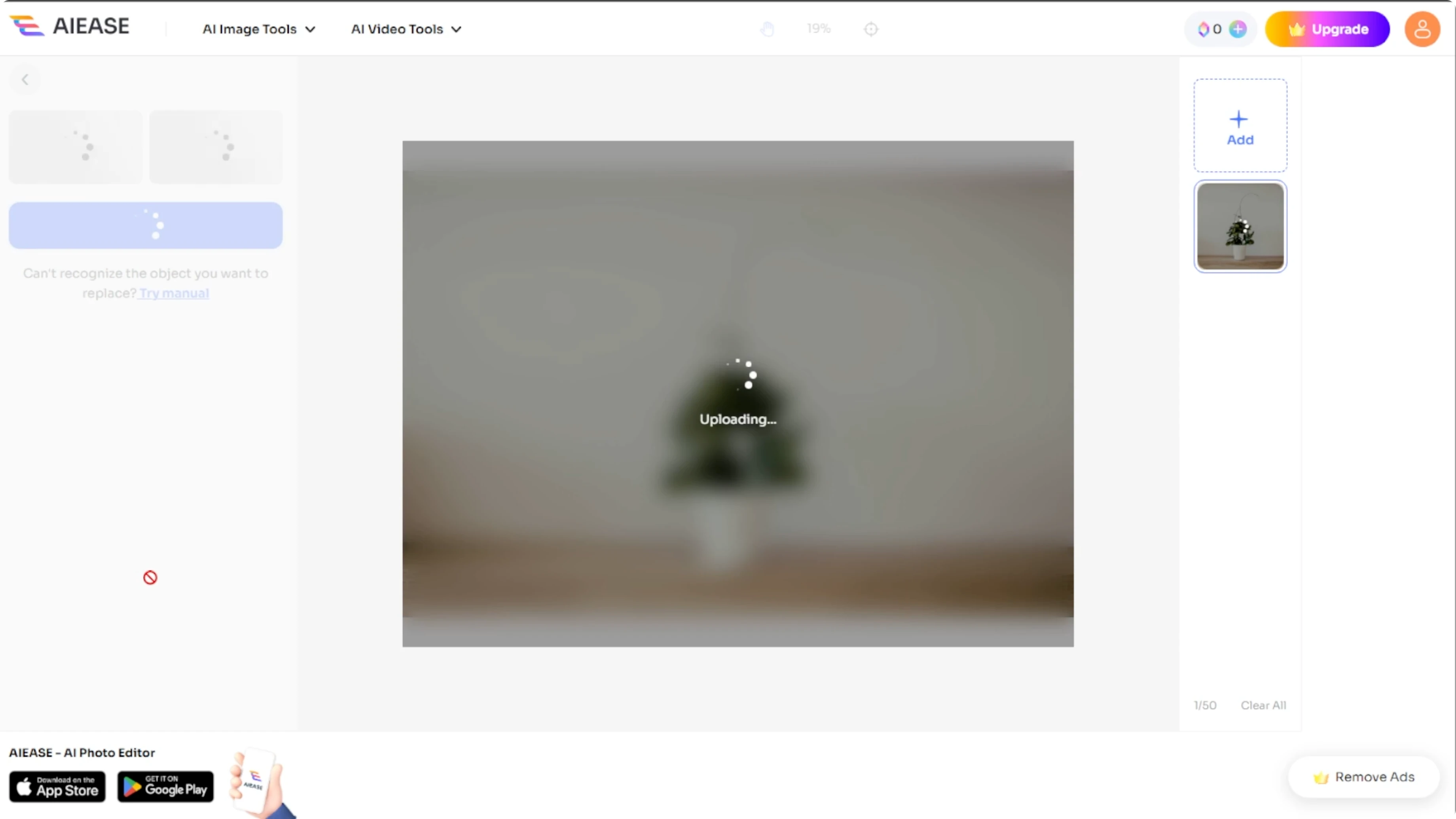
Example prompts you can paste:
search_for: "lamp"
replace_with: "vase"
search_for: "dog"
replace_with: "cat"
For creative scene changes, you can also turn daytime shots into moody blue hour looks with this walkthrough on turning daytime photos into night scenes.
Manual mode
You can also try the Manual mode if you want more control. Click Try manual or manually select the Manual tab at the top. This mode lets you mark the exact area to replace before prompting.
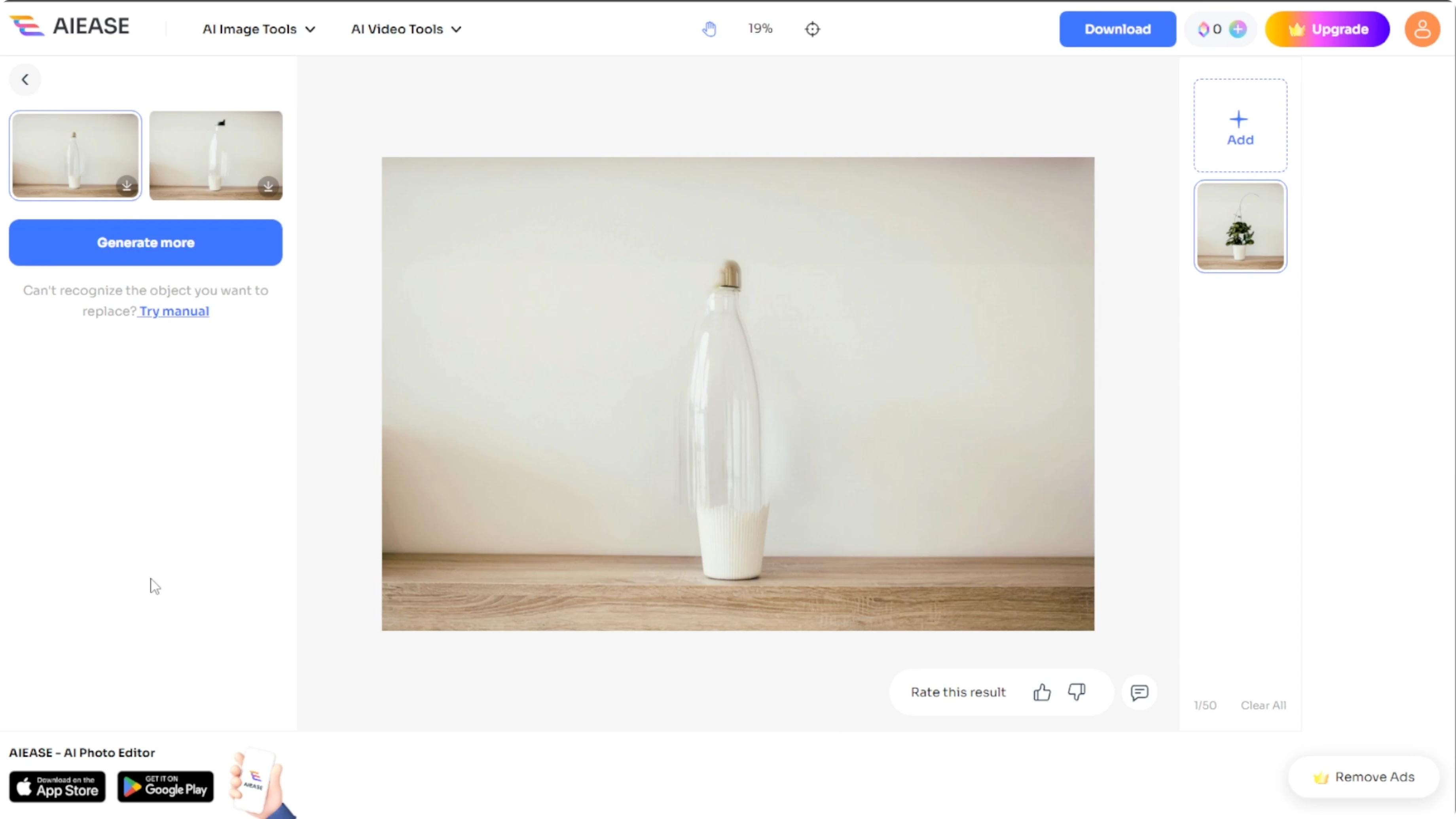
Selection tools
Use the Brush tool with an adjustable brush size for precise selection. Paint over the object until it is fully covered. If you prefer, switch to the Rectangle tool, then click and drag to mark the object.
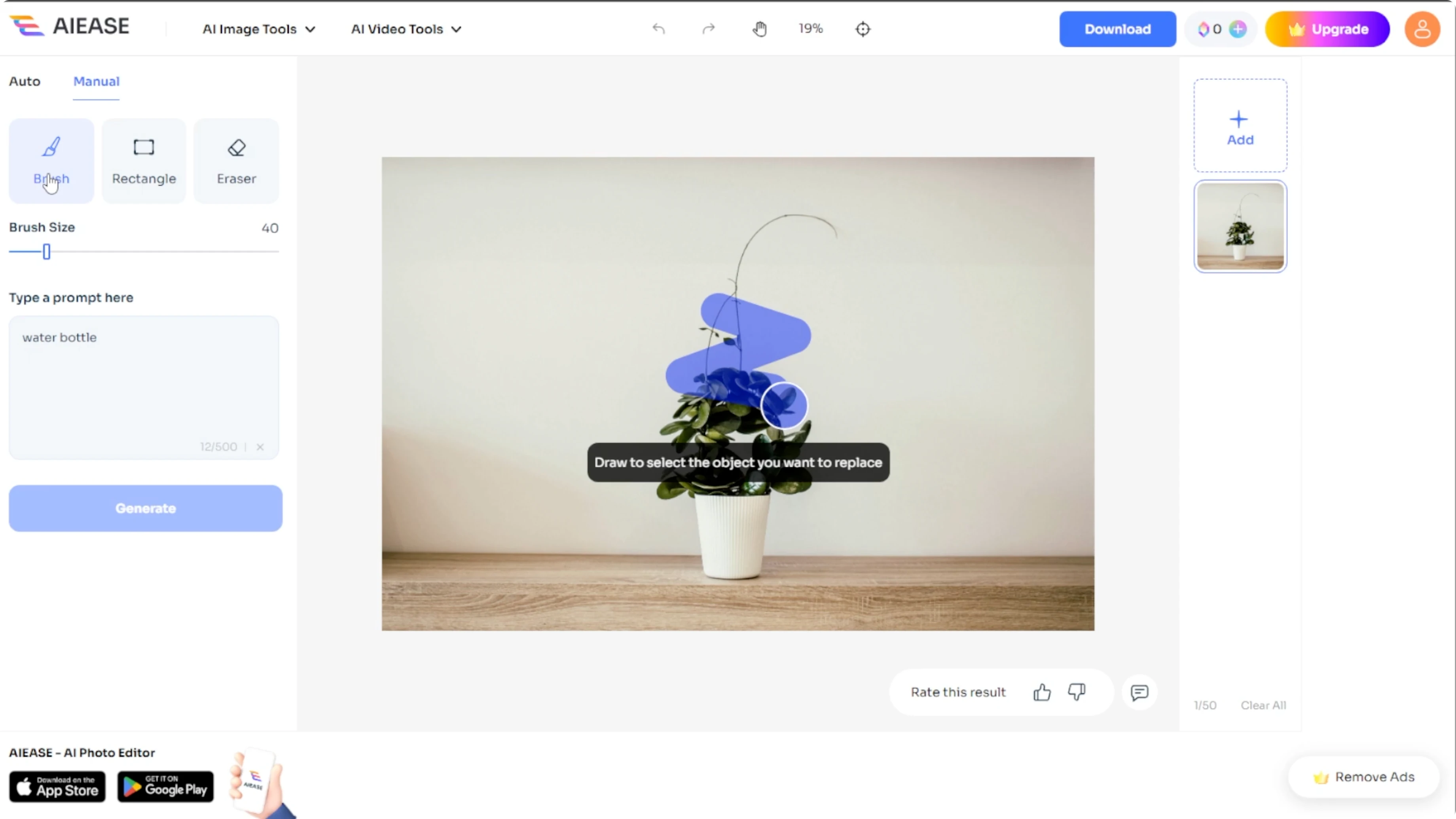
Resize and rotate the rectangle with the on screen handles for a tight fit. Make sure the entire object is inside your selection. A clean selection helps the AI place the new object convincingly.
Generate and compare
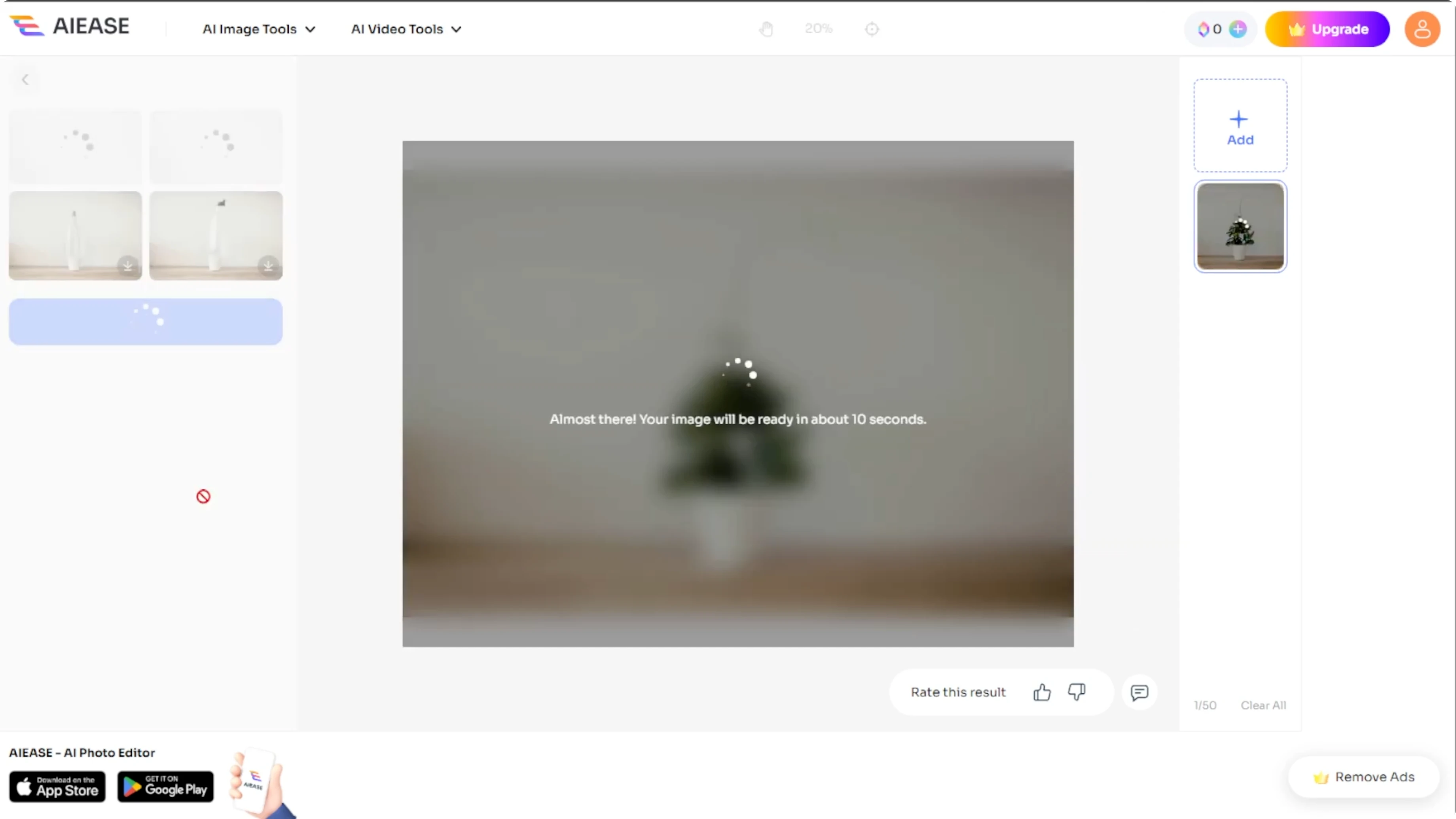
After selecting the object, type a prompt for what you would like to replace it with. Click Generate to see the AI results. On the left panel, you will find a History of all generated images.
Click between entries in History to compare Auto versus Manual results. This makes it easy to pick the version that matches your intent. Repeat the step and adjust prompts or selection if you want a different look.
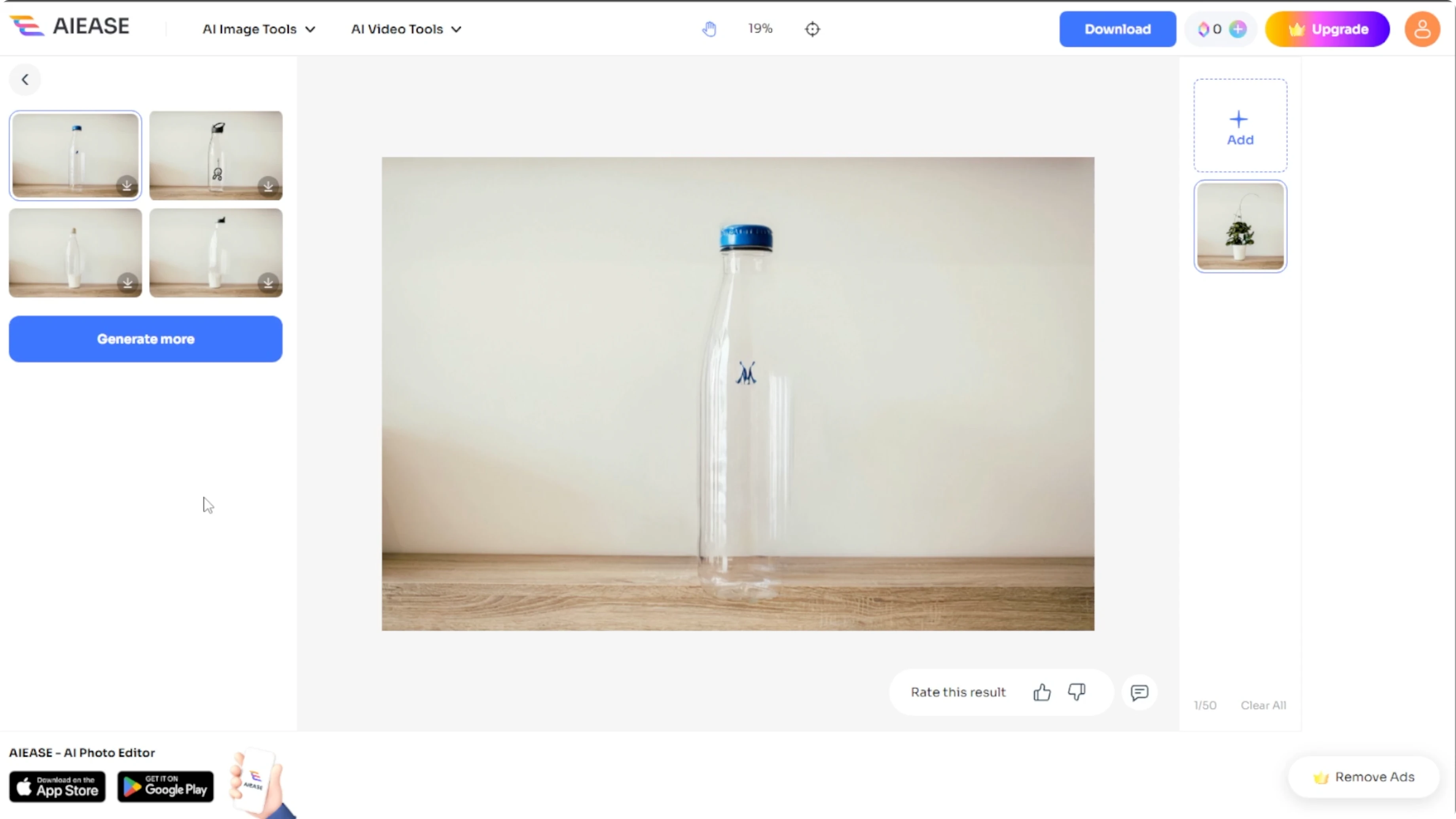
Example prompt after a manual selection:
replace_with: "potted cactus"
style: "photo realistic, natural shadows"
Download
Once you are satisfied, click Download to save your favorite version to your computer. Keep both Auto and Manual variations if you want alternatives for later. You can come back and iterate with new prompts any time.
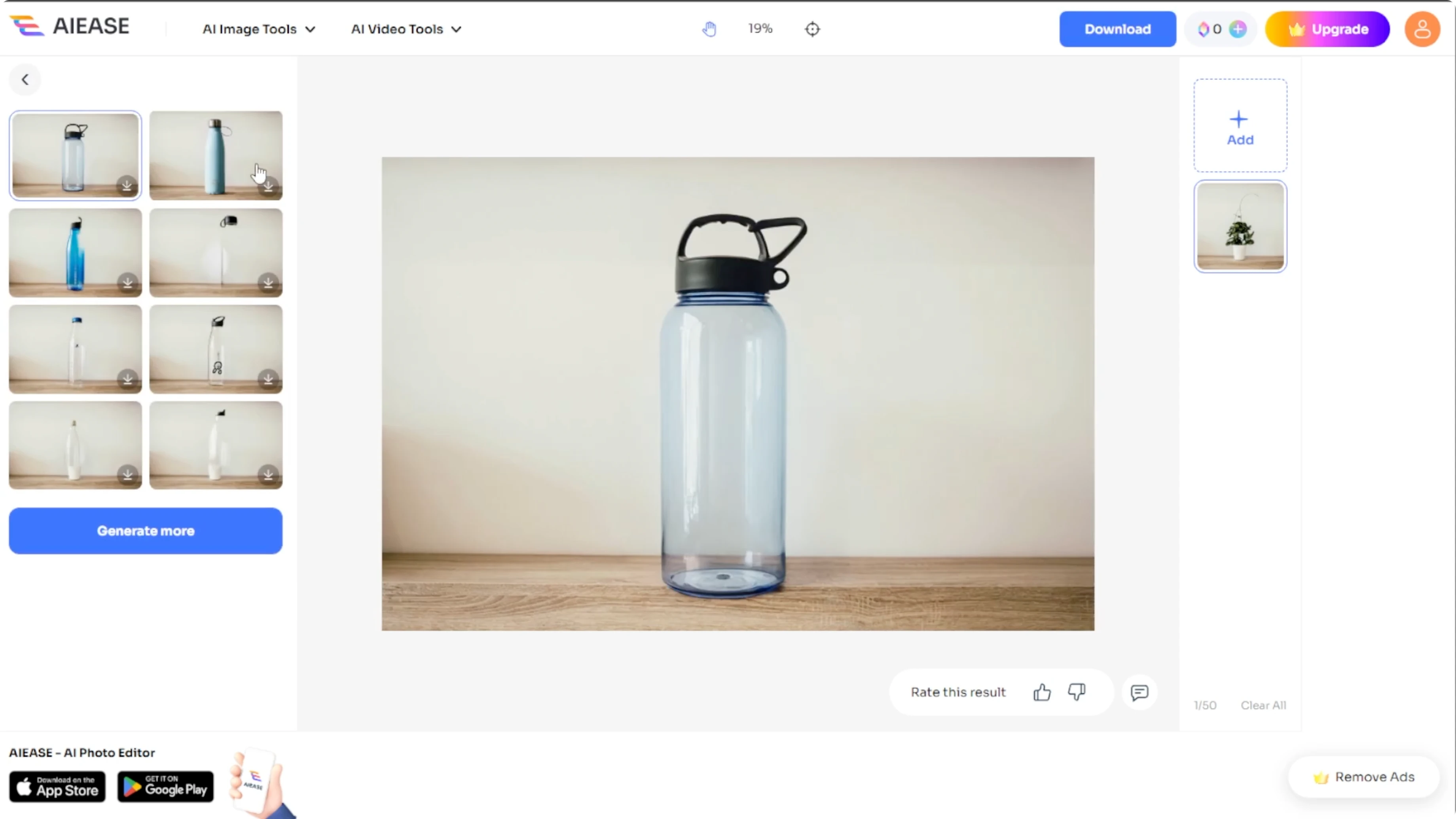
Quick results
Replacing one object with another in an image has never been easier. With AIE AI Object Replacer, you can get professional level edits without needing advanced software. Editing for business, content creation, or just experimenting for fun can be done in minutes.
If you want to try face transformations next, follow this step by step gender face swap tutorial to learn the basics of swapping features.
Final thoughts
AIE gives you two clear paths to fast object swaps. Use Auto for quick prompt based results, and Manual for precise selections and targeted replacements. Generate multiple versions, compare in History, and download the edit that best matches your vision.
Recent Posts

How to Visualize Yourself as a Pixelized Character with AI?
How to Visualize Yourself as a Pixelized Character with AI?

How to Revive Faded Memories and Enhance Image Clarity with AI?
How to Revive Faded Memories and Enhance Image Clarity with AI?

How to Visualize Yourself as an Animal Crossing Character with AI?
How to Visualize Yourself as an Animal Crossing Character with AI?