How to Remove Watermarks from Photos Cleanly and Efficiently with AI?
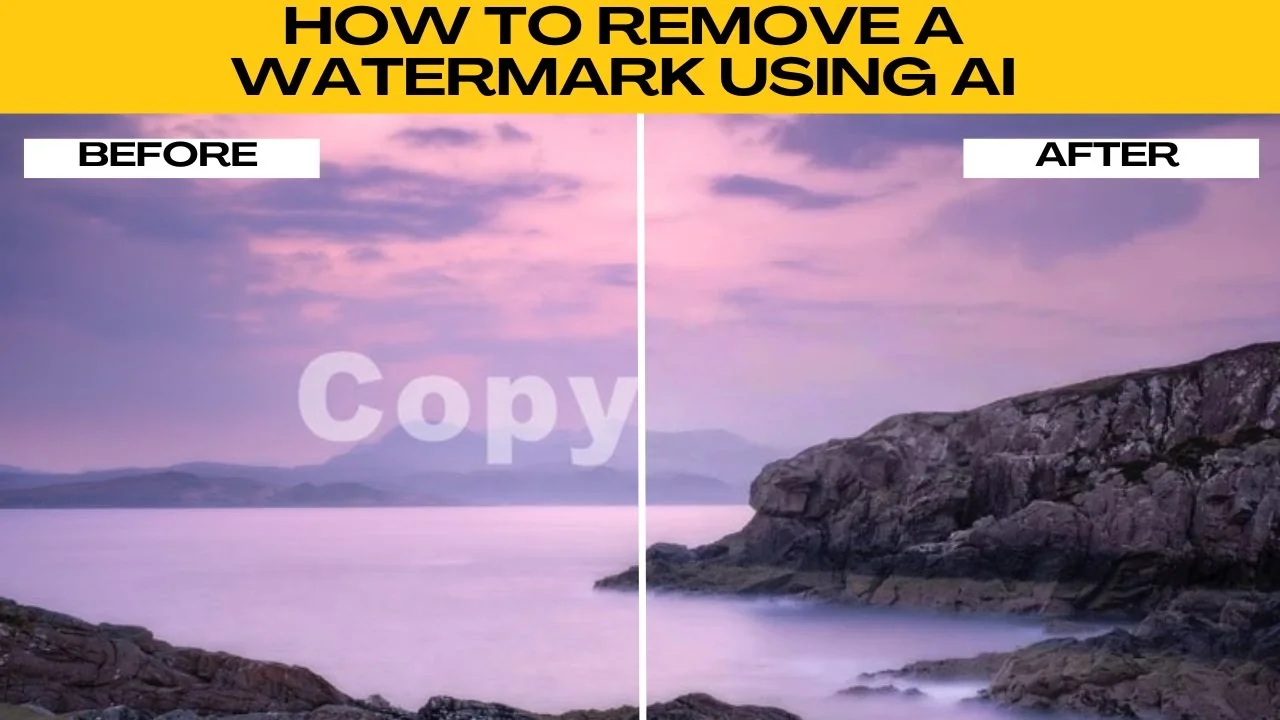
I will teach you how to remove a watermark quickly using AI.
Watermarks can sometimes distract from an otherwise great image. It could be a logo, text, or an overlay.
If you have the right to use or modify the image, AIE provides a simple and fast way to remove watermarks using powerful AI with zero design experience required.
Get started
Open your browser and go to AIE's watermark remover tool.

When the page loads, you will have two options to upload your own image or try one of the free sample images provided.

AIE supports formats like JPG, JPEG, PNG, BMP, and WEBP.

If you are fixing portraits, you can also remove shadows from faces with AI to improve the final result.
Upload and prepare
Click upload and choose your image.

Use a clear, high resolution image for better AI accuracy.
Once your image has been uploaded, you will see two removal tools in the left panel.
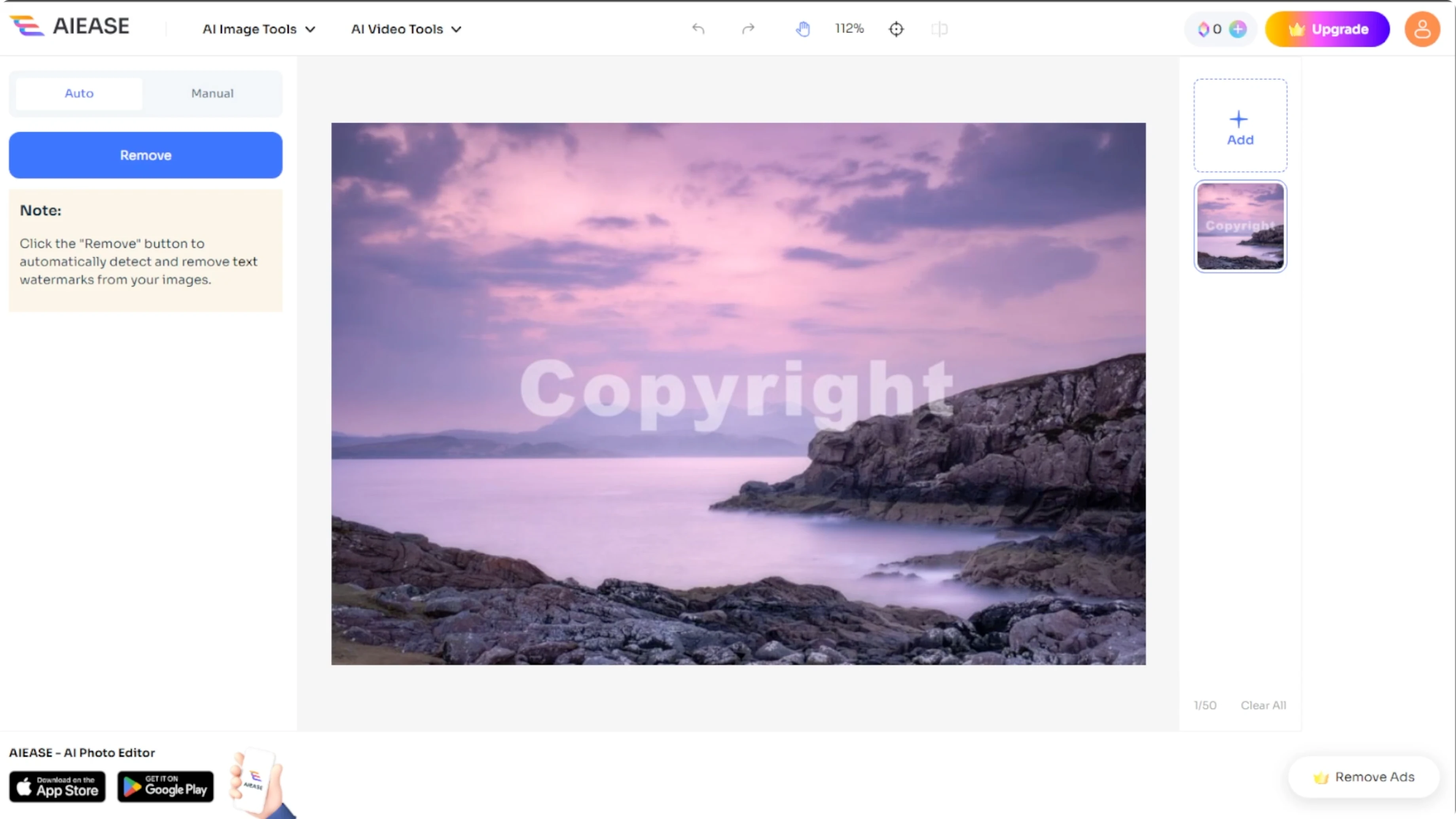
Choose a removal method
Auto removal
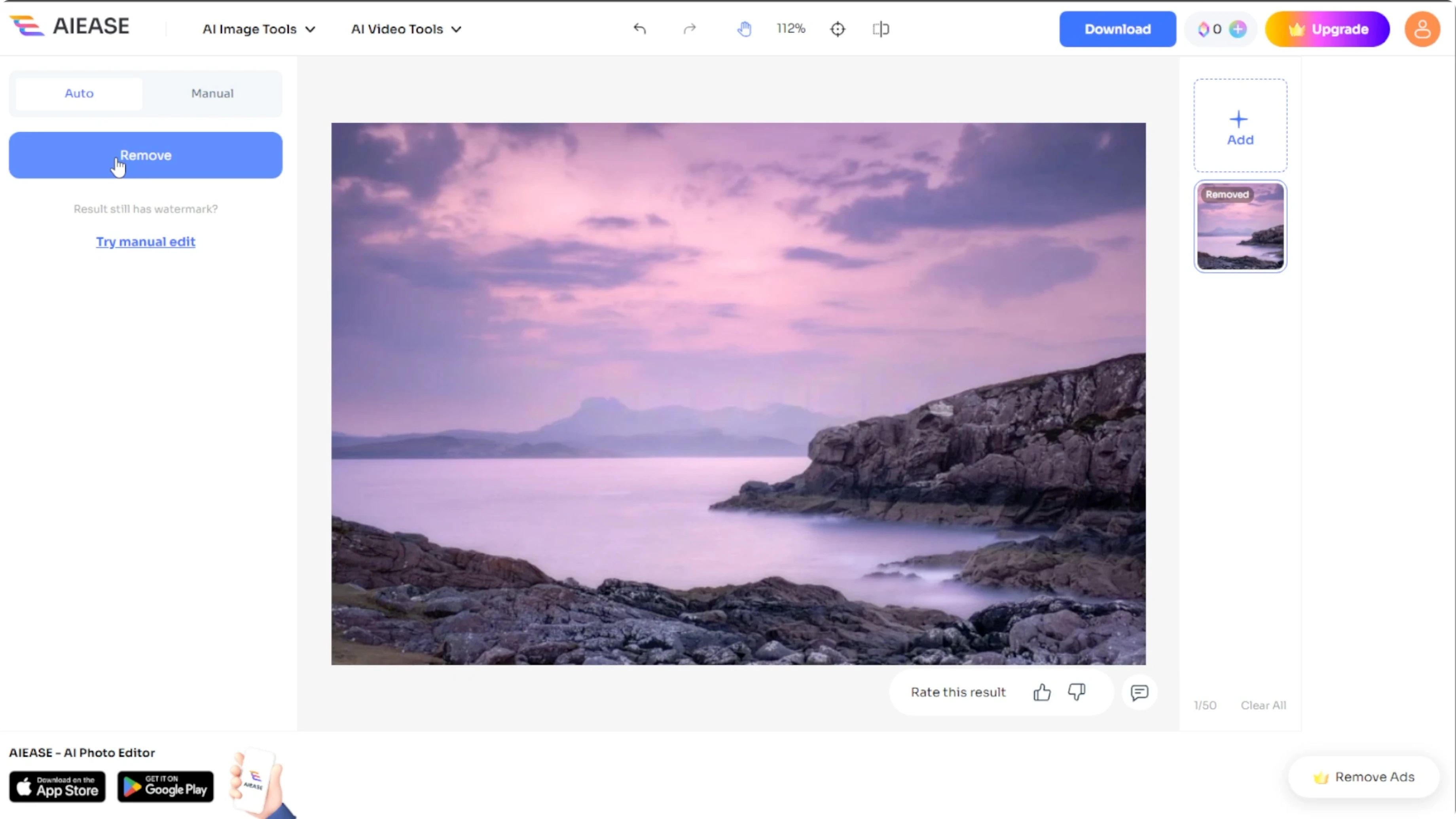
The first one is auto removal, which you can use by clicking the remove button under the auto tab.
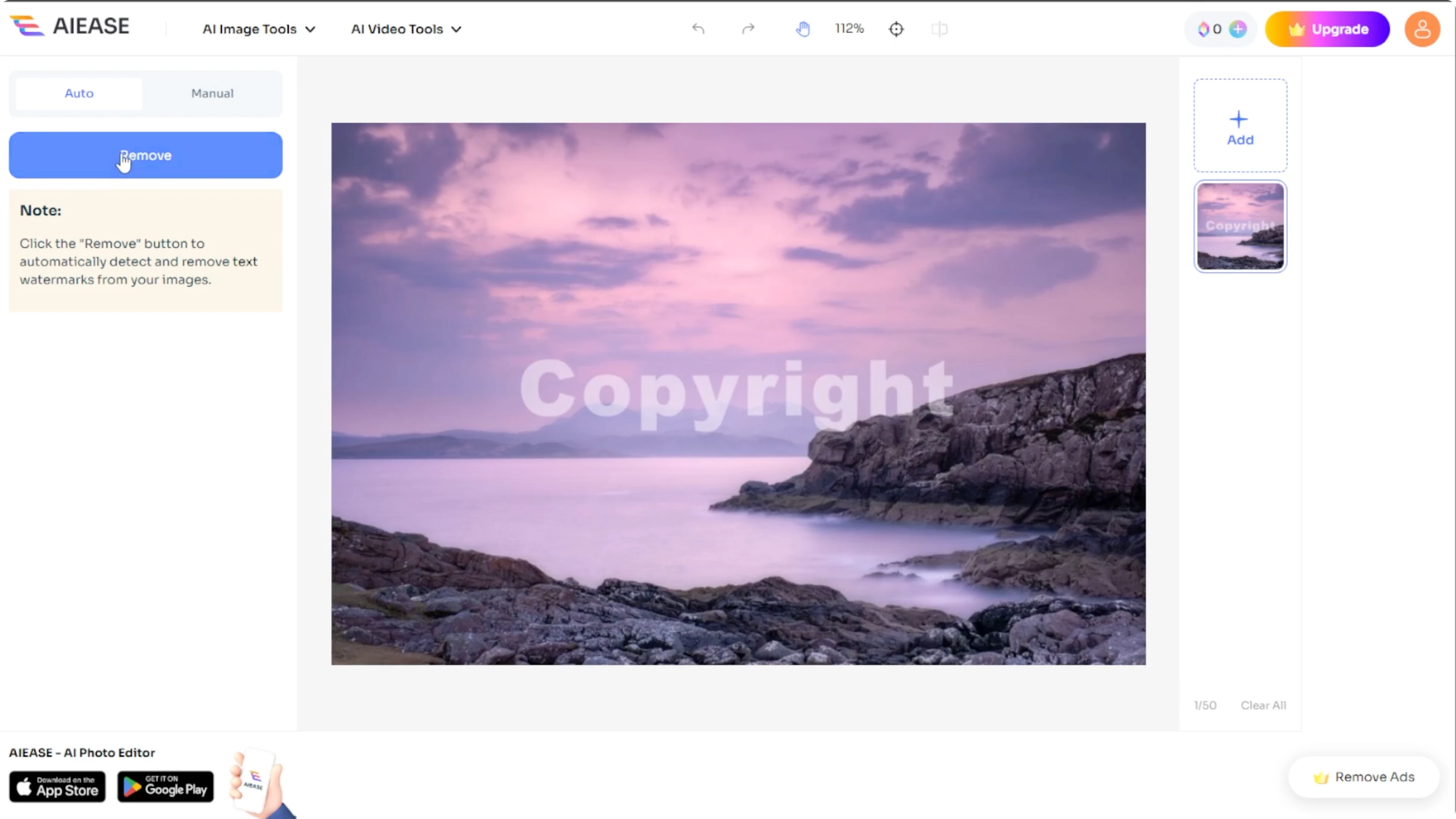
The AI will scan the image and try to detect and erase any text watermarks automatically.
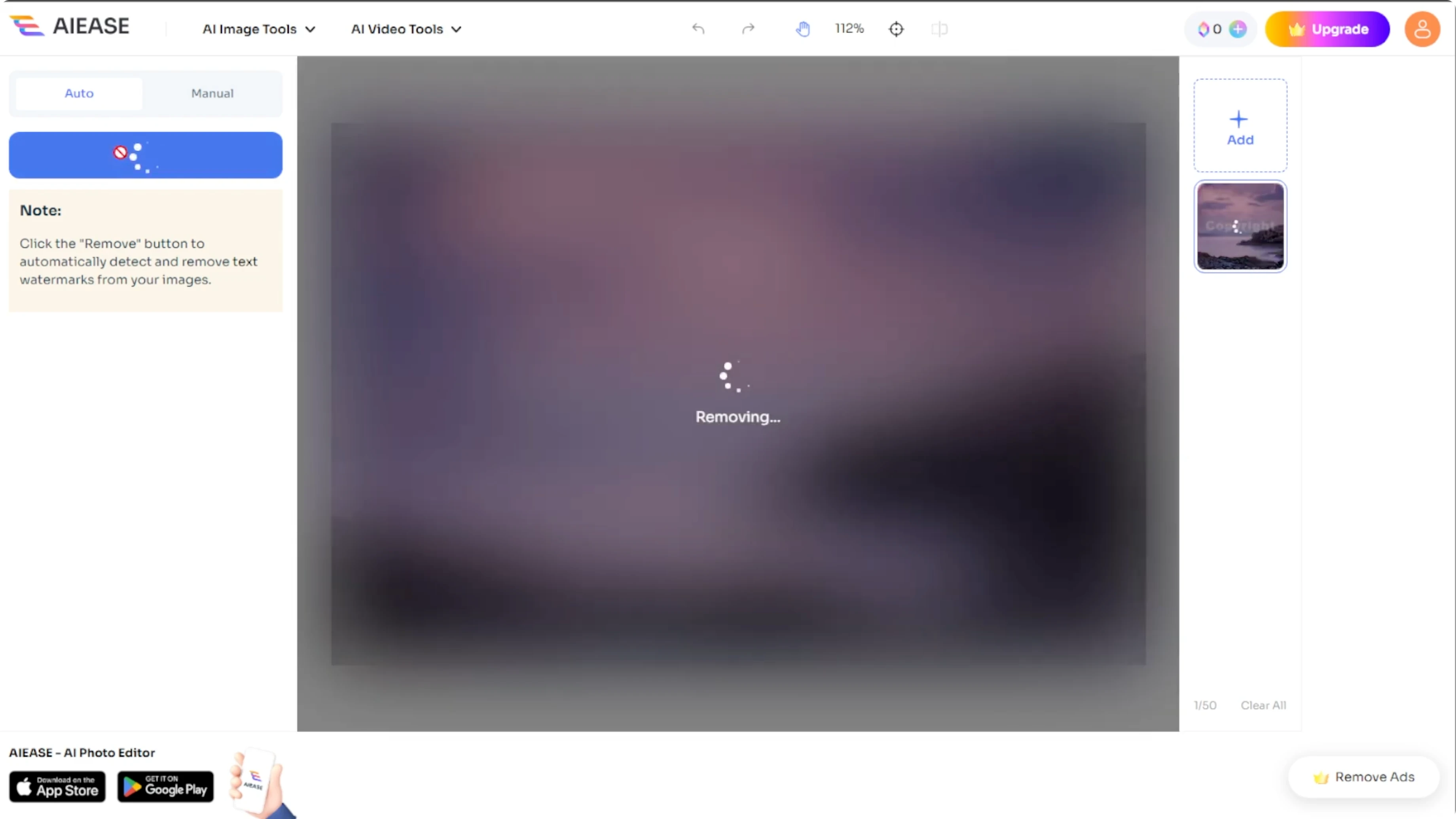
This works great for standard unobtrusive watermarks.
If your issue is in a video instead of a photo, see how to remove text from a video in Canva.
Manual tools
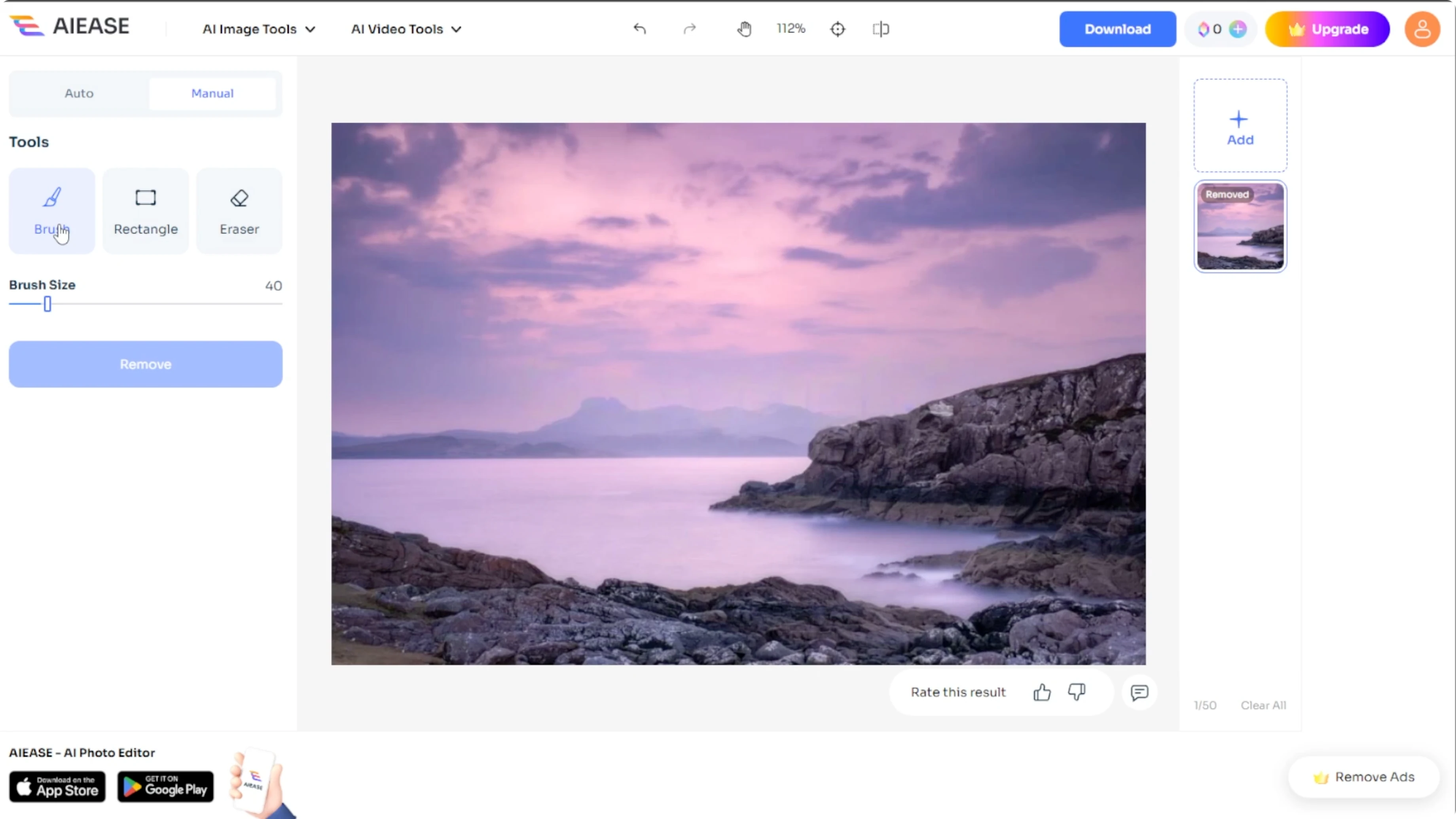
If the watermark is not removed perfectly with auto removal, you can switch to the manual tab.
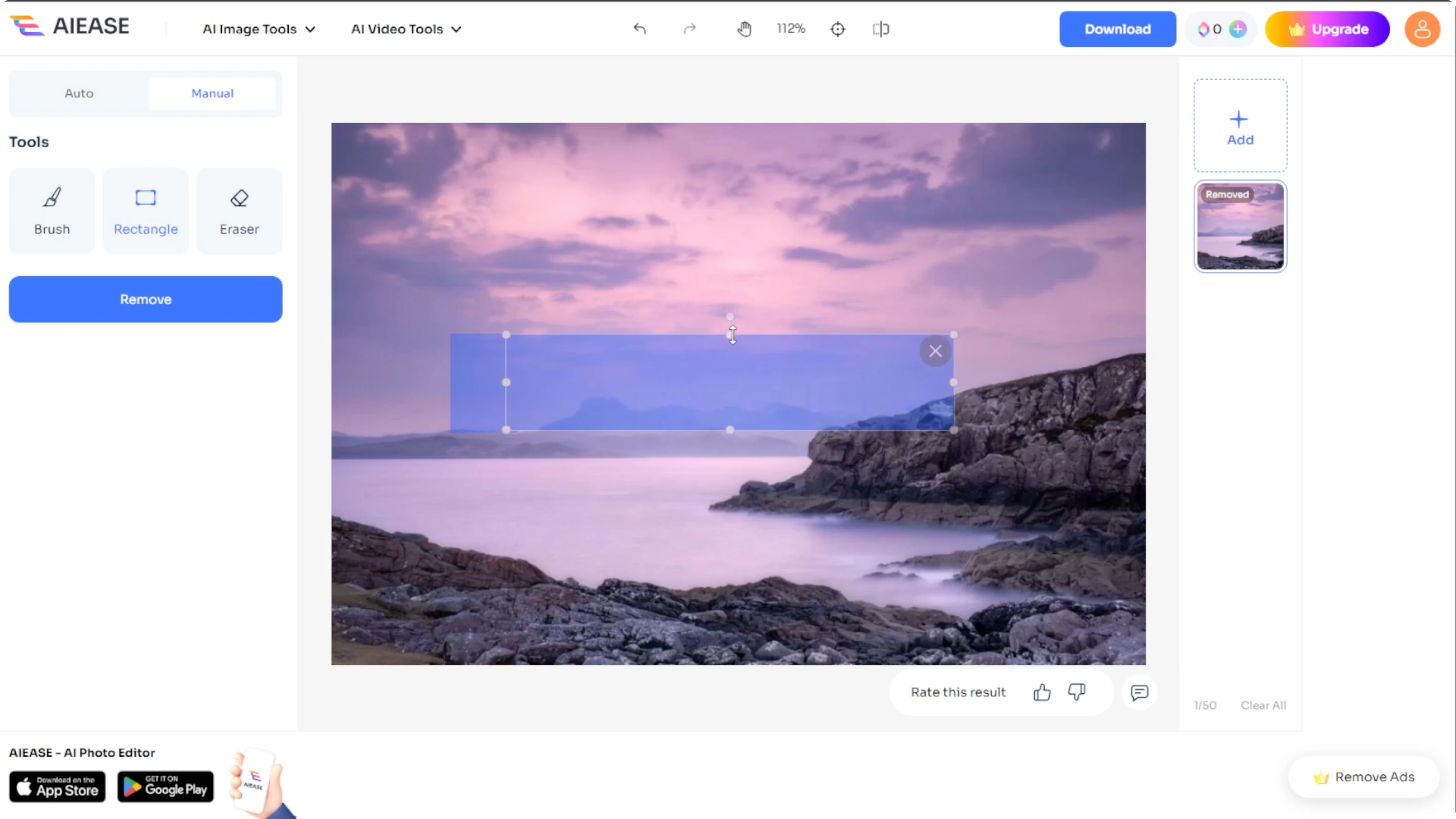
You can choose between two selection tools like the brush tool, which you can use with an adjustable brush to paint over the watermark, and the rectangle tool, which you can click and drag to draw a box over the watermark.
You can resize or rotate the box using the corner handles.
An optional step is using the eraser tool to clean up or refine your selection.
Once you have marked the watermark area, click remove and let the AI do its thing.
The AI fills in the background to blend with the surrounding area, usually within a few seconds.
Preview and save
After previewing the result, click the download button to save the image to your computer.
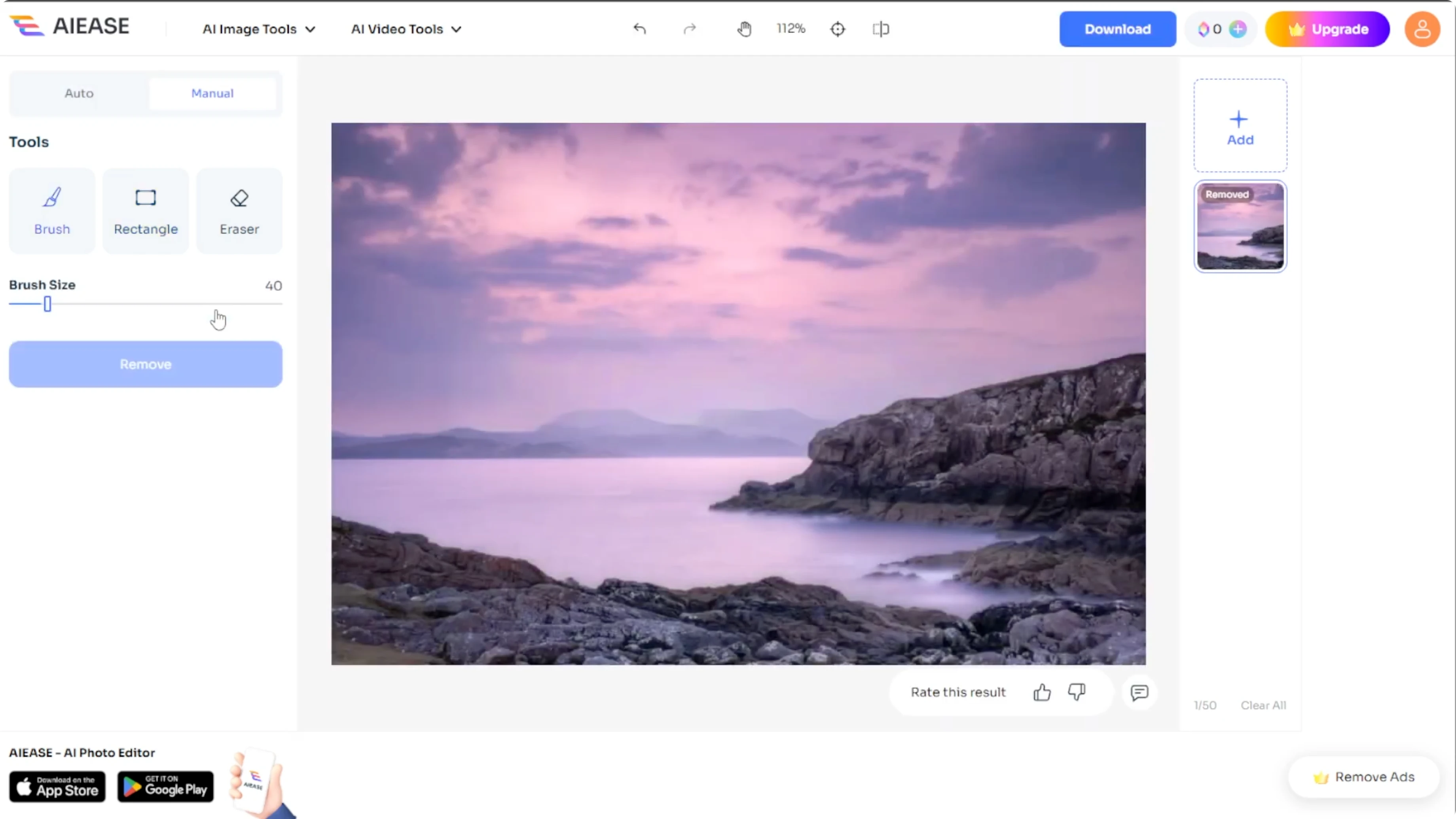
Your new image will be free of the watermark.
Who it is for
AIE makes removing watermarks incredibly easy.
Even if you have never edited an image before, it can handle a text overlay or a logo and clean up your images in just a few clicks.
It is perfect for personal use, content creators, or anyone needing a polished watermark free photo.
For a creative next step, you can animate a face from a photo once your image is cleaned up.
Final thoughts
You can remove a watermark in just a few clicks using AIE, starting with auto removal and refining with manual tools when needed.
Use a clear, high resolution image, review the preview carefully, and download your clean result.
With these steps, you will get a professional looking image without the distraction of a watermark.
Recent Posts

How to Visualize Yourself as a Pixelized Character with AI?
How to Visualize Yourself as a Pixelized Character with AI?

How to Revive Faded Memories and Enhance Image Clarity with AI?
How to Revive Faded Memories and Enhance Image Clarity with AI?

How to Visualize Yourself as an Animal Crossing Character with AI?
How to Visualize Yourself as an Animal Crossing Character with AI?