How to Remove Unwanted Shadows from Photos with AI?
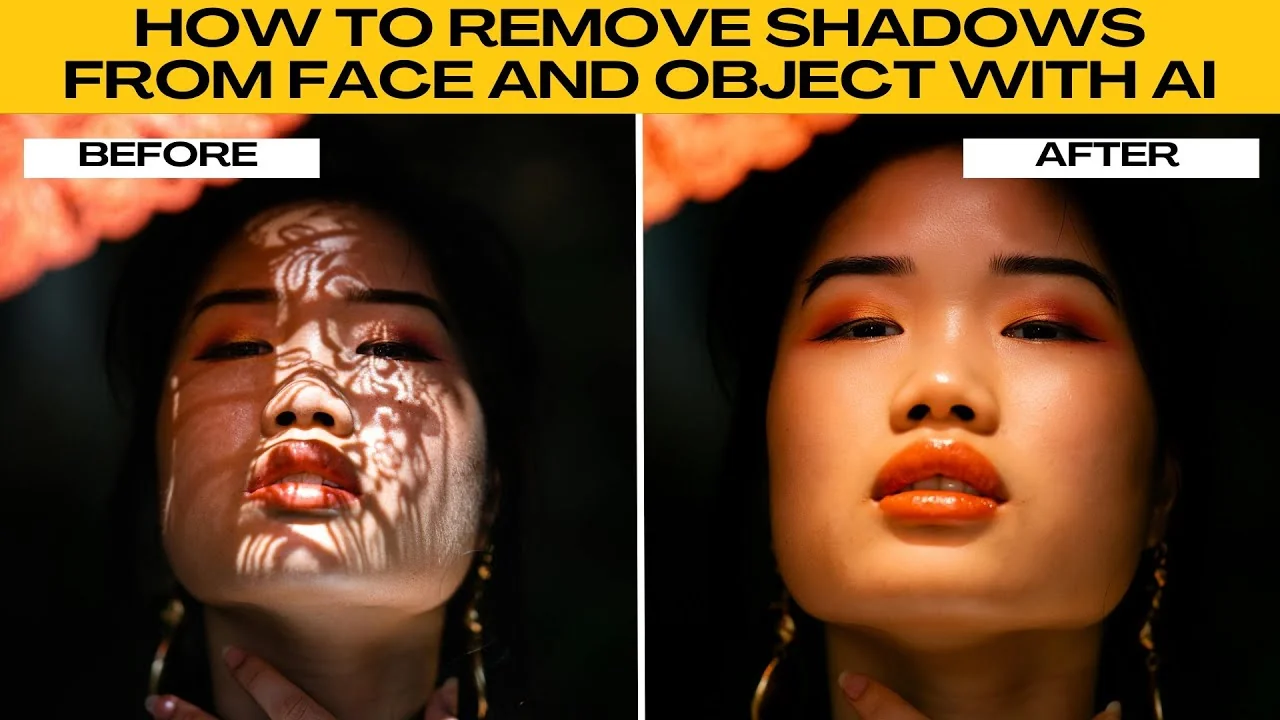
Shadows can sometimes ruin an otherwise perfect photo. Maybe the sun casts a harsh shadow across someone's face, or an object looks darker on one side because of poor lighting. Traditionally, fixing this requires editing skills in Photoshop or Lightroom, but with AI tools in ChatGPT, you can remove or soften shadows with a simple prompt.
If you want to try other creative edits too, see how AI can help with changing your hairstyle in photos. It pairs well with shadow fixes when you are refreshing portraits.
What you need
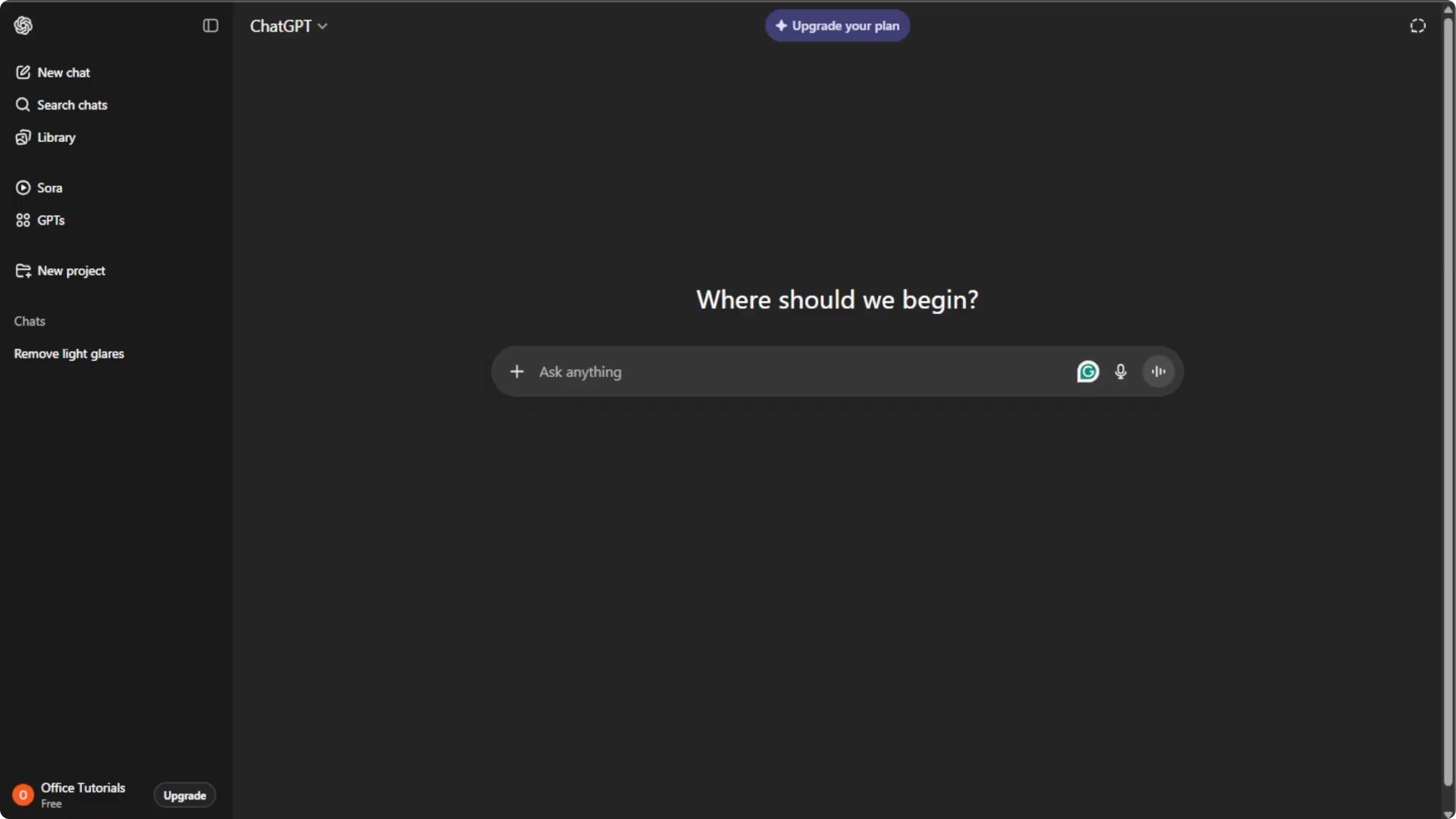
Open your browser and go to ChatGPT.
Sign in with your account or create one for free if you do not have one.
Start editing
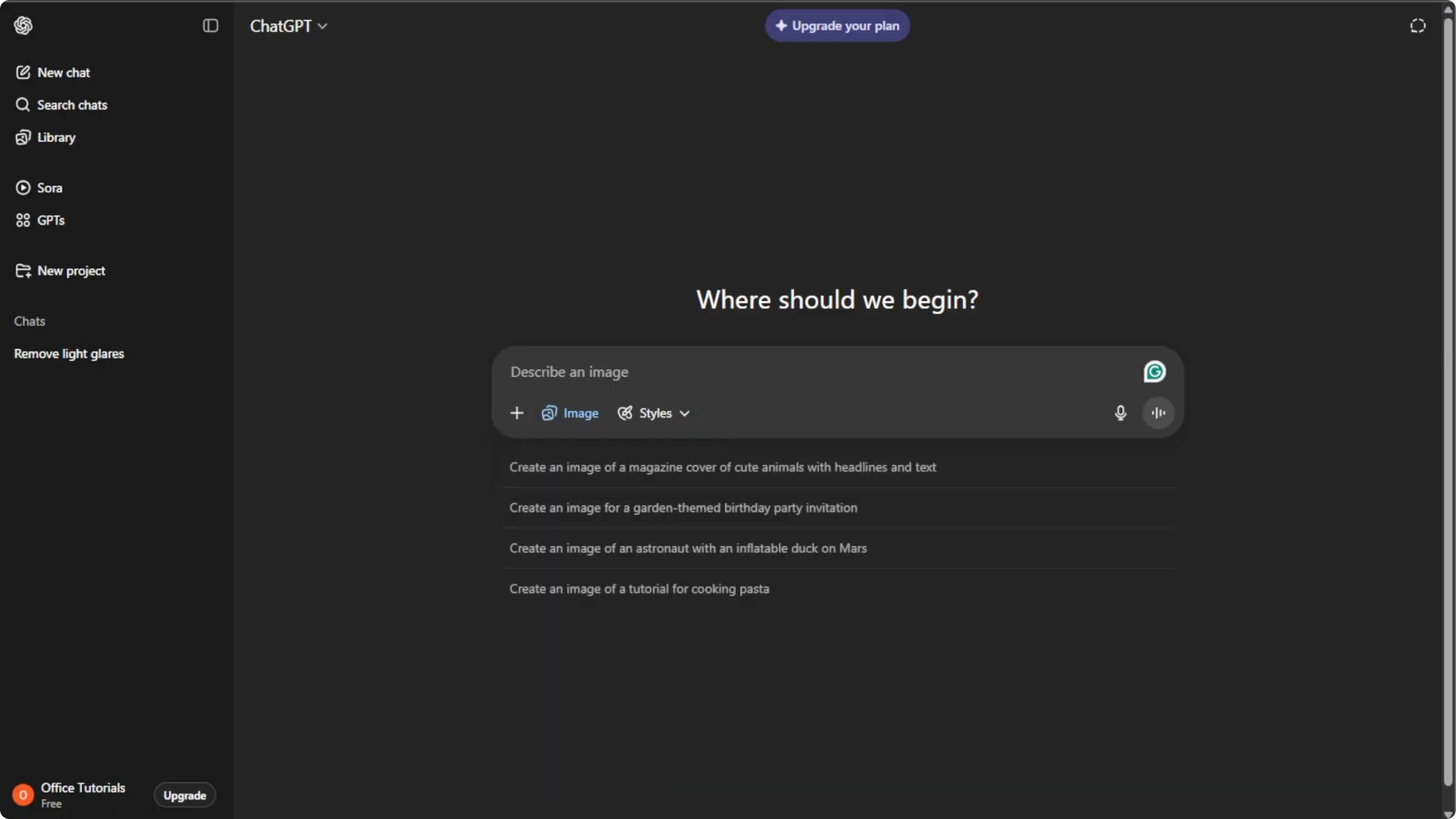
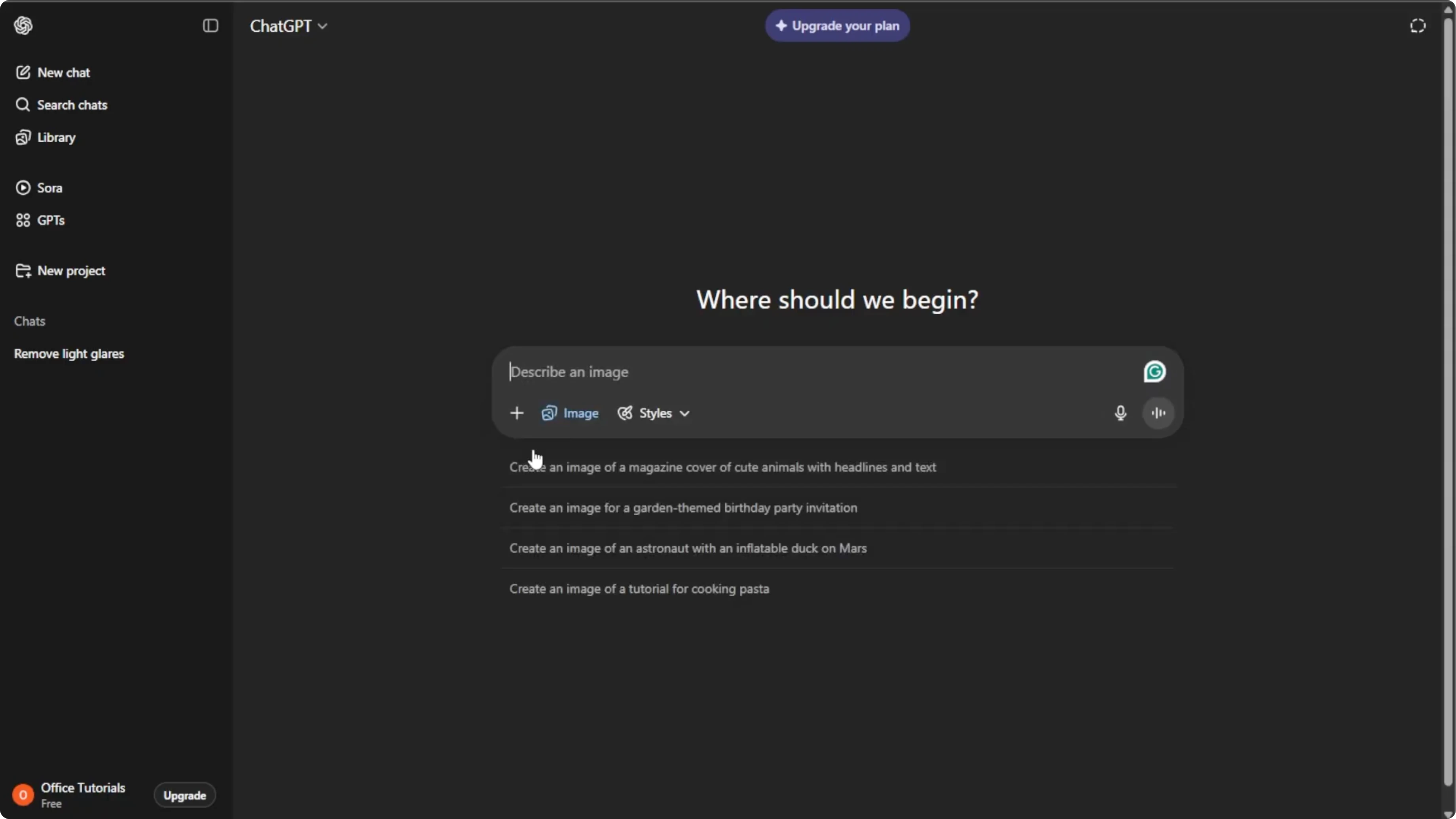
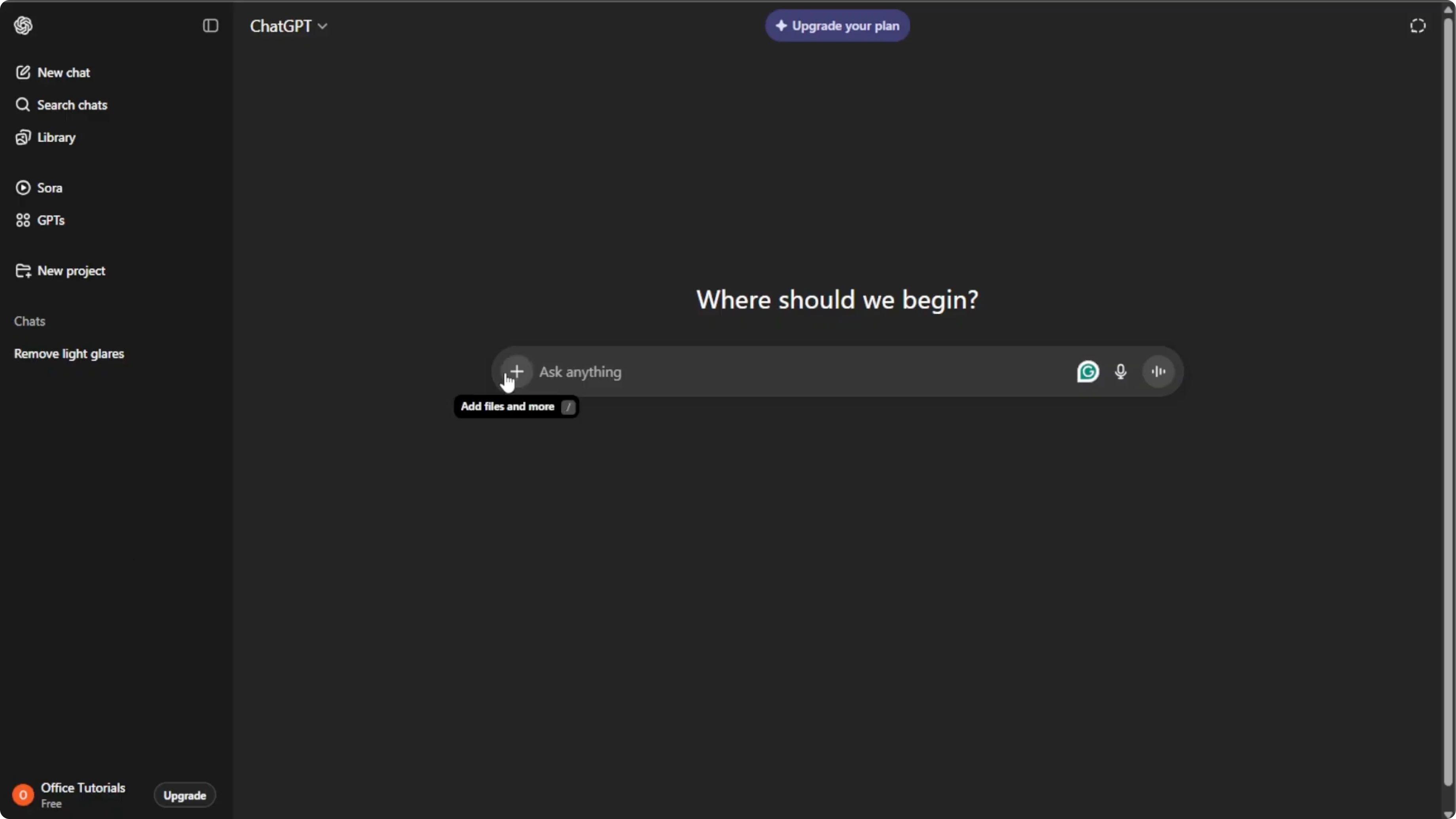
Click the plus icon and select Create image to open the AI image editing mode.
Click the plus icon again and select Add photos or files, or use Control+U on Windows or Command+U on Mac.
Choose the image from your computer that has unwanted shadows.
Write a clear prompt
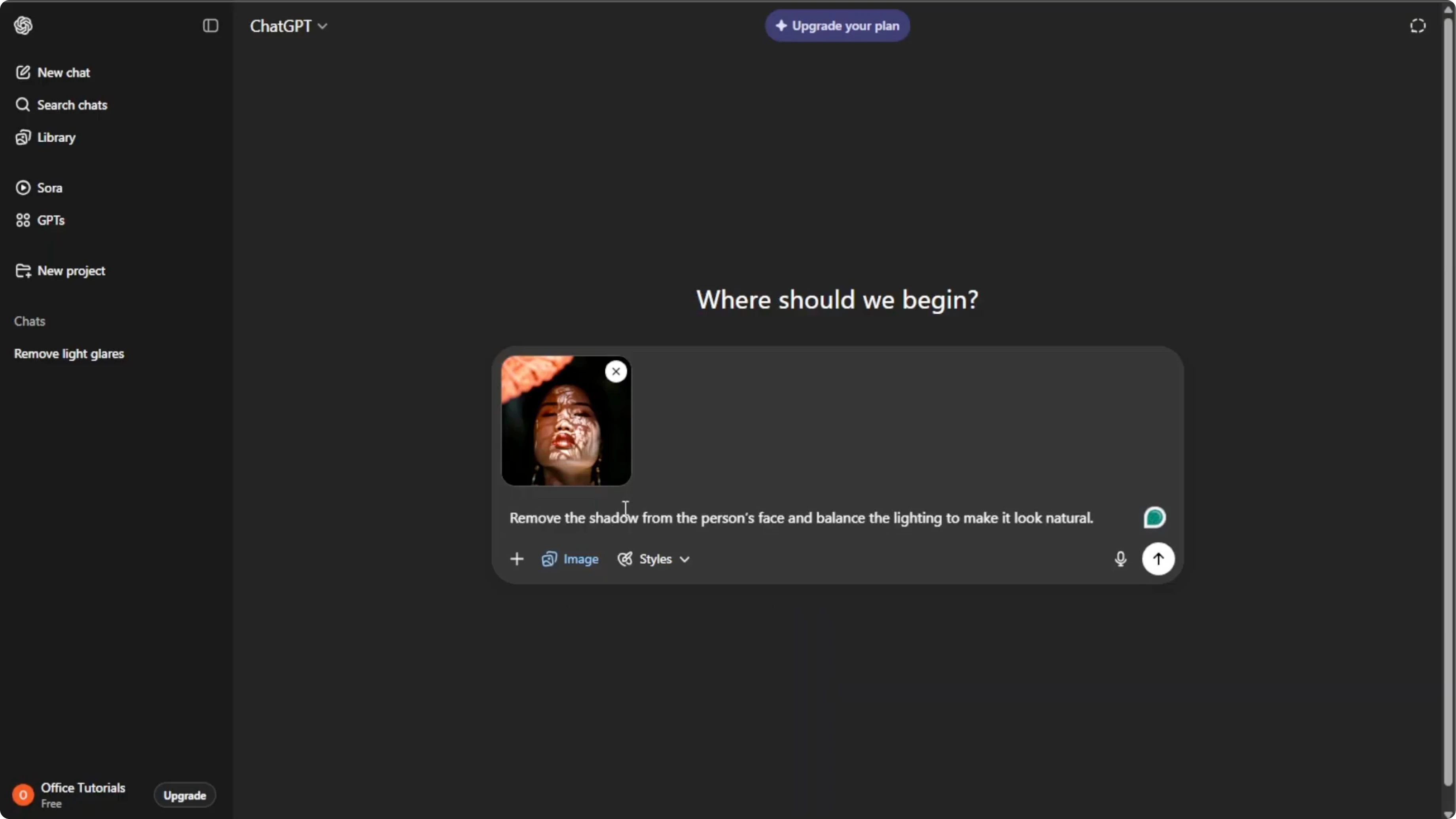
The clearer and more specific you are, the better your results will be.
Describe exactly where the shadow is and how you want it fixed.
Mention which areas should stay untouched to keep the photo natural.
For bigger lighting changes, you can also learn how to convert daytime photos into night scenes with AI. Shadow control and time‑of‑day edits often go hand in hand.
Prompt examples
Reduce the harsh shadow across the left cheek and under the eye.
Even out skin tones and preserve natural texture.
Do not brighten the background and keep highlights on the nose.
Soften the dark shadow on the right side of this product box.
Match brightness to the lit side and keep edges crisp.
Avoid changing label colors or contrast.
Remove the shadow cast by the hat brim on the forehead.
Maintain pores and fine details on the skin.
Keep global exposure and white balance the same.
Lighten the deep shadow on the left half of the vase by 40 percent.
Add gentle fill light and keep reflections on the glaze.
Do not alter the table or backdrop.
Generate and refine
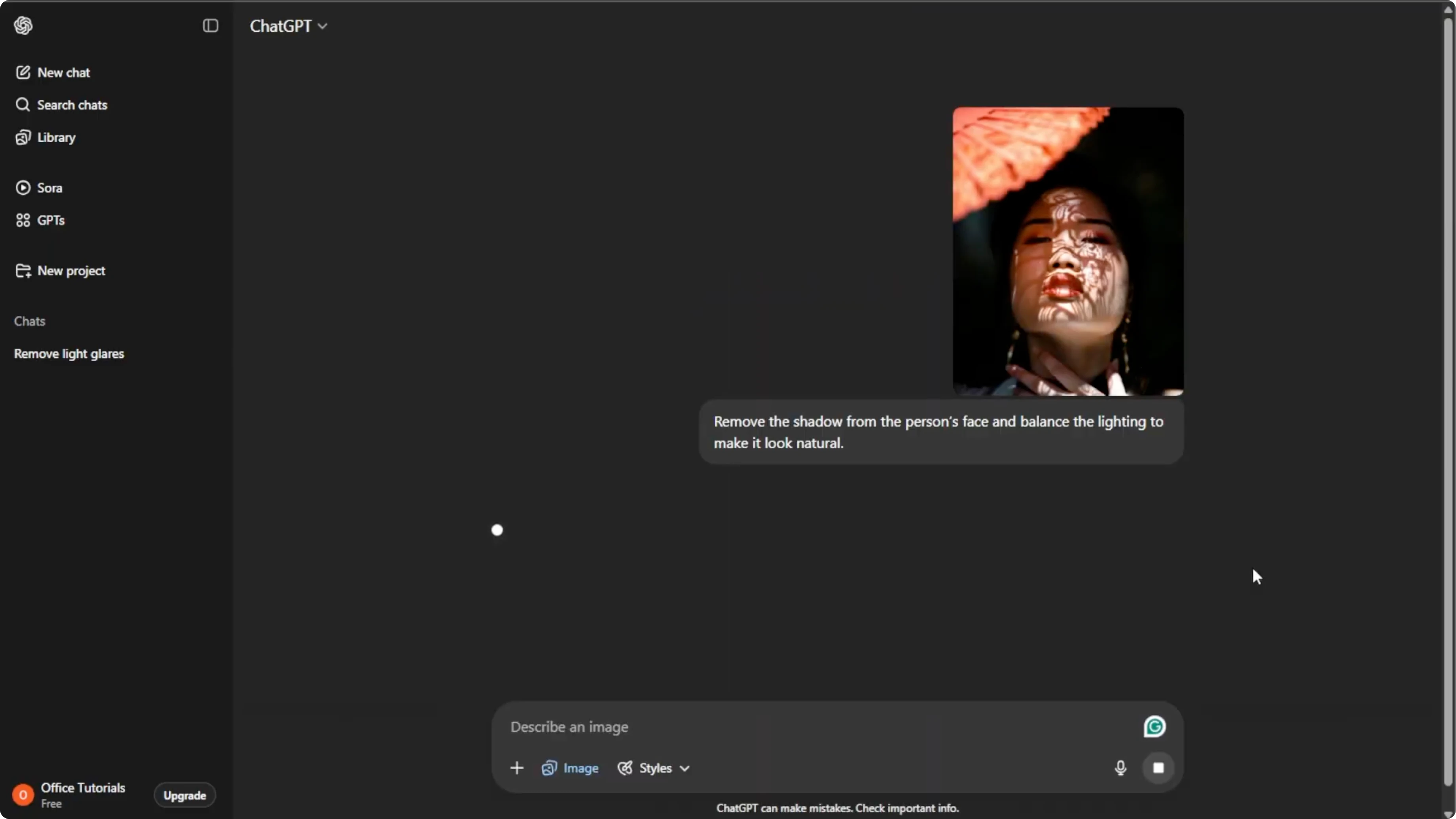
Press Enter to send your prompt.
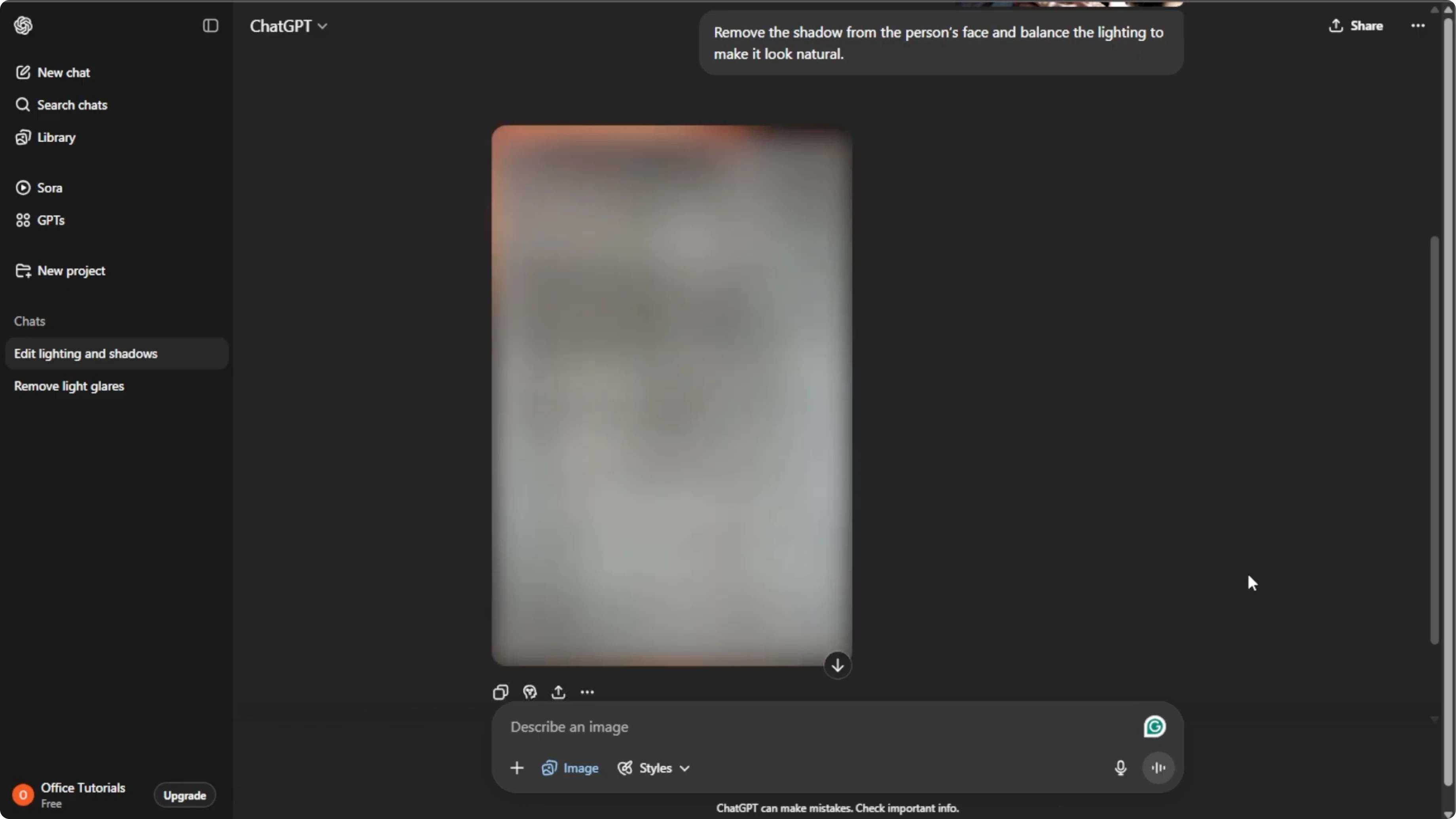
Wait a few moments while the AI processes your request.
A new version of your photo will be generated with shadows reduced or removed.
If you want changes, click the generated image and add a follow‑up instruction.
The AI will create another improved version based on your feedback.
Iterate until skin tones, textures, and edges look natural.
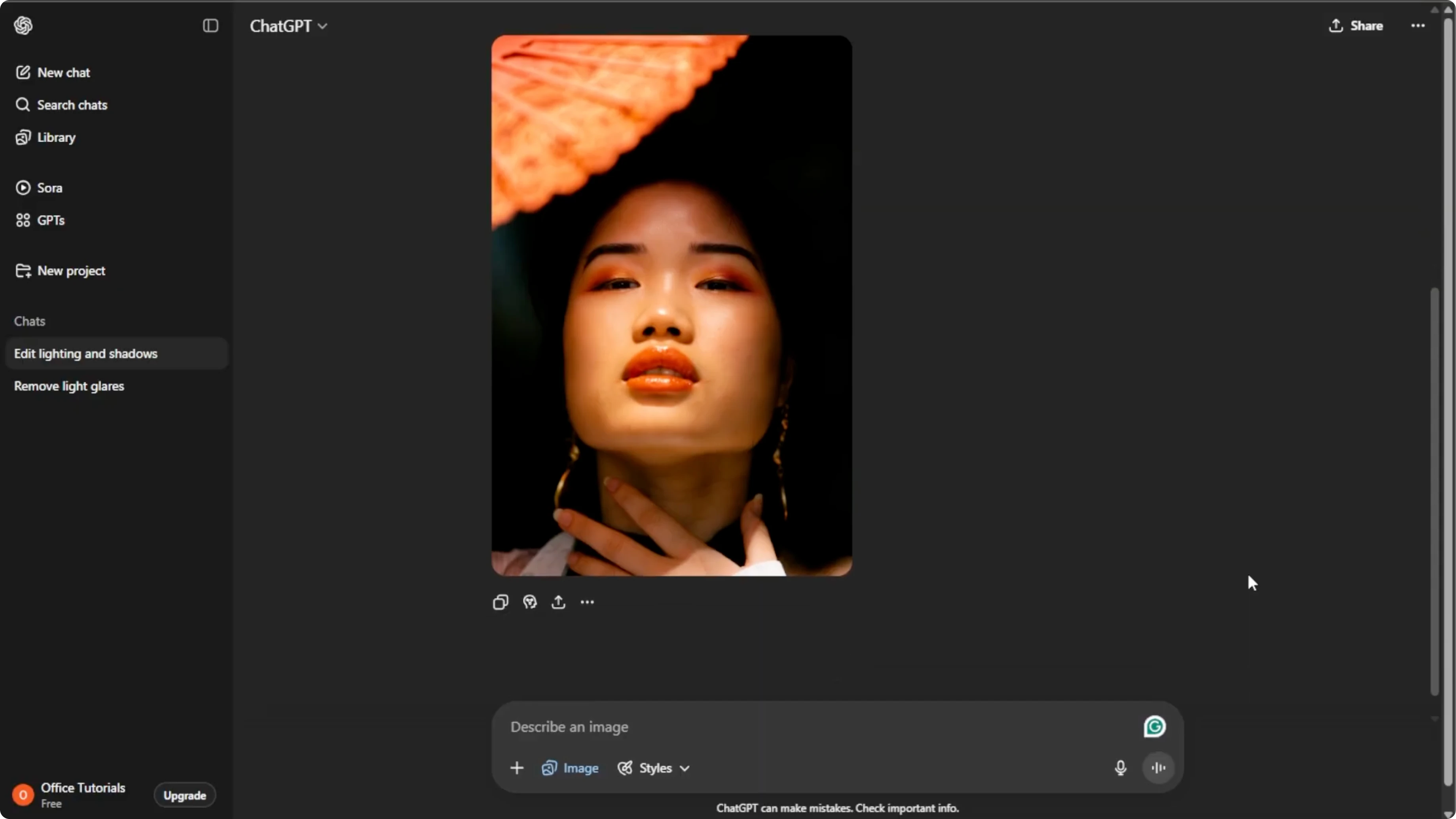
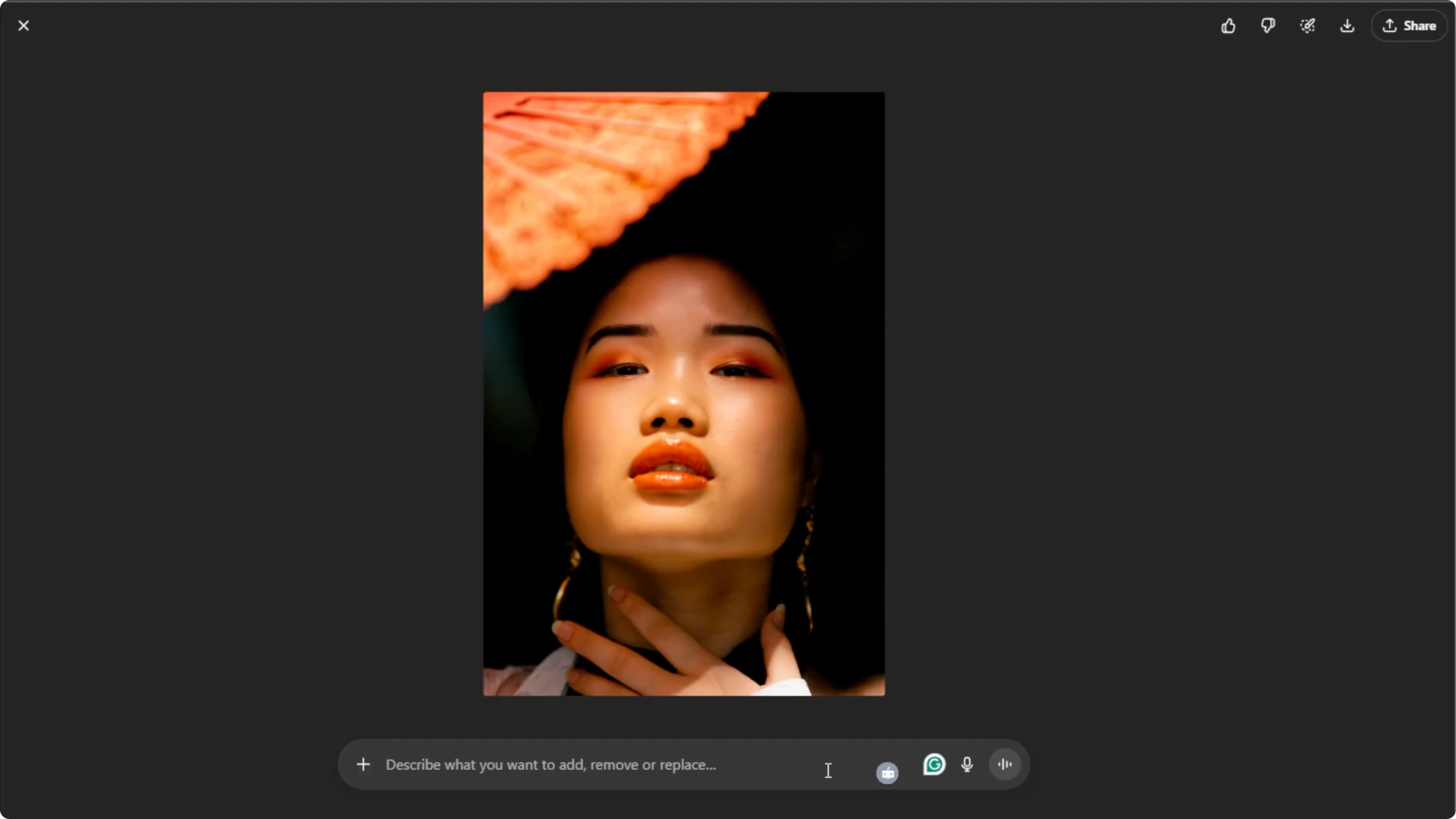
Once you are happy with the result, hover over the image and click the Download button to save it.
You can also click Share to post it directly to your social media.
No advanced editing skills needed.
Final thoughts
Clear instructions make all the difference.
Tell the AI where the shadow is, how much to reduce it, and what details to preserve.
With a few iterations, you can fix distracting shadows in minutes.
Read More: Can You Remove Text From A Video In Canva
Recent Posts

How to Visualize Yourself as a Pixelized Character with AI?
How to Visualize Yourself as a Pixelized Character with AI?

How to Revive Faded Memories and Enhance Image Clarity with AI?
How to Revive Faded Memories and Enhance Image Clarity with AI?

How to Visualize Yourself as an Animal Crossing Character with AI?
How to Visualize Yourself as an Animal Crossing Character with AI?