How to Erase and Clean Up Unwanted Objects from Photos with AI?
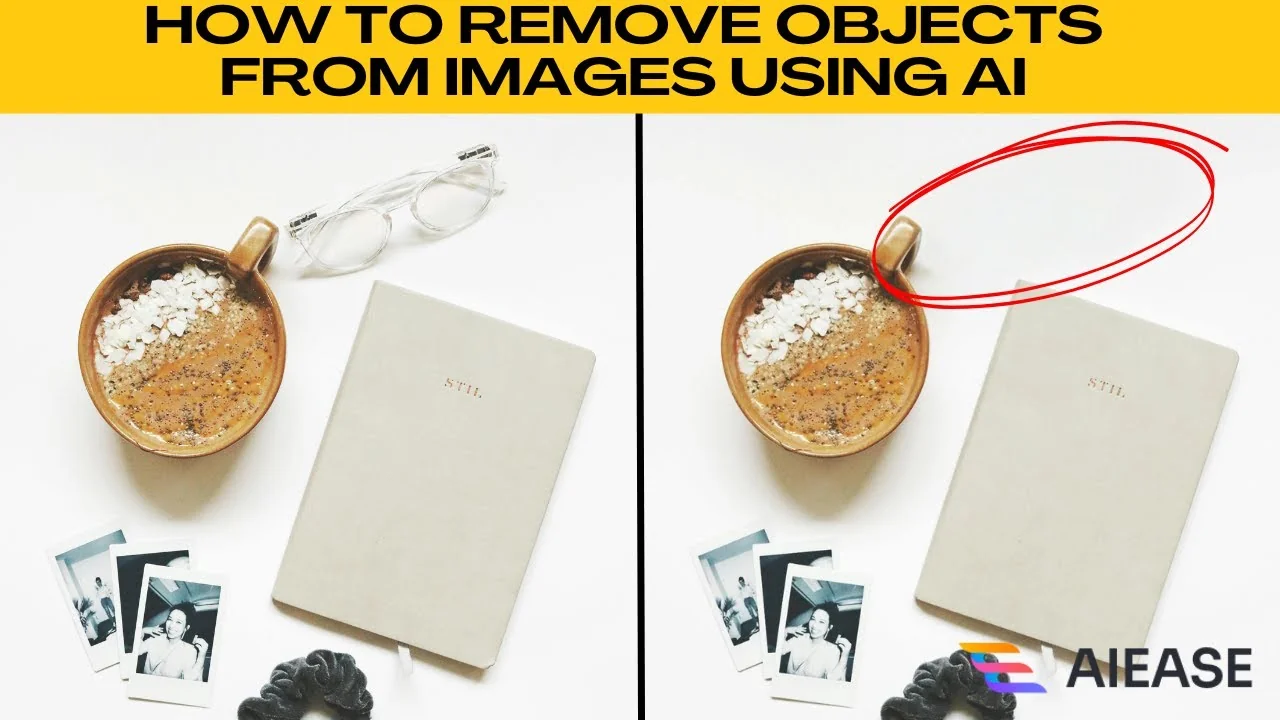
Sometimes a perfect photo just needs a little cleanup. Thanks to AI, you can remove distracting objects from your images in seconds without needing Photoshop or technical skills.

Open your browser and head to the object removal tool. On the page, you can upload your own image or use one of the free sample images available on the site. Supported formats include JPEG, JPG, PNG, BMP, and WEBP.
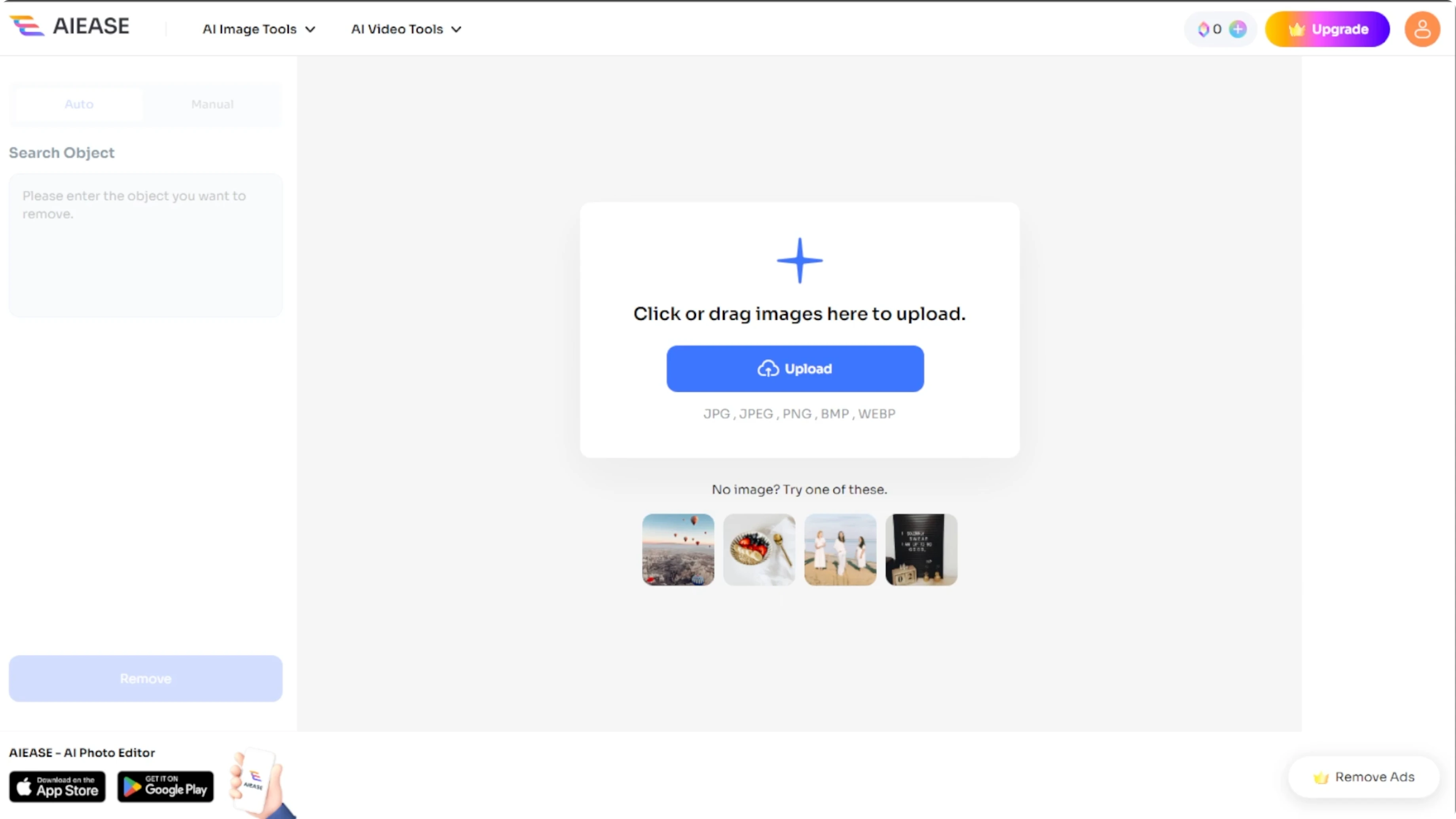
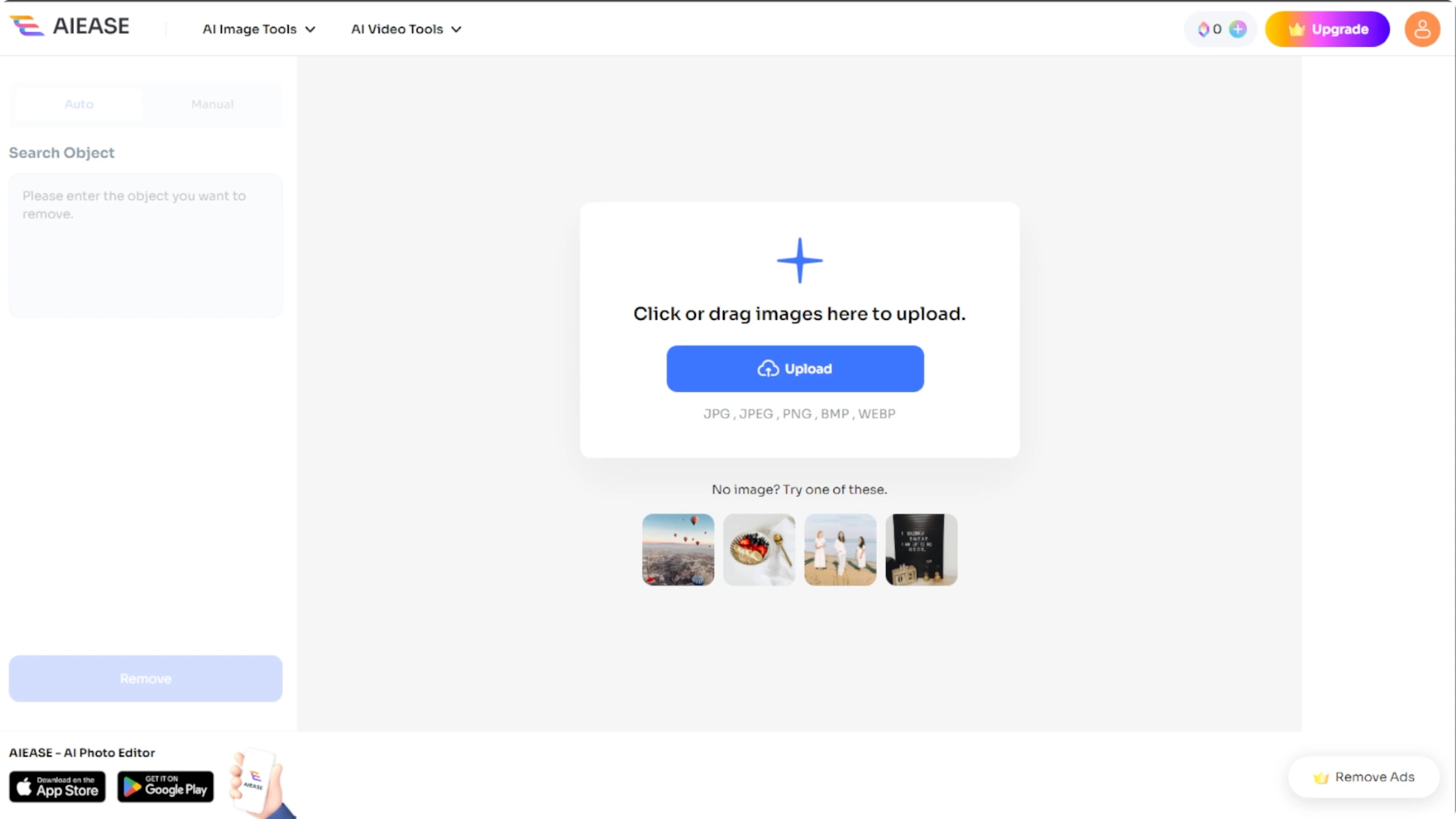
Upload an image
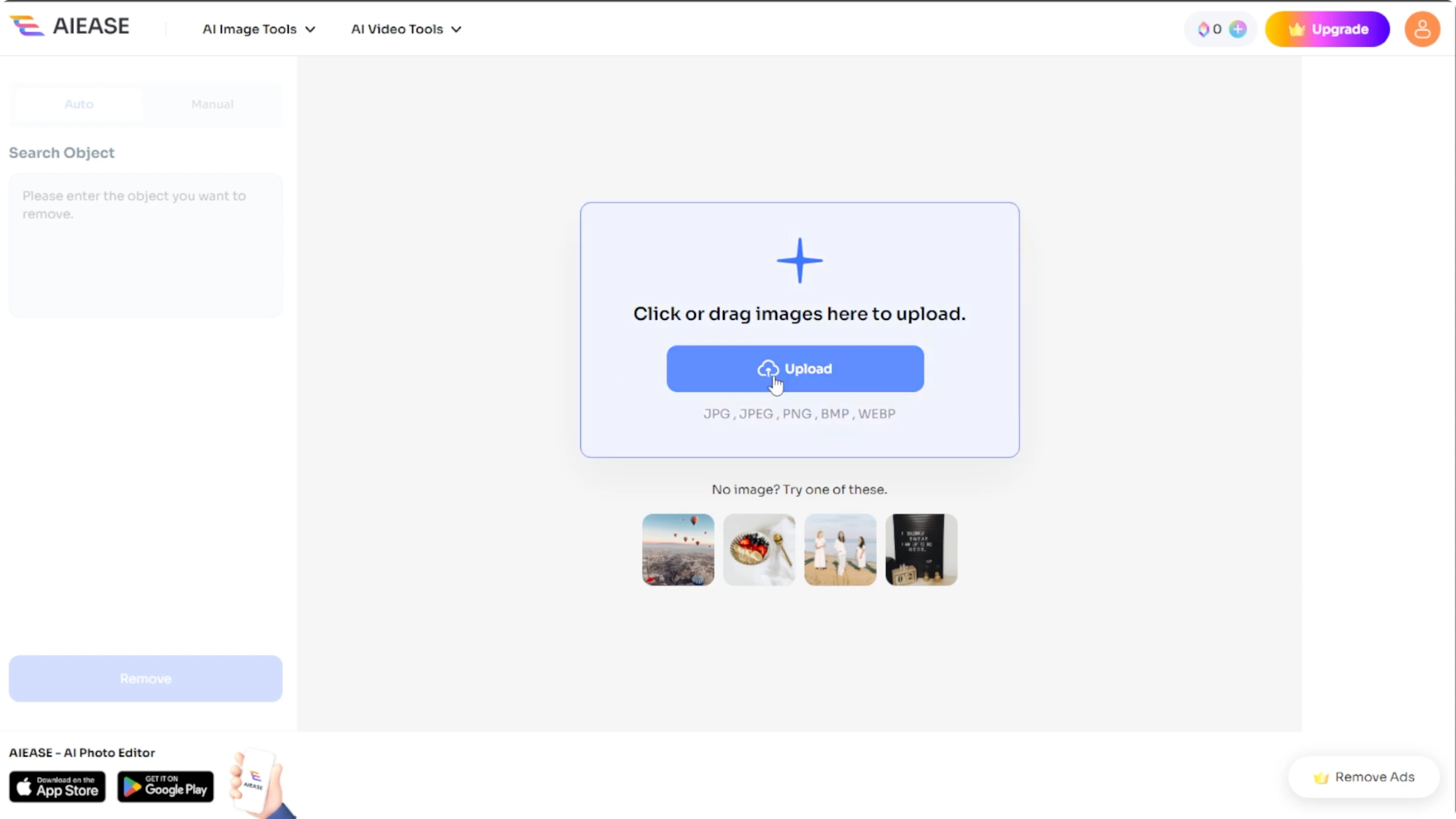
Click the upload button and select your image. Make sure your photo is clear and the object you want to remove is easy to see.
If you also need to clean product shots, check our guide on how to remove logos from product photos.
Choose a removal method
Look at the left panel to choose your removal method.
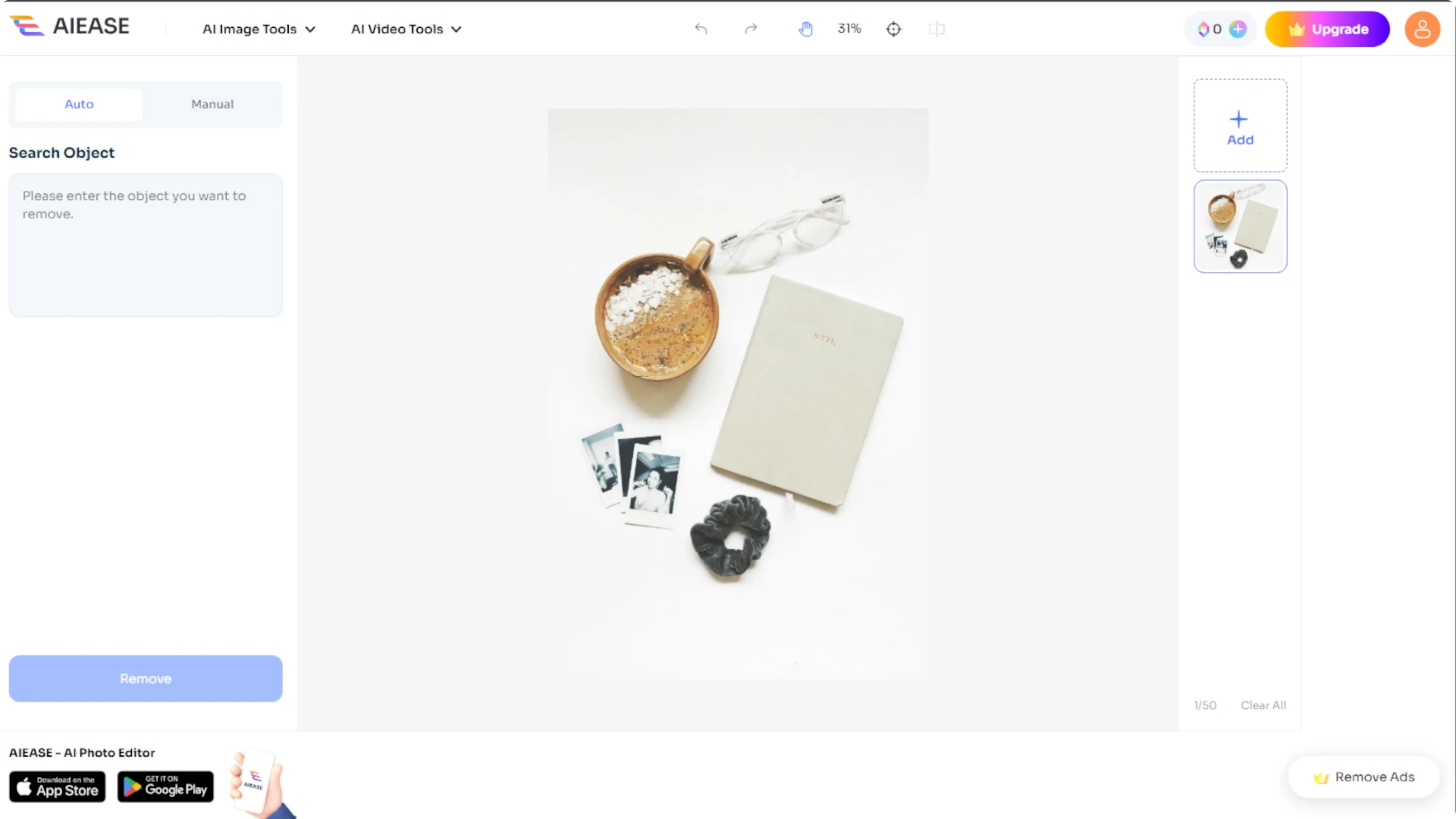
Auto method
Enter the name of the object you want to remove in the search object box. Click Remove and the AI will automatically detect and erase it. This works well for commonly recognized items or well-lit distinct objects.
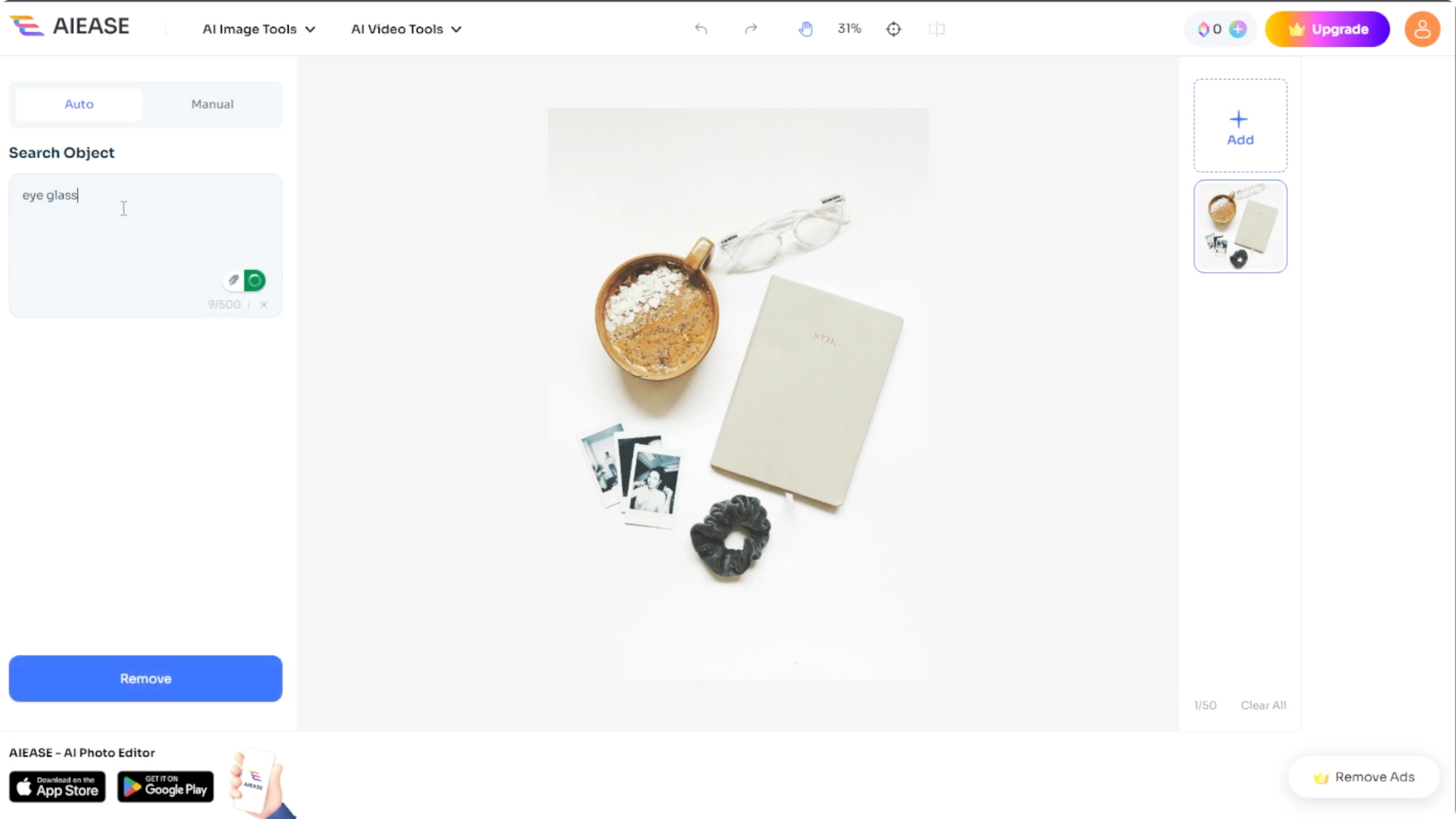
If you want to add elements instead of removing them, see how to add objects to a photo with generative fill.
Manual mode
Switch to Manual if the auto method does not detect the object correctly. You have two tools for selection.
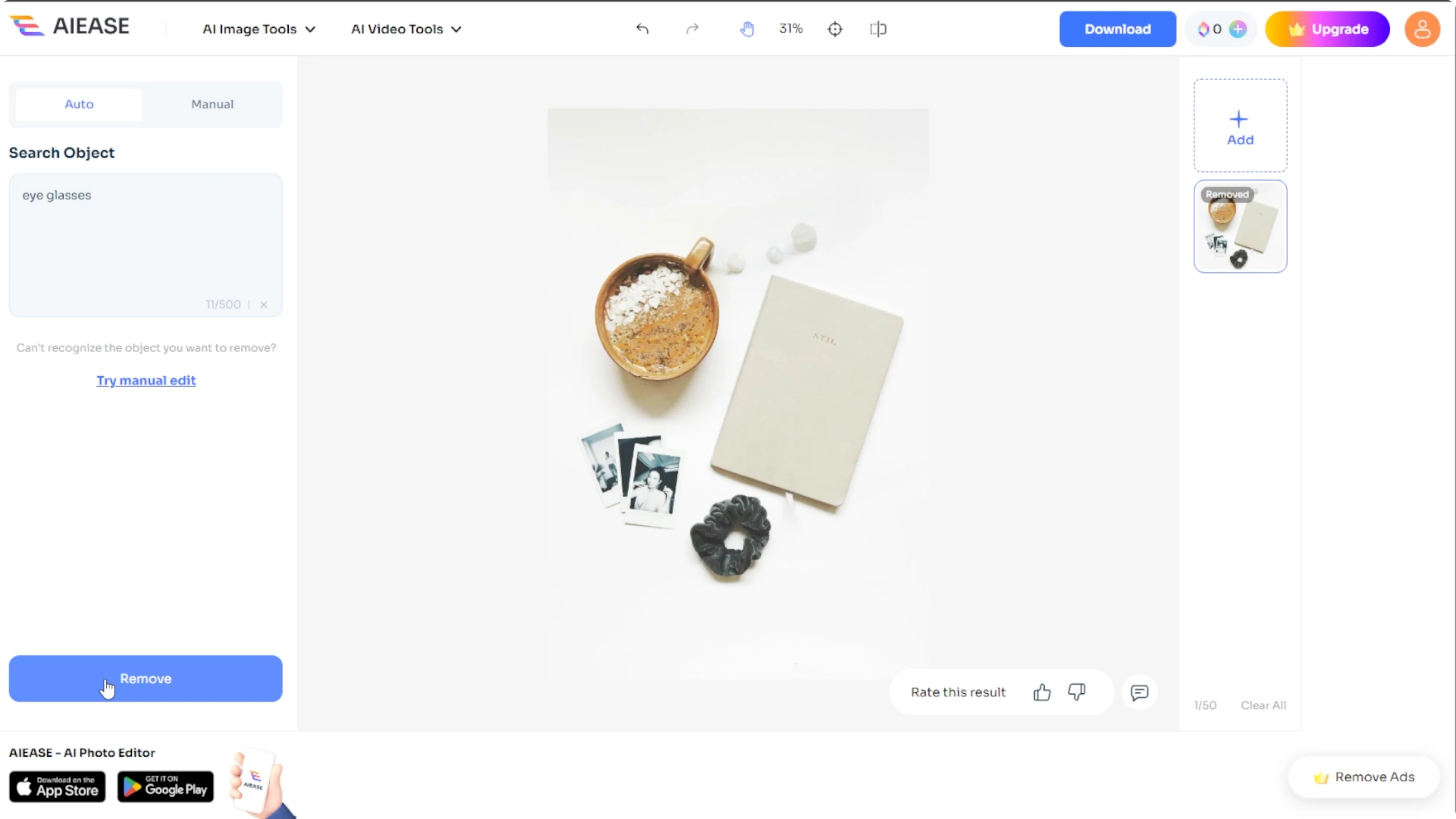
Use the Brush to adjust the size and paint directly over the object for precise selection. Use the Rectangle to click and drag a box around the object.
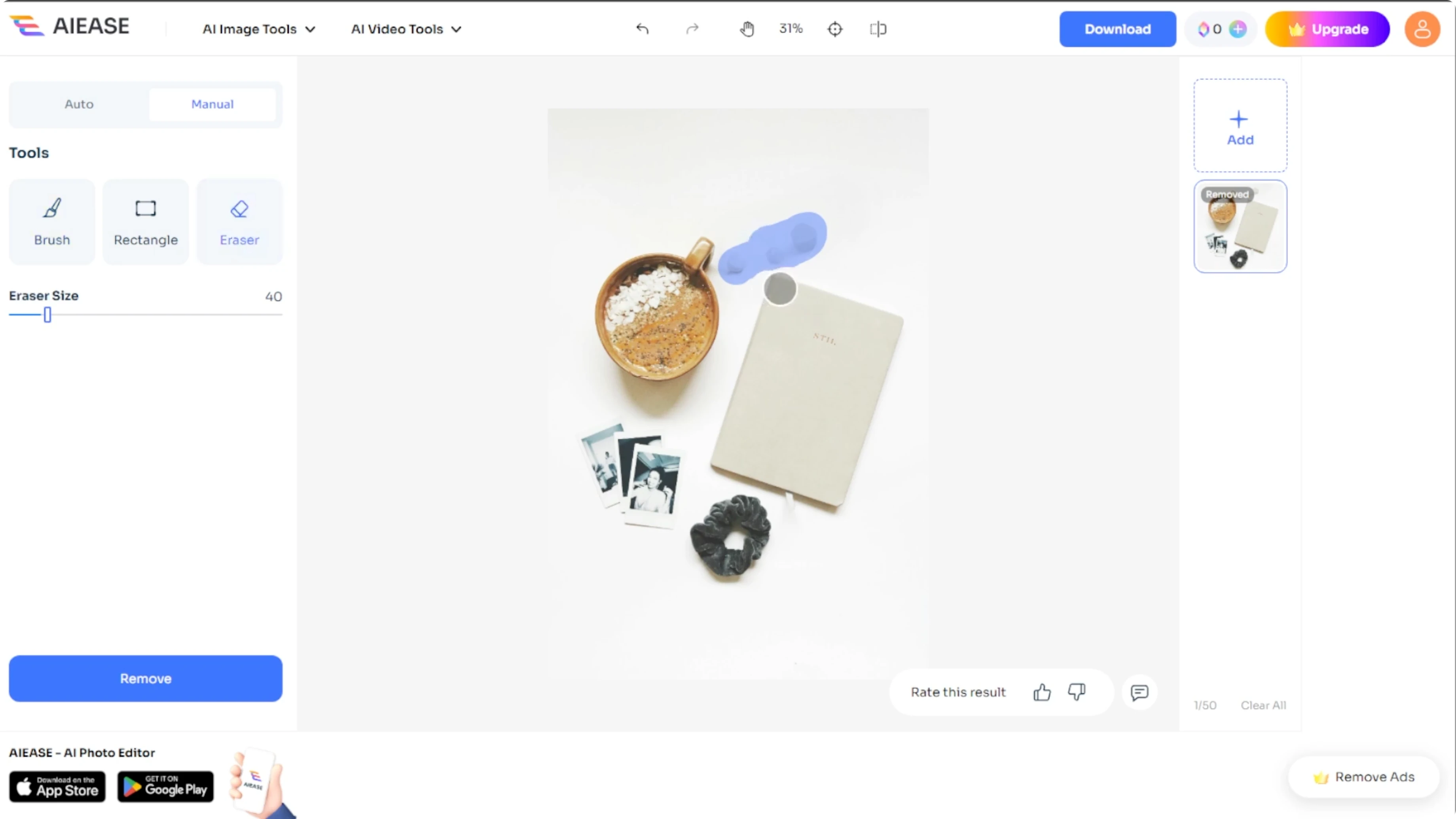
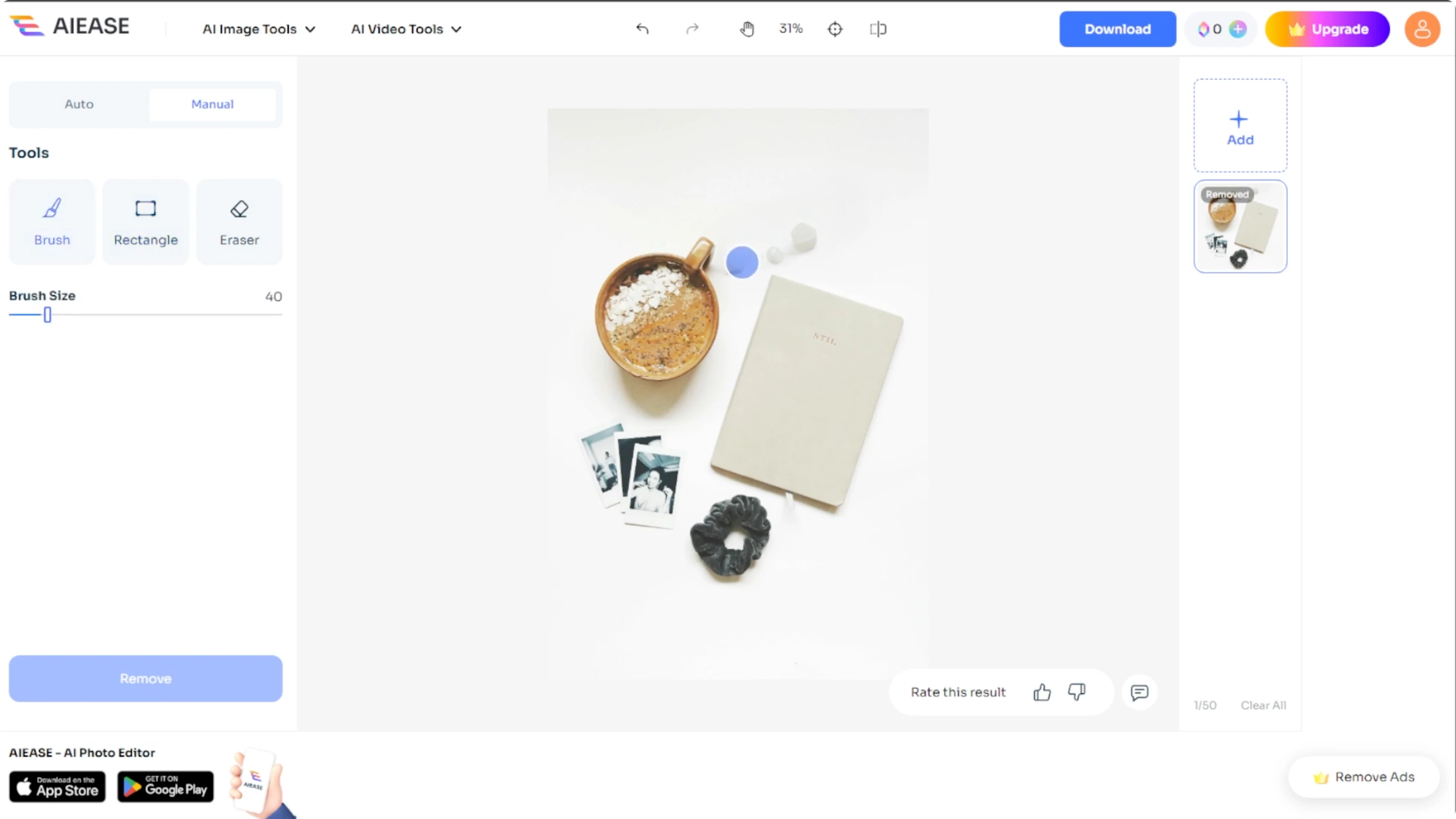
Resize or rotate the box using the corner handles. Use the Eraser to clean up or refine your selection if needed. Once your area is marked, click Remove and let the AI take care of the rest.
Save your result
When you are happy with the result, click Download to save the image to your computer. No advanced editing knowledge is required.
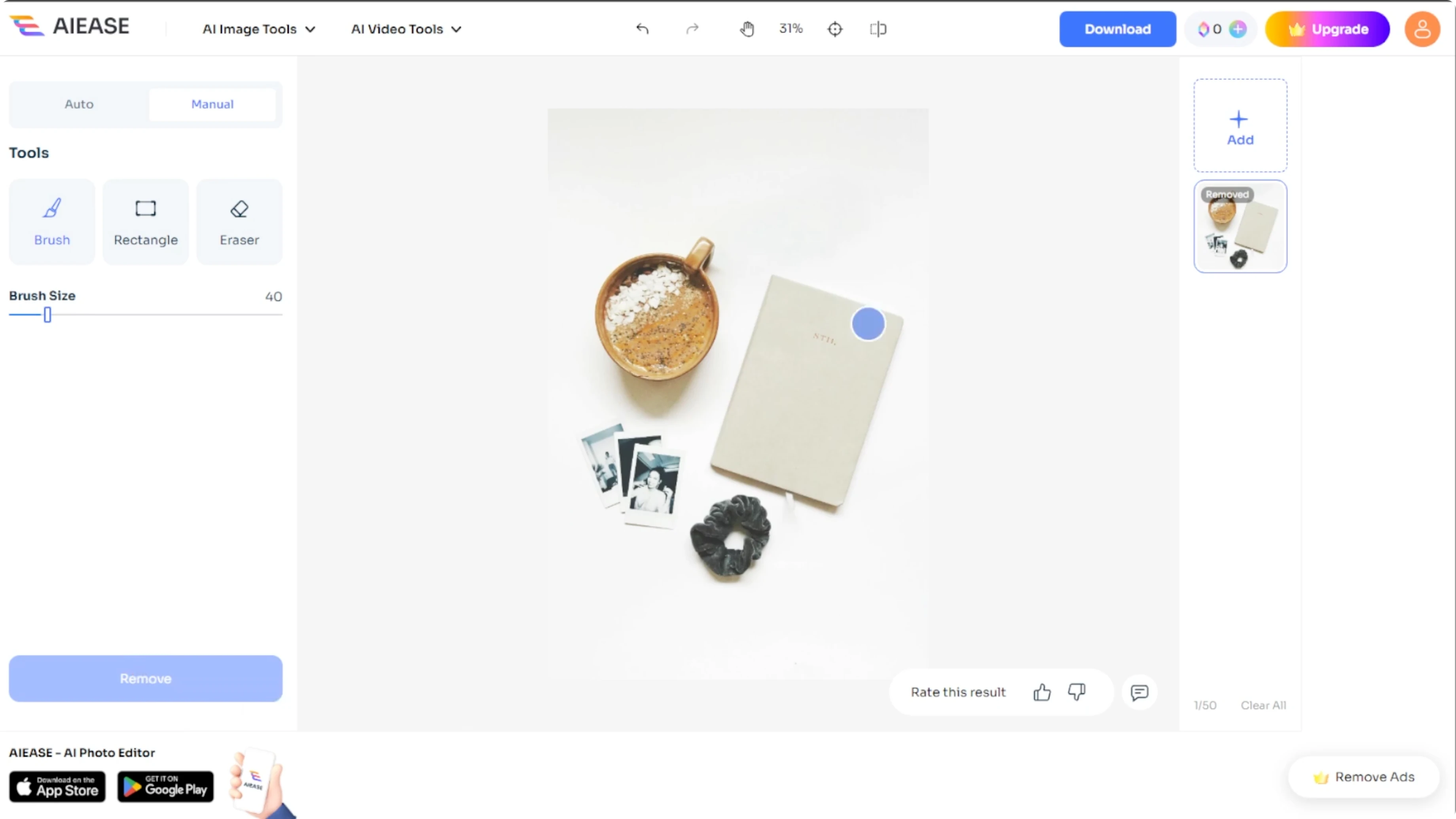
It works for preparing content for social media or fixing a vacation shot. This tool gives fast, clean, and satisfying results.
For a creative twist, you can animate a face from a photo.
Final thoughts
Upload your image, pick auto or manual selection, and remove distractions in seconds. Choose auto for common objects and use manual tools for precision. Download when satisfied and share a cleaner photo.
Recent Posts

How to Visualize Yourself as a Pixelized Character with AI?
How to Visualize Yourself as a Pixelized Character with AI?

How to Revive Faded Memories and Enhance Image Clarity with AI?
How to Revive Faded Memories and Enhance Image Clarity with AI?

How to Visualize Yourself as an Animal Crossing Character with AI?
How to Visualize Yourself as an Animal Crossing Character with AI?