How to Clean and Erase Logos from Your Images with AI?
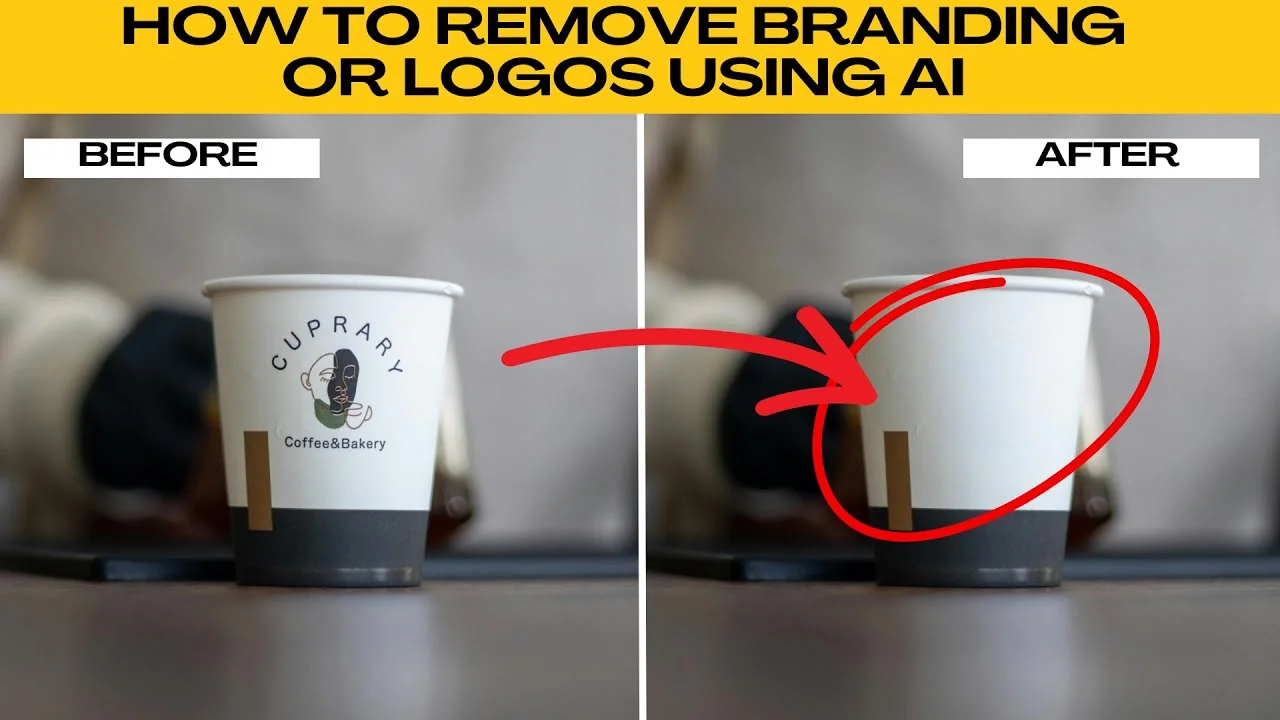
I will teach you how to remove branding or logos from a product using AI.
First, visit Photo AI photo editor. Upload your product image or choose a sample image to test the effect. If you need a quick mockup to test, see how to create AI images in Canva.
Get started
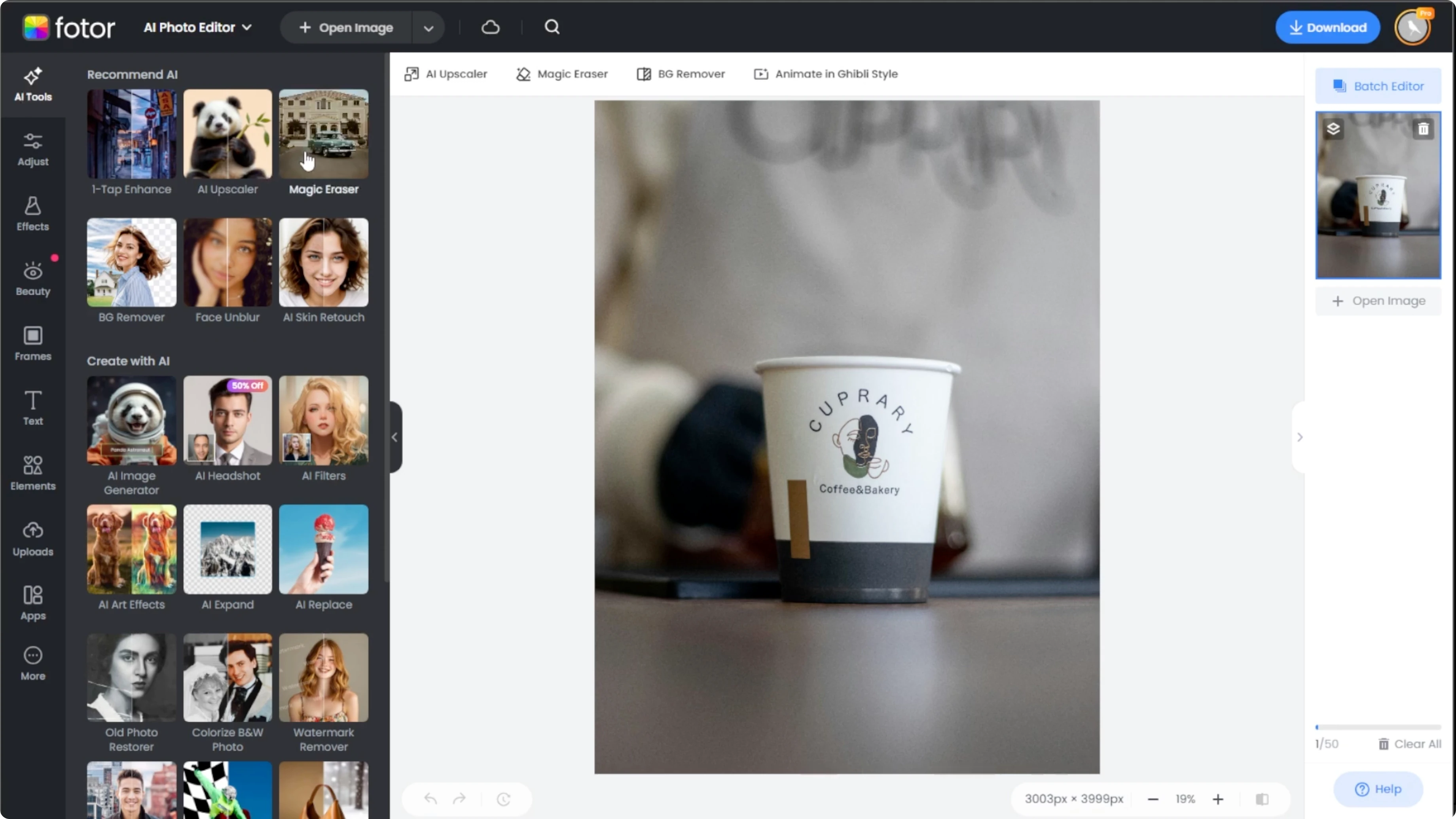
Open the Magic Eraser.
Go to the left panel, open the AI Tools tab, and select Magic Eraser.
Choose settings
In the Magic Eraser panel, choose between two AI models, the Legacy model or the New model.
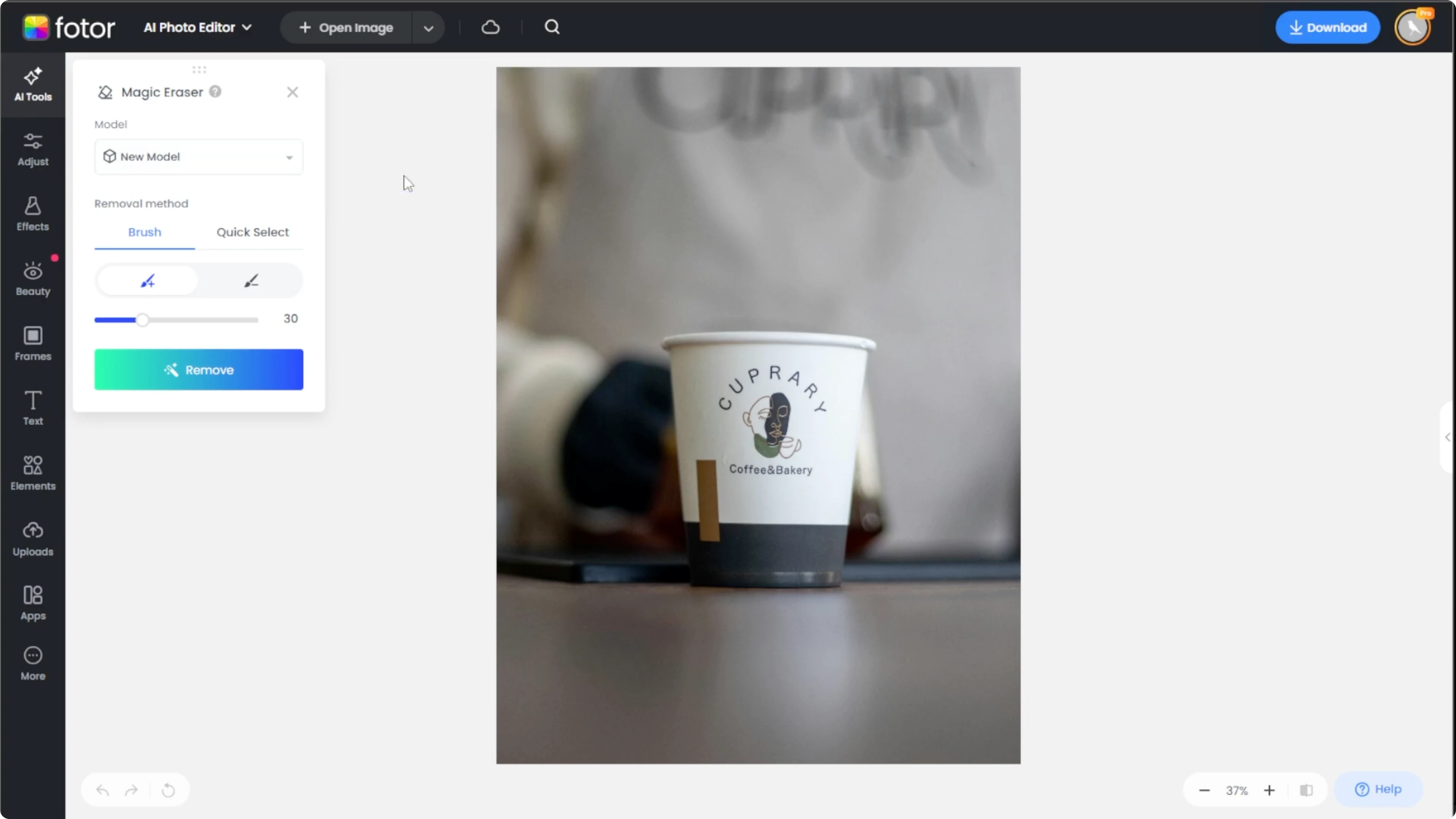
Choose a removal method, either Brush mode for manual painting or Quick select for AI detection.
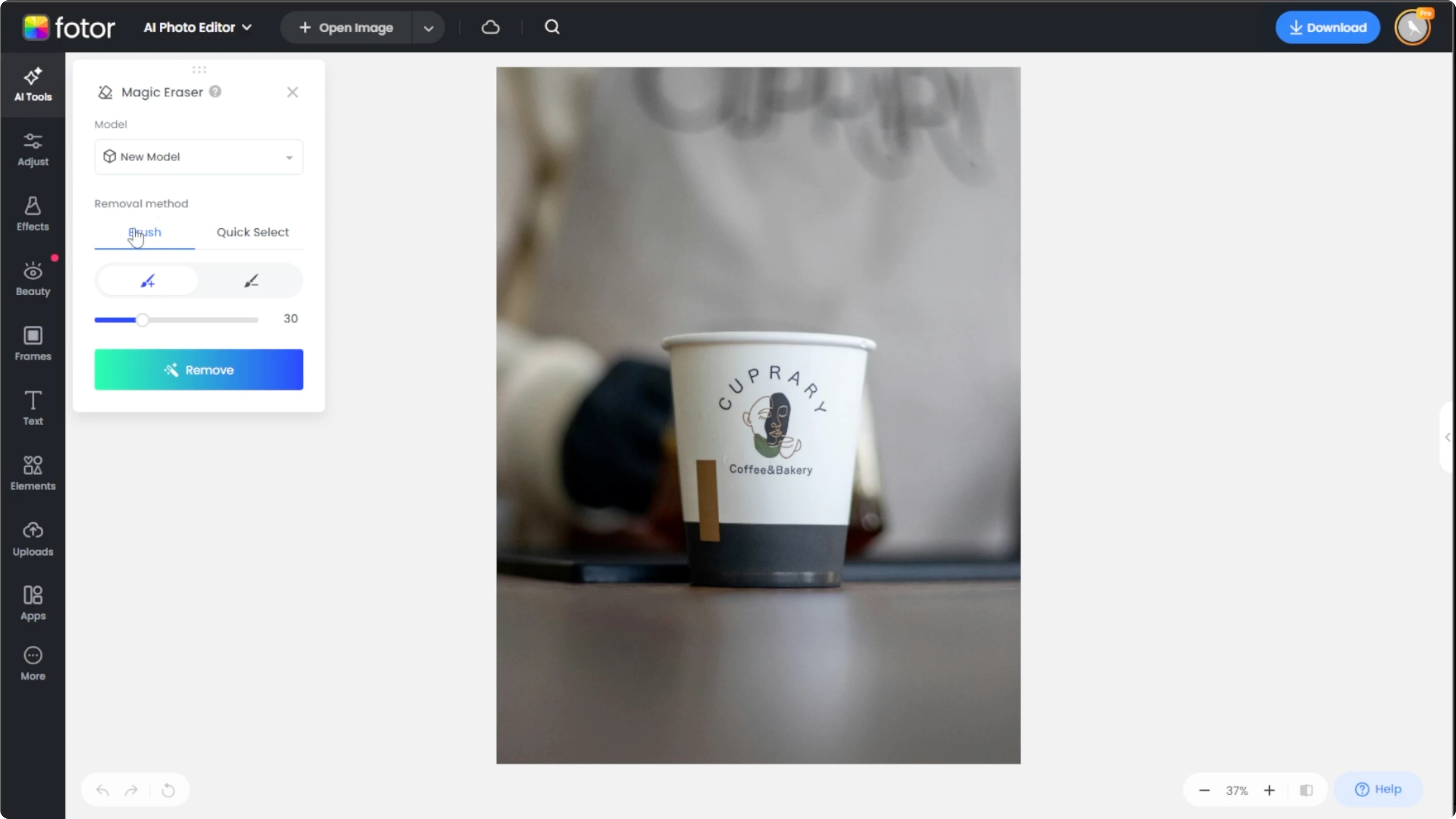
Brush mode
Adjust the Brush size with the slider.
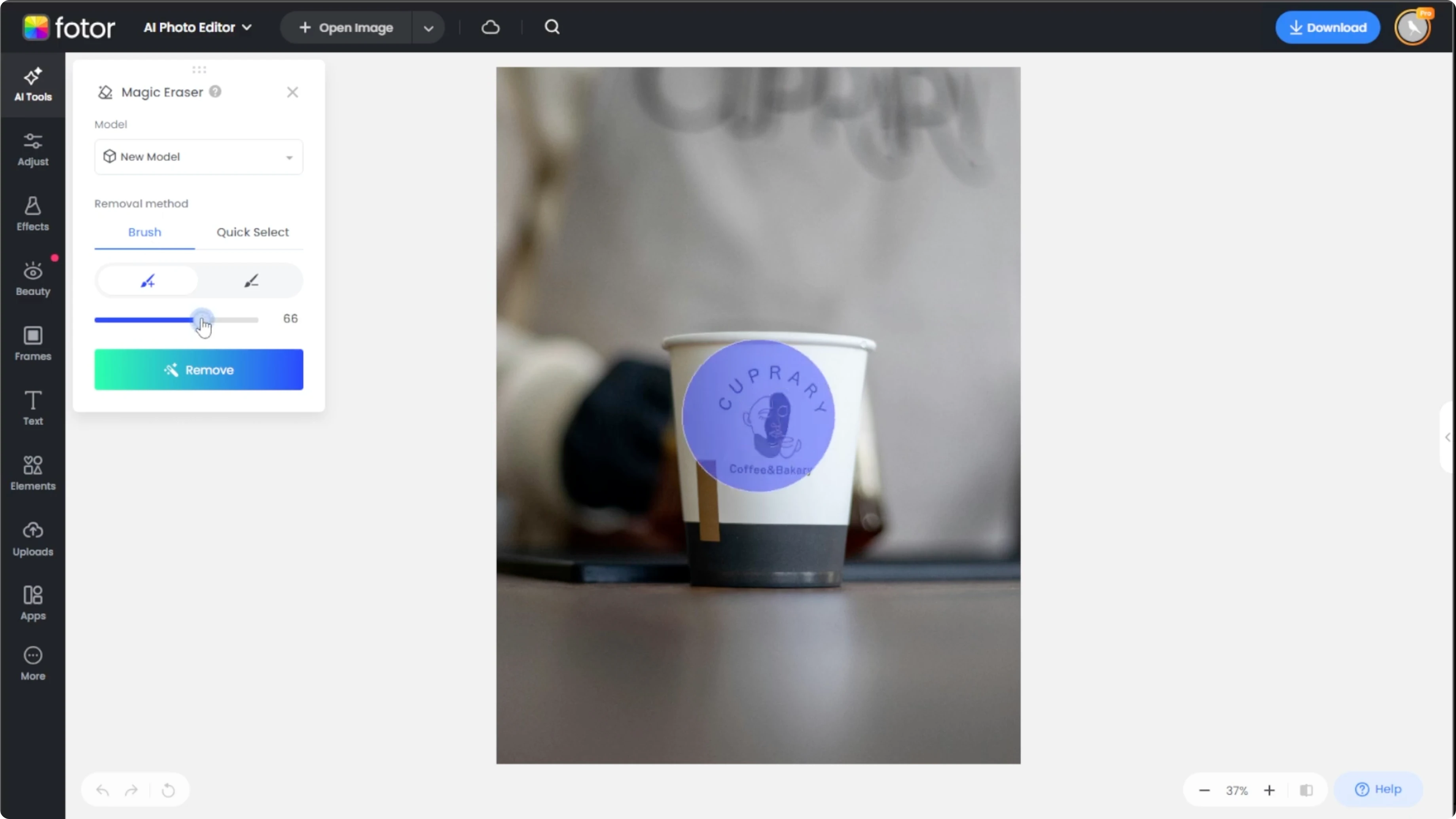
Use Add to highlight the logo area.
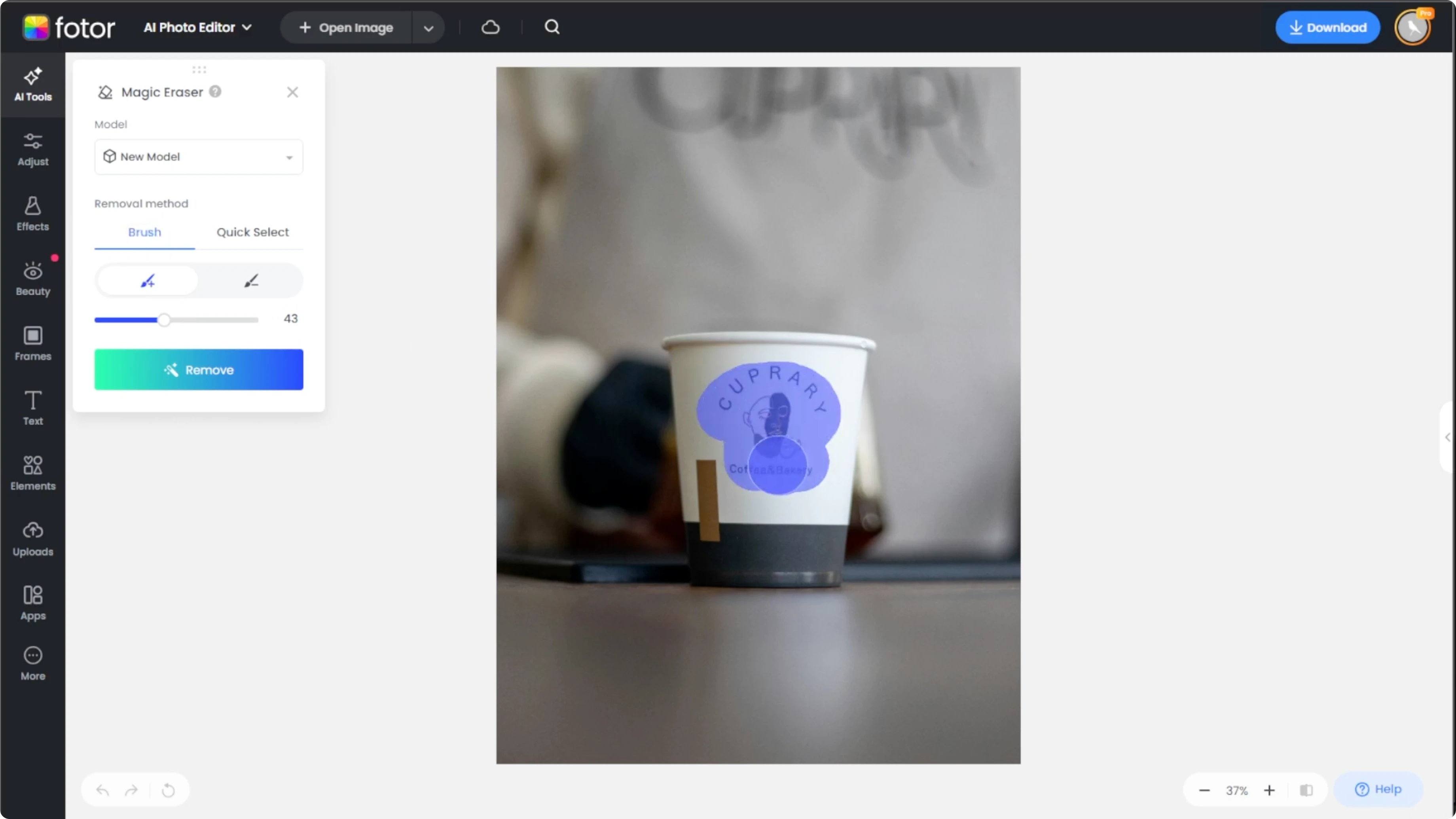
Use Deselect to refine the selection if needed.
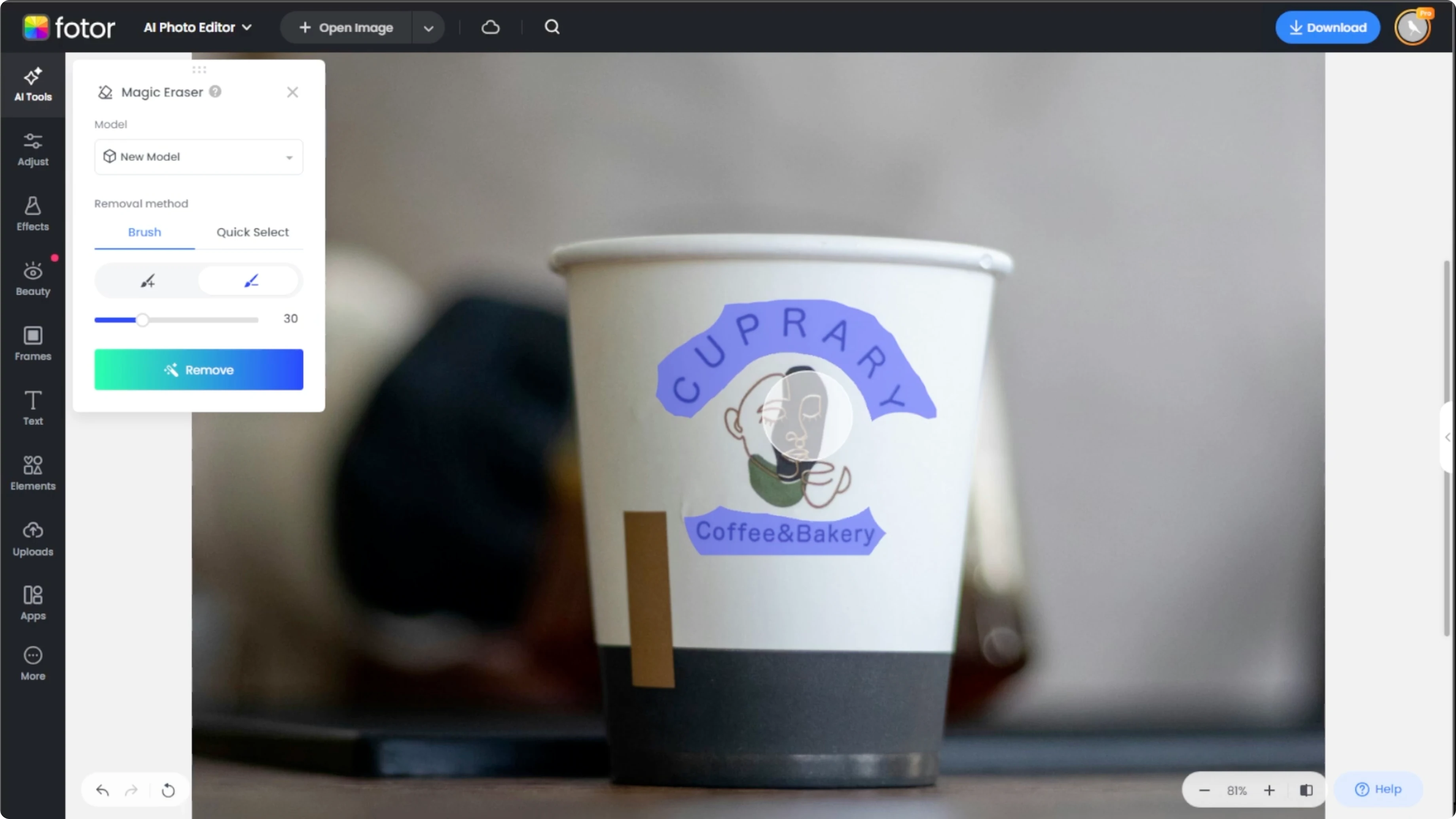
Use the Zoom tool at the bottom right for better accuracy.
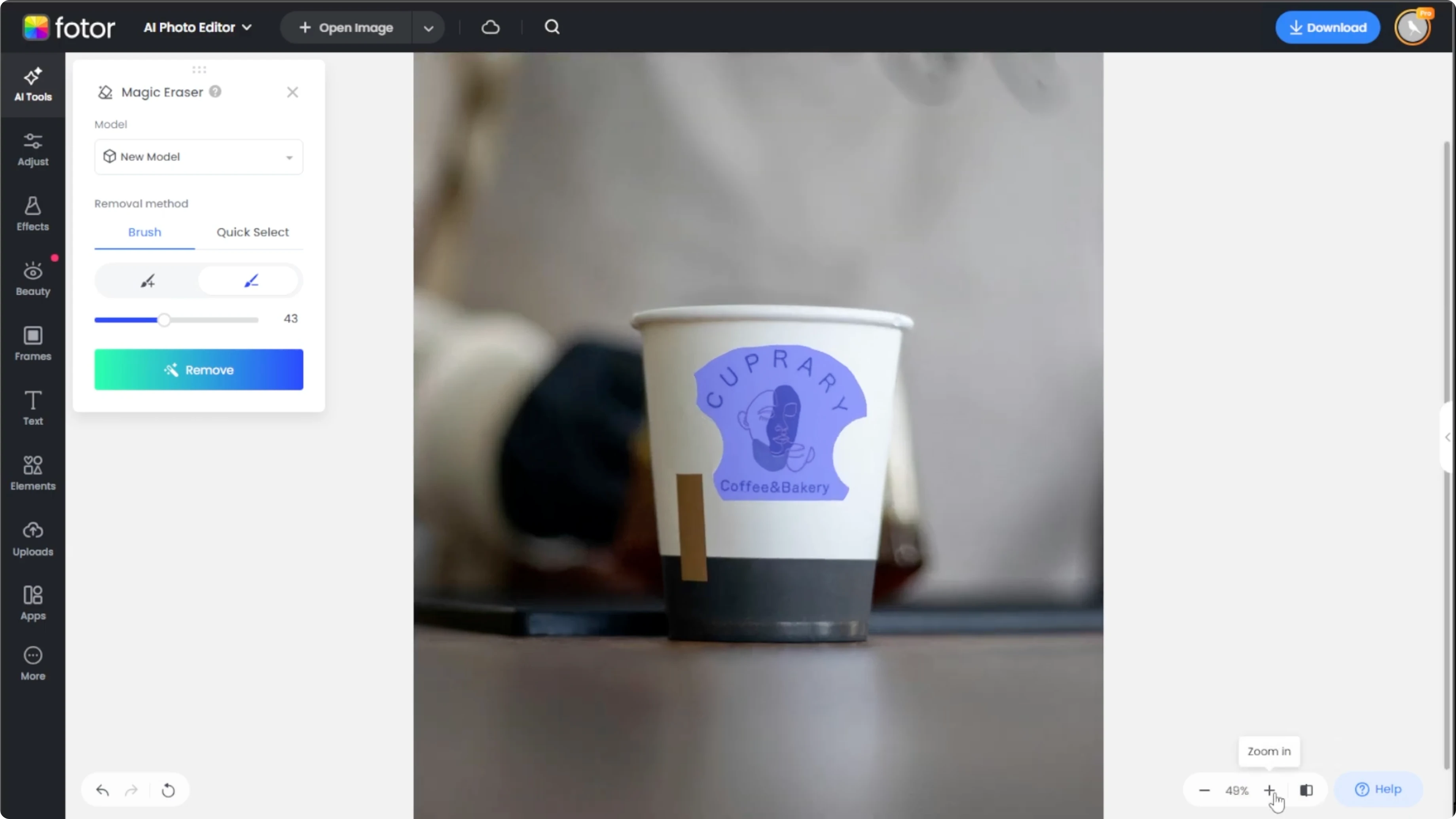
Click Remove once your selection is ready.
Read More: Blend Two Images Canva Ai
Quick select
Let AI auto detect shapes and objects.
Click on the logo area to select it.
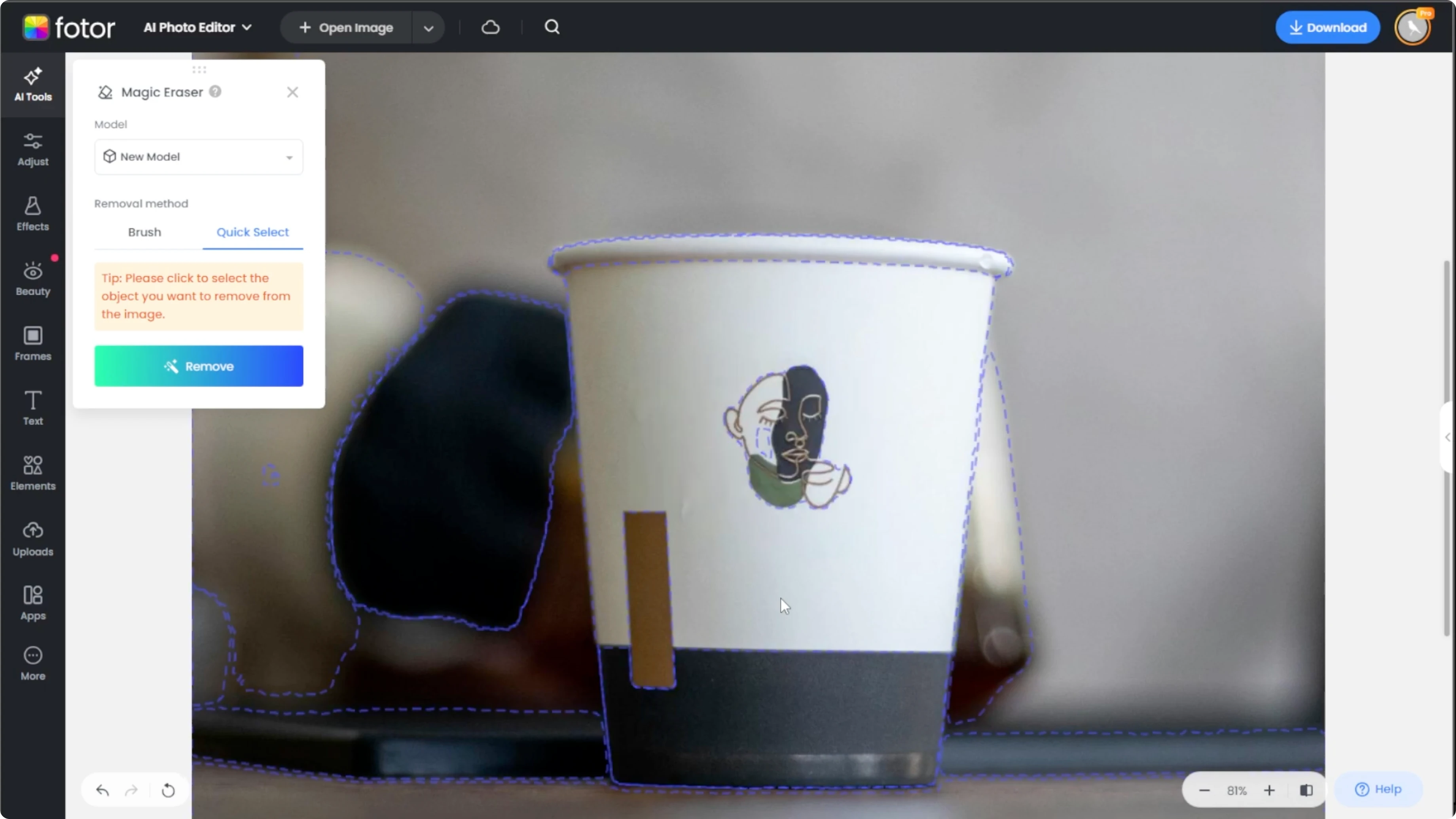
Click Remove.
Review and export
Click the Compare button at the bottom right to view the before and after.
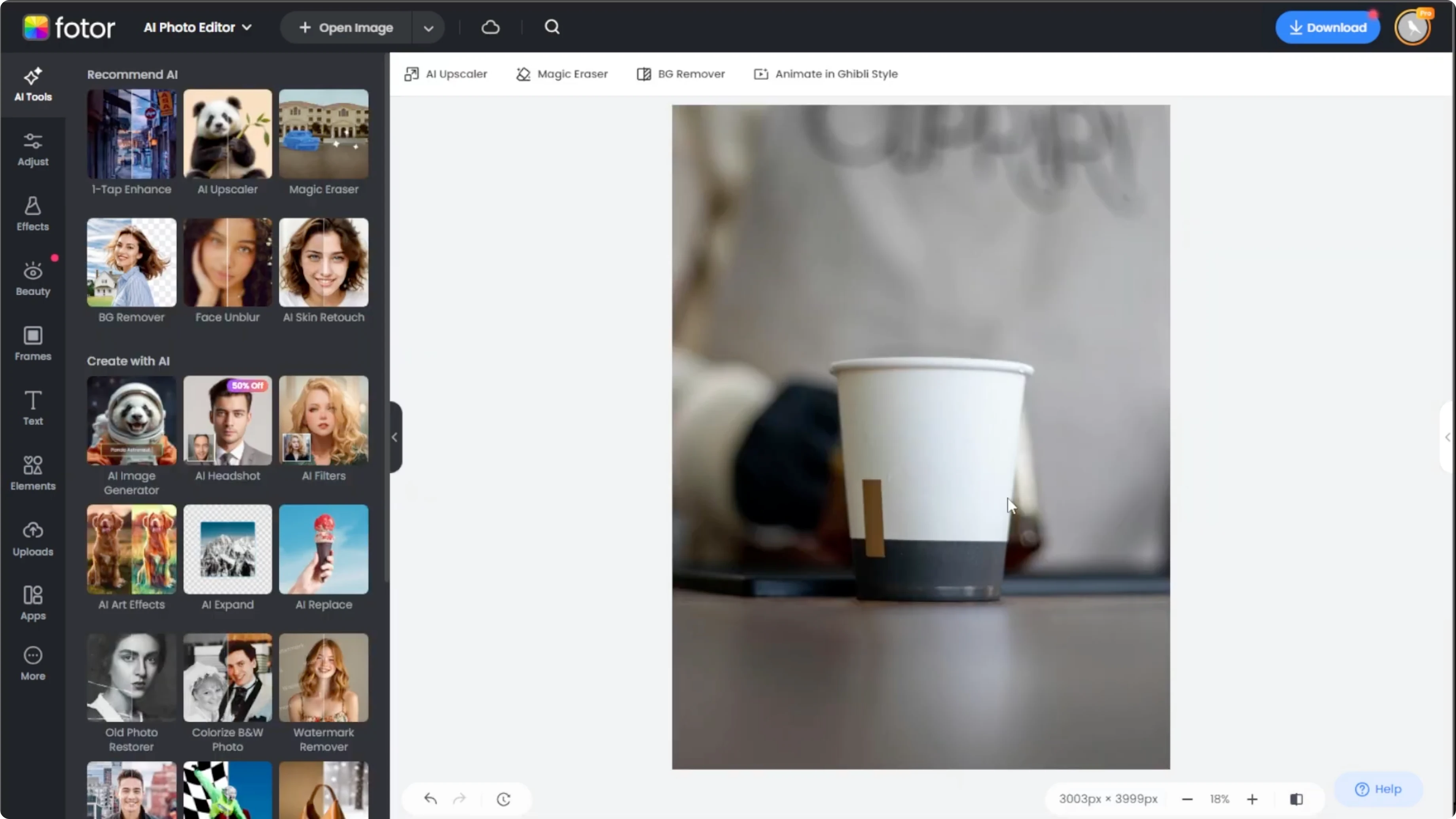
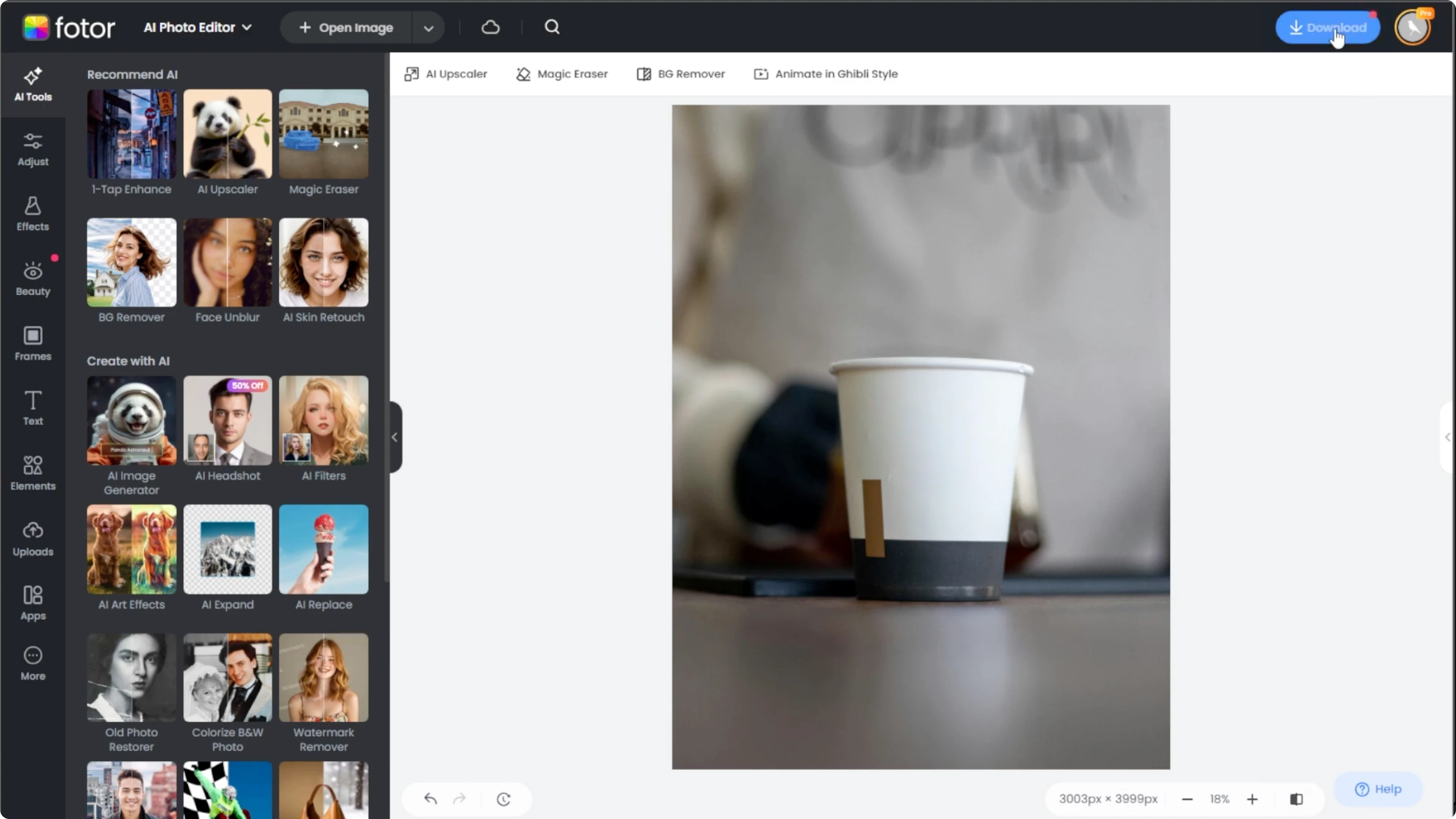
When you are happy with the result, click Download to save your clean image.
Tips
For best results, zoom in before selecting small or detailed logos.
Try both AI models, as results can vary depending on the image.
Read More: How To Animate Face From Photo Using Ai
Final thoughts
Removing branding or logos from product photos is straightforward with Magic Eraser.
Use Brush mode for precision and Quick select for speed, then review with Compare before exporting.
Recent Posts

How to Visualize Yourself as a Pixelized Character with AI?
How to Visualize Yourself as a Pixelized Character with AI?

How to Revive Faded Memories and Enhance Image Clarity with AI?
How to Revive Faded Memories and Enhance Image Clarity with AI?

How to Visualize Yourself as an Animal Crossing Character with AI?
How to Visualize Yourself as an Animal Crossing Character with AI?