How to Turn Your Photos into Professional Magazine Covers with AI?
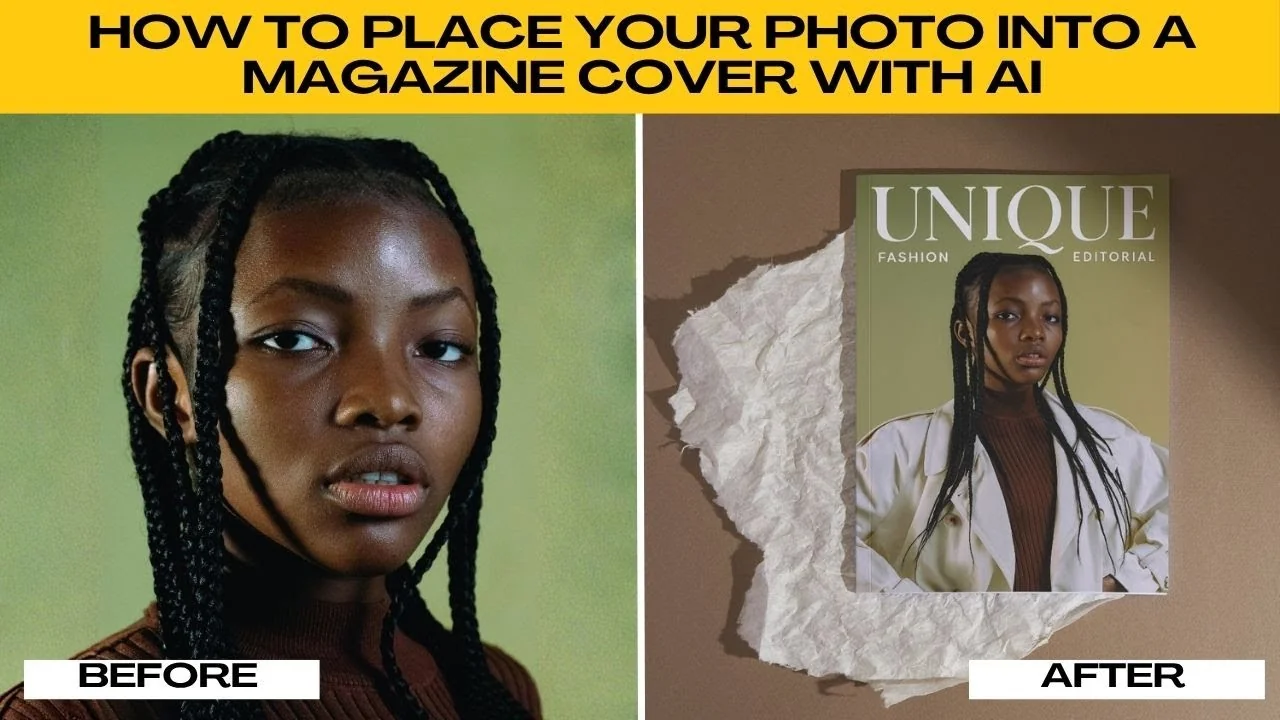
You don't need Photoshop skills or an expensive design program to be on the cover of a glossy fashion or lifestyle magazine. You can instantly transform your photo into a stylish magazine cover. This tutorial will guide you step by step.
You might want a fun mockup for social media, a professional looking portfolio piece, or to see yourself as the next cover star. Follow the steps below to create your cover quickly with ChatGPT. For more creative edits, check out our AI hairstyle editing tutorial.
Get started
Open your browser. Go to ChatGPT. Log in with your free account.
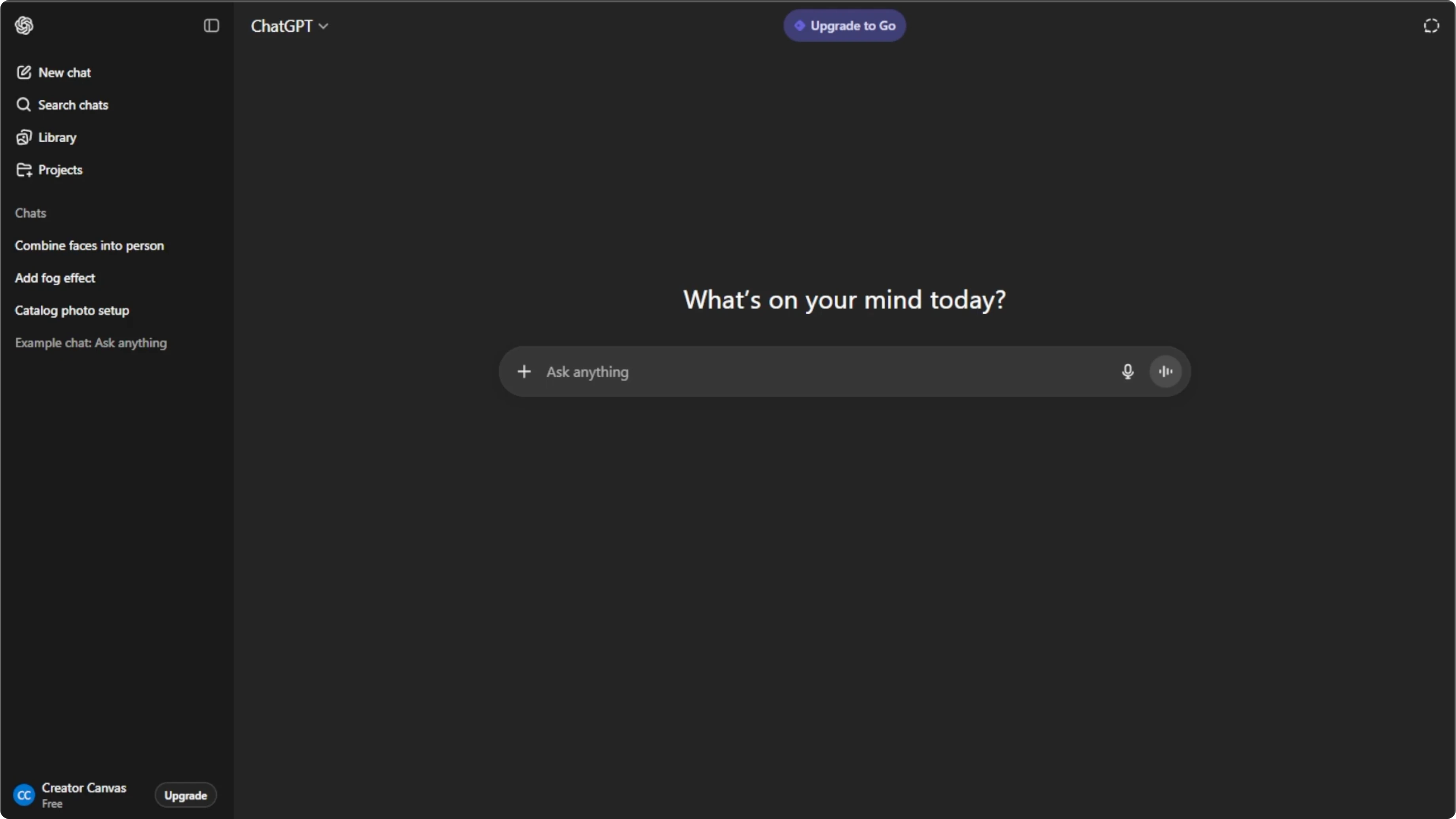
In the prompt box, click the plus icon. Select Create image to enable AI image creation. Click the plus icon again.
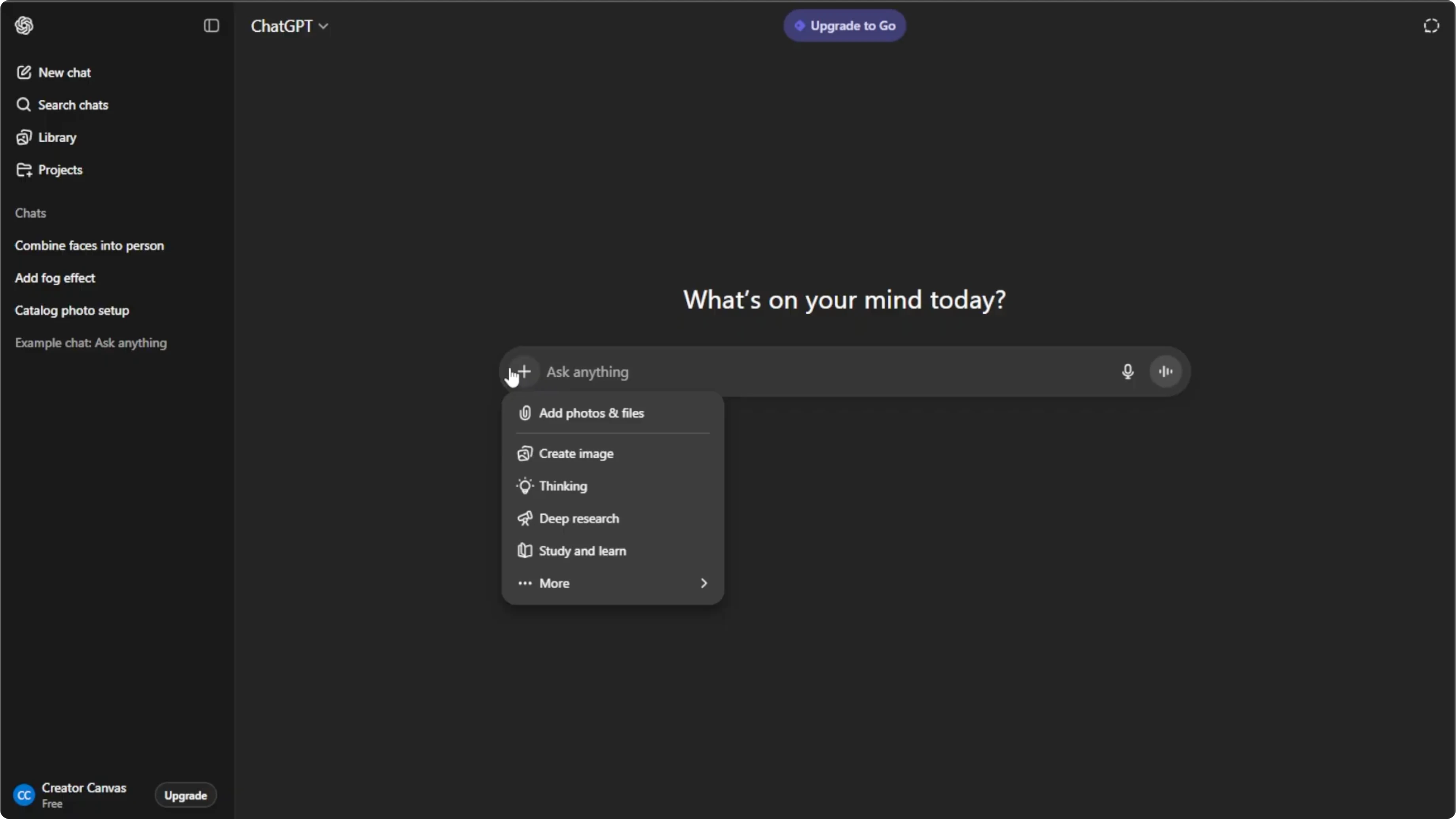
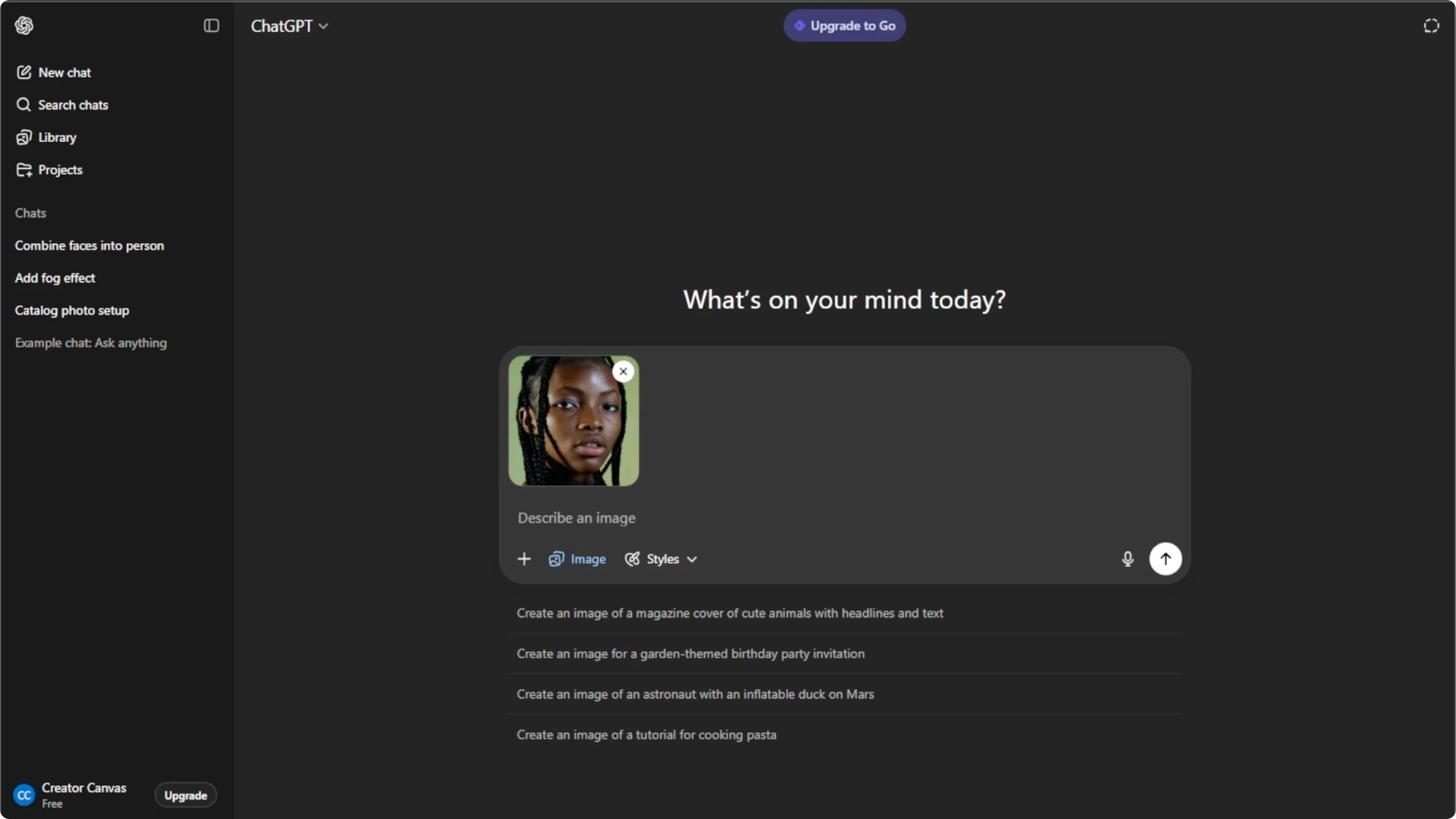
Choose Add photos or files, or press Ctrl U. Select the photo that you want to place on a magazine cover. Use a clear front-facing photo with good lighting.
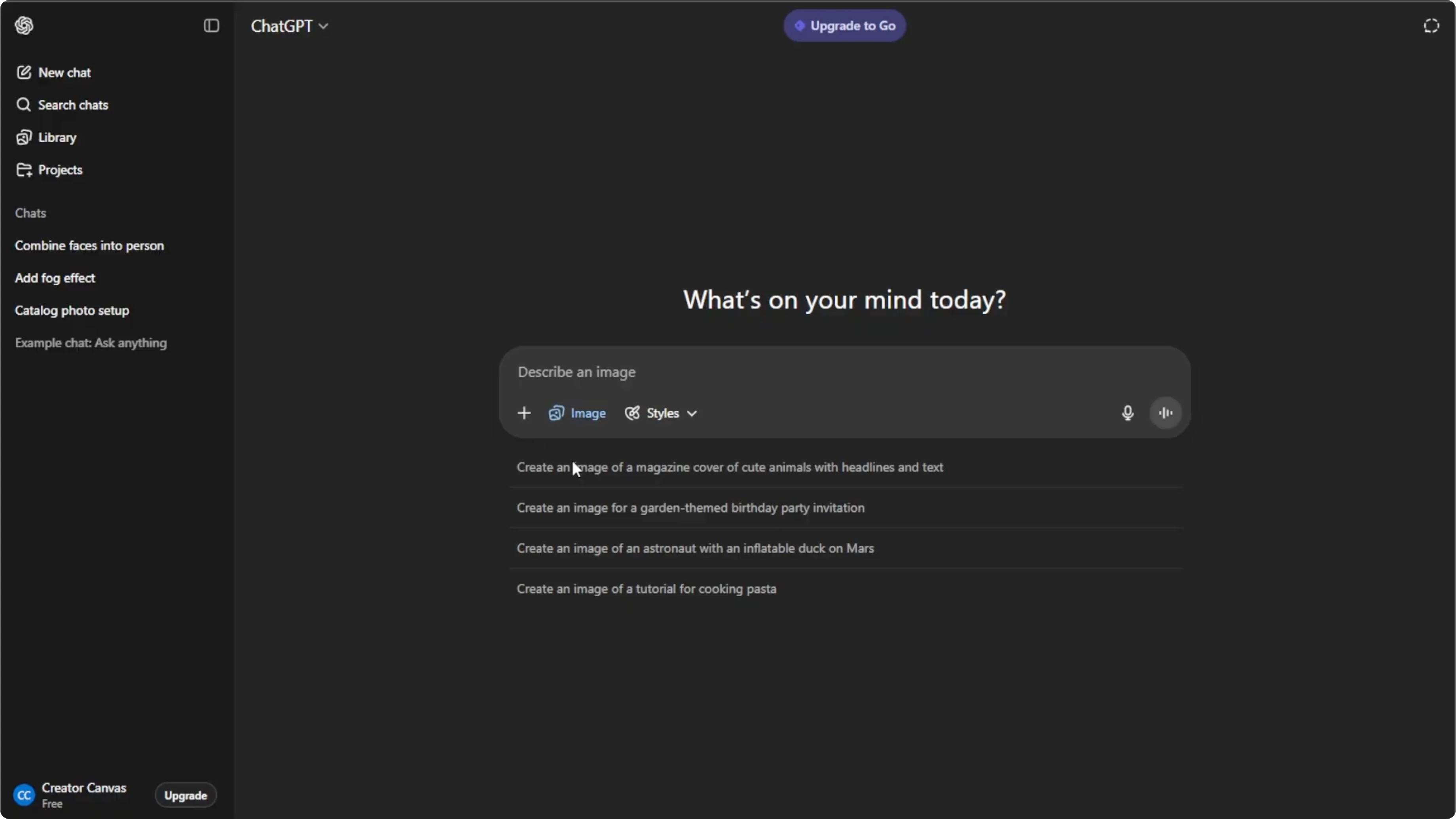
Portrait shots with a neutral background work best. This helps the AI produce a clean and polished layout. Your image should be high resolution for better results.
Write the prompt
Tell the AI exactly what you want your magazine cover to look like. Be very specific by including the style, theme, and magazine name that you want. Specific prompts produce cleaner typography, better layout, and accurate styling.
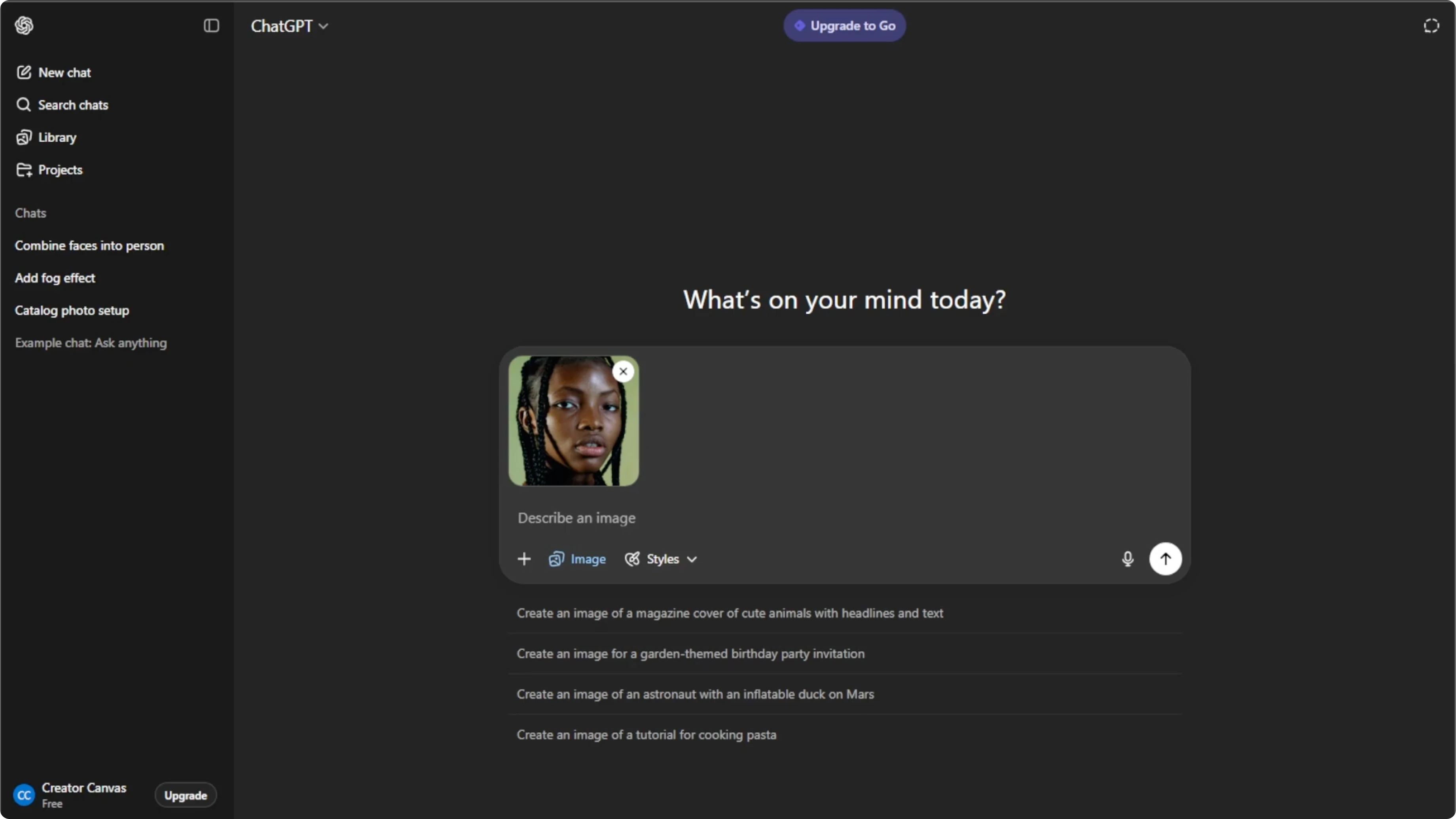
Use this simple template to guide your prompt. Adjust the parts in brackets to match your idea.
Use my uploaded photo as the main subject.
Magazine name: [Your Magazine Name]
Style and theme: [e.g., fashion editorial, travel, tech, minimal, bold colors]
Background: [e.g., neutral, soft gradient, studio look]
Typography: [e.g., clean sans serif, elegant serif]
Cover lines: [short phrases for headlines if you want text]
Overall mood: [e.g., classy, edgy, playful]
Press Enter and let the AI work. Wait a few seconds and your personalized magazine cover will appear. If you want to change the overall mood of an image in other projects, learn how to turn daytime photos into night scenes.
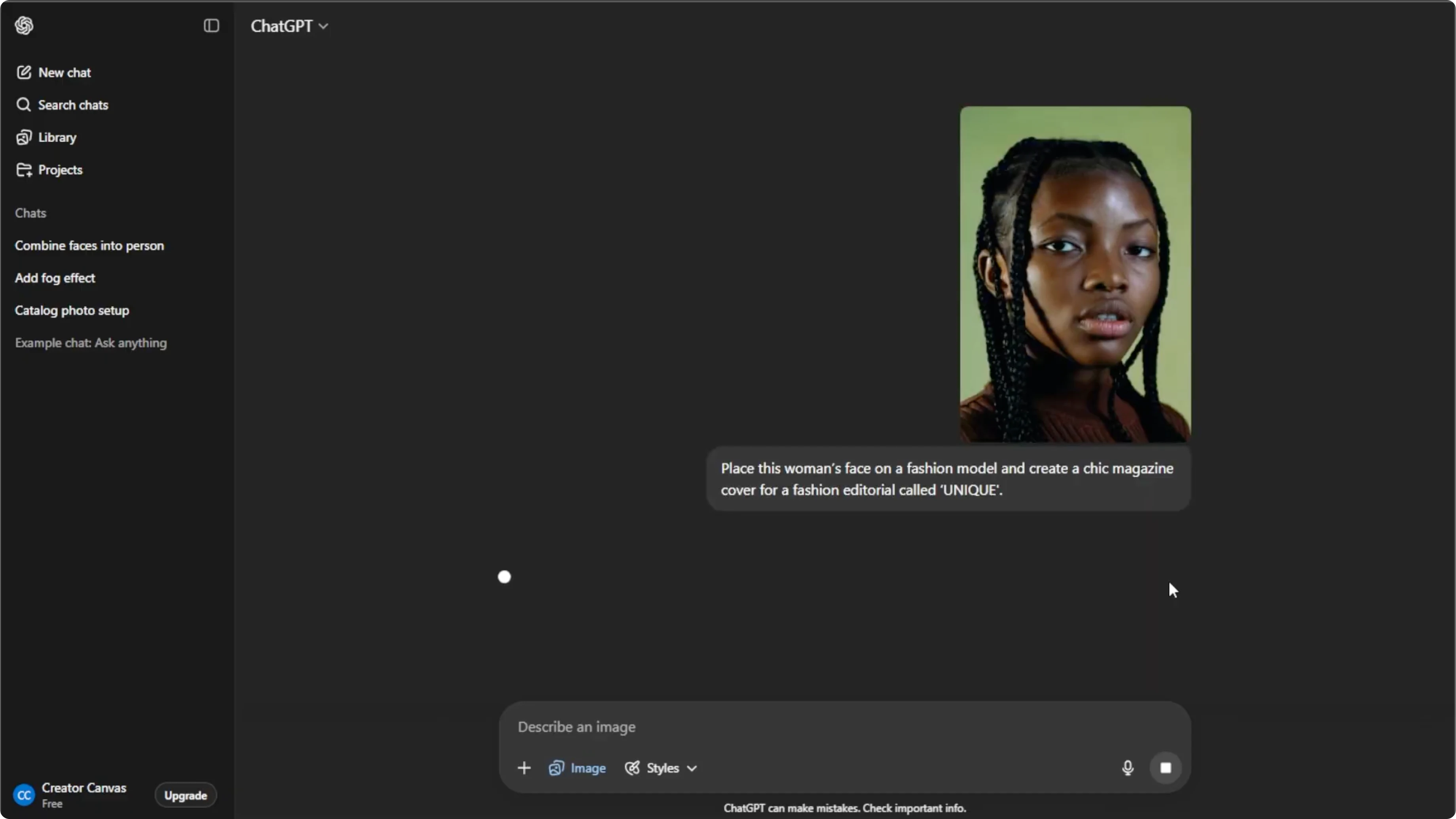
Generate and refine
Click the generated image. Type follow-up instructions to improve it. You can keep refining until you're satisfied.
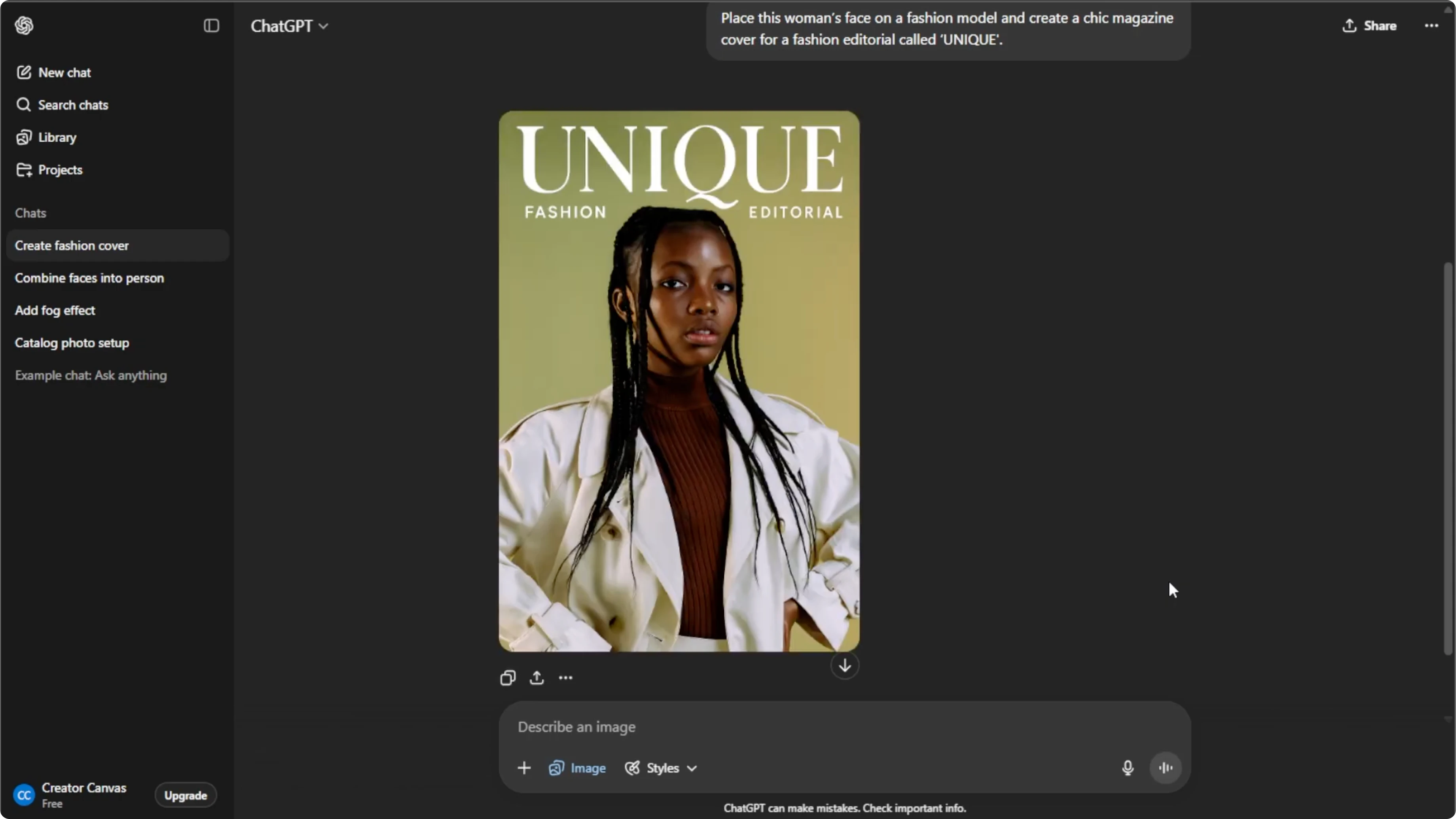
Free accounts can regenerate up to five images per day. To do more, you'll need to upgrade your plan. Plan ahead if you want to test multiple styles on the same day.
Save or share
Hover over your final image. Click Download to save it to your computer. Click Share to post it directly to social media.
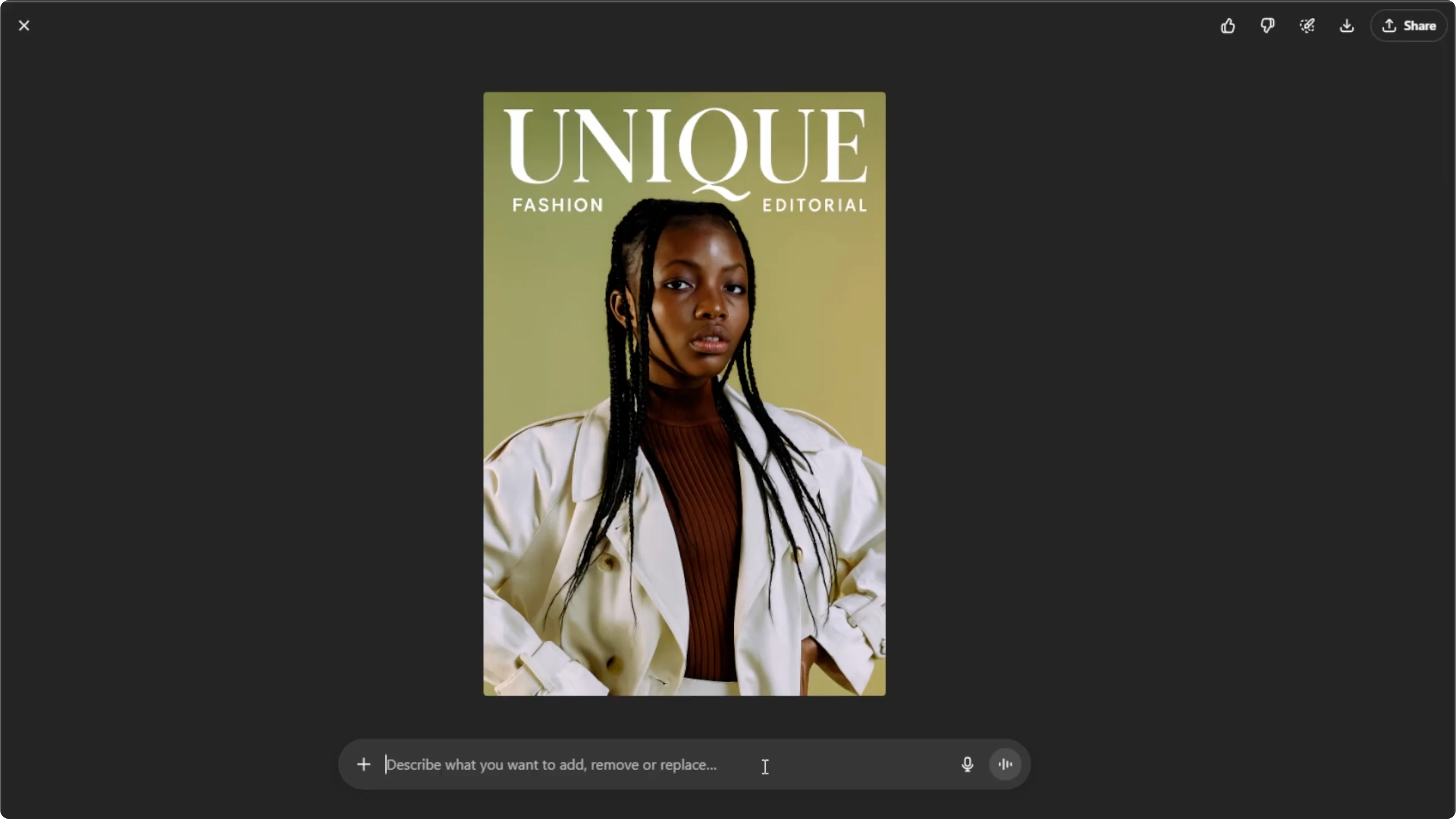
If you plan to print the cover, check the exported resolution. Higher resolution images will look sharper in print. Keep a copy of your prompt for easy re-creation later.
Final thoughts
You now know how to turn your photo into a professional magazine cover with AI. This method is perfect for fun projects, gifts, or eye-catching posts. For a playful twist, you can also make emoji portraits.
Recent Posts

How to Visualize Yourself as a Pixelized Character with AI?
How to Visualize Yourself as a Pixelized Character with AI?

How to Revive Faded Memories and Enhance Image Clarity with AI?
How to Revive Faded Memories and Enhance Image Clarity with AI?

How to Visualize Yourself as an Animal Crossing Character with AI?
How to Visualize Yourself as an Animal Crossing Character with AI?