How to Create Dynamic and Action-Packed Sports Photos with AI?
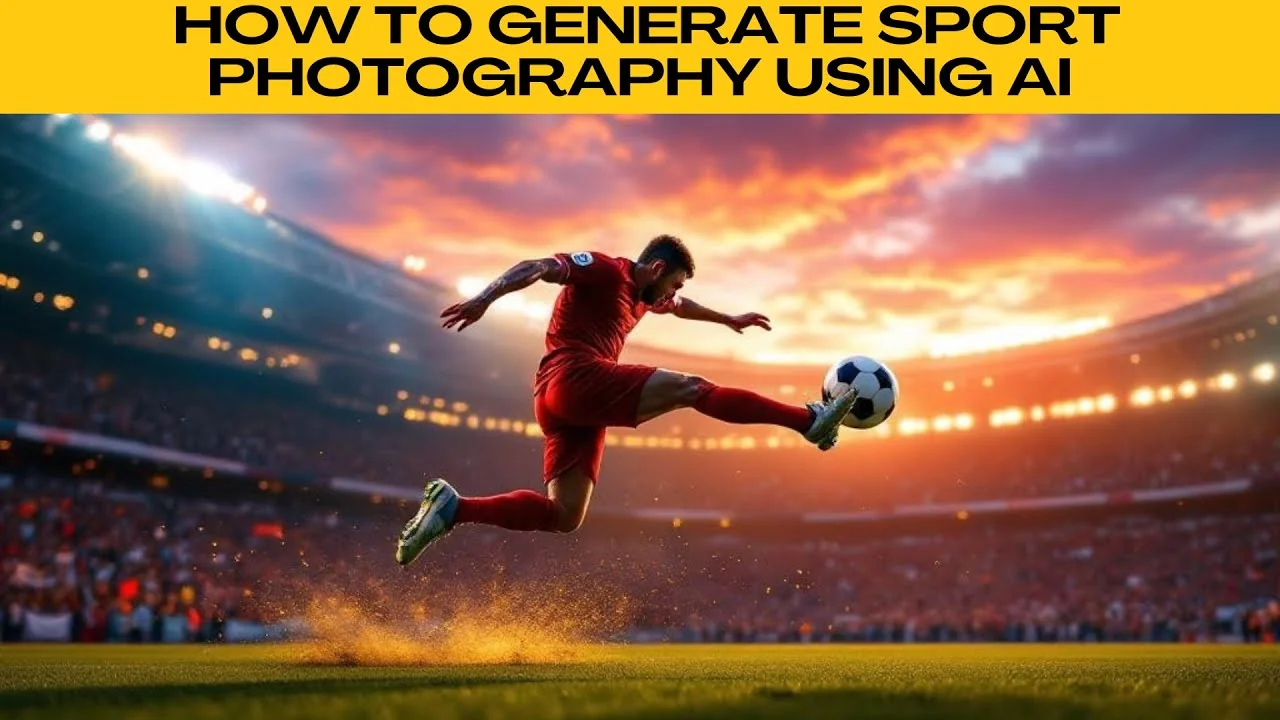
I will teach you how to generate sport photography using AI.
Follow these steps in Photo Room to create accurate results.
Get started
Open your web browser.
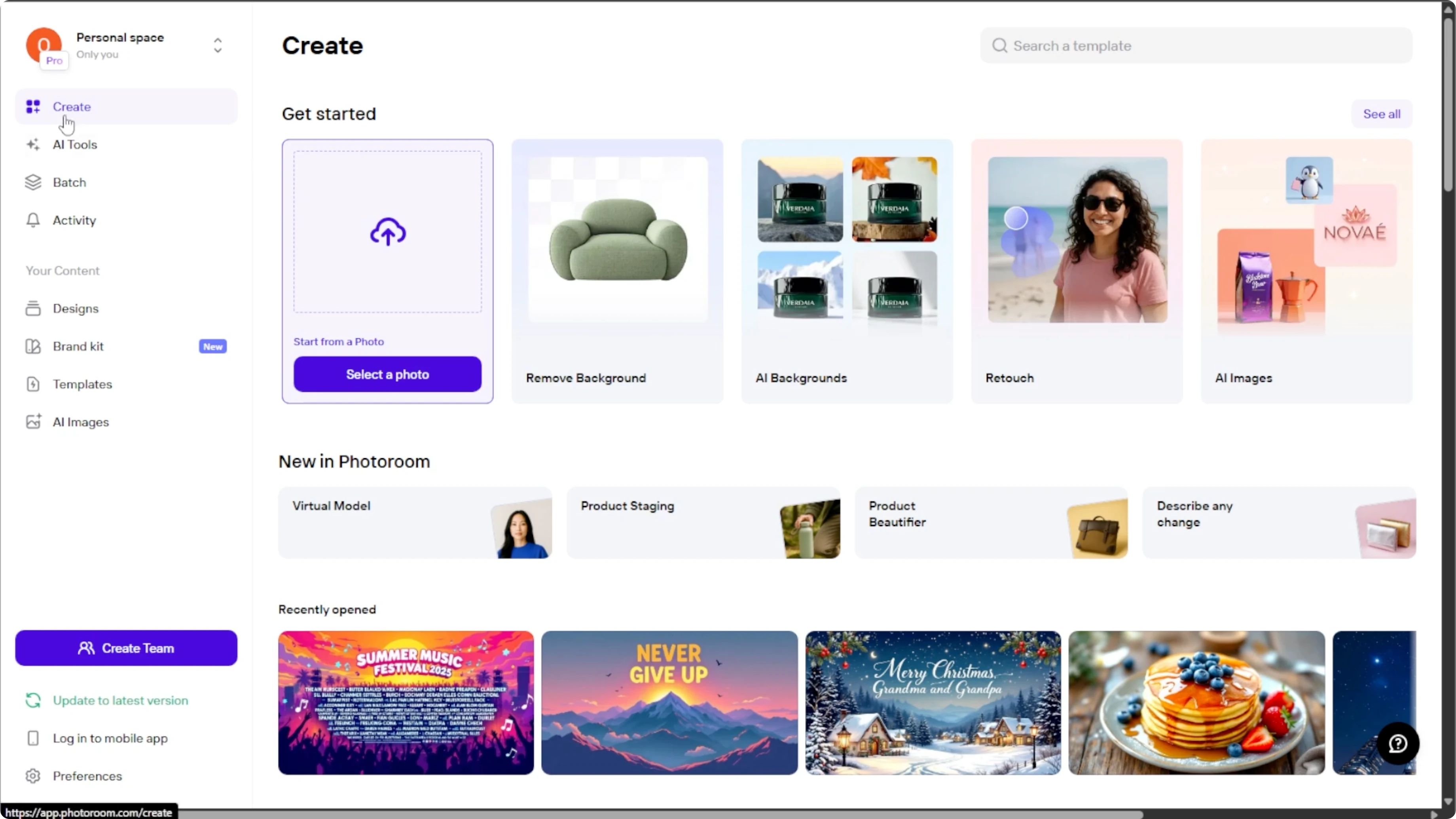
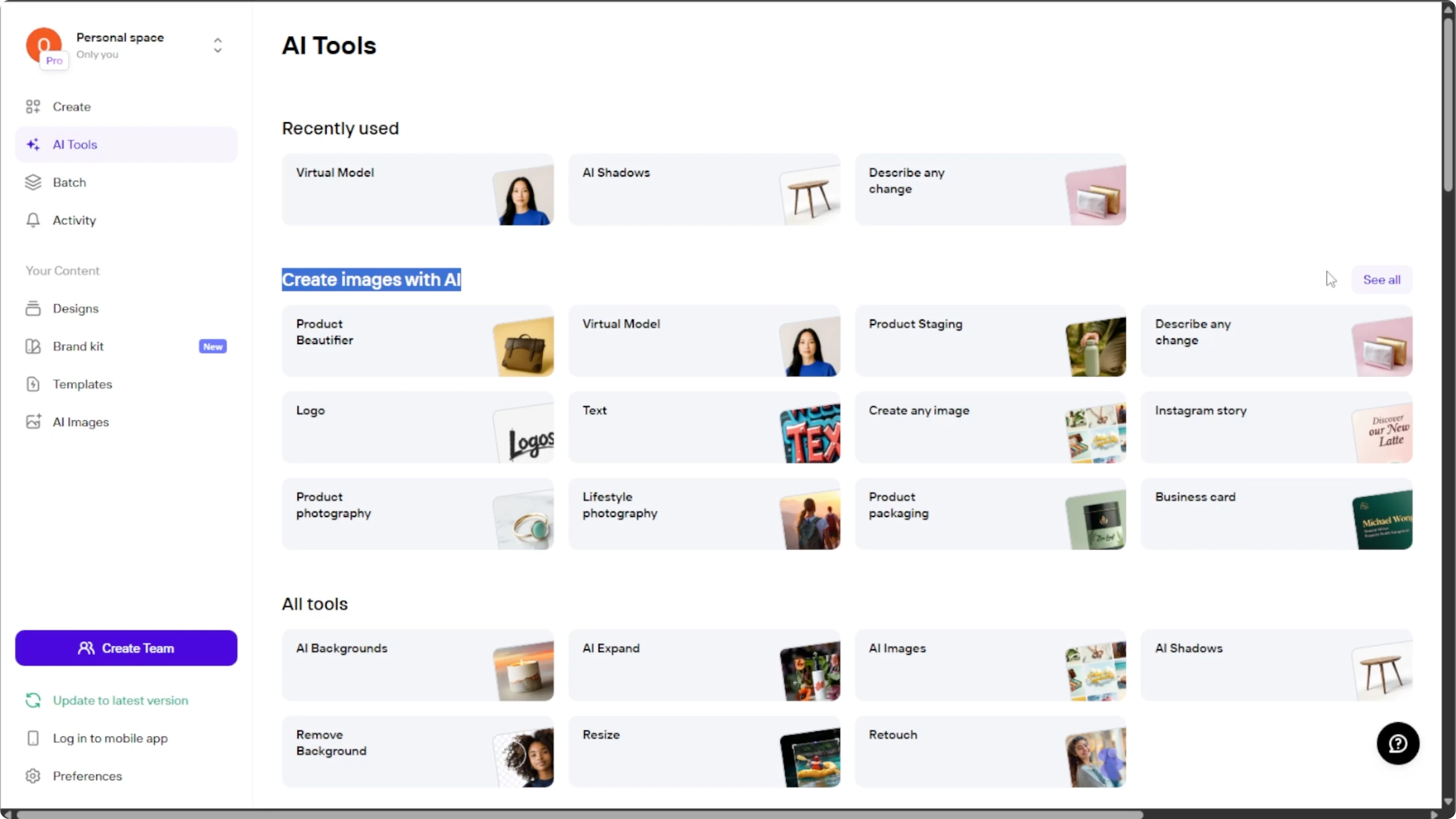
Go to Photo Room and on the homepage, look at the left side panel and click on AI tools to open the full suite of creative tools powered by AI.
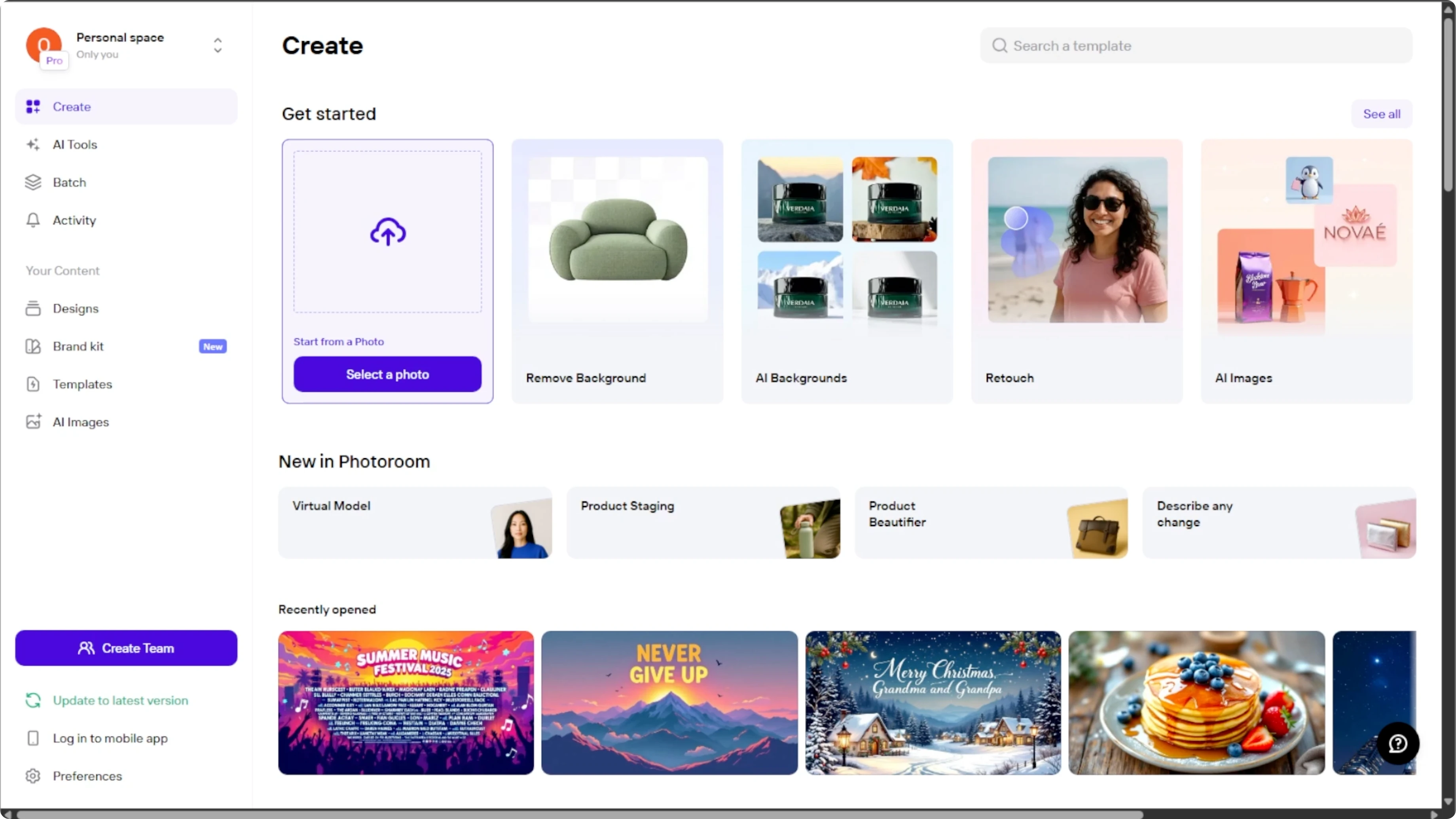
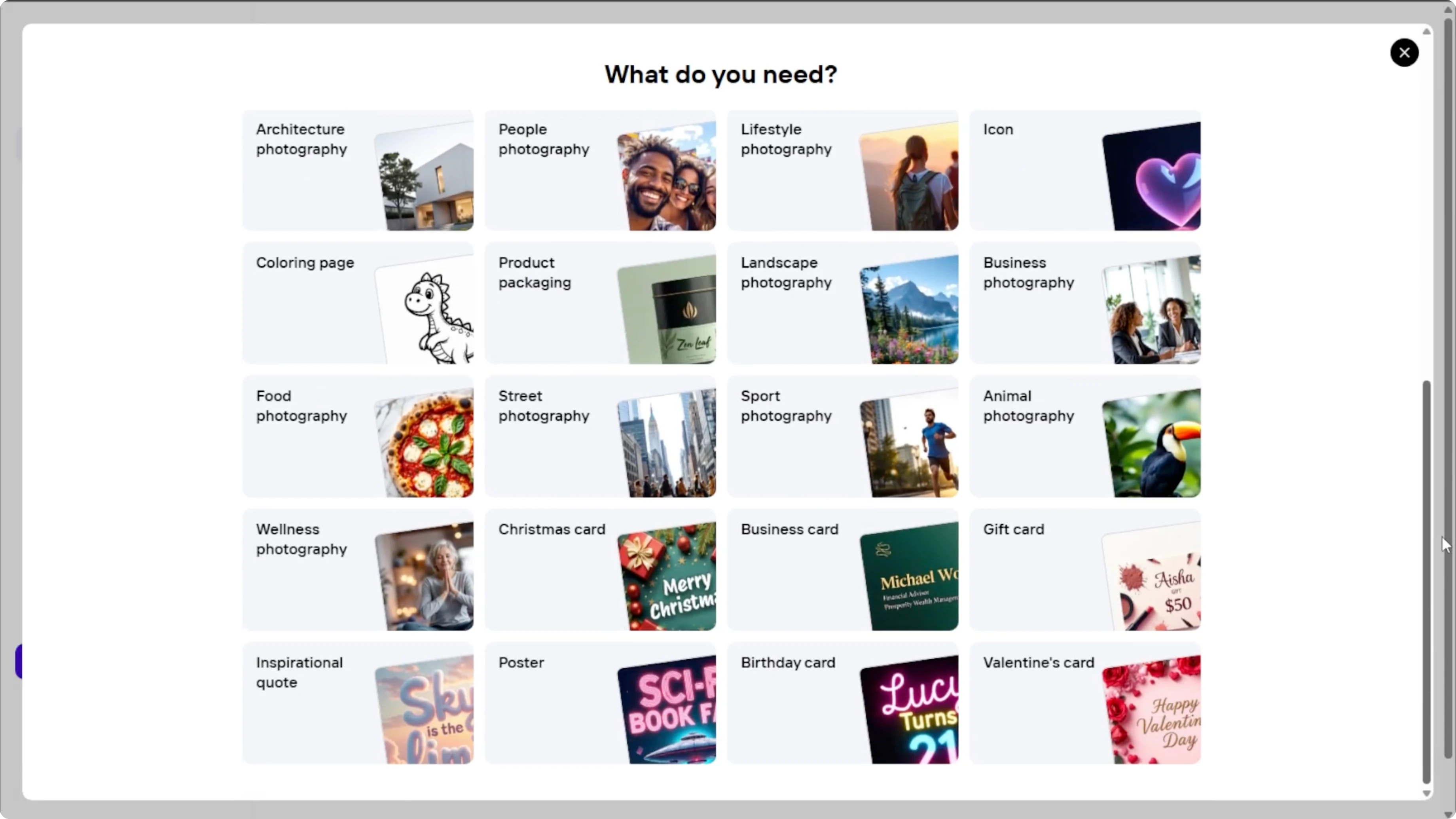
Scroll down to the create images with AI section.
Click see all to reveal all available AI options.
From the list, choose sport photography.
Write a prompt
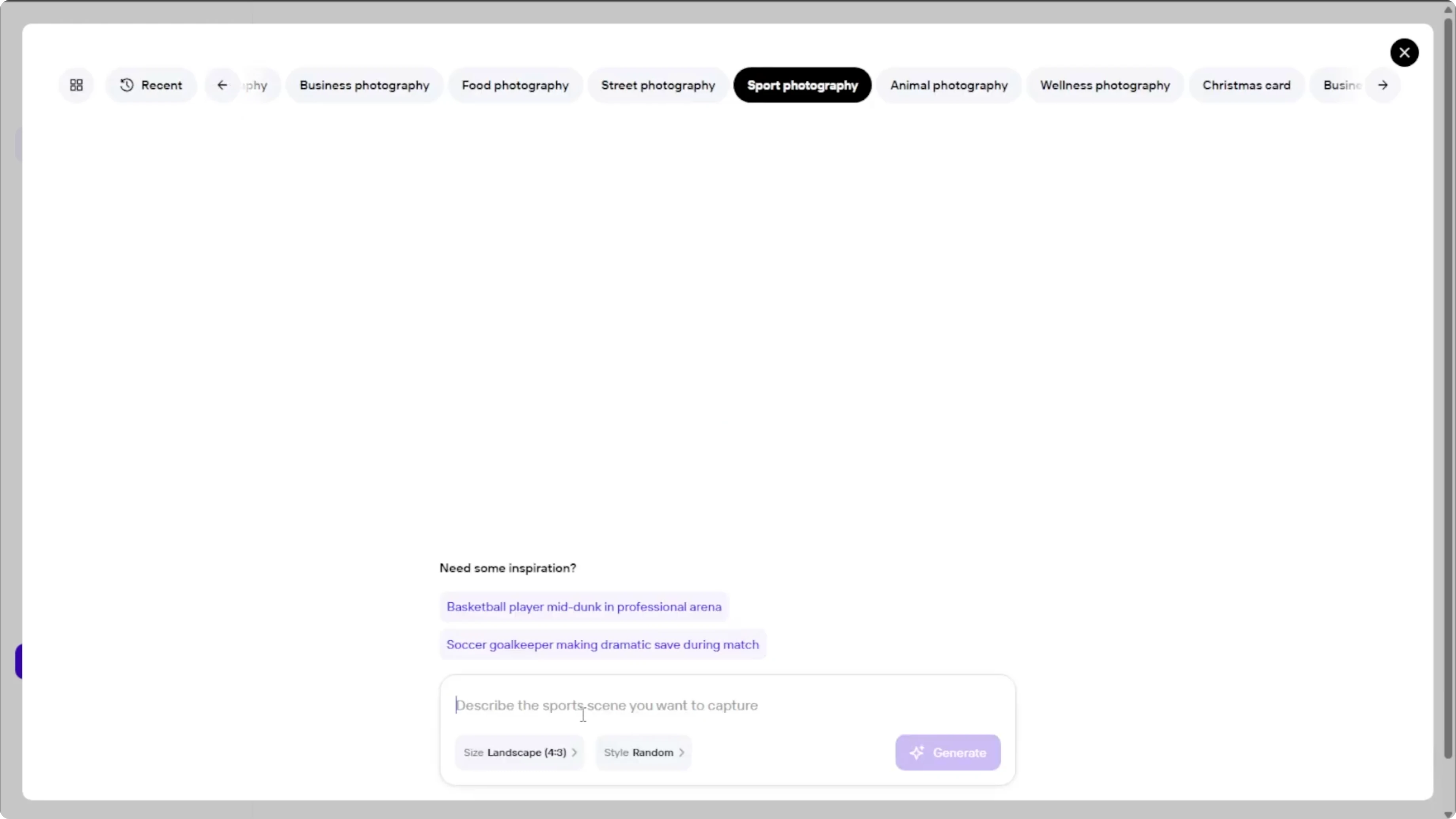
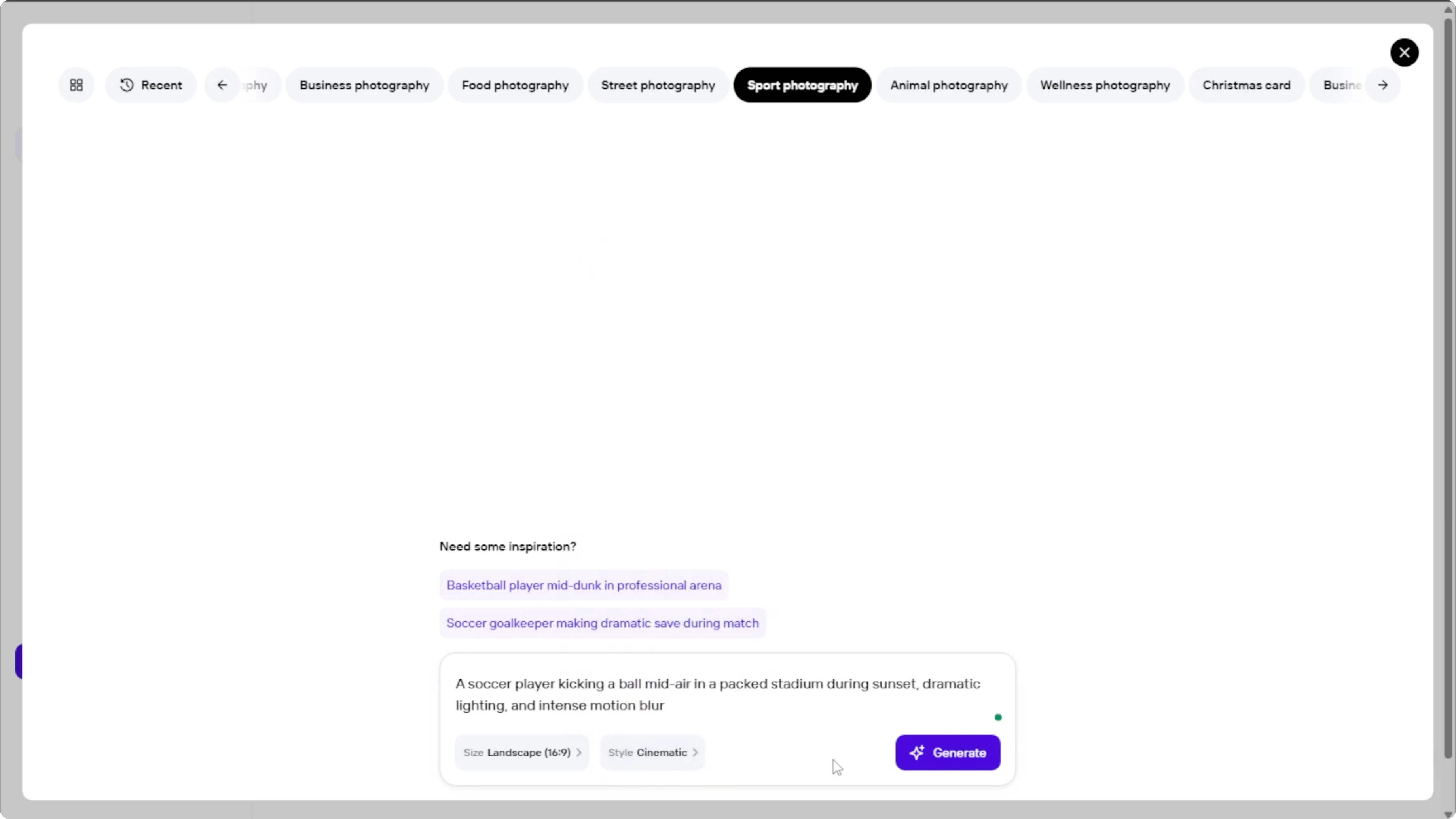
Here you'll see a text box where you can enter a prompt for the image that you want to create.
Be very specific in your description so the AI can generate accurate results.
If you're unsure what to write, explore the prompt inspirations provided on the page.
Example prompts
A mid-action shot of a basketball player going up for a slam dunk under arena lights, motion blur on the ball, crowd slightly out of focus
A marathon runner splashing through a puddle on a rainy street, low angle, sharp droplets frozen, gritty film look
A soccer goalkeeper fully stretched for a top-corner save, stadium bokeh, crisp jersey texture, dramatic backlight
Choose size
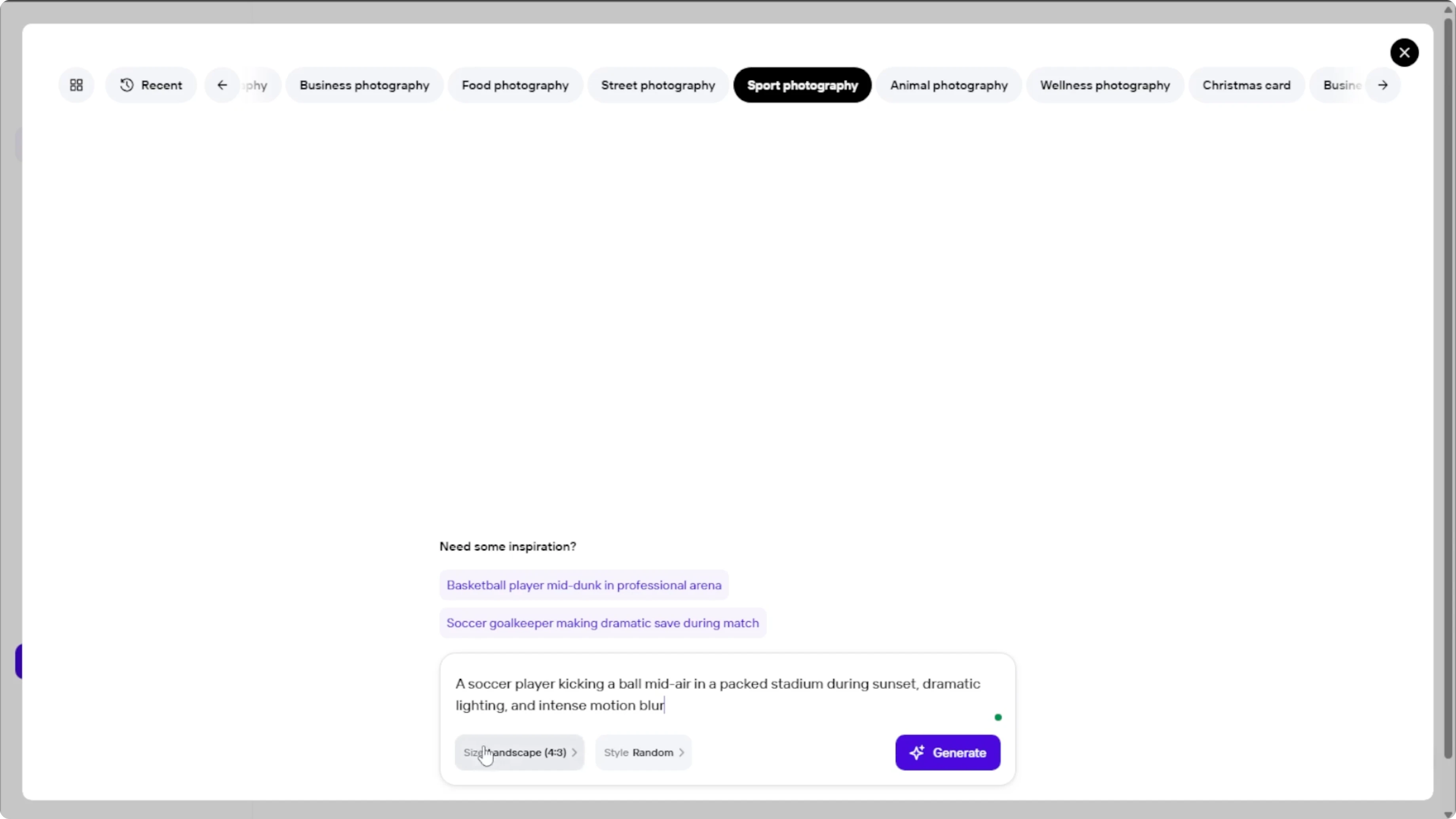
Click the size settings to pick your desired layout.
Pick square 1x1 which is perfect for Instagram or profile posts.
Choose 3x4 or 9x6 portrait which is great for posters, or 4x3 or 16x9 wide format which is ideal for banners, desktop wallpapers, or presentations.
If you need polished headshots for profiles, check out our resume photo guide.
Pick a style
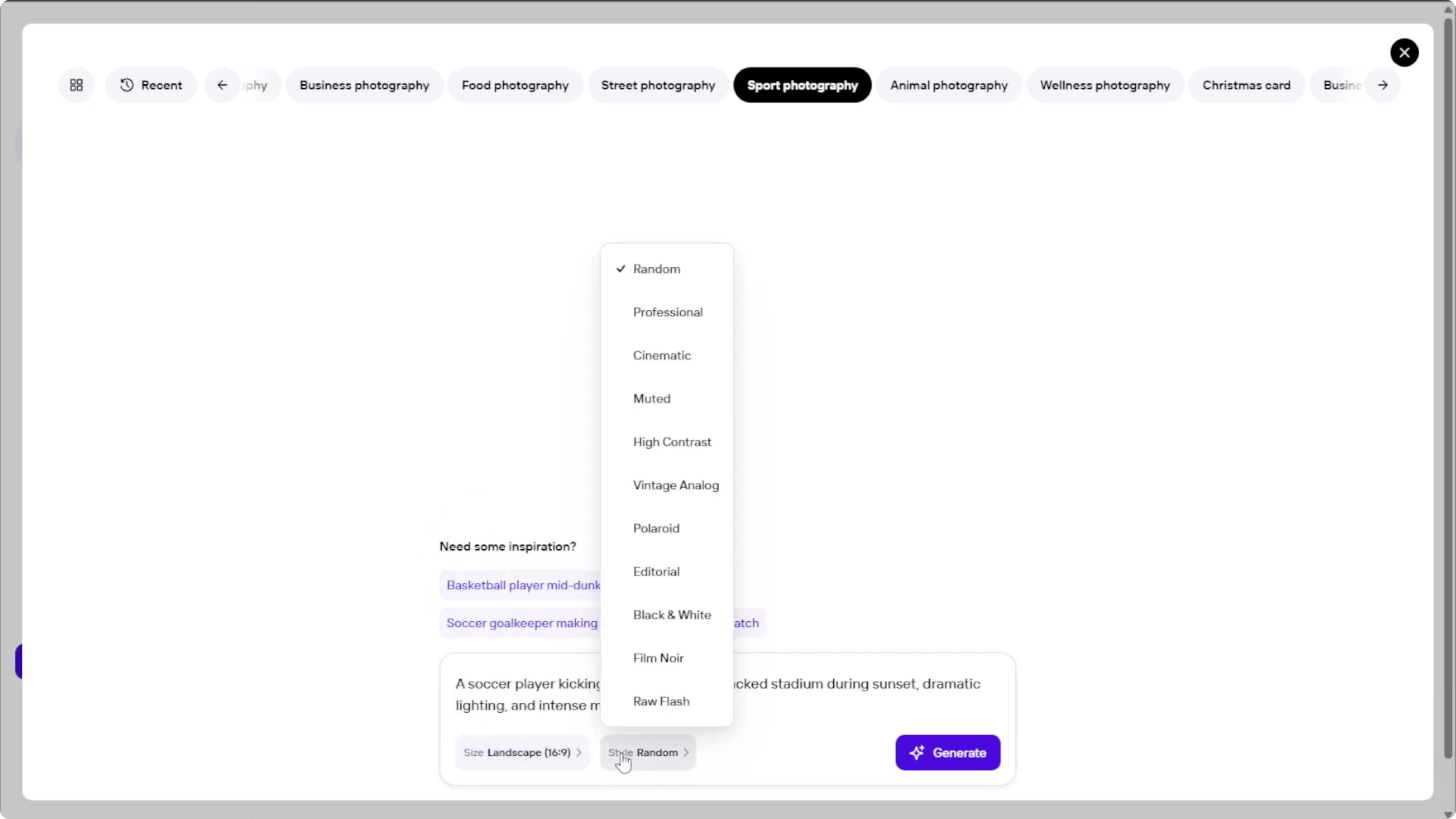
Click the style settings and browse through the available looks.
Here you have professional, cinematic, high contrast, vintage analog, Polaroid, editorial, black and white, film noir, raw flash, or random.
If you are working with monochrome archives or creative edits, see how to colorize black and white photos with AI.
Generate images
Once your prompt, size, and style are selected, click the Generate button, and the AI will process your request and create four unique sport photography images.
Click on any of them to preview in full resolution.
Edit results
Each image comes with post-editing options like remove background if you want to isolate the subject.
Use Generate for more variations if you want more versions of the style.
Use change something if you want to modify part of the image description.
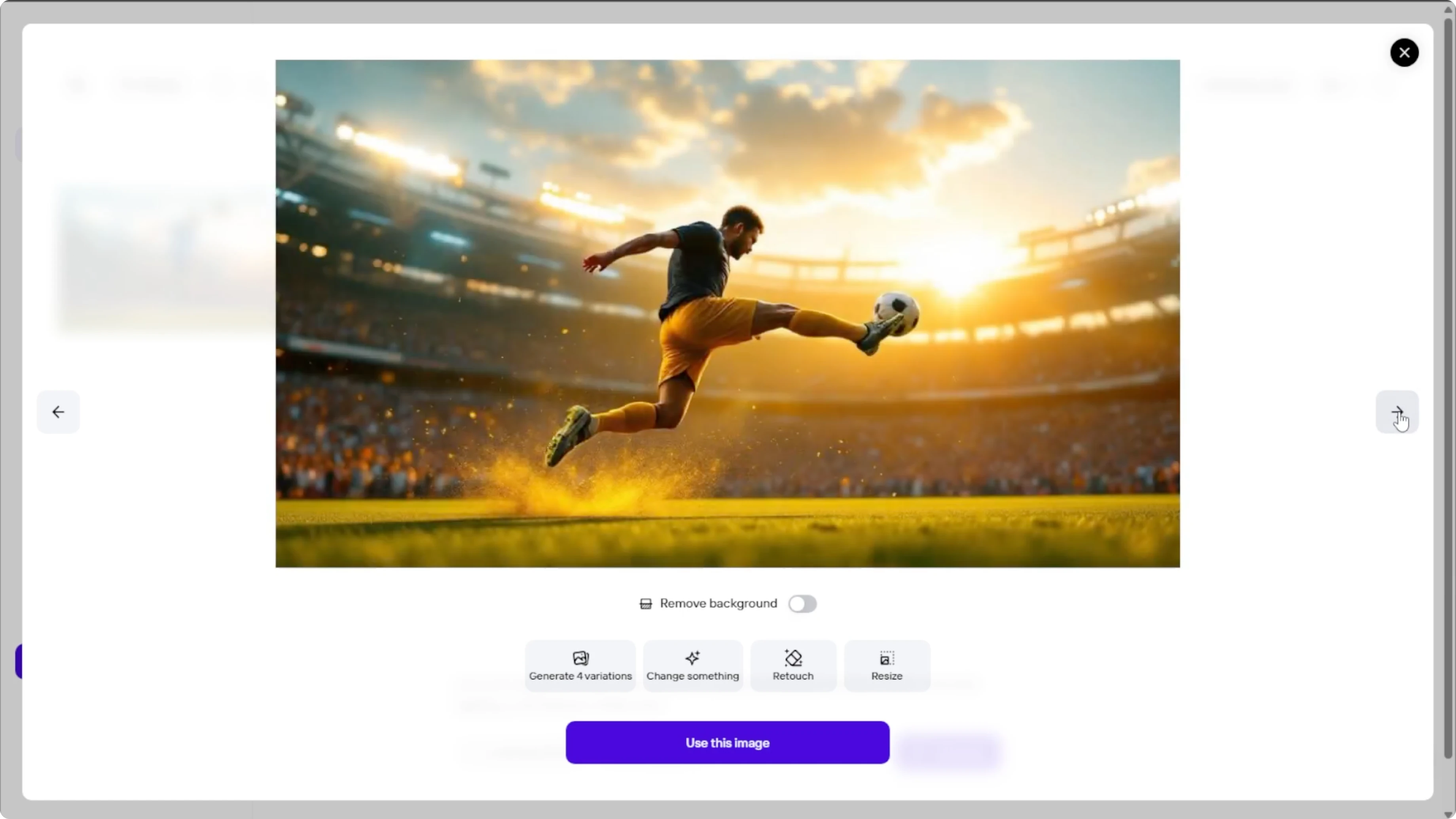
Use retouch to fix small imperfections or adjust details.
Use resize to convert to another aspect ratio.
Make specific edits
To adjust details, click change something and you'll be asked to describe exactly what you want to update.
Once you're happy, click use this image.
If you want to experiment with different looks in portraits, see how to change your hairstyle in photos using AI.
Fine-tune in the editor
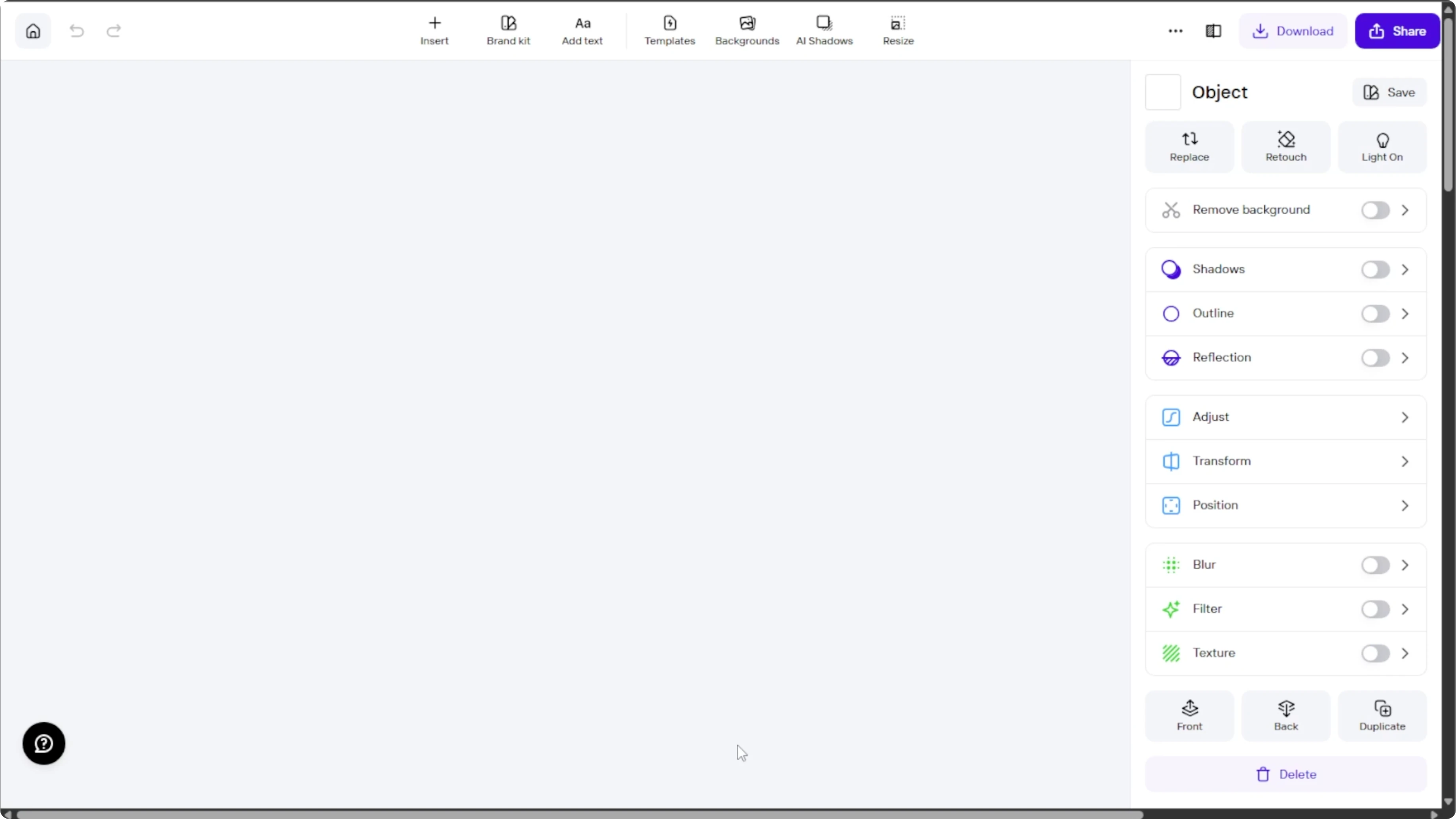
The image will open in Photo Room's editor where you can add light effects, insert custom text or logos, or make color or exposure adjustments.
When you're done editing, click download to save your file.
You can start a 7-day free trial to unlock HD downloads and extra features.
Final thoughts
Be specific with your prompt, choose a layout that fits your output, and test styles to match the mood.
Use the editing tools to refine details and export at the size you need.
With a few iterations, you can create sharp, dynamic sport images that look ready for print or social.
Recent Posts

How to Visualize Yourself as a Pixelized Character with AI?
How to Visualize Yourself as a Pixelized Character with AI?

How to Revive Faded Memories and Enhance Image Clarity with AI?
How to Revive Faded Memories and Enhance Image Clarity with AI?

How to Visualize Yourself as an Animal Crossing Character with AI?
How to Visualize Yourself as an Animal Crossing Character with AI?