How to Generate a Studio-Quality Professional Headshot with AI?
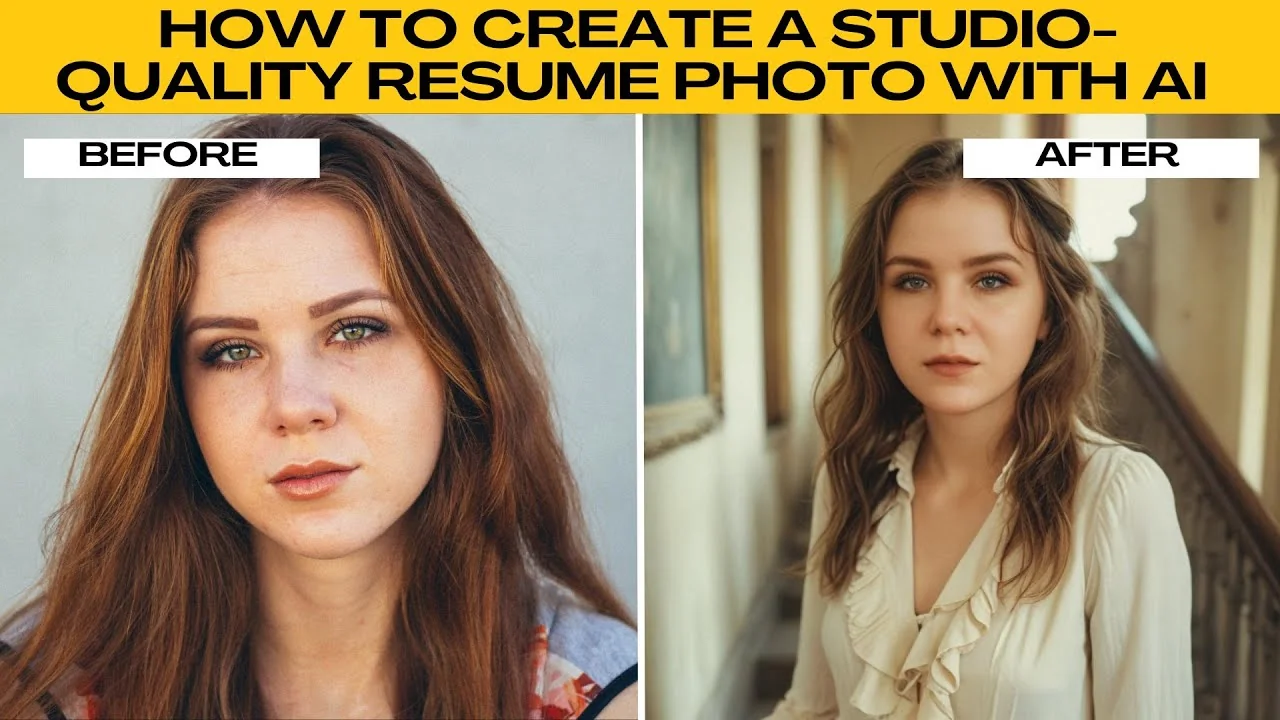
I will teach you how to create a studio quality resume photo using AI.
You will use the Photo AI headshot generator and follow a simple set of steps.
Open the headshot generator
Go to the Photo AI headshot generator.
Choose your type of headshot.
Select Individual for personal or solo resume photos, or Team for group portraits.
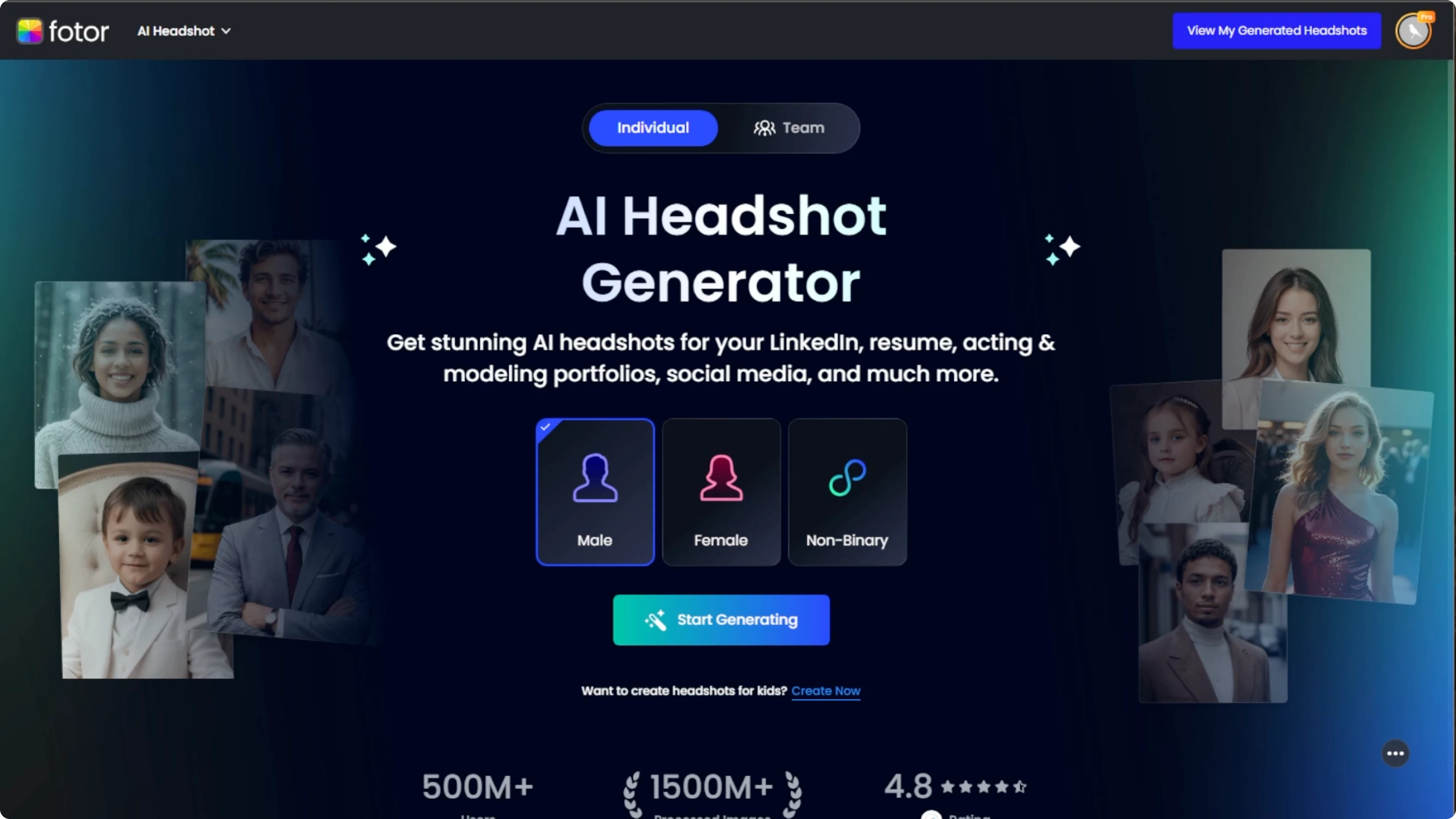
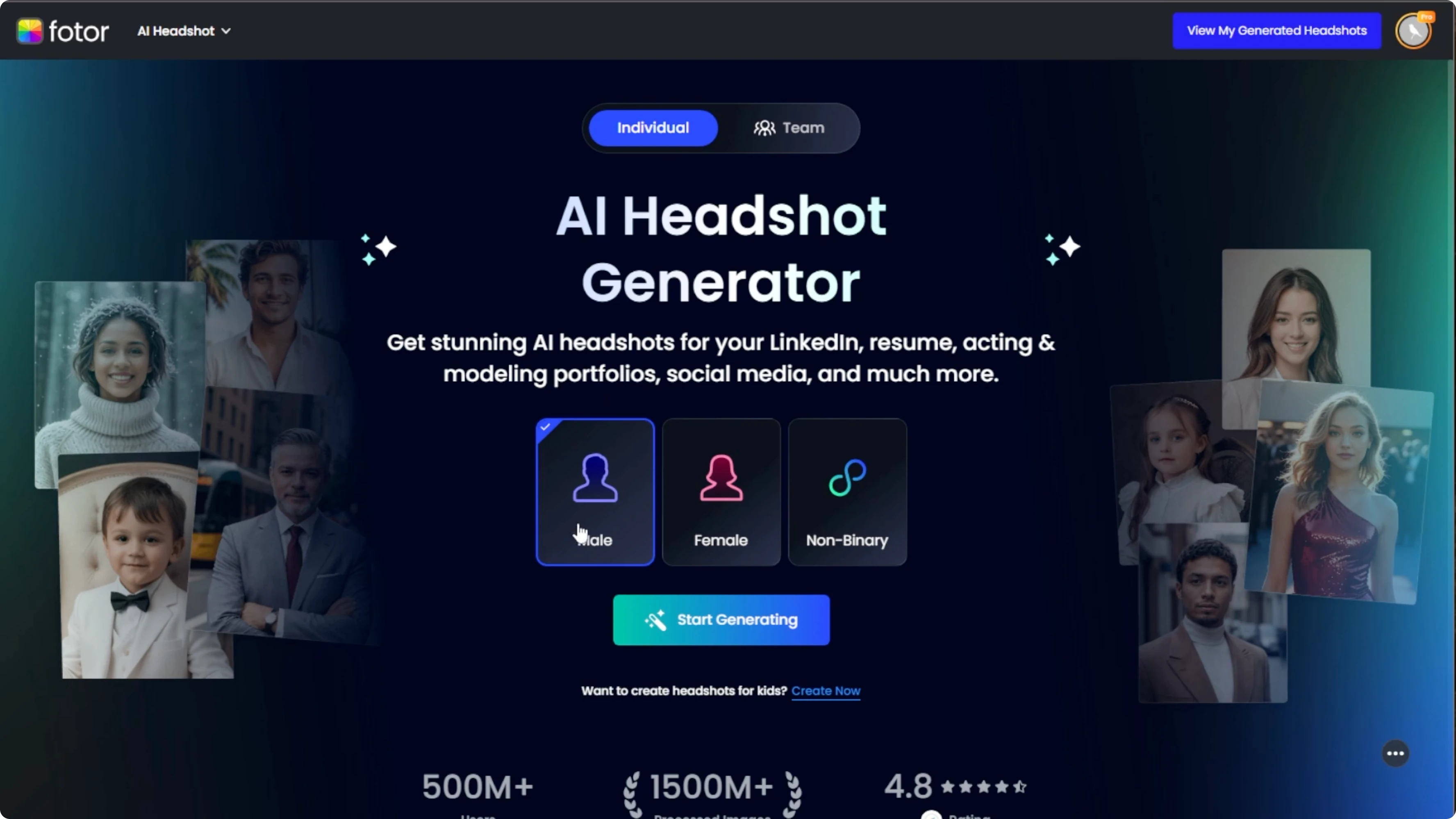
If you choose Individual, select your gender identity.
Pick male, female, or non binary.
This helps the AI return more personalized and accurate results.
For related AI image creation inside a design tool, check out this quick AI guide for Canva: Generate Ai Images Canva.
Pick your styles
Click Start generating after you set your options.
You will see style previews like business formal, studio white background, modern, and soft light.
Use the style category filters at the top to narrow your search.
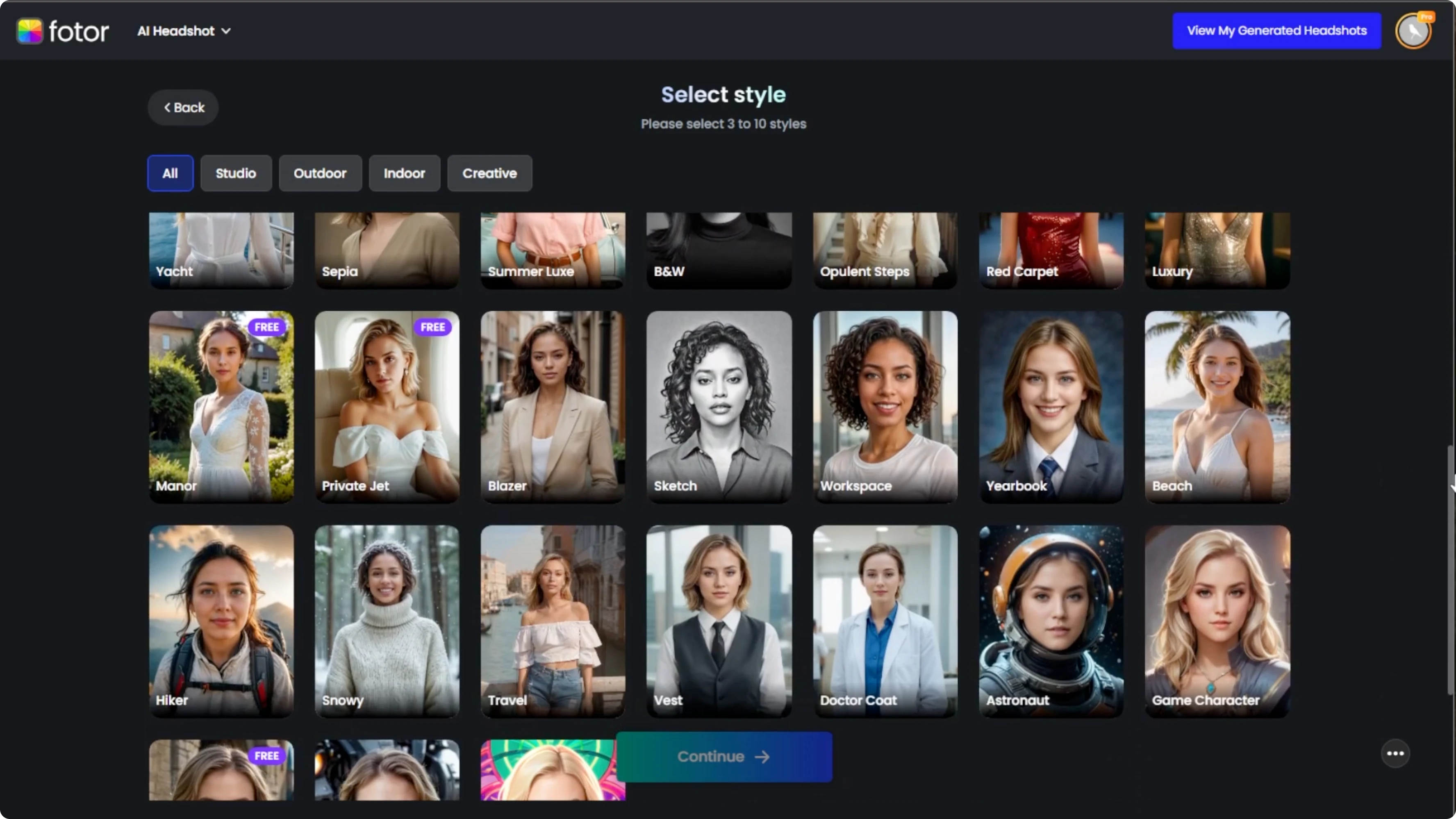
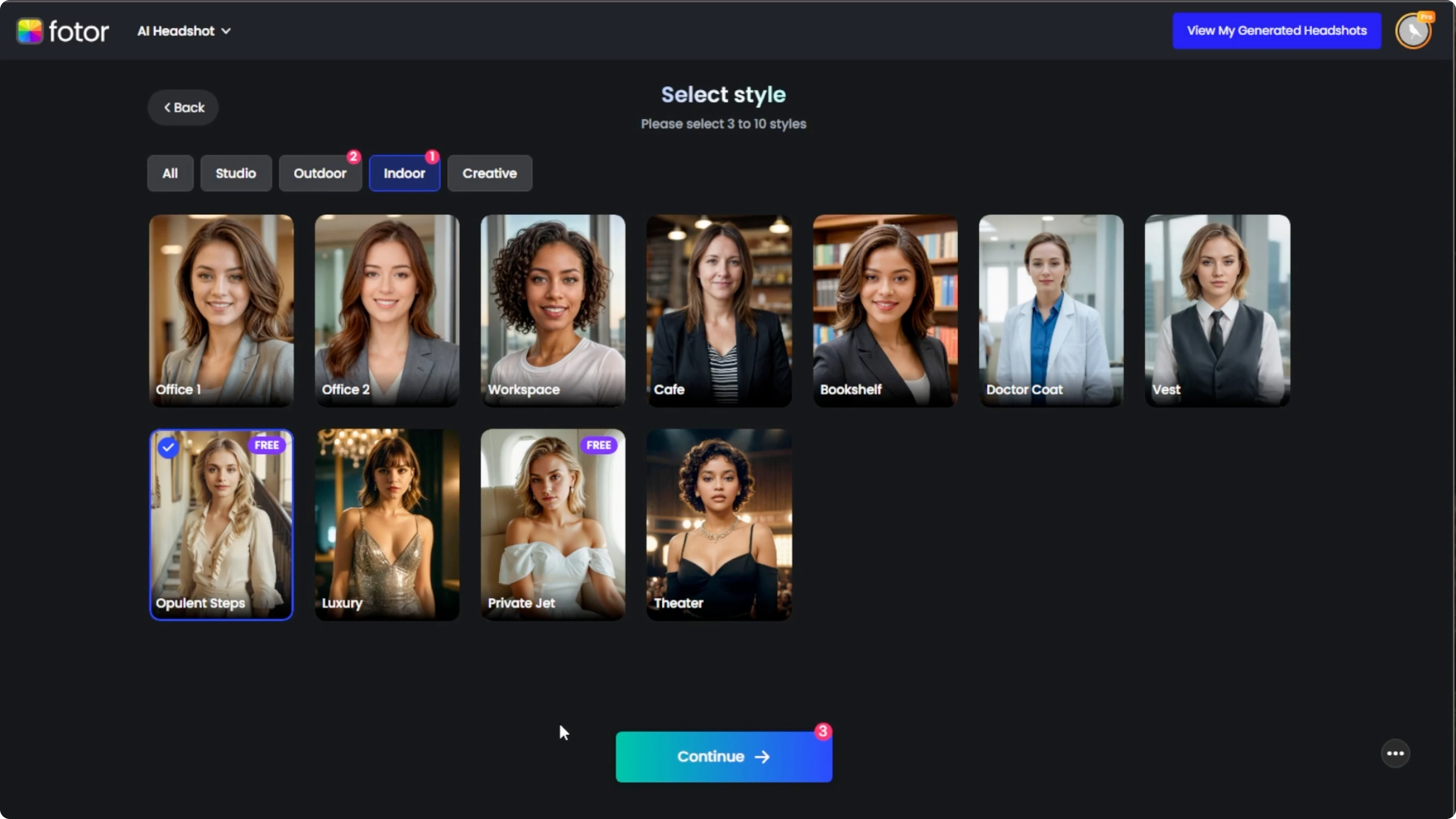
Select three to ten styles to try.
Click a style preview to select it, and click again to deselect.
You can also choose styles labeled free if you want to generate your headshot at no cost.
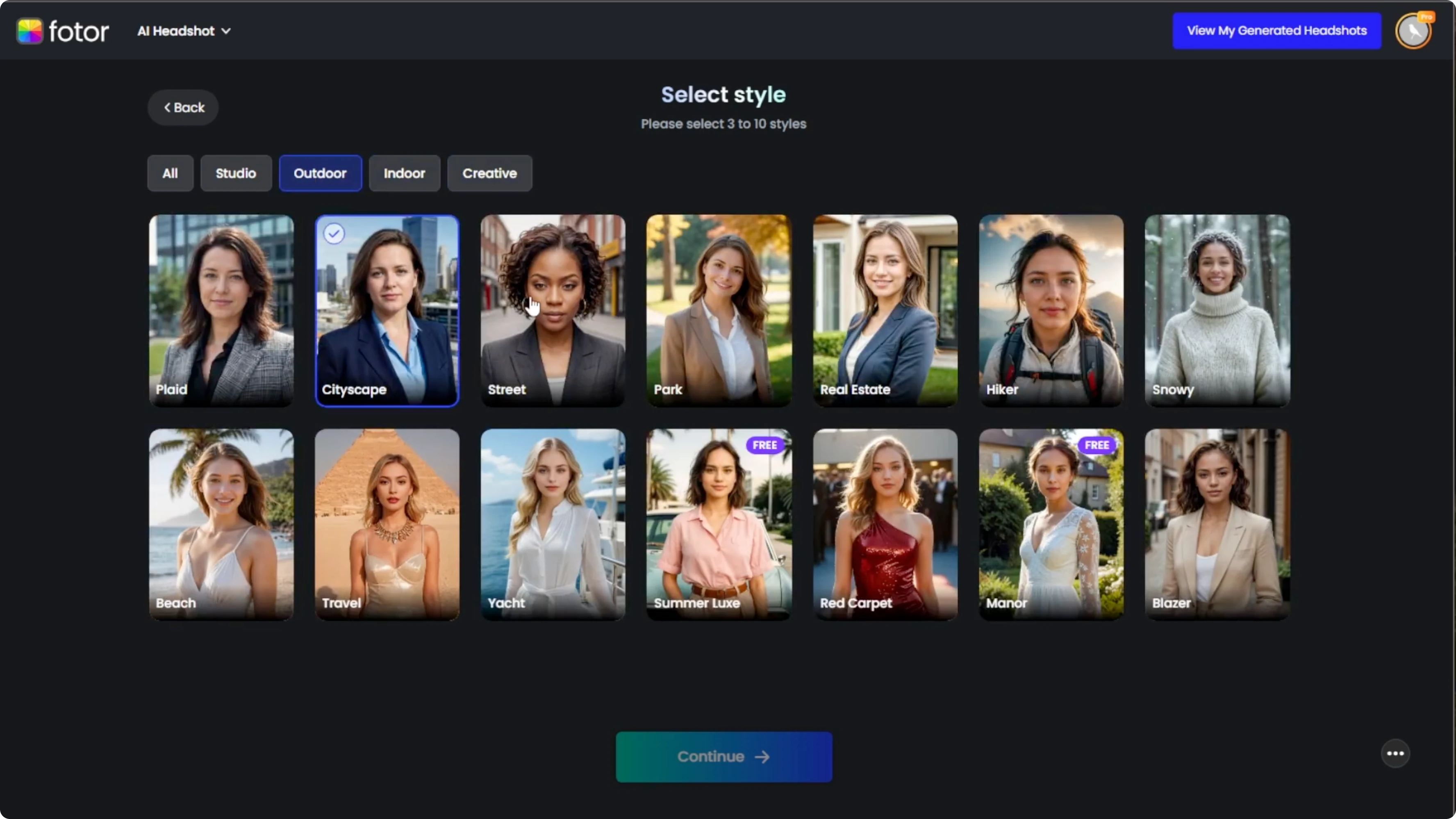
Premium styles require payment even for pro users, and free styles are clearly marked.
Once you have your styles, click Continue.
You will move to the photo upload screen.
If you want themed backgrounds or location looks for other projects, see this quick tutorial on creative background swaps: How To Generate Fake Vacation Photo Using Ai.
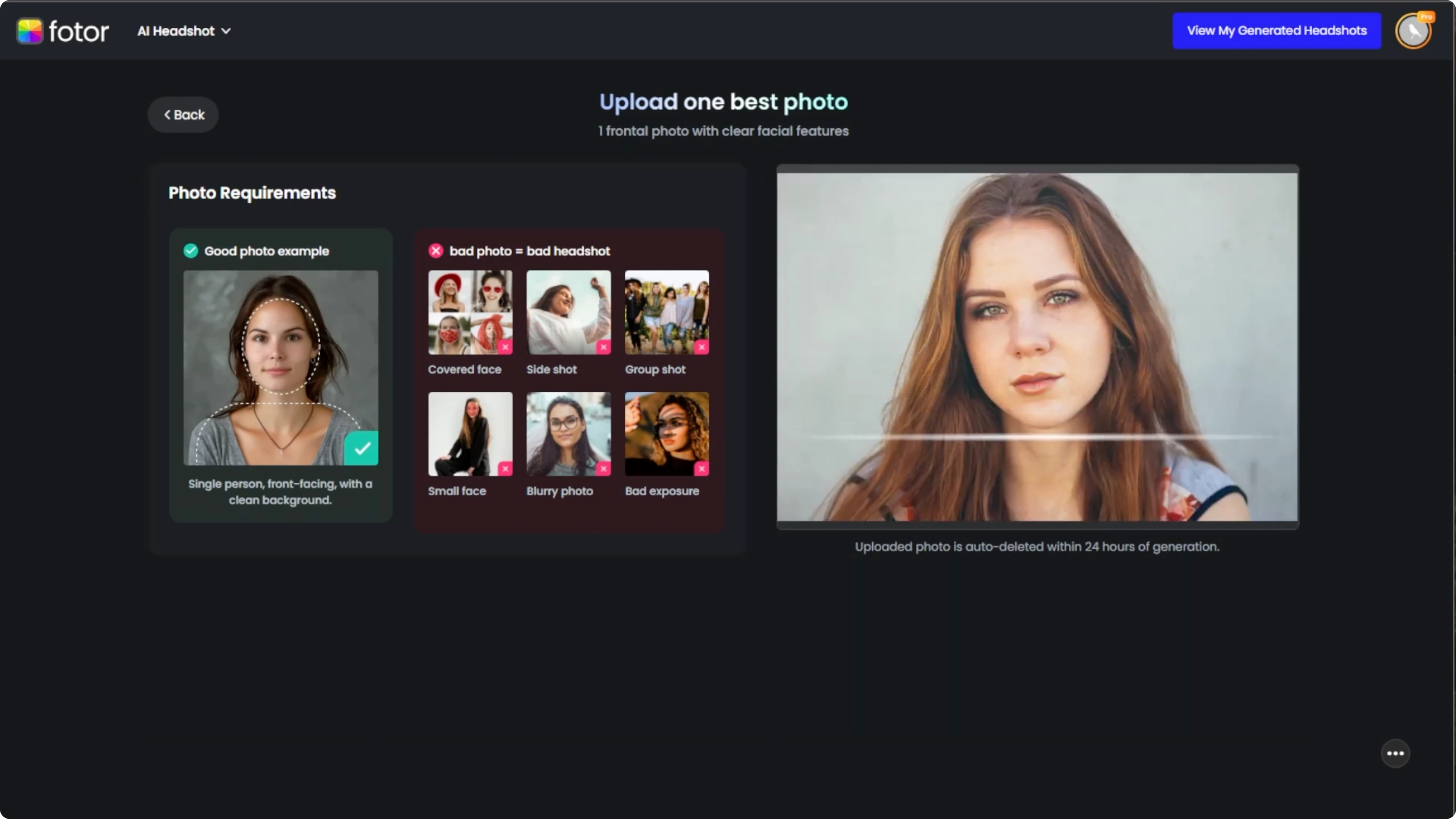
Upload your photo
Upload one clear image of yourself.
Avoid group shots, dark lighting, side angles, covered faces, and poor quality selfies.
A crisp, well lit photo gives the best results.
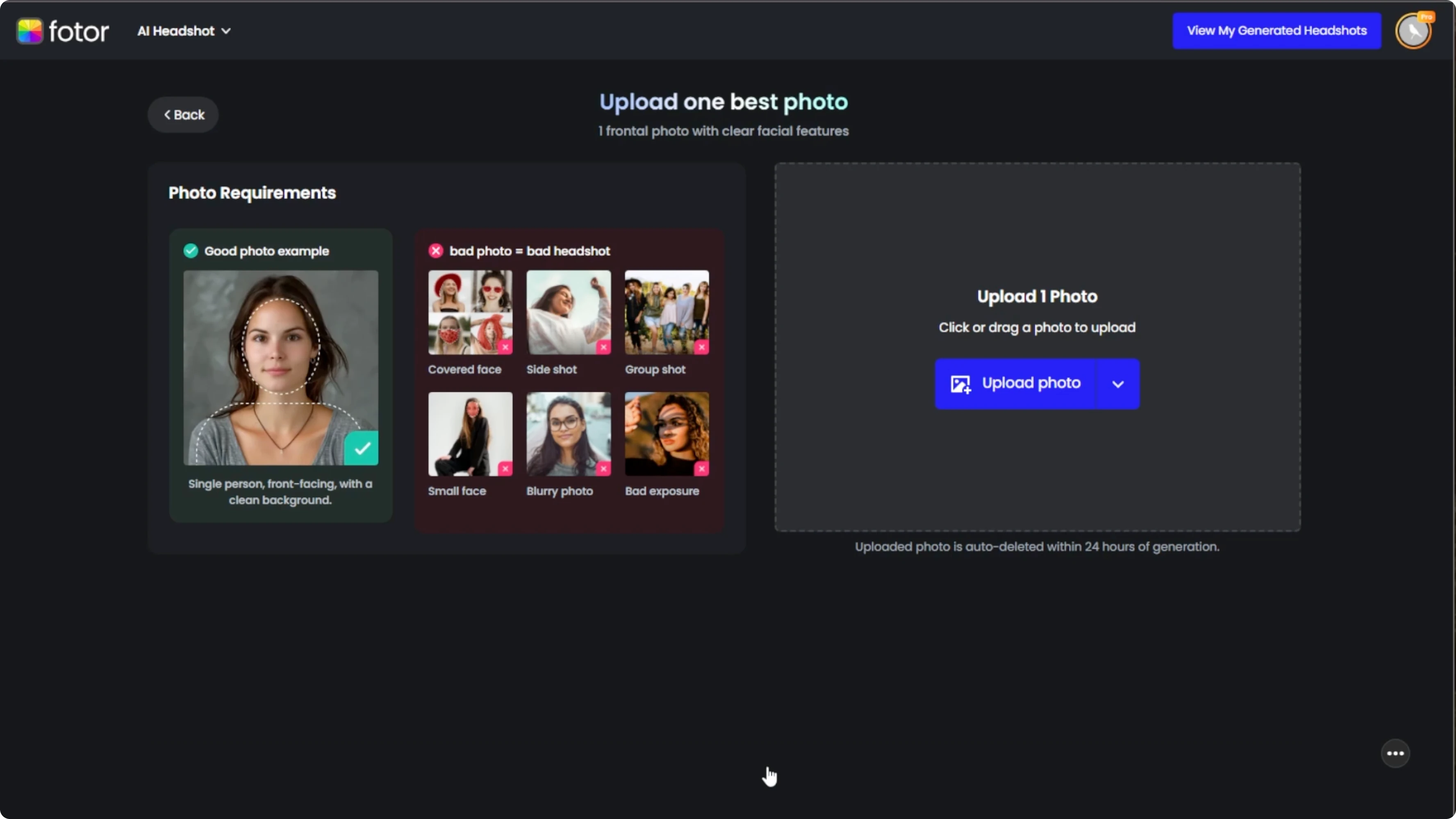
Photo AI will scan your image for a few seconds.
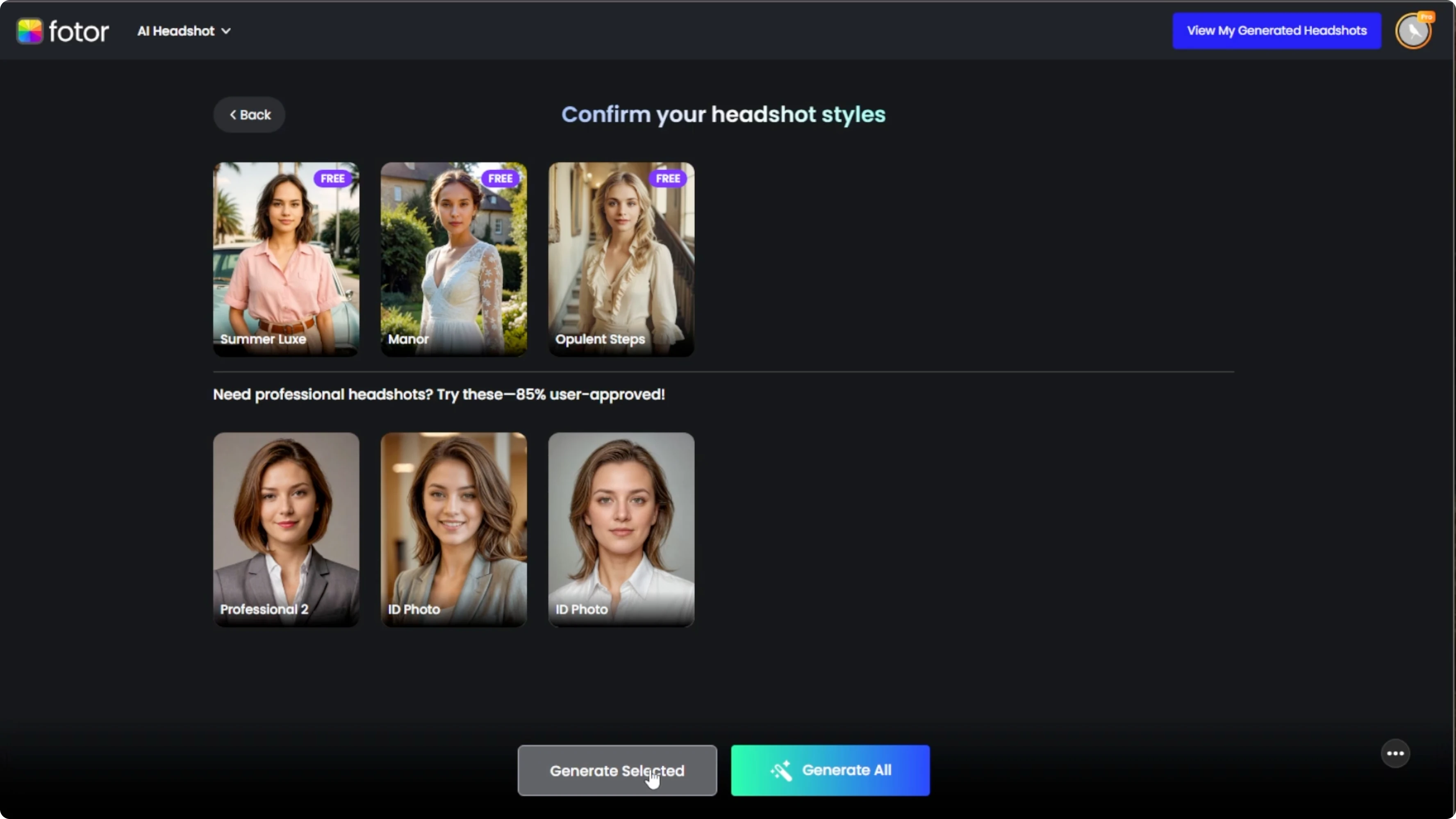
When the Generate button appears, confirm your previously selected styles.
You may also see a few additional premium styles, and you can skip them.
Generate and review
Click Generate selected to proceed with only the styles you chose.
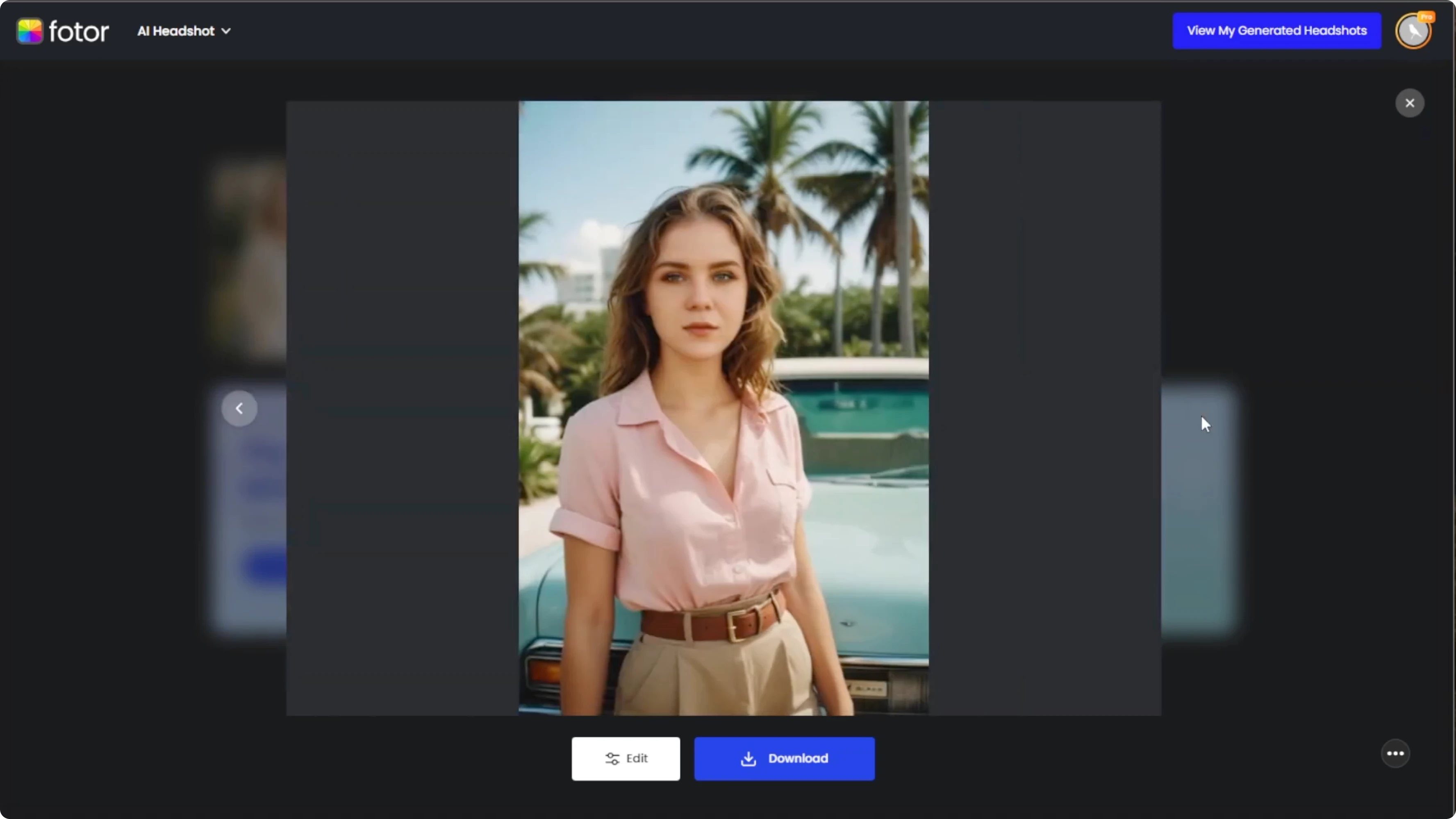
When processing finishes, your AI headshots will appear.
Review the options and pick the ones that fit your resume best.
Download or edit
Click any image to download it directly.
You can also open it in the Photo AI editor for tweaks like background color, brightness, or cropping.
Make small adjustments until the photo matches your desired professional look.
If you are exploring other AI photo genres, here is a quick guide to styled product images and setups: Generate Food Photography Ai.
Final thoughts
A single clear upload plus a few well chosen styles can produce a polished resume headshot in minutes.
Focus on clean lighting and straightforward framing in your source image.
Use the editor for subtle finishing so your photo looks confident and professional.
Recent Posts

How to Visualize Yourself as a Pixelized Character with AI?
How to Visualize Yourself as a Pixelized Character with AI?

How to Revive Faded Memories and Enhance Image Clarity with AI?
How to Revive Faded Memories and Enhance Image Clarity with AI?

How to Visualize Yourself as an Animal Crossing Character with AI?
How to Visualize Yourself as an Animal Crossing Character with AI?