How to Generate Realistic Vacation Portraits with AI?
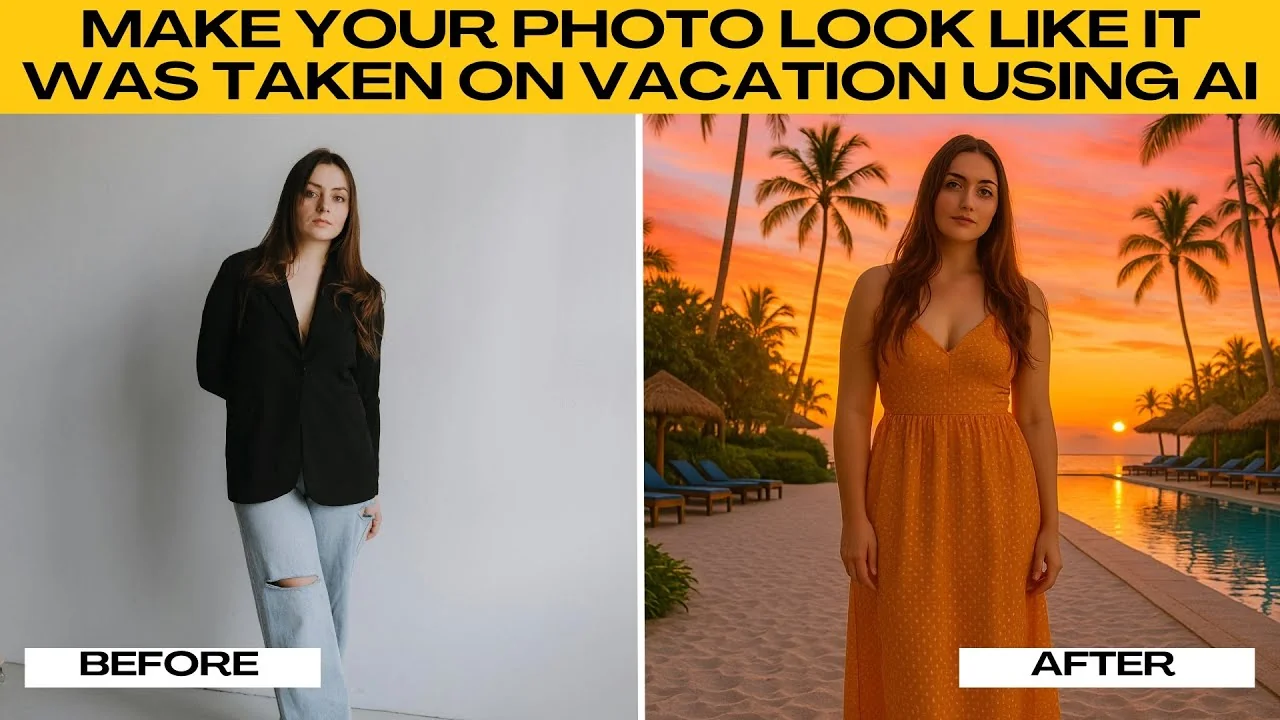
I will teach you how to make your photo look like it was taken on vacation using AI. With AI, you can transform any photo to make it look like it was taken on a tropical beach, mountain resort, or iconic city in a few clicks.
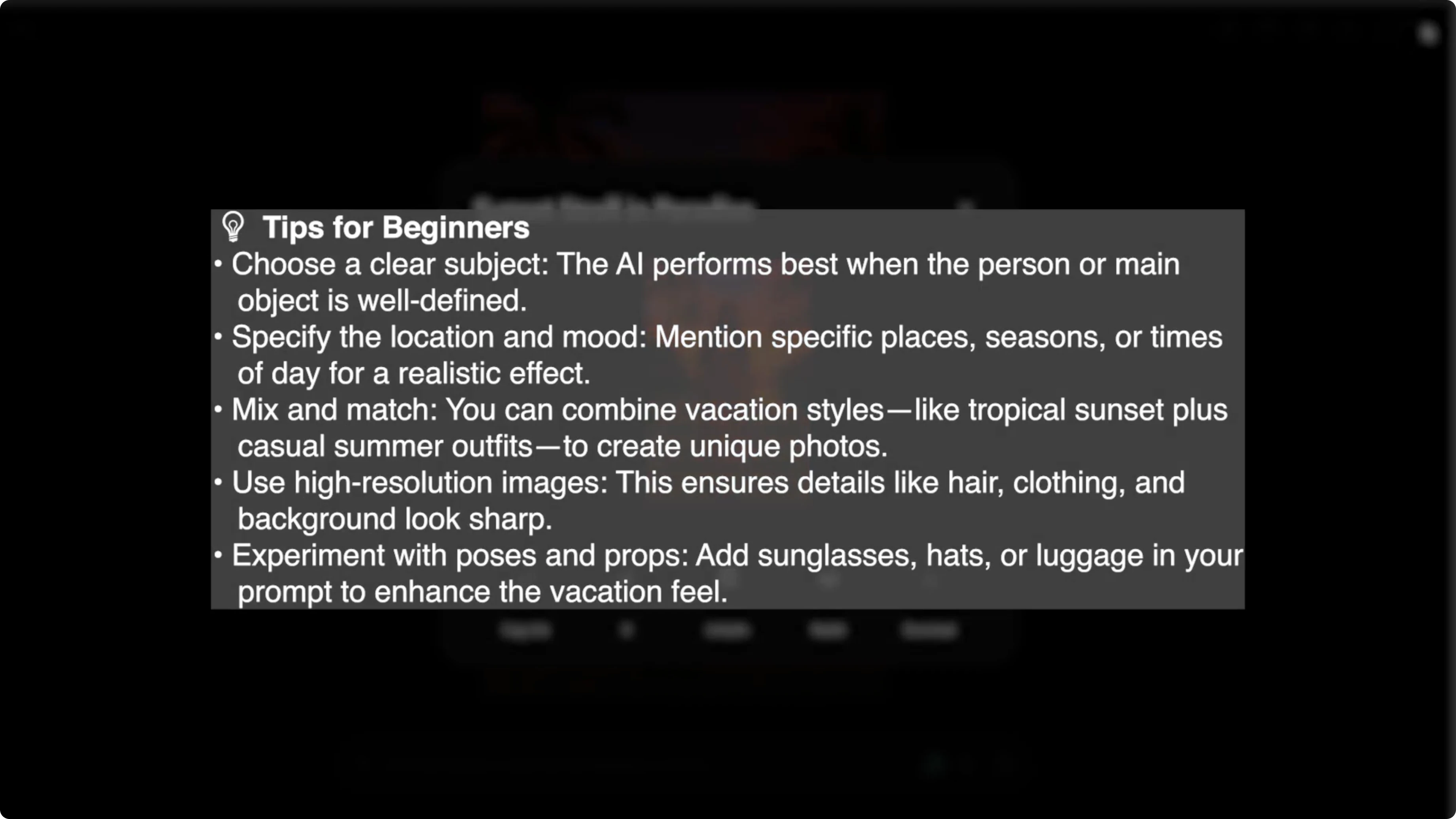
High resolution images with clear subjects work best for realistic transformations. This helps the model keep faces and clothing consistent while changing the scene.
If you prefer a Canva workflow for image creation, explore how to generate AI images in Canva here: generate AI images in Canva.
Start
Open your browser and go to ChatGPT. Log in to your account or sign up for free if you do not have one.
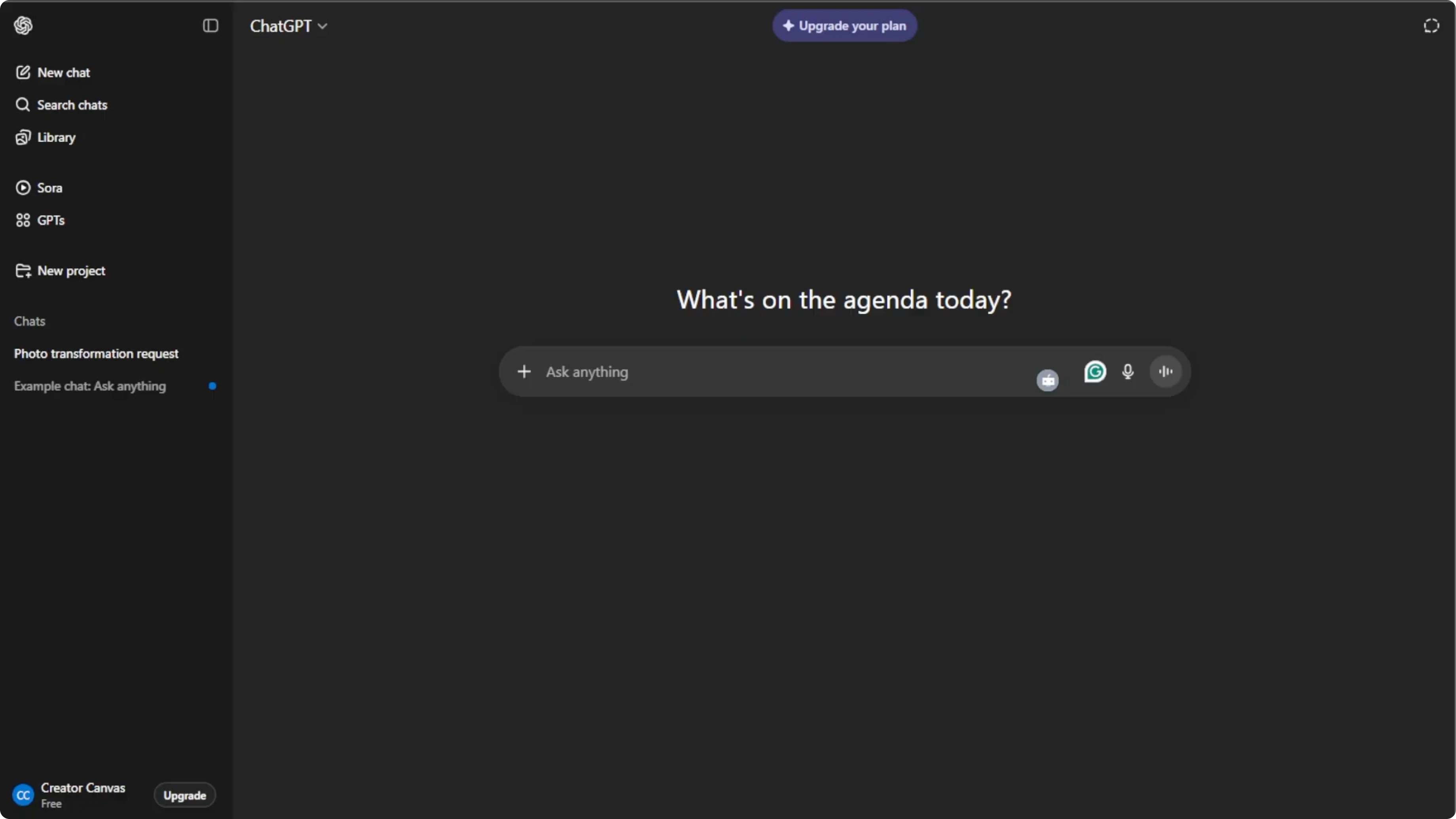
Image mode
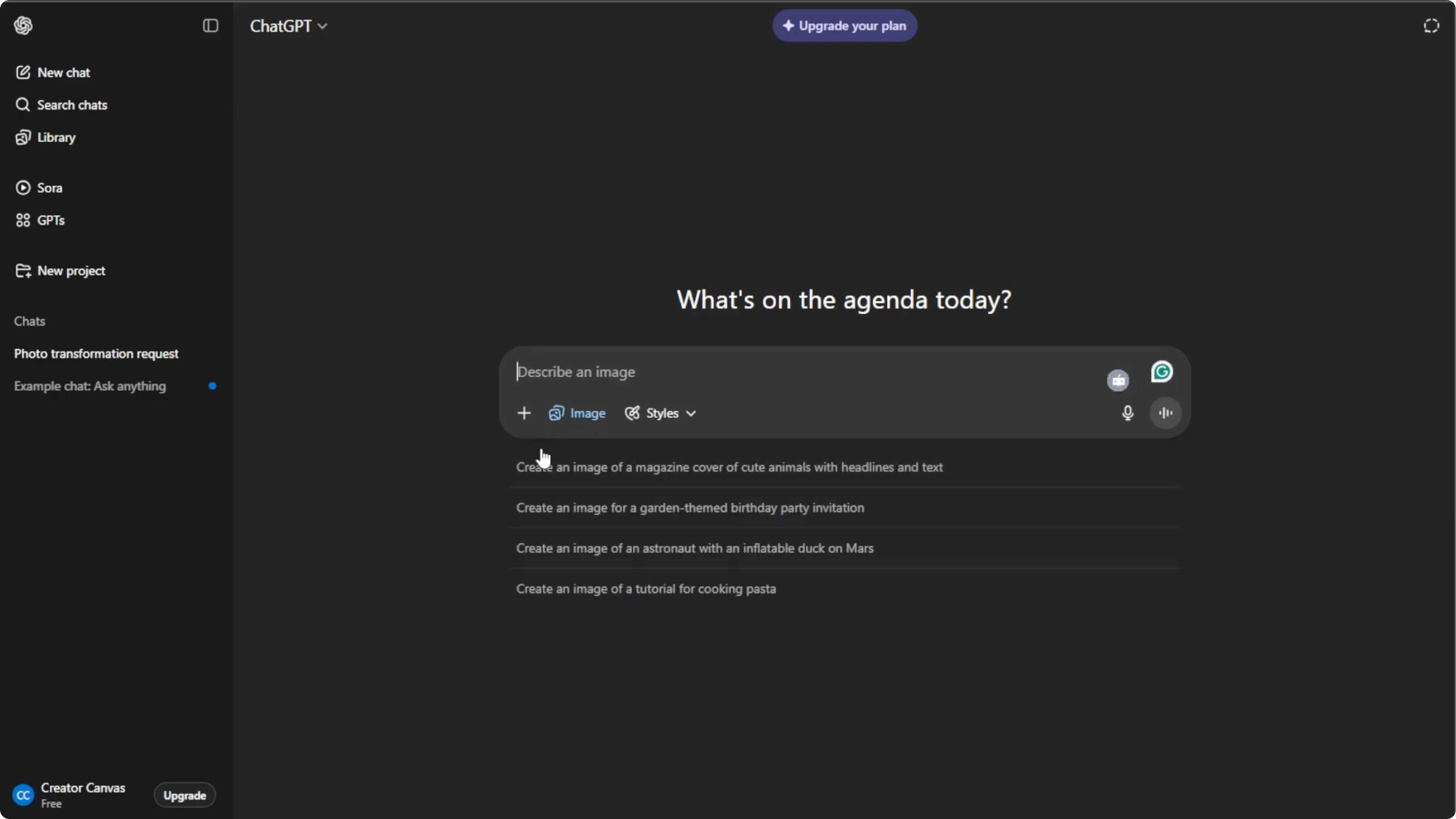
Click the plus icon in the prompt box. Select create image to enter image generation mode.
Upload your photo
Click the plus icon again and select add photos or files, or press Ctrl U. Choose the image that you want to transform into a vacation photo.
Write your prompt
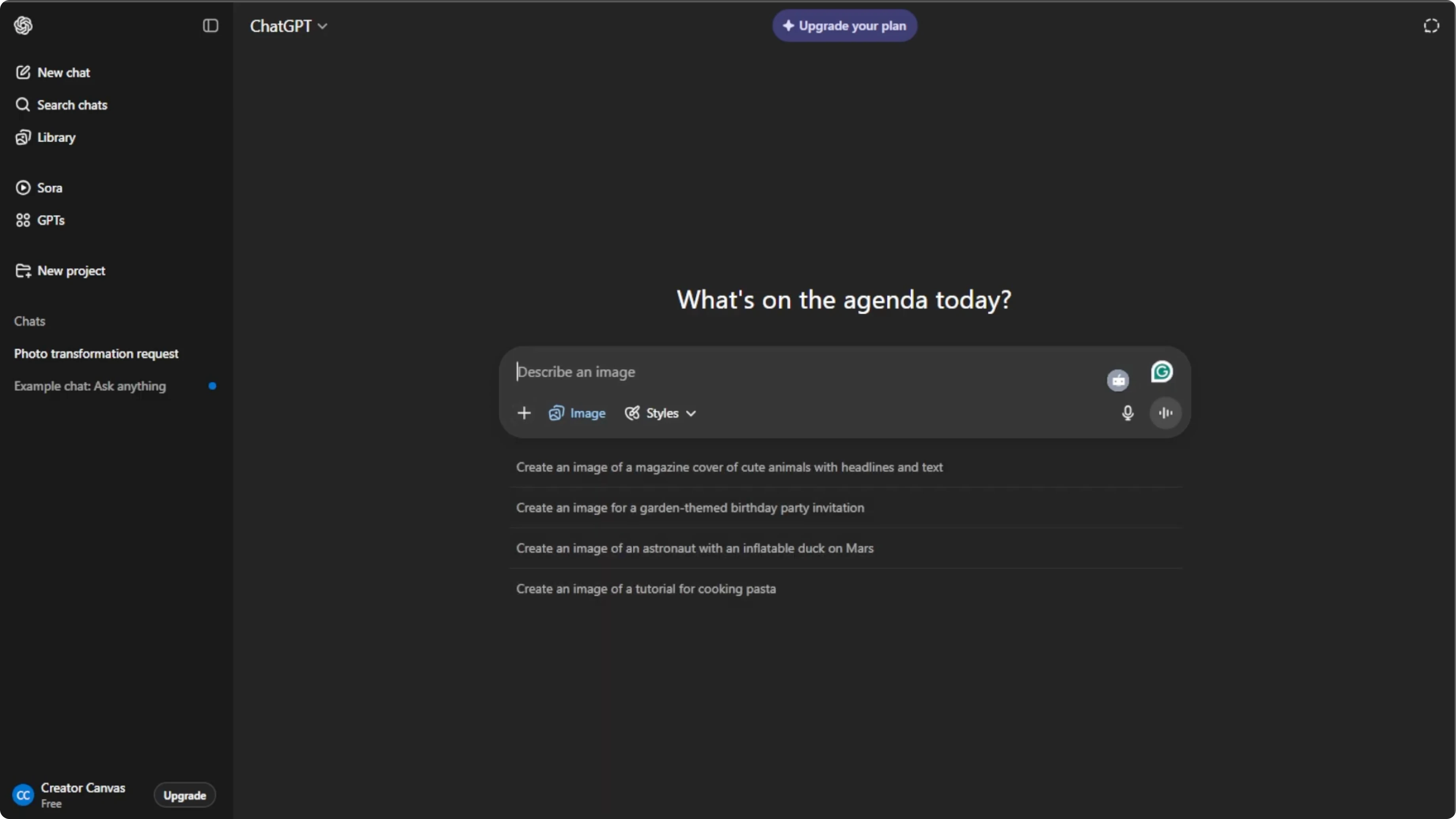
Write a clear and specific instruction telling the AI how you want your image transformed. Include location, time of day, and any outfit or style changes. Mention lighting, mood, colors, or props like sunglasses or beach hats to make it look authentic.
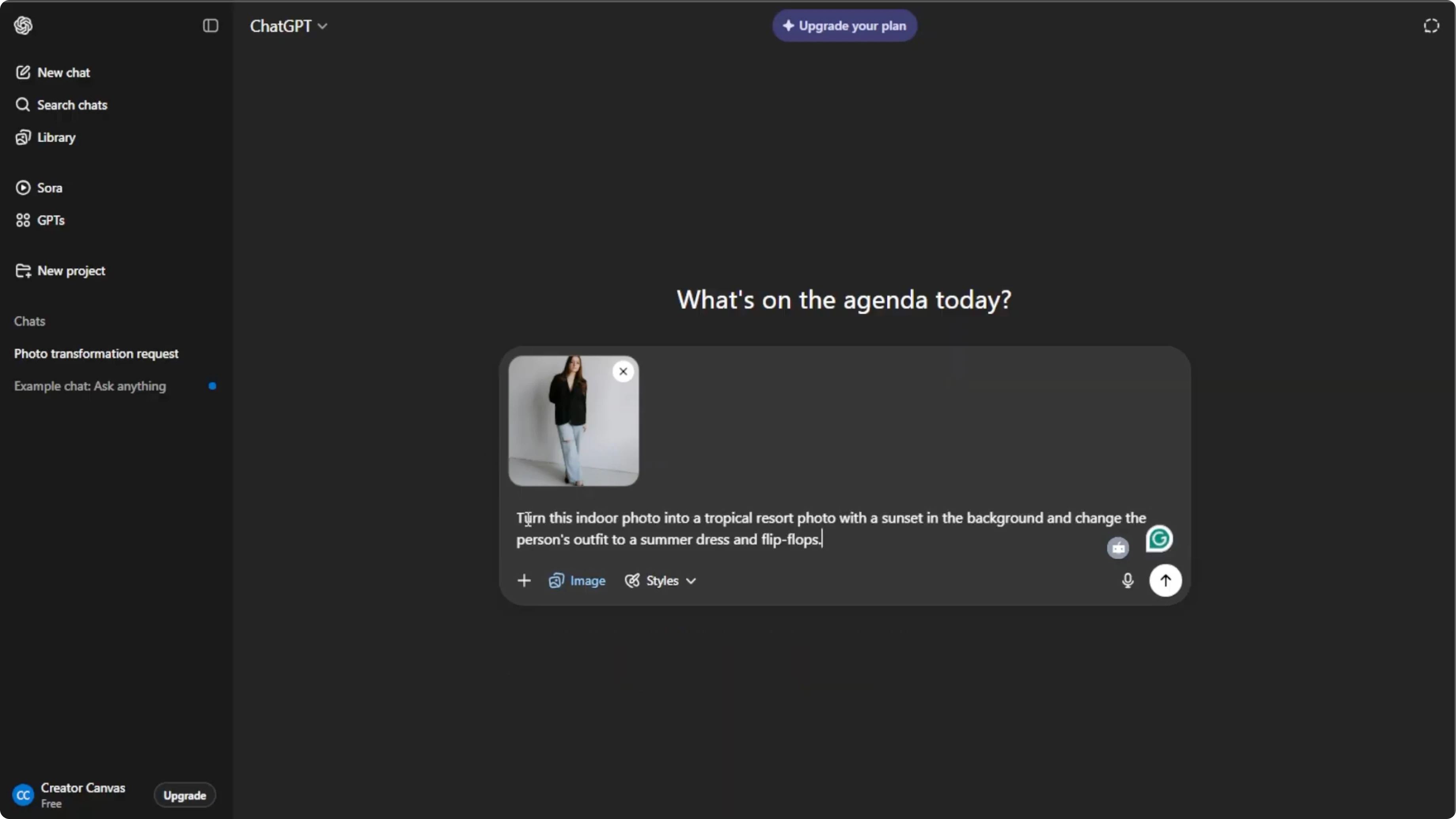
If you are planning outfit or style changes, you might also want to create a digital model for clothing visuals. See how to create a virtual model for outfits here: create a virtual model for clothes.
Here is a simple prompt template you can copy and customize:
Transform this photo of me into a [location] scene at [time of day].
Keep my face and pose the same, and change my outfit to [style or clothing details].
Use [lighting description], [mood], and [color palette], and add props like [prop examples] for an authentic look.
Generate
Press Enter to let the AI create the vacation style photo. Wait a few seconds while the AI processes your image.
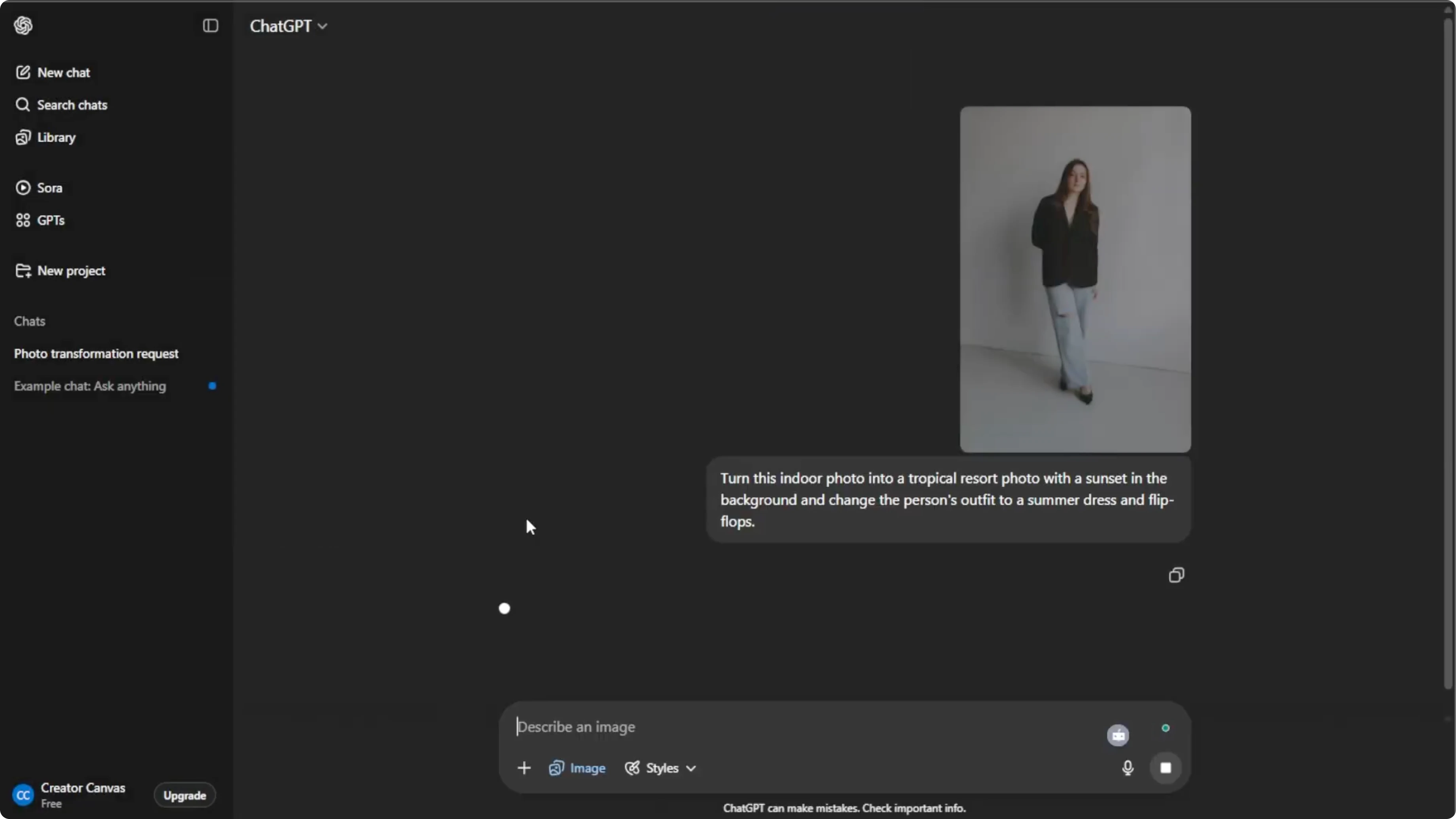
Refine
The first result might not be perfect, so regenerate or tweak your prompt for better results. Adjust location details, lighting, or outfit notes until the scene matches what you want.
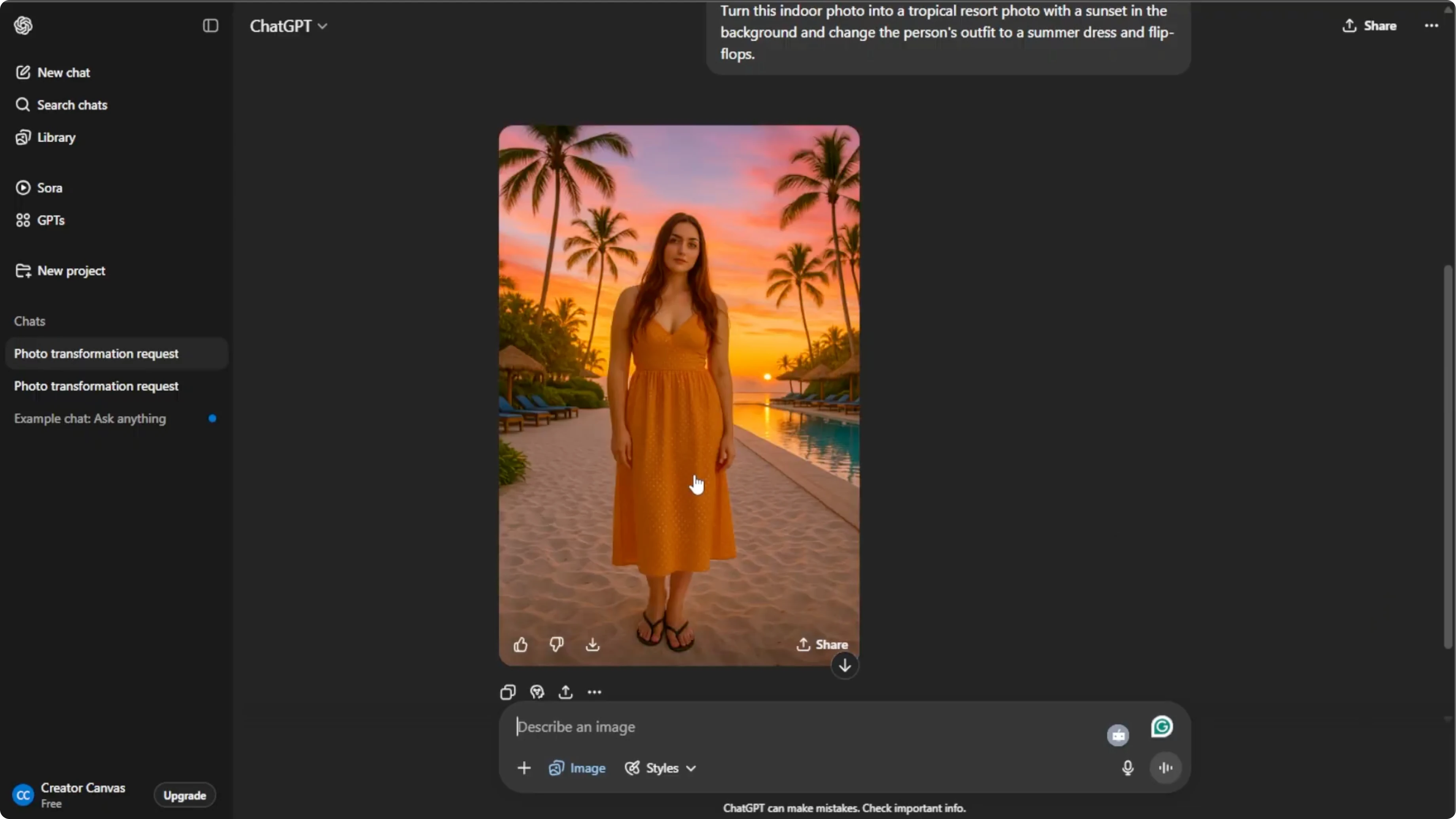
Save and share
Hover over the image and click download to save it to your computer. You can also click share to post it directly to social media.
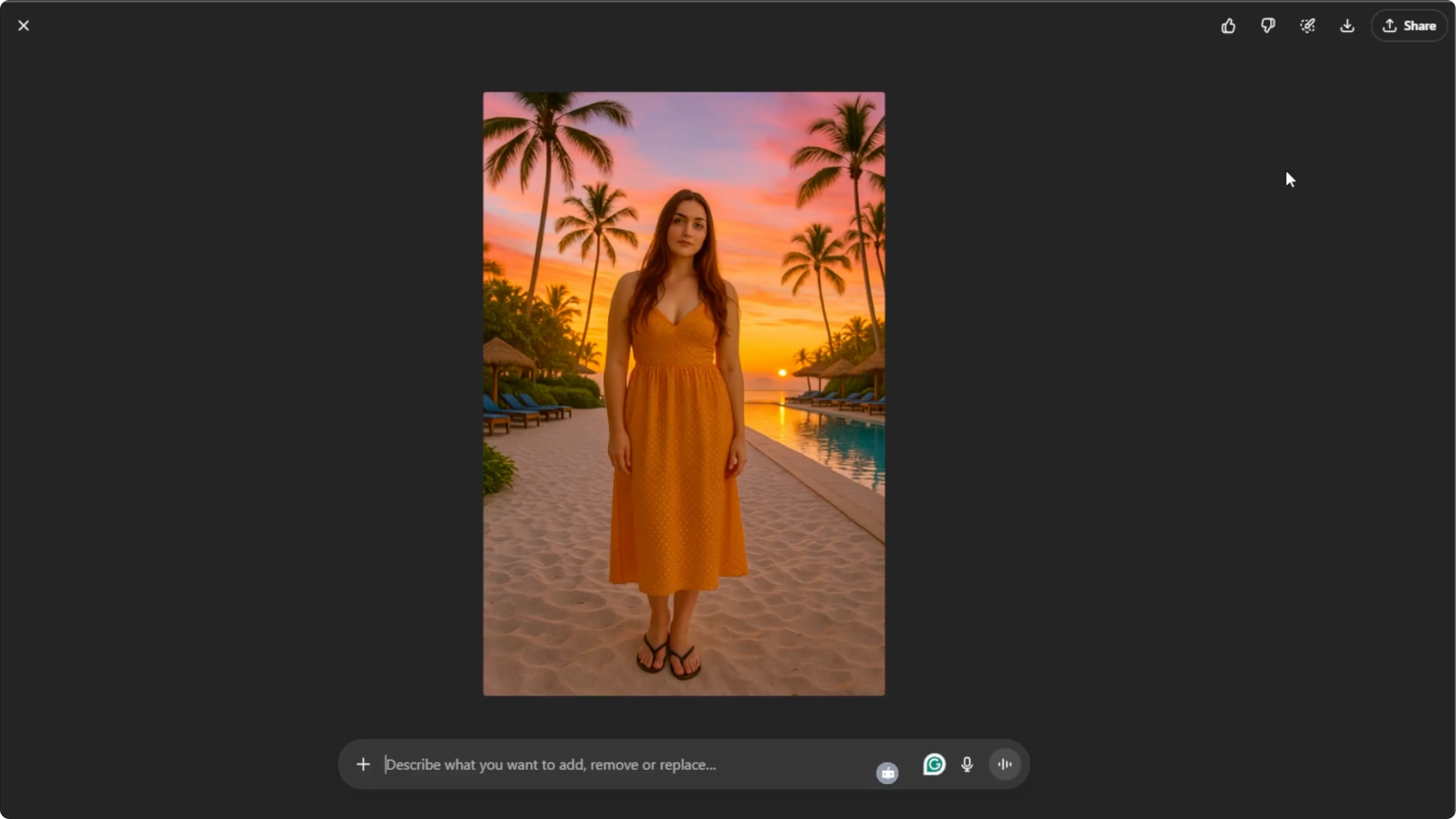
Uses
With this method, you can turn any ordinary photo into a stunning vacation image. It works well for social media, gifts, or personal keepsakes.
If you plan to turn your travel photos into short videos, learn how to add a natural voiceover in Canva here: add AI voice to a video in Canva.
Final thoughts
Pick a crisp source photo, write a specific prompt, and iterate until it looks right. Small prompt edits to location, light, and outfit details can make a big difference. Save the best version and share it anywhere you like.

Recent Posts

How to Visualize Yourself as a Pixelized Character with AI?
How to Visualize Yourself as a Pixelized Character with AI?

How to Revive Faded Memories and Enhance Image Clarity with AI?
How to Revive Faded Memories and Enhance Image Clarity with AI?

How to Visualize Yourself as an Animal Crossing Character with AI?
How to Visualize Yourself as an Animal Crossing Character with AI?