How to Showcase Outfits Digitally by Generating a Virtual Model with AI?
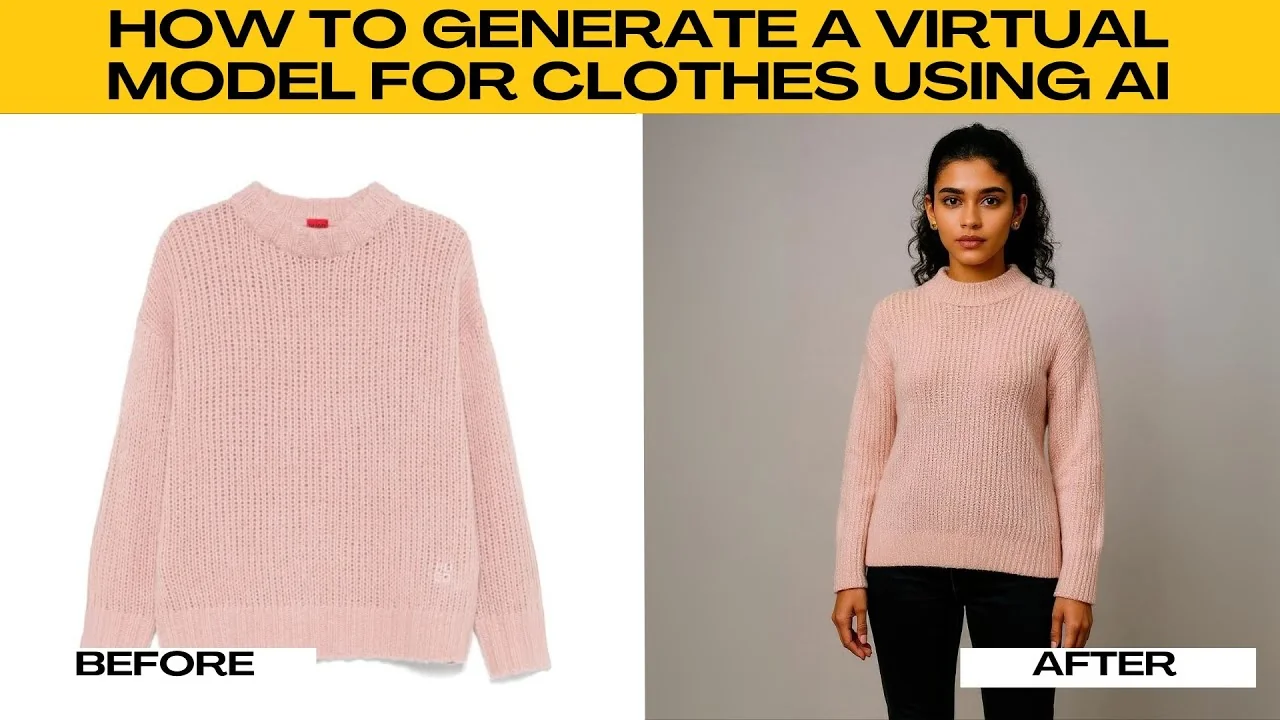
I will teach you how to generate a virtual model for clothes using AI. If you're selling clothes online, working on a fashion project, or curious about how your design would look on a real person, Photo Room's AI powered virtual model tool is very effective.
For motion content, see how to create AI generated videos in Canva.
Get started
Open your preferred browser and navigate to Photo Room's website. Click on AI tools from the left sidebar menu to open a page with a variety of creative tools powered by AI. Scroll down until you see Virtual model and click it.
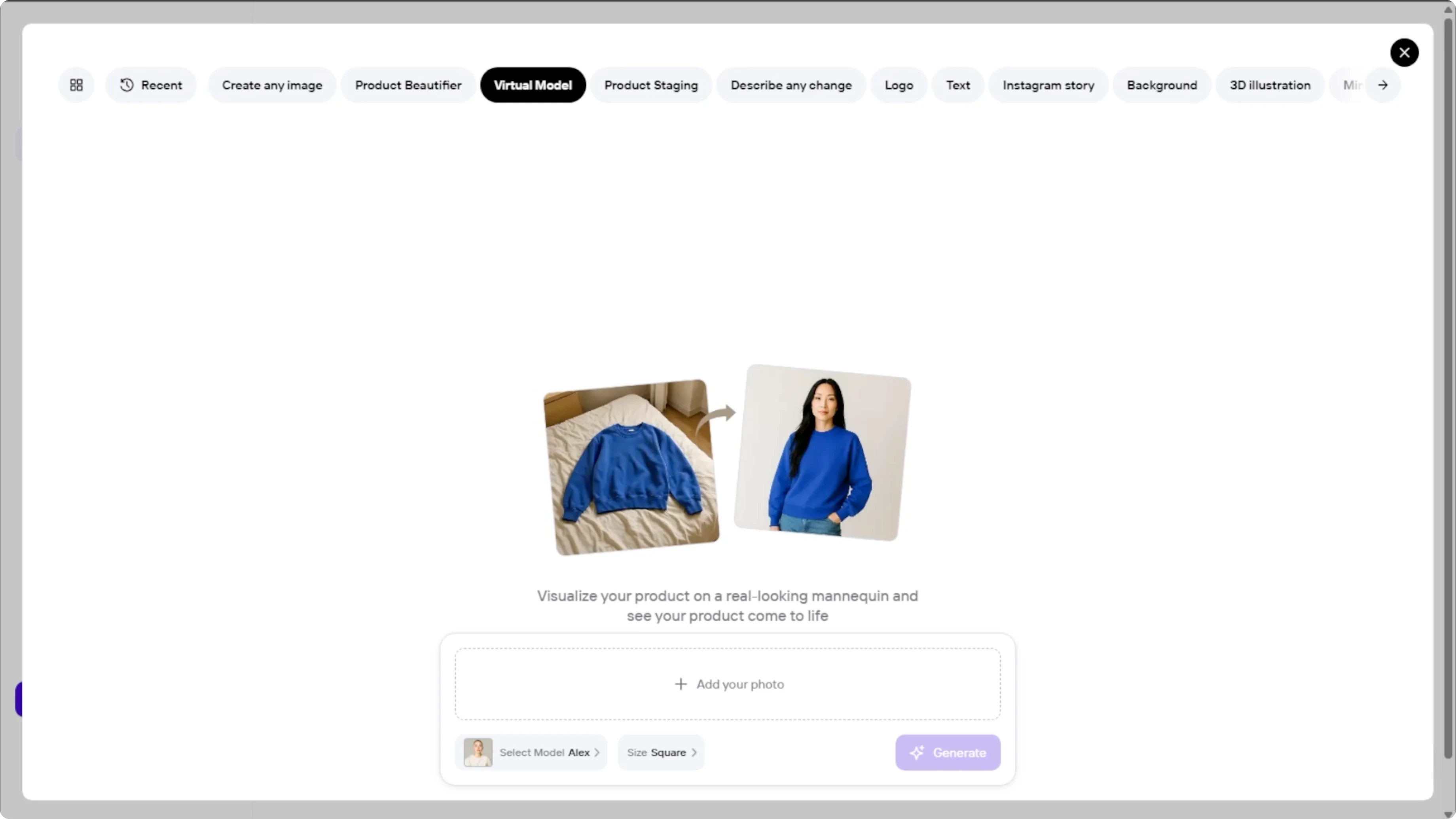
You will be taken to the upload screen where you can start the process of placing your clothing on a model.
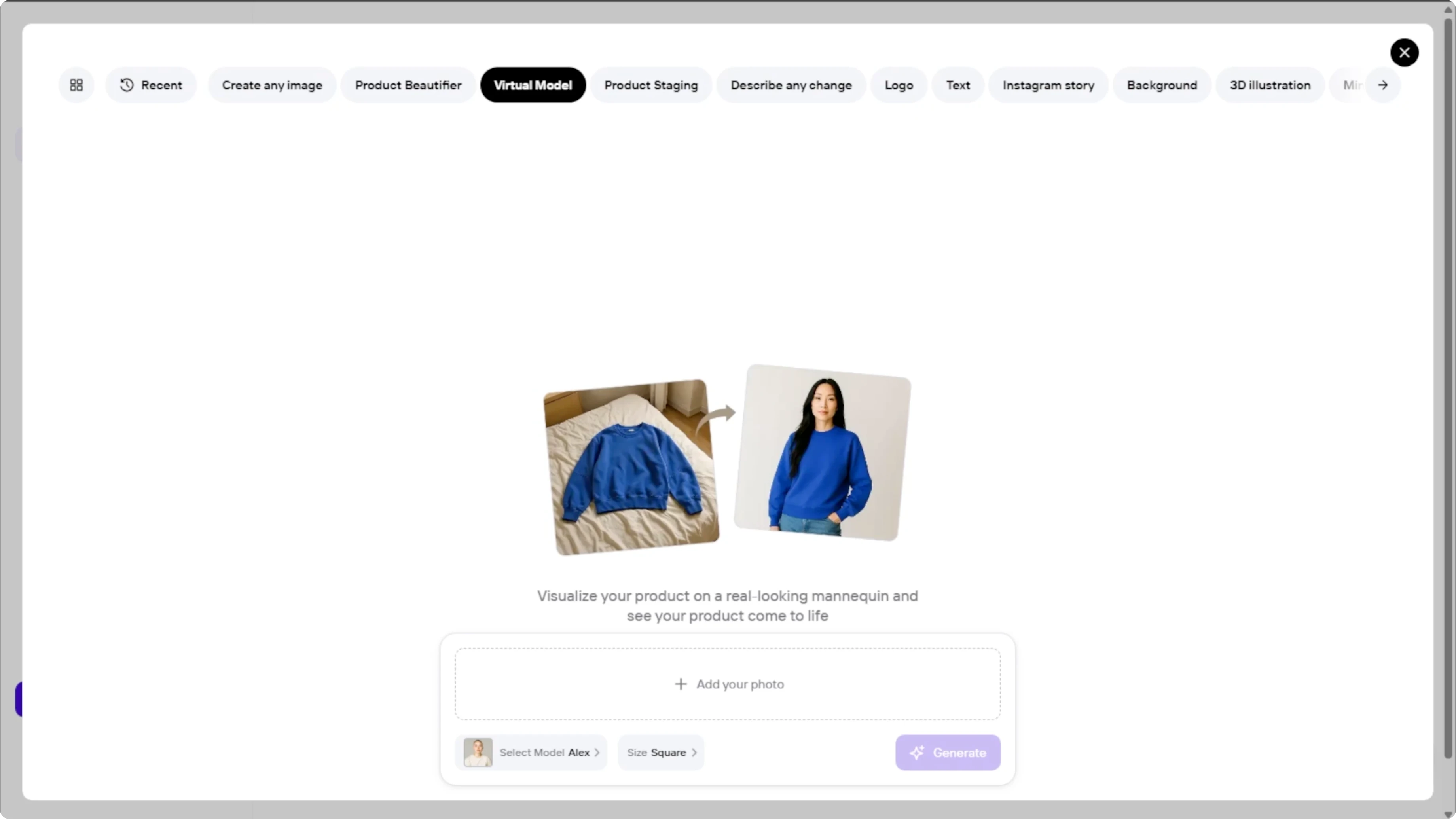
Upload clothing photo
Click Add your photo and select the image of your clothing item from your computer. Make sure the clothing is clearly visible and not too wrinkled or distorted. Recommended formats include JPG and PNG.
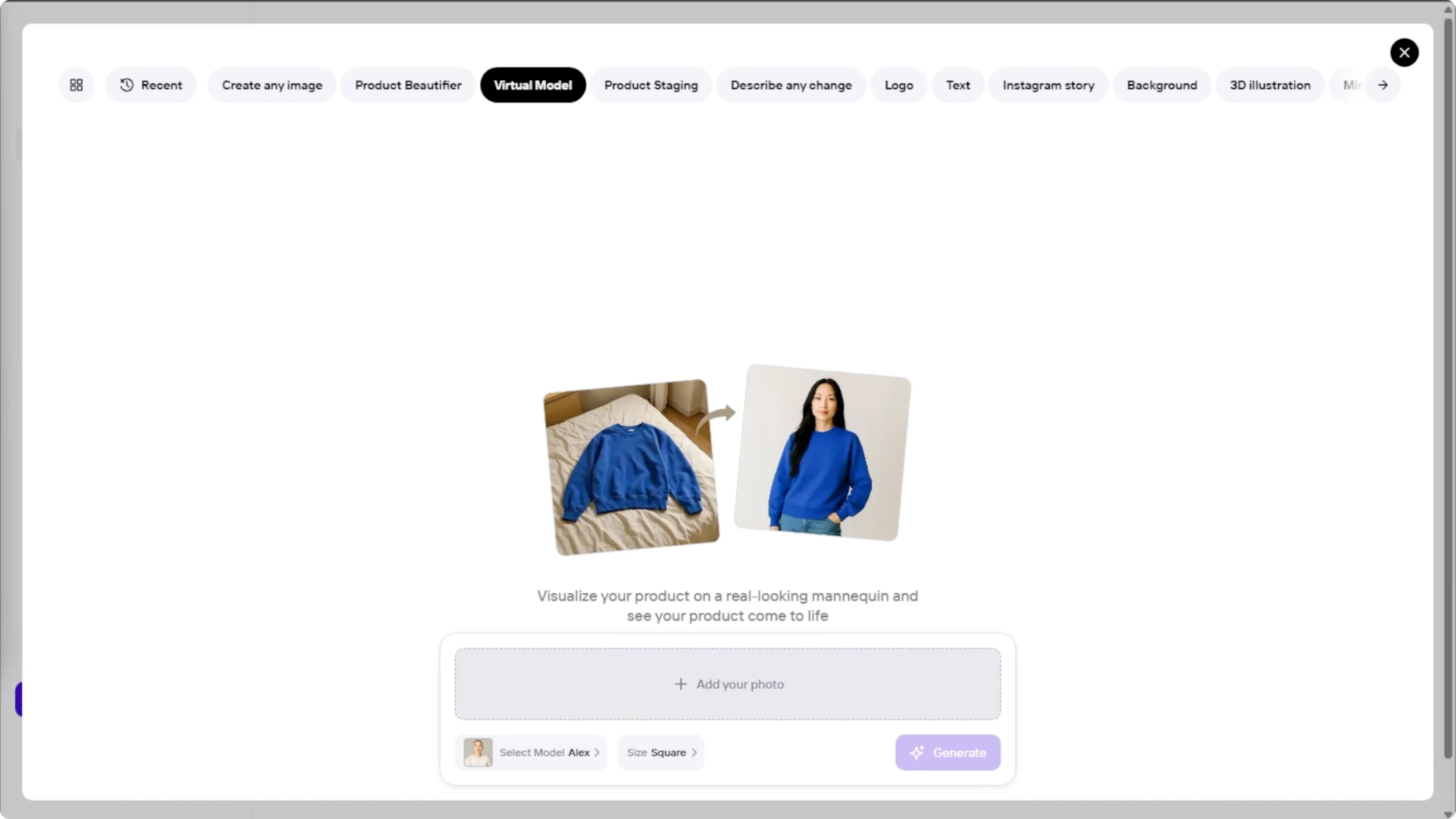
For best results, use a front facing product photo with no models already wearing them.
Choose a model
Scroll down to the Model menu after the image uploads. Browse the different virtual models available with multiple poses, body types, and skin tones to choose from.
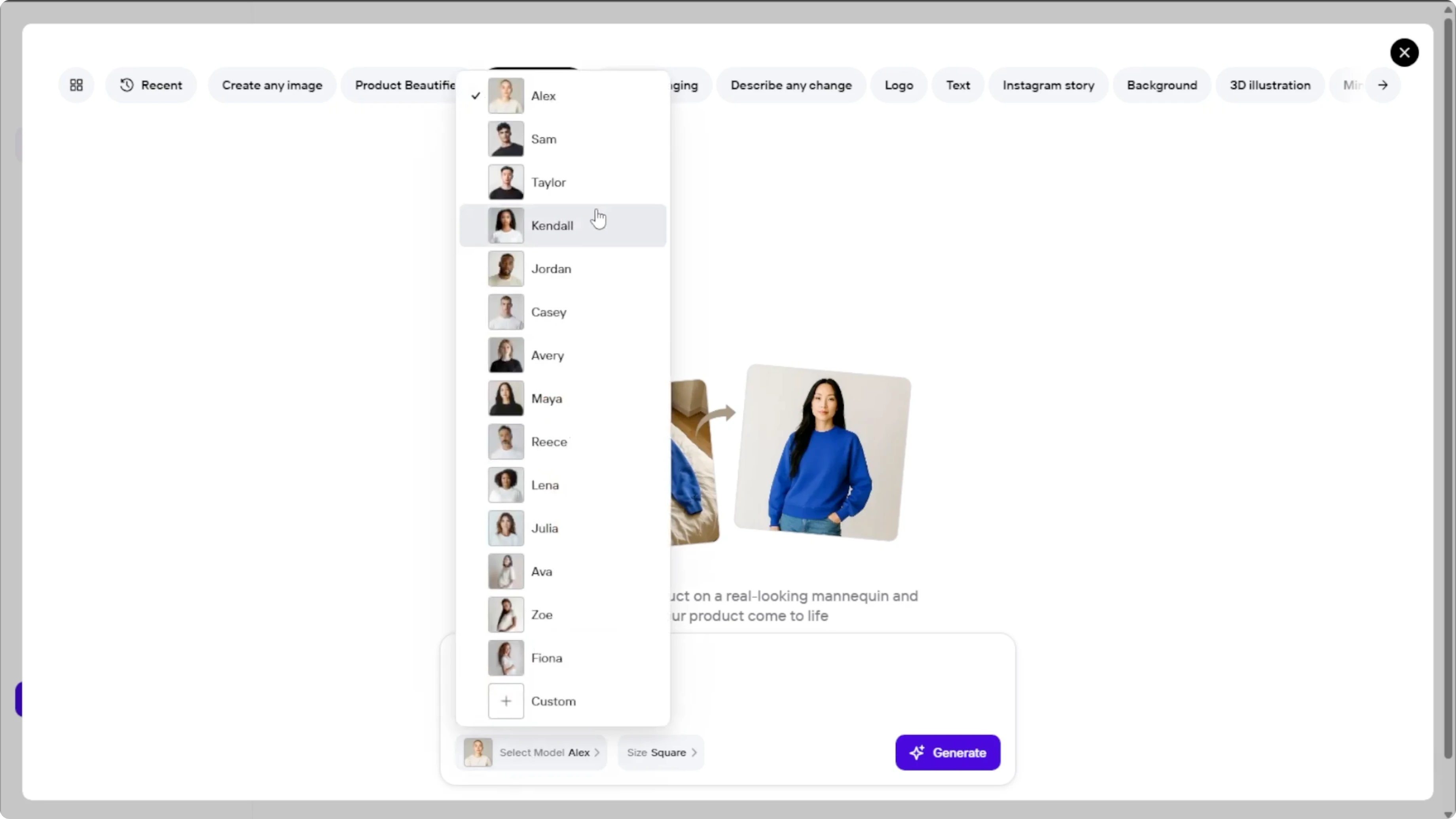
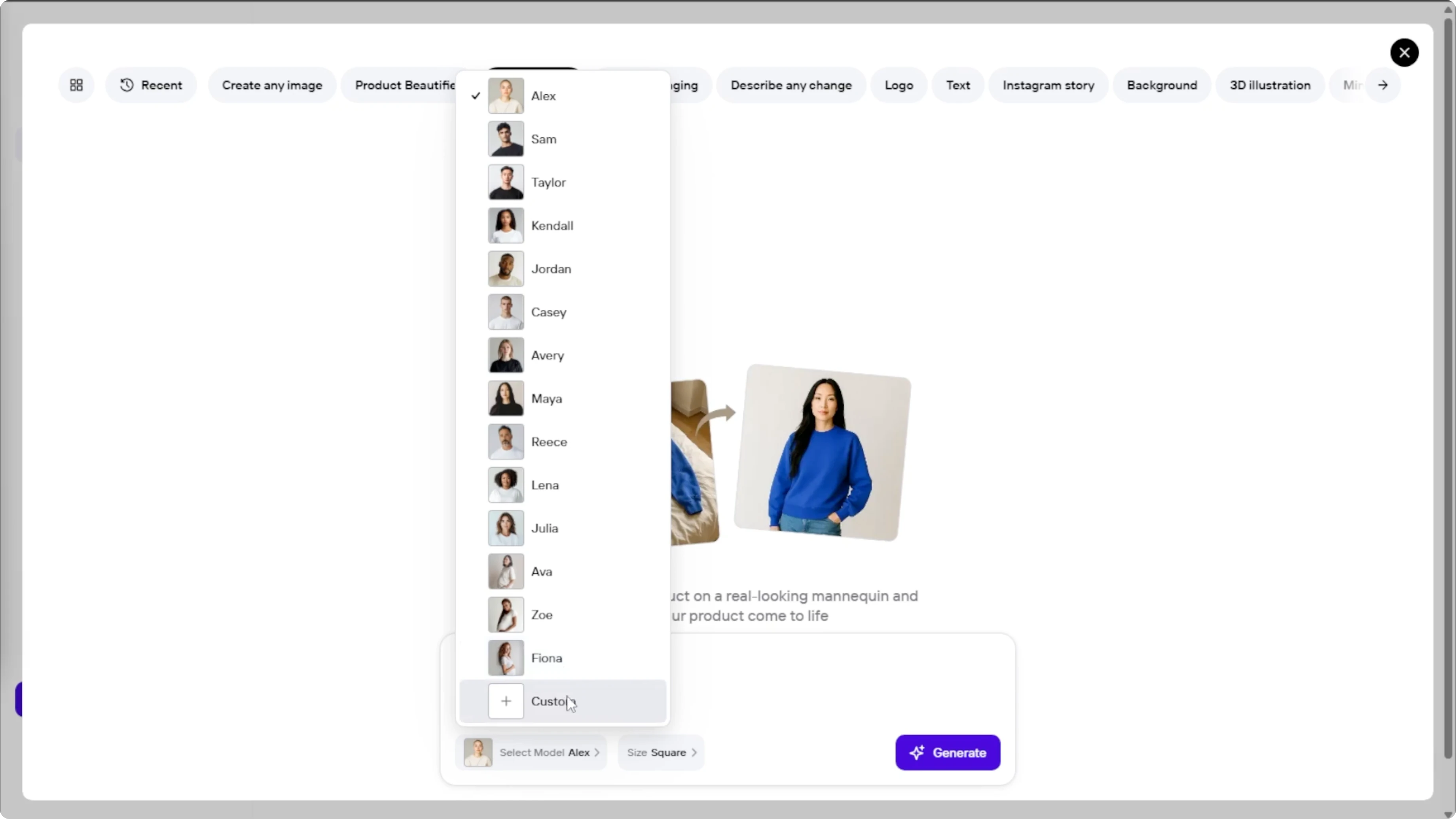
If you prefer to use a real model photo, click Custom, then upload your own image. Make sure your custom model image is front facing and in good lighting for best results.
Pick size
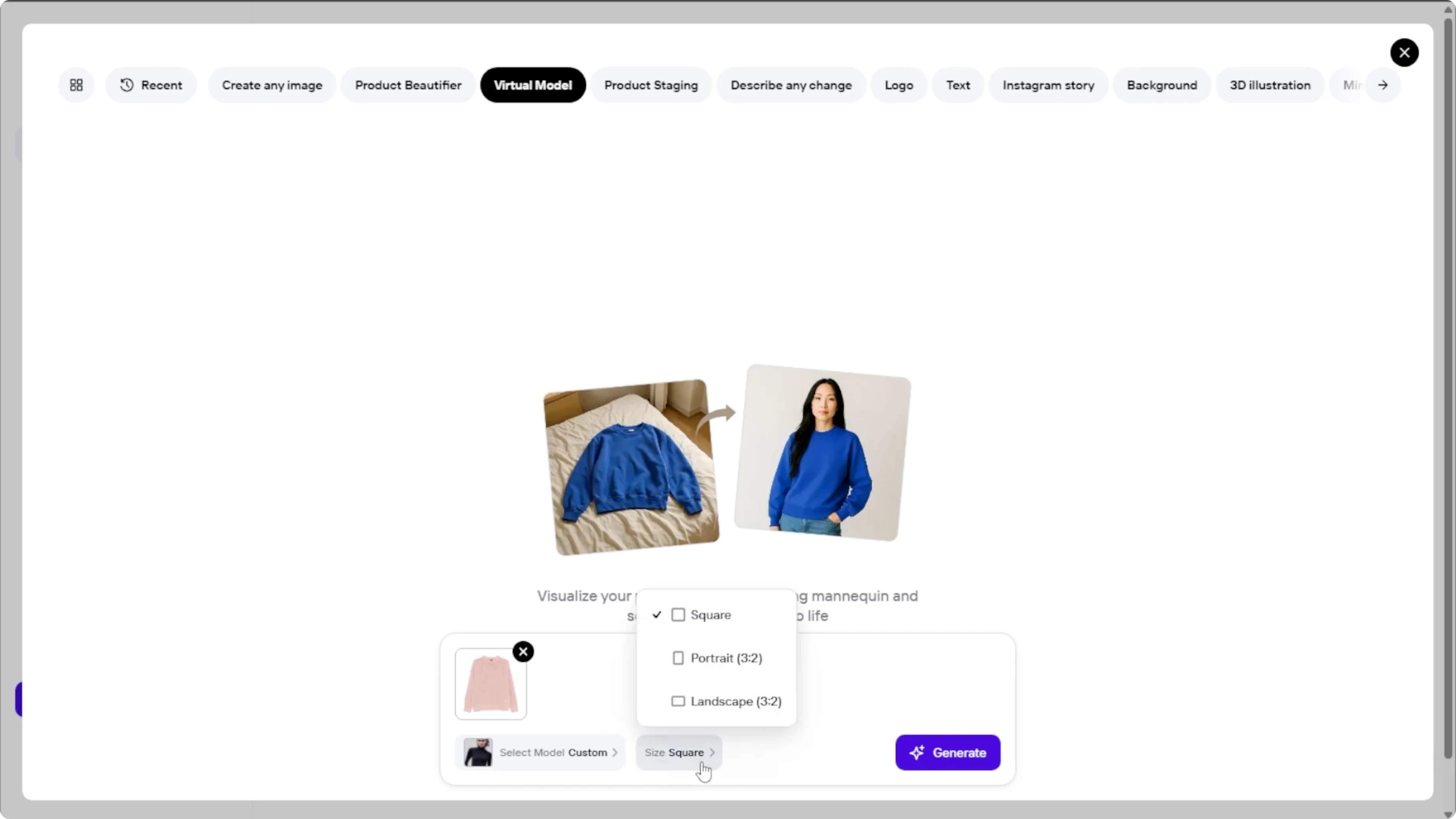
Click the Size option to pick the format that you need. Square 1x1 is ideal for Instagram or product thumbnails, 3x2 portrait is great for fashion listings or lookbooks, and 3x2 horizontal is useful for banners or horizontal layouts. Pick one that matches where you will post or use the image.
Generate images
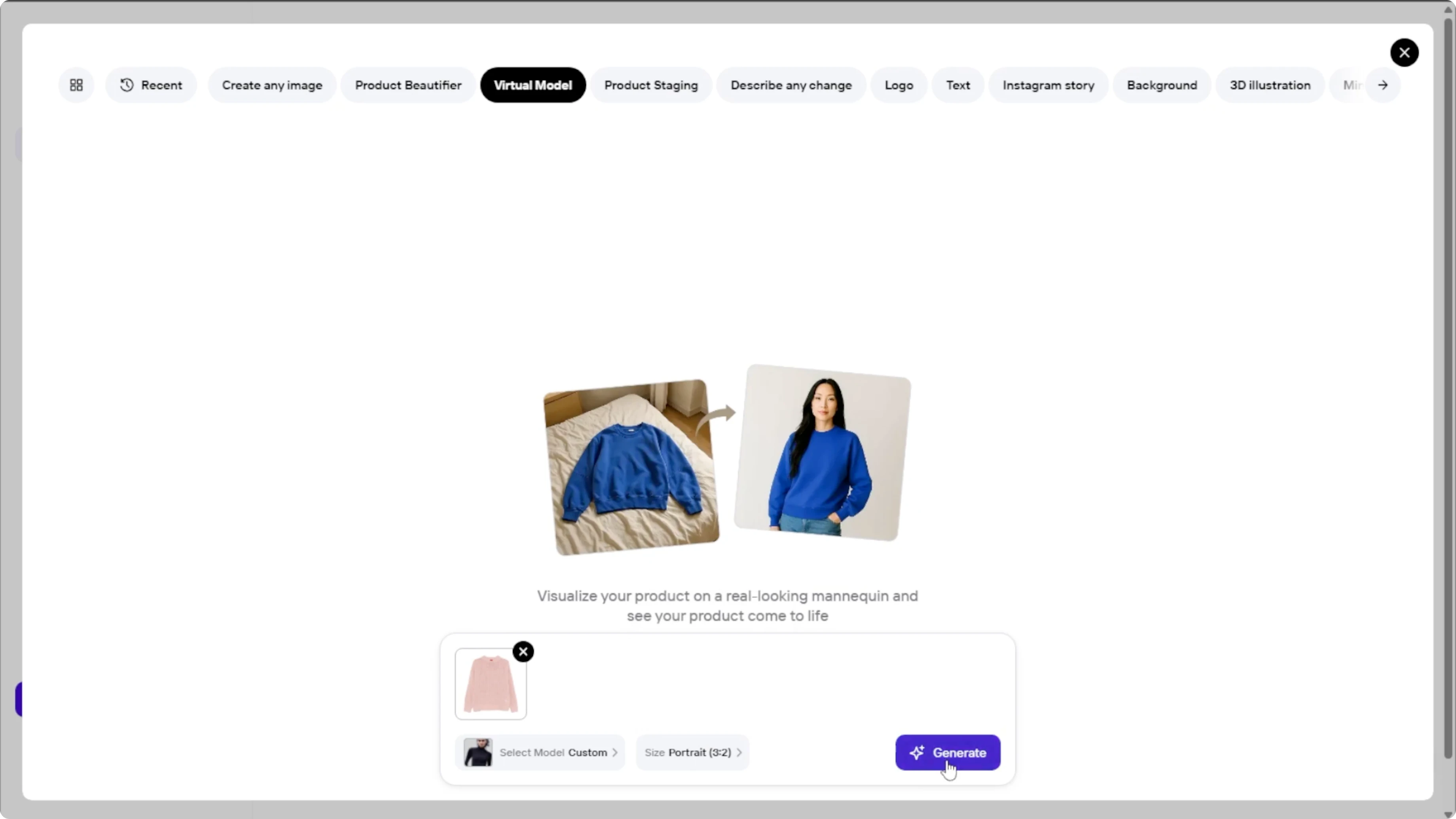
Once your model and settings are chosen, click Generate. It can take up to 60 seconds, and each generation gives you two image options. Let the AI analyze your clothing and apply it realistically to the model you selected.
Review and refine
Click on each image to zoom in and examine details like fabric fit, lighting, and posture. If you're not satisfied with the images, you have two options.
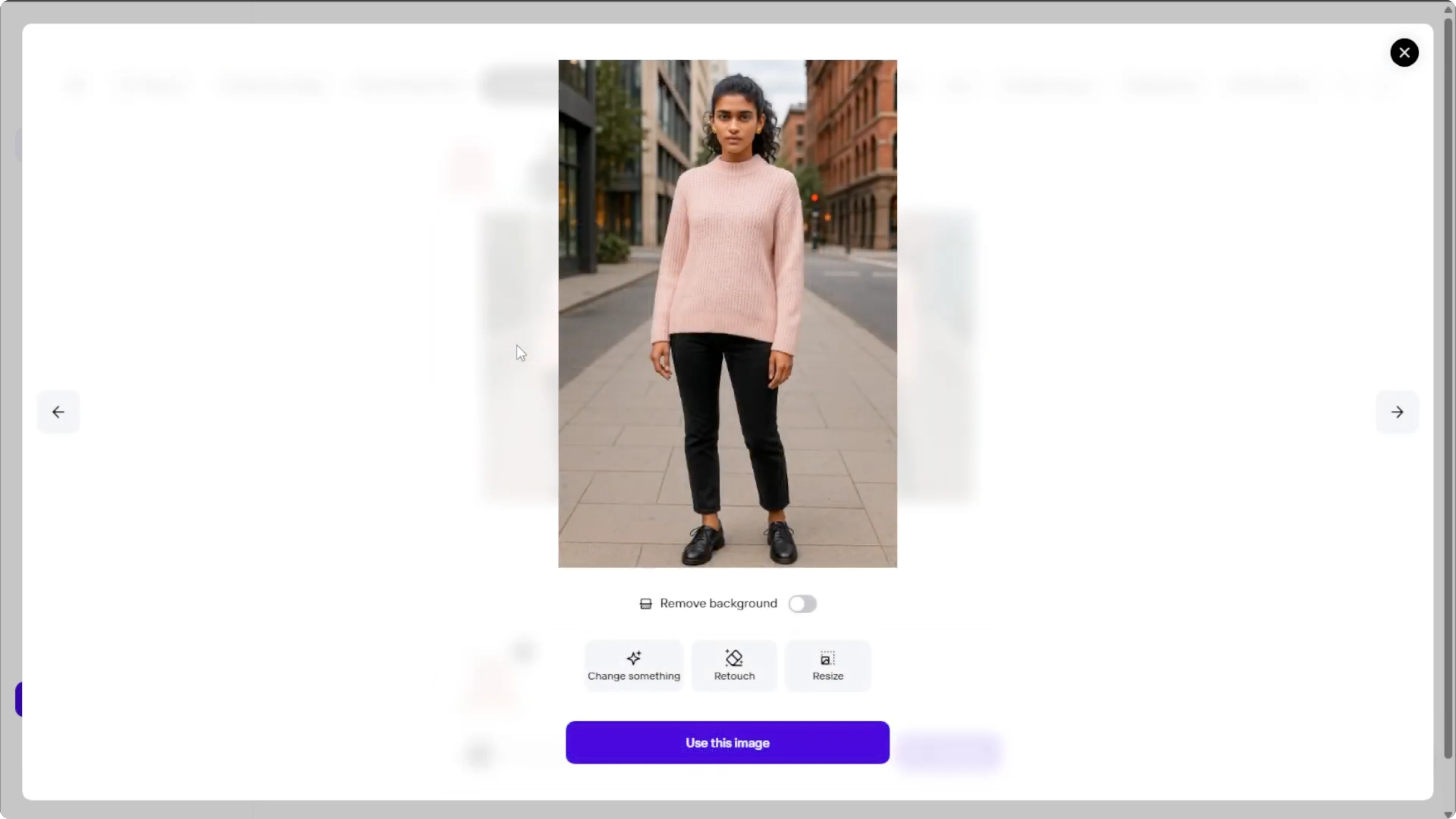
Edit details
Modify the image by clicking Change something to make custom edits. In the text box, make sure to clearly describe what you want to change.
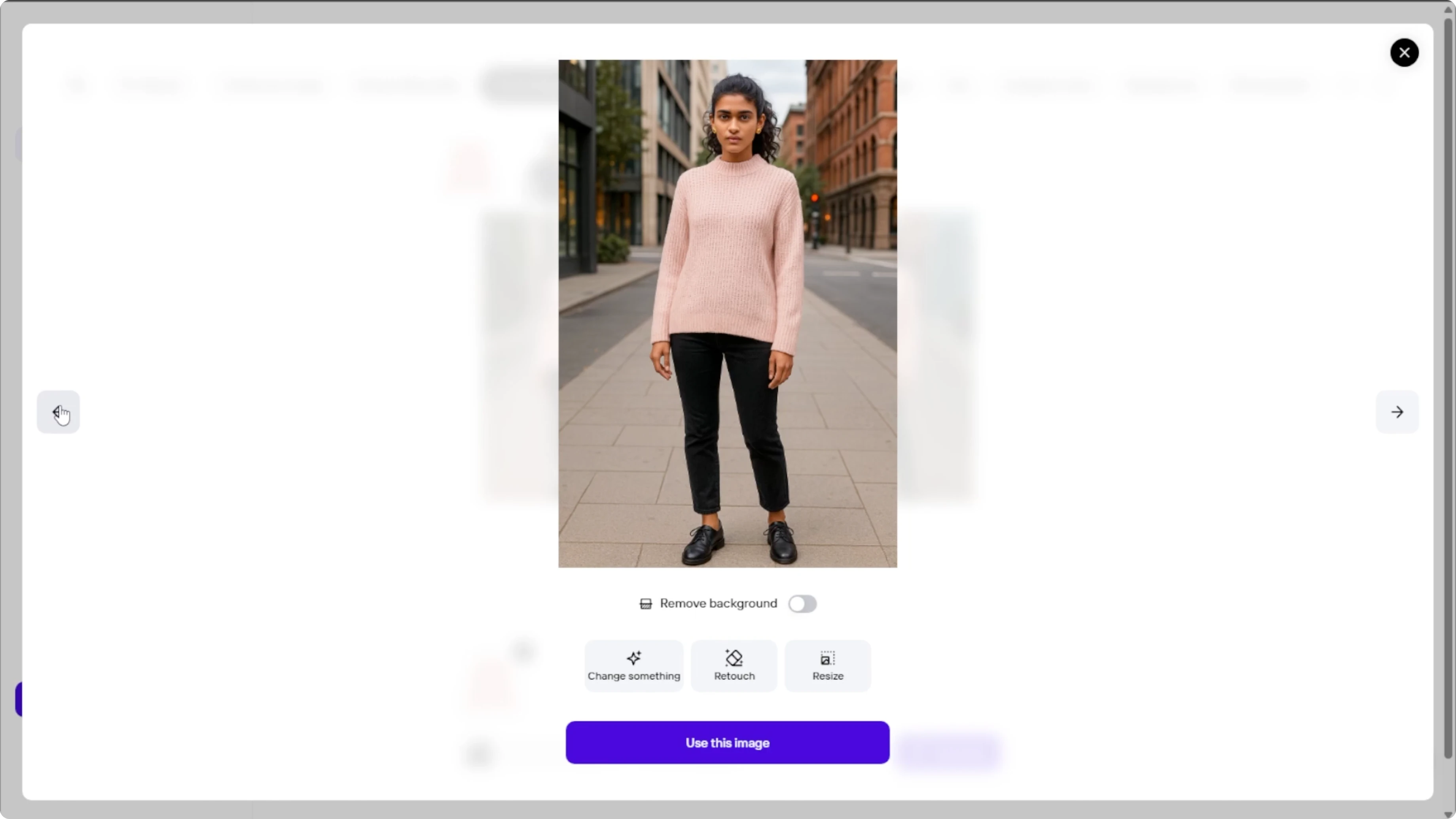
Try again
Click Generate again to receive two brand new AI generated previews. Repeat until you find the result that fits your style and intent.
Finish in editor
Once you find the image that you like, click Use this image and you will be redirected to Photo Room's editor. Add studio lighting, change the background, add branding or text, apply filters, or retouch the model. This is a great chance to refine the image before publishing.
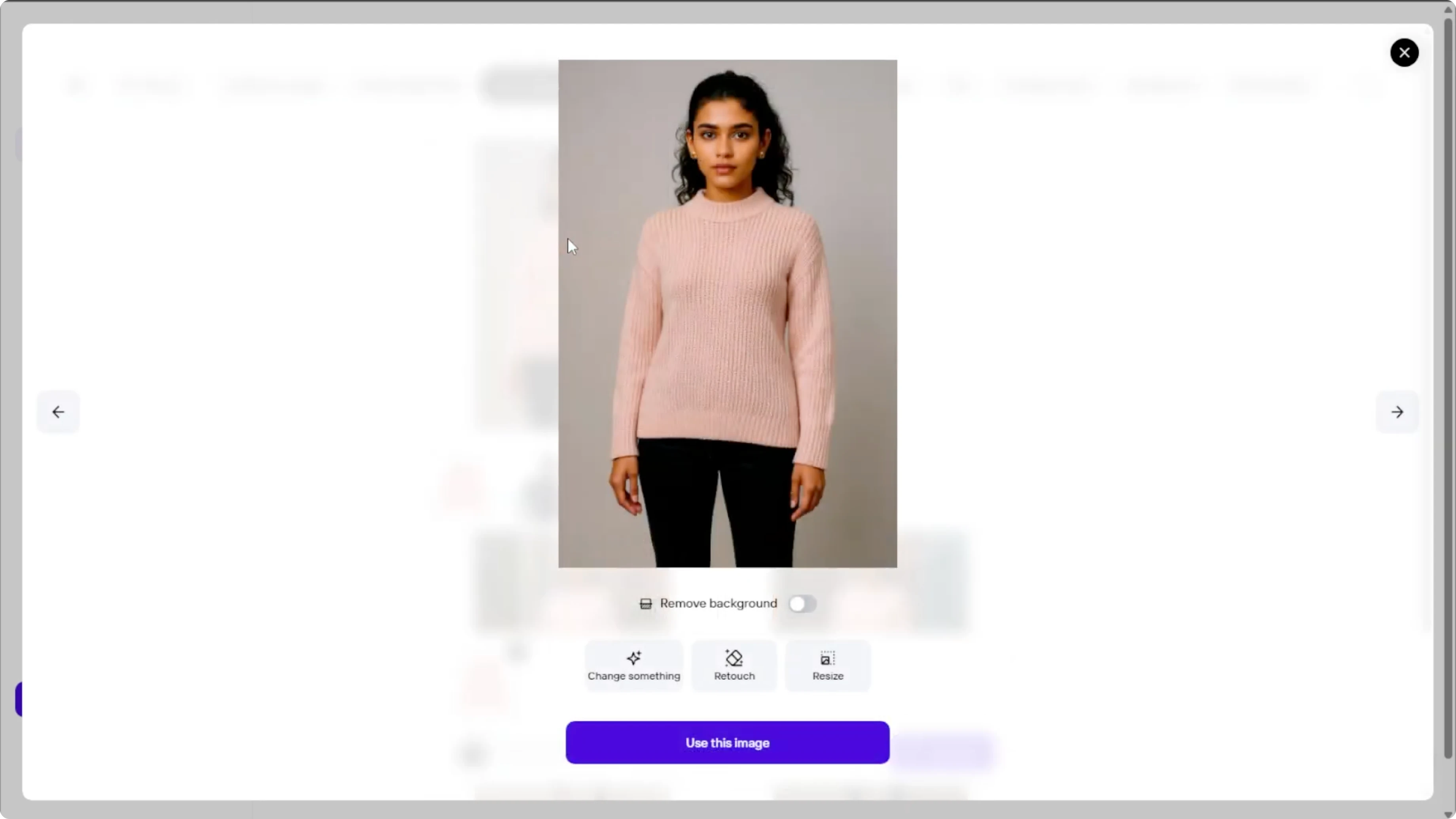
For deeper edits, check our image editing guide for helpful techniques that pair well with this workflow.
When you're done editing, click the Download button at the top right. Choose your preferred resolution and file format. Your virtual model image is ready to use on your website, social media, or online store.
If you want a playful aesthetic for social posts, see how to apply a cartoon effect in Canva.
Final thoughts
Photo Room's virtual model tool makes it easy to place your clothing on a realistic model with control over pose, body type, and size. Upload a clean product photo, choose the right format, and generate multiple previews until it fits your vision. Refine in the editor, then download and publish.
Recent Posts

How to Visualize Yourself as a Pixelized Character with AI?
How to Visualize Yourself as a Pixelized Character with AI?

How to Revive Faded Memories and Enhance Image Clarity with AI?
How to Revive Faded Memories and Enhance Image Clarity with AI?

How to Visualize Yourself as an Animal Crossing Character with AI?
How to Visualize Yourself as an Animal Crossing Character with AI?