How to Create AI Generated Videos in Canva
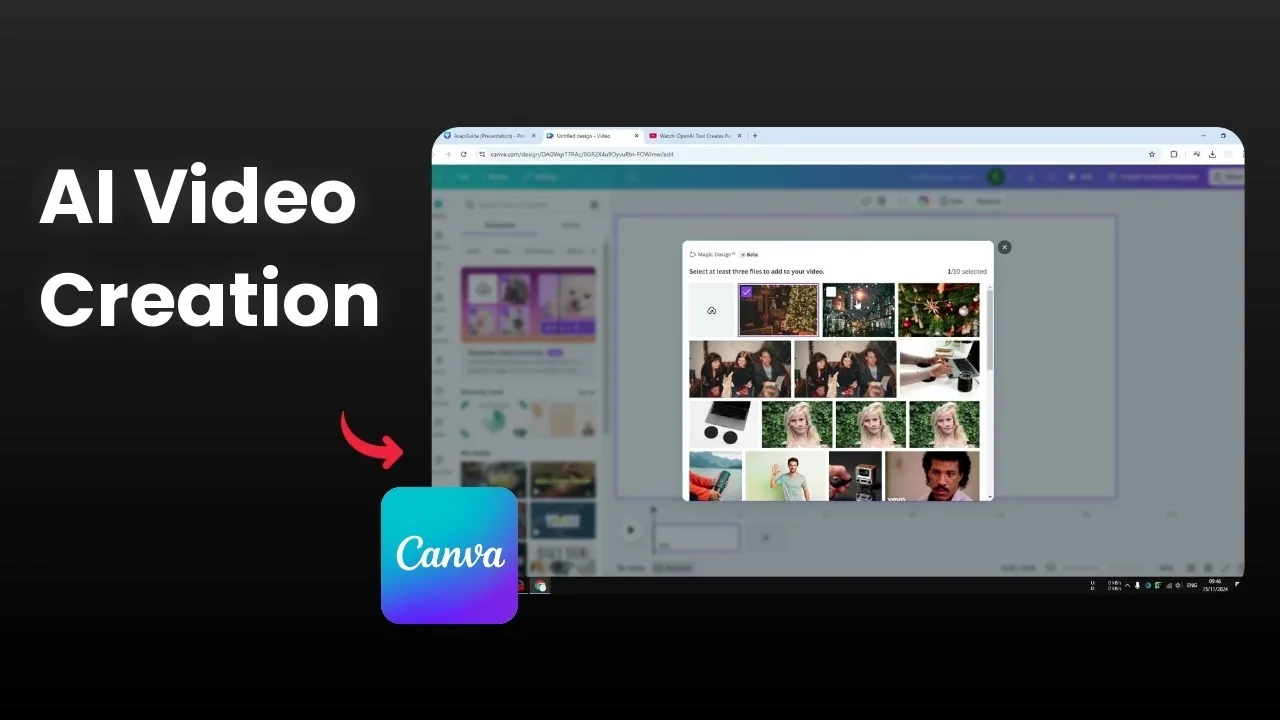
Here is how I create an AI generated video in Canva. I’m not creating a video from a text description like Sora or other AI models. Canva doesn’t have that feature yet.
The kind of video you can make here is closer to a slideshow. You hear music, you see text, and you see pictures that go with the text and music. It’s simple, and it’s made by AI.
Create AI Generated Videos in Canva
Start a video design
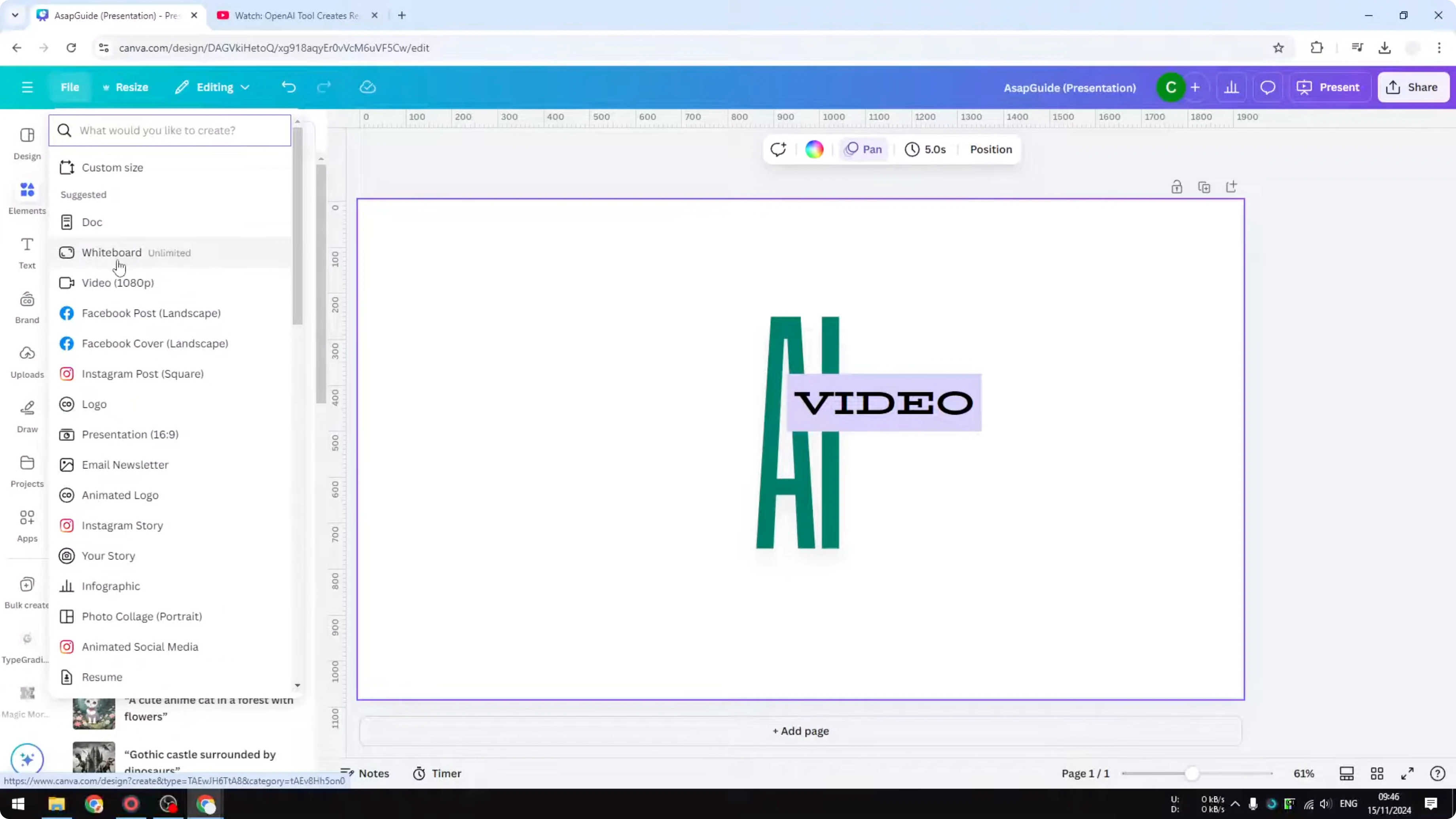
Open a video template, not an image template. Go to File, select Create new design, and pick a video format.
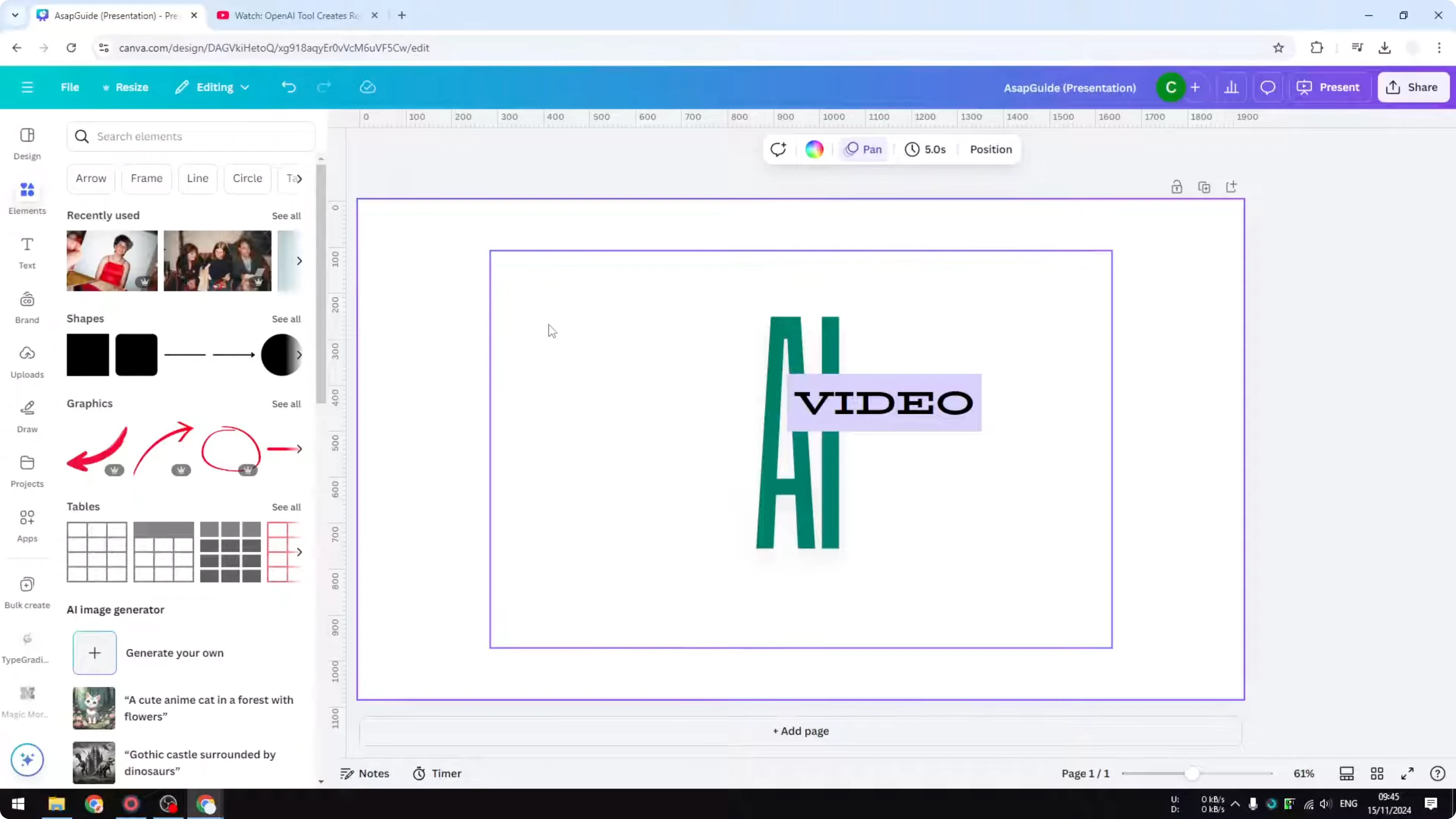
There are plenty of options, and I go with a simple 1080p video. Open the canvas to begin.
Use Generate videos instantly
Go to Design. In the Templates section, find the menu labeled Generate videos instantly.
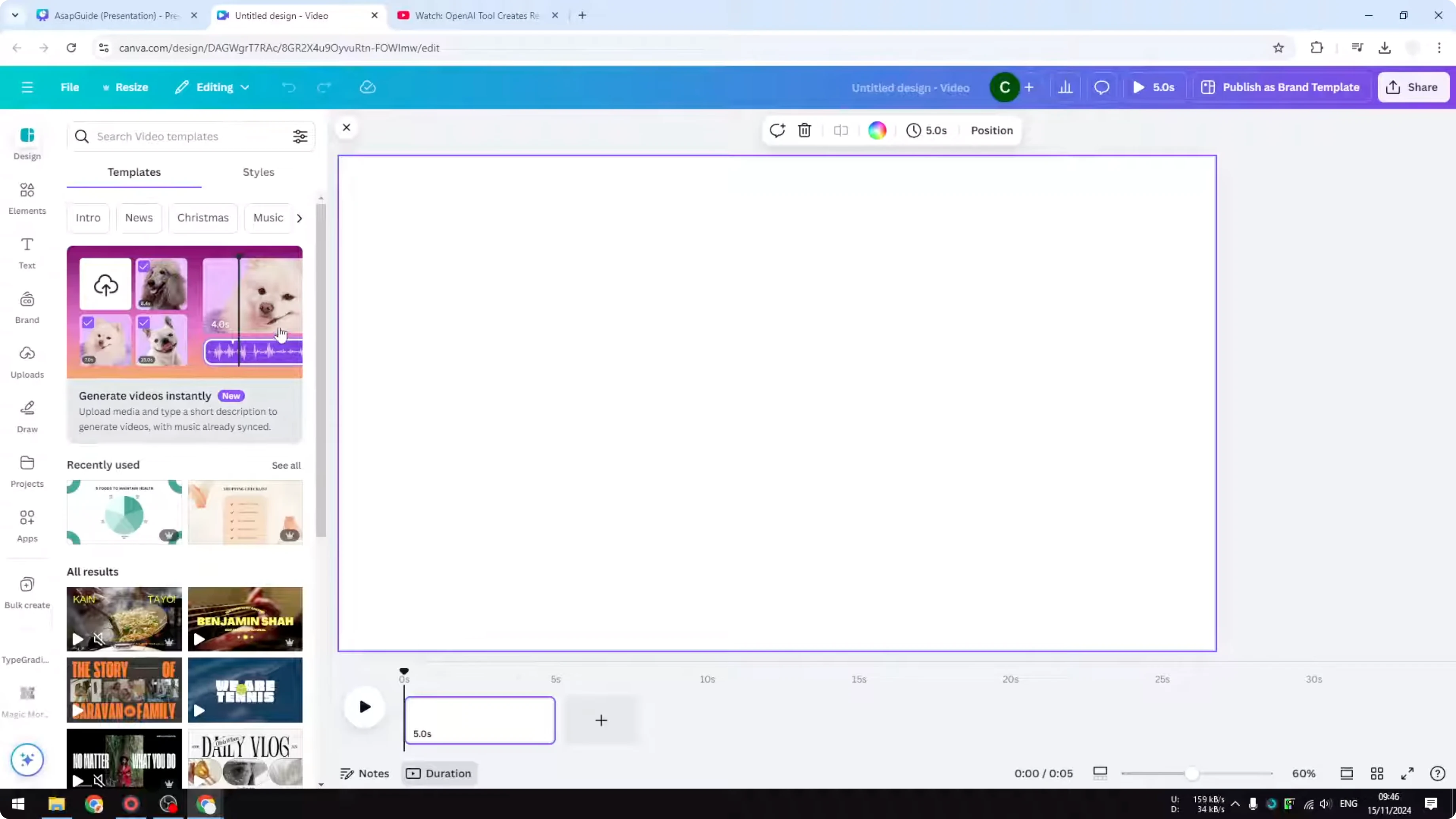
This is a brand new feature, and we’re going to use this tool. Click it to start the prompt.
Select images
Select up to 10 images, with a minimum of three. You can upload new images or pick pictures from your library.
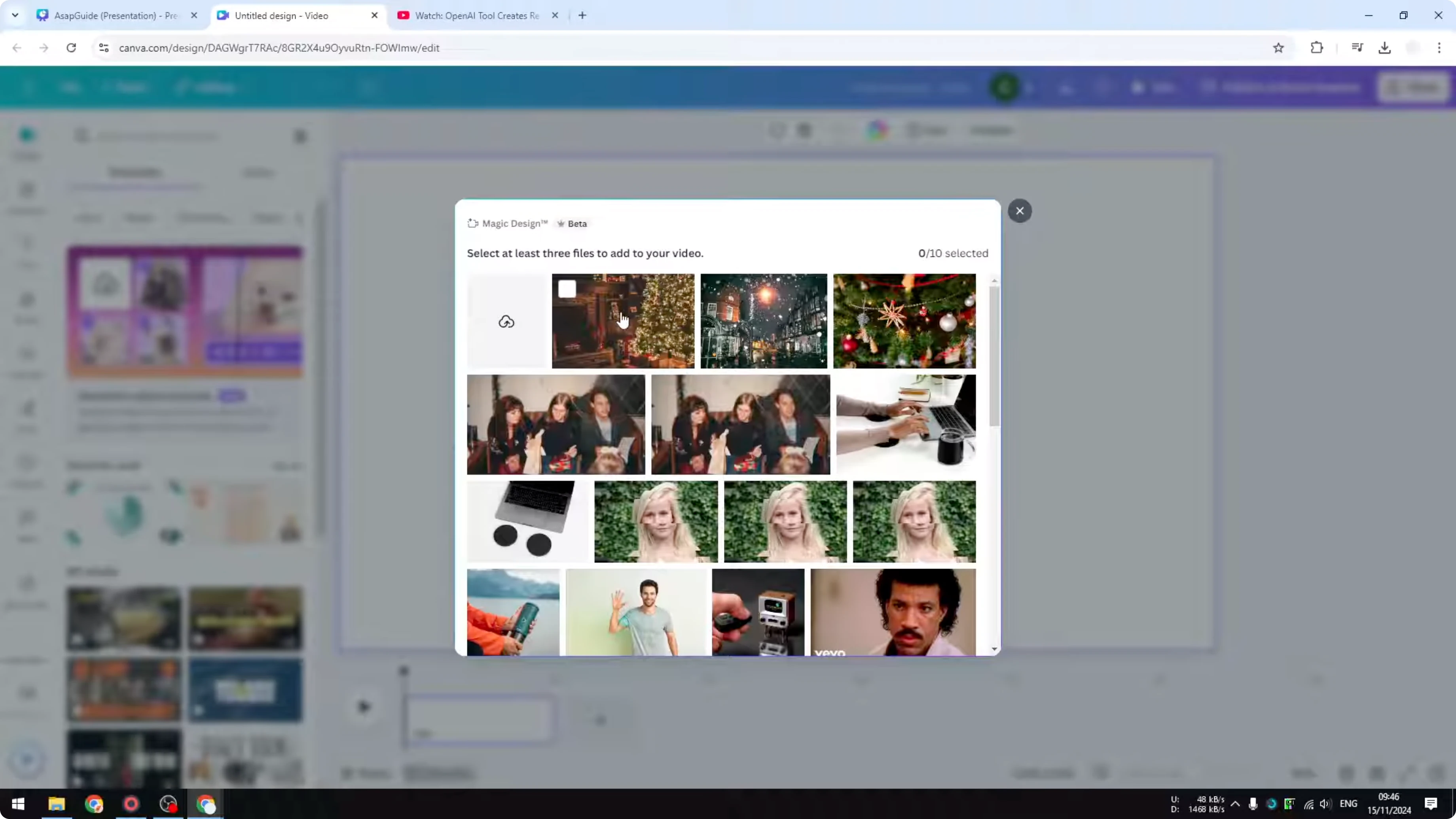
I’m selecting three pictures from my Canva library. If you want to prep visuals first, you can blend two images in Canva with AI before you generate the video.
Describe the topic
Tell the AI what to do with these pictures. I want to create a video about Christmas.
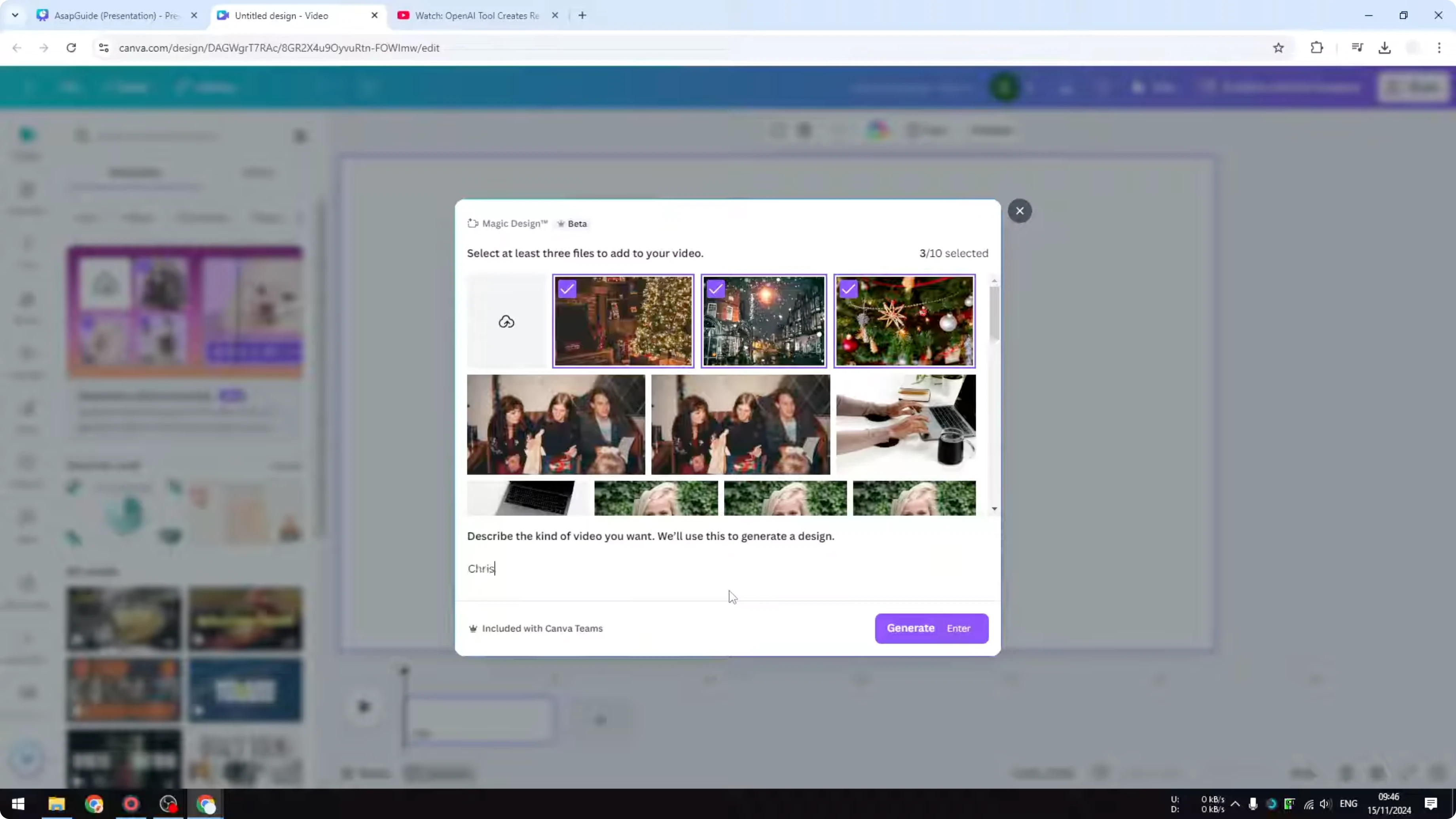
This is not the best description, but it’s enough to show how the AI will populate the video with related text. For a festive look, you can also create a bokeh effect in Canva on your photos before generating.
Generate and review
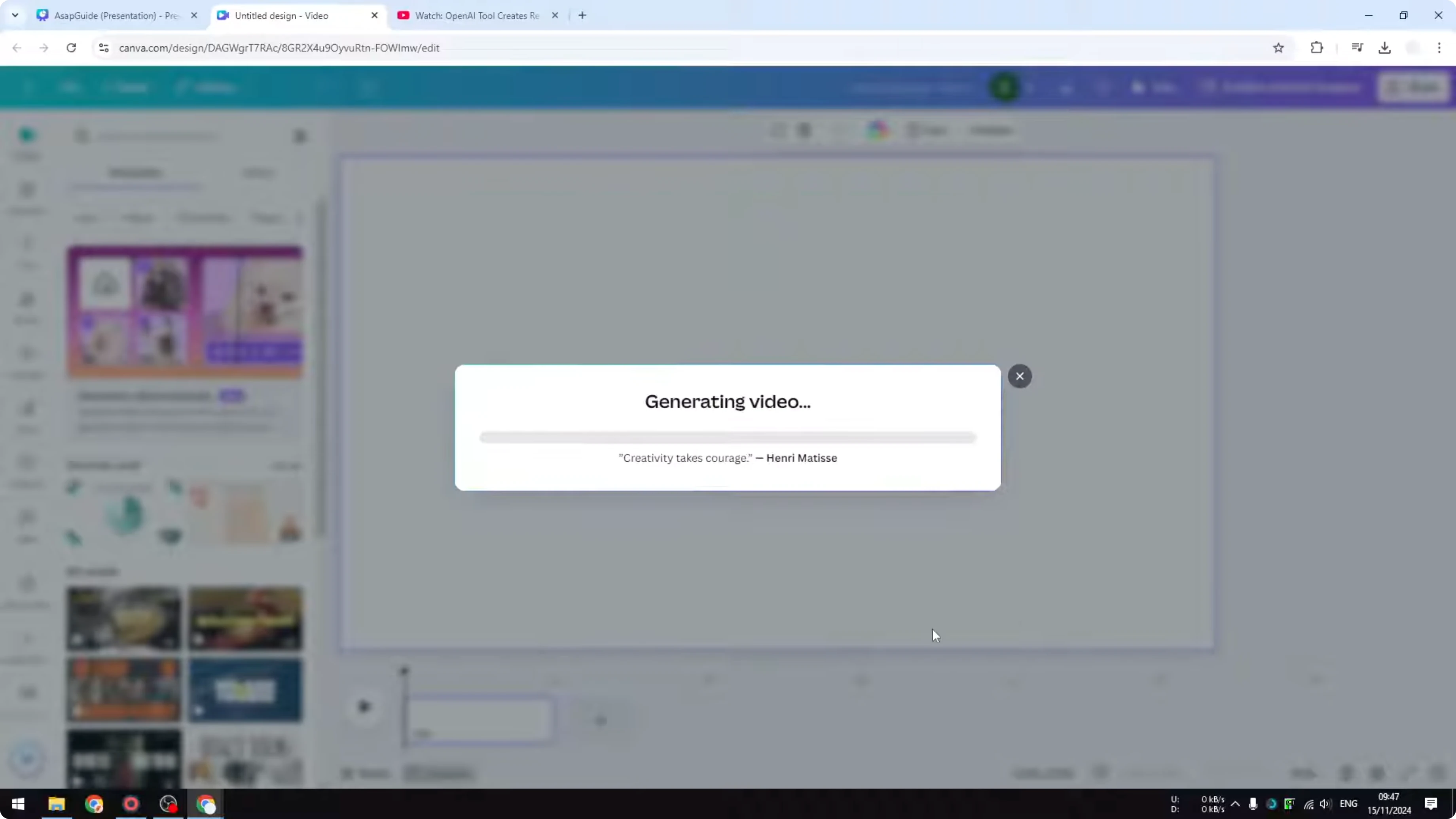
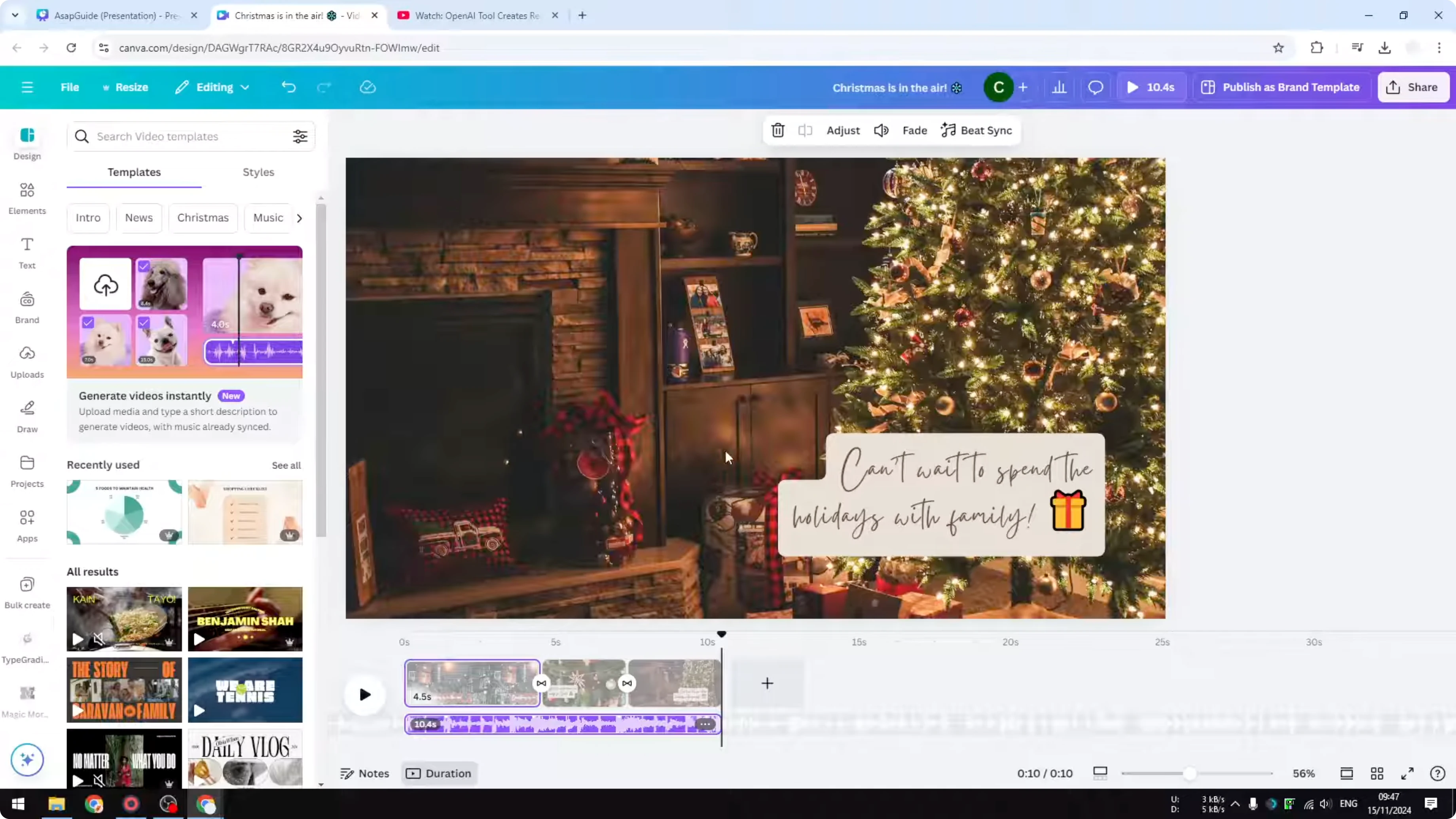
Click Generate to create the video. This process is pretty quick, a lot quicker than generating an image.
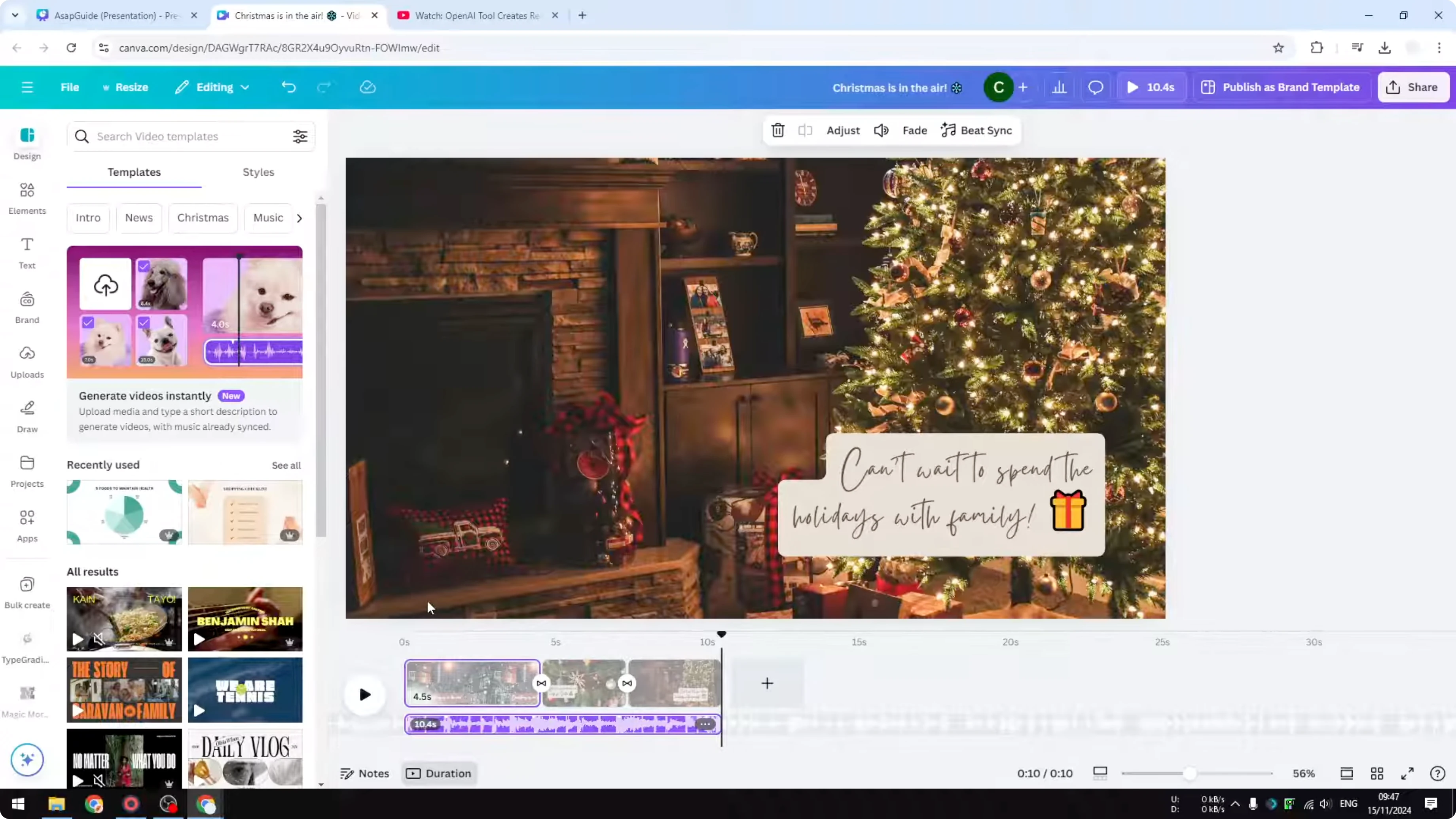
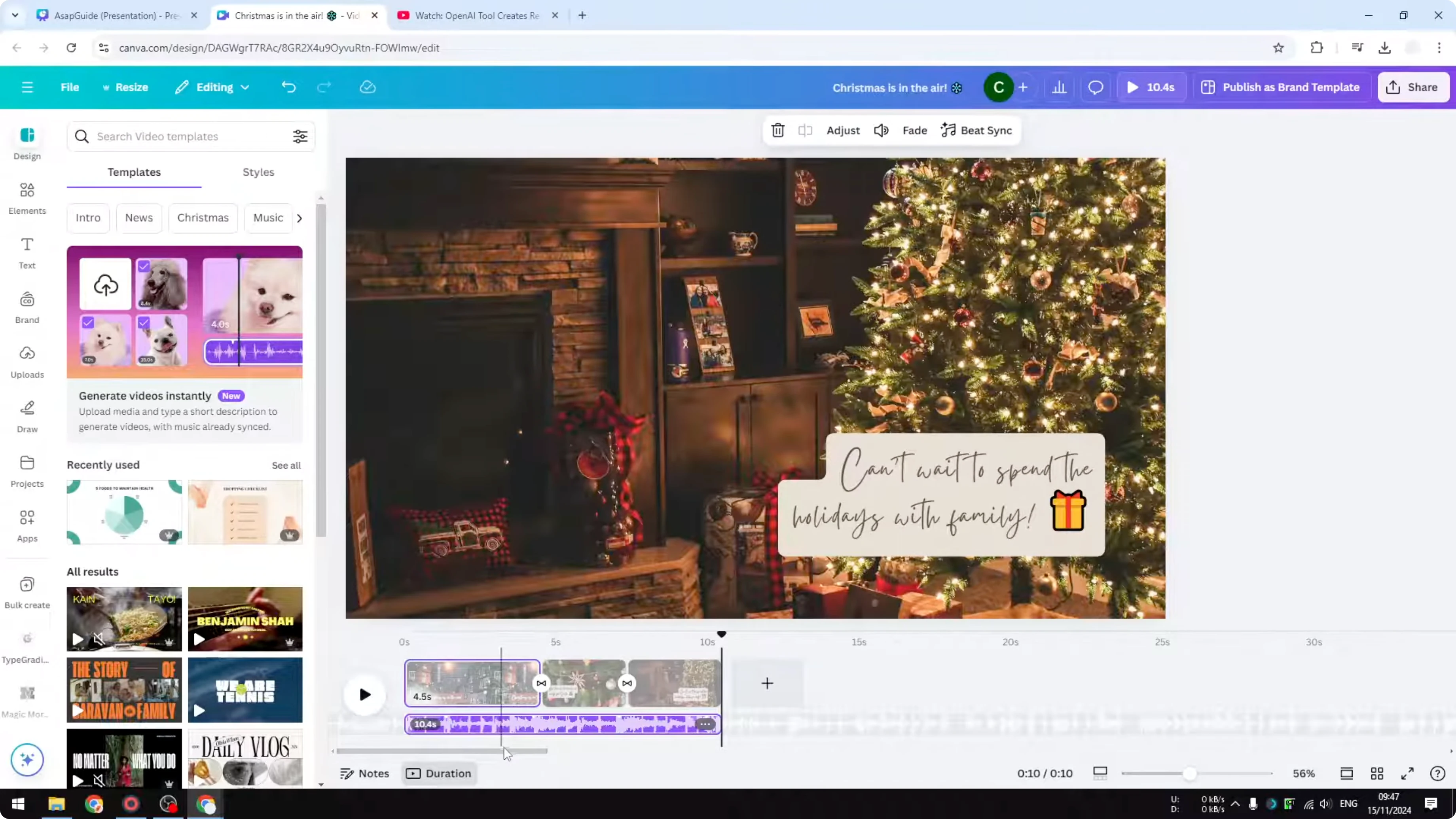
Play the result to see how it looks. It’s very close to a slideshow video, and it’s useful for a greeting card or a simple presentation.
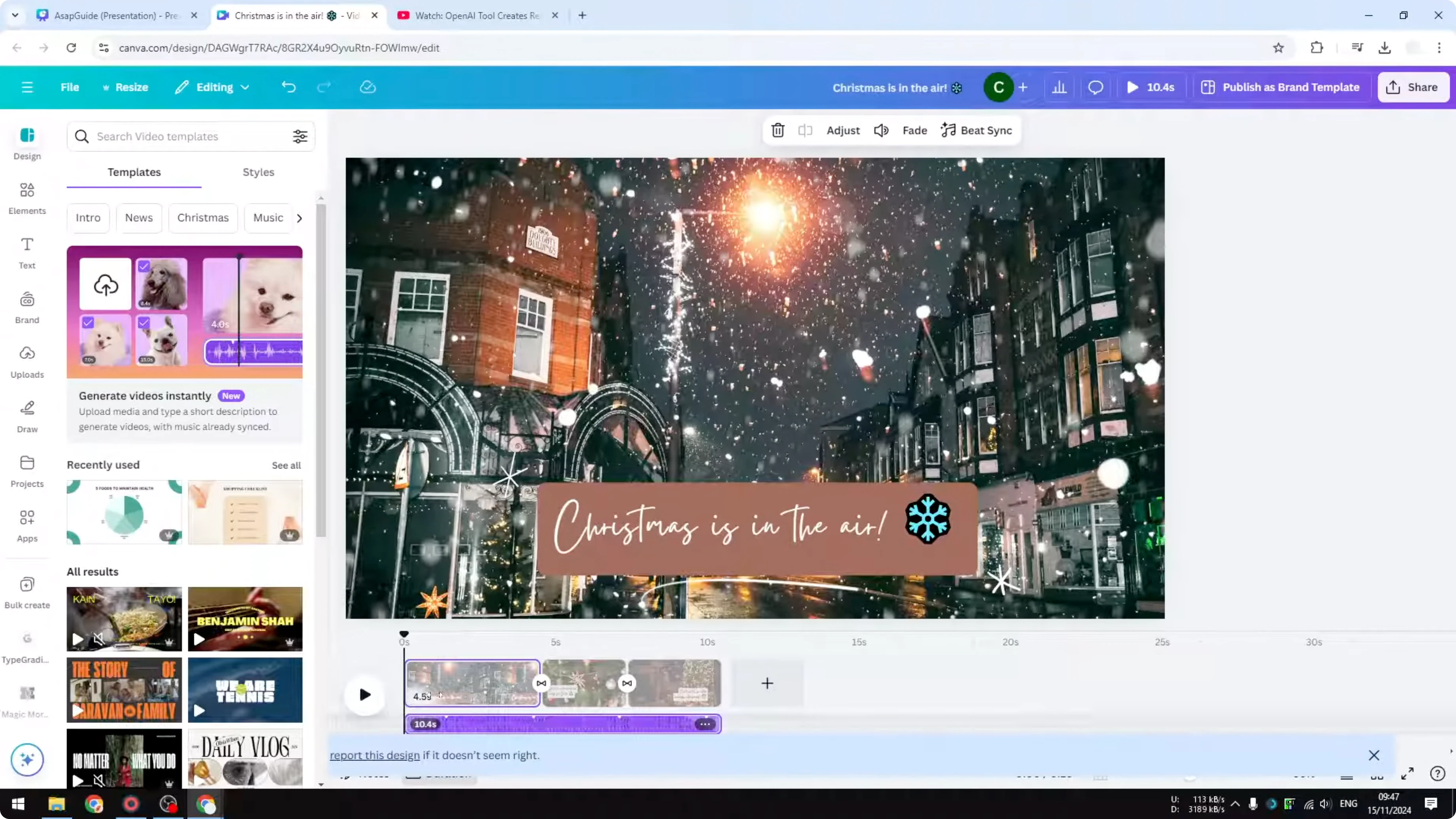
The AI decides the animation, the transitions, the music, and the text. It also sets the style, the font, the font size, and emoji. It handles a lot for you and helps make a video way faster.
Ideas for use
I like this for quick greeting videos and short presentations. You just describe the video, and the AI does the rest.
If you want a fun look before you generate, you can add a cartoon effect to your photos and then feed those images into the tool.
Final thoughts on Create AI Generated Videos in Canva
Canva can’t turn pure text into a full video yet, but it can build a polished slideshow-style video from your images and a short description. The AI fills in animations, transitions, music, and text so you can produce something quickly.
Pick the right images, give a clear theme, and let the tool assemble the rest. It’s a fast way to make simple videos for greetings and presentations.
Recent Posts

How to Visualize Yourself as a Pixelized Character with AI?
How to Visualize Yourself as a Pixelized Character with AI?

How to Revive Faded Memories and Enhance Image Clarity with AI?
How to Revive Faded Memories and Enhance Image Clarity with AI?

How to Visualize Yourself as an Animal Crossing Character with AI?
How to Visualize Yourself as an Animal Crossing Character with AI?